open CHEVROLET TAHOE 2021 Workshop Manual
[x] Cancel search | Manufacturer: CHEVROLET, Model Year: 2021, Model line: TAHOE, Model: CHEVROLET TAHOE 2021Pages: 433, PDF Size: 7.36 MB
Page 166 of 433
Chevrolet Tahoe/Suburban Owner Manual (GMNA-Localizing-U.S./Canada/
Mexico-13690484) - 2021 - crc - 8/17/20
Infotainment System 165
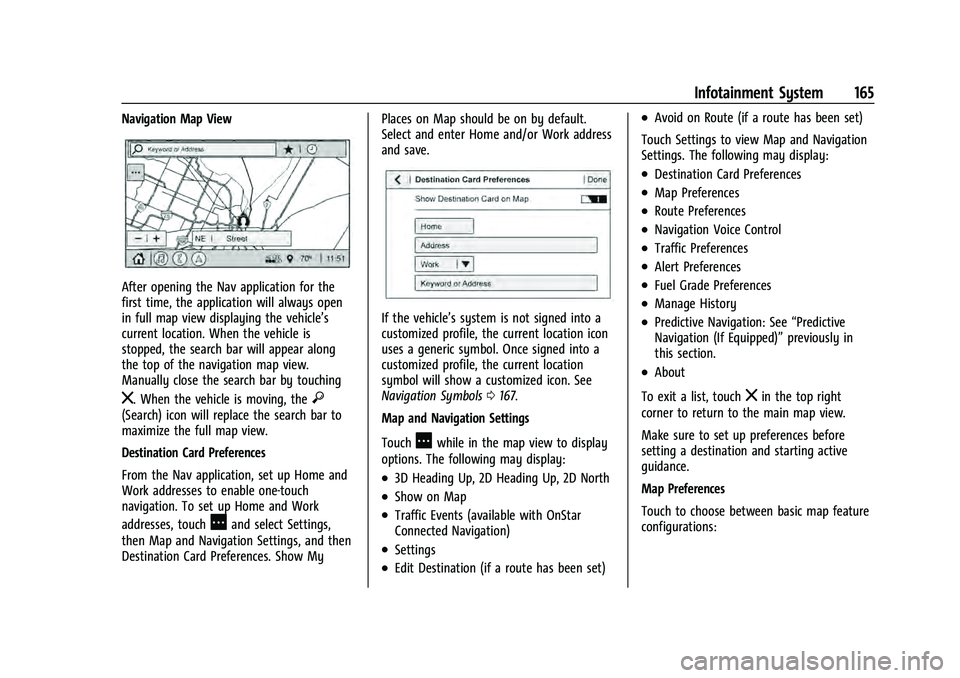
Navigation Map View
After opening the Nav application for the
first time, the application will always open
in full map view displaying the vehicle’s
current location. When the vehicle is
stopped, the search bar will appear along
the top of the navigation map view.
Manually close the search bar by touching
z. When the vehicle is moving, the}(Search) icon will replace the search bar to
maximize the full map view.
Destination Card Preferences
From the Nav application, set up Home and
Work addresses to enable one-touch
navigation. To set up Home and Work
addresses, touch
Aand select Settings,
then Map and Navigation Settings, and then
Destination Card Preferences. Show My Places on Map should be on by default.
Select and enter Home and/or Work address
and save.
If the vehicle’s system is not signed into a
customized profile, the current location icon
uses a generic symbol. Once signed into a
customized profile, the current location
symbol will show a customized icon. See
Navigation Symbols
0167.
Map and Navigation Settings
Touch
Awhile in the map view to display
options. The following may display:
.3D Heading Up, 2D Heading Up, 2D North
.Show on Map
.Traffic Events (available with OnStar
Connected Navigation)
.Settings
.Edit Destination (if a route has been set)
.Avoid on Route (if a route has been set)
Touch Settings to view Map and Navigation
Settings. The following may display:
.Destination Card Preferences
.Map Preferences
.Route Preferences
.Navigation Voice Control
.Traffic Preferences
.Alert Preferences
.Fuel Grade Preferences
.Manage History
.Predictive Navigation: See “Predictive
Navigation (If Equipped)” previously in
this section.
.About
To exit a list, touch
zin the top right
corner to return to the main map view.
Make sure to set up preferences before
setting a destination and starting active
guidance.
Map Preferences
Touch to choose between basic map feature
configurations:
Page 172 of 433

Chevrolet Tahoe/Suburban Owner Manual (GMNA-Localizing-U.S./Canada/
Mexico-13690484) - 2021 - crc - 8/17/20
Infotainment System 171
then touch Map Preferences to access
Auto-Zoom. This feature can be enabled or
disabled.
Directions
Touch the menu option next to the next
turn street name to display Directions.
Directions displays the turns and directions
from the current location to the final
destination.
Editing Directions
Directions can be edited by choosing
y,
which expands the list to fill the display and
enters the Edit Mode. While in Edit Mode,
an unwanted route segment can be
removed from the route by touching
Ynext
to the segment. A pop-up appears to
confirm segment removal.
When the route segment has been removed,
all segments are replaced by an activity
indicator while the new route is
recalculated. When the recalculation is
complete, the activity indicator is replaced
with the new route segments. Highway Exits List
TouchCto open the Exit list. This icon
displays next to the current street name
near the bottom of the display. The icon
only appears when on a highway with
defined exits.
While traveling on roads with designated
exits, an Exit list may be available. The Exit
list displays the exit number, distance to the
exit from the current vehicle position, and
convenience stops that may be available,
such as gas, coffee, food, and lodging.
Next Maneuver Menu
When in Active Guidance, the Next
Maneuver Turn Arrow, Street Name, and
Maneuver Distance are shown in the Next
Maneuver at the top of the display
overlaying the map. ETA, Distance to Destination, and Traffic Indicator are
displayed in a panel pinned on the right of
the display.
Navigation Next Turn Maneuver Alert
If the Navigation application is not open
when a near maneuver prompt is given, it is
shown as an alert. Touch the alert to go to
the main navigation view or touch
zto
dismiss the alert.
Repeat Voice Guidance
This symbol indicates the next guidance
maneuver. Touch it to repeat the last
spoken guidance instruction.
Incident Alert (If Equipped)
During active guidance, if the system
determines that there is an incident ahead
but there is not a better route, the system
will play a tone and show a Quick Notice.
This will only show once per incident.
Page 174 of 433

Chevrolet Tahoe/Suburban Owner Manual (GMNA-Localizing-U.S./Canada/
Mexico-13690484) - 2021 - crc - 8/17/20
Infotainment System 173
Smart POI Icons on Map (If Equipped)
The smart POI icons such as fuel stations
and parking may appear based on time,
location, driver search behavior, driving
conditions, and vehicle conditions.
Touch a smart POI icon to open the
corresponding details:
.Left side: Name and address of the POI.
.Right side:E+ ETE (Estimated Time
Enroute.)
Smart Fuel Station Icons
Fuel station prices are shown if available for
nearby stations when the vehicle is low
on fuel.
Smart Parking Icons
When reaching a densely populated
destination and the system determines that
parking may be limited, the system will attempt to display nearby parking
destinations with pricing information,
if available.
Report an Issue Using POI Details (If
Equipped)
In the POI details page, a POI issue can be
reported if the data is not accurate or the
address is incorrect. Touch Report an Issue
near the bottom of the display to access the
issue selection page. Touch one of the
predefined issues on the selection page,
then touch Send. The system will send the
information for analysis.
Search
Touch Search on the infotainment display to
open the search display. It has a search field
entry box, quick category icon shortcuts,
recents icon, favorites icon, and keyboard.
Auto Complete
Enter a partial location in the field entry box
on the search display. Auto complete will
attempt to complete the destination based
on what is being entered. Touch the
suggested item to search.
Search While in Motion with No Front Seat
Passenger Present
The search display will not allow changes or
text input with the keyboard when the
vehicle is in motion. As a result, a display
showing three rows of the most commonly
used categories appears. Touching the search
box will activate speech recognition.
Search While in Motion with Front Seat
Passenger Present
If the system detects that the front seat
passenger is present with both driver and
passenger seat belts buckled, touching the
search icon will display an alert message
that allows the passenger to search for a
destination as if the vehicle were stopped.Connected Navigation
Connected Navigation is a subscription
service that enables certain capabilities
within the navigation system, such as
Traffic, Smart Search/Routing, and Predictive
Navigation capabilities. The system will
show an alert when the subscription is
expiring and will ask to renew the plan.
Page 184 of 433
Chevrolet Tahoe/Suburban Owner Manual (GMNA-Localizing-U.S./Canada/
Mexico-13690484) - 2021 - crc - 8/17/20
Infotainment System 183
for information on this process. Once the
cell phone is paired, it will show under
Connected.
8. If the vehicle name does not appear on your cell phone, there are a few ways to
start the pairing process over:
.Turn the cell phone off and then
back on.
.Go back to the beginning of the
Phone menus on the infotainment
display and restart the pairing
process.
.Reset the cell phone, but this step
should be done as a last effort.
9. If the cell phone prompts to accept connection or allow phone book
download, touch Always Accept and
Allow. The phone book may not be
available if not accepted.
10. Repeat Steps 1−8 to pair additional cell phones.
First to Connect Paired Phones
If multiple paired cell phones are within
range of the system, the system connects to
the paired cell phone that is set as First to
Connect. To enable a paired cell phone as
the First to Connect phone: 1. Make sure the cell phone is turned on. 2. Touch Settings, then touch System.
3. Touch Phones to access all paired and all
connected cell phones and mobile
devices.
4. Touch the information icon to the right of the cell phone to open the cell
phone’s settings menu.
5. Touch the First to Connect option, to enable the setting for that device.
Cell phones and mobile devices can be
added, removed, connected, and
disconnected. A sub-menu will display
whenever a request is made to add or
manage cell phones and mobile devices.
Secondary Phone
A cell phone can be enabled as a Secondary
Phone by touching the information icon to
the right of the paired cell phone name to
open the phone settings menu. If a cell
phone is enabled as a Secondary Phone, it
can connect simultaneously alongside
another Bluetooth mobile device. In doing
so, the Secondary Phone will be labeled as
Incoming Calls. This means the mobile
device can only receive calls. The Address
Book of a Secondary Phone will not be
available and hands-free outgoing calls
cannot be placed using this cell phone. If needed, touch the Secondary Phone while
in the Phones list to swap it into the
Outgoing and Incoming role. This role makes
it possible to place outgoing calls from the
Contacts and Recents list.
Listing All Paired and Connected Phones
1. Touch the Phone icon on the Home Page or the phone icon on the shortcut tray
near the bottom of the display.
2. Touch Phones.
Disconnecting a Connected Phone 1. Touch the Phone icon on the Home Page.
2. Touch Phones.
3. Touch the information icon next to the connected cell phone or mobile device to
show the cell phone’s or mobile device’s
information display.
4. Touch Disconnect.
Deleting a Paired Phone 1. Touch the Phone icon on the Home Page or the phone icon on the shortcut tray
near the bottom of the display.
2. Touch Phones.
Page 191 of 433

Chevrolet Tahoe/Suburban Owner Manual (GMNA-Localizing-U.S./Canada/
Mexico-13690484) - 2021 - crc - 8/17/20
190 Infotainment System
The vehicle can be used normally during the
software download. Once the download is
complete, there may be a prompt to accept
the installation of the update upon the next
ignition cycle or the next time the vehicle is
shifted into P (Park). For most updates, the
vehicle will be disabled and cannot be driven
during the installation. The system will
deliver messages indicating success or error
during and after the download and
installation processes.
Downloading Over-the-Air vehicle software
updates requires Internet connectivity, which
can be accessed through the vehicle’s
built-in 4G LTE connection, if equipped and
active. If required, data plans are provided
by a third party. Optionally, a secure Wi-Fi
hotspot such as a compatible mobile device
hotspot, home hotspot, or public hotspot
can be used. Applicable data rates may
apply.
To connect the infotainment system to a
secured mobile device hotspot, home
hotspot, or public hotspot, touch Settings on
the Home Page, select the System tab,
followed by Wi-Fi Networks. Select the
appropriate Wi-Fi network, and follow the
on-screen prompts. Download speeds
may vary.On most compatible mobile devices,
activation of the Wi-Fi hotspot is in the
Settings menu under Mobile Network
Sharing, Personal Hotspot, Mobile Hotspot,
or similar.
Availability of Over-the-Air software updates
varies by vehicle and country. Features are
subject to change. For more information on
this feature, see my.chevrolet.com/learn.
Preferences
Touch the controls on the infotainment
display to disable or enable the download of
new updates in the background.
About
Touch to view the infotainment system
software information.
Running Applications
Touch to see a complete list of applications
that are currently running on the
infotainment system.
Return to Factory Settings
Touch and the following may display:
.Reset Vehicle Settings: Resets all vehicle
settings for the current user.
Touch Reset or Cancel.
.Erase Settings and Personal Data: Erases
app data settings, user profiles, and
personal data including navigation and
mobile device data.
Touch Erase or Cancel.
.Clear Default Applications: Resets
preferred applications that have been set
to open when selecting a function. No
application data will be lost.
Touch Clear or Cancel.
Apps
The menu may contain the following:
Android Auto
If equipped, this feature allows you to
interact directly with your mobile device on
the infotainment display. See
Apple CarPlay
and Android Auto 0185.
Touch the controls on the infotainment
display to disable or enable.
Apple CarPlay
If equipped, this feature allows you to
interact directly with your mobile device on
the infotainment display. See Apple CarPlay
and Android Auto 0185.
Touch the controls on the infotainment
display to disable or enable.
Page 196 of 433
Chevrolet Tahoe/Suburban Owner Manual (GMNA-Localizing-U.S./Canada/
Mexico-13690484) - 2021 - crc - 8/17/20
Infotainment System 195
If this happens, remove the object from
the seat. SeePassenger Sensing System
0 65.
.Some safety systems, such as Forward
Collision Alert, if equipped, cannot be
turned off.
.The gap setting for the Forward Collision
Alert and Adaptive Cruise Control,
if equipped, cannot be changed.
.When trying to change a safety feature
that is not configurable in Teen Driver,
the DIC displays a message indicating
that Teen Driver is active and the action
is not available.
.Super Cruise, if equipped, is not available.
.Enhanced Low Fuel Warning (if equipped)
–When the vehicle is low on fuel, the
low fuel light on the instrument cluster
flashes and the DIC low fuel warning
cannot be dismissed.
.Do not tow a trailer.
Report Card
The vehicle owner must secure the driver’s
consent to record certain vehicle data when
the vehicle is driven with a registered Teen
Driver key. There is one Report Card per vehicle. Data is only recorded when a
registered Teen Driver key is used to
operate the vehicle.
The Report Card data is collected from the
time Teen Driver is activated or the last
time the Report Card was reset. The
following items may be recorded:
.Distance Driven
–the total distance
driven.
.Maximum Speed –the maximum vehicle
speed detected.
.Overspeed Warnings –the number of
times the speed warning setting was
exceeded.
.Wide Open Throttle –the number of
times the accelerator pedal was pressed
nearly all the way down.
.Forward Collision Alerts –the number of
times the driver was notified when
approaching a vehicle ahead too quickly
and at potential risk for a crash.
.Forward Automatic Braking, also called
Automatic Emergency Braking (if
equipped) –the number of times the
vehicle detected that a forward collision
was imminent and applied the brakes.
.Reverse Automatic Braking (if equipped) –
the number of times the vehicle detected
that a rearward collision was imminent
and applied the brakes.
.Traction Control –the number of times
the Traction Control System activated to
reduce wheel spin or loss of traction.
.Stability Control –the number of events
which required the use of electronic
stability control.
.Antilock Braking System Active –The
number of Antilock Brake System
activations.
.Tailgating Alerts –the number of times
the driver was alerted for following a
vehicle ahead too closely.
Report Card Data
Cumulative Data is saved for all trips until
the Report Card is reset or until the
maximum count is exceeded. If the
maximum count is exceeded for a Report
Card line item, that item will no longer be
updated in the Report Card until it is reset.
Each item will report a maximum of
1,000 counts. The distance driven will report
a maximum of 64 374 km (40,000 mi).
To delete Report Card data, do one of the
following:
Page 203 of 433

Chevrolet Tahoe/Suburban Owner Manual (GMNA-Localizing-U.S./Canada/
Mexico-13690484) - 2021 - crc - 8/17/20
202 Infotainment System
the Contracting Officer, federal government
agency, or any federal official must notify
HERE prior to seeking additional or
alternative rights in the Data.
Unicode
Copyright © 1991-2010 Unicode, Inc. All
rights reserved. Distributed under the Terms
of Use in http://www.unicode.org/
copyright.html.
Free Type Project
Portions of this software are copyright ©
2010 The FreeType Project (http://
www.freetype.org). All rights reserved.
Open Source SW
Further information concerning the OSS
licenses is shown in the infotainment
display.
QNX
Portions of this software are copyright ©
2008-2011, QNX Software Systems. All rights
reserved.
Part C–EULA
Copyright © 2011, Software Systems GmbH
& Co. KG. All Rights Reserved. The product you have purchased ("Product")
contains Software (Runtime Configuration
No. 505962; "Software") which is distributed
by or on behalf of the Product manufacturer
"Manufacturer") under license from Software
Systems Co. ("QSSC"). You may only use the
Software in the Product and in compliance
with the license terms below.
Subject to the terms and conditions of this
License, QSSC hereby grants you a limited,
non-exclusive, non-transferable license to use
the Software in the Product for the purpose
intended by the Manufacturer. If permitted
by the Manufacturer, or by applicable law,
you may make one backup copy of the
Software as part of the Product software.
QSSC and its licensors reserve all license+C31
rights not expressly granted herein, and
retain all right, title and interest in and to
all copies of the Software, including all
intellectual property rights therein. Unless
required by applicable law you may not
reproduce, distribute or transfer,
or de-compile, disassemble or otherwise
attempt to unbundle, reverse engineer,
modify or create derivative works of, the
Software. You agree: (1) not to remove,
cover or alter any proprietary notices, labels
or marks in or on the Software, and to
ensure that all copies bear any noticecontained on the original; and (2) not to
export the Product or the Software in
contravention of applicable export
control laws.
EXCEPT TO THE EXTENT OTHERWISE
REQUIRED BY APPLICABLE LAW, QSSC AND
ITS LICENSORS PROVIDE THE SOFTWARE ON
AN "AS IS" BASIS, WITHOUT WARRANTIES OR
CONDITIONS OF ANY KIND, EITHER EXPRESS
OR IMPLIED INCLUDING, WITHOUT
LIMITATION, ANY WARRANTIES OR
CONDITIONS OF TITLE, NON-INFRINGEMENT,
MERCHANTABILITY OR FITNESS FOR A
PARTICULAR PURPOSE. ANY WARRANTIES OR
OTHER PROVISIONS OFFERED BY THE
MANUFACTURER OR ITS DISTRIBUTOR(S)
THAT DIFFER FROM THIS LICENSE ARE
OFFERED BY THE MANUFACTURER OR ITS
DISTRIBUTOR(S) ALONE AND NOT BY QSSC,
ITS AFFILIATES OR THEIR LICENSORS. YOU
ASSUME ANY RISKS ASSOCIATED WITH YOUR
USE OF THE SOFTWARE UNDER THIS LICENSE.
EXCEPT TO THE EXTENT OTHERWISE
REQUIRED BY APPLICABLE LAW (SUCH AS IN
THE CASE OF DELIBERATE OR GROSSLY
NEGLIGENT ACTS), IN NO EVENT SHALL QSSC,
ITS AFFILIATES OR THEIR LICENSORS BE
LIABLE TO YOU UNDER ANY LEGAL THEORY,
WHETHER IN TORT (INCLUDING NEGLIGENCE),
Page 204 of 433

Chevrolet Tahoe/Suburban Owner Manual (GMNA-Localizing-U.S./Canada/
Mexico-13690484) - 2021 - crc - 8/17/20
Infotainment System 203
CONTRACT OR OTHERWISE, FOR DAMAGES,
INCLUDING ANY DIRECT, INDIRECT, SPECIAL,
INCIDENTAL, OR CONSEQUENTIAL DAMAGES
OF ANY CHARACTER ARISING AS A RESULT OF
THIS LICENSE OR OUT OF THE USE OR
INABILITY TO USE THE PRODUCT (INCLUDING
BUT NOT LIMITED TO DAMAGES FOR LOSS
OF GOODWILL, WORK STOPPAGE, PRODUCT
FAILURE OR MALFUNCTION, OR ANY AND ALL
OTHER COMMERCIAL DAMAGES OR LOSSES),
EVEN IF QSSC, ITS AFFILIATES OR THEIR
LICENSORS HAVE BEEN ADVISED OF THE
POSSIBILITY OF SUCH DAMAGES.
WMA
This product is protected by certain
intellectual property rights of Microsoft. Use
or distribution of such technology outside of
this product is prohibited without a license
from Microsoft.
For more information on the Software,
including any open source software license
terms (and available source code) as well as
copyright attributions applicable to the
Runtime Configuration indicated above,
please contact the Manufacturer or contact
QSSC at 175 Terence Matthews Crescent,
Kanata, Ontario, Canada K2M 1W8
([email protected]).Linotype
Helvetica is a trademark of Linotype Corp.
registered in the U.S. Patent and Trademark
Office and may be registered in certain
other jurisdictions in the name of Linotype
Corp. or its licensee Linotype GmbH.
Usage in text form of each of the Licensed
Trademarks is:
The trademark attribution requirements for
the Licensed Trademarks may be viewed at
http://www.linotype.com/2061-19414/
trademarks.html.
END USER NOTICE
The marks of companies displayed by this
product to indicate business locations are
the marks of their respective owners. The
use of such marks in this product does not
imply any sponsorship, approval,
or endorsement by such companies of this
product.
Page 210 of 433
Chevrolet Tahoe/Suburban Owner Manual (GMNA-Localizing-U.S./Canada/
Mexico-13690484) - 2021 - crc - 8/17/20
Climate Controls 209
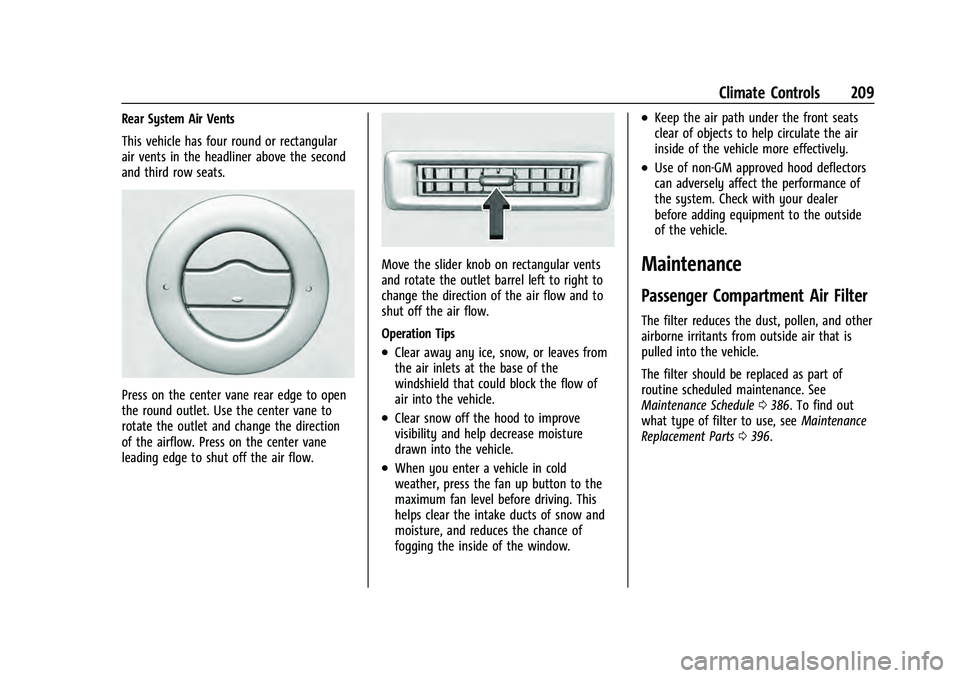
Rear System Air Vents
This vehicle has four round or rectangular
air vents in the headliner above the second
and third row seats.
Press on the center vane rear edge to open
the round outlet. Use the center vane to
rotate the outlet and change the direction
of the airflow. Press on the center vane
leading edge to shut off the air flow.
Move the slider knob on rectangular vents
and rotate the outlet barrel left to right to
change the direction of the air flow and to
shut off the air flow.
Operation Tips
.Clear away any ice, snow, or leaves from
the air inlets at the base of the
windshield that could block the flow of
air into the vehicle.
.Clear snow off the hood to improve
visibility and help decrease moisture
drawn into the vehicle.
.When you enter a vehicle in cold
weather, press the fan up button to the
maximum fan level before driving. This
helps clear the intake ducts of snow and
moisture, and reduces the chance of
fogging the inside of the window.
.Keep the air path under the front seats
clear of objects to help circulate the air
inside of the vehicle more effectively.
.Use of non-GM approved hood deflectors
can adversely affect the performance of
the system. Check with your dealer
before adding equipment to the outside
of the vehicle.
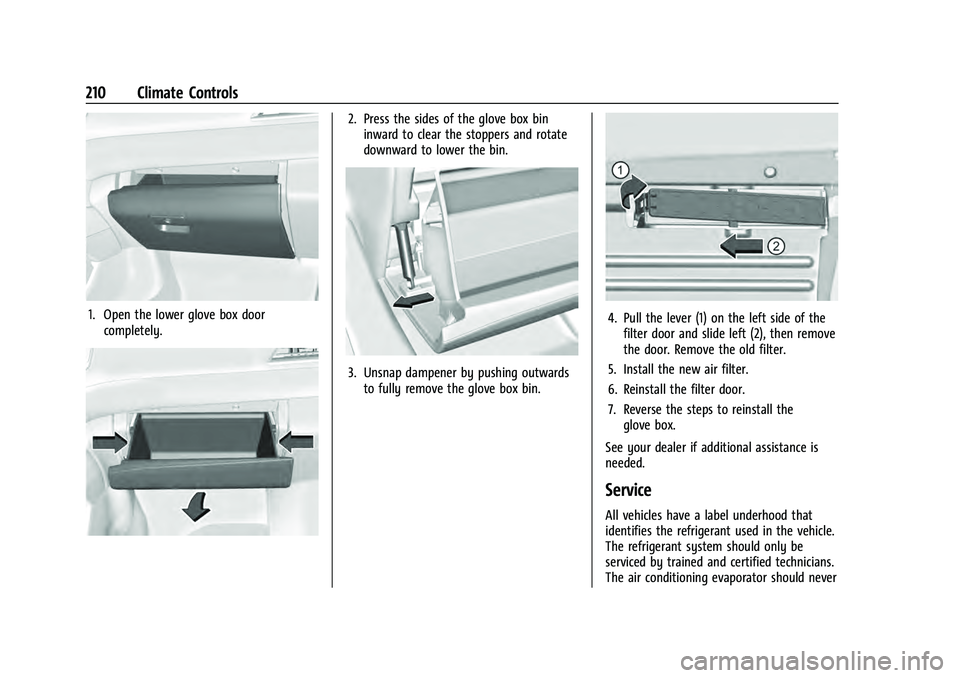
Maintenance
Passenger Compartment Air Filter
The filter reduces the dust, pollen, and other
airborne irritants from outside air that is
pulled into the vehicle.
The filter should be replaced as part of
routine scheduled maintenance. See
Maintenance Schedule0386. To find out
what type of filter to use, see Maintenance
Replacement Parts 0396.
Page 211 of 433
Chevrolet Tahoe/Suburban Owner Manual (GMNA-Localizing-U.S./Canada/
Mexico-13690484) - 2021 - crc - 8/17/20
210 Climate Controls
1. Open the lower glove box doorcompletely.
2. Press the sides of the glove box bininward to clear the stoppers and rotate
downward to lower the bin.
3. Unsnap dampener by pushing outwardsto fully remove the glove box bin.
4. Pull the lever (1) on the left side of thefilter door and slide left (2), then remove
the door. Remove the old filter.
5. Install the new air filter.
6. Reinstall the filter door.
7. Reverse the steps to reinstall the glove box.
See your dealer if additional assistance is
needed.
Service
All vehicles have a label underhood that
identifies the refrigerant used in the vehicle.
The refrigerant system should only be
serviced by trained and certified technicians.
The air conditioning evaporator should never