display CHEVROLET TRAIL BLAZER 2008 1.G Owner's Guide
[x] Cancel search | Manufacturer: CHEVROLET, Model Year: 2008, Model line: TRAIL BLAZER, Model: CHEVROLET TRAIL BLAZER 2008 1.GPages: 472, PDF Size: 2.57 MB
Page 190 of 472
Unlock Feedback
Press the customization button until UNLOCK
FEEDBACK: LAMPS appears in the display. To select
your preference for the feedback you will receive
when unlocking the vehicle with the Remote Keyless
Entry (RKE) transmitter, press the select button
while UNLOCK FEEDBACK: LAMPS is displayed on the
DIC. Pressing the select button will scroll through the
following settings:
UNLOCK FEEDBACK: LAMPS (default):The parking
lamps will ash each time you press the button with
the unlock symbol on the RKE transmitter.
UNLOCK FEEDBACK: HORN:The horn will chirp the
second time you press the button with the unlock
symbol on the RKE transmitter.
UNLOCK FEEDBACK: BOTH:The parking lamps will
ash each time you press the button with the unlock
symbol on the RKE transmitter and the horn will
chirp the second time you press the unlock button.
UNLOCK FEEDBACK: OFF:There will be no feedback
when unlocking the vehicle.
To select a setting and move on to the next feature,
press the customization button while the desired setting
is displayed on the DIC.
Headlamp Delay
Press the customization button until HEADLAMP
DELAY: 10 SEC appears in the display. To select your
preference for how long the headlamps will stay on
after you turn off the vehicle, press the select button
while HEADLAMP DELAY: 10 SEC is displayed on the
DIC. Pressing the select button will scroll through
the following settings:
HEADLAMP DELAY: 10 SEC (Seconds) (default):
The headlamps will stay on for 10 seconds.
HEADLAMP DELAY: 20 SEC:The headlamps will stay
on for 20 seconds.
HEADLAMP DELAY: 40 SEC:The headlamps will stay
on for 40 seconds.
HEADLAMP DELAY: 1 MIN (Minute):The headlamps
will stay on for 1 minute.
HEADLAMP DELAY: 2 MIN:The headlamps will stay
on for 2 minutes.
HEADLAMP DELAY: 3 MIN:The headlamps will stay
on for 3 minutes.
HEADLAMP DELAY: OFF:The headlamps will not
turn on.
To select a setting and move on to the next feature,
press the customization button while the desired setting
is displayed on the DIC.
3-60
Page 191 of 472
Perimeter Lights
Press the customization button until PERIMETER
LIGHTS: ON appears in the display. To select your
preference for perimeter lighting, press the select button
while PERIMETER LIGHTS: ON is displayed on the
DIC. Pressing the select button will scroll through
the following settings:
PERIMETER LIGHTS: ON (default):The headlamps
and back-up lamps will come on for 40 seconds,
if it is dark enough outside, when you unlock the vehicle
with the Remote Keyless Entry (RKE) transmitter.
PERIMETER LIGHTS: OFF:The perimeter lights will
not come on when you unlock the vehicle with the
RKE transmitter.
To select a setting and move on to the next feature,
press the customization button while the desired setting
is displayed on the DIC.
Easy Exit Seat
Press the customization button until EASY EXIT SEAT:
OFF appears in the display. To select your preference
for seat position exit, press the select button while EASY
EXIT SEAT: OFF is displayed on the DIC. Pressing
the select button will scroll through the following settings:
EASY EXIT SEAT: OFF (default):No seat exit recall
will occur.
EASY EXIT SEAT: ON:The driver’s seat will move to
the exit position when the key is removed from the
ignition.
To select a setting and move on to the next feature,
press the customization button while the desired setting
is displayed on the DIC.
See “Easy Exit Seat” underMemory Seat, Mirrors, and
Pedals on page 1-4for more information.
3-61
Page 192 of 472
Seat Recall
Press the customization button until SEAT RECALL:
OFF appears in the display. To select your preference
for recall of the driver’s memory seat and adjustable
pedals, if your vehicle has this feature, press the select
button while SEAT RECALL: OFF is displayed on
the DIC. Pressing the select button will scroll through
the following settings:
SEAT RECALL: OFF (default):The driver’s memory
seat and adjustable pedals position you saved will
only be recalled when the memory button 1 or 2
is pressed.
SEAT RECALL: AT KEY IN:The driver’s memory seat
and adjustable pedals position you saved will be
recalled when you put the key in the ignition.
SEAT RECALL: ON REMOTE:The driver’s memory
seat and adjustable pedals position you saved will
be recalled when you unlock the vehicle with the
Remote Keyless Entry (RKE) transmitter.
To select a setting and move on to the next feature,
press the customization button while the desired setting
is displayed on the DIC.
SeeMemory Seat, Mirrors, and Pedals on page 1-4
for more information.
Curb View
Press the customization button until CURB VIEW: OFF
appears in the display. To select your preference for
curb view, press the select button while CURB VIEW:
OFF is displayed on the DIC. Pressing the select button
will scroll through the following settings:
CURB VIEW: OFF (default):The passenger’s outside
mirror will not be tilted down when the vehicle is
shifted into REVERSE (R).
CURB VIEW: PASSENGER:The passenger’s outside
mirror will be tilted down when the vehicle is shifted
into REVERSE (R).
When the vehicle is placed in PARK (P) or in any
forward gear, the mirror will return to the normal driving
position, following a short delay.
To select a setting and move on to the next feature,
press the customization button while the desired setting
is displayed on the DIC.
SeeOutside Curb View Assist Mirror on page 2-46
for more information.
3-62
Page 193 of 472
Alarm Warning
Press the customization button until ALARM WARNING:
BOTH appears in the display. To select your preference
for alarm warning, press the select button while
ALARM WARNING: BOTH is displayed on the DIC.
Pressing the select button will scroll through the
following settings:
ALARM WARNING: BOTH (default):The headlamps
will ash and the horn will chirp when the alarm is
active.
ALARM WARNING: HORN:The horn will chirp when
the alarm is active.
ALARM WARNING: LAMPS:The headlamps will ash
when the alarm is active.
ALARM WARNING: OFF:There will be no alarm
warning on activation.
To select a setting and move on to the next feature,
press the customization button while the desired setting
is displayed on the DIC.
SeeContent Theft-Deterrent on page 2-15for more
information.
Language
Press the customization button until LANGUAGE:
ENGLISH appears in the display. To select your
preference for display language, press the select button
while LANGUAGE: ENGLISH is displayed on the
DIC. Pressing the select button will scroll through the
following settings:
ENGLISH (default):All messages will appear in English.
FRANCAIS:All messages will appear in French.
ESPANOL:All messages will appear in Spanish.
To select a setting and move on to the next feature,
press the customization button while the desired setting
is displayed on the DIC.
If you accidentally choose a language that you do not
want or understand, press and hold the customization
button and the trip information button at the same
time. The DIC will begin scrolling through the languages
in their particular language. English will be in English,
Francais will be in French, and Espanol will be in
Spanish. When you see the language that you would
like, release both buttons. The DIC will then display the
information in the language you chose.
You can also scroll through the different languages by
pressing and holding the trip reset stem for four
seconds, as long as you are in the odometer mode.
3-63
Page 194 of 472
Units
Press the customization button until UNITS: U.S.
(ENGLISH) appears in the display. To select the units of
measurement in which the DIC will display vehicle
information, press the select button while UNITS: U.S.
(ENGLISH) is displayed on the DIC. Pressing the select
button will scroll through the following settings:
UNITS: U.S. (ENGLISH) (default):All information will
be displayed in English units.
UNITS: METRIC (km/L):All information will be
displayed in metric units.
UNITS: METRIC (L/100 km):All information will be
displayed in metric units.
To select a setting and exit out of the customizable
options, press the customization button while the desired
setting is displayed on the DIC.
Audio System(s)
Determine which radio your vehicle has and then read
the pages following to familiarize yourself with its
features.
{CAUTION:
This system provides you with far greater
access to audio stations and song listings.
Giving extended attention to entertainment
tasks while driving can cause a crash and you
or others can be injured or killed. Always keep
your eyes on the road and your mind on the
drive — avoid engaging in extended searching
while driving.
Keeping your mind on the drive is important for safe
driving. SeeDefensive Driving on page 4-2. Here are
some ways in which you can help avoid distraction
while driving.
3-64
Page 196 of 472
Setting the Clock
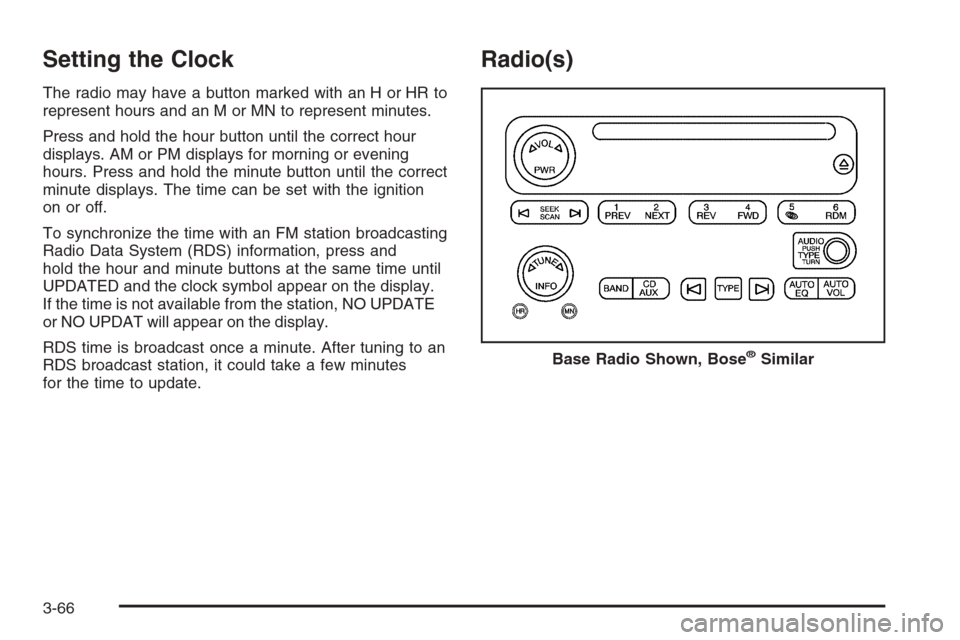
The radio may have a button marked with an H or HR to
represent hours and an M or MN to represent minutes.
Press and hold the hour button until the correct hour
displays. AM or PM displays for morning or evening
hours. Press and hold the minute button until the correct
minute displays. The time can be set with the ignition
on or off.
To synchronize the time with an FM station broadcasting
Radio Data System (RDS) information, press and
hold the hour and minute buttons at the same time until
UPDATED and the clock symbol appear on the display.
If the time is not available from the station, NO UPDATE
or NO UPDAT will appear on the display.
RDS time is broadcast once a minute. After tuning to an
RDS broadcast station, it could take a few minutes
for the time to update.
Radio(s)
Base Radio Shown, Bose®Similar
3-66
Page 198 of 472
Radio Data System (RDS)
The audio system has a Radio Data System (RDS).
RDS features are available for use only on FM stations
that broadcast RDS information.
With RDS, the radio can do the following:
Seek to stations broadcasting the selected type of
programming.
Receive announcements concerning local and
national emergencies.
Display messages from radio stations.
This system relies upon receiving specic information
from these stations and only works when the information
is available. In rare cases, a radio station can broadcast
incorrect information that causes the radio features
to work improperly. If this happens, contact the radio
station.
While the radio is tuned to an RDS station, the station
name or call letters display instead of the frequency.
RDS stations can also provide the time of day, a
program type (PTY) for current programming, and the
name of the program being broadcast.
Playing the Radio
PWR (Power):Push to turn the system on and off.
opVOL or VOLUME:Turn clockwise or
counterclockwise to increase or to decrease the volume.
DISPL (Display) or INFO (Information):While the
ignition is off, press the DISPL or INFO knob to display
the time.
For RDS, press the DISPL or INFO knob to change
what displays while using RDS. The display options are
station name, RDS station frequency, PTY (program
type), and the name of the program (if available).
For XM™ (if equipped), press the DISPL or INFO knob
while in XM™ mode to retrieve four different categories
of information related to the current song or channel:
Artist, Song Title, Category or PTY, Channel Number/
Channel Name.
To change the default on the display, press the DISPL
or INFO knob until you see the desired display, then
briey press and hold the knob until a beep is heard.
The selected display becomes the default.
3-68
Page 199 of 472
AUTO VOL (Automatic Volume):With automatic
volume, the audio system adjusts automatically to make
up for road and wind noise while driving by increasing
the volume as vehicle speed increases.
Set the volume at the desired level. Press this button to
select LOW, MEDIUM, or HIGH. AVOL, or depending
on your radio, MIN, MED, or MAX. AUTO VOL.
Each higher setting provides more volume compensation
at faster vehicle speeds. On some radios, NONE may
display if the radio cannot determine the vehicle speed.
To turn automatic volume off, press this button until
OFF, AVOL OFF, or AUTO VOL OFF displays.
Finding a Station
BAND:Press to switch between FM1, FM2, AM, or
XM1 or XM2 (if equipped). The display shows the
selection.
oTUNEp:Turn to select radio stations.
op/©¨SEEK:Press either SEEK arrow, or
depending on the radio, SEEK or TYPE arrow to go to
the previous or to the next station and stay there.
The radio only seeks stations with a strong signal that
are in the selected band.
©SCAN¨:Press and hold either SCAN arrow,
or depending on the radio, SCAN or TYPE arrow briey
until SCAN or SCN displays and a beep is heard.
The radio goes to a station, plays for a few seconds,
then goes to the next station. Press either arrow again to
stop scanning.
To scan preset stations, press and hold either SCAN
arrow, or depending on the radio, SCAN or TYPE arrow
for more than four seconds. PSCN or PSC displays
and a double beep is heard. The radio goes to a preset
station, plays for a few seconds, then goes to the
next preset station. Press either arrow again to stop
scanning presets.
The radio only scans stations with a strong signal that
are in the selected band.
3-69
Page 200 of 472
Setting Preset Stations
Up to 30 stations (six FM1, six FM2, and six AM,
six XM1 and six XM2 (if equipped)), can be programed
on the six numbered pushbuttons, by performing the
following steps:
1. Turn the radio on.
2. Press BAND to select FM1, FM2, AM, or XM1
or XM2.
3. Tune in the desired station.
4. Press and hold one of the six numbered pushbuttons
until a beep sounds. When that numbered
pushbutton is pressed, the station that was set,
returns.
5. Repeat Steps 2 through 4 for each pushbutton.
To store an equalization setting to a preset station
perform the following:
1. Tune to the preset station.
2. Press and release the AUTO EQ button to select
the equalization setting.
Once the equalization no longer displays,
the equalization is set for that preset station.
Setting the Tone
(Bass/Midrange/Treble)
AUDIO:Push and release until BASS, MID (midrange)
(without Bose®), or TREB (treble) displays. Turn to
increase or to decrease the tone. The display shows the
bass, midrange (without Bose
®), or treble level. If a
station is weak or has static, decrease the treble.
To adjust the bass, midrange (without Bose
®), or treble
to the middle position while it is displayed, push and
hold this knob. The radio produces one beep and
adjusts the display level to the middle position.
To adjust all tone and speaker controls to the middle
position, push and hold the AUDIO knob when no tone
or speaker controls displays. ALL CENTERED
displays and a beep is heard.
AUTO EQ (Automatic Equalization):Press to select
customized equalization settings designed for
country/western, jazz, talk, pop, rock, and classical.
To return the bass and treble to the manual mode, push
and release this button until CUSTOM displays.
The radio saves separate AUTO EQ settings for each
preset and source.
If the radio has the Bose
®audio system, the equalization
settings are either CUSTOM or TALK.
3-70
Page 201 of 472
Adjusting the Speakers (Balance/Fade)
AUDIO:To adjust the balance between the right
and the left speakers, push and release until BAL
(balance) displays. Turn to move the sound toward the
right or the left speakers.
To adjust the fade between the front and rear speakers,
push and release this knob until FADE or FAD
displays. Turn to move the sound toward the front or the
rear speakers.
To adjust the balance or the fade to the middle position
while it is displayed, push and hold the AUDIO knob.
On some radios, push the AUDIO knob, then push
it again and hold it until one beep is heard.
To adjust all tone and speaker controls to the middle
position, push and hold the AUDIO knob when no tone
or speaker controls display. ALL CENTERED displays
and a beep is heard.
Finding a Program Type (PTY) Station
(RDS and XM™)
For all Radios except the MP3 Radio, select and nd a
desired PTY perform the following:
1. Press the TYPE button to activate program type
select mode. TYPE or P-TYPE and the last
selected PTY displays.
2. Turn the TYPE knob or press and release the
TYPE button to select a PTY.
3. Press either SEEK or TYPE arrow to select and to
go to the PTY’s rst station.
4. To go to another station within that PTY, press the
TYPE button, then press either SEEK or TYPE
arrow once.
5. Press either SEEK or TYPE arrow twice to exit the
program type select mode.
For the Base Radio, if the radio cannot nd the desired
program type, NONE displays and the radio returns
to the last station you were listening to.
3-71