reset CHEVROLET TRAX 2020 User Guide
[x] Cancel search | Manufacturer: CHEVROLET, Model Year: 2020, Model line: TRAX, Model: CHEVROLET TRAX 2020Pages: 355, PDF Size: 5.75 MB
Page 115 of 355
Chevrolet TRAX Owner Manual (GMNA-Localizing-U.S./Canada/Mexico-
13556235) - 2020 - CRC - 9/19/19
114 Instruments and Controls
show the amount of time that has
passed since the timer was last
reset, not including time the ignition
is off. Time will continue to be
counted as long as the ignition is
on, even if another display is being
shown on the DIC. The timer will
record up to 9 hours, 59 minutes,
and 59 seconds (9:59:59) after
which the display will return to zero.
To stop the timer, press SET/CLR
briefly while Timer is displayed. To
reset the timer to zero, press and
hold SET/CLR.
Trip/Fuel Menu Items
(Uplevel DIC)
Press MENU until the Trip/Fuel
menu is displayed. Use
w/xto
scroll through the menu items. Not
all items are available on every
vehicle. The following is a list of
possible menu items:
. Digital Speedometer
. Trip 1
. Trip 2
. Fuel Range
. Instantaneous Fuel Economy .
Average Fuel Economy
. Average Vehicle Speed
. Timer
Digital Speedometer
The digital speedometer, available
on some vehicles, shows how fast
the vehicle is moving in either
kilometers per hour (km/h) or miles
per hour (mph). The speedometer
cannot be reset.
Trip 1 and Trip 2
This display shows the current
distance traveled, in either
kilometers (km) or miles (mi), since
the last reset for the trip odometer.
The trip odometer can be reset to
zero by pressing SET/CLR while the
trip odometer display is showing.
Fuel Range
This display shows the approximate
distance the vehicle can be driven
without refueling. The fuel range
estimate is based on an average of
the vehicle's fuel economy over recent driving history and the
amount of fuel remaining in the fuel
tank. Fuel range cannot be reset.
Instantaneous Fuel Economy
The instantaneous fuel economy
display shows the current fuel
economy in liters per 100 kilometers
(L/100 km) or miles per
gallon (mpg). This number reflects
only the approximate fuel economy
that the vehicle has right now and
changes frequently as driving
conditions change. Unlike average
economy, this display cannot be
reset.
Average Fuel Economy
This display shows the approximate
average liters per 100 kilometers (L/
100 km) or miles per gallon (mpg).
This number is calculated based on
the number of L/100 km (mpg)
recorded since the last time this
menu item was reset. This number
reflects only the approximate
average fuel economy that the
vehicle has right now, and will
change as driving conditions
change. The fuel economy can be
Page 116 of 355

Chevrolet TRAX Owner Manual (GMNA-Localizing-U.S./Canada/Mexico-
13556235) - 2020 - CRC - 9/19/19
Instruments and Controls 115
reset by pressing SET/CLR while
the Average Fuel Economy display
is showing.
Average Vehicle Speed
This display shows the average
speed of the vehicle in kilometers
per hour (km/h) or miles per
hour (mph). This average is
calculated based on the various
vehicle speeds recorded since the
last reset of this value. The average
speed can be reset by pressing
SET/CLR while the Average Vehicle
Speed display is showing.
Timer
Available on some vehicles, this
display can be used as a timer. To
start the timer, press SET/CLR while
Timer is displayed. The display will
show the amount of time that has
passed since the timer was last
reset, not including time the ignition
is off. Time will continue to be
counted as long as the ignition is
on, even if another display is being
shown on the DIC. The timer will
record up to 99 hours, 59 minutes,
and 59 seconds (99:59:59) afterwhich the display will return to zero.
To stop the timer, press SET/CLR
briefly while Timer is displayed. To
reset the timer to zero, press and
hold SET/CLR.
Vehicle Information Menu
Items (Uplevel DIC)
Press MENU on the turn signal
lever until Vehicle Information menu
is displayed. Use
w/xto scroll
through the following possible menu
items:
. Display Units
. Tire Pressure
. Remaining Oil Life
Display Units
Move
w/xto switch between
metric or US when the Unit display
is active. Press SET/CLR to confirm
the setting. This will change the
displays on the cluster and DIC to
either metric or English (US)
measurements. Tire Pressure
The display will show a vehicle with
the approximate pressures of all
four tires. Tire pressure is displayed
in either kilopascal (kPa) or pounds
per square inch (psi). See
Tire
Pressure Monitor System 0263 and
Tire Pressure Monitor Operation
0 264.
Remaining Oil Life
This menu is not available while the
vehicle is moving. This display
shows an estimate of the oil's
remaining useful life. If REMAINING
OIL LIFE 99 % is displayed, that
means 99% of the current oil life
remains.
When the remaining oil life is low,
the CHANGE ENGINE OIL SOON
message will appear on the display.
The oil should changed as soon as
possible. See Engine Oil0221. In
addition to the engine oil life system
monitoring the oil life, additional
maintenance is recommended. See
Maintenance Schedule 0300.
Page 117 of 355
Chevrolet TRAX Owner Manual (GMNA-Localizing-U.S./Canada/Mexico-
13556235) - 2020 - CRC - 9/19/19
116 Instruments and Controls
Remember, the Oil Life display must
be reset after each oil change. It will
not reset itself. Also, be careful not
to reset the Oil Life display
accidentally at any time other than
when the oil has just been changed.
It cannot be reset accurately until
the next oil change. To reset the
engine oil life system, press SET/
CLR while the Oil Life display is
active. SeeEngine Oil Life System
0 223.Vehicle Messages
Vehicle Messages
(Uplevel)
Messages displayed on the DIC
indicate the status of the vehicle or
some action that may be needed to
correct a condition. Multiple
messages may appear one after
another.
The messages that do not require
immediate action can be
acknowledged and cleared by
pressing SET/CLR. The messages
that require immediate action cannot
be cleared until that action is
performed.
All messages should be taken
seriously; clearing the message
does not correct the problem.
If a SERVICE message appears,
see your dealer.
Follow the instructions given in the
messages. The system displays
messages regarding the following
topics:
.
Service Messages .
Fluid Levels
. Vehicle Security
. Brakes
. Ride Control Systems
. Driver Assistance Systems
. Cruise Control
. Lighting and Bulb Replacement
. Wiper/Washer Systems
. Doors and Windows
. Seat Belts
. Airbag Systems
. Engine and Transmission
. Tire Pressure
. Battery
Vehicle Messages (Base
Level)
DIC messages display when the
status of the vehicle has changed
and action may be needed to
correct the condition. Multiple
messages appear one after another.
All messages should be taken
seriously.
Page 118 of 355
Chevrolet TRAX Owner Manual (GMNA-Localizing-U.S./Canada/Mexico-
13556235) - 2020 - CRC - 9/19/19
Instruments and Controls 117
On the base level cluster, vehicle
messages appear as code numbers.
Some of these codes may appear
along with the service vehicle soon
light and the owner’s manual
symbol in the DIC display.
2 : No Remote Detected, Press
Clutch To Restart
4 : A/C Off Due to High
Engine Temp
5 : Steering Column Is Locked
7 : Turn Steering Wheel, Turn Key
Off, Then On
9 : Turn Steering Wheel, Start
Vehicle Again
10 : Brakes Overheated
15 : Check High Mounted
Brake Lamp
16 : Check Brake Lamps
17 : Headlamp Leveling Malfunction
— Contact Service
18 : Left Low Beam Failure
20 : Right Low Beam Failure
21 : Check Left Position Lamp
22 : Check Right Position Lamp 23 :
Reversing Lamp Failure
24 : License Plate Lamp Failure
25 : Left Front Turn Indicator Failure
26 : Left Rear Turn Indicator Failure
27 : Right Front Turn Indicator
Failure
28 : Right Rear Turn Indicator
Failure
35 : Replace Battery In Remote Key
49 : Lane Departure Warning
Unavailable
52 : Change Timing Belt –See
Owner ’s Manual
53 : Tighten Gas Cap
59 : Open, Then Close Driver
Window
65 : Theft Attempted
66 : Service Theft Alarm
67 : Service Steering Column Lock
68 : Service Power Steering, Drive
with Care
77 : Service Front Camera
79 : Engine Oil Low –Add Oil 81 :
Service Transmission
84 : Engine Power Is Reduced
88 : Use Transmitter Pocket to Start
89 : Service Vehicle Soon
91 : No Remote Detected
92 : No Remote Detected, Press
Brake To Restart
93 : Press Button Again To Turn
Engine Off
94 : Shift to Park
95 : Service Airbag
174 : Low Battery
258 : Park Assist Off
Engine Oil Messages
:% CHANGE
This message displays when the
engine oil needs to be changed.
When changing the engine oil, be
sure to reset the Oil Life System.
See Engine Oil Life System 0223,
Engine Oil 0221, and Maintenance
Schedule 0300.
Page 131 of 355
Chevrolet TRAX Owner Manual (GMNA-Localizing-U.S./Canada/Mexico-
13556235) - 2020 - CRC - 9/19/19
130 Infotainment System
Before driving:
.Become familiar with the
operation, center stack controls,
and infotainment display
controls.
. Set up the audio by presetting
favorite stations, setting the
tone, and adjusting the
speakers.
. Set up phone numbers in
advance so they can be called
easily by pressing a single
control or by using a single voice
command if equipped with
Bluetooth phone capability.
See Defensive Driving 0163. To play the infotainment system with
the ignition off, see
Retained
Accessory Power (RAP) 0181.
Active Noise Cancellation (ANC)
If equipped, ANC reduces engine
noise in the vehicle’s interior. ANC
requires the factory-installed audio
system, radio, speakers, amplifier (if
equipped), induction system, and
exhaust system to work properly.
Deactivation is required by your
dealer if related aftermarket
equipment is installed.Overview
Customer Assistance
Assistance is available to help with
Bluetooth pairing, other mobile
device interface, and operation
support of the infotainment system.
See Customer Assistance Offices
0 319.
Page 136 of 355

Chevrolet TRAX Owner Manual (GMNA-Localizing-U.S./Canada/Mexico-
13556235) - 2020 - CRC - 9/19/19
Infotainment System 135
If equipped, touch Update Station
List to update the active stations in
your area.
Direct Tune
Access Direct Tune by touching the
Tune icon on the AM, FM, or SXM
screen to bring up the keypad.
Navigate up and down through all
frequencies using
7or6. Directly
enter a station or channel using the
keypad. When a new station or
channel is entered, the information
about that station or channel
displays on the right side. This
information will update with each
new valid frequency tuned to. The keypad will gray out entries that
do not contribute to a valid
frequency and will automatically
place a decimal point within the
frequency number.
Touch (X) to delete one character at
a time. Touch and hold (X) to delete
all numbers.
A valid AM or FM station will
automatically tune to the new
frequency but will not close the
direct tune display. When listening
to SXM, touch Go after entering the
channel. Touch
Sorzto exit out of
Direct Tune.
The tune arrows on the right side of
the Direct Tune display tune through
the complete station list one station
step at a time per touch. A touch
and hold advances through stations
quickly.
FM and SXM Categories
From the FM or SXM display, touch
Categories at the top of the Browse
menu to access the categories list.
The list contains names associated
with the FM stations or SXM
channels. Touch a category name to
display a list of stations or channels
for that category. Selecting a station
from the list tunes the radio to that
channel.
Storing Radio Station
Favorites
Favorites are displayed in the area
at the top of the display.
AM, FM, and SXM Radio
Stations : Touch and hold a preset
to store the current station or
Page 146 of 355
Chevrolet TRAX Owner Manual (GMNA-Localizing-U.S./Canada/Mexico-
13556235) - 2020 - CRC - 9/19/19
Infotainment System 145
.Reset the phone, but this
step should be done as a
last effort.
9. If the phone prompts to accept connection or allow phone
book download, select Always
Accept and Allow. The phone
book may not be available if
not accepted.
10. Repeat Steps 1−8 to pair additional phones.
First to Connect Paired Phones
If multiple paired cell phones are
within the range of the system, the
system connects to the paired cell
phone that is set as First to
Connect. To enable a paired phone
as the First to Connect phone, make
sure the phone is turned on, then
touch Settings, then System, and
then touch Phones. Phones will
display all paired and all connected
phones, and media player devices.
Phones can be added and removed,
connected and disconnected. To set
a phone as First to Connect, touch
4
to the right of the phone to open the phone’s settings menu. Select the
First to Connect option, to enable
the setting for that device.
Secondary Phone
A cell phone can be enabled as a
Secondary Phone by touching
4to
the right of the paired cell phone
name to open the phone settings
menu. If a cell phone is enabled as
a Secondary Phone, it can connect
simultaneously alongside another
Bluetooth mobile device. In doing
so, the Secondary Phone will be
labeled as Incoming Calls. This
means the device can only receive
calls. The Address Book of a
Secondary Phone will not be
available and hands-free outgoing
calls cannot be placed using this
cell phone.
If needed, touch the Secondary
Phone while in the Phones list to
swap it into the Outgoing and
Incoming role. This role makes it
possible to place outgoing calls from
the Contacts and Recents list. Listing All Paired and Connected
Phones
1. Touch PHONE on the Home Page or the phone shortcut on
the applications tray at the
bottom of the display.
2. Touch Phones.
Disconnecting a Connected Phone 1. Touch PHONE on the Home Page.
2. Touch Phones.
3. Touch
4next to the connected
cell phone or mobile device to
display the cell phone’s or
mobile device’s information
display.
4. Touch Disconnect.
Deleting a Paired Phone 1. Touch PHONE on the Home Page or the phone shortcut on
the applications tray at the
bottom of the dsplay.
2. Touch Phones.
Page 152 of 355
Chevrolet TRAX Owner Manual (GMNA-Localizing-U.S./Canada/Mexico-
13556235) - 2020 - CRC - 9/19/19
Infotainment System 151
.Maximum Startup Volume: This
setting adjusts the maximum
volume of the infotainment
system when you start the
vehicle. Use the controls on the
infotainment display to set the
desired startup volume.
. Audbile Touch Feedback: This
setting determines if sounds play
when you touch the infotainment
display or press any
infotainment control on the
center stack.
Favorites
Touch and the following may
display:
. Manage Favorites: Touch to
display a list of Audio or Mobile
Devices favorites.
Favorites can be moved,
renamed, or deleted.
To move, touch and hold the
favorite, and then drag up or
down to rearrange the position.
. Set Number of Audio Favorites:
Touch to select how many
favorites pages can be viewed from the audio application.
Select Auto for the system to
automatically adjust this number
based on the number of favorites
you have saved. Touch Auto, 5,
10, 15, 20, 25, 30, 35, or 40.
About
Touch to view the infotainment
system software information.
Return to Factory Settings
Touch and the following may
display:
. Reset Vehicle Settings: Resets
all vehicle settings for the
current user.
Touch Cancel or Reset.
. Erase Settings and Personal
Data: Erases app data settings,
user profiles, and personal data
including mobile device data.
Touch Cancel or Erase.
Apps
The menu may contain the
following: Android Auto
This feature allows you to interact
directly with your phone on the
infotainment display. See
Apple
CarPlay and Android Auto 0148.
Touch Off or On.
Apple CarPlay
This feature allows you to interact
directly with your phone on the
infotainment display. See Apple
CarPlay and Android Auto 0148.
Touch Off or On.
Audio
Depending on the current audio
source, different options will be
available.
Touch and the following may
display:
. Tone Settings: Touch to adjust
Equalizer, Fade/Balance,
or Sound Mode. See
“Infotainment System Sound
Menu” inAM-FM Radio 0134.
. Auto Volume: This feature
adjusts the volume based on the
vehicle speed.
Page 153 of 355

Chevrolet TRAX Owner Manual (GMNA-Localizing-U.S./Canada/Mexico-
13556235) - 2020 - CRC - 9/19/19
152 Infotainment System
Touch Off, Low, Medium-Low,
Medium, Medium-High, or High.
. Manage Favorites: Touch to
display a list of Audio or Mobile
Devices favorites.
Favorites can be moved,
renamed, or deleted.
To move, touch and hold the
favorite, and then drag up or
down to rearrange the position.
. Set Number of Audio Favorites:
Touch to select how many
favorites pages can be viewed
from the audio application. The
auto setting will automatically
adjust this number based on the
number of favorites you have
saved. Select Auto, 5, 10, 15,
20, 25, 30, 35, or 40.
. RDS: This allows RDS to be
turned off or on.
Touch Off or On
. Explicit Content Filter: This
allows Explicit Content Filter to
be turned off or on.
Touch Off or On .
Manage Phones: Touch to
connect to a different phone
source, disconnect a phone,
or delete a phone.
. Reset Music Index: This allows
the music index to be reset if
you are having difficulty
accessing all of the media
content on your device.
Touch YES or NO.
Phone
Touch and the following may
display:
. My Number: Displays the cell
phone number of the Bluetooth
connected device.
. Privacy: Only show call alerts in
cluster.
Touch Off or On.
. Sort Contacts: Touch to sort by
first or last name.
. Re-sync Device Contacts:
This allows the device contacts
to re-sync if you are having
difficulty accessing all of the
contacts on your cell phone. .
Delete All Vehicle Contacts:
Touch to delete all vehicle stored
contacts.
Vehicle
This menu allows adjustment of
different vehicle features. See
Vehicle Personalization 0118.
Page 185 of 355
Chevrolet TRAX Owner Manual (GMNA-Localizing-U.S./Canada/Mexico-
13556235) - 2020 - CRC - 9/19/19
184 Driving and Operating
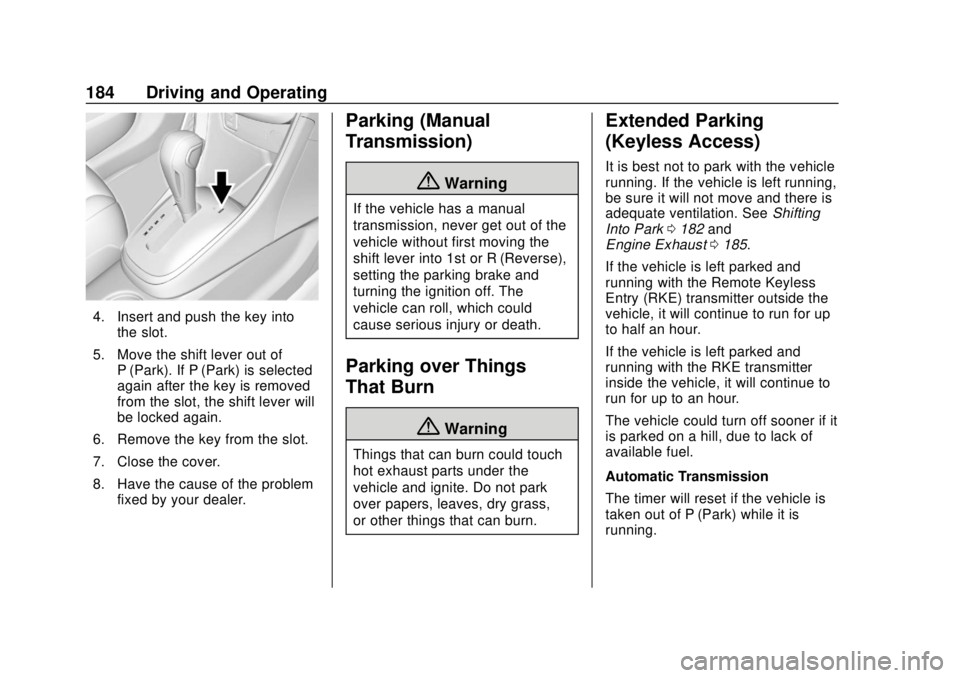
4. Insert and push the key intothe slot.
5. Move the shift lever out of P (Park). If P (Park) is selected
again after the key is removed
from the slot, the shift lever will
be locked again.
6. Remove the key from the slot.
7. Close the cover.
8. Have the cause of the problem fixed by your dealer.
Parking (Manual
Transmission)
{Warning
If the vehicle has a manual
transmission, never get out of the
vehicle without first moving the
shift lever into 1st or R (Reverse),
setting the parking brake and
turning the ignition off. The
vehicle can roll, which could
cause serious injury or death.
Parking over Things
That Burn
{Warning
Things that can burn could touch
hot exhaust parts under the
vehicle and ignite. Do not park
over papers, leaves, dry grass,
or other things that can burn.
Extended Parking
(Keyless Access)
It is best not to park with the vehicle
running. If the vehicle is left running,
be sure it will not move and there is
adequate ventilation. See Shifting
Into Park 0182 and
Engine Exhaust 0185.
If the vehicle is left parked and
running with the Remote Keyless
Entry (RKE) transmitter outside the
vehicle, it will continue to run for up
to half an hour.
If the vehicle is left parked and
running with the RKE transmitter
inside the vehicle, it will continue to
run for up to an hour.
The vehicle could turn off sooner if it
is parked on a hill, due to lack of
available fuel.
Automatic Transmission
The timer will reset if the vehicle is
taken out of P (Park) while it is
running.