display CHEVROLET VOLT 2011 Owner's Manual
[x] Cancel search | Manufacturer: CHEVROLET, Model Year: 2011, Model line: VOLT, Model: CHEVROLET VOLT 2011Pages: 516, PDF Size: 6.61 MB
Page 271 of 516
Black plate (81,1)Chevrolet Volt Owner Manual - 2011
Infotainment System 7-81
General Navigation Commands
Feedback on, feedback off:
This command instructs the
system to turn on and off the
voice recognition feedback.
When feedback is ON, the system
responds to commands with a talk
back phrase. When feedback is
OFF, the system responds to
commands with a chime.
Navigation voice (guidance) on,
navigation voice (guidance) off:
This command instructs the system
to turn on and off voice guidance
prompts during route guidance.
Cancel:This instructs the system
to cancel the command.
Point of Interest (POI)
Commands
The following is a list of POI
commands. POIs only display on
the map screen if the map scale
is 800 m (0.50 mi) or less. If POIs
display on a map with the wrong
scale, the system reminds that this
cannot be done. The available POI
commands are:
Navigation show gas station(s),
navigation show gas, navigation
hide gas station(s), navigation
hide gas: These commands
instruct the system to display and
hide gas station POIs on the map
screen.
Navigation show restaurant(s),
navigation show dining,
navigation hide restaurant(s),
navigation hide dining: These
commands instruct the system to
display and hide restaurant POIs
on the map screen. Navigation show ATM(s),
navigation hide ATM(s):
These
commands instruct the system to
display and hide ATM POIs on the
map screen.
Navigation show hotel(s),
navigation hide hotel(s): These
commands instruct the system to
display and hide hotel POIs on the
map screen.
Navigation show airport(s),
navigation hide airport(s): These
commands instruct the system to
display and hide airport POIs on the
map screen.
Navigation show shop(s),
navigation show shopping,
navigation hide shop(s),
navigation hide shopping: These
commands instruct the system to
display and hide shopping POIs on
the map screen.
Page 272 of 516
Black plate (82,1)Chevrolet Volt Owner Manual - 2011
7-82 Infotainment System
Destination and Guidance
Commands
Navigation (go to) preset
destination (number) (one, two,
three, four, five, or six):These
commands instruct the system to
set one of the preset destinations
one through six as the new
destination.
Navigation delete: This command
instructs the system to delete the
destination, route, or next waypoint.
The system requests a confirmation
of which item should be deleted
(destination, route, or next
waypoint).
Destination (available for English
language only): This command
instructs the system that the
user wants to enter a destination
using voice recognition. After this
command is stated, the system
displays a state abbreviation
(such as NY for New York). If the destination to be entered is in
the displayed state, then say the
desired city name. Otherwise, say
“Change State”
and say the state
name the search should take place
in. Then, say the desired city name
when prompted, and say the desired
street name and house number
when prompted.
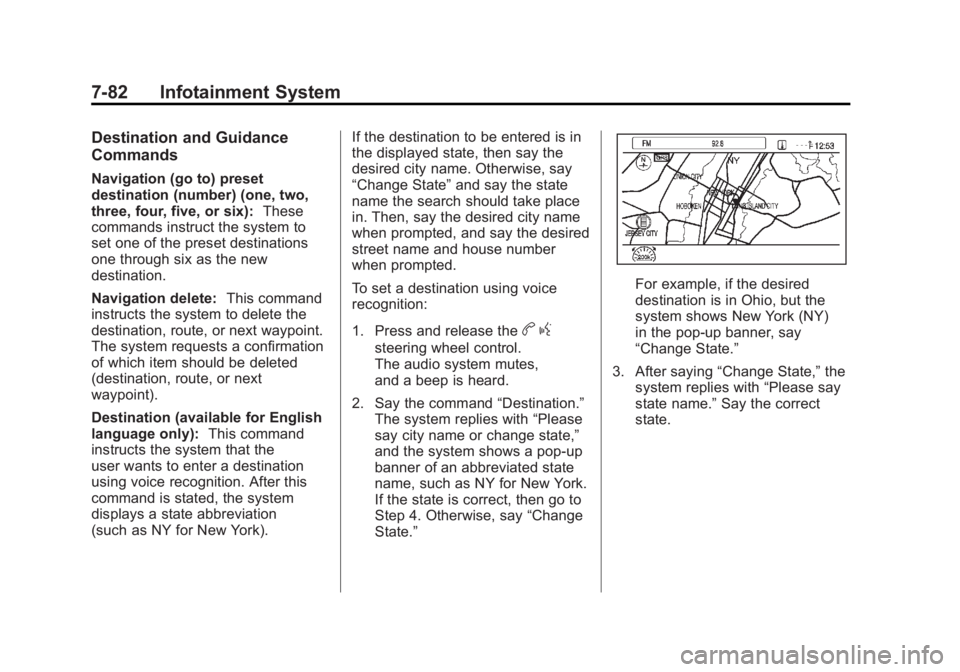
To set a destination using voice
recognition:
1. Press and release the
b g
steering wheel control.
The audio system mutes,
and a beep is heard.
2. Say the command “Destination.”
The system replies with “Please
say city name or change state,”
and the system shows a pop-up
banner of an abbreviated state
name, such as NY for New York.
If the state is correct, then go to
Step 4. Otherwise, say “Change
State.”
For example, if the desired
destination is in Ohio, but the
system shows New York (NY)
in the pop-up banner, say
“Change State.”
3. After saying “Change State,” the
system replies with “Please say
state name.” Say the correct
state.
Page 273 of 516
Black plate (83,1)Chevrolet Volt Owner Manual - 2011
Infotainment System 7-83
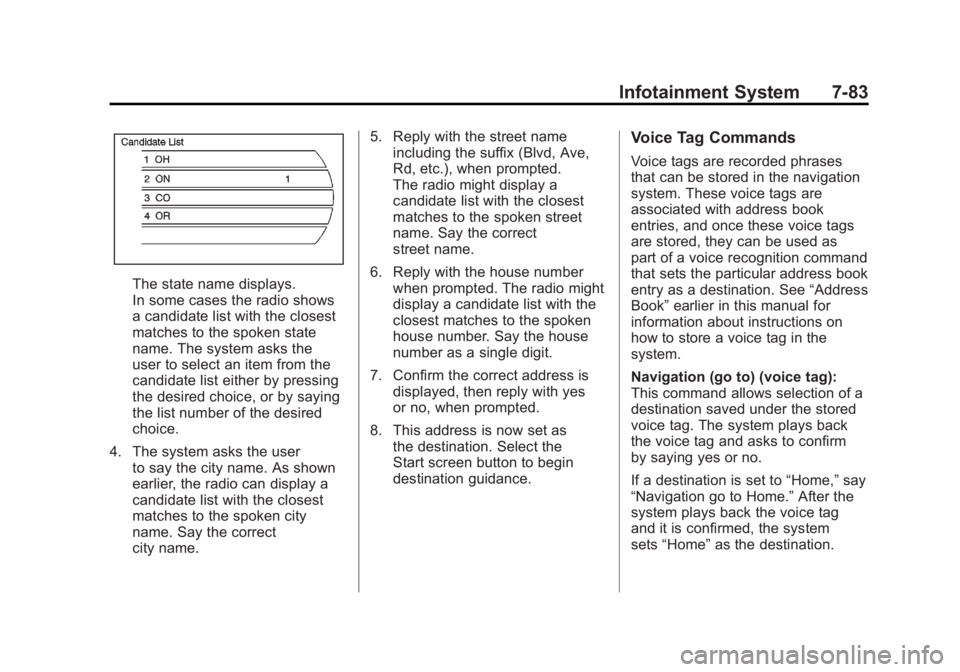
The state name displays.
In some cases the radio shows
a candidate list with the closest
matches to the spoken state
name. The system asks the
user to select an item from the
candidate list either by pressing
the desired choice, or by saying
the list number of the desired
choice.
4. The system asks the user to say the city name. As shown
earlier, the radio can display a
candidate list with the closest
matches to the spoken city
name. Say the correct
city name. 5. Reply with the street name
including the suffix (Blvd, Ave,
Rd, etc.), when prompted.
The radio might display a
candidate list with the closest
matches to the spoken street
name. Say the correct
street name.
6. Reply with the house number when prompted. The radio might
display a candidate list with the
closest matches to the spoken
house number. Say the house
number as a single digit.
7. Confirm the correct address is displayed, then reply with yes
or no, when prompted.
8. This address is now set as the destination. Select the
Start screen button to begin
destination guidance.
Voice Tag Commands
Voice tags are recorded phrases
that can be stored in the navigation
system. These voice tags are
associated with address book
entries, and once these voice tags
are stored, they can be used as
part of a voice recognition command
that sets the particular address book
entry as a destination. See “Address
Book” earlier in this manual for
information about instructions on
how to store a voice tag in the
system.
Navigation (go to) (voice tag):
This command allows selection of a
destination saved under the stored
voice tag. The system plays back
the voice tag and asks to confirm
by saying yes or no.
If a destination is set to “Home,”say
“Navigation go to Home.” After the
system plays back the voice tag
and it is confirmed, the system
sets “Home” as the destination.
Page 274 of 516
Black plate (84,1)Chevrolet Volt Owner Manual - 2011
7-84 Infotainment System
OnStar (if equipped) Command
Hands Free:This command
instructs the system to enter the
OnStar voice recognition system.
See “Hands-Free Calling” in the
OnStar Owner's Guide for more
information.
Help Commands Help
Radio (help)
CD (help), DVD (help),
Disc (help)
Display (help)
Navigation (help)
Display Commands Display (set/select) day (mode)
Display (set/select) night (mode)
Display (set/select) auto (mode)
Radio Commands (radio/radio band) AM
(radio/radio band) FM
(radio/radio band) XM
Radio select
Radio select
Radio select
Radio (CD/DVD/Disc)
Radio (CD/DVD/Disc) select
Page 282 of 516
Black plate (92,1)Chevrolet Volt Owner Manual - 2011
7-92 Infotainment System
Pairing a Phone Using the
Infotainment System
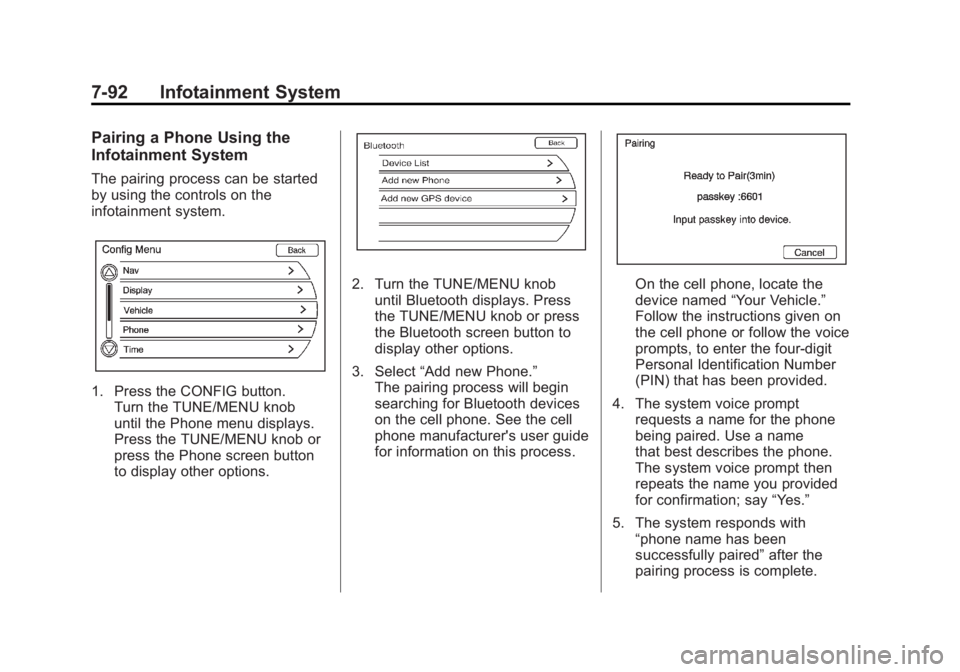
The pairing process can be started
by using the controls on the
infotainment system.
1. Press the CONFIG button.Turn the TUNE/MENU knob
until the Phone menu displays.
Press the TUNE/MENU knob or
press the Phone screen button
to display other options.
2. Turn the TUNE/MENU knobuntil Bluetooth displays. Press
the TUNE/MENU knob or press
the Bluetooth screen button to
display other options.
3. Select “Add new Phone.”
The pairing process will begin
searching for Bluetooth devices
on the cell phone. See the cell
phone manufacturer's user guide
for information on this process.On the cell phone, locate the
device named “Your Vehicle.”
Follow the instructions given on
the cell phone or follow the voice
prompts, to enter the four-digit
Personal Identification Number
(PIN) that has been provided.
4. The system voice prompt requests a name for the phone
being paired. Use a name
that best describes the phone.
The system voice prompt then
repeats the name you provided
for confirmation; say “Yes.”
5. The system responds with “phone name has been
successfully paired” after the
pairing process is complete.
Page 283 of 516
Black plate (93,1)Chevrolet Volt Owner Manual - 2011
Infotainment System 7-93
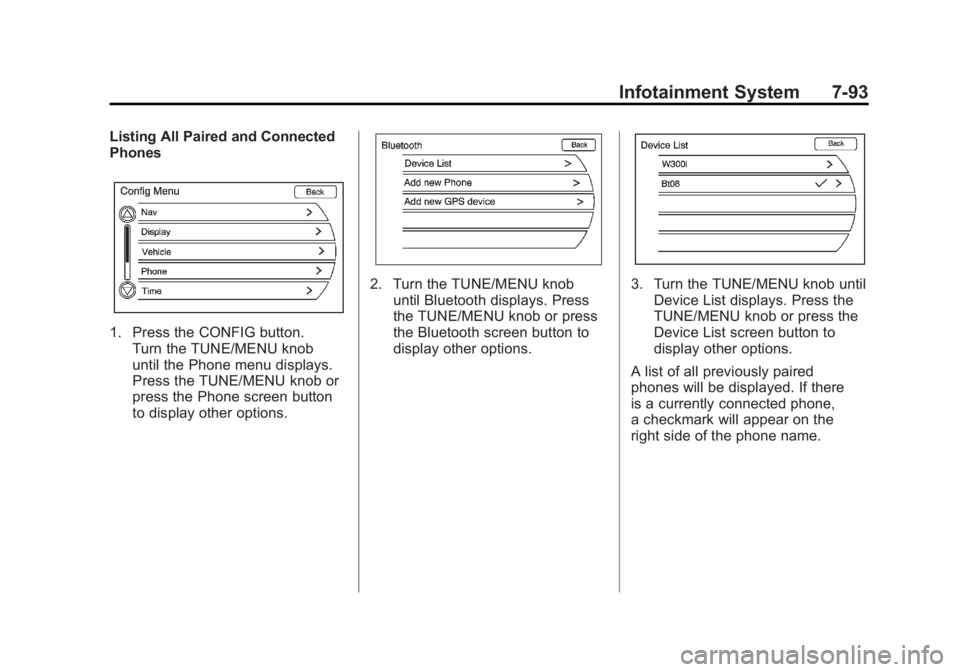
Listing All Paired and Connected
Phones
1. Press the CONFIG button.Turn the TUNE/MENU knob
until the Phone menu displays.
Press the TUNE/MENU knob or
press the Phone screen button
to display other options.
2. Turn the TUNE/MENU knobuntil Bluetooth displays. Press
the TUNE/MENU knob or press
the Bluetooth screen button to
display other options.3. Turn the TUNE/MENU knob untilDevice List displays. Press the
TUNE/MENU knob or press the
Device List screen button to
display other options.
A list of all previously paired
phones will be displayed. If there
is a currently connected phone,
a checkmark will appear on the
right side of the phone name.
Page 284 of 516
Black plate (94,1)Chevrolet Volt Owner Manual - 2011
7-94 Infotainment System
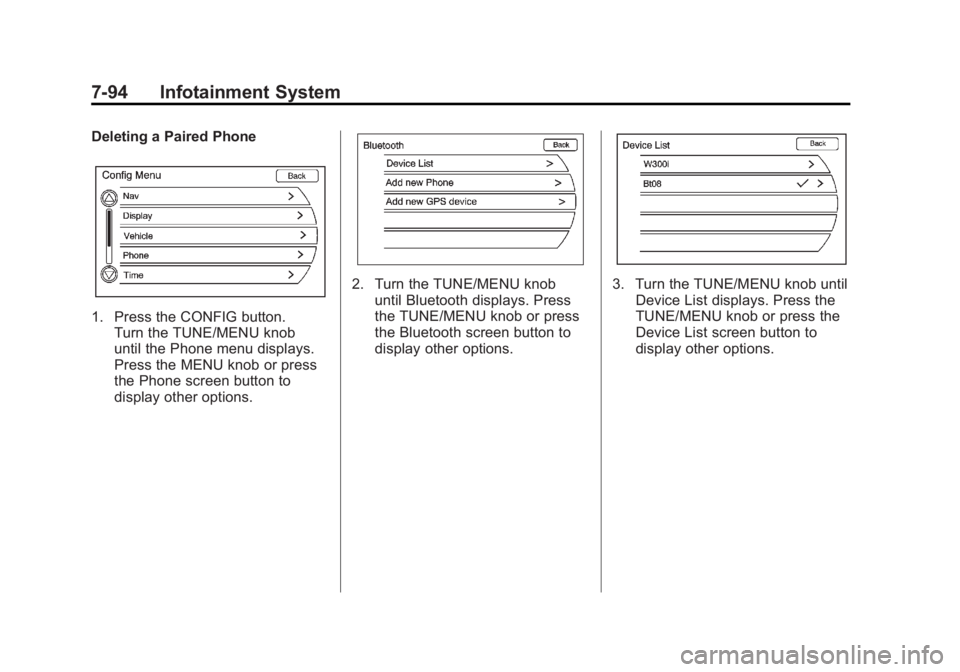
Deleting a Paired Phone
1. Press the CONFIG button.Turn the TUNE/MENU knob
until the Phone menu displays.
Press the MENU knob or press
the Phone screen button to
display other options.
2. Turn the TUNE/MENU knob
until Bluetooth displays. Press
the TUNE/MENU knob or press
the Bluetooth screen button to
display other options.3. Turn the TUNE/MENU knob untilDevice List displays. Press the
TUNE/MENU knob or press the
Device List screen button to
display other options.
Page 285 of 516
Black plate (95,1)Chevrolet Volt Owner Manual - 2011
Infotainment System 7-95
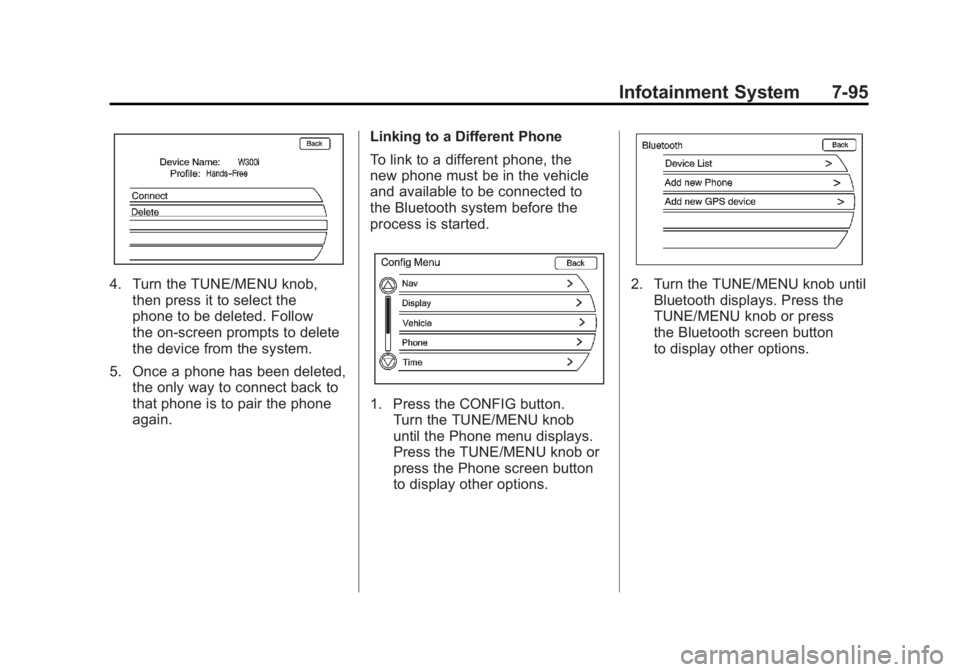
4. Turn the TUNE/MENU knob,then press it to select the
phone to be deleted. Follow
the on-screen prompts to delete
the device from the system.
5. Once a phone has been deleted, the only way to connect back to
that phone is to pair the phone
again. Linking to a Different Phone
To link to a different phone, the
new phone must be in the vehicle
and available to be connected to
the Bluetooth system before the
process is started.
1. Press the CONFIG button.
Turn the TUNE/MENU knob
until the Phone menu displays.
Press the TUNE/MENU knob or
press the Phone screen button
to display other options.
2. Turn the TUNE/MENU knob untilBluetooth displays. Press the
TUNE/MENU knob or press
the Bluetooth screen button
to display other options.
Page 286 of 516
Black plate (96,1)Chevrolet Volt Owner Manual - 2011
7-96 Infotainment System
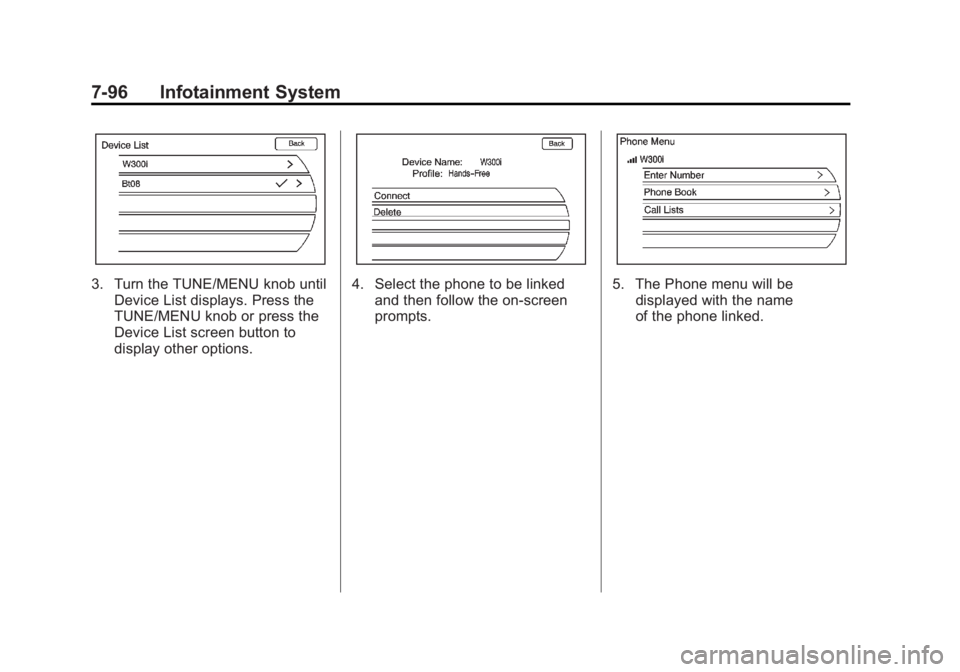
3. Turn the TUNE/MENU knob untilDevice List displays. Press the
TUNE/MENU knob or press the
Device List screen button to
display other options.4. Select the phone to be linkedand then follow the on-screen
prompts.5. The Phone menu will bedisplayed with the name
of the phone linked.
Page 287 of 516
Black plate (97,1)Chevrolet Volt Owner Manual - 2011
Infotainment System 7-97
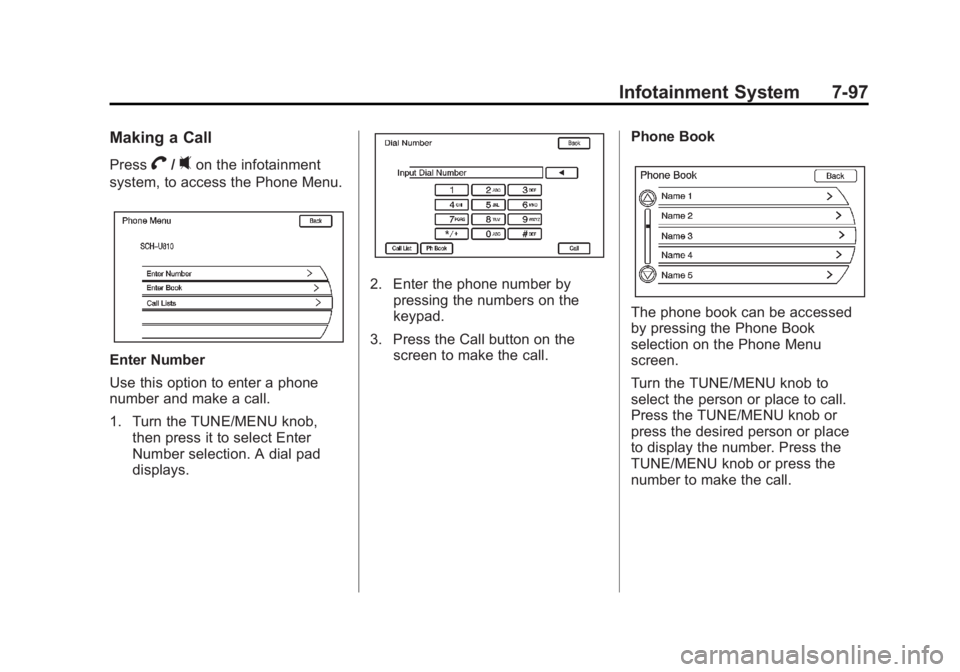
Making a Call
PressV/0on the infotainment
system, to access the Phone Menu.
Enter Number
Use this option to enter a phone
number and make a call.
1. Turn the TUNE/MENU knob, then press it to select Enter
Number selection. A dial pad
displays.
2. Enter the phone number bypressing the numbers on the
keypad.
3. Press the Call button on the screen to make the call. Phone Book
The phone book can be accessed
by pressing the Phone Book
selection on the Phone Menu
screen.
Turn the TUNE/MENU knob to
select the person or place to call.
Press the TUNE/MENU knob or
press the desired person or place
to display the number. Press the
TUNE/MENU knob or press the
number to make the call.