DIC CHEVROLET VOLT 2011 Repair Manual
[x] Cancel search | Manufacturer: CHEVROLET, Model Year: 2011, Model line: VOLT, Model: CHEVROLET VOLT 2011Pages: 516, PDF Size: 6.61 MB
Page 174 of 516
Black plate (54,1)Chevrolet Volt Owner Manual - 2011
5-54 Instruments and Controls
Turning a Function On or Off
1. Turn the TUNE/MENU knob tohighlight the function.
2. Press the TUNE/MENU knob to turn the function on or off.
A checkmark next to the function
indicates that the function is on.
Using the Touch Screen
Use the touch screen icons and
menus on the center stack display
to select personalization features.
w:Touch to scroll up.
x:Touch to scroll down.
Back: Touch Back in the upper
right corner of the display to return
to the previous menu. Submenus
An arrow on the right‐hand edge
of the menu indicates that it has a
submenu with other options.
Selecting a Menu Option
Touch any one of the available
menu options on the touch screen
to select the option. A checkmark
next to the option indicates the
selected option.
Turning a Function On or Off
Touch the screen where the
available function is listed to turn it
on or off. A checkmark next to the
function indicates that the function
is on.
Entering the
Personalization Menu
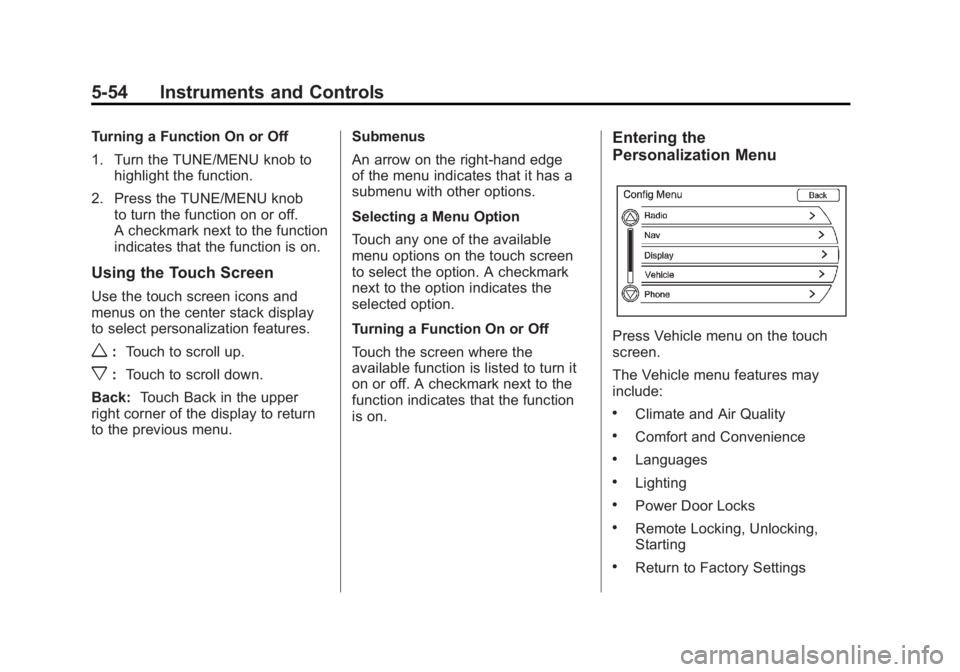
Press Vehicle menu on the touch
screen.
The Vehicle menu features may
include:
.Climate and Air Quality
.Comfort and Convenience
.Languages
.Lighting
.Power Door Locks
.Remote Locking, Unlocking,
Starting
.Return to Factory Settings
Page 180 of 516

Black plate (60,1)Chevrolet Volt Owner Manual - 2011
5-60 Instruments and Controls
Remote Left in Vehicle Reminder
When on, the horn will chirp rapidly
three times if an RKE transmitter is
left in the vehicle.
To turn the remote left in vehicle
reminder feature on or off:
1. Press the Vehicle menu.
2. Select Remote Locking,Unlocking, Starting.
3. Turn the remote left in vehicle reminder feature on or off.
4. Press Back to return to the previous menu.
Return to Factory Settings
This returns all of the vehicle
personalization settings to the
factory settings.
1. Press the Vehicle menu.
2. Select Return to FactorySettings.
3. Select Yes or No.
4. Press Back to return to the previous menu.
Universal Remote
System
See Radio Frequency
Statement on page 13‑28 for
information regarding Part 15
of the Federal Communications
Commission (FCC) rules and
Industry Canada Standards
RSS-210/220/310.
Universal Remote System
Programming
If the vehicle has this feature, you
will see these buttons with one
LED indicator next to them in the
overhead console. This system provides a way to
replace up to three remote control
transmitters used to activate
devices such as garage door
openers, security systems, and
home automation devices.
Do not use the Universal Remote
system with any garage door opener
that does not have the stop and
reverse feature. This includes
any garage door opener model
manufactured before April 1,1982.
Read the instructions completely
before attempting to program
the Universal Remote system.
Because of the steps involved, it
may be helpful to have another
person available to assist with
programming the Universal
Remote system.
Page 181 of 516
Black plate (61,1)Chevrolet Volt Owner Manual - 2011
Instruments and Controls 5-61
Keep the original hand-held
transmitter for use in other vehicles
as well as for future Universal
Remote system programming.
It is also recommended that
upon the sale of the vehicle, the
programmed Universal Remote
system buttons be erased for
security purposes. See“Erasing
Universal Remote System Buttons”
later in this section.
When programming a garage door,
park outside of the garage. Park
directly in line with and facing the
garage door opener motor-head
or gate motor-head. Be sure that
people and objects are clear of
the garage door or gate being
programmed.
It is recommended that a new
battery be installed in the hand-held
transmitter for quicker and more
accurate transmission of the
radio-frequency signal.Programming the Universal
Remote System
For questions or help programming
the Universal Remote system,
call 1‐800‐355‐3515 or go to
www.homelink.com.
Programming a garage door opener
involves time-sensitive actions, so
read the entire procedure before
starting. Otherwise, the device will
time out and the procedure will have
to be repeated.
To program up to three devices:
1. Hold the end of the hand-held transmitter about 3 to 8 cm
(1 to 3 in) away from the
Universal Remote system
buttons while keeping
the indicator light in view.
The hand-held transmitter was
supplied by the manufacturer
of the garage door opener
receiver (motor-head unit). 2. At the same time, press
and hold both the hand-held
transmitter button and one
of the three Universal Remote
system buttons to be used to
operate the garage door. Do not
release the Universal Remote
system button or the hand-held
transmitter button until the
indicator light changes from a
slowly to a rapidly flashing light.
You now may release both
buttons.
Some entry gates and garage
door openers may require
substitution of Step 2 with
the procedure noted in “Gate
Operator and Canadian
Programming” later in this
section.
Page 182 of 516
Black plate (62,1)Chevrolet Volt Owner Manual - 2011
5-62 Instruments and Controls
3. Press and hold for five secondsthe newly trained Universal
Remote system button (the
button selected in Step 2) while
observing the indicator light and
garage door activation.
.If the indicator light stays on
continuously or the garage
door starts to move when
the Universal Remote
system button is pressed
and released, then the
programming is complete.
There is no need to
continue programming
Steps 4 through 6.
.If the Universal Remote
system indicator light blinks
rapidly for two seconds,
then turns to a constant
light and the garage door
does not move, continue
with programming Steps 4
through 6. It may be helpful to have
another person assist with
the remaining Steps 4
through 6.
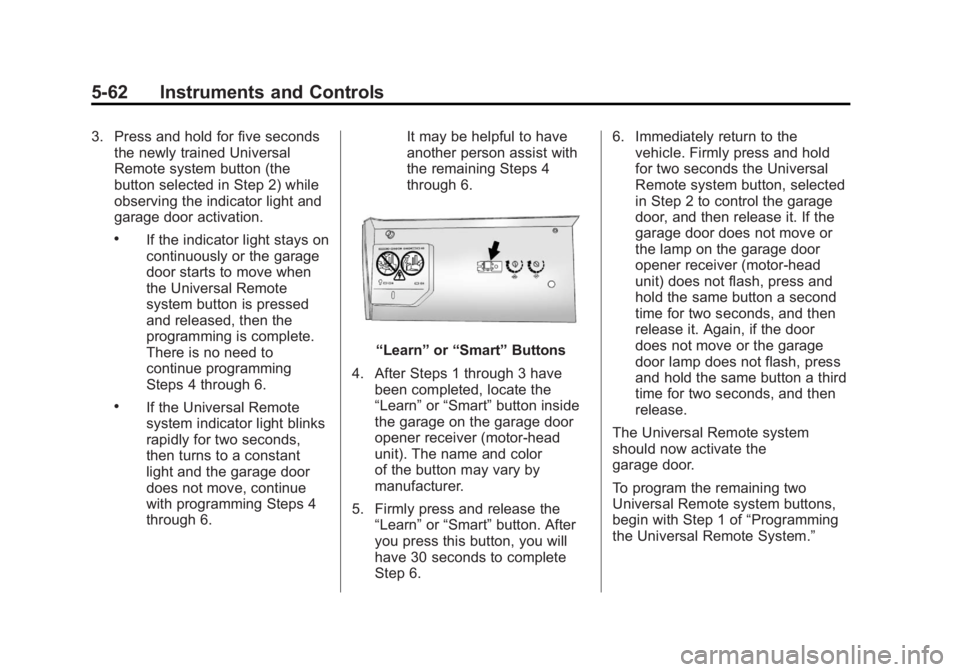
“Learn”
or“Smart” Buttons
4. After Steps 1 through 3 have been completed, locate the
“Learn” or“Smart” button inside
the garage on the garage door
opener receiver (motor-head
unit). The name and color
of the button may vary by
manufacturer.
5. Firmly press and release the “Learn” or“Smart” button. After
you press this button, you will
have 30 seconds to complete
Step 6. 6. Immediately return to the
vehicle. Firmly press and hold
for two seconds the Universal
Remote system button, selected
in Step 2 to control the garage
door, and then release it. If the
garage door does not move or
the lamp on the garage door
opener receiver (motor-head
unit) does not flash, press and
hold the same button a second
time for two seconds, and then
release it. Again, if the door
does not move or the garage
door lamp does not flash, press
and hold the same button a third
time for two seconds, and then
release.
The Universal Remote system
should now activate the
garage door.
To program the remaining two
Universal Remote system buttons,
begin with Step 1 of “Programming
the Universal Remote System.”
Page 183 of 516

Black plate (63,1)Chevrolet Volt Owner Manual - 2011
Instruments and Controls 5-63
Gate Operator and Canadian
Programming
If you have questions or need help
programming the Universal Remote
system, call 1‐800‐355‐3515 or go
to www.homelink.com.
Canadian radio-frequency laws
require transmitter signals to time
out or quit after several seconds of
transmission. This may not be long
enough for the Universal Remote
system to pick up the signal during
programming. Similarly, some U.S.
gate operators are manufactured to
time out in the same manner.If you live in Canada, or you are
having difficulty programming a
gate operator or garage door
opener by using the
“Programming
the Universal Remote System”
procedures, regardless of where
you live, replace Step 2 under
“Programming the Universal Remote
System” with the following:
Continue to press and hold
the Universal Remote system
button while you press and
release every two seconds (cycle)
the hand-held transmitter button
until the frequency signal has
been successfully accepted by
the Universal Remote system.
The Universal Remote system
indicator light will flash slowly at
first and then rapidly. Proceed with
Step 3 under “Programming the
Universal Remote System” to
complete.
Universal Remote System
Operation
Using the Universal Remote
System
Press and hold the appropriate
Universal Remote system
button for at least half of a second.
The indicator light will come on
while the signal is being transmitted.
Erasing Universal Remote
System Buttons
All programmed buttons should be
erased when the vehicle is sold or
the lease ends.
To erase all programmed buttons
on the Universal Remote system
device:
1. Press and hold down the two outside buttons until the
indicator light begins to flash.
This should take about
10 seconds.
2. Release both buttons.
Page 184 of 516
Black plate (64,1)Chevrolet Volt Owner Manual - 2011
5-64 Instruments and Controls
Reprogramming a Single
Universal Remote System
Button
To reprogram any of the three
Universal Remote system buttons:
1. Press and hold the desiredUniversal Remote system
button. Do not release the
button.
2. The indicator light will begin to flash after 20 seconds. Without
releasing the button, proceed
with Step 1 of the section
“Programming the Universal
Remote System.”
If you have questions or need help
programming the Universal Remote
system, call 1‐800‐355‐3515 or go
to www.homelink.com. You may
also call the customer assistance
phone number under Customer
Assistance Offices on page 13‑3.
Page 186 of 516

Black plate (2,1)Chevrolet Volt Owner Manual - 2011
6-2 Lighting
Headlamp High/
Low-Beam Changer
2 3
Headlamp High/Low‐Beam
Changer: Push the turn signal/lane
change lever away from you and
release, to turn the high beams on.
To return to low beams, push the
lever again or pull it toward you
and release.
This indicator light turns on in
the instrument cluster when the
high‐beam headlamps are on.
Flash-to-Pass
The flash‐to‐pass feature works with
the low beams or Daytime Running
Lamps (DRL) on or off.
To flash the high beams, pull the
turn signal/lane change lever toward
you momentarily and then release it.
The Pedestrian Friendly Alert will
also sound if the vehicle is moving
less than 64 km/h (40 mph).
Pedestrian Friendly Alert
While driving at low speeds, such
as in parking lots, use this feature
to alert people who may not hear
your vehicle approaching.
The pedestrian alert is only
available when the vehicle is
moving at less than 64 km/h
(40 mph) or is stopped and is
not in P (Park). To use the pedestrian friendly alert:
Pull the turn signal/lane change
lever all the way toward you
momentarily. See
Exterior
Lamp Controls on page 6‑1 and
Headlamp High/Low-Beam Changer
on page 6‑2. The high‐beam
headlamps and indicator light
will turn on, and a soft‐note
alert will momentarily sound.
When the turn signal/lane change
lever is released, the high‐beam
headlamps and indicator light will
turn off.
Repeat for additional activations of
the pedestrian friendly alert.
Page 189 of 516

Black plate (5,1)Chevrolet Volt Owner Manual - 2011
Lighting 6-5
Interior Lighting
Instrument Panel
Illumination Control
The brightness of the instrument
panel cluster display, infotainment
display and controls, steering wheel
controls, and all other illuminated
controls, as well as feature status
indicators can be adjusted.The thumbwheel is on the
instrument panel to the left
of the steering column.
Move the thumbwheel up or down to
brighten or dim the lights.
Dome Lamps
The dome lamp controls are in the
overhead console.
To operate, press the following
buttons:
+(On):
Press to turn on the
dome lamps.
1(Door): Press to turn the lamps
on automatically when a door is
opened.
*(Off): Press to turn the lamps
off, even when a door is open.
Reading Lamps
The front reading lamps are in the
overhead console.
# $: Press to turn each lamp on
or off.
Lighting Features
Entry Lighting
The headlamps, parking lamps,
taillamps, back‐up lamps, and the
interior lights turn on briefly, when
the Remote Keyless Entry (RKE)
transmitter
Kis pressed. The lights
turn off immediately when the
POWER
Obutton is pressed or
automatically after a brief period.
Page 196 of 516
Black plate (6,1)Chevrolet Volt Owner Manual - 2011
7-6 Infotainment System
Languages
To change the display language,
seeVehicle Personalization on
page 5‑53 for more information.
The vehicle supports English,
French Canadian, and Spanish.
The default language is English.
English and Metric Unit
Conversion
To change the display readings
between English and metric units,
see Driver Information Center (DIC)
on page 5‑43 for more information.
Deleting Personal Information
The navigation system can record
and store destinations and personal
information such as names and
addresses.
It is recommended that this
information be deleted when
selling or disposing of the vehicle:
.Previous Destinations
.Address Book, Fav Route,
Preset Destinations, and HDD
Music Files
Storing Radio Station Presets
Up to 36 preset stations can
be stored. AM, FM, and XM,
if equipped, can be mixed.
To store presets:
1. Press VOL/
Oto turn the
system on.
If viewing a map screen, press
the RADIO BAND button.
2. Select the band.
3. Seek or tune to the desired station to select it.
4. Press and hold one of the preset screen buttons for more than
two seconds.
5. Repeat the steps for each preset.
To change the number of preset
pages, see “Mixed-Band Presets”
under AM-FM Radio on page 7‑10
for more information.
Page 200 of 516

Black plate (10,1)Chevrolet Volt Owner Manual - 2011
7-10 Infotainment System
Radio
AM-FM Radio
Playing the Radio
Audio Source Menu
VOL/
O(Volume/Power):
1. Press to turn the radio on or off.
2. Turn to increase or decrease the volume. The volume is
adjusted for the current audio
source, active navigation voice
guidance, voice prompts,
or audio cues.
The steering wheel controls can
also be used to adjust the volume.
See Steering Wheel Controls on
page 5‑6 for more information.
TUNE/MENU: Turn to change
the radio station. See “Finding a
Station” in this section for more
information. RADIO BAND:
Press to select the
AM, FM, and XM (if equipped) band.
The audio sources can also be
changed by using the steering
wheel controls. See Steering
Wheel Controls on page 5‑6
for more information.
HDD/DVD/AUX: Change to the
Hard Drive, CD, DVD, USB, or AUX
by pressing the HDD/DVD/AUX
button until the desired source is
selected.
If the audio source is on while
viewing a map screen, a source
indicator button displays at the
top of the map screen.
Press the source indicator button
to display the current audio source
screen. The display shows a split
screen with the audio source screen
on the left side and the map or
guidance screen on the right side.
Press the Full Map button to exit the
split screen.