heater CHRYSLER PACIFICA 2021 Owner's Manual
[x] Cancel search | Manufacturer: CHRYSLER, Model Year: 2021, Model line: PACIFICA, Model: CHRYSLER PACIFICA 2021Pages: 401, PDF Size: 26.88 MB
Page 223 of 401
MULTIMEDIA221
BLU-RAY™ CONTROLS – DISC-SPECIFIC
F
UNCTIONS
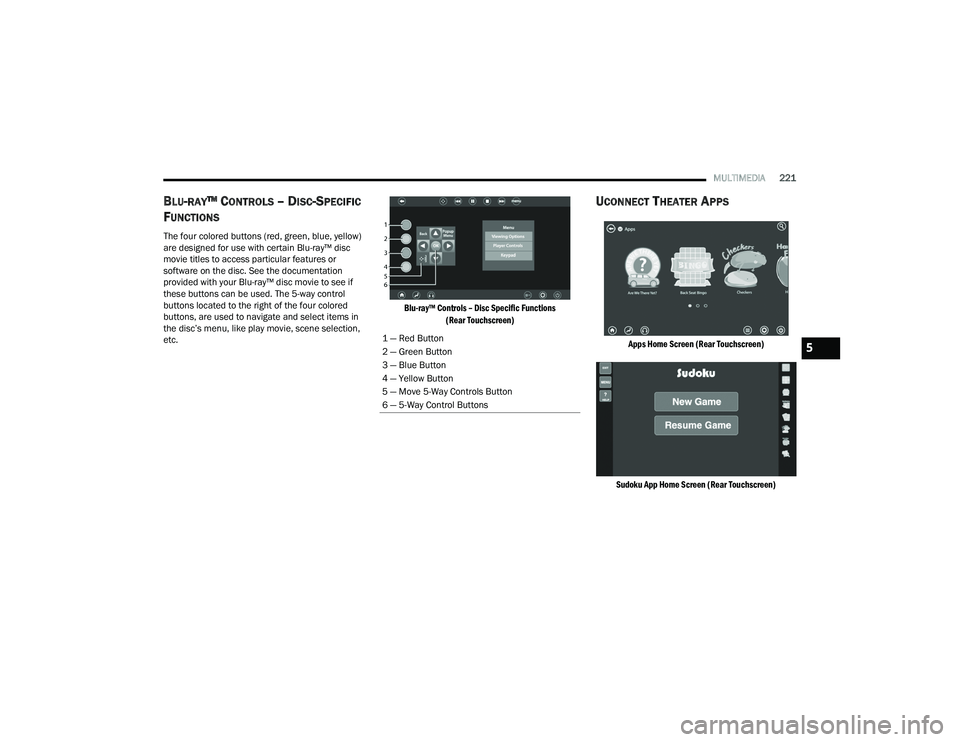
The four colored buttons (red, green, blue, yellow)
are designed for use with certain Blu-ray™ disc
movie titles to access particular features or
software on the disc. See the documentation
provided with your Blu-ray™ disc movie to see if
these buttons can be used. The 5-way control
buttons located to the right of the four colored
buttons, are used to navigate and select items in
the disc’s menu, like play movie, scene selection,
etc.
Blu-ray™ Controls – Disc Specific Functions
(Rear Touchscreen)
UCONNECT THEATER APPS
Apps Home Screen (Rear Touchscreen)
Sudoku App Home Screen (Rear Touchscreen)
1 — Red Button
2 — Green Button
3 — Blue Button
4 — Yellow Button
5 — Move 5-Way Controls Button
6 — 5-Way Control Buttons5
21_RUP_OM_EN_USC_t.book Page 221
Page 225 of 401
MULTIMEDIA223
USING THE REAR VIDEO USB PORT
Plug in a USB drive or mass storage device and
play your favorite music or movies.
NOTE:To view USB media on the rear theater screens,
insert a USB drive into the port next to the DVD/
Blu-ray™ Disc player. The USB drive port is located
under the radio controls in the instrument panel.
Search Screen (Rear Touchscreen)
On the rear screen you can browse the content of
the USB device by going to the USB source. Use the
search feature to find your music faster.
PLAY VIDEO GAMES
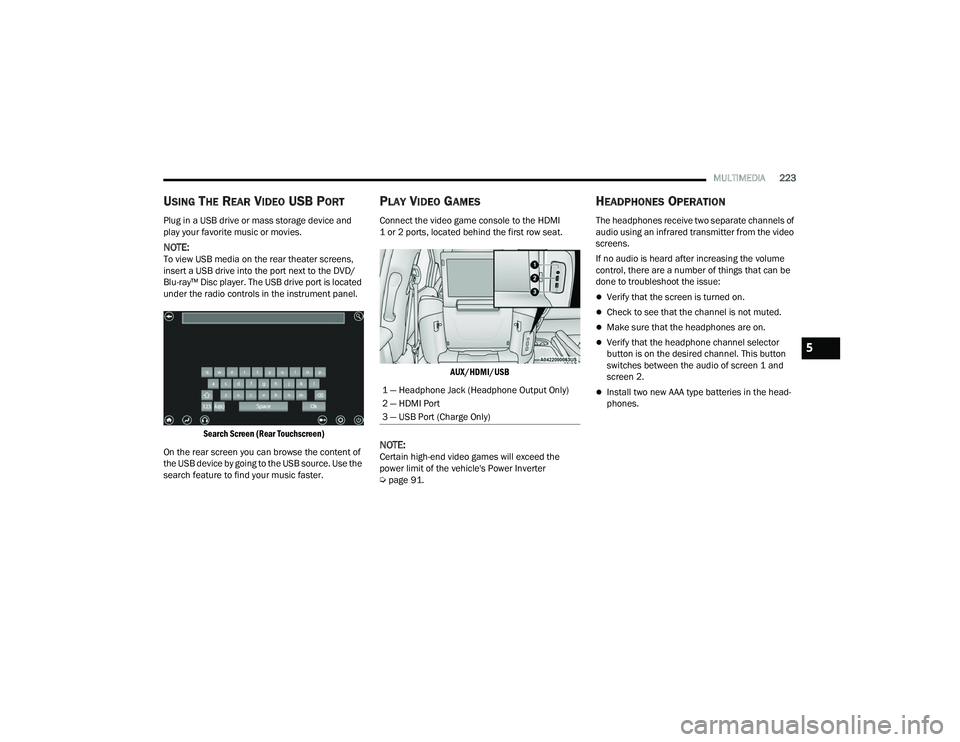
Connect the video game console to the HDMI
1 or 2 ports, located behind the first row seat.
AUX/HDMI/USB
NOTE:Certain high-end video games will exceed the
power limit of the vehicle's Power Inverter
Úpage 91.
HEADPHONES OPERATION
The headphones receive two separate channels of
audio using an infrared transmitter from the video
screens.
If no audio is heard after increasing the volume
control, there are a number of things that can be
done to troubleshoot the issue:
Verify that the screen is turned on.
Check to see that the channel is not muted.
Make sure that the headphones are on.
Verify that the headphone channel selector
button is on the desired channel. This button
switches between the audio of screen 1 and
screen 2.
Install two new AAA type batteries in the head -
phones.1 — Headphone Jack (Headphone Output Only)
2 — HDMI Port
3 — USB Port (Charge Only)
5
21_RUP_OM_EN_USC_t.book Page 223
Page 226 of 401
224MULTIMEDIA
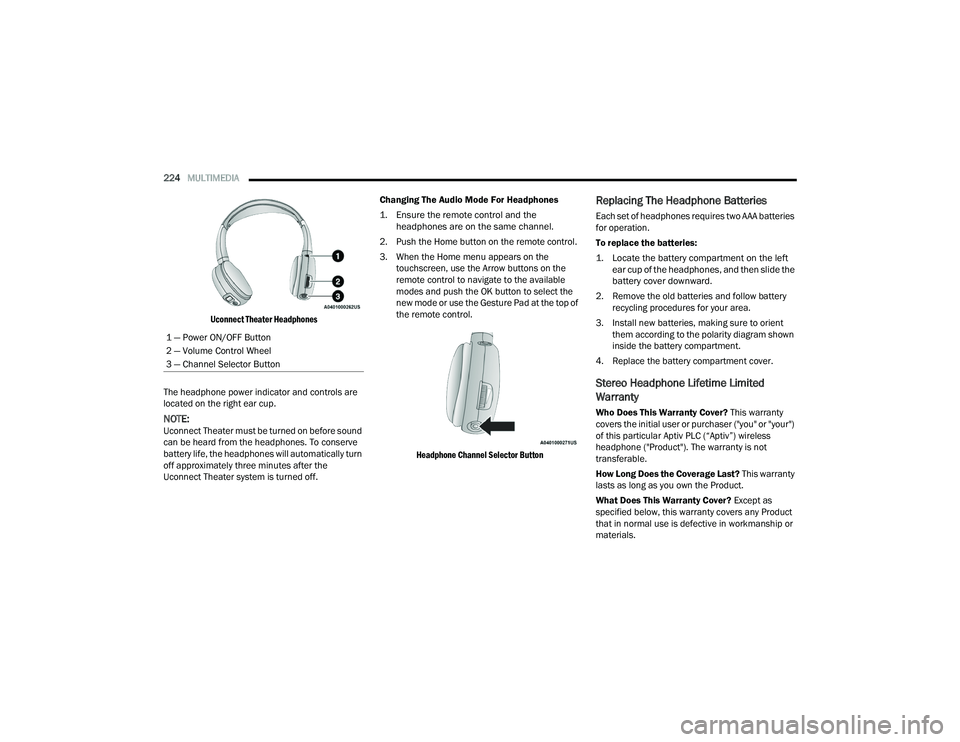
Uconnect Theater Headphones
The headphone power indicator and controls are
located on the right ear cup.
NOTE:Uconnect Theater must be turned on before sound
can be heard from the headphones. To conserve
battery life, the headphones will automatically turn
off approximately three minutes after the
Uconnect Theater system is turned off. Changing The Audio Mode For Headphones
1. Ensure the remote control and the
headphones are on the same channel.
2. Push the Home button on the remote control.
3. When the Home menu appears on the touchscreen, use the Arrow buttons on the
remote control to navigate to the available
modes and push the OK button to select the
new mode or use the Gesture Pad at the top of
the remote control.
Headphone Channel Selector Button
Replacing The Headphone Batteries
Each set of headphones requires two AAA batteries
for operation.
To replace the batteries:
1. Locate the battery compartment on the left ear cup of the headphones, and then slide the
battery cover downward.
2. Remove the old batteries and follow battery recycling procedures for your area.
3. Install new batteries, making sure to orient them according to the polarity diagram shown
inside the battery compartment.
4. Replace the battery compartment cover.
Stereo Headphone Lifetime Limited
Warranty
Who Does This Warranty Cover? This warranty
covers the initial user or purchaser ("you" or "your")
of this particular Aptiv PLC (“Aptiv”) wireless
headphone ("Product"). The warranty is not
transferable.
How Long Does the Coverage Last? This warranty
lasts as long as you own the Product.
What Does This Warranty Cover? Except as
specified below, this warranty covers any Product
that in normal use is defective in workmanship or
materials.
1 — Power ON/OFF Button
2 — Volume Control Wheel
3 — Channel Selector Button
21_RUP_OM_EN_USC_t.book Page 224
Page 227 of 401
MULTIMEDIA225
What Does This Warranty Not Cover? This
warranty does not cover any damage or defect that
results from misuse, abuse or modification of the
Product other than by Aptiv. Foam earpieces,
which will wear over time through normal use, are
specifically not covered (replacement foam is
available for a nominal charge). APTIV IS NOT
LIABLE FOR ANY INJURIES OR DAMAGES TO
PERSONS OR PROPERTY RESULTING FROM THE
USE OF, OR ANY FAILURE OR DEFECT IN, THE
PRODUCT, NOR IS APTIV LIABLE FOR ANY
GENERAL, SPECIAL, DIRECT, INDIRECT,
INCIDENTAL, CONSEQUENTIAL, EXEMPLARY,
PUNITIVE OR OTHER DAMAGES OF ANY KIND OR
NATURE WHATSOEVER. Some states and
jurisdictions may not allow the exclusion or
limitation of incidental or consequential damages,
so the above limitation may not apply to you. This
warranty gives you specific legal rights. You may
also have other rights, which vary from jurisdiction
to jurisdiction.
What Will Aptiv Do? Aptiv, at its option, will repair
or replace any defective Product. Aptiv reserves
the right to replace any discontinued Product with
a comparable model. THIS WARRANTY IS THE
SOLE WARRANTY FOR THIS PRODUCT, SETS
FORTH YOUR EXCLUSIVE REMEDY REGARDING
DEFECTIVE PRODUCTS, AND IS IN LIEU OF ALL
OTHER WARRANTIES (EXPRESS OR IMPLIED), INCLUDING ANY WARRANTY FOR
MERCHANTABILITY OR FITNESS FOR A
PARTICULAR PURPOSE.
If you have any questions or comments regarding
your Aptiv wireless headphones, please email
[email protected] or phone: 888-293-3332.
DISPLAY SETTINGS
When watching a video source, pressing the
Settings icon on the touchscreen activates the
Settings menu. These settings control the
appearance of the video on the screen. The factory
default settings are already set for optimum
viewing, so there is no need to change these
settings under normal circumstances.
To change the settings, use one of the
touchscreens or remote. To reset all values back to
the original settings, select “Reset to Defaults”,
then select “YES.”
LISTENING TO AUDIO WITH THE SCREEN
C
LOSED
To listen to only the audio portion of the channel
with the screen closed:
Set the audio to the desired source and
channel.
Close the video screen.
When the screen is reopened, the video screen
will automatically turn back on and show the
appropriate display menu or media.
If the screen is closed and there is no audio heard,
verify that the headphones are turned on (the ON
indicator is illuminated) and the headphone
selector switch is on the desired channel. If the
headphones are turned on, push the remote
control’s power button to turn audio on. If audio is
still not heard, check that fully charged batteries
are installed in the headphones.
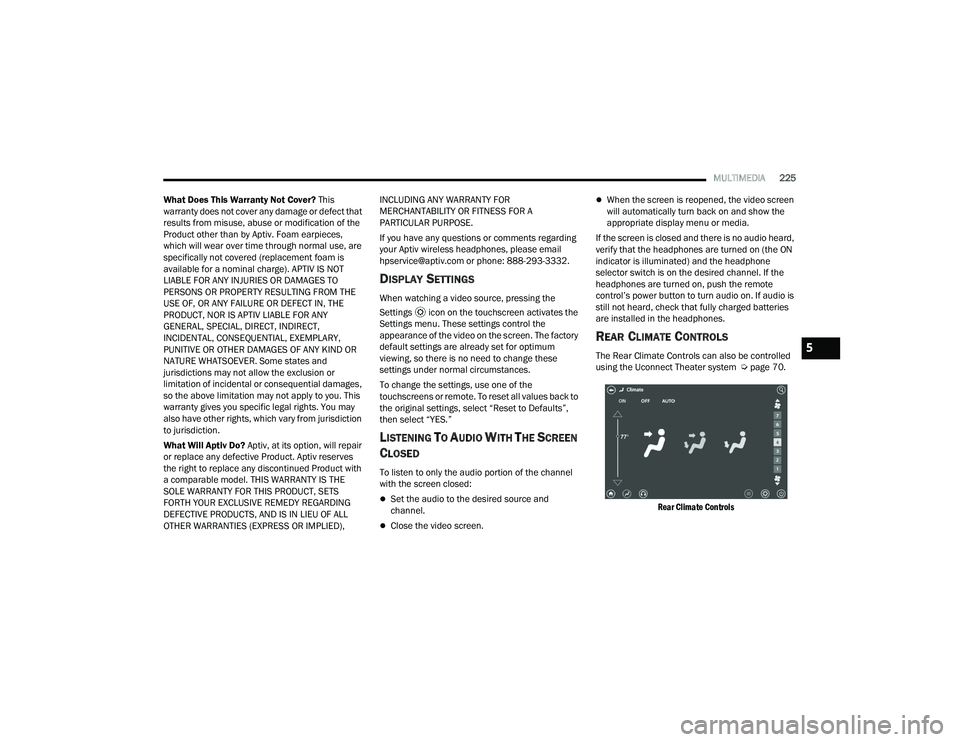
REAR CLIMATE CONTROLS
The Rear Climate Controls can also be controlled
using the Uconnect Theater system Ú page 70.
Rear Climate Controls
5
21_RUP_OM_EN_USC_t.book Page 225
Page 229 of 401
MULTIMEDIA227
ACCESSIBILITY — IF EQUIPPED
Accessibility is a feature of the DVD/Blu-ray™/USB
Video system that announces a function prior to
performing the action.
WIRELESS STREAMING — IF EQUIPPED
Your Uconnect Theater system may be equipped
with Wireless Streaming functionality that allows
you to project your smartphone or tablet onto your
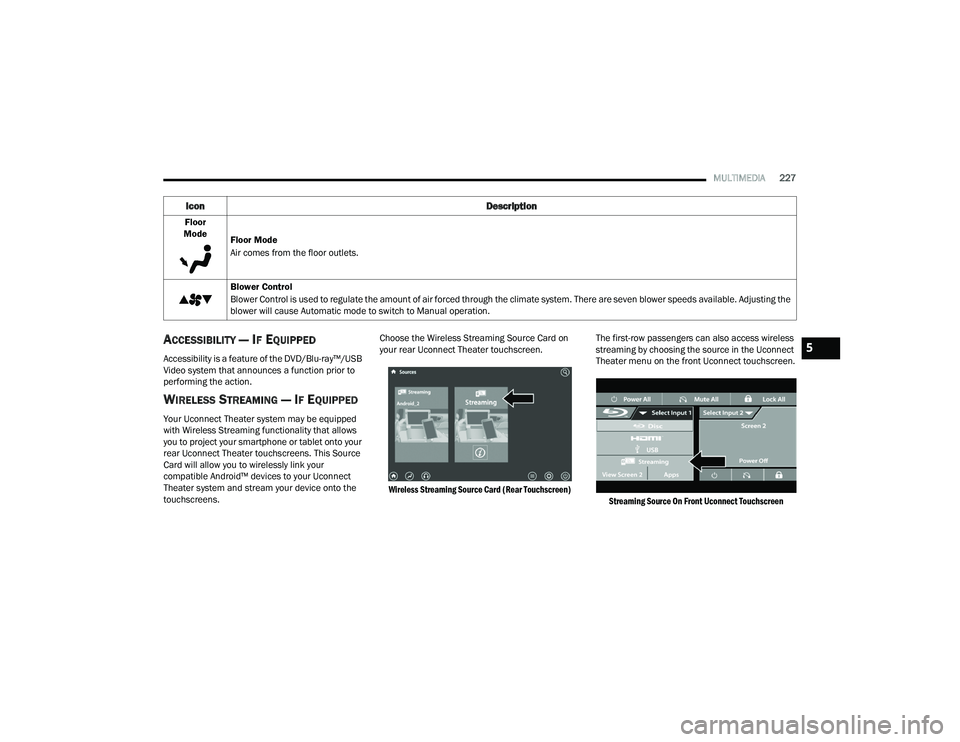
rear Uconnect Theater touchscreens. This Source
Card will allow you to wirelessly link your
compatible Android™ devices to your Uconnect
Theater system and stream your device onto the
touchscreens. Choose the Wireless Streaming Source Card on
your rear Uconnect Theater touchscreen.
Wireless Streaming Source Card (Rear Touchscreen)
The first-row passengers can also access wireless
streaming by choosing the source in the Uconnect
Theater menu on the front Uconnect touchscreen.
Streaming Source On Front Uconnect Touchscreen
Floor
Mode Floor Mode
Air comes from the floor outlets.
Blower Control
Blower Control is used to regulate the amount of air forced through the climate system. There are seven blower speeds available. Adjusting the
blower will cause Automatic mode to switch to Manual operation.
Icon Description
5
21_RUP_OM_EN_USC_t.book Page 227
Page 230 of 401
228MULTIMEDIA
NOTE:For system compatibility, consult your device's
Owner's Manual or www.uconnectphone.com to
see if your device supports wireless streaming
technology compatibility. Apple® devices do not
support this feature.
To link your device to the rear Uconnect Theater
touchscreens:
1. Enable your device’s Wi-Fi.
2. Select the Wireless Streaming feature on your device. The name of this feature is device
dependent and could include: mirror, cast, or
smart view.
NOTE:Refer to your device's Owner’s Manual or www.uconnectphone.com for further infor -
mation.
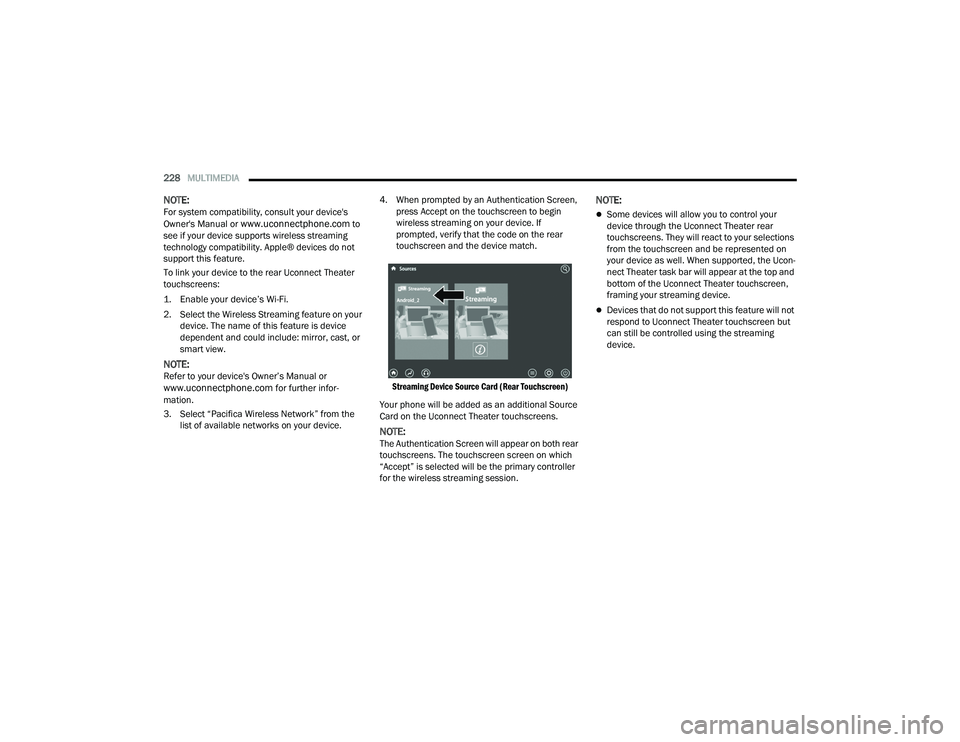
3. Select “Pacifica Wireless Network” from the list of available networks on your device. 4. When prompted by an Authentication Screen,
press Accept on the touchscreen to begin
wireless streaming on your device. If
prompted, verify that the code on the rear
touchscreen and the device match.
Streaming Device Source Card (Rear Touchscreen)
Your phone will be added as an additional Source
Card on the Uconnect Theater touchscreens.
NOTE:The Authentication Screen will appear on both rear
touchscreens. The touchscreen screen on which
“Accept” is selected will be the primary controller
for the wireless streaming session.
NOTE:
Some devices will allow you to control your
device through the Uconnect Theater rear
touchscreens. They will react to your selections
from the touchscreen and be represented on
your device as well. When supported, the Ucon -
nect Theater task bar will appear at the top and
bottom of the Uconnect Theater touchscreen,
framing your streaming device.
Devices that do not support this feature will not
respond to Uconnect Theater touchscreen but
can still be controlled using the streaming
device.
21_RUP_OM_EN_USC_t.book Page 228
Page 231 of 401
MULTIMEDIA229
Settings
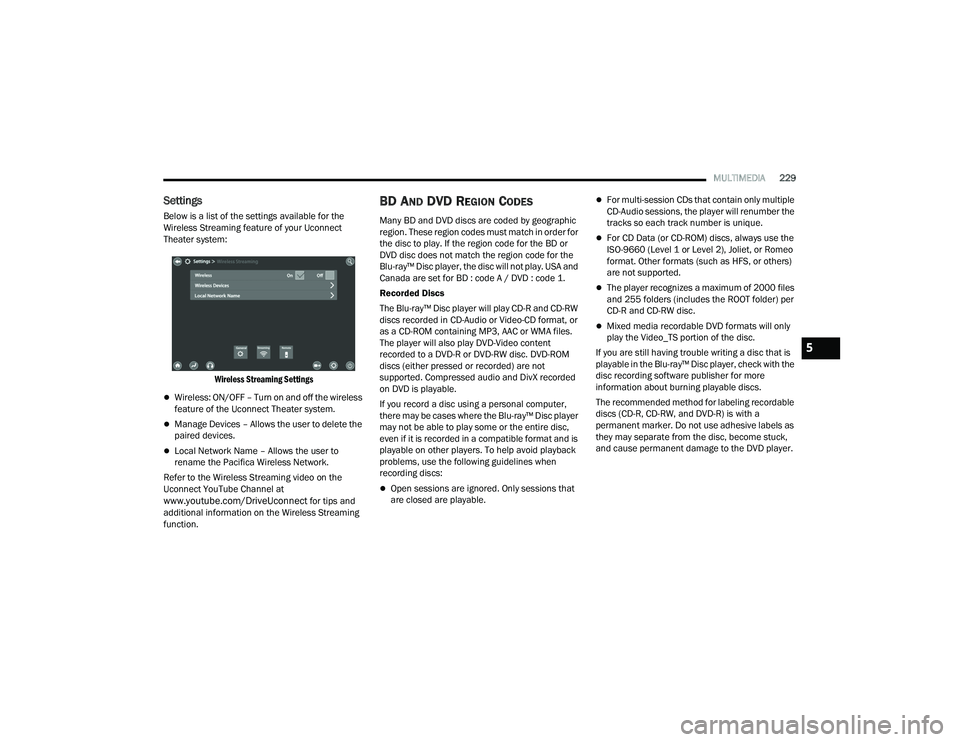
Below is a list of the settings available for the
Wireless Streaming feature of your Uconnect
Theater system:
Wireless Streaming Settings
Wireless: ON/OFF – Turn on and off the wireless
feature of the Uconnect Theater system.
Manage Devices – Allows the user to delete the
paired devices.
Local Network Name – Allows the user to
rename the Pacifica Wireless Network.
Refer to the Wireless Streaming video on the
Uconnect YouTube Channel at
www.youtube.com/DriveUconnect for tips and
additional information on the Wireless Streaming
function.
BD AND DVD REGION CODES
Many BD and DVD discs are coded by geographic
region. These region codes must match in order for
the disc to play. If the region code for the BD or
DVD disc does not match the region code for the
Blu-ray™ Disc player, the disc will not play. USA and
Canada are set for BD : code A / DVD : code 1.
Recorded Discs
The Blu-ray™ Disc player will play CD-R and CD-RW
discs recorded in CD-Audio or Video-CD format, or
as a CD-ROM containing MP3, AAC or WMA files.
The player will also play DVD-Video content
recorded to a DVD-R or DVD-RW disc. DVD-ROM
discs (either pressed or recorded) are not
supported. Compressed audio and DivX recorded
on DVD is playable.
If you record a disc using a personal computer,
there may be cases where the Blu-ray™ Disc player
may not be able to play some or the entire disc,
even if it is recorded in a compatible format and is
playable on other players. To help avoid playback
problems, use the following guidelines when
recording discs:
Open sessions are ignored. Only sessions that
are closed are playable.
For multi-session CDs that contain only multiple
CD-Audio sessions, the player will renumber the
tracks so each track number is unique.
For CD Data (or CD-ROM) discs, always use the
ISO-9660 (Level 1 or Level 2), Joliet, or Romeo
format. Other formats (such as HFS, or others)
are not supported.
The player recognizes a maximum of 2000 files
and 255 folders (includes the ROOT folder) per
CD-R and CD-RW disc.
Mixed media recordable DVD formats will only
play the Video_TS portion of the disc.
If you are still having trouble writing a disc that is
playable in the Blu-ray™ Disc player, check with the
disc recording software publisher for more
information about burning playable discs.
The recommended method for labeling recordable
discs (CD-R, CD-RW, and DVD-R) is with a
permanent marker. Do not use adhesive labels as
they may separate from the disc, become stuck,
and cause permanent damage to the DVD player.
5
21_RUP_OM_EN_USC_t.book Page 229
Page 234 of 401
232MULTIMEDIA
Dolby
Manufactured under license from Dolby
Laboratories. Dolby and the double-D symbol are
trademarks of Dolby Laboratories.
DTS
For DTS patents, see
http://dts.com/patents.
Manufactured under license from DTS Licensing
Limited. DTS, the Symbol, DTS and the Symbol
together are registered trademarks, and DTS 2.0
Channel is a trademark of DTS, Inc. © DTS, Inc. All
Rights Reserved.
DVD
"The DVD logo” is a trademark of DVD Format/Logo
Licensing Corporation." or " DVD logo is a
trademark of DVD Format/Logo Licensing
Corporation registered in the US, Japan and other
countries."
BDA
“Blu-ray™ Disc, Blu-ray™, BD-Live, BONUSVIEW,
AVCREC and the logos are trademarks of the
Blu-ray™ Disc Association.” AVCHD
"AVCHD" and the "AVCHD" logo are trademarks of
Panasonic Corporation and Sony® Corporation.
BD-J
Java is a registered trademark of Oracle and/or its
affiliates.
MPEG
THIS PRODUCT IS LICENSED UNDER THE AVC
PATENT PORTFOLIO LICENSE FOR THE PERSONAL
AND NON-COMMERCIAL USE OF A CONSUMER TO
(i) ENCODE VIDEO IN COMPLIANCE WITH THE AVC
STANDARD ("AVC VIDEO") AND/OR (ii) DECODE
AVC VIDEO THAT WAS ENCODED BY A CONSUMER
ENGAGED IN A PERSONAL AND NON-COMMERCIAL
ACTIVITY AND/OR WAS OBTAINED FROM A VIDEO
PROVIDER LICENSED TO PROVIDE AVC VIDEO. NO
LICENSE IS GRANTED OR SHALL BE IMPLIED FOR
ANY OTHER USE. ADDITIONAL INFORMATION MAY
BE OBTAINED FROM MPEG LA, L.L.C. SEE
WWW.MPEGLA.COM .
DivX
This DivX Certified® device can play DivX® Home
Theater video files up to 576p (including .avi,
.divx). Download free software at
www.divx.com to
create, play and cast digital videos. Cinavia
"Cinavia Notice This product uses Cinavia
technology to limit the use of unauthorized copies
of some commercially-produced film and videos
and their soundtracks. When a prohibited use of
an unauthorized copy is detected, a message will
be displayed and playback or copying will be
interrupted. More information about Cinavia
technology is provided at the Cinavia Online
Consumer Information Center at
http://
www.cinavia.com/. To request additional
information about Cinavia by mail, send a postcard
with your mailing address to: Cinavia Consumer
Information Center, P.O. Box 86851, San Diego,
CA, 92138, USA.” “This product incorporates
proprietary technology under license from Verance
Corporation and is protected by US Patent 7,369,
677 and other US and worldwide patents issued
and pending as well as copyright and trade secret
protection for certain aspects of such technology.
Cinavia is a trademark of Verance Corporation.
Copyright 2004-2012 Verance Corporation. All
rights reserved by Verance. Reverse engineering or
disassembly is prohibited Ú page 387.
WARNING!
Use of controls or adjustments or performance
of procedures other than those specified herein
may result in hazardous radiation exposure.
21_RUP_OM_EN_USC_t.book Page 232
Page 275 of 401
SAFETY273
Your vehicle may also be designed to perform any of
these other functions in response to the Enhanced
Accident Response System:
Turn off the Fuel Filter Heater, Turn off the HVAC
Blower Motor, Close the HVAC Circulation Door
Cut off battery power to the:
Engine
Electric Motor (if equipped)
Electric power steering
Brake booster
Electric park brake
Automatic transmission gear selector
Horn
Front wiper
Headlamp washer pump
NOTE:
After an accident, remember to cycle the ignition to
the STOP (OFF/LOCK) position and remove the key
from the ignition switch to avoid draining the battery.
Carefully check the vehicle for fuel leaks in the
engine compartment and on the ground near the
engine compartment and fuel tank before resetting
the system and starting the engine. If there are no
fuel leaks or damage to the vehicle electrical devices
(e.g. headlights) after an accident, reset the system
by following the procedure described below. If you
have any doubt, contact an authorized dealer.
Enhanced Accident Response System
Reset Procedure
If applicable, refer to the “Hybrid Supplement”
for additional information.
In order to reset the Enhanced Accident Response
System functions after an event, the ignition switch
must be changed from ignition START or ON/RUN
to ignition OFF. Carefully check the vehicle for fuel
leaks in the engine compartment and on the
ground near the engine compartment and fuel
tank before resetting the system and starting the
engine.
After an accident, if the vehicle will not start after
performing the reset procedure, the vehicle must
be towed to an authorized dealer to be inspected
and to have the Enhanced Accident Response
System reset.
6
21_RUP_OM_EN_USC_t.book Page 273
Page 320 of 401
318IN CASE OF EMERGENCY
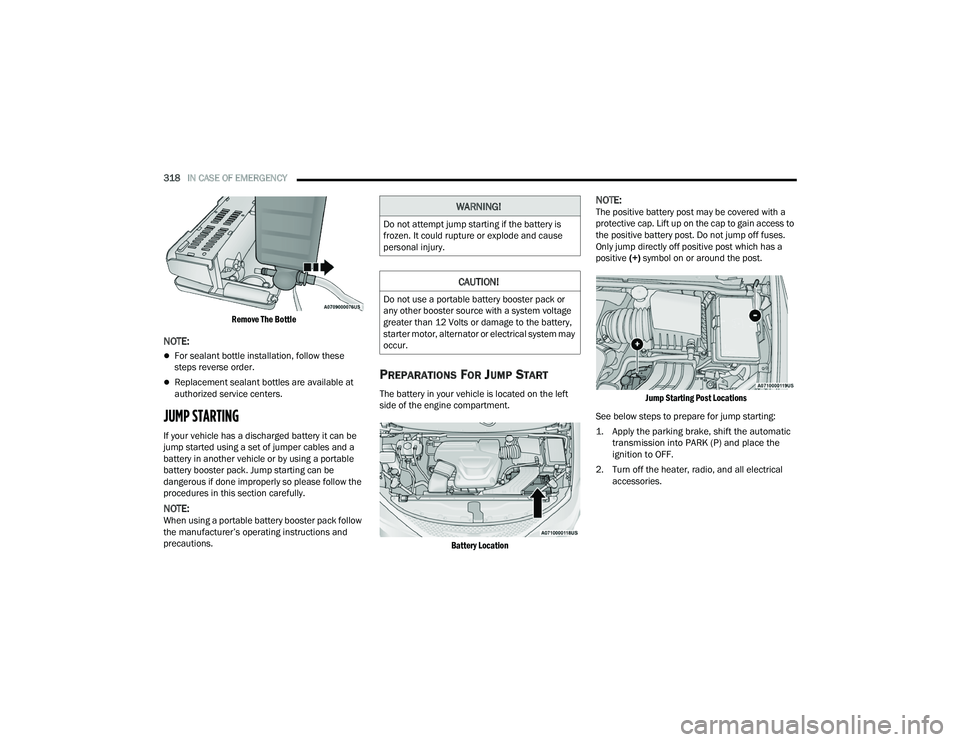
Remove The Bottle
NOTE:
For sealant bottle installation, follow these
steps reverse order.
Replacement sealant bottles are available at
authorized service centers.
JUMP STARTING
If your vehicle has a discharged battery it can be
jump started using a set of jumper cables and a
battery in another vehicle or by using a portable
battery booster pack. Jump starting can be
dangerous if done improperly so please follow the
procedures in this section carefully.
NOTE:When using a portable battery booster pack follow
the manufacturer’s operating instructions and
precautions.
PREPARATIONS FOR JUMP START
The battery in your vehicle is located on the left
side of the engine compartment.
Battery Location
NOTE:The positive battery post may be covered with a
protective cap. Lift up on the cap to gain access to
the positive battery post. Do not jump off fuses.
Only jump directly off positive post which has a
positive (+) symbol on or around the post.
Jump Starting Post Locations
See below steps to prepare for jump starting:
1. Apply the parking brake, shift the automatic transmission into PARK (P) and place the
ignition to OFF.
2. Turn off the heater, radio, and all electrical accessories.WARNING!
Do not attempt jump starting if the battery is
frozen. It could rupture or explode and cause
personal injury.
CAUTION!
Do not use a portable battery booster pack or
any other booster source with a system voltage
greater than 12 Volts or damage to the battery,
starter motor, alternator or electrical system may
occur.
21_RUP_OM_EN_USC_t.book Page 318