reset CHRYSLER VOYAGER 2021 User Guide
[x] Cancel search | Manufacturer: CHRYSLER, Model Year: 2021, Model line: VOYAGER, Model: CHRYSLER VOYAGER 2021Pages: 348, PDF Size: 18.73 MB
Page 115 of 348
STARTING AND OPERATING113
(Continued)
Auto Park Brake
The Electric Park Brake (EPB) can be programmed
to be applied automatically whenever the vehicle is
at a standstill and the automatic transmission is
placed in PARK. Auto Park Brake is enabled and
disabled by customer selection through the
customer programmable features
Úpage 142.
SafeHold
SafeHold is a safety feature of the Electric Park
Brake (EPB) system that will engage the parking
brake automatically if the vehicle is left unsecured.
If the automatic transmission is not in PARK, the
seat belt is unbuckled, the driver door is open, the
vehicle is at a standstill, and there is no attempt to
press the brake pedal or accelerator pedal, the
parking brake will automatically engage to prevent
the vehicle from rolling.
SafeHold can be temporarily bypassed by pushing
the EPB while the driver door is open and brake
pedal is pressed. Once manually bypassed,
SafeHold will be enabled again once the vehicle
reaches 12 mph (20 km/h) or the ignition is cycled
to the OFF position and back to ON again.
Brake Service Mode
We recommend having your brakes serviced by an
authorized dealer. You should only make repairs
for which you have the knowledge and the right
equipment. You should only enter Brake Service
Mode during brake service. When servicing your rear brakes, it may be
necessary for you or your technician to push the
rear piston into the rear caliper bore. With the
Electric Park Brake (EPB) system, this can only be
done after retracting the EPB actuator.
Fortunately, actuator retraction can be done easily
by entering the brake service in your vehicle
Úpage 142. This menu based system will guide
you through the steps necessary to retract the EPB
actuator in order to perform rear brake service.
Brake Service Mode has requirements that must
be met in order to be activated:
The vehicle must be at a standstill.
The parking brake must be unapplied.
The transmission must be in PARK or NEUTRAL.
While in service mode, the EPB fault lamp will flash
continuously while the ignition switch is ON.
When brake service work is complete, the following
steps must be followed to reset the parking brake
system to normal operation:
Ensure the vehicle is at a standstill.
Press the brake pedal with moderate force.
Apply the EPB.
AUTOMATIC TRANSMISSION
You must press and hold the brake pedal while
shifting out of PARK.
WARNING!
You can be badly injured working on or around a
motor vehicle. Do only that service work for
which you have the knowledge and the right
equipment. If you have any doubt about your
ability to perform a service job, take your vehicle
to a competent mechanic.
WARNING!
Never use the PARK position as a substitute
for the parking brake. Always apply the
parking brake fully when exiting the vehicle to
guard against vehicle movement and possible
injury or damage.
Your vehicle could move and injure you and
others if it is not in PARK. Check by trying to
move the transmission gear selector out of
PARK with the brake pedal released. Make
sure the transmission is in PARK before
exiting the vehicle.
4
21_RUV_OM_EN_USC_t.book Page 113
Page 120 of 348
118STARTING AND OPERATING
In the event of a momentary problem, the
transmission can be reset to regain all forward
gears by performing the following steps:
1. Stop the vehicle.
2. Shift the transmission into PARK, if possible. If not, shift the transmission to NEUTRAL.
3. Push and hold the ignition switch until the engine turns off.
4. Wait approximately 30 seconds.
5. Restart the engine.
6. Shift into the desired gear range. If the problem is no longer detected, the
transmission will return to normal operation.
NOTE:Even if the transmission can be reset, we
recommend that you visit an authorized dealer at
your earliest possible convenience. An authorized
dealer has diagnostic equipment to assess the
condition of your transmission. If the transmission
cannot be reset, authorized dealer service is
required.
Torque Converter Clutch
A feature designed to improve fuel economy has
been included in the automatic transmission on
your vehicle. A clutch within the torque converter
engages automatically at calibrated speeds. This
may result in a slightly different feeling or response during normal operation in the upper gears. When
the vehicle speed drops or during some
accelerations, the clutch automatically
disengages.
NOTE:The torque converter clutch will not engage until
the engine and/or transmission is warm (usually
after 1 to 3 miles [2 to 5 km] of driving). Because
the engine speed is higher when the torque
converter clutch is not engaged, it may seem as if
the transmission is not shifting properly when the
vehicle is cold. This is normal. The torque converter
clutch will function normally once the powertrain is
sufficiently warm.
ACTIVE NOISE CANCELLATION
Your vehicle is equipped with an Active Noise
Cancellation System. This system is designed to
address exhaust and engine noise. The system
relies on four microphones embedded in the
headliner, which monitor exhaust and engine
noise, and assists an onboard frequency
generator, which creates counteracting sound
waves in the audio system’s speakers. This helps
keep the vehicle quiet at idle and during drive.
POWER STEERING
The electric power steering system will provide
increased vehicle response and ease of
maneuverability. The power steering system
adapts to different driving conditions.
If the Steering icon is displayed and the “POWER
STEERING SYSTEM OVER TEMP” message is
displayed on the instrument cluster screen, this
indicates an over temperature condition in the
power steering system. Once driving conditions are
safe, pull over and let the vehicle idle for a few
moments until the icon and message turn off
Úpage 97.
If the “SERVICE POWER STEERING" OR
"POWER STEERING ASSIST OFF -
SERVICE SYSTEM” message and a
steering wheel icon are displayed on the
instrument cluster screen, it indicates that the
vehicle needs to be taken to the dealer for service.
It is likely the vehicle has lost power steering
assistance
Úpage 97.
WARNING!
Continued operation with reduced assist could
pose a safety risk to yourself and others. Service
should be obtained as soon as possible.
21_RUV_OM_EN_USC_t.book Page 118
Page 122 of 348
120STARTING AND OPERATING
TO START THE ENGINE WHILE IN AUTO
S
TOP/START
While in a forward gear, the engine will start when
the brake pedal is released or the throttle pedal is
pressed. The transmission will automatically
re-engage upon engine restart.
Conditions That Will Cause The Engine To Start
Automatically While In Auto Stop/Start:
The transmission selector is moved out of
DRIVE.
To maintain cabin temperature comfort.
HVAC is set to full defrost mode.
HVAC system temperature or fan speed is
manually adjusted.
Battery voltage drops too low. During this time a
message will display "Stop/Start Not Ready
Battery Charging".
Stop/Start OFF switch is pushed.
A Stop/Start system error occurs.
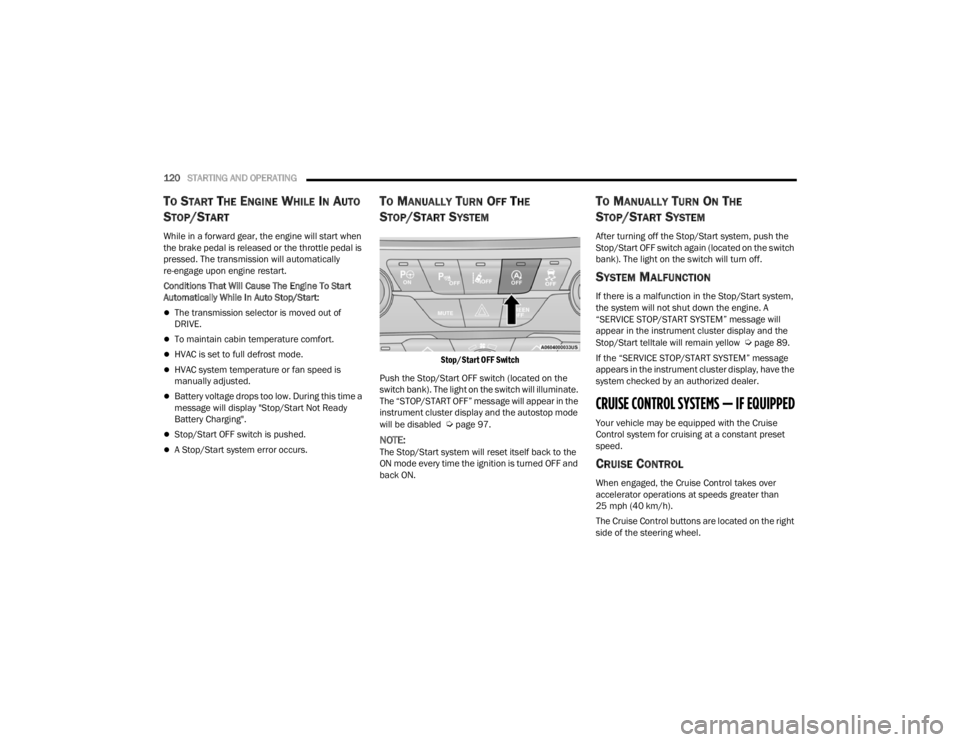
TO MANUALLY TURN OFF THE
S
TOP/START SYSTEM
Stop/Start OFF Switch
Push the Stop/Start OFF switch (located on the
switch bank). The light on the switch will illuminate.
The “STOP/START OFF” message will appear in the
instrument cluster display and the autostop mode
will be disabled
Úpage 97.
NOTE:The Stop/Start system will reset itself back to the
ON mode every time the ignition is turned OFF and
back ON.
TO MANUALLY TURN ON THE
S
TOP/START SYSTEM
After turning off the Stop/Start system, push the
Stop/Start OFF switch again (located on the switch
bank). The light on the switch will turn off.
SYSTEM MALFUNCTION
If there is a malfunction in the Stop/Start system,
the system will not shut down the engine. A
“SERVICE STOP/START SYSTEM” message will
appear in the instrument cluster display and the
Stop/Start telltale will remain yellow
Úpage 89.
If the “SERVICE STOP/START SYSTEM” message
appears in the instrument cluster display, have the
system checked by an authorized dealer.
CRUISE CONTROL SYSTEMS — IF EQUIPPED
Your vehicle may be equipped with the Cruise
Control system for cruising at a constant preset
speed.
CRUISE CONTROL
When engaged, the Cruise Control takes over
accelerator operations at speeds greater than
25 mph (40 km/h).
The Cruise Control buttons are located on the right
side of the steering wheel.
21_RUV_OM_EN_USC_t.book Page 120
Page 145 of 348

MULTIMEDIA143
KeySense
The vehicle’s KeySense settings are protected by a unique four-digit PIN, which the vehicle owner creates when accessing the specific settings for the first
time. This four-digit PIN can only be reset by an authorized dealer.
After pressing the KeySense button on the touchscreen, and entering the KeySense PIN, the following settings will be available:
Setting Name Description
Forward Collision Warning Sensitivity — If EquippedThis setting will change the distance at which the Forward Collision Warning (FCW) alert sounds. The
“Medium” setting will have the FCW system signal when an object is in view, and the possibility of a
collision is detected. The “Near” setting will have the FCW system signal when the object is closer to
the vehicle. The “Far” setting will have the FCW system signal when an object is at a far distance from
the vehicle.
Forward Collision Warning — If Equipped This setting will turn the Forward Collision Warning (FCW) system on or off. The “Warning Only” setting
will provide only an audible chime when a collision is detected. The “Warning + Active Braking” setting
will provide an audible chime and apply some brake pressure when a collision is detected.
ParkSense This setting will change the type of ParkSense alert when a close object is detected. The “Sound Only”
setting will provide an audible chime when an object is detected. The “Sound and Display” setting will
provide both an audible chime and a visual display when an object is detected.
Front ParkSense Volume This setting adjusts the volume of the Front ParkSense system. The available settings are
“Low”, “Medium”, and “High”.
5
21_RUV_OM_EN_USC_t.book Page 143
Page 157 of 348

MULTIMEDIA155
SiriusXM® Setup
Restore Settings To Default
NOTE:A subscription to SiriusXM® satellite radio is required for these settings to be functional.
When the SiriusXM® Setup button is pressed on the touchscreen, the system displays options related to SiriusXM® satellite radio. These settings can be used
to skip specific radio channels and restart favorite songs from the beginning.
Setting Name Description
Tune StartThis setting will play the current song from the beginning when you tune to a music channel using
one of the 12 presets.
Channel Skip This setting allows you to set channels that you wish to skip. A channel list will display of the
skipped channels.
Subscription Information This menu provides SiriusXM® subscription information. SiriusXM® Travel Link is a
separate subscription.
When the Restore Settings To Default button is pressed on the touchscreen, the system displays the options related to resetting the Uconnect system back to
its default settings. These settings can clear personal data and reset selected settings from other menus.
Setting Name
Description
Restore Settings to DefaultThis setting will return all the previously changed settings to their
factory default.
Reset App Drawer to Default Order This setting will reset the app drawer to its factory default layout.
Clear Personal Data This setting will display a pop-up that gives you the option to clear all personal data from the system,
including Bluetooth® devices and presets.
5
21_RUV_OM_EN_USC_t.book Page 155
Page 159 of 348
MULTIMEDIA157
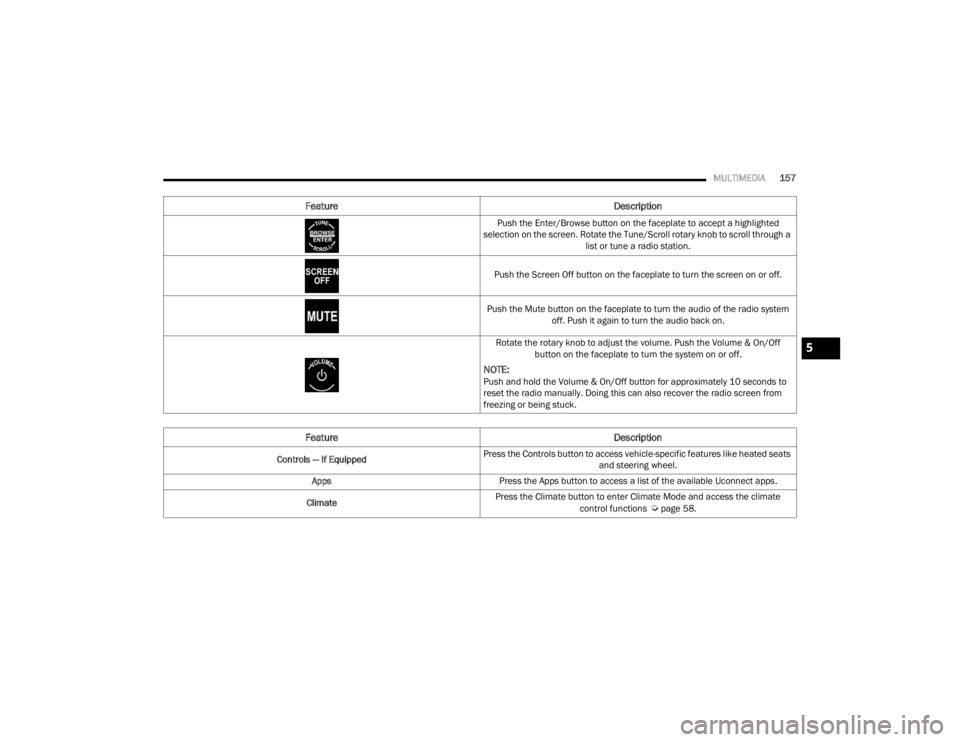
Push the Enter/Browse button on the faceplate to accept a highlighted
selection on the screen. Rotate the Tune/Scroll rotary knob to scroll through a list or tune a radio station.
Push the Screen Off button on the faceplate to turn the screen on or off.
Push the Mute button on the faceplate to turn the audio of the radio system off. Push it again to turn the audio back on.
Rotate the rotary knob to adjust the volume. Push the Volume & On/Off button on the faceplate to turn the system on or off.
NOTE:Push and hold the Volume & On/Off button for approximately 10 seconds to
reset the radio manually. Doing this can also recover the radio screen from
freezing or being stuck.
Feature Description
Controls — If EquippedPress the Controls button to access vehicle-specific features like heated seats
and steering wheel.
Apps Press the Apps button to access a list of the available Uconnect apps.
Climate Press the Climate button to enter Climate Mode and access the climate
control functions
Úpage 58.
Feature Description
5
21_RUV_OM_EN_USC_t.book Page 157
Page 161 of 348
MULTIMEDIA159
Care And Maintenance
Do not press the touchscreen with any hard or
sharp objects (pen, USB stick, jewelry, etc.),
which could scratch the surface.
Do not spray any liquid or chemicals directly on
the screen! Use a clean and dry microfiber lens
cleaning cloth in order to clean the touchscreen.
If necessary, use a lint-free cloth dampened
with a cleaning solution, such as isopropyl
alcohol or an isopropyl alcohol and water solu -
tion ratio of 50:50. Be sure to follow the solvent
manufacturer's precautions and directions
Úpage 331.
UCONNECT MODES
STEERING WHEEL AUDIO CONTROLS
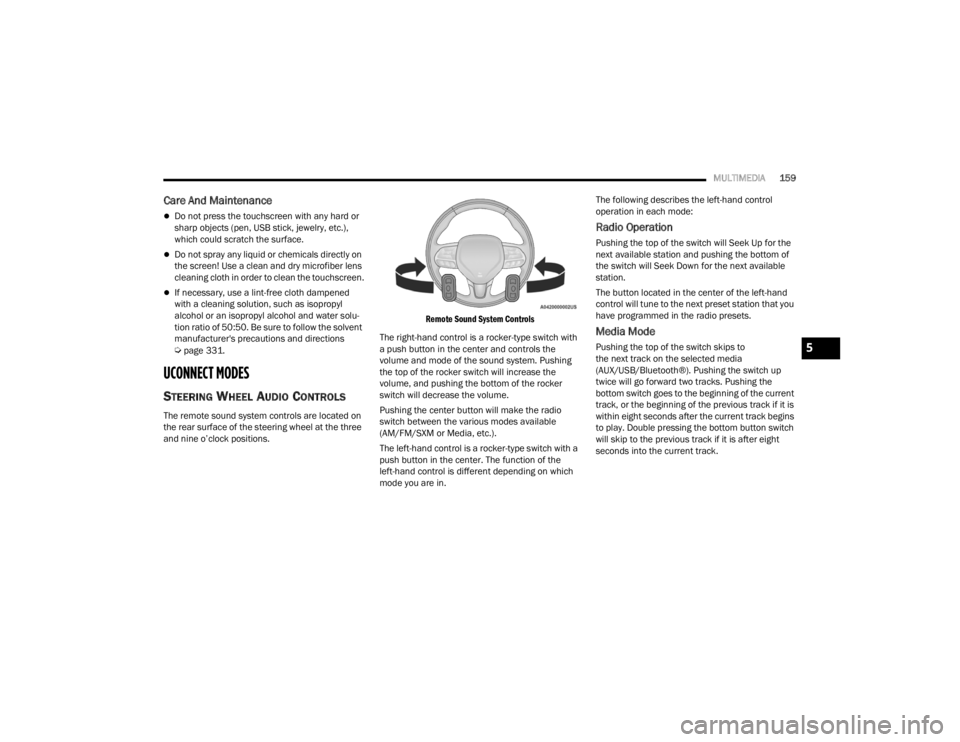
The remote sound system controls are located on
the rear surface of the steering wheel at the three
and nine o’clock positions.
Remote Sound System Controls
The right-hand control is a rocker-type switch with
a push button in the center and controls the
volume and mode of the sound system. Pushing
the top of the rocker switch will increase the
volume, and pushing the bottom of the rocker
switch will decrease the volume.
Pushing the center button will make the radio
switch between the various modes available
(AM/FM/SXM or Media, etc.).
The left-hand control is a rocker-type switch with a
push button in the center. The function of the
left-hand control is different depending on which
mode you are in. The following describes the left-hand control
operation in each mode:
Radio Operation
Pushing the top of the switch will Seek Up for the
next available station and pushing the bottom of
the switch will Seek Down for the next available
station.
The button located in the center of the left-hand
control will tune to the next preset station that you
have programmed in the radio presets.
Media Mode
Pushing the top of the switch skips to
the next track on the selected media
(AUX/USB/Bluetooth®). Pushing the switch up
twice will go forward two tracks. Pushing the
bottom switch goes to the beginning of the current
track, or the beginning of the previous track if it is
within eight seconds after the current track begins
to play. Double pressing the bottom button switch
will skip to the previous track if it is after eight
seconds into the current track.5
21_RUV_OM_EN_USC_t.book Page 159
Page 162 of 348
160MULTIMEDIA
RADIO MODE
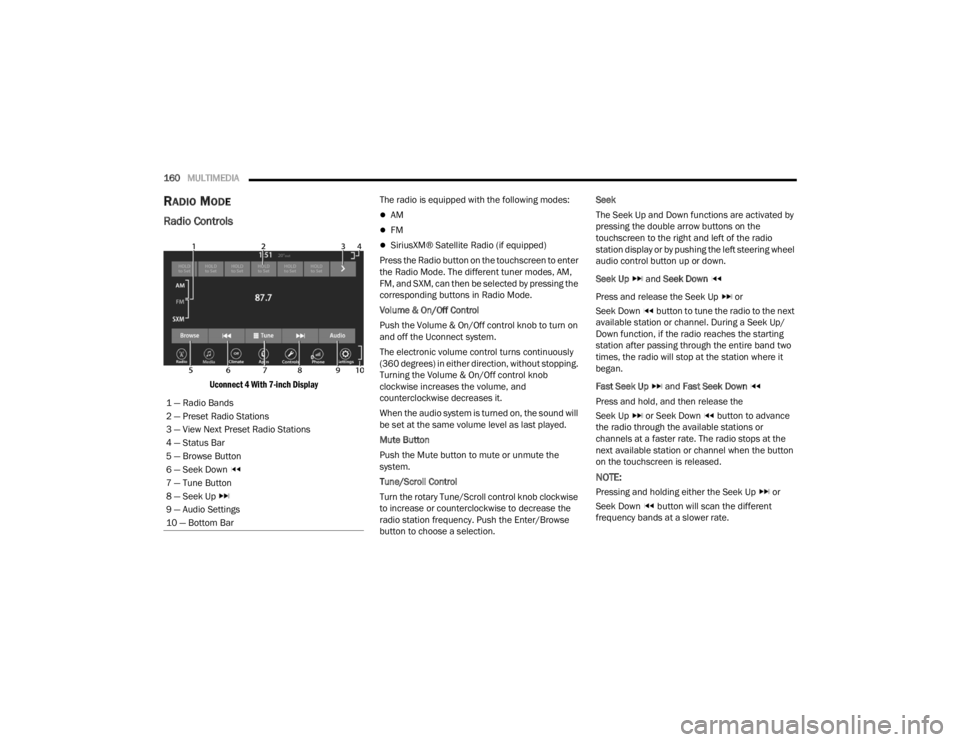
Radio Controls
Uconnect 4 With 7-inch Display
The radio is equipped with the following modes:
AM
FM
SiriusXM® Satellite Radio (if equipped)
Press the Radio button on the touchscreen to enter
the Radio Mode. The different tuner modes, AM,
FM, and SXM, can then be selected by pressing the
corresponding buttons in Radio Mode.
Volume & On/Off Control
Push the Volume & On/Off control knob to turn on
and off the Uconnect system.
The electronic volume control turns continuously
(360 degrees) in either direction, without stopping.
Turning the Volume & On/Off control knob
clockwise increases the volume, and
counterclockwise decreases it.
When the audio system is turned on, the sound will
be set at the same volume level as last played.
Mute Button
Push the Mute button to mute or unmute the
system.
Tune/Scroll Control
Turn the rotary Tune/Scroll control knob clockwise
to increase or counterclockwise to decrease the
radio station frequency. Push the Enter/Browse
button to choose a selection. Seek
The Seek Up and Down functions are activated by
pressing the double arrow buttons on the
touchscreen to the right and left of the radio
station display or by pushing the left steering wheel
audio control button up or down.
Seek Up
and Seek Down
Press and release the Seek Up or
Seek Down button to tune the radio to the next
available station or channel. During a Seek Up/
Down function, if the radio reaches the starting
station after passing through the entire band two
times, the radio will stop at the station where it
began.
Fast Seek Up and Fast Seek Down
Press and hold, and then release the
Seek Up or Seek Down button to advance the radio through the available stations or
channels at a faster rate. The radio stops at the
next available station or channel when the button
on the touchscreen is released.
NOTE:
Pressing and holding either the Seek Up or
Seek Down button will scan the different
frequency bands at a slower rate.
1 — Radio Bands
2 — Preset Radio Stations
3 — View Next Preset Radio Stations
4 — Status Bar
5 — Browse Button
6 — Seek Down
7 — Tune Button
8 — Seek Up
9 — Audio Settings
10 — Bottom Bar
21_RUV_OM_EN_USC_t.book Page 160
Page 164 of 348
162MULTIMEDIA
No Subscription
Radios equipped with a Satellite receiver require a
subscription to the SiriusXM® Service. When the
radio does not have the necessary subscription,
the radio is able to receive the Preview channel
only.
Acquiring SiriusXM® Subscription
To activate the SiriusXM® Satellite Radio
subscription, US residents visit
siriusxm.com/
getallaccess or call: 1-800-643-2112
Canadian residents visit
https://
www.siriusxm.ca/ or call: 1-888-539-7474.
NOTE:You will need to provide the SiriusXM® ID (RID)
located at the bottom of the Channel 0 screen.
The Satellite Mode is activated by a press of the
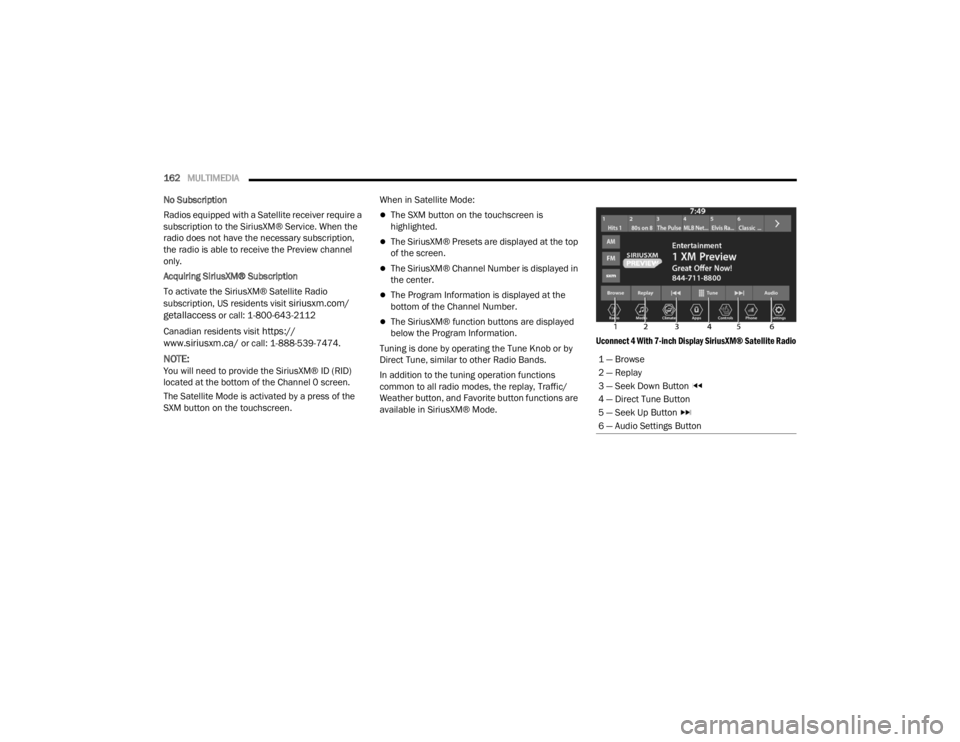
SXM button on the touchscreen. When in Satellite Mode:
The SXM button on the touchscreen is
highlighted.
The SiriusXM® Presets are displayed at the top
of the screen.
The SiriusXM® Channel Number is displayed in
the center.
The Program Information is displayed at the
bottom of the Channel Number.
The SiriusXM® function buttons are displayed
below the Program Information.
Tuning is done by operating the Tune Knob or by
Direct Tune, similar to other Radio Bands.
In addition to the tuning operation functions
common to all radio modes, the replay, Traffic/
Weather button, and Favorite button functions are
available in SiriusXM® Mode.
Uconnect 4 With 7-inch Display SiriusXM® Satellite Radio
1 — Browse
2 — Replay
3 — Seek Down Button
4 — Direct Tune Button
5 — Seek Up Button
6 — Audio Settings Button
21_RUV_OM_EN_USC_t.book Page 162
Page 166 of 348
164MULTIMEDIA
FAVORITES
Press the Favorites button on the touchscreen to
activate the favorites menu, which will time out
within 20 seconds in absence of user interaction.
You can exit the Favorites Menu by a press of the X
button.
The favorites feature enables you to set a favorite
artist or song that is currently playing. The radio
then uses this information to alert you when either
the favorite artist or song is being played at any
time by any of the SiriusXM® Channels.
The maximum number of favorites that can be
stored in the Radio is 50.
Favorite Artist: While the song is playing, to set a
favorite artist, press the Favorites button on the
touchscreen and then the Favorite Artist button on
the touchscreen.
Favorite Song: While the song is playing, to set a
favorite song, press the Favorites button on the
touchscreen and then the Favorite Song button on
the touchscreen.
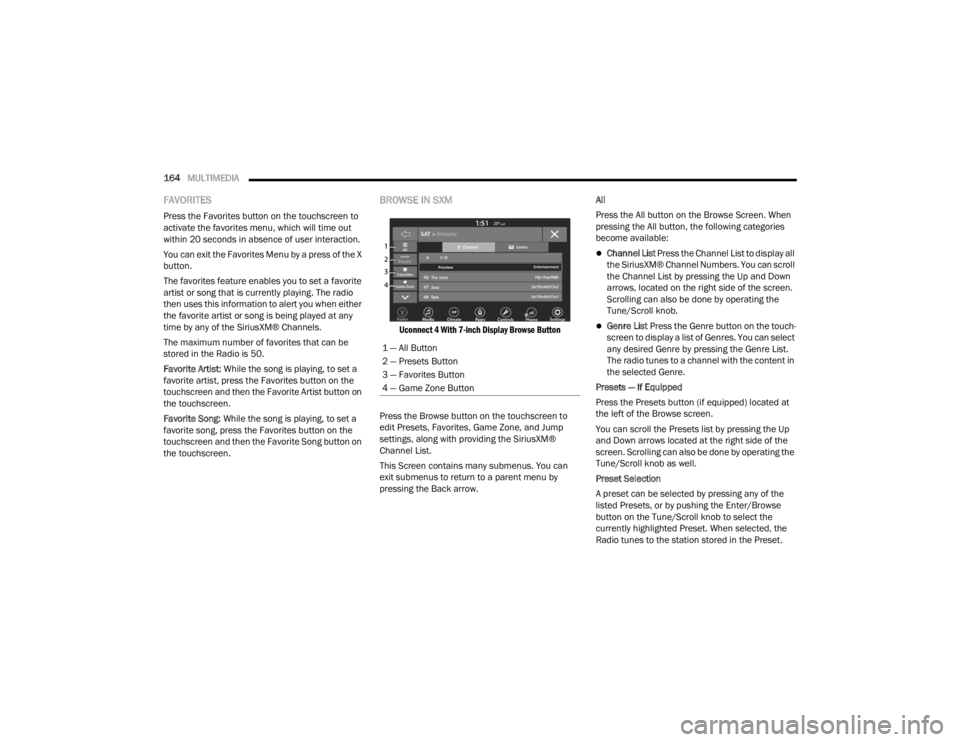
BROWSE IN SXM
Uconnect 4 With 7-inch Display Browse Button
Press the Browse button on the touchscreen to
edit Presets, Favorites, Game Zone, and Jump
settings, along with providing the SiriusXM®
Channel List.
This Screen contains many submenus. You can
exit submenus to return to a parent menu by
pressing the Back arrow. All
Press the All button on the Browse Screen. When
pressing the All button, the following categories
become available:
Channel List
Press the Channel List to display all
the SiriusXM® Channel Numbers. You can scroll
the Channel List by pressing the Up and Down
arrows, located on the right side of the screen.
Scrolling can also be done by operating the
Tune/Scroll knob.
Genre List Press the Genre button on the touch -
screen to display a list of Genres. You can select
any desired Genre by pressing the Genre List.
The radio tunes to a channel with the content in
the selected Genre.
Presets — If Equipped
Press the Presets button (if equipped) located at
the left of the Browse screen.
You can scroll the Presets list by pressing the Up
and Down arrows located at the right side of the
screen. Scrolling can also be done by operating the
Tune/Scroll knob as well.
Preset Selection
A preset can be selected by pressing any of the
listed Presets, or by pushing the Enter/Browse
button on the Tune/Scroll knob to select the
currently highlighted Preset. When selected, the
Radio tunes to the station stored in the Preset.
1 — All Button
2 — Presets Button
3 — Favorites Button
4 — Game Zone Button
21_RUV_OM_EN_USC_t.book Page 164