display CHRYSLER VOYAGER 2023 Service Manual
[x] Cancel search | Manufacturer: CHRYSLER, Model Year: 2023, Model line: VOYAGER, Model: CHRYSLER VOYAGER 2023Pages: 256, PDF Size: 13.97 MB
Page 114 of 256
112MULTIMEDIA
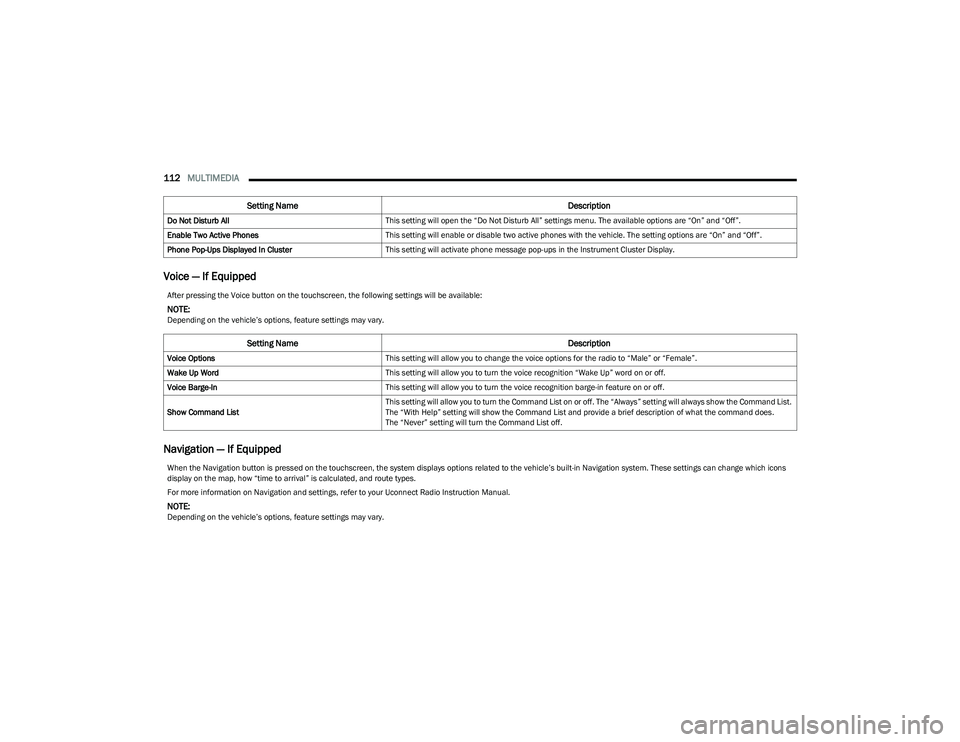
Voice — If Equipped
Navigation — If Equipped
Do Not Disturb All This setting will open the “Do Not Disturb All” settings menu. The available options are “On” and “Off”.
Enable Two Active Phones This setting will enable or disable two active phones with the vehicle. The setting options are “On” and “Off”.
Phone Pop-Ups Displayed In Cluster This setting will activate phone message pop-ups in the Instrument Cluster Display.
Setting Name Description
After pressing the Voice button on the touchscreen, the following settings will be available:
NOTE:Depending on the vehicle’s options, feature settings may vary.
Setting NameDescription
Voice OptionsThis setting will allow you to change the voice options for the radio to “Male” or “Female”.
Wake Up Word This setting will allow you to turn the voice recognition “Wake Up” word on or off.
Voice Barge-In This setting will allow you to turn the voice recognition barge-in feature on or off.
Show Command List This setting will allow you to turn the Command List on or off. The “Always” setting will always show the Command List.
The “With Help” setting will show the Command List and provide a brief description of what the command does.
The “Never” setting will turn the Command List off.
When the Navigation button is pressed on the touchscreen, the system displays options related to the vehicle’s built-in Navigation system. These settings can change which icons
display on the map, how “time to arrival” is calculated, and route types.
For more information on Navigation and settings, refer to your Uconnect Radio Instruction Manual.
NOTE:Depending on the vehicle’s options, feature settings may vary.
23_RUV_OM_EN_US_t.book Page 112
Page 115 of 256
MULTIMEDIA113
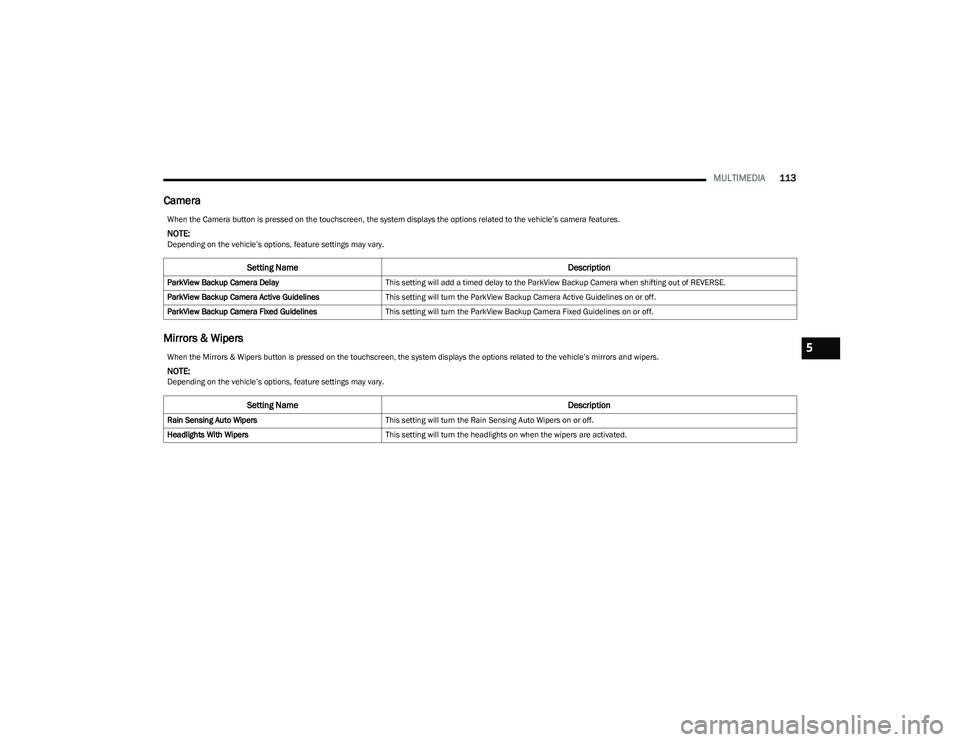
Camera
Mirrors & Wipers
When the Camera button is pressed on the touchscreen, the system displays the options related to the vehicle’s camera features.
NOTE:Depending on the vehicle’s options, feature settings may vary.
Setting Name Description
ParkView Backup Camera DelayThis setting will add a timed delay to the ParkView Backup Camera when shifting out of REVERSE.
ParkView Backup Camera Active Guidelines This setting will turn the ParkView Backup Camera Active Guidelines on or off.
ParkView Backup Camera Fixed Guidelines This setting will turn the ParkView Backup Camera Fixed Guidelines on or off.
When the Mirrors & Wipers button is pressed on the touchscreen, the system displays the options related to the vehicle’s mirrors and wipers.
NOTE:Depending on the vehicle’s options, feature settings may vary.
Setting Name Description
Rain Sensing Auto WipersThis setting will turn the Rain Sensing Auto Wipers on or off.
Headlights With Wipers This setting will turn the headlights on when the wipers are activated.
5
23_RUV_OM_EN_US_t.book Page 113
Page 116 of 256
114MULTIMEDIA
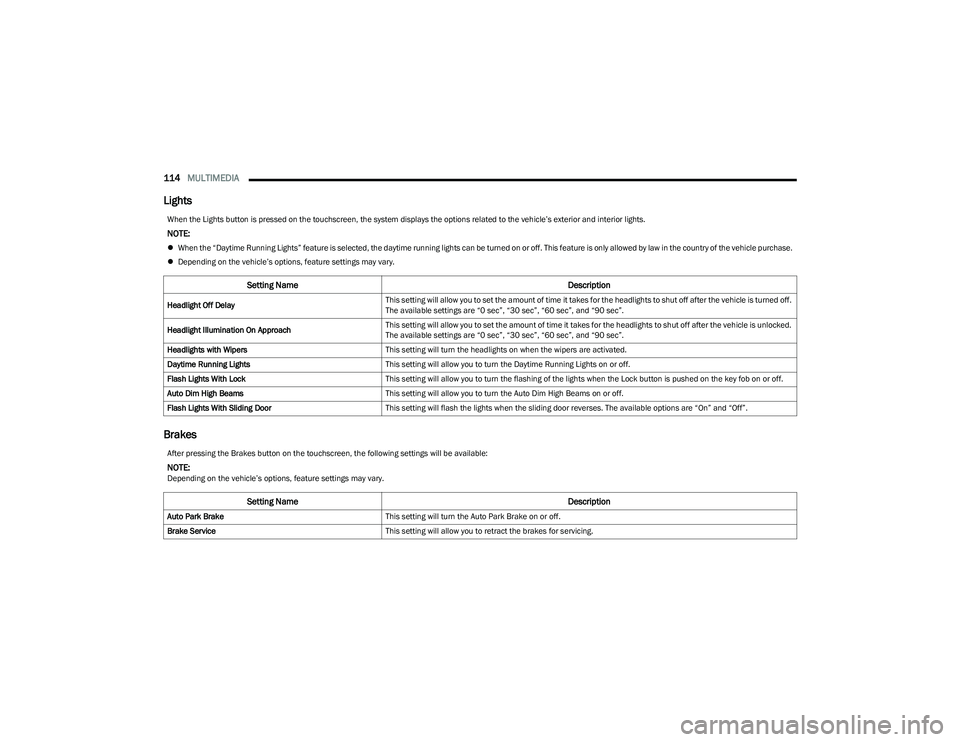
Lights
Brakes
When the Lights button is pressed on the touchscreen, the system displays the options related to the vehicle’s exterior and interior lights.
NOTE:
When the “Daytime Running Lights” feature is selected, the daytime running lights can be turned on or off. This feature is only allowed by law in the country of the vehicle purchase.
Depending on the vehicle’s options, feature settings may vary.
Setting Name Description
Headlight Off DelayThis setting will allow you to set the amount of time it takes for the headlights to shut off after the vehicle is turned off.
The available settings are “0 sec”, “30 sec”, “60 sec”, and “90 sec”.
Headlight Illumination On Approach This setting will allow you to set the amount of time it takes for the headlights to shut off after the vehicle is unlocked.
The available settings are “0 sec”, “30 sec”, “60 sec”, and “90 sec”.
Headlights with Wipers This setting will turn the headlights on when the wipers are activated.
Daytime Running Lights This setting will allow you to turn the Daytime Running Lights on or off.
Flash Lights With Lock This setting will allow you to turn the flashing of the lights when the Lock button is pushed on the key fob on or off.
Auto Dim High Beams This setting will allow you to turn the Auto Dim High Beams on or off.
Flash Lights With Sliding Door This setting will flash the lights when the sliding door reverses. The available options are “On” and “Off”.
After pressing the Brakes button on the touchscreen, the following settings will be available:
NOTE:Depending on the vehicle’s options, feature settings may vary.
Setting Name Description
Auto Park BrakeThis setting will turn the Auto Park Brake on or off.
Brake Service This setting will allow you to retract the brakes for servicing.
23_RUV_OM_EN_US_t.book Page 114
Page 118 of 256
116MULTIMEDIA
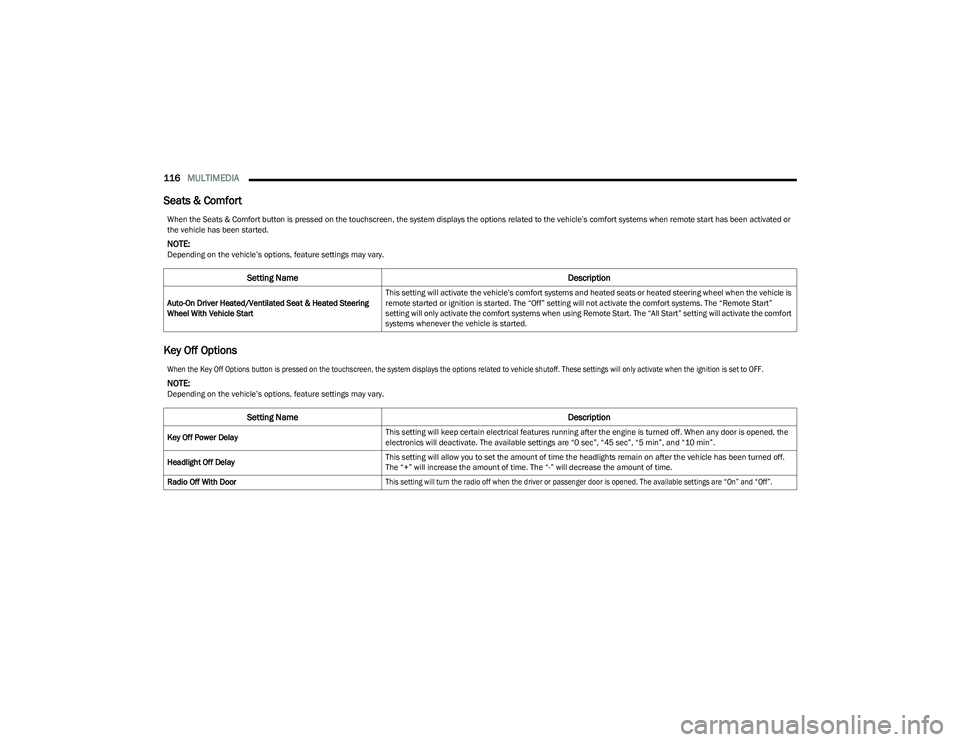
Seats & Comfort
Key Off Options
When the Seats & Comfort button is pressed on the touchscreen, the system displays the options related to the vehicle’s comfort systems when remote start has been activated or
the vehicle has been started.
NOTE:Depending on the vehicle’s options, feature settings may vary.
Setting Name Description
Auto-On Driver Heated/Ventilated Seat & Heated Steering
Wheel With Vehicle StartThis setting will activate the vehicle’s comfort systems and heated seats or heated steering wheel when the vehicle is
remote started or ignition is started. The “Off” setting will not activate the comfort systems. The “Remote Start”
setting will only activate the comfort systems when using Remote Start. The “All Start” setting will activate the comfort
systems whenever the vehicle is started.
When the Key Off Options button is pressed on the touchscreen, the system displays the options related to vehicle shutoff. These settings will only activate when the ignition is set to OFF.
NOTE:Depending on the vehicle’s options, feature settings may vary.
Setting Name
Description
Key Off Power DelayThis setting will keep certain electrical features running after the engine is turned off. When any door is opened, the
electronics will deactivate. The available settings are “0 sec”, “45 sec”, “5 min”, and “10 min”.
Headlight Off Delay This setting will allow you to set the amount of time the headlights remain on after the vehicle has been turned off.
The “+” will increase the amount of time. The “-” will decrease the amount of time.
Radio Off With Door
This setting will turn the radio off when the driver or passenger door is opened. The available settings are “On” and “Off”.
23_RUV_OM_EN_US_t.book Page 116
Page 119 of 256
MULTIMEDIA117
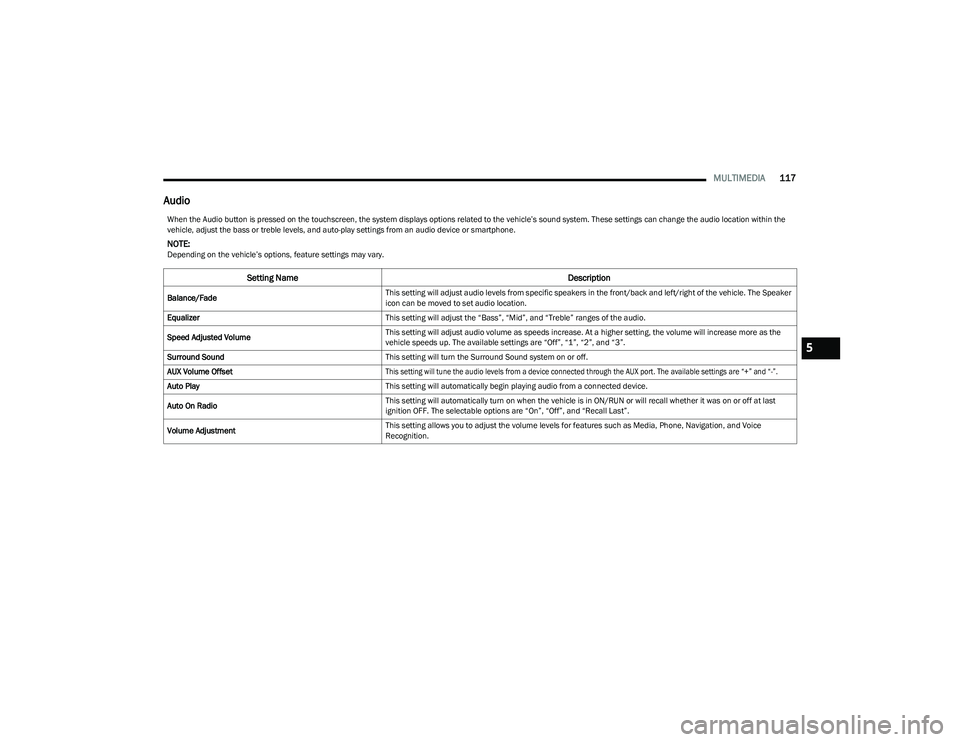
Audio
When the Audio button is pressed on the touchscreen, the system displays options related to the vehicle’s sound system. These settings can change the audio location within the
vehicle, adjust the bass or treble levels, and auto-play settings from an audio device or smartphone.
NOTE:Depending on the vehicle’s options, feature settings may vary.
Setting Name Description
Balance/FadeThis setting will adjust audio levels from specific speakers in the front/back and left/right of the vehicle. The Speaker
icon can be moved to set audio location.
Equalizer This setting will adjust the “Bass”, “Mid”, and “Treble” ranges of the audio.
Speed Adjusted Volume This setting will adjust audio volume as speeds increase. At a higher setting, the volume will increase more as the
vehicle speeds up. The available settings are “Off”, “1”, “2”, and “3”.
Surround Sound This setting will turn the Surround Sound system on or off.
AUX Volume Offset
This setting will tune the audio levels from a device connected through the AUX port. The available settings are “+” and “-”.
Auto Play This setting will automatically begin playing audio from a connected device.
Auto On Radio This setting will automatically turn on when the vehicle is in ON/RUN or will recall whether it was on or off at last
ignition OFF. The selectable options are “On”, “Off”, and “Recall Last”.
Volume Adjustment This setting allows you to adjust the volume levels for features such as Media, Phone, Navigation, and Voice
Recognition.
5
23_RUV_OM_EN_US_t.book Page 117
Page 120 of 256
118MULTIMEDIA
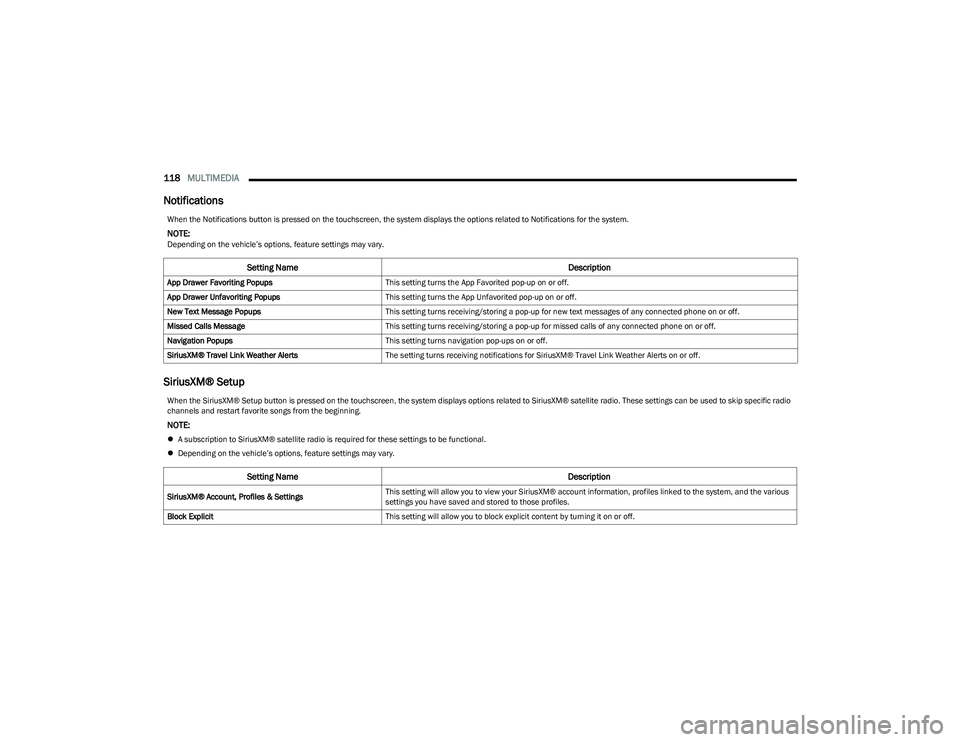
Notifications
SiriusXM® Setup
When the Notifications button is pressed on the touchscreen, the system displays the options related to Notifications for the system.
NOTE:Depending on the vehicle’s options, feature settings may vary.
Setting Name Description
App Drawer Favoriting PopupsThis setting turns the App Favorited pop-up on or off.
App Drawer Unfavoriting Popups This setting turns the App Unfavorited pop-up on or off.
New Text Message Popups This setting turns receiving/storing a pop-up for new text messages of any connected phone on or off.
Missed Calls Message This setting turns receiving/storing a pop-up for missed calls of any connected phone on or off.
Navigation Popups This setting turns navigation pop-ups on or off.
SiriusXM® Travel Link Weather Alerts The setting turns receiving notifications for SiriusXM® Travel Link Weather Alerts on or off.
When the SiriusXM® Setup button is pressed on the touchscreen, the system displays options related to SiriusXM® satellite radio. These settings can be used to skip specific radio
channels and restart favorite songs from the beginning.
NOTE:
A subscription to SiriusXM® satellite radio is required for these settings to be functional.
Depending on the vehicle’s options, feature settings may vary.
Setting Name Description
SiriusXM® Account, Profiles & SettingsThis setting will allow you to view your SiriusXM® account information, profiles linked to the system, and the various
settings you have saved and stored to those profiles.
Block Explicit This setting will allow you to block explicit content by turning it on or off.
23_RUV_OM_EN_US_t.book Page 118
Page 121 of 256
MULTIMEDIA119
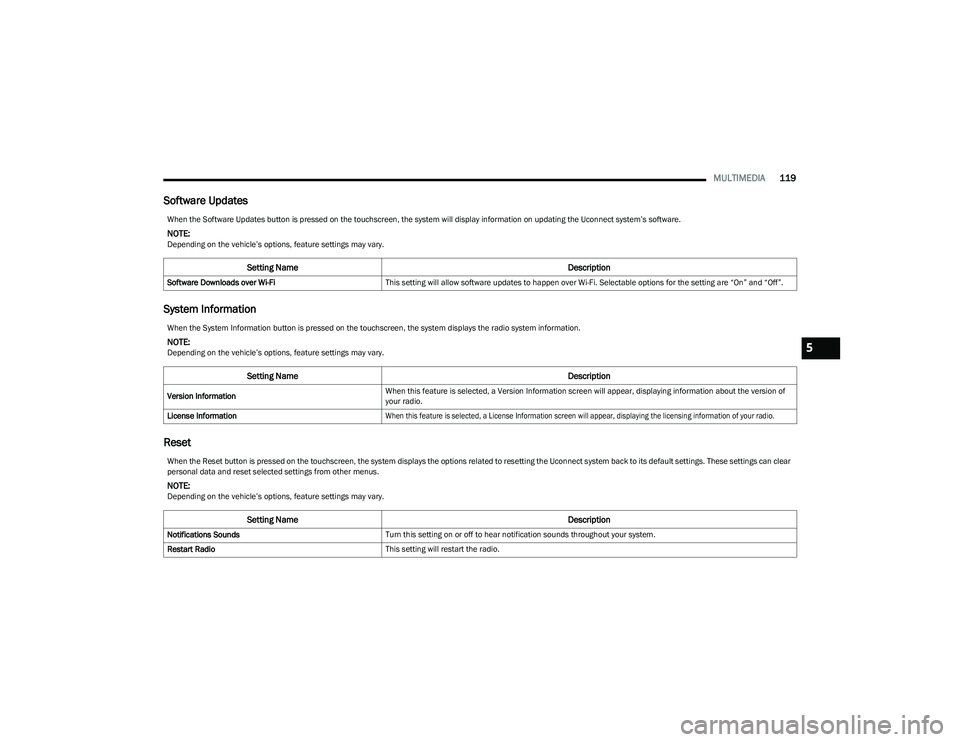
Software Updates
System Information
Reset
When the Software Updates button is pressed on the touchscreen, the system will display information on updating the Uconnect system’s software.
NOTE:Depending on the vehicle’s options, feature settings may vary.
Setting Name Description
Software Downloads over Wi-FiThis setting will allow software updates to happen over Wi-Fi. Selectable options for the setting are “On” and “Off”.
When the System Information button is pressed on the touchscreen, the system displays the radio system information.
NOTE:Depending on the vehicle’s options, feature settings may vary.
Setting Name Description
Version InformationWhen this feature is selected, a Version Information screen will appear, displaying information about the version of
your radio.
License Information
When this feature is selected, a License Information screen will appear, displaying the licensing information of your radio.
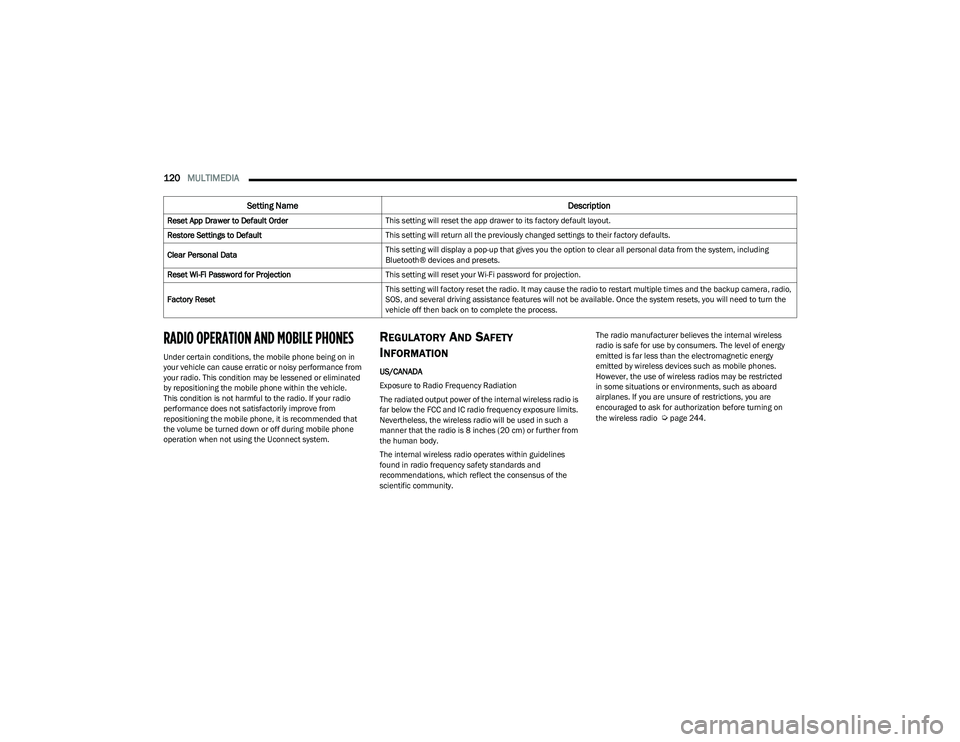
When the Reset button is pressed on the touchscreen, the system displays the options related to resetting the Uconnect system back to its default settings. These settings can clear
personal data and reset selected settings from other menus.
NOTE:Depending on the vehicle’s options, feature settings may vary.
Setting Name Description
Notifications SoundsTurn this setting on or off to hear notification sounds throughout your system.
Restart Radio This setting will restart the radio.
5
23_RUV_OM_EN_US_t.book Page 119
Page 122 of 256
120MULTIMEDIA
RADIO OPERATION AND MOBILE PHONES
Under certain conditions, the mobile phone being on in
your vehicle can cause erratic or noisy performance from
your radio. This condition may be lessened or eliminated
by repositioning the mobile phone within the vehicle.
This condition is not harmful to the radio. If your radio
performance does not satisfactorily improve from
repositioning the mobile phone, it is recommended that
the volume be turned down or off during mobile phone
operation when not using the Uconnect system.
REGULATORY AND SAFETY
I
NFORMATION
US/CANADA
Exposure to Radio Frequency Radiation
The radiated output power of the internal wireless radio is
far below the FCC and IC radio frequency exposure limits.
Nevertheless, the wireless radio will be used in such a
manner that the radio is 8 inches (20 cm) or further from
the human body.
The internal wireless radio operates within guidelines
found in radio frequency safety standards and
recommendations, which reflect the consensus of the
scientific community. The radio manufacturer believes the internal wireless
radio is safe for use by consumers. The level of energy
emitted is far less than the electromagnetic energy
emitted by wireless devices such as mobile phones.
However, the use of wireless radios may be restricted
in some situations or environments, such as aboard
airplanes. If you are unsure of restrictions, you are
encouraged to ask for authorization before turning on
the wireless radio
Úpage 244.
Reset App Drawer to Default Order
This setting will reset the app drawer to its factory default layout.
Restore Settings to Default This setting will return all the previously changed settings to their factory defaults.
Clear Personal Data This setting will display a pop-up that gives you the option to clear all personal data from the system, including
Bluetooth® devices and presets.
Reset Wi-Fi Password for Projection This setting will reset your Wi-Fi password for projection.
Factory Reset This setting will factory reset the radio. It may cause the radio to restart multiple times and the backup camera, radio,
SOS, and several driving assistance features will not be available. Once the system resets, you will need to turn the
vehicle off then back on to complete the process.
Setting Name
Description
23_RUV_OM_EN_US_t.book Page 120
Page 123 of 256
121
SAFETY
SAFETY FEATURES
ANTI-LOCK BRAKE SYSTEM (ABS)
The ABS provides increased vehicle stability and brake
performance under most braking conditions. The system
automatically prevents wheel lock and enhances vehicle
control during braking.
The ABS performs a self-check cycle to ensure that the
ABS is working properly each time the vehicle is started
and driven. During this self-check, you may hear a slight
clicking sound as well as some related motor noises.
The ABS is activated during braking when the system
detects one or more wheels are beginning to lock. Road
conditions such as ice, snow, gravel, bumps, railroad
tracks, loose debris, or panic stops may increase the
likelihood of ABS activation(s).
You also may experience the following normal
characteristics when the ABS activates:
ABS motor noise or clicking sounds (you may continue
to hear for a short time after the stop)
Brake pedal pulsations
A slight drop of the brake pedal at the end of the stop
The ABS is designed to function with the Original
Equipment Manufacturer (OEM) tires. Modification may
result in degraded ABS performance.
Anti-Lock Brake System (ABS) Warning
Light
The yellow ABS Warning Light will turn on when the ignition
is placed in the ON/RUN mode and may stay on for as long
as four seconds.
If the ABS Warning Light remains on or comes on while
driving, it indicates that the anti-lock portion of the brake
system is not functioning and that service is required.
However, the conventional brake system will continue to
operate normally if the ABS Warning Light is on.
If the ABS Warning Light is on, the brake system should be
serviced as soon as possible to restore the benefits of
Anti-Lock Brakes. If the ABS Warning Light does not come
on when the ignition is placed in the ON/RUN mode, have
the light repaired as soon as possible.
REAR SEAT REMINDER ALERT (RSRA)
RSRA alerts of the possible presence of an object, passenger,
or pet in the rear seats through a visual and auditory
notification. When the system is activated, it displays the
message “Check Rear Seat” on the instrument cluster display
and sounds an auditory alert upon the driver placing the
ignition in the OFF position to exit the vehicle. The system
will activate automatically if a rear door is opened within
10 minutes of the ignition being placed in the ON/RUN position.
RSRA should be used as a reminder to check the rear seats, it
does not directly detect objects, passengers, or pets and is only
activated when the previous conditions are met.
WARNING!
The ABS contains sophisticated electronic equip -
ment that may be susceptible to interference caused
by improperly installed or high output radio transmit -
ting equipment. This interference can cause possible
loss of anti-lock braking capability. Installation of
such equipment should be performed by qualified
professionals.
Pumping of the Anti-Lock Brakes will diminish their
effectiveness and may lead to a collision. Pumping
makes the stopping distance longer. Just press firmly
on your brake pedal when you need to slow down
or stop.
The ABS cannot prevent the natural laws of physics
from acting on the vehicle, nor can it increase
braking or steering efficiency beyond that afforded
by the condition of the vehicle brakes and tires or the
traction afforded.
The ABS cannot prevent collisions, including those
resulting from excessive speed in turns, following
another vehicle too closely, or hydroplaning.
The capabilities of an ABS equipped vehicle must
never be exploited in a reckless or dangerous
manner that could jeopardize the user’s safety
or the safety of others.
6
23_RUV_OM_EN_US_t.book Page 121
Page 128 of 256
126SAFETY
AUXILIARY DRIVING SYSTEMS
BLIND SPOT MONITORING (BSM) —
I
F EQUIPPED
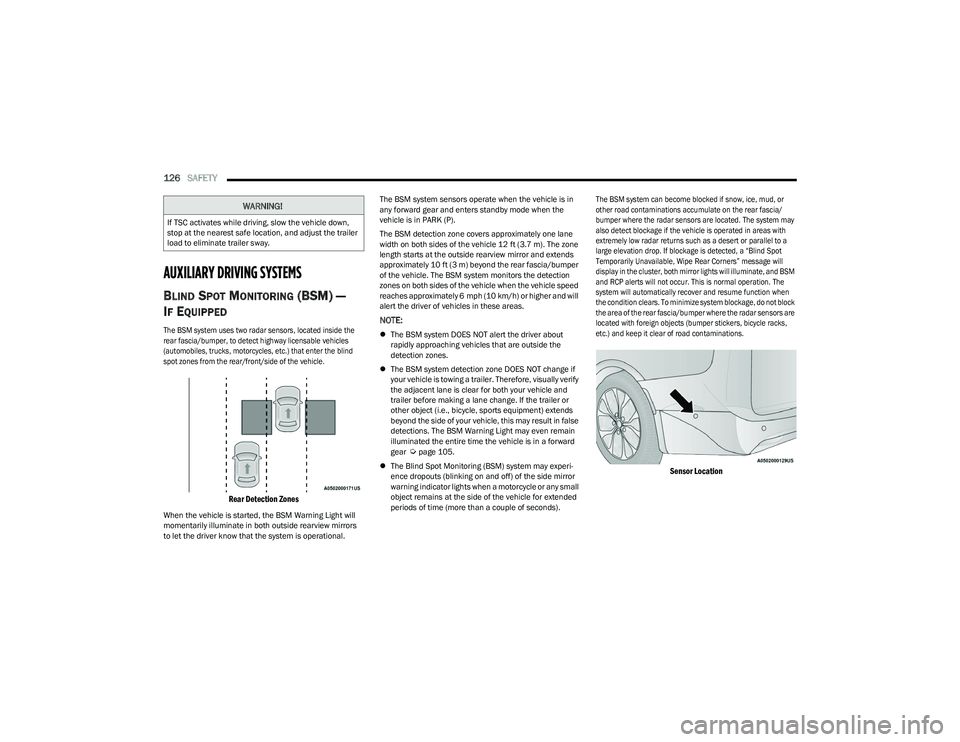
The BSM system uses two radar sensors, located inside the
rear fascia/bumper, to detect highway licensable vehicles
(automobiles, trucks, motorcycles, etc.) that enter the blind
spot zones from the rear/front/side of the vehicle.
Rear Detection Zones
When the vehicle is started, the BSM Warning Light will
momentarily illuminate in both outside rearview mirrors
to let the driver know that the system is operational. The BSM system sensors operate when the vehicle is in
any forward gear and enters standby mode when the
vehicle is in PARK (P).
The BSM detection zone covers approximately one lane
width on both sides of the vehicle 12 ft (3.7 m). The zone
length starts at the outside rearview mirror and extends
approximately 10 ft (3 m) beyond the rear fascia/bumper
of the vehicle. The BSM system monitors the detection
zones on both sides of the vehicle when the vehicle speed
reaches approximately 6 mph (10 km/h) or higher and will
alert the driver of vehicles in these areas.
NOTE:
The BSM system DOES NOT alert the driver about
rapidly approaching vehicles that are outside the
detection zones.
The BSM system detection zone DOES NOT change if
your vehicle is towing a trailer. Therefore, visually verify
the adjacent lane is clear for both your vehicle and
trailer before making a lane change. If the trailer or
other object (i.e., bicycle, sports equipment) extends
beyond the side of your vehicle, this may result in false
detections. The BSM Warning Light may even remain
illuminated the entire time the vehicle is in a forward
gear
Úpage 105.
The Blind Spot Monitoring (BSM) system may experi -
ence dropouts (blinking on and off) of the side mirror
warning indicator lights when a motorcycle or any small
object remains at the side of the vehicle for extended
periods of time (more than a couple of seconds).
The BSM system can become blocked if snow, ice, mud, or
other road contaminations accumulate on the rear fascia/
bumper where the radar sensors are located. The system may
also detect blockage if the vehicle is operated in areas with
extremely low radar returns such as a desert or parallel to a
large elevation drop. If blockage is detected, a “Blind Spot
Temporarily Unavailable, Wipe Rear Corners” message will
display in the cluster, both mirror lights will illuminate, and BSM
and RCP alerts will not occur. This is normal operation. The
system will automatically recover and resume function when
the condition clears. To minimize system blockage, do not block
the area of the rear fascia/bumper where the radar sensors are
located with foreign objects (bumper stickers, bicycle racks,
etc.) and keep it clear of road contaminations.
Sensor Location
WARNING!
If TSC activates while driving, slow the vehicle down,
stop at the nearest safe location, and adjust the trailer
load to eliminate trailer sway.
23_RUV_OM_EN_US_t.book Page 126