eco CITROEN C1 2017 Manual Online
[x] Cancel search | Manufacturer: CITROEN, Model Year: 2017, Model line: C1, Model: CITROEN C1 2017Pages: 269, PDF Size: 7.63 MB
Page 232 of 269
9876543210SN
NE4400923212132EW
230
C1_en_Chap10a_ Autoradio-Toyota-tactile-1_ed01-2016
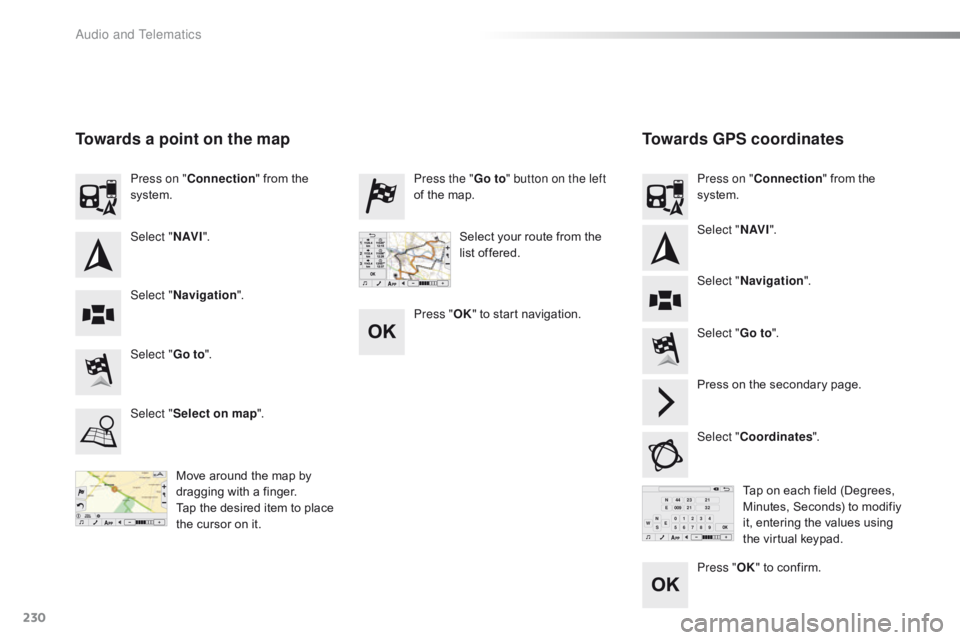
Towards GPS coordinates
Towards a point on the map
Move around the map by d
ragging with a finger.
Tap
the desired item to place
t
he cursor on it. Tap
on each field (Degrees,
M
inutes, Seconds) to modifiy
i
t, entering the values using
t
he virtual keypad.
Select "
Go to".
Select " Go to". Press the "
Go to" button on the left
of the map.
Press on the secondary page.
Select " Coordinates ".
Select "
Select on map ". Press on "
Connection " from the
s
ystem.
Press on "
Connection " from the
s
ystem.
Select "Navigation ".
Select " Navigation ".
Select "
N AV I". Select "
N AV I".
Select your route from the
l
ist offered.
Press " OK" to start navigation.
Press "OK"
to confirm.
Audio and Telematics
Page 234 of 269
232
C1_en_Chap10a_ Autoradio-Toyota-tactile-1_ed01-2016
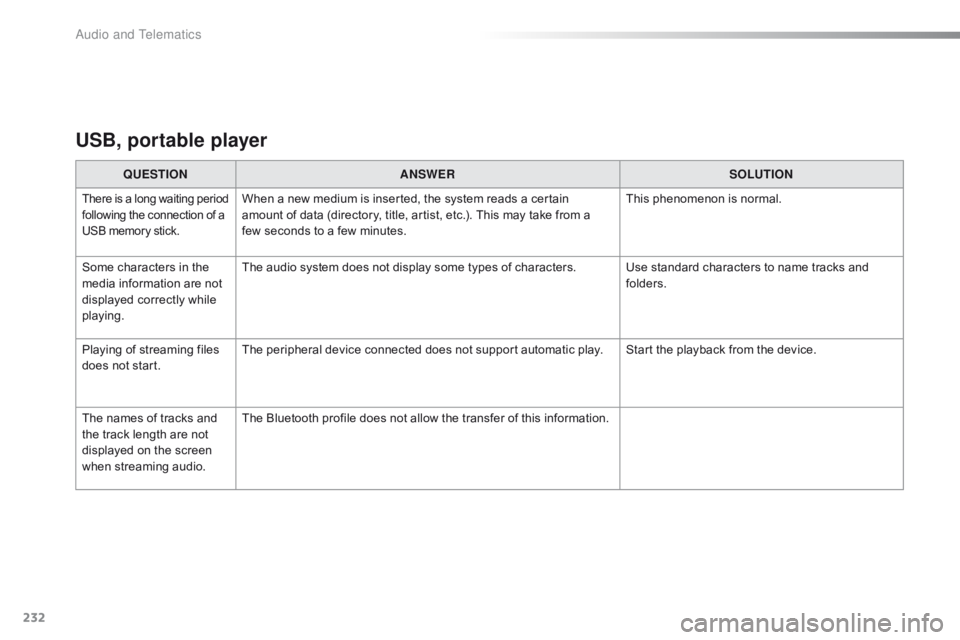
USB, portable player
QUESTIONANSWER SOLUTION
There is a long waiting p eriod f
ollowing the connection of a U
SB memory stick.When a new medium is inserted, the system reads a certain amount of data (directory, title, artist, etc.). This may take from a
f
ew seconds to a few minutes. This
phenomenon is normal.
Some
characters
in
the
m
edia
information
are
not
d
isplayed
correctly
while
p
laying. The
audio system does not display some types of characters. Use standard characters to name tracks and
f
olders.
Playing
of
streaming
files
d
oes
not
start. The
peripheral device connected does not support automatic play. Start the playback from the device.
The
names
of
tracks
and
t
he
track
length
are
not
d
isplayed
on
the
screen
w
hen
s
treaming
a
udio. The
Bluetooth profile does not allow the transfer of this information.
Audio and Telematics
Page 236 of 269
234
C1_en_Chap10a_ Autoradio-Toyota-tactile-1_ed01-2016
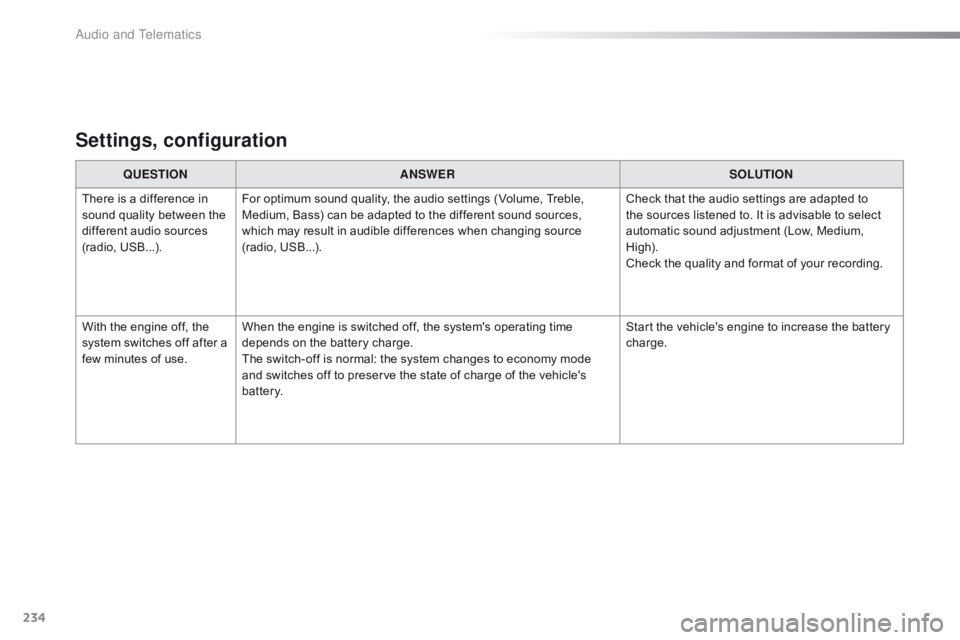
Settings, configuration
QUESTIONANSWER SOLUTION
There
is a difference in
s
ound
quality between the
d
ifferent audio sources
(
radio,
U
SB...). For
optimum sound quality, the audio settings (Volume, Treble,
M
edium, Bass) can be adapted to the different sound sources,
w
hich may result in audible differences when changing source
(
radio,
U
SB...). Check
that the audio settings are adapted to
t
he sources listened to. It is advisable to select
a
utomatic sound adjustment (Low, Medium,
Hig
h).
Check
the quality and format of your recording.
With
the engine off, the
s
ystem
switches off after a
f
ew
minutes of use. When
the engine is switched off, the system's operating time
d
epends on the battery charge.
The
switch-off is normal: the system changes to economy mode
a
nd switches off to preserve the state of charge of the vehicle's
b
attery. Start
the vehicle's engine to increase the battery
c
harge.
Audio and Telematics
Page 237 of 269
MODE
235
C1_en_Chap10b_ Autoradio-Toyota-2_ed01-2016
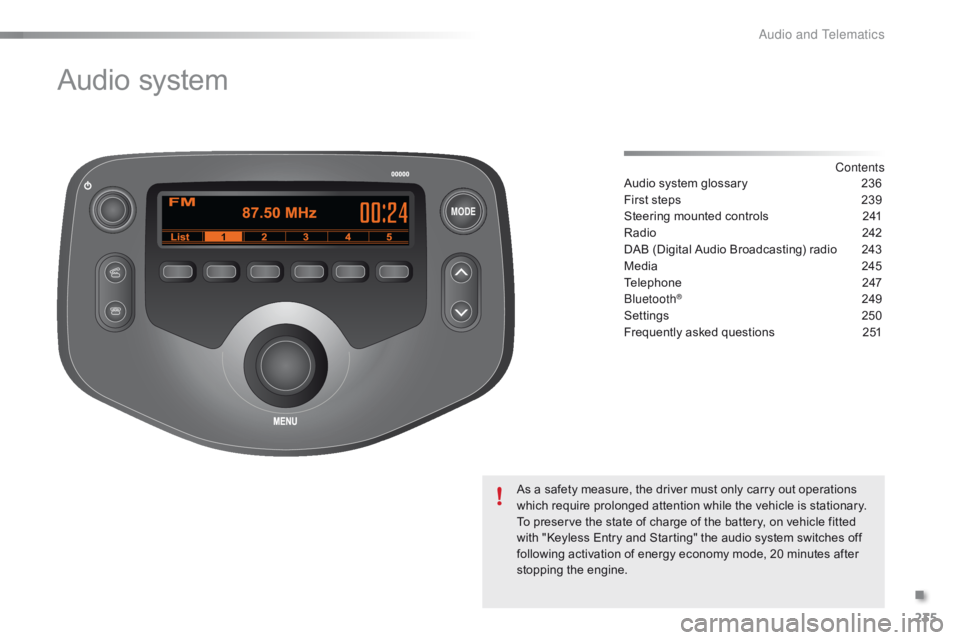
Audio system
Contents
Audio
system
glossary
2 36
First
steps
2
39
Steering
mounted
controls
2
41
Radio
2
42
DAB
(Digital
Audio
Broadcasting)
radio
2
43
Media
2
45
Telephone
2
47
Bluetooth
® 24 9
Settings
2
50
Frequently
asked questions
2
51
As
a
safety
measure,
the
driver must only carry out operations
w
hich
require
prolonged
attention while the vehicle is stationary.
To
preserve
the
state
of
charge of the battery, on vehicle fitted
w
ith
"Keyless
Entry
and
Starting" the audio system switches off
f
ollowing
activation
of
energy
economy mode, 20 minutes after
s
topping
t
he
eng
ine.
.
Audio and Telematics
Page 238 of 269

236
C1_en_Chap10b_ Autoradio-Toyota-2_ed01-2016
Audio system glossary
Menu itemSignificance /
Corresponding action
Add
contacts Add
a contact.
Add
SD Associate
a button with a contact.
All calls All
calls: incoming, outgoing,
m
issed.
ASL
M
id/Low/High/Off Adjust
the audio ambience
(mid
/ low / high).
AUX
On/Off Activate
or deactivate AUX
(
Auxiliary)
m
ode.
Back Return
to previous step.
Balance Adjust
the audio balance.
Bass Adjust
the bass level.
Bluetooth info Information
related to Bluetooth in
t
he system.
BT
Power
On/Off Activate
or deactivate automatic
B
luetooth connection mode.Menu item
Significance /
Corresponding action
B TA Bluetooth
audio.
BTA
- BT audio player not found The system does not recognise
t
he audio player via Bluetooth.
Call
volumeAdjust
the telephone volume.
Car
device infoSystem
i
nformation.
Clock Set
the time.
Delete Delete.
Delete call history Delete
the history of calls.
Delete contact Delete
a contact in the directory.
Delete
pho
nebookDelete
a directory.
Device
addressAddress
of the system.
Audio and Telematics
Page 244 of 269
242
C1_en_Chap10b_ Autoradio-Toyota-2_ed01-2016
Radio
Selecting a stationPresetting a station
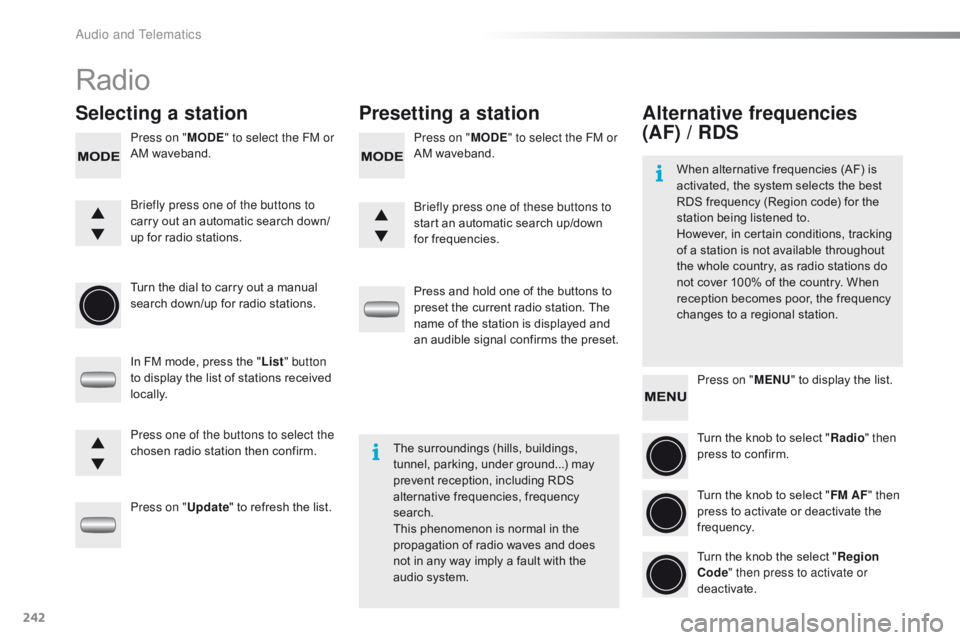
Press on "MODE" to select the FM or
AM waveband. Press on "
MODE" to select the FM or
AM waveband.
Turn
the dial to carry out a manual
s
earch down/up for radio stations.
In
FM mode, press the "List " button
to
display the list of stations received
l
ocally.
Press on " Update"
to refresh the list.Press
and hold one of the buttons to
p
reset the current radio station. The
n
ame of the station is displayed and
a
n audible signal confirms the preset.
Briefly press one of the buttons to
carry
out an automatic search down/
up
for radio stations. Briefly press one of these buttons to
start
an automatic search up/down
f
or frequencies.
Press one of the buttons to select the
chosen
radio station then confirm.The
surroundings (hills, buildings,
t
unnel, parking, under ground...) may
p
revent reception, including RDS
a
lternative frequencies, frequency
sea
rch.
This
phenomenon is normal in the
p
ropagation of radio waves and does
n
ot in any way imply a fault with the
a
udio system.
Alternative frequencies
(AF) / RDS
Press on "MENU" to display the list.
Turn the knob to select "Radio " then
press
to confirm.
Turn
the knob to select "FM AF " then
press
to activate or deactivate the
f
requency.
Turn
the knob the select "Region
Code " then press to activate or
deactivate.
When
alternative frequencies (AF) is
a
ctivated, the system selects the best
R
DS frequency (Region code) for the
s
tation being listened to.
However, in certain conditions, tracking
o
f
a
station is not available throughout
t
he
whole country, as radio stations do
n
ot
cover 100% of the country. When
r
eception becomes poor, the frequency
c
hanges to a regional station.
Audio and Telematics
Page 246 of 269
244
C1_en_Chap10b_ Autoradio-Toyota-2_ed01-2016
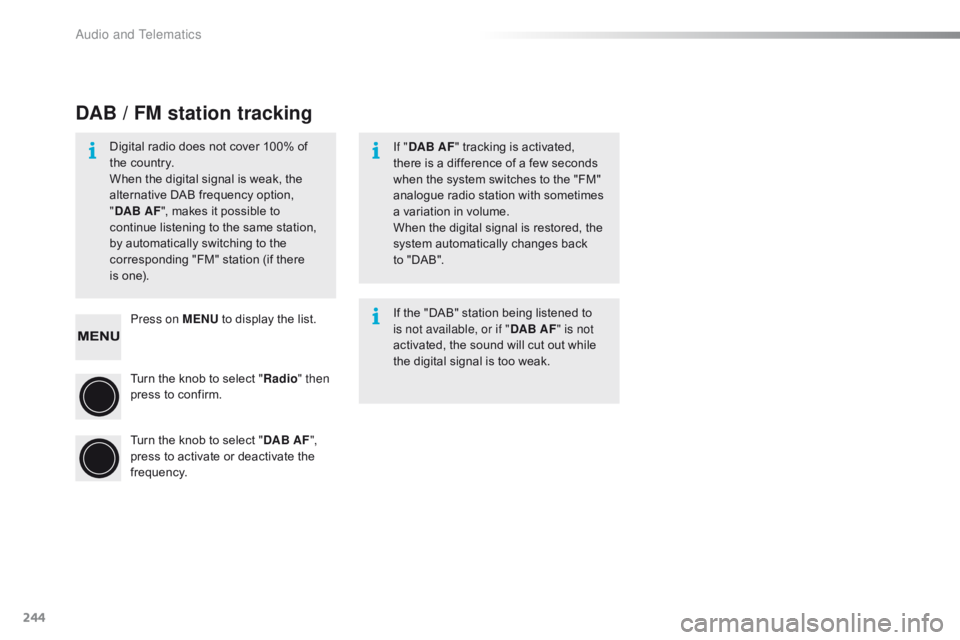
Press on MENU to display the list.
Turn the knob to select "Radio " then
press
to confirm.
Turn
the knob to select "DAB AF ",
press
to activate or deactivate the
f
requency.
DAB / FM station tracking
Digital radio does not cover 100% of the country.
When
the digital signal is weak, the
a
lternative DAB frequency option,
"D
AB AF ",
makes it possible to
c
ontinue listening to the same station,
b
y automatically switching to the
c
orresponding "FM" station (if there
is
one). If "
DAB AF "
tracking is activated,
t
here is a difference of a few seconds
w
hen the system switches to the "FM"
a
nalogue radio station with sometimes
a
variation in volume.
When
the digital signal is restored, the
s
ystem automatically changes back
t
o "DAB".
If
the "DAB" station being listened to
i
s not available, or if "DAB AF" is not
activated,
the sound will cut out while
t
he digital signal is too weak.
Audio and Telematics
Page 247 of 269
245
C1_en_Chap10b_ Autoradio-Toyota-2_ed01-2016
Media
USB player
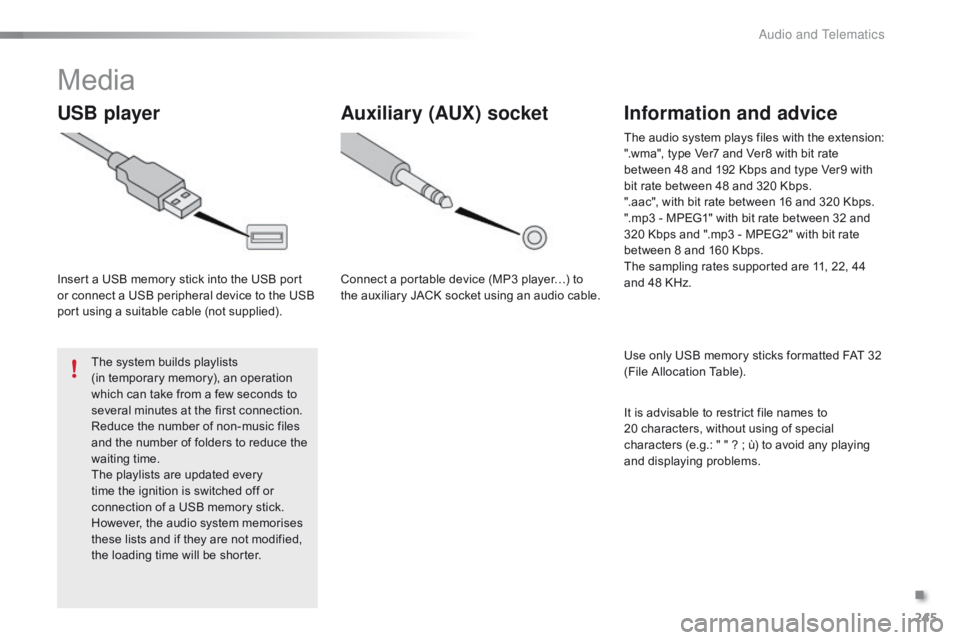
Insert a USB memory stick into the USB port or connect a USB peripheral device to the USB
p
ort using a suitable cable (not supplied).
The
system builds playlists
(in
temporary memory), an operation
w
hich can take from a few seconds to
s
everal minutes at the first connection.
Reduce
the number of non-music files
a
nd the number of folders to reduce the
w
aiting
t
ime.
The
playlists are updated every
t
ime the ignition is switched off or
c
onnection of a USB memory stick.
H
owever, the audio system memorises
t
hese lists and if they are not modified,
t
he loading time will be shorter.
Auxiliary (AUX) socket
Connect a portable device (MP3 player…) to the auxiliary JACK socket using an audio cable.
Information and advice
Use only USB memory sticks formatted FAT 32 (File Allocation Table).
The
audio system plays files with the extension:
".wma", type Ver7 and Ver8 with bit rate
b
etween 48 and 192 Kbps and type Ver9 with
b
it rate between 48 and 320 Kbps.
".aac", with bit rate between 16 and 320 Kbps.
".mp3 - MPEG1" with bit rate between 32 and
3
20 Kbps and ".mp3 - MPEG2" with bit rate
b
etween 8 and 160 Kbps.
The sampling rates supported are 11, 22, 44
a
nd 48 KHz.
It is advisable to restrict file names to
2
0 characters, without using of special
c
haracters (e.g.: " " ? ; ù) to avoid any playing
a
nd
d
isplaying
pro
blems.
.
Audio and Telematics
Page 248 of 269
246
C1_en_Chap10b_ Autoradio-Toyota-2_ed01-2016
Audio streamingConnecting Apple® players
Streaming allows audio files on your telephone t
o be played via the vehicle's speakers.
You
can also view, activate or deactivate
s
ystem settings related to the Bluetooth
f
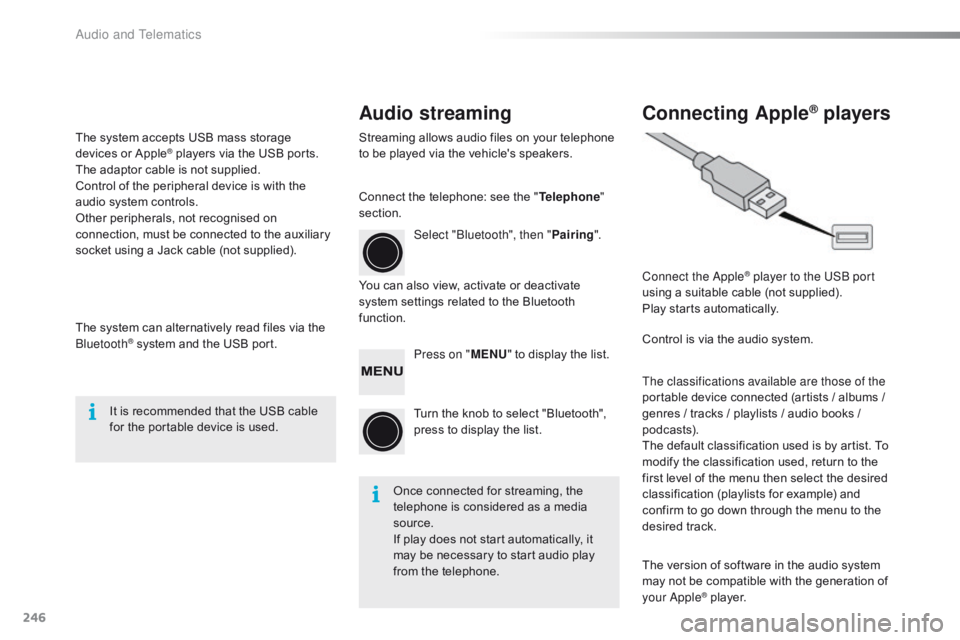
unction. Select "Bluetooth", then "
Pairing".
Press on " MENU"
to display the list.
Turn
the knob to select "Bluetooth",
p
ress to display the list.
Once
connected for streaming, the
t
elephone is considered as a media
s
ource.
If
play does not start automatically, it
m
ay be necessary to start audio play
f
rom the telephone. Connect the Apple
® player to the USB port
using
a
suitable
cable (not supplied).
Play
starts
automatically.
Control
is
via
the
audio system.
The classifications available are those of the
portable
device
connected (artists / albums /
g
enres
/
tracks
/
playlists / audio books /
p
odcasts).
The
default
classification used is by artist. To
m
odify
the
classification used, return to the
f
irst
level
of
the
menu then select the desired
c
lassification
(playlists for example) and
c
onfirm
to
go
down
through the menu to the
de
sired
t
rack.
The
version
of
software in the audio system
m
ay
not
be
compatible with the generation of
y
our Apple
® player.
C
onnect
the
telephone:
see
the
"
Telephone "
section.
The
system
accepts
USB
mass
storage
d
evices
o
r
A
pple
® players via the USB ports. T
he
adaptor
cable is not supplied.
Control
of
the
peripheral device is with the
a
udio
system
controls.
Other
peripherals, not recognised on
c
onnection,
must
be connected to the auxiliary
s
ocket
using
a
Jack cable (not supplied).
The
system
can
alternatively read files via the
Bl
uetooth
® system and the USB port.
I
t
is
recommended that the USB cable
f
or
the portable device is used.
Audio and Telematics
Page 249 of 269
247
C1_en_Chap10b_ Autoradio-Toyota-2_ed01-2016
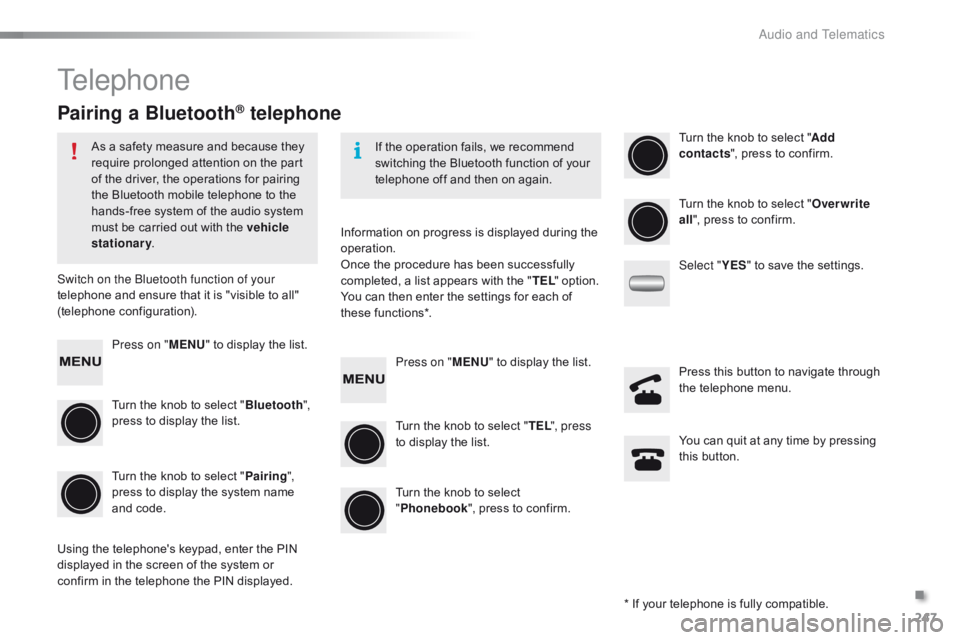
Telephone
Pairing a Bluetooth® telephone
As a safety measure and because they require prolonged attention on the part
o
f the driver, the operations for pairing
t
he Bluetooth mobile telephone to the
h
ands-free system of the audio system
m
ust be carried out with the vehicle
stationary .
Switch on the Bluetooth function of your
telephone
and ensure that it is "visible to all"
(
telephone
c
onfiguration). If
the operation fails, we recommend
s
witching the Bluetooth function of your
t
elephone off and then on again.
*
If your telephone is fully compatible.
Information
on progress is displayed during the
ope
ration.
Once
the procedure has been successfully
c
ompleted, a list appears with the "TEL "
option.
You
can then enter the settings for each of
th
ese
f
unctions*.
Using
the telephone's keypad, enter the PIN
d
isplayed in the screen of the system or
c
onfirm in the telephone the PIN displayed.
Press on "
MENU"
to display the list.
Turn
the knob to select "Bluetooth ",
press
to display the list.
Turn
the knob to select "Pairing ",
press
to display the system name
a
nd code. Press on "
MENU"
to display the list.
Turn
the knob to select "TEL ", press
to
display the list.Turn
the knob to select "
Add
contacts ",
press to confirm.
Turn
the knob to select
"P
honebook",
press to confirm.Turn
the knob to select "Overwrite
all ",
press to confirm.
Select " YES"
to save the settings.
You
can quit at any time by pressing
t
his button.
Press
this button to navigate through
t
he telephone menu.
.
Audio and Telematics