display Citroen C3 2015 2.G Owner's Manual
[x] Cancel search | Manufacturer: CITROEN, Model Year: 2015, Model line: C3, Model: Citroen C3 2015 2.GPages: 401, PDF Size: 13.04 MB
Page 328 of 401
.
Audio and Telematics 13
Additif-2_en_web_AC-AP_SMEGplus_Services_connectes_ed01-2015
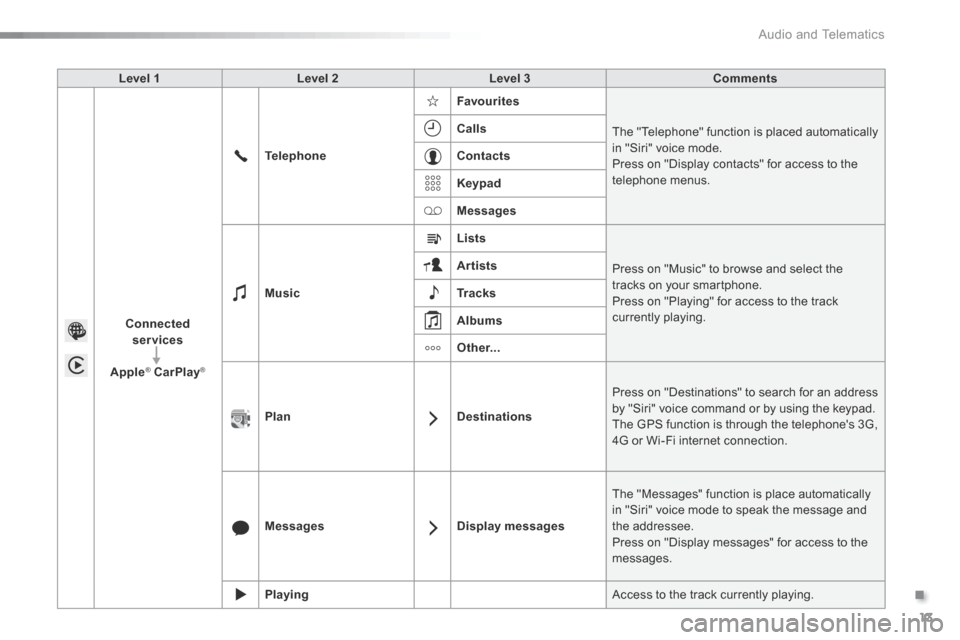
Level 1 Level 2 Level 3 Comments
Connected services
Apple® CarPlay® CarPlay®®
Telephone
Favourites
The "Telephone" function is placed automatically in "Siri" voice mode. Press on "Display contacts" for access to the telephone menus.
Calls
Contacts
Keypad
Messages
Music
Lists
Press on "Music" to browse and select the tracks on your smartphone. Press on "Playing" for access to the track currently playing.
Artists
Tr a c k s
Albums
Other...
PlanDestinations
Press on "Destinations" to search for an address by "Siri" voice command or by using the keypad. The GPS function is through the telephone's 3G, 4G or Wi-Fi internet connection.
MessagesDisplay messages
The "Messages" function is place automatically in "Siri" voice mode to speak the message and the addressee.
Press on "Display messages" for access to the messages.
Playing Access to the track currently playing.
Page 329 of 401
2
Multifunction screens1
C3-additif_en_Chap02_Ecrans-multifonction_ed01-2015
Touch screen tablet
This system gives access to: - menus for adjusting settings for vehicle functions and systems, - audio and display configuration menus, - audio system and telephone controls and the display of associated information, - the display of alert messages, - the display of ambient temperature (a blue snow flake appears when there is a risk of ice), - the display of the trip computer.
And, depending on equipment, it allows: - the display of visual parking sensors information, - access to the controls for the navigation system and Internet services, and the display of associated information.
Recommendations
It is necessary to press firmly, particularly for "flick" gestures (scrolling through lists, moving the map...). A light wipe is not enough.
The screen does not recognise pressing with more than one finger. This technology allows use at all temperatures and when wearing gloves. Do not use pointed objects on the touch screen tablet. Do not touch the touch screen tablet with wet hands. Uses a soft clean cloth to clean it.
General operation
As a safety measure, some functions can only be viewed with the vehicle stationary. When the vehicle moves off, their display is interrupted.
After a few moments with no action on the secondary page, the primary page is displayed automatically.
Principles
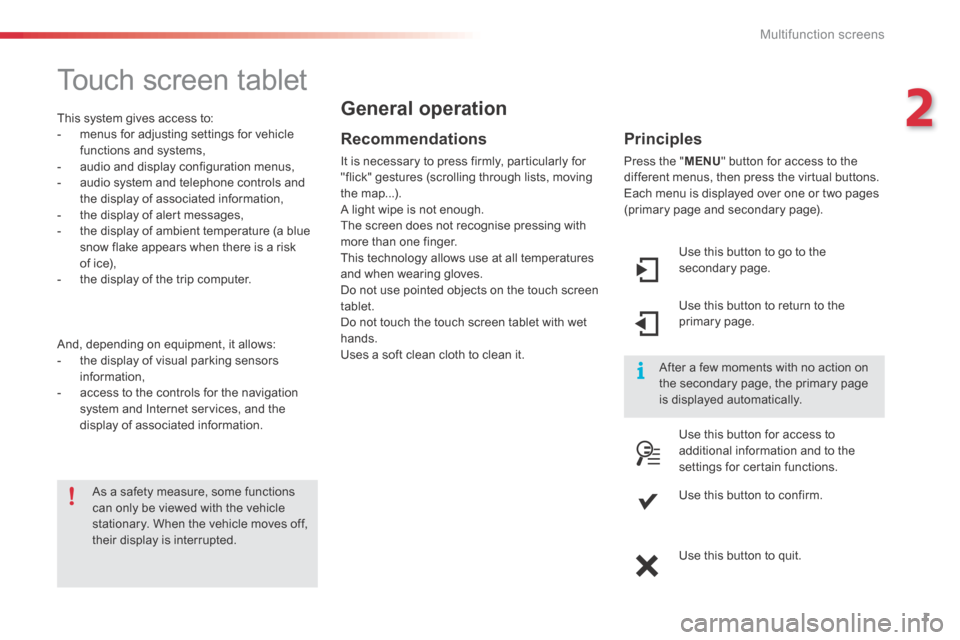
Press the " MENU " button for access to the different menus, then press the virtual buttons. Each menu is displayed over one or two pages (primary page and secondary page).
Use this button to go to the secondary page.
Use this button to return to the primary page.
Use this button for access to additional information and to the settings for certain functions.
Use this button to confirm.
Use this button to quit.
Page 330 of 401

Multifunction screens
2
C3-additif_en_Chap02_Ecrans-multifonction_ed01-2015
Menus
Navigation Navigation is available depending on country and/or trim level. Refer to the "Audio and telematics" section.
Telephone Refer to the "Audio and telematics"
section.
1. Volume / mute. Refer to the "Audio and telematics" section.
Radio Media Refer to the "Audio and telematics" section.
Settings Allows configuration of the display and the system.
Refer to the corresponding section.
Connected services. (Depending on equipment). Allows you to run some of your smartphone's applications via
MirrorLinkTM or CarPlay®. Refer to the "Audio and telematics" section.
Driving Allows access to the trip computer and, depending on version, the
adjustment of settings for certain functions. Refer to the corresponding section.
Press this button, then choose the desired menu.
Page 337 of 401

9
C3-additif_en_Chap13b_SMEGplus_ed01-2015
7-inch touch screen tablet
GPS satellite navigation - Multimedia audio - Bluetooth® telephone
Contents
First steps
1 0
Steering mounted controls
1
2
M enus
13
N
avigation
1
4
Navigation - Guidance
2
2
Traffic
26
R
adio Media
2
8
Radio
34
DAB (Digital Audio Broadcasting) radio
3
6
Media
38
Settings
40
Connected services
4
8
MirrorLink
TM 48
C
arPlay® 52
T
elephone
54
Frequently asked questions
6
2
The system is protected in such a way that it will only operate in
your vehicle. As a safety measure, the driver should only carry out operations
which require prolonged attention while the vehicle is stationary.
The display of an energy economy mode message signals that
electrical systems operating are going into standby.
Refer to the energy economy mode section.
.
Audio and Telematics
Page 338 of 401
10
C3-additif_en_Chap13b_SMEGplus_ed01-2015
First steps
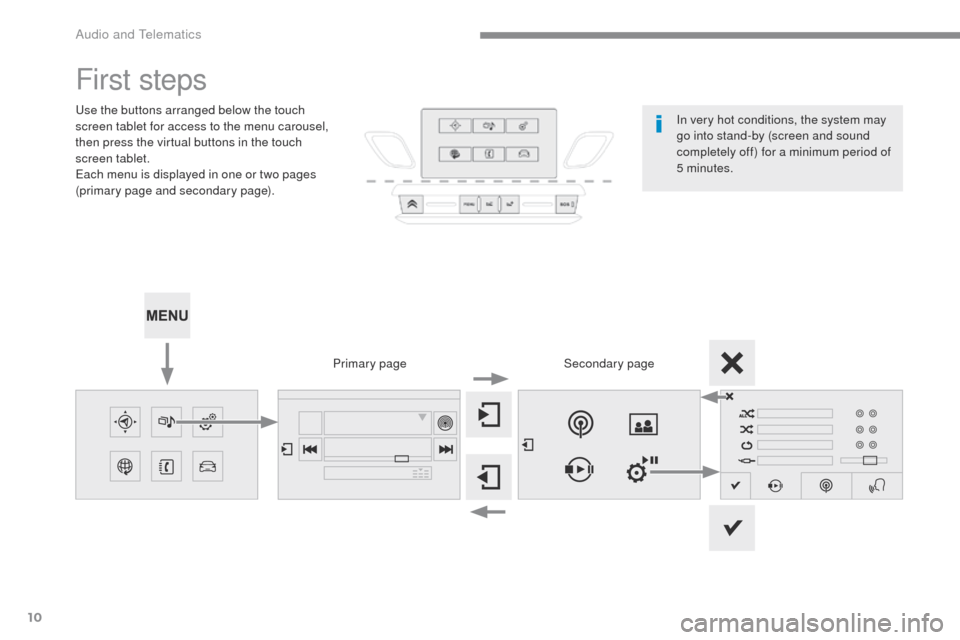
Use the buttons arranged below the touch
screen tablet for access to the menu carousel,
then press the virtual buttons in the touch
screen tablet.
Each menu is displayed in one or two pages
(primary page and secondary page).Secondary page
Primary page In very hot conditions, the system may
go into stand-by (screen and sound
completely off) for a minimum period of
5 minutes.
Audio and Telematics
Page 339 of 401
11
C3-additif_en_Chap13b_SMEGplus_ed01-2015
Volume adjustment (each source is independent,
including traffic announcements (TA) and
navigation instructions).
Mute the sound by pressing simultaneously on
the volume increase and reduce buttons.
Unmute the sound by pressing one of the two
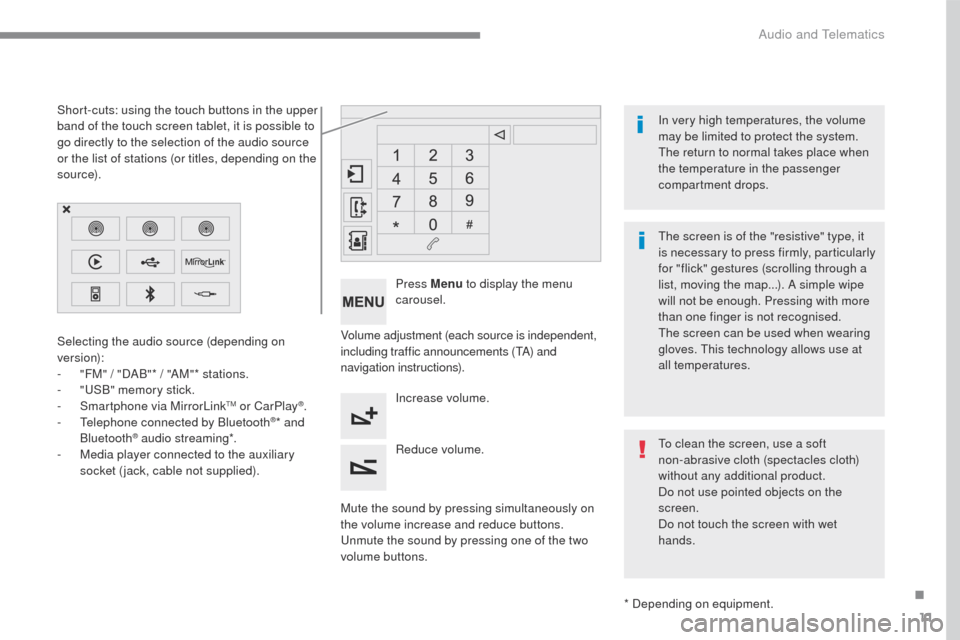
volume buttons. Press Menu
to display the menu
carousel.
Increase volume.
Reduce volume.
Selecting the audio source (depending on
version):
-
"
FM" / "DAB"* / "AM"* stations.
-
"
USB" memory stick.
-
S
martphone via MirrorLink
TM or CarPlay®.
- T
elephone connected by Bluetooth®* and
Bluetooth® audio streaming*.
-
M
edia player connected to the auxiliary
socket (jack, cable not supplied).
* Depending on equipment.
Short-cuts: using the touch buttons in the upper
band of the touch screen tablet, it is possible to
go directly to the selection of the audio source
or the list of stations (or titles, depending on the
s o u r c e).
The screen is of the "resistive" type, it
is necessary to press firmly, particularly
for "flick" gestures (scrolling through a
list, moving the map...). A simple wipe
will not be enough. Pressing with more
than one finger is not recognised.
The screen can be used when wearing
gloves. This technology allows use at
all temperatures. In very high temperatures, the volume
may be limited to protect the system.
The return to normal takes place when
the temperature in the passenger
compartment drops.
To clean the screen, use a soft
non-abrasive cloth (spectacles cloth)
without any additional product.
Do not use pointed objects on the
screen.
Do not touch the screen with wet
hands.
.
Audio and Telematics
Page 341 of 401
13
C3-additif_en_Chap13b_SMEGplus_ed01-2015
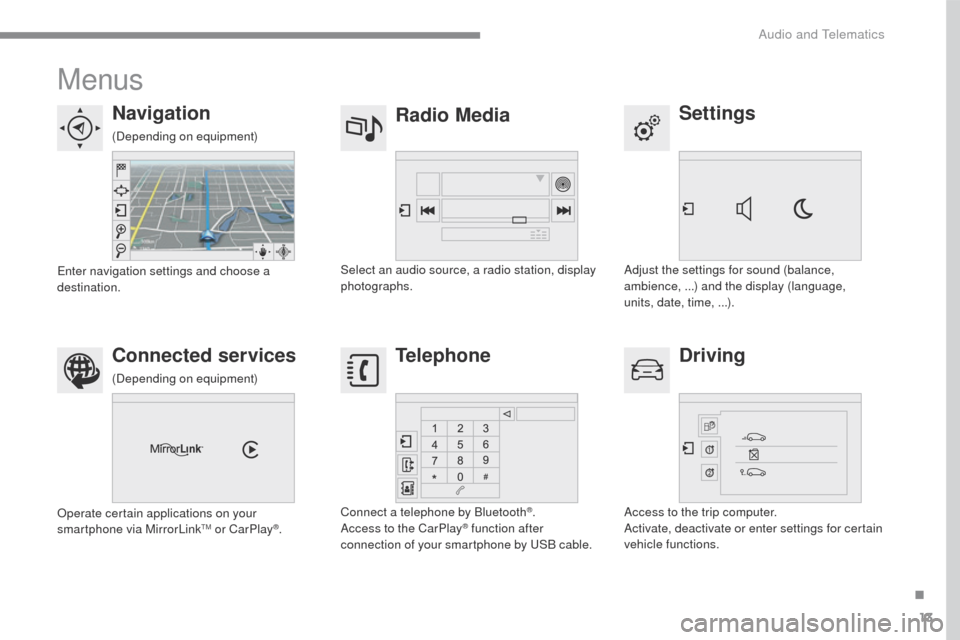
Menus
Settings
Radio Media
Navigation
Driving
Connected services Telephone
Adjust the settings for sound (balance,
ambience, ...) and the display (language,
units, date, time, ...).
Select an audio source, a radio station, display
photographs.
Enter navigation settings and choose a
destination.
Access to the trip computer.
Activate, deactivate or enter settings for certain
vehicle functions.
Operate certain applications on your
smartphone via MirrorLink
TM or CarPlay®.
Connect a telephone by Bluetooth
®.
Access to the CarPlay® function after
connection of your smartphone by USB cable.
(Depending on equipment)
(Depending on equipment)
.
Audio and Telematics
Page 343 of 401
15
C3-additif_en_Chap13b_SMEGplus_ed01-2015
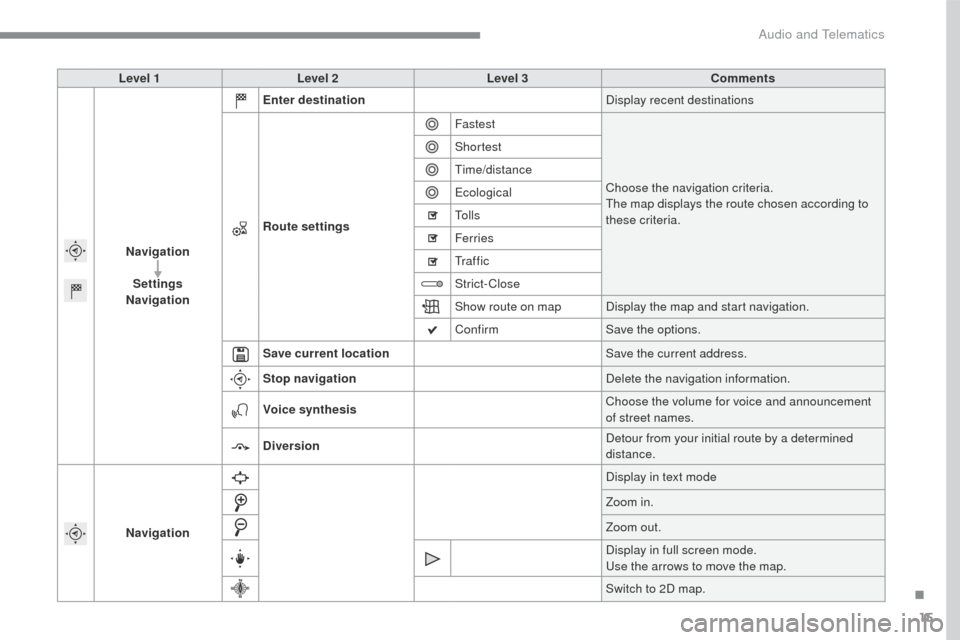
Level 1Level 2 Level 3 Comments
Navigation Settings
Navigation Enter destination
Display recent destinations
Route settings Fastest
Choose the navigation criteria.
The map displays the route chosen according to
these criteria.
Shortest
Time/distance
Ecological
To l l s
Ferries
Tr a f f i c
Strict-Close
Show route on map
Display the map and start navigation.
Confirm Save the options.
Save current location Save the current address.
Stop navigation Delete the navigation information.
Voice synthesis Choose the volume for voice and announcement
of street names.
Diversion Detour from your initial route by a determined
distance.
Navigation Display in text mode
Zoom in.
Zoom out.
Display in full screen mode.
Use the arrows to move the map.
Switch to 2D map.
.
Audio and Telematics
Page 345 of 401
17
C3-additif_en_Chap13b_SMEGplus_ed01-2015
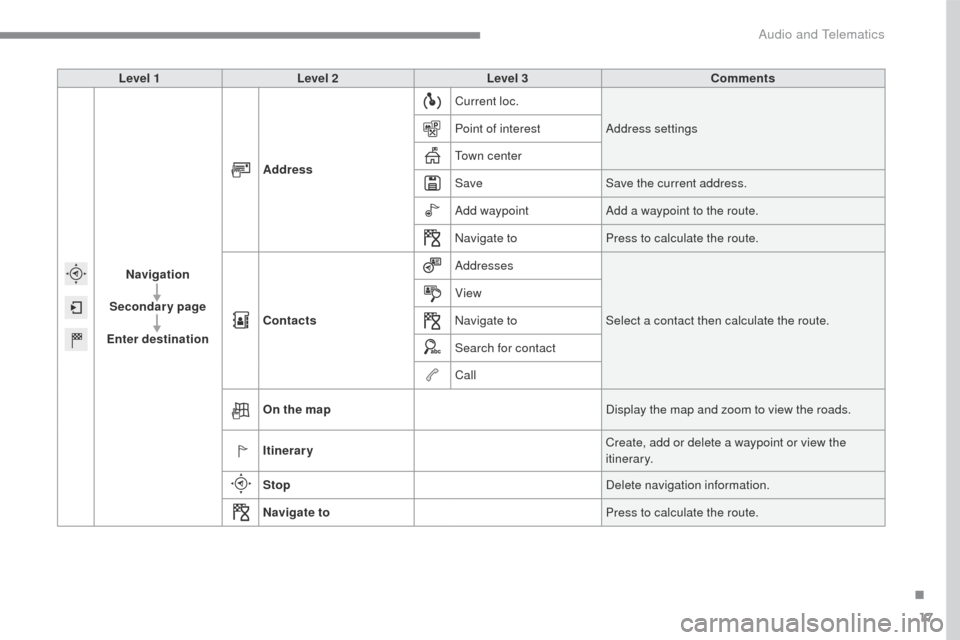
Level 1Level 2 Level 3 Comments
Navigation
Secondary page
Enter destination Address
Current loc.
Address settings
Point of interest
Town center
Save Save the current address.
Add waypoint Add a waypoint to the route.
Navigate to Press to calculate the route.
Contacts Addresses
Select a contact then calculate the route.
View
Navigate to
Search for contact
Call
On the map Display the map and zoom to view the roads.
Itinerary Create, add or delete a waypoint or view the
itinerary.
Stop Delete navigation information.
Navigate to Press to calculate the route.
.
Audio and Telematics
Page 346 of 401
18
C3-additif_en_Chap13b_SMEGplus_ed01-2015
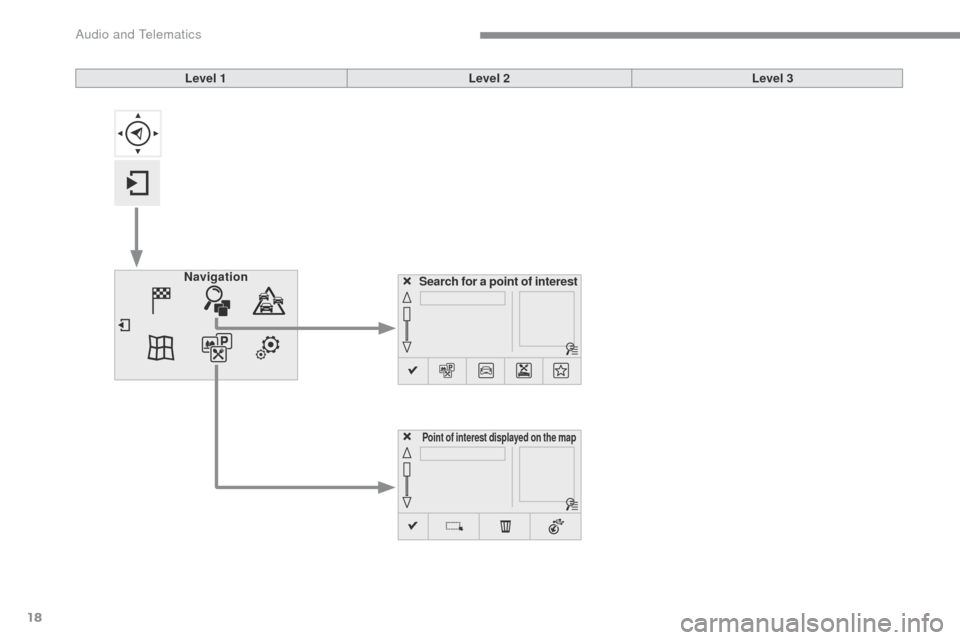
Search for a point of interest
Navigation
Point of interest displayed on the map
Level 1
Level 2Level 3
Audio and Telematics