light Citroen C4 2015 2.G User Guide
[x] Cancel search | Manufacturer: CITROEN, Model Year: 2015, Model line: C4, Model: Citroen C4 2015 2.GPages: 494, PDF Size: 20.49 MB
Page 38 of 494
36
C4-2_en_Chap01_controle-de-marche_ed01-2015
C4-2_en_Chap01_controle-de-marche_ed01-2015
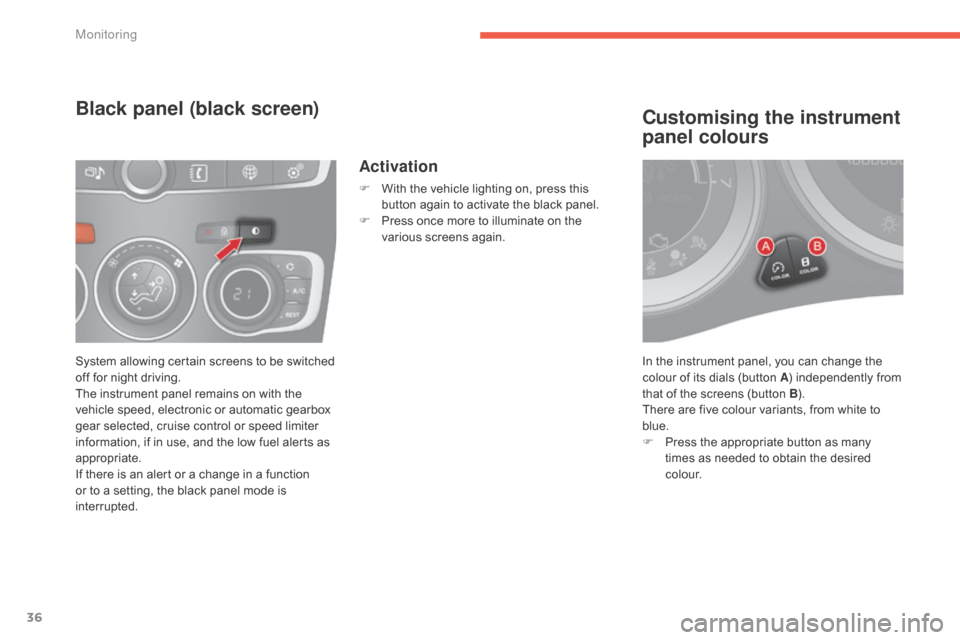
In the instrument panel, you can change the colour of its dials (button A)
independently from
t
hat of the screens (button B).
There
are five colour variants, from white to
b
lue.
F
P
ress the appropriate button as many
t
imes as needed to obtain the desired
c
o l o u r.
Customising the instrument
panel colours
System allowing certain screens to be switched off for night driving.
The
instrument panel remains on with the
v
ehicle speed, electronic or automatic gearbox
g
ear selected, cruise control or speed limiter
i
nformation, if in use, and the low fuel alerts as
a
ppropriate.
If
there is an alert or a change in a function
o
r to a setting, the black panel mode is
i
nterrupted.
Black panel (black screen)
Activation
F With the vehicle lighting on, press this b
utton again to activate the black panel.
F
P
ress once more to illuminate on the
v
arious screens again.
Monitoring
Page 40 of 494
38
C4-2_en_Chap02_ecran-multifonction_ed01-2015
C4-2_en_Chap02_ecran-multifonction_ed01-2015
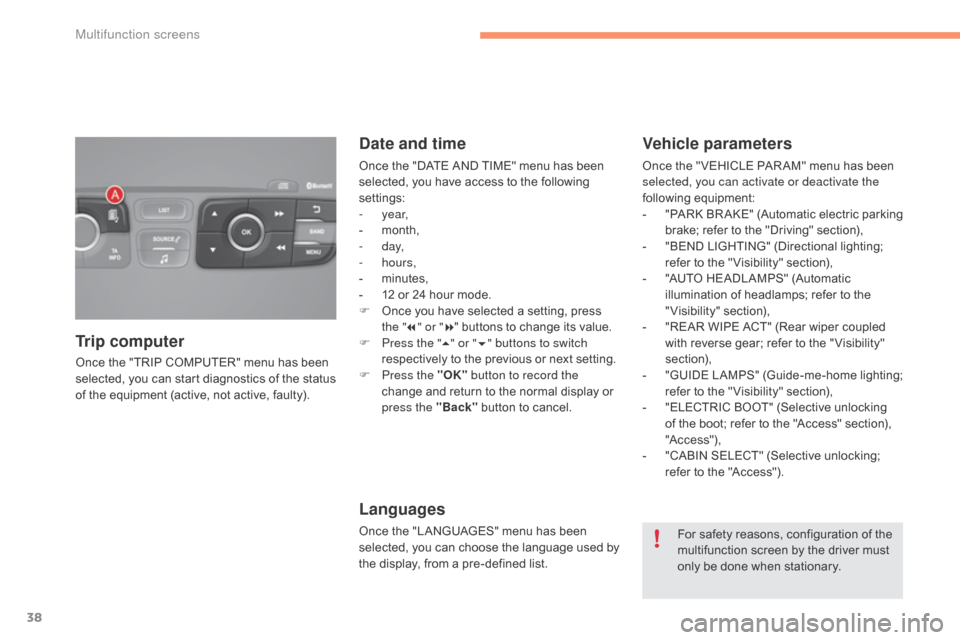
Once the "TRIP COMPUTER" menu has been selected, you can start diagnostics of the status
o
f the equipment (active, not active, faulty).
Trip computer Date and time
Once the "DATE AND TIME" menu has been s
elected, you have access to the following
se
ttings:
-
year,
-
m
onth,
-
d ay,
-
hours,
-
m
inutes,
-
1
2 or 24 hour mode.
F
O
nce you have selected a setting, press
t
he "7" or " 8"
buttons to change its value.
F
P
ress the " 5" or " 6" buttons to switch
respectively
to the previous or next setting.
F
P
ress the "OK" button to record the
change
and return to the normal display or
p
ress the "Back"
button to cancel.
Languages
Once the "LANGUAGES" menu has been selected, you can choose the language used by
t
he display, from a pre-defined list.
Vehicle parameters
Once the " VEHICLE PAR AM" menu has been selected, you can activate or deactivate the
following
e
quipment:
-
"
PARK
B
R AKE"
(
Automatic
e
lectric
p
arking
b
rake; refer to the "Driving" section),
-
"
BEND LIGHTING" (Directional lighting;
r
efer to the " Visibility" section),
-
"
AUTO HEADLAMPS" (Automatic
i
llumination of headlamps; refer to the
"
Visibility"
s
ection),
-
"
REAR WIPE ACT" (Rear wiper coupled
w
ith reverse gear; refer to the " Visibility"
s
ection),
-
"
GUIDE
L
AMPS"
(
Guide-me-home
l
ighting;
r
efer to the " Visibility" section),
-
"
ELECTRIC BOOT" (Selective unlocking
o
f the boot; refer to the "Access" section),
"A
c c ess"),
-
"
CABIN SELECT" (Selective unlocking;
r
efer to the "Access").
For
safety reasons, configuration of the
m
ultifunction screen by the driver must
o
nly be done when stationary.
Multifunction screens
Page 43 of 494
41
C4-2_en_Chap02_ecran-multifonction_ed01-2015
C4-2_en_Chap02_ecran-multifonction_ed01-2015
"Personalisation-
configuration" menu
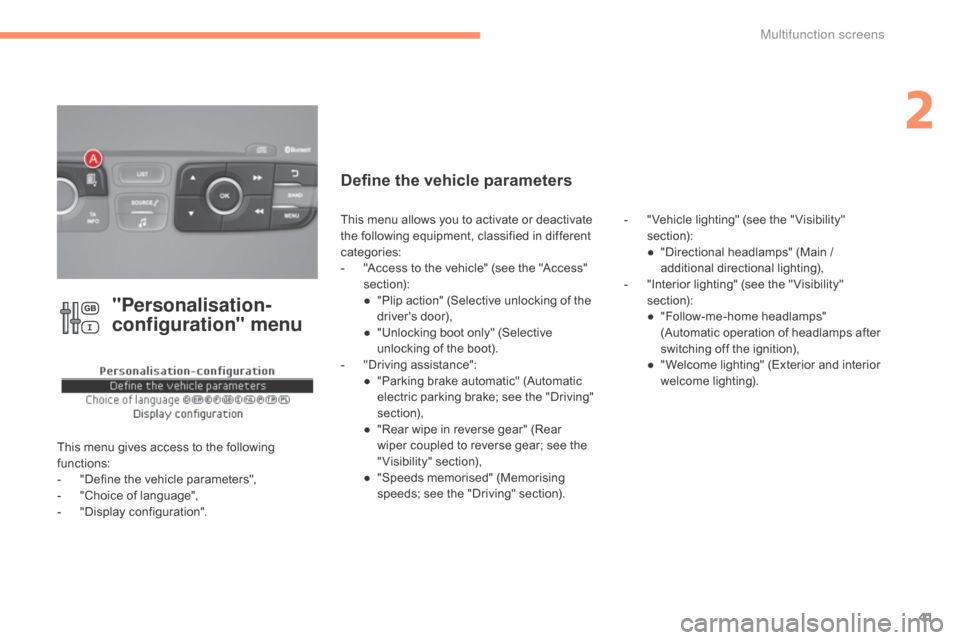
This menu gives access to the following functions:
-
"
Define the vehicle parameters",
-
"
Choice of language",
-
"
Display configuration".
Define the vehicle parameters
- "Vehicle lighting" (see the " Visibility" s
ection):
●
"
Directional headlamps" (Main /
a
dditional
d
irectional
l
ighting),
-
"
Interior lighting" (see the " Visibility"
s
ection):
●
"
Follow-me-home headlamps"
(
Automatic operation of headlamps after
s
witching off the ignition),
●
"
Welcome lighting" (Exterior and interior
w
elcome lighting).
This
menu
allows
you
to
activate
or
deactivate
t
he
following
equipment,
classified
in
different
c
ategories:
-
"
Access
to
the
vehicle"
(see
the
"Access"
s
ection):
●
"
Plip
action"
(Selective
unlocking
of
the
d
river's
do
or),
●
"
Unlocking
boot
only"
(Selective
u
nlocking
of
the
boot).
-
"
Driving
assistance":
●
"
Parking
brake
automatic"
(Automatic
e
lectric
parking
brake;
see
the
"Driving"
s
ection),
●
"
Rear
wipe
in
reverse
gear"
(Rear
w
iper
coupled
to
reverse
gear;
see
the
"
Visibility"
s
ection),
●
"
Speeds
memorised"
(Memorising
s
peeds;
see
the
"Driving"
section).
2
Multifunction screens
Page 44 of 494
42
C4-2_en_Chap02_ecran-multifonction_ed01-2015
C4-2_en_Chap02_ecran-multifonction_ed01-2015
Choice of language
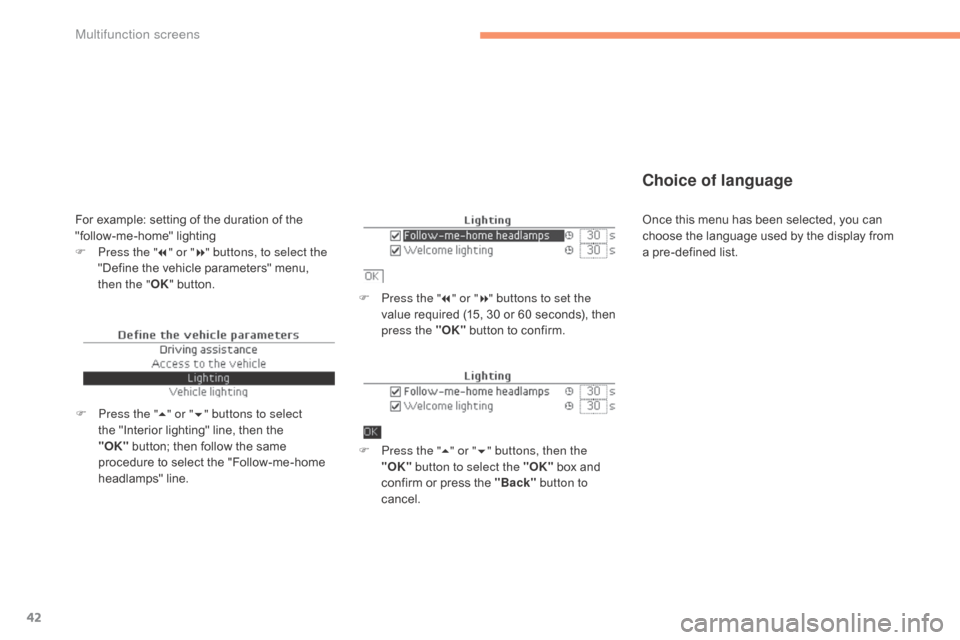
F Press the "7" or " 8" buttons to set the
value required (15, 30 or 60 seconds), then
p
ress the "OK"
button to confirm.
F
P
ress the " 5" or " 6" buttons, then the
"OK" button to select the "OK"
box and
c
onfirm or press the "Back" button to
cancel.
F
P
ress the " 5" or " 6" buttons to select
the
"Interior
lighting"
line,
then
the
"O
K" button;
then
follow
the
same
p
rocedure
to
select
the
"Follow-me-home
h
eadlamps"
l
ine.
For example: setting of the duration of the " follow-me-home" l ighting
F
P
ress the " 7" or " 8" buttons, to select the
"Define
the vehicle parameters" menu,
t
hen the " OK"
button. Once
this menu has been selected, you can c
hoose the language used by the display from
a
pre-defined list.
Multifunction screens
Page 46 of 494
44
C4-2_en_Chap02_ecran-multifonction_ed01-2015
C4-2_en_Chap02_ecran-multifonction_ed01-2015
Touch screen tablet
General operation
Principles
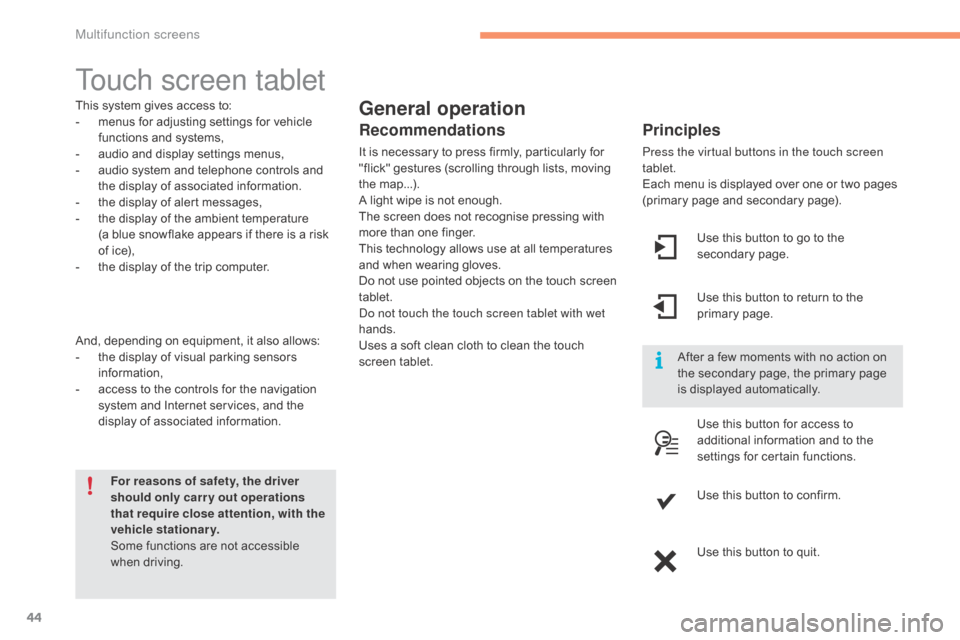
Press the virtual buttons in the touch screen
tablet.
Each menu is displayed over one or two pages
(
primary page and secondary page).
For reasons of safety, the driver
should only carr y out operations
that require close attention, with the
vehicle stationary.
Some
functions
are
not
accessible
w
hen
d
riving.
This
system
gives
access
to:
-
m
enus
for
adjusting
settings
for
vehicle
f
unctions
and
systems,
-
a
udio
and
display
settings
menus,
-
a
udio
system
and
telephone
controls
and
t
he
display
of
associated
information.
-
t
he
display
of
alert
messages,
-
t
he
display
of
the
ambient
temperature
(a
blue
snowflake
appears
if
there
is
a
risk
o
f
ice),
-
t
he
display
of
the
trip
computer.
And,
depending
on
equipment,
it
also
allows:
-
t
he
display
of
visual
parking
sensors
i
nformation,
-
a
ccess
to
the
controls
for
the
navigation
s
ystem
and
Internet
services,
and
the
d
isplay
of
associated
information.
Recommendations
It is necessary to press firmly, particularly for " flick" gestures (scrolling through lists, moving
t
he
m
ap...).
A
light wipe is not enough.
The
screen does not recognise pressing with
m
ore than one finger.
This
technology allows use at all temperatures
a
nd when wearing gloves.
Do
not use pointed objects on the touch screen
t
ablet.
do n
ot touch the touch screen tablet with wet
hands.
Uses
a soft clean cloth to clean the touch
s
creen
t
ablet. Use
this button to go to the
s
econdary
pag
e.
After
a few moments with no action on
t
he secondary page, the primary page
i
s displayed automatically.
Use
this button to return to the
p
rimary
pag
e.
Use
this button for access to
a
dditional information and to the
s
ettings for certain functions.
Use
this button to confirm.
Use
this button to quit.
Multifunction screens
Page 48 of 494
46
C4-2_en_Chap02_ecran-multifonction_ed01-2015
C4-2_en_Chap02_ecran-multifonction_ed01-2015
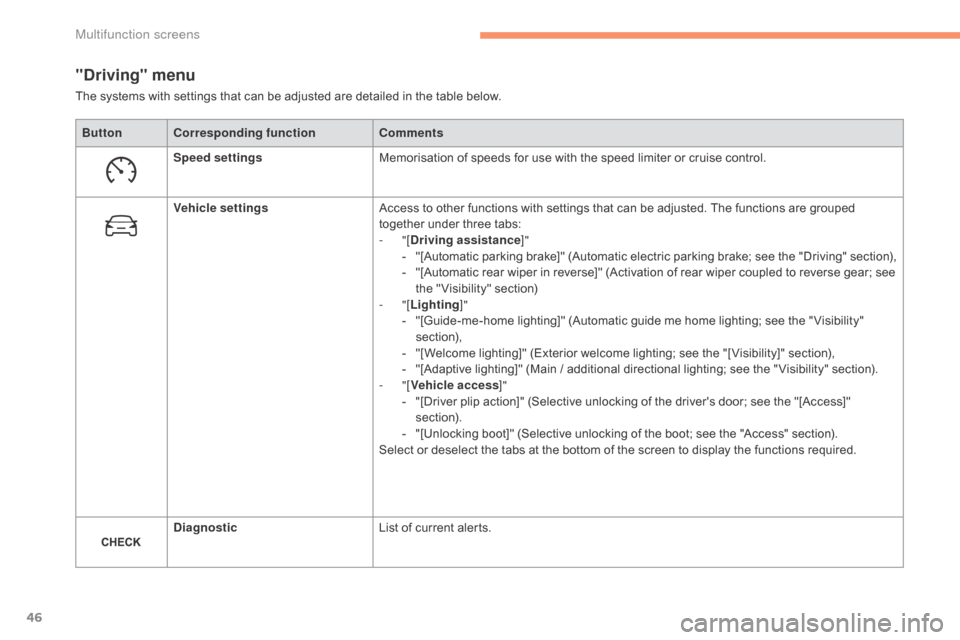
"Driving" menu
ButtonCorresponding function Comments
Speed settings Memorisation
of speeds for use with the speed limiter or cruise control.
Vehicle settings Access
to other functions with settings that can be adjusted. The functions are grouped
t
ogether under three tabs:
-
"[Driving assistance ]"
-
"
[Automatic
p
arking
b
rake]"
(
Automatic
e
lectric
p
arking
b
rake;
s
ee
t
he
"
Driving"
s
ection),
-
"
[Automatic rear wiper in reverse]" (Activation of rear wiper coupled to reverse gear; see
t
he " Visibility" section)
-
"[Lighting ]"
-
"
[Guide-me-home lighting]" (Automatic guide me home lighting; see the " Visibility"
s
ection),
-
"
[Welcome lighting]" (Exterior welcome lighting; see the "[ Visibility]" section),
-
"
[Adaptive lighting]" (Main / additional directional lighting; see the " Visibility" section).
-
"[Vehicle access ]"
-
"
[Driver plip action]" (Selective unlocking of the driver's door; see the "[Access]"
s
ection).
-
"
[Unlocking boot]" (Selective unlocking of the boot; see the "Access" section).
Select
or deselect the tabs at the bottom of the screen to display the functions required.
Diagnostic List
of current alerts.
The
systems with settings that can be adjusted are detailed in the table below.
Multifunction screens
Page 55 of 494
53
C4-2_en_Chap03_ouvertures_ed01-2015
C4-2_en_Chap03_ouvertures_ed01-2015
Remote control key
System which permits central unlocking or locking of the vehicle using the door lock or from a distance. It is also used to locate and start the vehicle, as well as providing protection against theft.
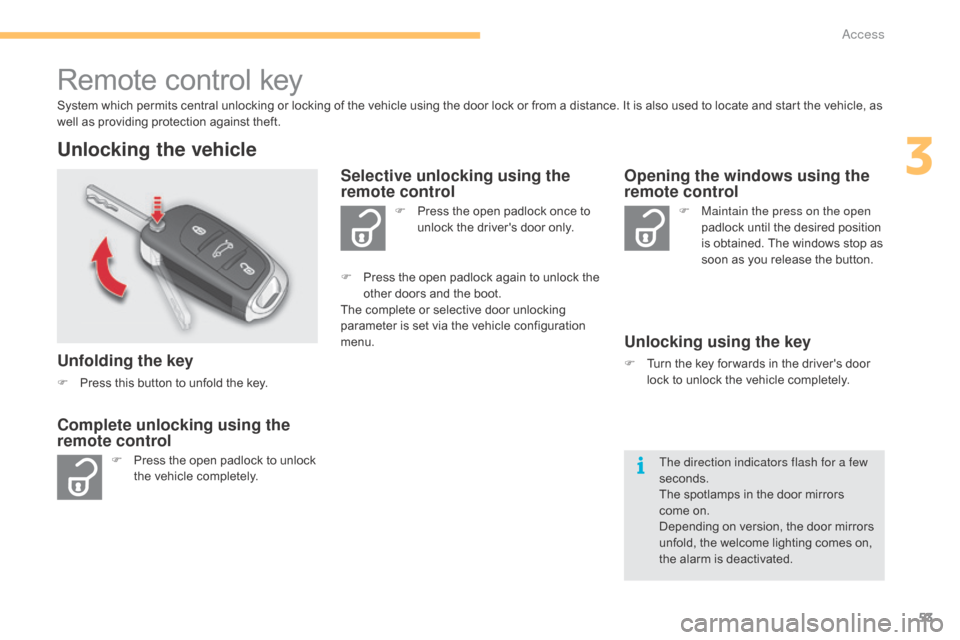
Unlocking the vehicle
Unfolding the key
F Press this button to unfold the key.
F
P
ress the open padlock to unlock
t
he vehicle completely. F
P
ress the open padlock once to
u
nlock the driver's door only.
Selective unlocking using the
remote control
F Maintain the press on the open
padlock until the desired position
i
s obtained. The windows stop as
s
oon as you release the button.
Opening the windows using the
remote control
Unlocking using the key
F Turn the key for wards in the driver's door l
ock to unlock the vehicle completely.
Complete unlocking using the
remote control
F Press the open padlock again to unlock the o
ther doors and the boot.
The
complete or selective door unlocking
p
arameter is set via the vehicle configuration
m
enu.
The direction indicators flash for a few
seconds.
The
spotlamps in the door mirrors
come
on.
Depending
on version, the door mirrors
u
nfold, the welcome lighting comes on,
t
he alarm is deactivated.
3
Access
Page 58 of 494
56
C4-2_en_Chap03_ouvertures_ed01-2015
C4-2_en_Chap03_ouvertures_ed01-2015
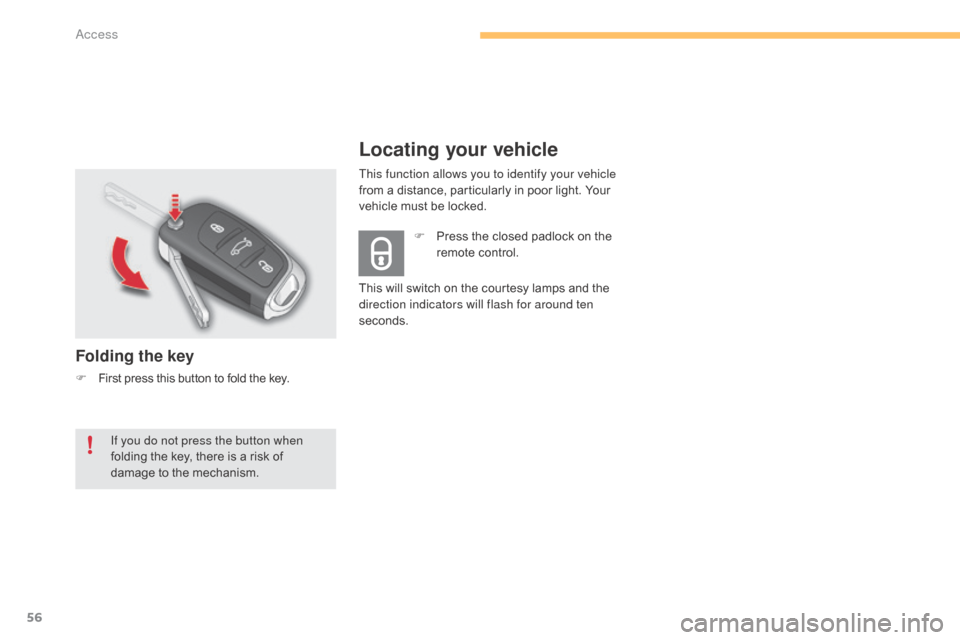
Locating your vehicle
Folding the key
F First press this button to fold the key.F
P
ress the closed padlock on the
r
emote control.
This will switch on the courtesy lamps and the
d
irection indicators will flash for around ten
seconds.
If you do not press the button when
folding the key, there is a risk of
d
amage to the mechanism. This function allows you to identify your vehicle
from
a distance, particularly in poor light. Your
v
ehicle must be locked.
Access
Page 61 of 494
59
C4-2_en_Chap03_ouvertures_ed01-2015
C4-2_en_Chap03_ouvertures_ed01-2015
"Keyless Entry and Starting" system
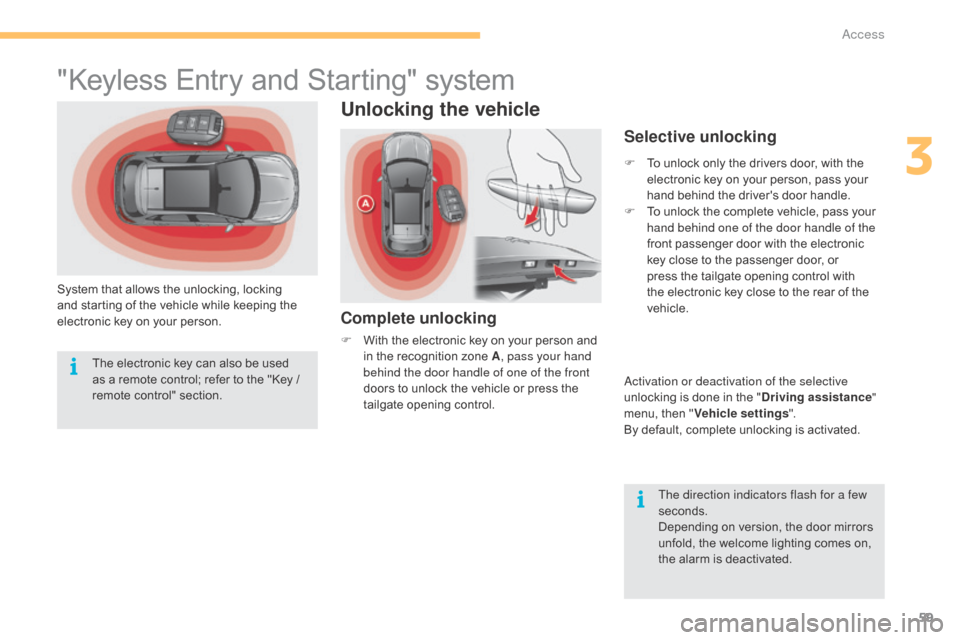
System that allows the unlocking, locking and starting of the vehicle while keeping the
e
lectronic key on your person.
Unlocking the vehicle
Complete unlocking
F With the electronic key on your person and i
n the recognition zone A, pass your hand
behind the door handle of one of the front
doors
to unlock the vehicle or press the
t
ailgate opening control.
Selective unlocking
F To unlock only the drivers door, with the e
lectronic key on your person, pass your
h
and behind the driver's door handle.
F
T
o unlock the complete vehicle, pass your
h
and behind one of the door handle of the
front
passenger door with the electronic
k
ey close to the passenger door, or
p
ress the tailgate opening control with
t
he electronic key close to the rear of the
v
ehicle.
ac
tivation or deactivation of the selective
unlocking
is done in the "Driving assistance "
menu,
then "Vehicle settings ".
By
default, complete unlocking is activated.
The direction indicators flash for a few
seconds.
Depending
on version, the door mirrors
u
nfold, the welcome lighting comes on,
t
he alarm is deactivated.
The
electronic
key
can
also
be
used
a
s
a
remote
control;
refer
to
the
"Key
/
r
emote
c
ontrol"
s
ection.
3
Access
Page 63 of 494
61
C4-2_en_Chap03_ouvertures_ed01-2015
C4-2_en_Chap03_ouvertures_ed01-2015
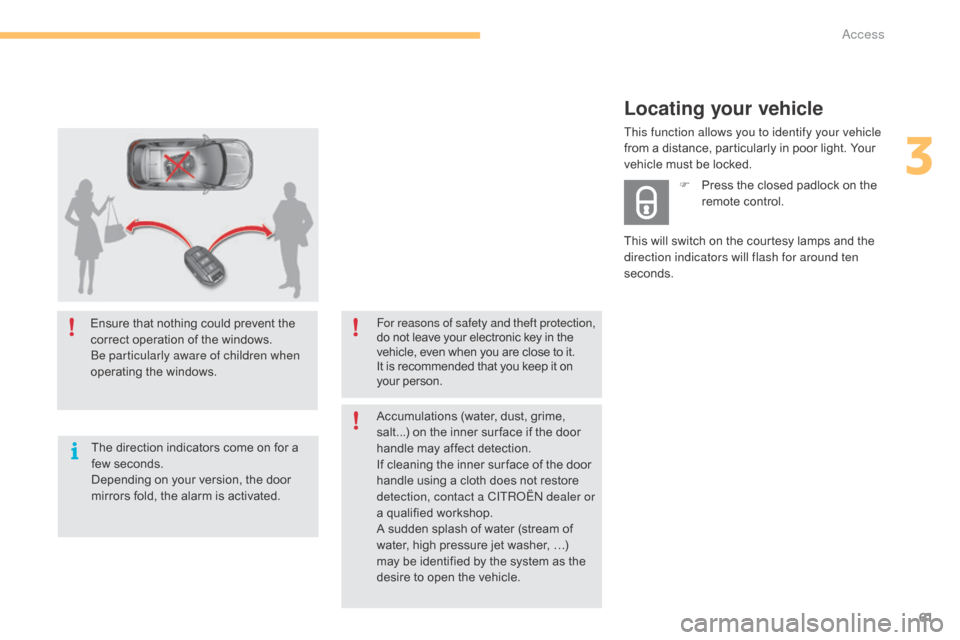
Ensure that nothing could prevent the correct operation of the windows.
be p
articularly aware of children when
operating
t
he
w
indows.
The
direction indicators come on for a
f
ew seconds.
Depending
on your version, the door
m
irrors fold, the alarm is activated. For reasons of safety and theft protection,
do
not leave your electronic key in the v
ehicle, even when you are close to it.
It
is recommended that you keep it on
y
our person.
Accumulations
(water, dust, grime,
s
alt...) on the inner sur face if the door
h
andle may affect detection.
If
cleaning the inner sur face of the door
h
andle using a cloth does not restore
d
etection, contact a CITR
oËn
dealer or
a
qualified workshop.
A
sudden splash of water (stream of
w
ater, high pressure jet washer, …)
m
ay be identified by the system as the
d
esire to open the vehicle.
Locating your vehicle
This will switch on the courtesy lamps and the direction indicators will flash for around ten
seconds. F
P
ress the closed padlock on the
r
emote control.
This function allows you to identify your vehicle
from a distance, particularly in poor light. Your
v
ehicle must be locked.
3
access