display Citroen C4 RHD 2016 2.G Workshop Manual
[x] Cancel search | Manufacturer: CITROEN, Model Year: 2016, Model line: C4 RHD, Model: Citroen C4 RHD 2016 2.GPages: 472, PDF Size: 13.96 MB
Page 412 of 472
4
ADD_C42_EVO_EN
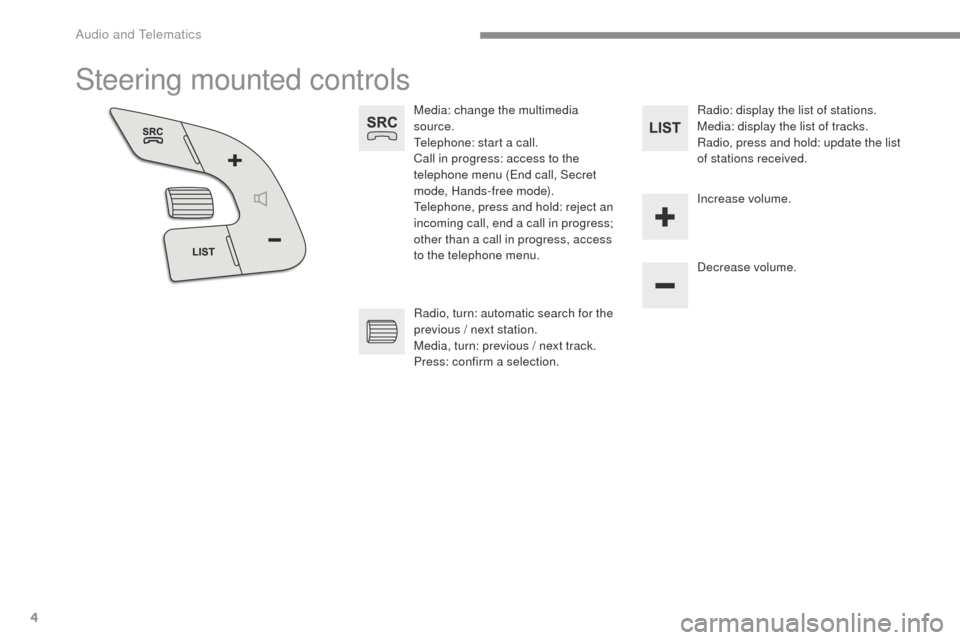
Steering mounted controls
Media: change the multimedia
source.
Telephone: start a call.
Call in progress: access to the
telephone menu (End call, Secret
mode, Hands-free mode).
Telephone, press and hold: reject an
incoming call, end a call in progress;
other than a call in progress, access
to the telephone menu.Decrease volume.
Radio, turn: automatic search for the
previous / next station.
Media, turn: previous / next track.
Press: confirm a selection. Radio: display the list of stations.
Media: display the list of tracks.
Radio, press and hold: update the list
of stations received.
Increase volume.
Audio and Telematics
Page 413 of 472
5
ADD_C42_EVO_EN
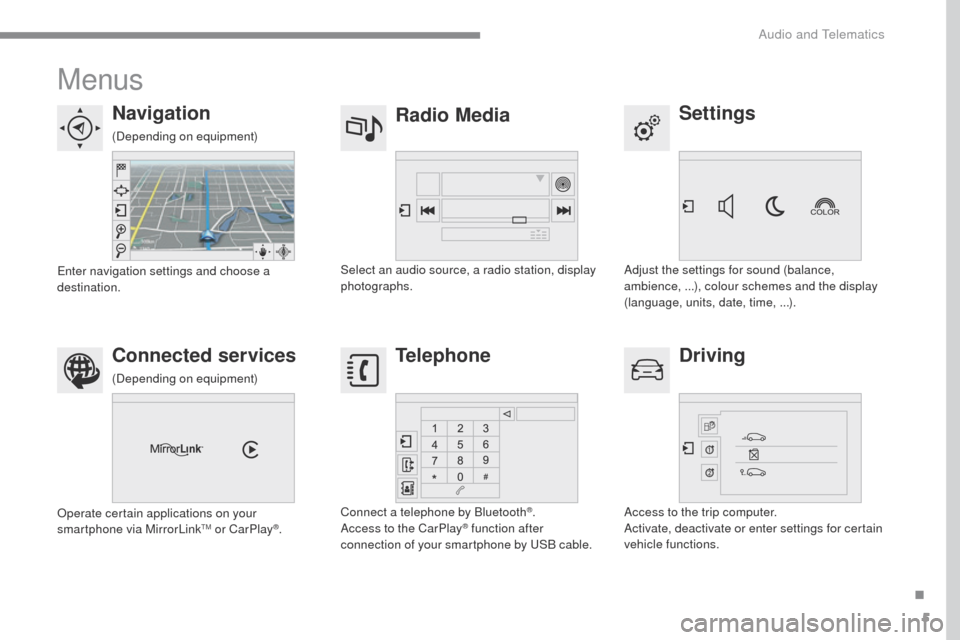
Menus
Settings
Radio Media
Navigation
Driving
Connected services Telephone
Adjust the settings for sound (balance,
ambience, ...), colour schemes and the display
(language, units, date, time, ...).
Select an audio source, a radio station, display
photographs.
Enter navigation settings and choose a
destination.
Access to the trip computer.
Activate, deactivate or enter settings for certain
vehicle functions.
Operate certain applications on your
smartphone via MirrorLink
TM or CarPlay®.
Connect a telephone by Bluetooth
®.
Access to the CarPlay® function after
connection of your smartphone by USB cable.
(Depending on equipment)
(Depending on equipment)
.
Audio and Telematics
Page 415 of 472
7
ADD_C42_EVO_EN
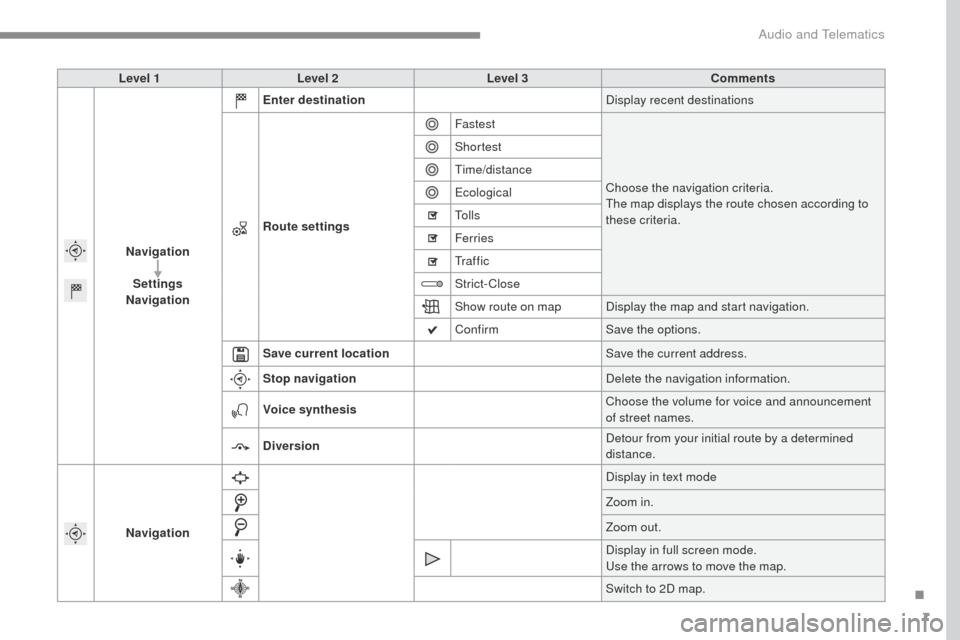
Level 1Level 2 Level 3 Comments
Navigation Settings
Navigation Enter destination
Display recent destinations
Route settings Fastest
Choose the navigation criteria.
The map displays the route chosen according to
these criteria.
Shortest
Time/distance
Ecological
To l l s
Ferries
Tr a f f i c
Strict-Close
Show route on map
Display the map and start navigation.
Confirm Save the options.
Save current location Save the current address.
Stop navigation Delete the navigation information.
Voice synthesis Choose the volume for voice and announcement
of street names.
Diversion Detour from your initial route by a determined
distance.
Navigation Display in text mode
Zoom in.
Zoom out.
Display in full screen mode.
Use the arrows to move the map.
Switch to 2D map.
.
Audio and Telematics
Page 417 of 472
9
ADD_C42_EVO_EN
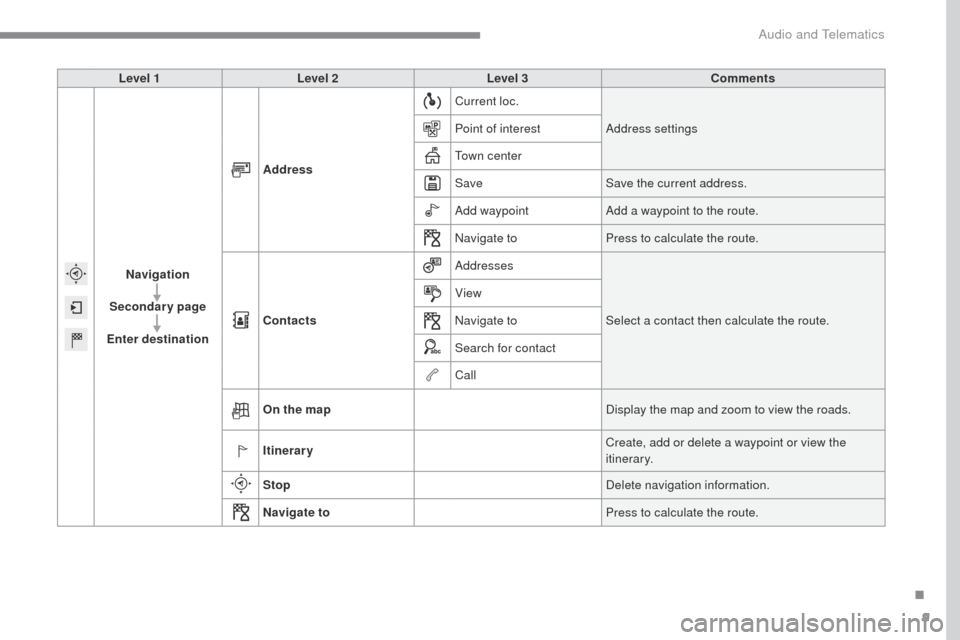
Level 1Level 2 Level 3 Comments
Navigation
Secondary page
Enter destination Address
Current loc.
Address settings
Point of interest
Town center
Save Save the current address.
Add waypoint Add a waypoint to the route.
Navigate to Press to calculate the route.
Contacts Addresses
Select a contact then calculate the route.
View
Navigate to
Search for contact
Call
On the map Display the map and zoom to view the roads.
Itinerary Create, add or delete a waypoint or view the
itinerary.
Stop Delete navigation information.
Navigate to Press to calculate the route.
.
Audio and Telematics
Page 418 of 472
10
ADD_C42_EVO_EN
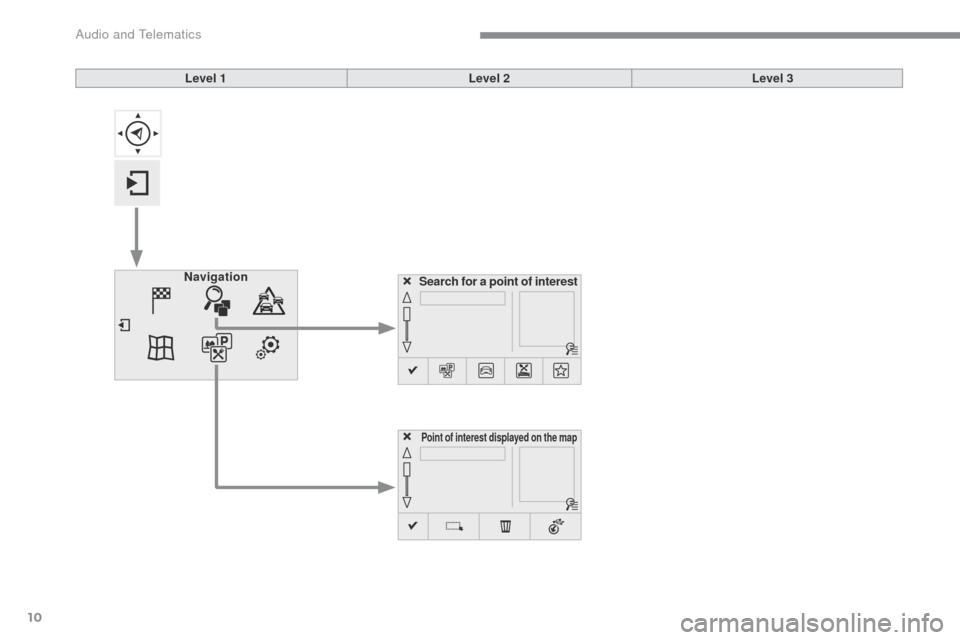
Search for a point of interest
Navigation
Point of interest displayed on the map
Level 1
Level 2Level 3
Audio and Telematics
Page 419 of 472
11
ADD_C42_EVO_EN
Level 1Level 2 Level 3 Comments
Navigation
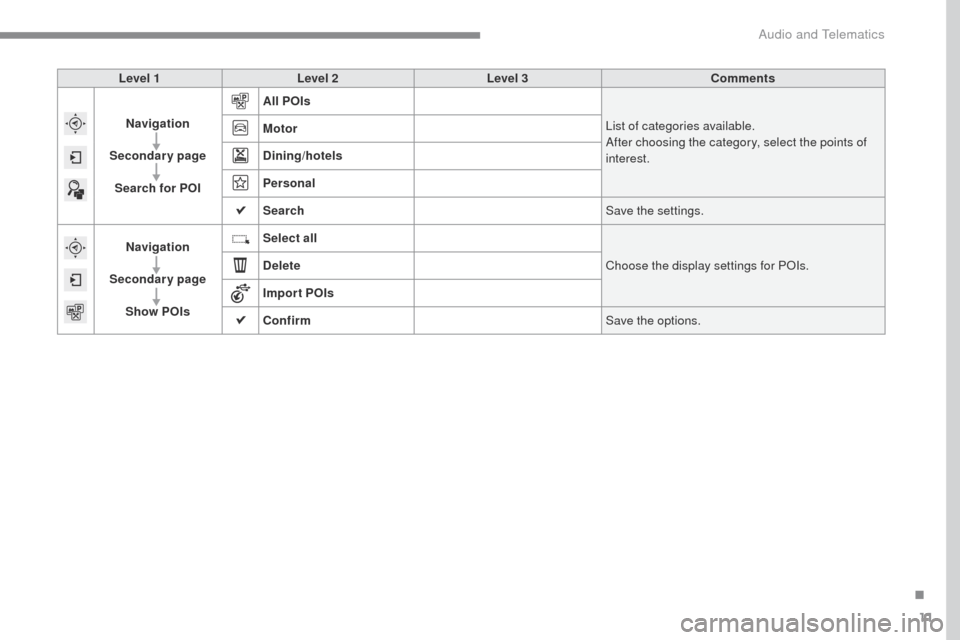
Secondary page Search for POI All POIs
List of categories available.
After choosing the category, select the points of
interest.
Motor
Dining/hotels
Personal
Search
Save the settings.
Navigation
Secondary page Show POIs Select all
Choose the display settings for POIs.
Delete
Import POIs
Confirm Save the options.
.
Audio and Telematics
Page 421 of 472
13
ADD_C42_EVO_EN
Level 1Level 2 Level 3 Comments
Navigation
Secondary page
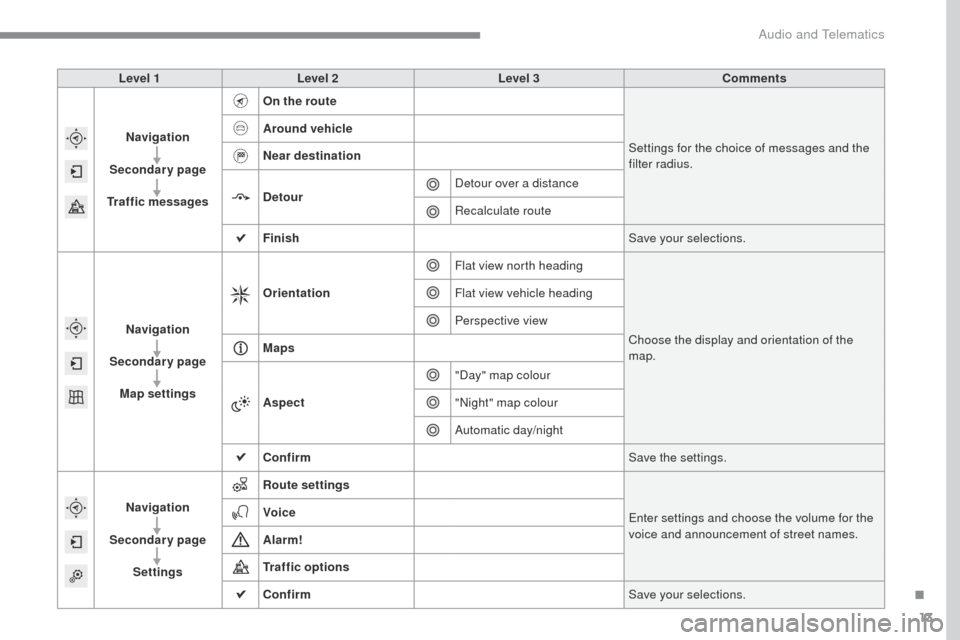
Traffic messages On the route
Settings for the choice of messages and the
filter radius.
Around vehicle
Near destination
Detour
Detour over a distance
Recalculate route
Finish Save your selections.
Navigation
Secondary page Map settings Orientation
Flat view north heading
Choose the display and orientation of the
map.
Flat view vehicle heading
Perspective view
Maps
Aspect "Day" map colour
"Night" map colour
Automatic day/night
Confirm Save the settings.
Navigation
Secondary page Settings Route settings
Enter settings and choose the volume for the
voice and announcement of street names.
Voice
Alarm!
Traffic options
Confirm
Save your selections.
.
Audio and Telematics
Page 422 of 472
14
ADD_C42_EVO_EN
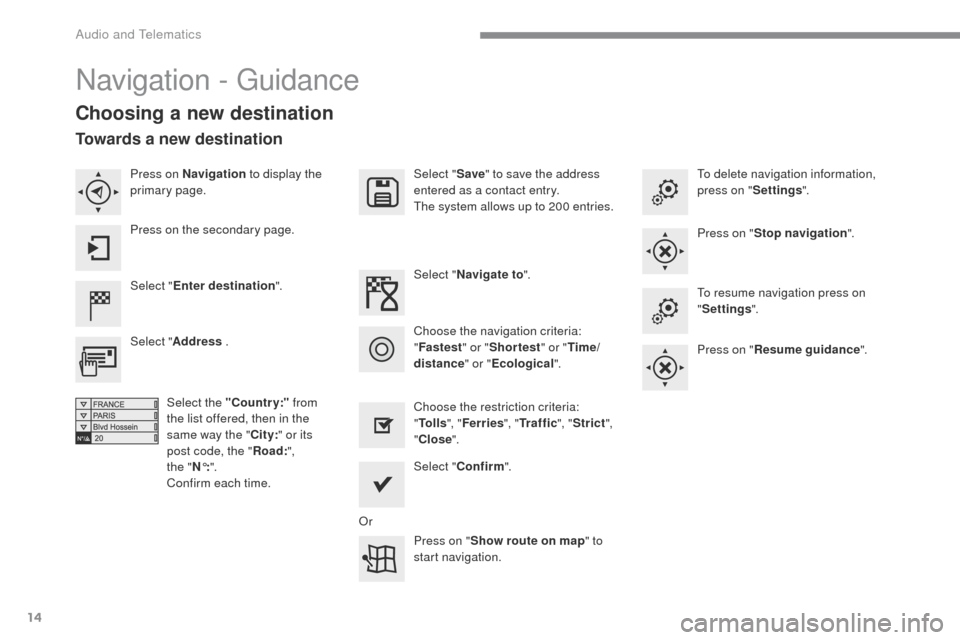
Navigation - Guidance
Choosing a new destination
Select "Enter destination ". Select "
Save" to save the address
entered as a contact entry.
The system allows up to 200 entries.
Select " Confirm ".
Press on " Show route on map " to
start navigation.
Select "
Address .
Select the "Country:" from
the list offered, then in the
same way the " City:" or its
post code, the " Road:",
the " N°:".
Confirm each time. Select "
Navigate to ".
Choose the restriction criteria:
" To l l s ", "Ferries ", "Tr a f f i c ", "Strict ",
" Close ".
Choose the navigation criteria:
"
Fastest " or "Shortest " or "Time/
distance " or "Ecological". To delete navigation information,
press on "
Settings".
Press on " Stop navigation ".
To resume navigation press on
" Settings ".
Press on " Resume guidance ".
Press on Navigation
to display the
primary page.
Press on the secondary page.
Towards a new destination
Or
Audio and Telematics
Page 423 of 472
15
ADD_C42_EVO_EN
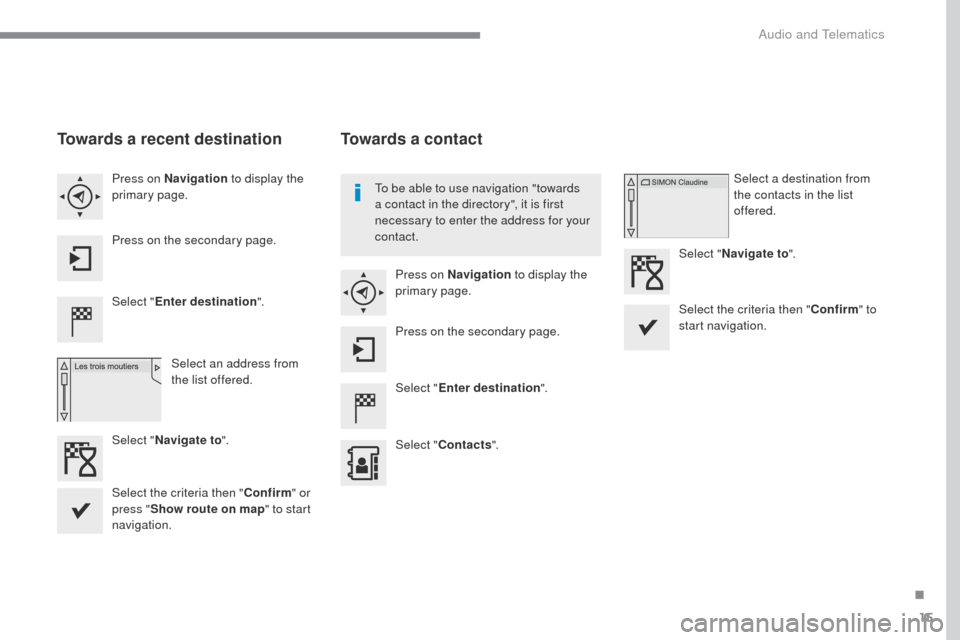
Towards a recent destination
Select "Enter destination ".
Select an address from
the list offered.
Press on Navigation
to display the
primary page.
Press on the secondary page.
Select " Navigate to ".
Towards a contact
Select "Enter destination ".
Select " Contacts ".
Press on Navigation
to display the
primary page.
Press on the secondary page. Select a destination from
the contacts in the list
offered.
Select " Navigate to ".
Select the criteria then " Confirm" to
start navigation.
To be able to use navigation "towards
a contact in the directory", it is first
necessary to enter the address for your
contact.
Select the criteria then " Confirm" or
press " Show route on map " to start
navigation.
.
Audio and Telematics
Page 424 of 472
16
ADD_C42_EVO_EN
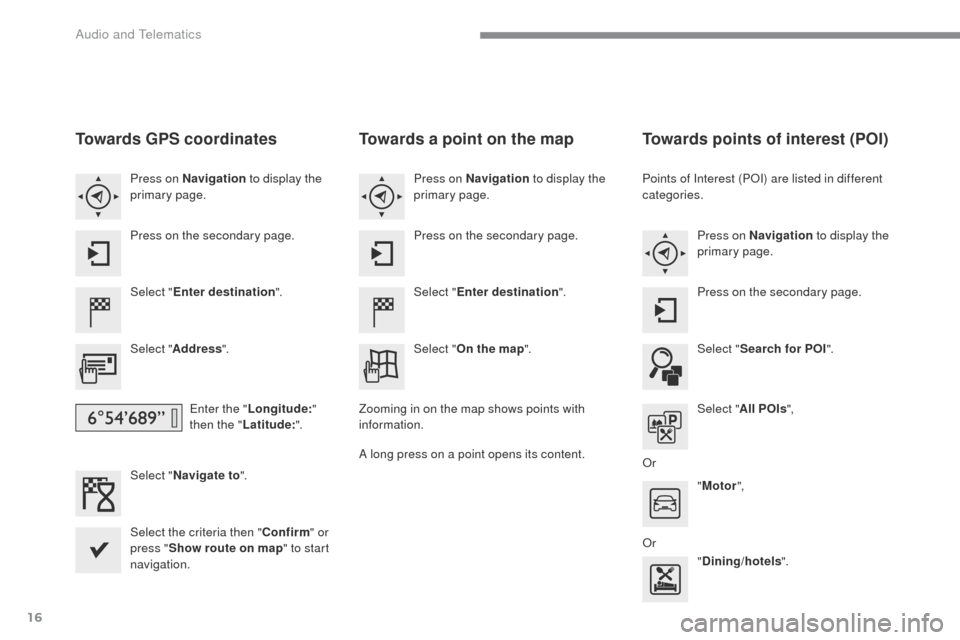
Towards GPS coordinates
Select "Enter destination ".
Select " Address ".
Enter the " Longitude: "
then the " Latitude: ".
Select " Navigate to ".
Select the criteria then " Confirm" or
press " Show route on map " to start
navigation. Press on Navigation to display the
primary page.
Press on the secondary page.
Towards a point on the map
Select " Enter destination ".
Select " On the map ".
Press on Navigation
to display the
primary page.
Press on the secondary page.
Zooming in on the map shows points with
information.
A long press on a point opens its content.
Towards points of interest (POI)
Points of Interest (POI) are listed in different
categories. Press on Navigation to display the
primary page.
Press on the secondary page.
Select " Search for POI ".
Select " All POIs ",
Or "Motor ",
Or "Dining/hotels ".
Audio and Telematics