radio CITROEN C6 2012 Handbook (in English)
[x] Cancel search | Manufacturer: CITROEN, Model Year: 2012, Model line: C6, Model: CITROEN C6 2012Pages: 216, PDF Size: 10.23 MB
Page 155 of 216
7.5
1
1
1
1
1
1
1
1
1
1
1
1
1
1
1
1
1
1
1
1
1
1
1
1
1
1
1
1
1
1
1
1
1
1
1
1
1
1
1
02
1
1
SCREEN AND GENERAL MENU
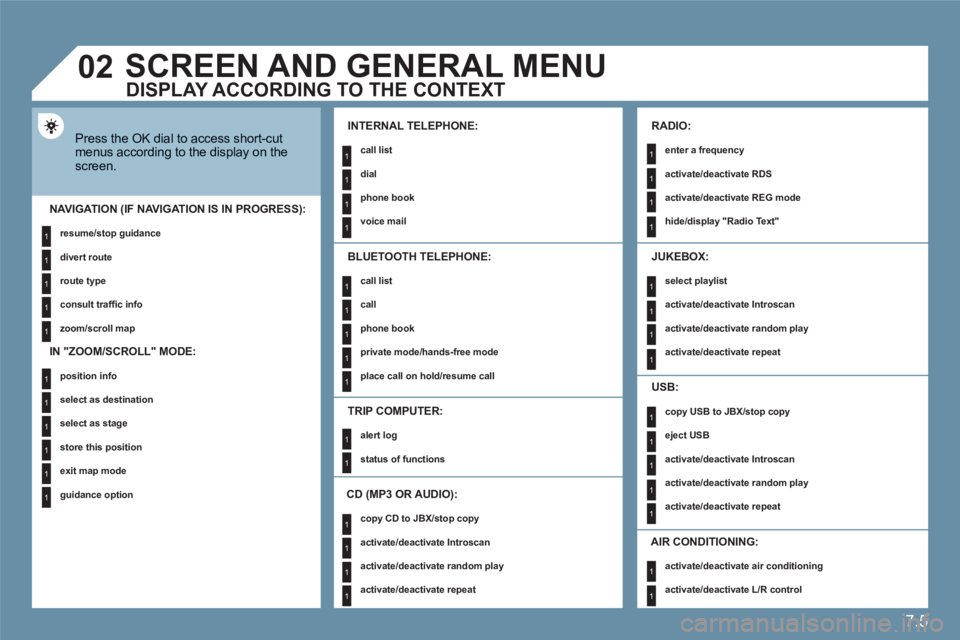
Press the OK dial to access short-cutmenus according to the display on thescreen.
INTERNAL TELEPHONE:
call list
dial
phone book
voice mail
NAVIGATION (IF NAVIGATION IS IN PROGRESS):
resume/stop guidance
divert route
route type
consult traffi c info
zoom/scroll map
TRIP COMPUTER:
alert log
status of functions
BLUETOOTH TELEPHONE:
call list
call
phone book
private mode/hands-free mode
place call on hold/resume call
CD (MP3 OR AUDIO):
copy CD to JBX/stop copy
activate/deactivate Introscan
activate/deactivate random play
activate/deactivate repeat
RADIO:
enter a frequency
activate/deactivate RDS
activate/deactivate REG mode
hide/display "Radio Text"
JUKEBOX:
select playlist
activate/deactivate Introscan
activate/deactivate random play
activate/deactivate repeat
USB:
copy USB to JBX/stop copy
eject USB
activate/deactivate Introscan
activate/deactivate random play
activate/deactivate repeat
DISPLAY ACCORDING TO THE CONTEXT
IN "ZOOM/SCROLL" MODE:
position info
select as destination
select as stage
store this position
exit map mode
guidance option
AIR CONDITIONING:
activate/deactivate air conditioning
activate/deactivate L/R control
Page 167 of 216
7.17
11
22
33
44
11
22
33
44
05AUDIO/VIDEO
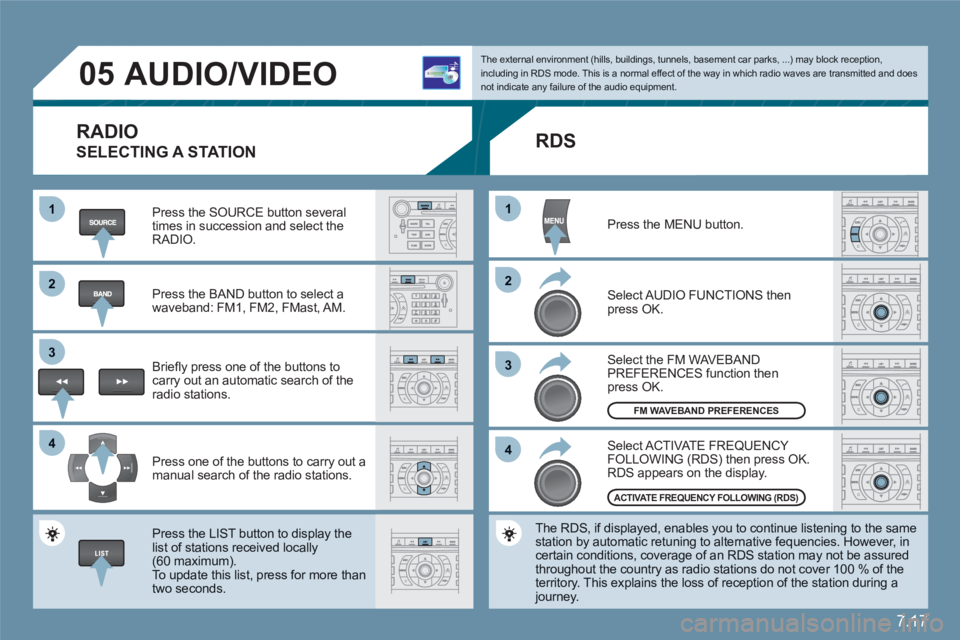
RADIO
SELECTING A STATION
Press the SOURCE button several times in succession and select theRADIO.
Press the BAND button to select awaveband: FM1, FM2, FMast, AM.
Briefl y press one of the buttons to carry out an automatic search of theradio stations.
Press one of the buttons to carry out a manual search of the radio stations.
Press the LIST button to display the list of stations received locally(60 maximum).
To update this list, press for more than two seconds.
The external environment (hills, buildings, tunnels, basement car parks, ...) may block reception,including in RDS mode. This is a normal effect of the way in which radio waves are transmitted and does not indicate any failure of the audio equipment.
RDS
Select ACTIVATE FREQUENCY FOLLOWING (RDS) then press OK. RDS appears on the display.
Select the FM WAVEBANDPREFERENCES function thenpress OK.
Select AUDIO FUNCTIONS then press OK.
Press the MENU button.
The RDS, if displayed, enables you to continue listening to the samestation by automatic retuning to alternative fequencies. However, in certain conditions, coverage of an RDS station may not be assuredthroughout the country as radio stations do not cover 100 % of the territory. This explains the loss of reception of the station during a journey.
FM WAVEBAND PREFERENCES
ACTIVATE FREQUENCY FOLLOWING (RDS)
Page 181 of 216

7.31
08CONTROL SHORT-CUTS
STEERING WHEEL CONTROLS
RADIO: selection of the previous stored station.
MP3/JUKEBOX: selection of the previous directory.
Selection of the previous item on a menu.
RADIO: selection of the next stored station.
MP3/JUKEBOX: selection of the next directory. Selection of the next item on a menu.
RADIO: automatic search for a higher frequency. CD/MP3/JUKEBOX: selection of the next track.
CD: continuous press: fast forwards play.
RADIO: automatic search for a lower frequency.CD/MP3/JUKEBOX: selection of the previous track. CD: continuous press: fast backwards play.
- Change of sound source. - Confi rmation of a selection. - Pick up/Hang up the telephone.- Press for more than 2 seconds:access to the telephone menu.
Volume increase.
Volume decrease.
Mute: by pressing the volumeincrease and decreasebuttons simultaneously.
The sound is restored by pressing one of the two volume buttons.
Page 182 of 216
7.32
2 1
VOICE COMMANDS
DISPLAYING THE LIST AND USING THEM
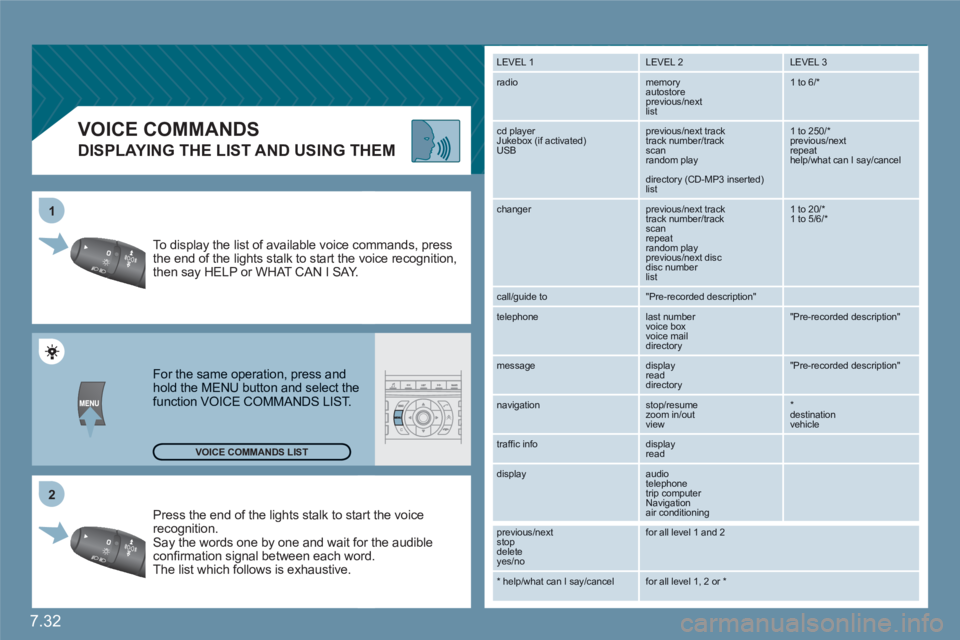
Press the end of the lights stalk to staart the voicerecognition. Say the words one by one and wait foor the audibleconfi rmation signal between each woord.
The list which follows is exhaustive.
To display the list of available voice coommands, press the end of the lights stalk to start the vvoice recognition,then say HELP or WHAT CAN I SAY.
For the same operation, press and hold the MENU button and select the function VOICE COMMANDS LIST.
LEVEL 1
LEVEL 2 LEVEL 3
radio memory autostore
previous/next list
1 to 6/*
cd player
Jukebox (if activated) USB
previous/next track
track number/track scan
random play
directory (CD-MP3 inserted) list
1 to 250/* previous/next repeat help/what can I say/cancel
changer
previous/next track
track number/track scan
repeat
random play previous/next disc disc number list
1 to 20/* 1 to 5/6/*
call/guide to
"Pre-recorded description"
telephone
last number
voice box
voice mail
directory
"Pre-recorded description"
message
display
read directory
"Pre-recorded description"
navigation
stop/resume
zoom in/out
view
*destination vehicle
traffi c info display
read
display audio
telephone
trip computer
Navigation
air conditioning
previous/next
stop delete
yes/no
for all level 1 and 2
* help/what can I say/cancel for all level 1, 2 or * VOICE COMMANDS LIST
Page 185 of 216
7.35
4
4
3
1
2
3
4
4
3
4
4
4
4
4
1
2
3
3
3
3
3
3
3
3
2
3
2
3
3
2
4
4
2
4
4
4
3
3
4
4
4
4
4
4
4
3
3
4
4
4
4
3
3
2
2
2
3
4
4
4
4
2
3
5
5
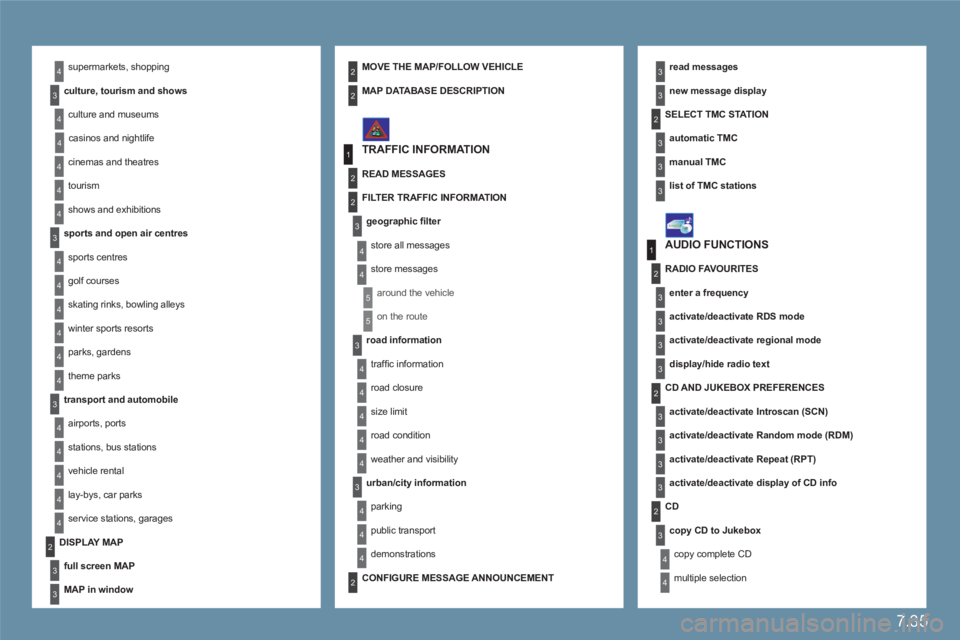
supermarkets, shopping
culture, tourism and shows
culture and museums
casinos and nightlife
cinemas and theatres
tourism
shows and exhibitions
sports and open air centres
sports centres
golf courses
skating rinks, bowling alleys
winter sports resorts
parks, gardens
theme parks
transport and automobile
airports, ports
stations, bus stations
vehicle rental
lay-bys, car parks
service stations, garages
read messages
new message display
TRAFFIC INFORMATION
SELECT TMC STAT I O N
automatic TMC
manual TMC
list of TMC stations
MOVE THE MAP/FOLLOW VEHICLE
DISPLAY MAP
full screen MAP
MAP in window
MAP DATABASE DESCRIPTION
READ MESSAGES
FILTER TRAFFIC INFORMATION
geographic fi lter
store all messages
store messages
around the vehicle
on the route
road information
traffi c information
road closure
size limit
road condition
weather and visibility
urban/city information
parking
public transport
demonstrations
AUDIO FUNCTIONS
RADIO FAVOURITES
enter a frequency
activate/deactivate RDS mode
activate/deactivate regional mode
display/hide radio text
CD AND JUKEBOX PREFERENCES
activate/deactivate Introscan (SCN)
activate/deactivate Random mode (RDM)
activate/deactivate Repeat (RPT)
activate/deactivate display of CD info
CD
copy CD to Jukebox
copy complete CD
multiple selection
CONFIGURE MESSAGE ANNOUNCEMENT
Page 187 of 216
7.37
1
2
2
1
2
1
2
2
2
3
3
4
4
4
3
2
2
2
3
4
4
4
3
3
3
3
4
4
4
4
1
2
2
1
2
2
2
1
1
1
3
3
3
3
3
3
3
3
2
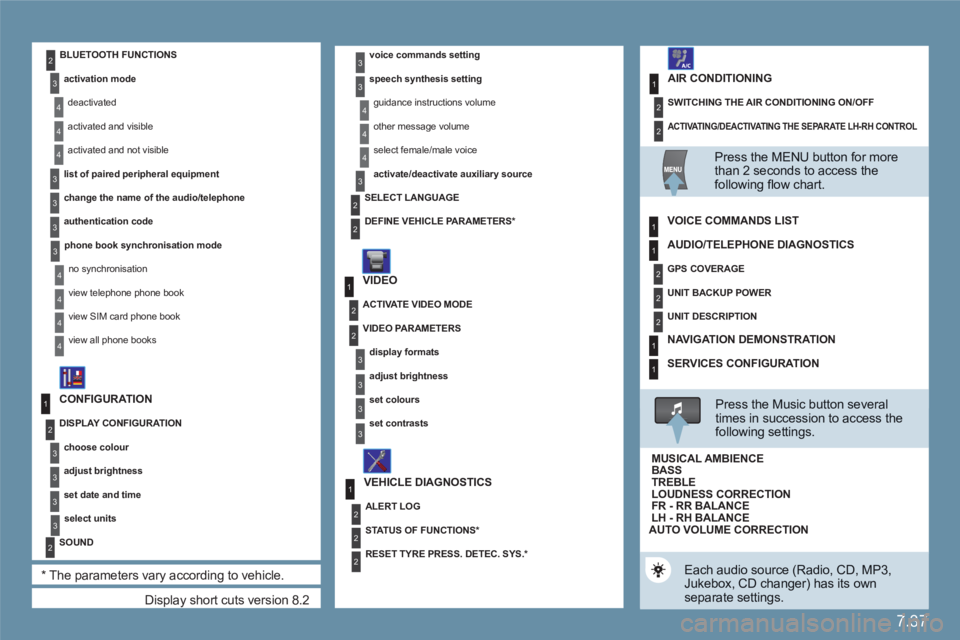
Display short cuts version 8.2
CONFIGURATION
DISPLAY CONFIGURATION
choose colour
adjust brightness
set date and time
select units
SOUND
*
The parameters vary according to vehicle.
voice commands setting
speech synthesis setting
guidance instructions volume
other message volume
select female/male voice
activate/deactivate auxiliary source
VIDEO
VEHICLE DIAGNOSTICS
SELECT LANGUAGE
DEFINE VEHICLE PARAMETERS
*
ACTIVATE VIDEO MODE
VIDEO PARAMETERS
display formats
adjust brightness
set colours
set contrasts
ALERT LOG
STATUS OF FUNCTIONS *
RESET TYRE PRESS. DETEC. SYS. *
BLUETOOTH FUNCTIONS
activation mode
deactivated
activated and visible
activated and not visible
list of paired peripheral equipment
change the name of the audio/telephone
authentication code
phone book synchronisation mode
no synchronisation
view telephone phone book
view SIM card phone book
view all phone books
ACTIVATING/DEACTIVATING THE SEPARATE LH-RH CONTROL
SWITCHING THE AIR CONDITIONING ON/OFF
AIR CONDITIONING
Press the MENU button for more than 2 seconds to access thefollowing fl ow chart.
VOICE COMMANDS LIST
Press the Music button severaltimes in succession to access the following settings.
AUTO VOLUME CORRECTION
Each audio source (Radio, CD, MP3,Jukebox, CD changer) has its own separate settings.
AUDIO/TELEPHONE DIAGNOSTICS
GPS COVERAGE
UNIT BACKUP POWER
UNIT DESCRIPTION
NAVIGATION DEMONSTRATION
SERVICES CONFIGURATION
LOUDNESS CORRECTION TREBLEBASS MUSICAL AMBIENCE
FR - RR BALANCE LH - RH BALANCE
Page 188 of 216
7.38
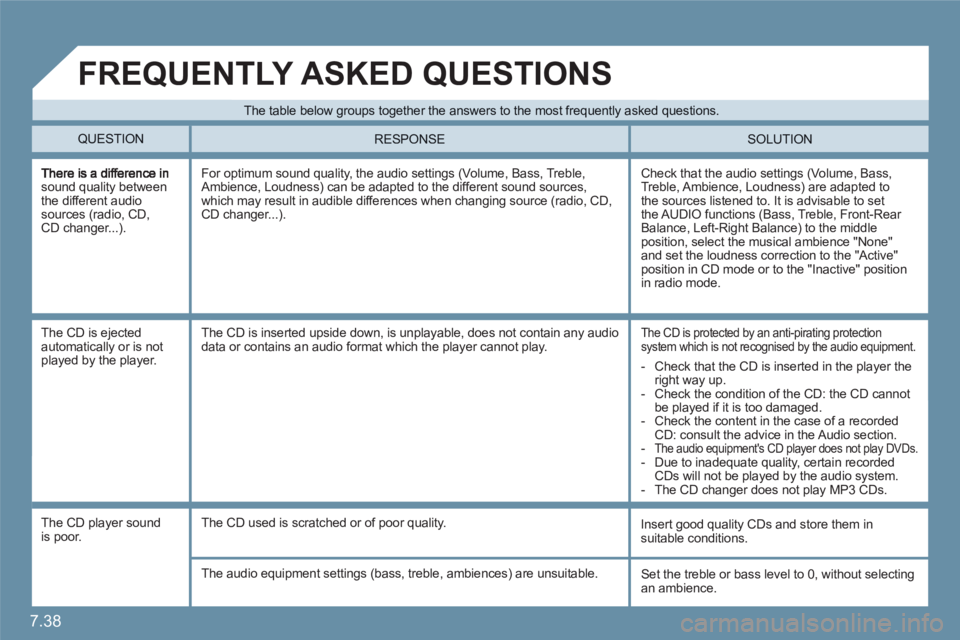
sound quality between the different audio sources (radio, CD,CD changer...).
Check that the audio settings (Volume, Bass, Treble, Ambience, Loudness) are adapted to the sources listened to. It is advisable to set the AUDIO functions (Bass, Treble, Front-Rear Balance, Left-Right Balance) to the middle position, select the musical ambience "None"and set the loudness correction to the "Active" position in CD mode or to the "Inactive" position in radio mode.
For optimum sound quality, the audio settings (Volume, Bass, Treble, Ambience, Loudness) can be adapted to the different sound sources, which may result in audible differences when changing source (radio, CD,CD changer...).
The CD is ejectedautomatically or is notplayed by the player.
The CD is protected by an anti-pirating protectionsystem which is not recognised by the audio equipment.
The CD is inserted upside down, is unplayable, does not contain any audiodata or contains an audio format which the player cannot play.
The CD player sound is poor.
Insert good quality CDs and store them insuitable conditions.
The CD used is scratched or of poor quality.
The audio equipment settings (bass, treble, ambiences) are unsuitable. Set the treble or bass level to 0, without selectingan ambience.
The table below groups together the answers to the most frequently asked questions.
QUESTION SOLUTION
RESPONSE
FREQUENTLY ASKED QUESTIONS
- Check that the CD is inserted in the player the right way up.
- Check the condition of the CD: the CD cannot be played if it is too damaged.
- Check the content in the case of a recordedCD: consult the advice in the Audio section.
-The audio equipment's CD player does not play DVDs.
- Due to inadequate quality, certain recordedCDs will not be played by the audio system.
- The CD changer does not play MP3 CDs.
Page 189 of 216
7.39
SOLUTION RESPONSE
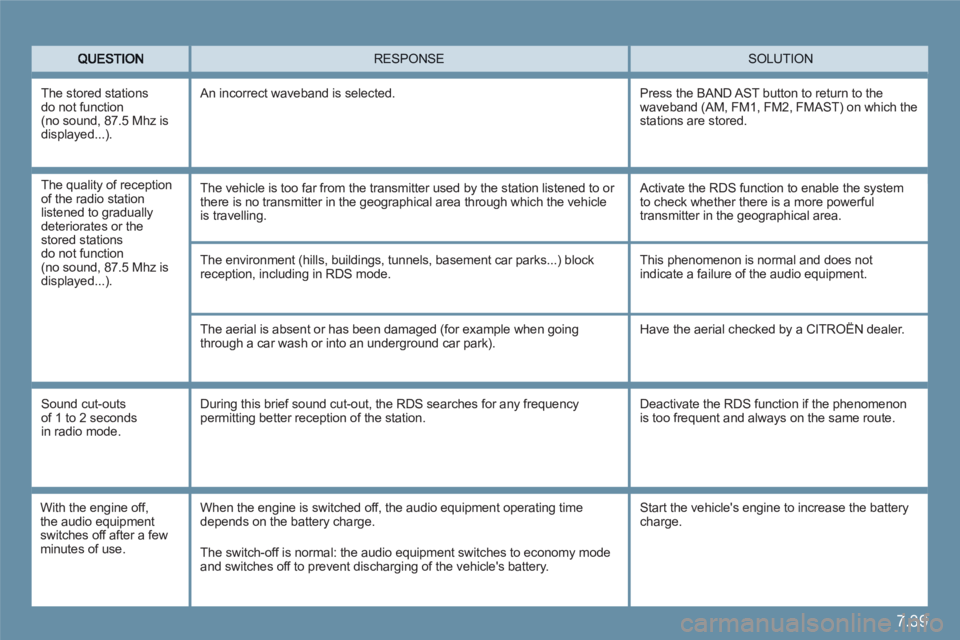
The environment (hills, buildings, tunnels, basement car parks...) blockreception, including in RDS mode.
The aerial is absent or has been damaged (for example when going through a car wash or into an underground car park).
This phenomenon is normal and does notindicate a failure of the audio equipment.
Have the aerial checked by a CITROËN dealer.
Sound cut-outs of 1 to 2 seconds in radio mode.
During this brief sound cut-out, the RDS searches for any frequency permitting better reception of the station.
Deactivate the RDS function if the phenomenon is too frequent and always on the same route.
With the engine off,the audio equipment switches off after a fewminutes of use.
When the engine is switched off, the audio equipment operating timedepends on the battery charge.
The switch-off is normal: the audio equipment switches to economy mode and switches off to prevent discharging of the vehicle's battery.
The stored stations do not function(no sound, 87.5 Mhz isdisplayed...)
.
An incorrect waveband is selected.
Press the BAND AST button to return to the waveband (AM, FM1, FM2, FMAST) on which the stations are stored.
Start the vehicle's engine to increase the battery charge.
The quality of reception of the radio station listened to gradually deteriorates or thestored stations do not function(no sound, 87.5 Mhz isdisplayed...).
The vehicle is too far from the transmitter used by the station listened to or there is no transmitter in the geographical area through which the vehicle is travelling.
Activate the RDS function to enable the system to check whether there is a more powerfultransmitter in the geographical area.
Page 193 of 216
7.43
11
223344
55
6677
1010
111
1212131314141515
88
99
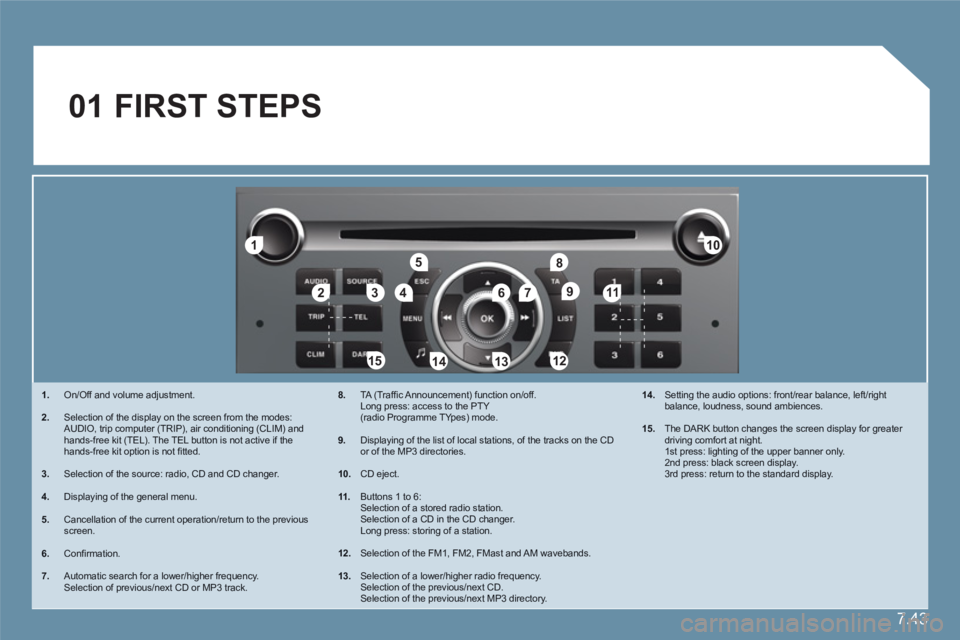
01 FIRST STEPS
1.On/Off and volume adjustment.
2.Selection of the display on the screen from the modes:AUDIO, trip computer (TRIP), air conditioning (CLIM) and hands-free kit (TEL). The TEL button is not active if the hands-free kit option is not fi tted.
3.Selection of the source: radio, CD and CD changer.
4.Displaying of the general menu.
5.Cancellation of the current operation/return to the previous screen.
6.Confi rmation.
7.Automatic search for a lower/higher frequency. Selection of previous/next CD or MP3 track.
8. TA (Traffi c Announcement) function on/off.Long press: access to the PTY(radio Programme TYpes) mode.
9.Displaying of the list of local stations, of the tracks on the CD or of the MP3 directories.
10.
CD eject.
11 .
Buttons 1 to 6: Selection of a stored radio station. Selection of a CD in the CD changer. Long press: storing of a station.
12. Selection of the FM1, FM2, FMast and AM wavebands.
13.
Selection of a lower/higher radio frequency. Selection of the previous/next CD. Selection of the previous/next MP3 directory.
14.
Setting the audio options: front/rear balance, left/rightbalance, loudness, sound ambiences.
15.
The DARK button changes the screen display for greater driving comfort at night.1st press: lighting of the upper banner only.2nd press: black screen display.3rd press: return to the standard display.
Page 194 of 216
7.44
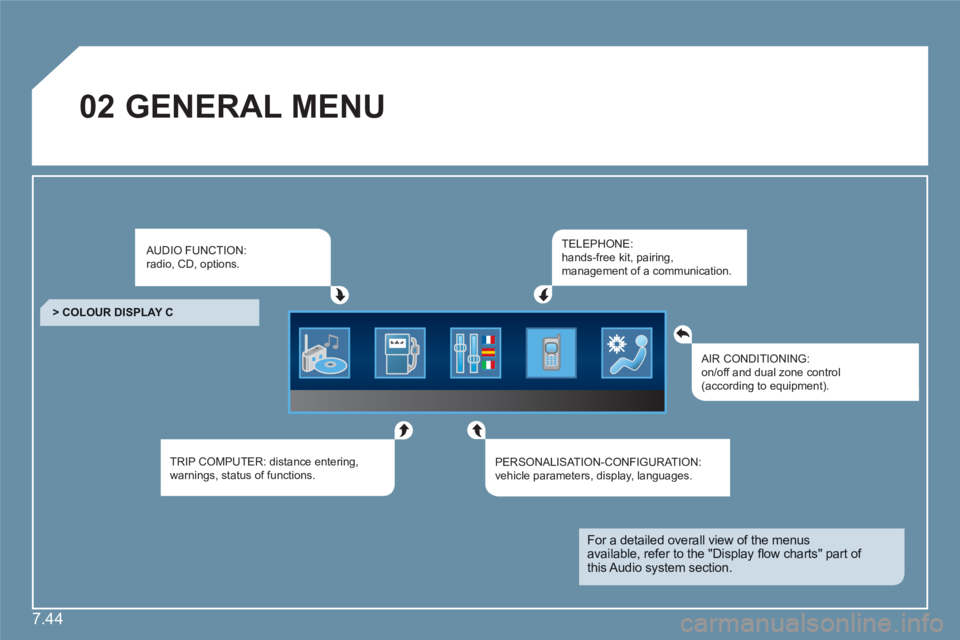
02GENERAL MENU
AUDIO FUNCTION:radio, CD, options.
TRIP COMPUTER: distance entering,warnings, status of functions.
TELEPHONE:hands-free kit, pairing, management of a communication.
PERSONALISAT ION-CONFIGURATION:vehicle parameters, display, languages.
> COLOUR DISPLAY C
AIR CONDITIONING:on/off and dual zone control(according to equipment).
For a detailed overall view of the menusavailable, refer to the "Display fl ow charts" part of this Audio system section.