Phone controls Citroen DS3 2015 1.G Owner's Manual
[x] Cancel search | Manufacturer: CITROEN, Model Year: 2015, Model line: DS3, Model: Citroen DS3 2015 1.GPages: 415, PDF Size: 11.95 MB
Page 47 of 415

45
DS3_en_Chap01_controle-de-marche_ed01-2015
Monochrome screen C
This displays the following information:
- t ime,
-
date,
-
a
mbient temperature (this flashes if there is
a
risk of ice),
-
s
tatus of doors and boot,
-
a
udio sources (radio, CD, USB port /
a
uxiliary socket etc.),
-
t
rip computer,
-
i
nformation or alert messages,
-
s
ettings menus for the screen and vehicle
s
ystems.
displays in the screen
From your Audio system control panel, you can:
F p ress the "MEn U" button to gain access to
t
he main menu ,
F
p
ress the " 5" or " 6" buttons to scroll
through
the items in the screen,
F
p
ress the "MO
dE"
button to change the
p
ermanent application (trip computer,
a
udio
s
ource...),
F
p
ress the " 7" or " 8"
buttons to change a
s
etting value,
F
p
ress the "OK"
button to confirm,
or
F
p
ress the "Back" button to abandon the
operation
in progress.
Controls
F Press the "MEn U" button to gain access t
o the main menu :
-
a
udio functions,
-
t
he trip computer,
-
pe
rsonalisation-configuration,
-
t
elephone (hands-free kit).
F
P
ress the " 5" or " 6" buttons to select the
menu
required, then confirm by pressing
t
he "OK"
button.
Main menu
Monitoring
Page 51 of 415
49
DS3_en_Chap01_controle-de-marche_ed01-2015
Touch screen tablet
This system gives access to:
- m enus for adjusting settings for vehicle
f
unctions and systems,
-
a
udio and display configuration menus,
-
a
udio system and telephone controls and
t
he display of associated information.
-
t
he display of alert messages,
-
t
he display of ambient temperature (a blue
s
now flake appears if there is a risk of ice),
-
t
he trip computer.
And,
depending on equipment, it allows:
-
t
he display of the visual parking sensors
i
nformation,
-
a
ccess to the controls for the navigation
s
ystem and Internet services, and the
d
isplay of associated information. After
a few moments with no action on
t
he secondary page, the primary page
i
s displayed automatically.
As
a safety measure, some functions
c
an only be viewed when stationary.
T
heir display is interrupted as soon as
the
vehicle moves off.general operation
Recommendations
It is necessary to press firmly, particularly for "flick" gestures (scrolling through lists, moving
t
he
m
ap...).
A
light wipe is not enough.
The
screen does not recognise pressing with
m
ore than one finger.
This
technology allows use at all temperatures
a
nd when wearing gloves.
Do
not use pointed objects on the touch screen
t
ablet.
Do not touch the touch screen tablet with wet
hands.
Uses a soft clean cloth to clean the touch
screen
t
ablet.
Principles
Press the " MEn U" button for access to the
different menus, then press the virtual buttons
i
n the touch screen tablet.
Each
menu is displayed over one or two pages
(
primary page and secondary page).
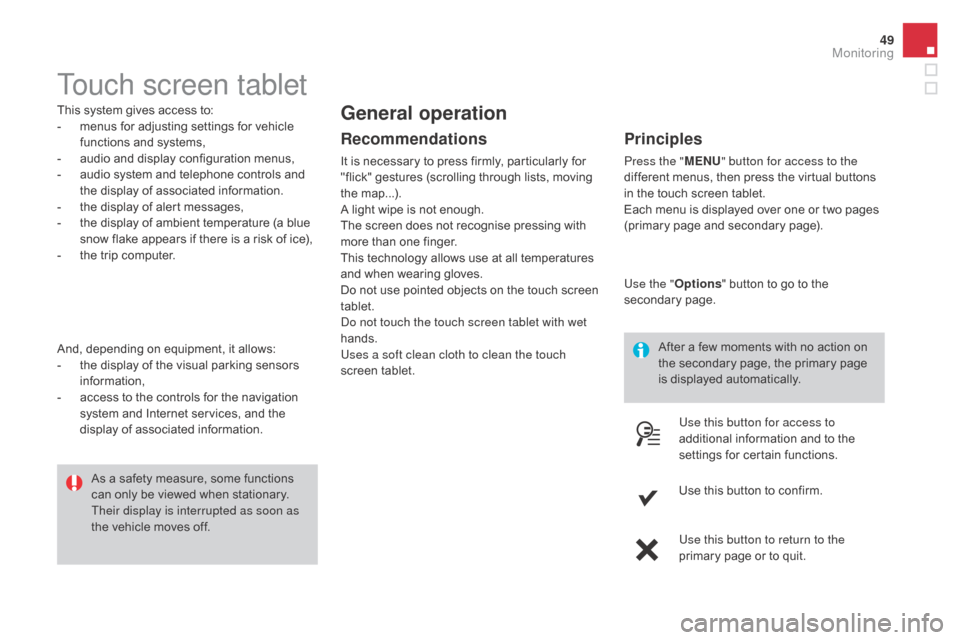
Use the " Options"
button to go to the
s
econdary
pag
e.
Use this button for access to
additional
information and to the
s
ettings for certain functions.
Use
this button to confirm.
Use this button to return to the
primary
page or to quit.
Monitoring
Page 96 of 415
DS3_en_Chap03_confort_ed01-2015
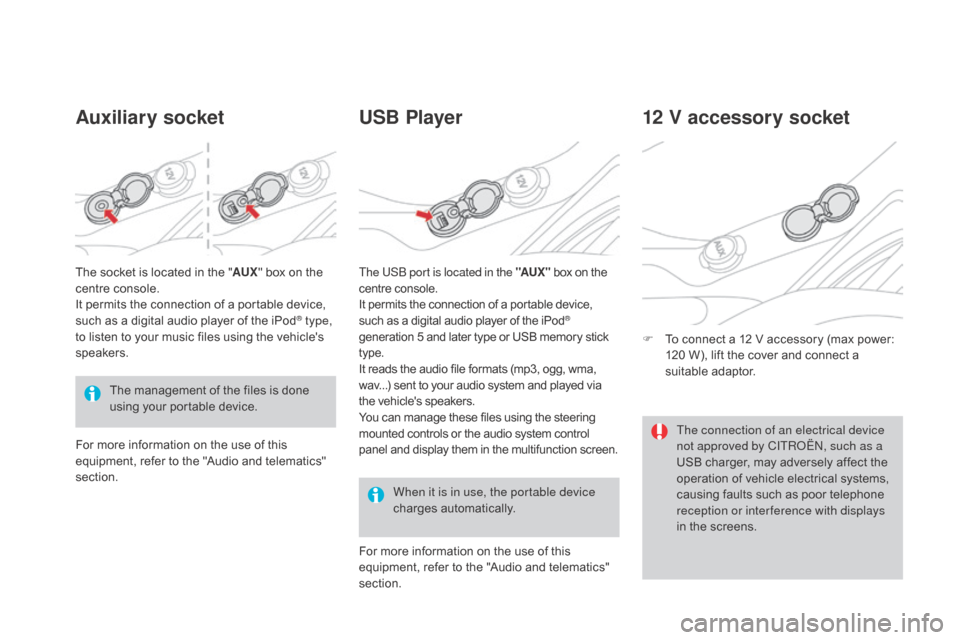
Auxiliary socketUSB Player
When it is in use, the portable device
charges a
utomatically.
12 V accessory socket
F To connect a 12 V accessory (max power: 1
20 W), lift the cover and connect a
s
uitable
a
daptor.
The
management
of
the
files
is
done
u
sing
your
portable
device.
The
socket
is
located
in
the
"
AUX "
box
on
the
c
entre
console.
It
permits
the
connection
of
a
portable
device,
s
uch
as
a
digital
audio
player
of
the
iPod
® type,
to
listen
to
your
music
files
using
the
vehicle's
s
peakers.
For
more
information
on
the
use
of
this
e
quipment,
refer
to
the
"Audio
and
telematics"
s
ection. For
more information on the use of this
e
quipment, refer to the "Audio and telematics"
s
ection.
The USB port is located in the "AUX "
box on the
c
entre console.
It permits the connection of a portable device,
s
uch as a digital audio player of the iPod®
generation
5
and
later
type
or
USB
memory stick t
ype.
It
reads
the
audio
file
formats
(mp3,
ogg,
wma,
w
av...)
sent
to
your
audio
system
and
played via
t
he
vehicle's
speakers.
You
can
manage
these
files
using
the
steering
m
ounted
controls
or
the
audio
system
control
p
anel
and
display
them
in
the
multifunction screen. The connection of an electrical device
not approved by CITROËN, such as a
USB
charger, may adversely affect the
o
peration of vehicle electrical systems,
c
ausing faults such as poor telephone
r
eception or inter ference with displays
in
the screens.
Page 271 of 415

269
DS3_en_Chap11c_SMEGplus_ed01-2015
7-inch touch screen tablet
gPS satellite navigation - Multimedia audio - Bluetooth® telephone
Contents
First steps
2 70
Steering
mounted
controls
2
72
Menus
273
Navigation
2
74
Navigation
-
Guidance
2
82
Tr a f fi c
2
8 6
Radio Media
2
88
Radio
294
DAB
(Digital
Audio
Broadcasting)
radio
2
96
Media
298
Settings
3
02
Internet
310
Internet browser
3
11
MirrorLink
® 314
T
elephone
3
16
Frequently
asked questions
3
24
The
system
is
protected
in
such
a
way
that
it
will
only
operate
in
y
our
vehicle. As
a
safety
measure,
the
driver should only carry out operations
w
hich
require
prolonged
attention while the vehicle is stationary.
The
display
of
the
energy
economy mode message signals
t
hat
the
system
is
about
to
go
into standby. Refer to the Energy
ec
onomy
(
mode)
s
ection.
Audio and Telematics
Page 274 of 415
DS3_en_Chap11c_SMEGplus_ed01-2015
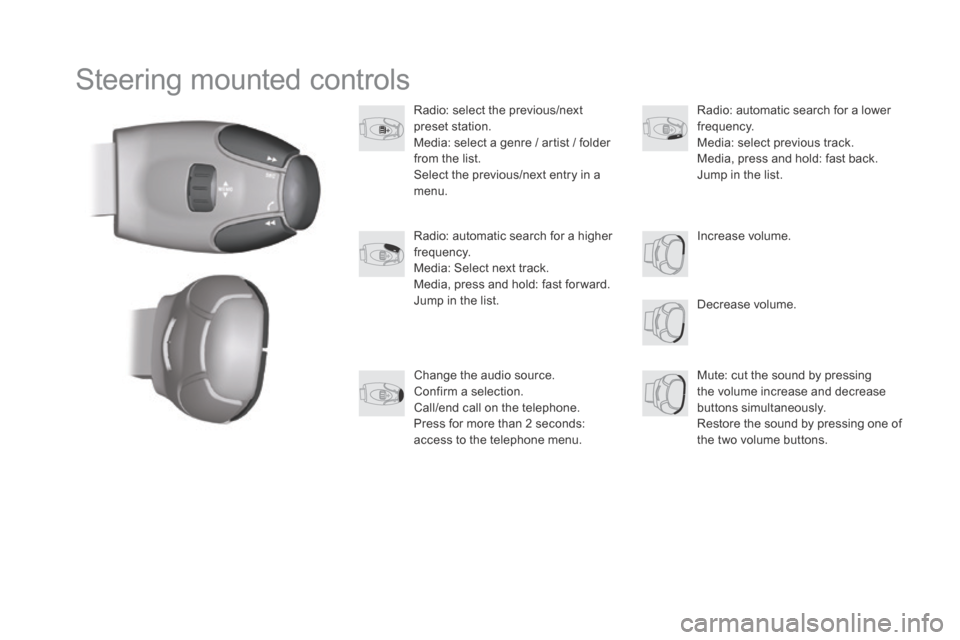
Steering mounted controls
Radio: select the previous/next preset s tation.
Media:
select a genre / artist / folder
f
rom the list.
Select
the previous/next entry in a
m
enu.
Decrease
volume.
Radio:
automatic search for a higher
f
requency.
Media:
Select next track.
Media,
press and hold: fast for ward.
Jump
in the list. Mute:
cut the sound by pressing
t
he volume increase and decrease
bu
ttons
s
imultaneously.
Restore
the sound by pressing one of
t
he two volume buttons.
Radio:
automatic search for a lower f
requency.
Media:
select previous track.
Media,
press and hold: fast back.
Jump
in the list.
Change
the audio source.
Confirm
a selection.
Call/end
call on the telephone.
Press
for more than 2 seconds:
a
ccess to the telephone menu. Increase
volume.
Page 275 of 415

273
DS3_en_Chap11c_SMEGplus_ed01-2015
Menus
Settings
Radio Mediana
vigation
dr
iving
Internet Telephone
Set the sounds and brightness for the i
nstruments and controls.
Select
radio,
the
different
music
sources
and
vi
ew pho
tos.
Enter
navigation
settings
and
choose
a
d
estination.
Access
the trip computer, activate, deactivate
o
r enter settings for certain vehicle functions.
Connect
using
the
"Internet
browser".
Operate certain applications on your
smartphone
via
"MirrorLink". Connect a telephone by Bluetooth
®.
(Depending
o
n
e
quipment)
(Depending
o
n
e
quipment)
Audio and Telematics
Page 324 of 415
1
19
20
22
DS3_en_Chap11c_SMEGplus_ed01-2015
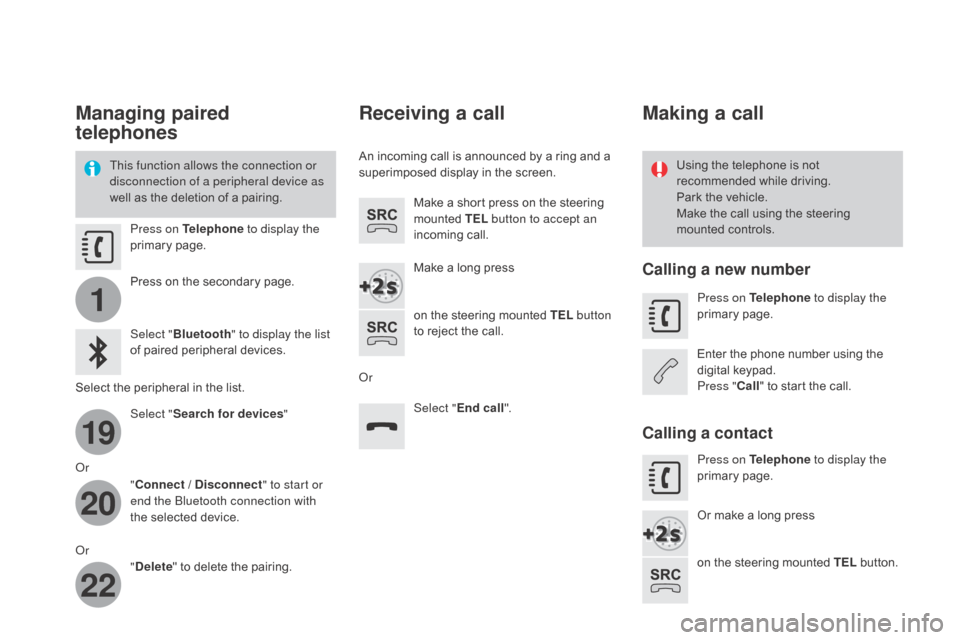
Managing paired
telephones
This function allows the connection or
disconnection of a peripheral device as
well as the deletion of a pairing. Using
the telephone is not r
ecommended while driving.
Park
the vehicle.
Make
the call using the steering
m
ounted controls.
Press on Telephone
to display the
primary
pag
e.
Press
on the secondary page.
Select " Bluetooth " to display the list
of
paired peripheral devices.
Select
the peripheral in the list.
Select " Search for devices "
Or "Connect /
d
i
sconnect" to start or
end the Bluetooth connection with
the
selected device.
Or "
de
lete"
to delete the pairing.
Receiving a call
An incoming call is announced by a ring and a superimposed display in the screen.
Make
a short press on the steering
m
ounted TEL button to accept an
incoming
c
all.
Make
a long press
on
the steering mounted TEL button
to
reject the call.
Or Select "End call".
Making a call
Calling a new number
Press on Telephone to display the
primary pag e.
Enter
the phone number using the
d
igital
k
eypad.
Press " Call"
to start the call.
Calling a contact
Press on Telephone to display the
primary pag e.
Or
make a long press
on
the steering mounted TEL
button.
Page 333 of 415
331
DS3_en_Chap11d_RD45_ed01-2015
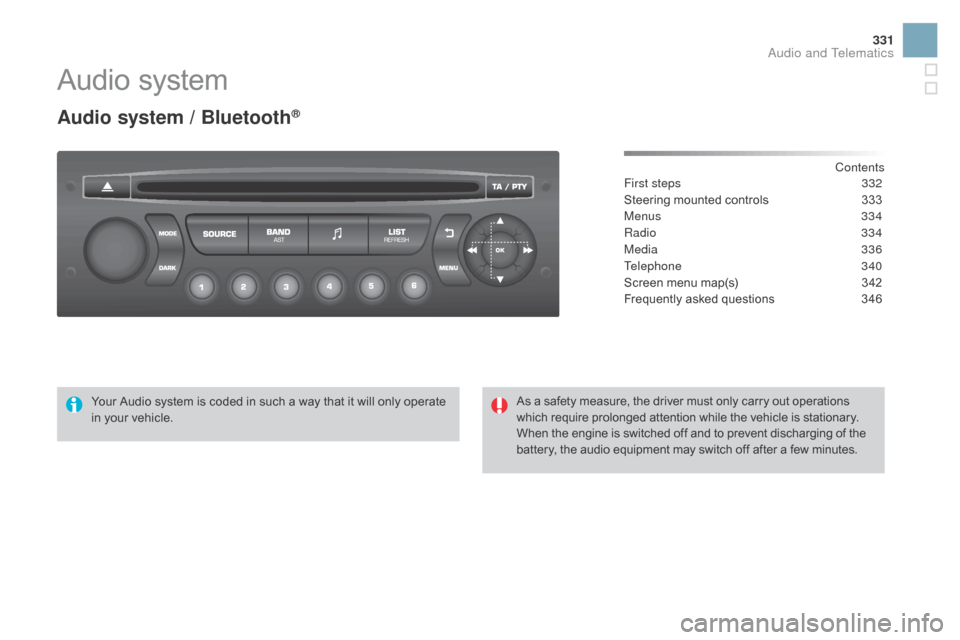
Audio system
Audio system / Bluetooth®
Contents
First steps 3 32
Steering
mounted
controls
3
33
Menus
334
Radio
334
Media
336
Telephone
340
Screen
menu
map(s)
3
42
Frequently
asked
questions
3
46
Your
Audio
system
is
coded
in
such
a
way
that
it
will
only
operate
i
n
your
vehicle. As
a
safety
measure,
the
driver
must
only
carry
out
operations
w
hich
require
prolonged
attention
while
the
vehicle
is
stationary.
When
the
engine
is
switched
off
and
to
prevent
discharging
of the
b
attery,
the
audio
equipment
may
switch
off
after
a
few
minutes.
Audio and Telematics
Page 335 of 415
333
DS3_en_Chap11d_RD45_ed01-2015
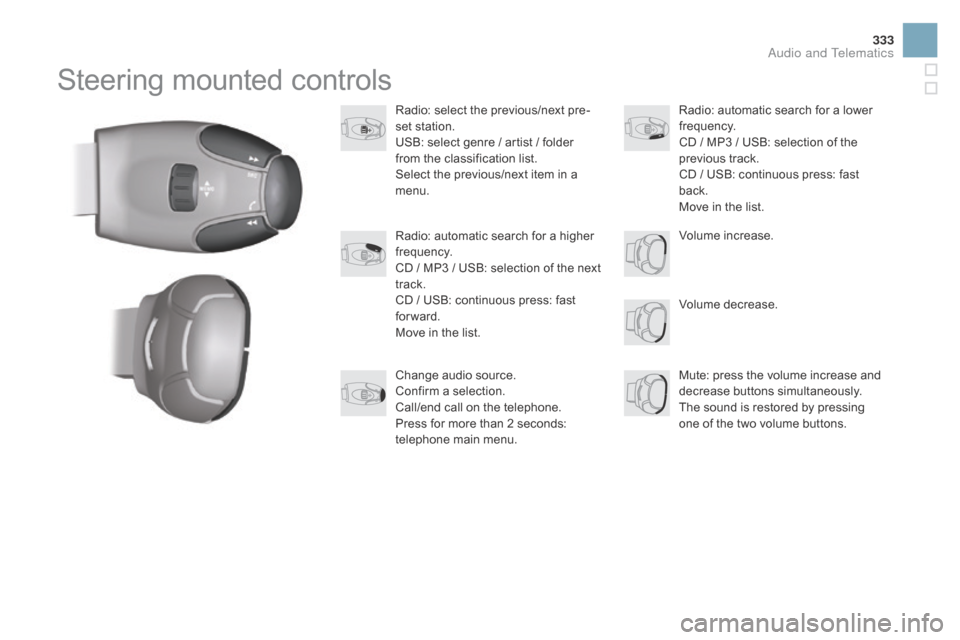
Steering mounted controls
Radio: select the previous/next pre-
s et station.
USB:
select genre / artist / folder
f
rom the classification list.
Select
the previous/next item in a
m
enu.
Volume
decrease.
Radio:
automatic search for a higher
f
requency.
CD
/ MP3 / USB: selection of the next
t
rack.
CD
/ USB: continuous press: fast
fo
rward.
Move
in the list. Mute:
press the volume increase and
d
ecrease
b
uttons
s
imultaneously.
The
sound is restored by pressing
o
ne of the two volume buttons.
Radio:
automatic search for a lower f
requency.
CD
/ MP3 / USB: selection of the
p
revious track.
CD
/ USB: continuous press: fast
b
ack.
Move
in the list.
Change
audio source.
Confirm
a selection.
Call/end
call on the telephone.
Press
for more than 2 seconds:
t
elephone main menu. Volume
increase.
Audio and Telematics
Page 341 of 415
339
DS3_en_Chap11d_RD45_ed01-2015
Use only USB memory sticks formatted FAT32 (File Allocation Table).
It
is recommended that you use
g
enuine
A
pple
® USB cables for correct
operation.
*
I
n certain cases, play of the audio files must
b
e initiated from the keypad.
**
If the telephone supports the function.
Bluetooth® audio streaming
Streaming allows music files on the telephone to be played via the audio system.
Connect
the telephone: see the "Telephone "
section.
Select in the " Bluetooth:
Telephone - Audio"
menu
the telephone to be connected.
The
audio system connects to a newly paired
t
elephone
a
utomatically.
Control
of tracks to be played is via the buttons
o
n the audio system control panel and the
s
teering mounted controls**. The contextual
i
nformation can be displayed in the screen.
Activate
the streaming source by
p
ressing the SOURCE
b
ut to n*.
Connecting Apple® players
Connect the Apple® player to the USB port
using
a
suitable
cable (not supplied).
Play
starts
automatically.
Control
is
via
the
audio system.
The classifications available are those of the
portable
device
connected (artists / albums /
g
enres
/
playlists
/
audiobooks / podcasts).
The
version
of
software in the audio system
m
ay
not
be
compatible with the generation of
y
our Apple
® player.
Audio and Telematics