trip computer Citroen DS3 2015 1.G Owner's Manual
[x] Cancel search | Manufacturer: CITROEN, Model Year: 2015, Model line: DS3, Model: Citroen DS3 2015 1.GPages: 415, PDF Size: 11.95 MB
Page 14 of 415
DS3_en_Chap00b_vue-ensemble_ed01-2015
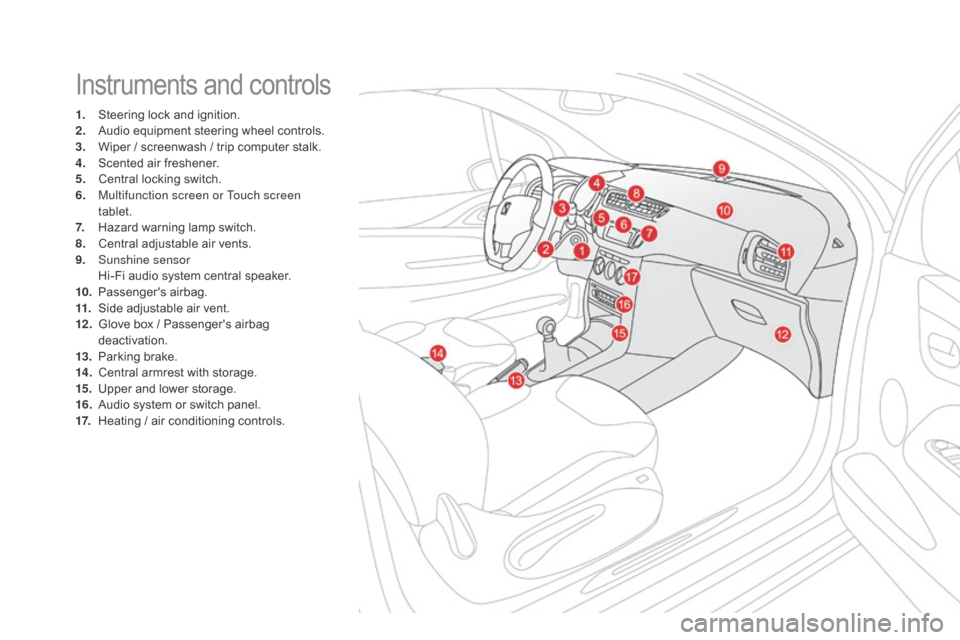
Instruments and controls
1. Steering lock and ignition.
2. A udio equipment steering wheel controls.
3.
W
iper / screenwash / trip computer stalk.
4.
S
cented air freshener.
5.
C
entral locking switch.
6.
M
ultifunction screen or Touch screen
tablet.
7.
H
azard warning lamp switch.
8.
C
entral adjustable air vents.
9.
S
unshine sensor
H
i-Fi audio system central speaker.
10.
P
assenger's
ai
rbag.
11.
S
ide adjustable air vent.
12 .
G
love box / Passenger's airbag
d
eactivation.
13.
P
arking brake.
14 .
C
entral armrest with storage.
15.
U
pper and lower storage.
16.
A
udio system or switch panel.
17.
H
eating / air conditioning controls.
Page 47 of 415

45
DS3_en_Chap01_controle-de-marche_ed01-2015
Monochrome screen C
This displays the following information:
- t ime,
-
date,
-
a
mbient temperature (this flashes if there is
a
risk of ice),
-
s
tatus of doors and boot,
-
a
udio sources (radio, CD, USB port /
a
uxiliary socket etc.),
-
t
rip computer,
-
i
nformation or alert messages,
-
s
ettings menus for the screen and vehicle
s
ystems.
displays in the screen
From your Audio system control panel, you can:
F p ress the "MEn U" button to gain access to
t
he main menu ,
F
p
ress the " 5" or " 6" buttons to scroll
through
the items in the screen,
F
p
ress the "MO
dE"
button to change the
p
ermanent application (trip computer,
a
udio
s
ource...),
F
p
ress the " 7" or " 8"
buttons to change a
s
etting value,
F
p
ress the "OK"
button to confirm,
or
F
p
ress the "Back" button to abandon the
operation
in progress.
Controls
F Press the "MEn U" button to gain access t
o the main menu :
-
a
udio functions,
-
t
he trip computer,
-
pe
rsonalisation-configuration,
-
t
elephone (hands-free kit).
F
P
ress the " 5" or " 6" buttons to select the
menu
required, then confirm by pressing
t
he "OK"
button.
Main menu
Monitoring
Page 48 of 415
DS3_en_Chap01_controle-de-marche_ed01-2015
With the Audio system switched on, once this menu has been selected you can activate or
d
eactivate the functions associated with use
of
the radio (RDS, REG, RadioText), the CD
(
introscan, shuffle, CD repeat) or the MP3
p
layer (USB port / auxiliary socket).
For
more information on the "Audio functions"
a
pplication
,
r
efer
t
o
t
he
"
Audio
s
ystem"
s
ection.
"Audio functions"
menu"Trip computer" menu
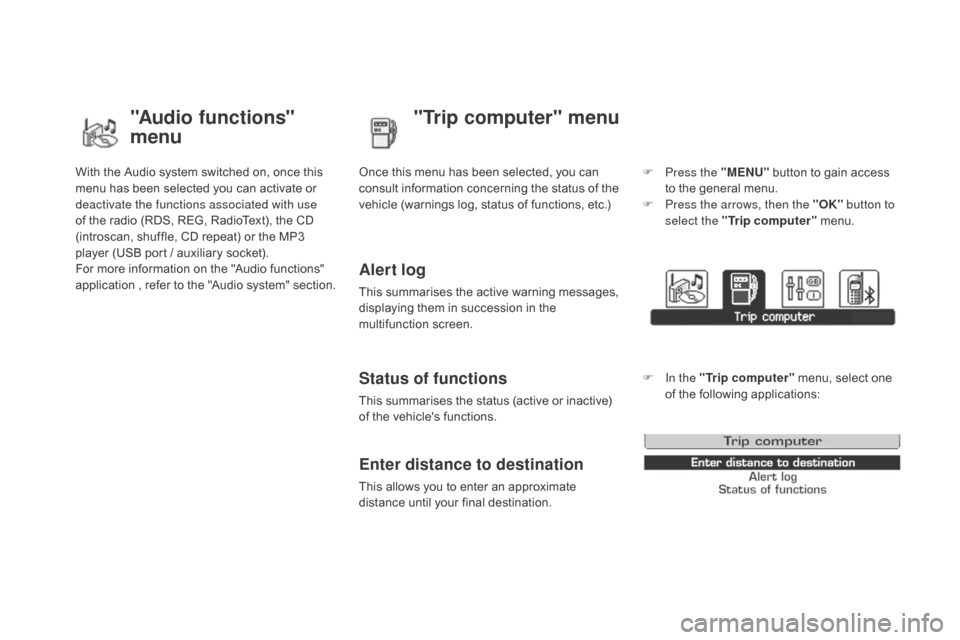
Once this menu has been selected, you can c
onsult information concerning the status of the
v
ehicle (warnings log, status of functions, etc.)
Alert log
This summarises the active warning messages, displaying them in succession in the
m
ultifunction
s
creen.
Status of functions
This summarises the status (active or inactive) of the vehicle's functions.
Enter distance to destination
This allows you to enter an approximate distance until your final destination. F
P
ress the "ME
n
U"
button to gain access
t
o the general menu.
F
P
ress the arrows, then the "OK"
button to
select the " Trip computer " menu.
F
I
n the "
Trip computer " menu, select one
o
f the following applications:
Page 51 of 415
49
DS3_en_Chap01_controle-de-marche_ed01-2015
Touch screen tablet
This system gives access to:
- m enus for adjusting settings for vehicle
f
unctions and systems,
-
a
udio and display configuration menus,
-
a
udio system and telephone controls and
t
he display of associated information.
-
t
he display of alert messages,
-
t
he display of ambient temperature (a blue
s
now flake appears if there is a risk of ice),
-
t
he trip computer.
And,
depending on equipment, it allows:
-
t
he display of the visual parking sensors
i
nformation,
-
a
ccess to the controls for the navigation
s
ystem and Internet services, and the
d
isplay of associated information. After
a few moments with no action on
t
he secondary page, the primary page
i
s displayed automatically.
As
a safety measure, some functions
c
an only be viewed when stationary.
T
heir display is interrupted as soon as
the
vehicle moves off.general operation
Recommendations
It is necessary to press firmly, particularly for "flick" gestures (scrolling through lists, moving
t
he
m
ap...).
A
light wipe is not enough.
The
screen does not recognise pressing with
m
ore than one finger.
This
technology allows use at all temperatures
a
nd when wearing gloves.
Do
not use pointed objects on the touch screen
t
ablet.
Do not touch the touch screen tablet with wet
hands.
Uses a soft clean cloth to clean the touch
screen
t
ablet.
Principles
Press the " MEn U" button for access to the
different menus, then press the virtual buttons
i
n the touch screen tablet.
Each
menu is displayed over one or two pages
(
primary page and secondary page).
Use the " Options"
button to go to the
s
econdary
pag
e.
Use this button for access to
additional
information and to the
s
ettings for certain functions.
Use
this button to confirm.
Use this button to return to the
primary
page or to quit.
Monitoring
Page 52 of 415

DS3_en_Chap01_controle-de-marche_ed01-2015
Menus
navigation
Navigation is available depending on
t
he county and/or trim level.
Refer
to the "Audio and telematics"
s
ection.
Radio Media
Refer
tothe "Audio and telematics"
s
ection.
Settings
Allows
configuration of the display
a
nd the system.
Refer
to the corresponding section.
Internet
These services are available
depending
on the county and/or trim
l
evel.
Refer
to the "Audio and telematics"
s
ection. Telephone
Refer
to the "Audio and telematics"
s
ection.
dr
iving
Allows
access
to
the
trip
computer
and,
d
epending on version, the adjustment
o
f settings for certain functions.
Refer
to the corresponding section.1.
V
olume / mute.
Refer
to the "Audio and telematics" section.
Press this button, then select the
desired
m
enu.
Page 56 of 415
DS3_en_Chap01_controle-de-marche_ed01-2015
Trip computer
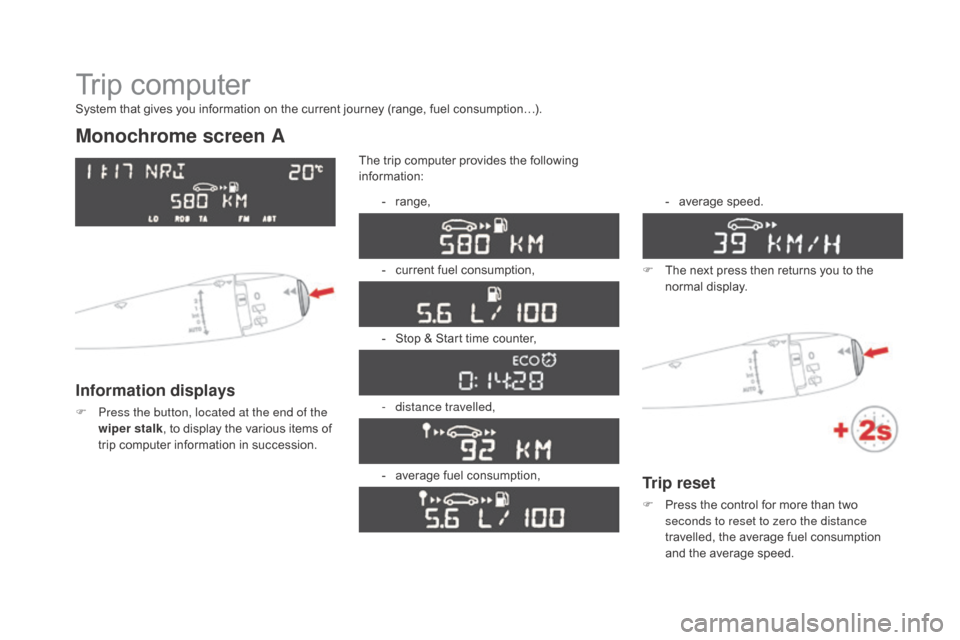
Monochrome screen A
Information displays
F Press the button, located at the end of the wiper stalk ,
to display the various items of
t
rip computer information in succession.The
trip computer provides the following
i
nformation:
-
ra
nge,
-
c
urrent fuel consumption,
-
S
top & Start time counter,
- d istance travelled,
-
a
verage fuel consumption,-
a
verage
s
peed.
F
T
he next press then returns you to the
n
ormal
d
isplay.
System that gives you information on the current journey (range, fuel consumption…).
Trip reset
F Press
the control for more than two s
econds to reset to zero the distance
travelled,
the average fuel consumption
a
nd the average speed.
Page 57 of 415

55
DS3_en_Chap01_controle-de-marche_ed01-2015
Monochrome screen C
Information displays
F Press the button, located at the end of the wiper stalk , to display the various trip
computer
tabs in succession: -
t
he current information tab
w
ith:
●
t
he range,
●
t
he current fuel
c
onsumption,
●
t
he distance remaining
to be travelled or the
Stop & Start time counter,
-
t
he trip "1"
tab with:
●
t
he distance travelled,
●
t
he average fuel
c
onsumption,
● t he average speed, f
or the first trip.
-
t
he trip "2"
tab with:
●
t
he distance travelled,
●
t
he average fuel
c
onsumption,
●
t
he average speed,
f
or the second trip.
F
P
ressing the button again returns you to
t
he normal display.
Zero reset
F When the trip required is displayed, press t
he button on the end of the wiper stalk for
m
ore than two seconds.
Tr i p s "1" and "2" are independent but their use
is
identical.
For
example, trip "1" can be used for daily
figures,
and trip "2"
for monthly figures.
Monitoring
Page 59 of 415

57
DS3_en_Chap01_controle-de-marche_ed01-2015
Trip computer, a few definitions
Range
(miles or km)
Current fuel consumption
(mpg or l/100 km or km/l)
Stop & Start time
counter
(minutes / seconds or hours / minutes)
This
value
may
vary
following
a
change
i
n
the
style
of
driving
or
the
relief,
r
esulting
in
a
significant
change
in
the
c
urrent
fuel
consumption.
If dashes are displayed continuously
while
driving
in
place
of
the
digits,
c
ontact a CITROËN dealer or a
qualified
w
orkshop.
When
the
range
falls
below
20
miles
(30
km),
d
ashes
are
displayed.
After
filling
with
at
least
5
litres
of
fuel,
the
range
is
recalculated
and
is
d
isplayed
when
it
exceeds
60
miles
(100
km).
distance remaining to
destination
(miles or km)
T
he distance which can still be travelled with
the
fuel
remaining
in
the
tank
(related
to
the
a
verage
fuel
consumption
over
the
last
few
m
iles
(
kilometres)
t
ravelled). Calculated
over
the
last
few
seconds.
This
is
the distance remaining to be travelled
t
o
the
final destination. It can be entered by
t
he user.
If the distance is not entered, dashes are
displayed
in place of the digits.
If
your
vehicle is fitted with Stop & Start, a time
c
ounter
calculates the time spent in STOP
m
ode
during a journey.
I
t
resets
to zero every time the ignition is
s
witched
on with the key.
distance travelled
(miles or km)
C
alculated
since the last trip computer reset.
Average speed
(mph or km/h)
C
alculated since the last trip computer reset.
Average fuel
consumption
(mpg or l/100 km or km/l)
C
alculated
since the last trip computer reset.
This
function is only displayed from
2
0 mph
(30 km/h).
Monitoring
Page 275 of 415

273
DS3_en_Chap11c_SMEGplus_ed01-2015
Menus
Settings
Radio Mediana
vigation
dr
iving
Internet Telephone
Set the sounds and brightness for the i
nstruments and controls.
Select
radio,
the
different
music
sources
and
vi
ew pho
tos.
Enter
navigation
settings
and
choose
a
d
estination.
Access
the trip computer, activate, deactivate
o
r enter settings for certain vehicle functions.
Connect
using
the
"Internet
browser".
Operate certain applications on your
smartphone
via
"MirrorLink". Connect a telephone by Bluetooth
®.
(Depending
o
n
e
quipment)
(Depending
o
n
e
quipment)
Audio and Telematics
Page 334 of 415
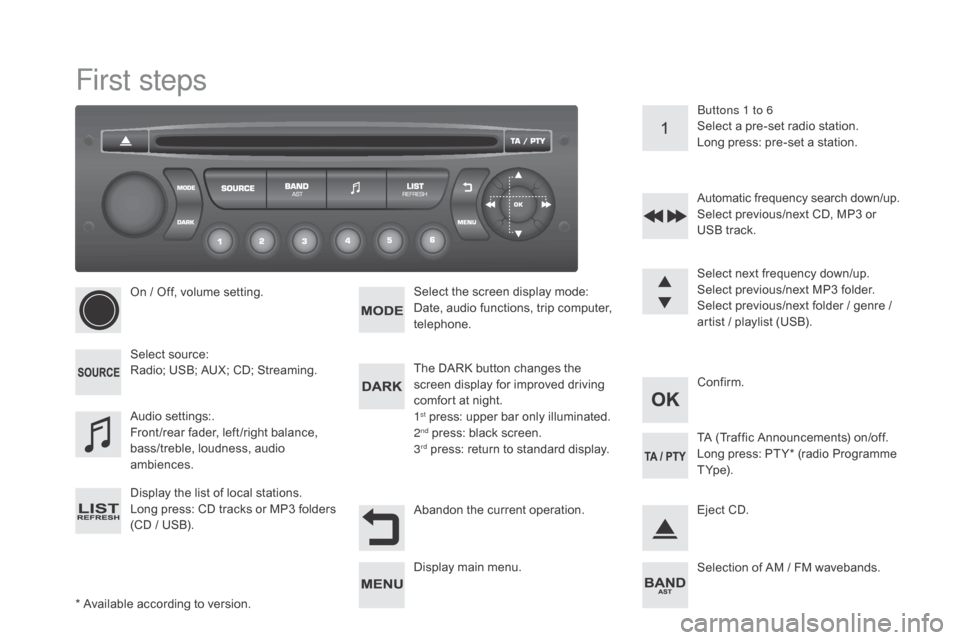
DS3_en_Chap11d_RD45_ed01-2015
First steps
* Available according to version.
O n / Off, volume setting.
Select
s
ource:
Radio; USB; AUX; CD; Streaming.
Display the list of local stations.
Long
p
ress:
C
D
t
racks
o
r
M
P3
f
olders
(
CD / USB). Select the screen display mode:
Date, audio functions, trip computer,
t
elephone.
Audio
se
ttings:.
Front /rear fader, left /right balance,
b
ass/treble, loudness, audio
am
biences.
The DARK button changes the
s
creen display for improved driving
c
omfort at night.
1
st press: upper bar only illuminated.
2nd press: black screen.
3rd press: return to standard display. S elect next frequency down/up.
Select previous/next MP3 folder.
Select previous/next folder / genre /
a
rtist / playlist (USB).
Abandon the current operation. Confirm. Buttons 1 to 6
Select a pre-set radio station.
Long press: pre-set a station.
Automatic frequency search down/up.
Select previous/next CD, MP3 or
U
SB track.
Eject CD.
Display
main menu. TA
(Traffic Announcements) on/off.
Long press: PT Y* (radio Programme
T
Yp e).
Selection
of AM / FM wavebands.