port CITROEN DS4 2023 Owner's Guide
[x] Cancel search | Manufacturer: CITROEN, Model Year: 2023, Model line: DS4, Model: CITROEN DS4 2023Pages: 296, PDF Size: 9.91 MB
Page 234 of 296
10
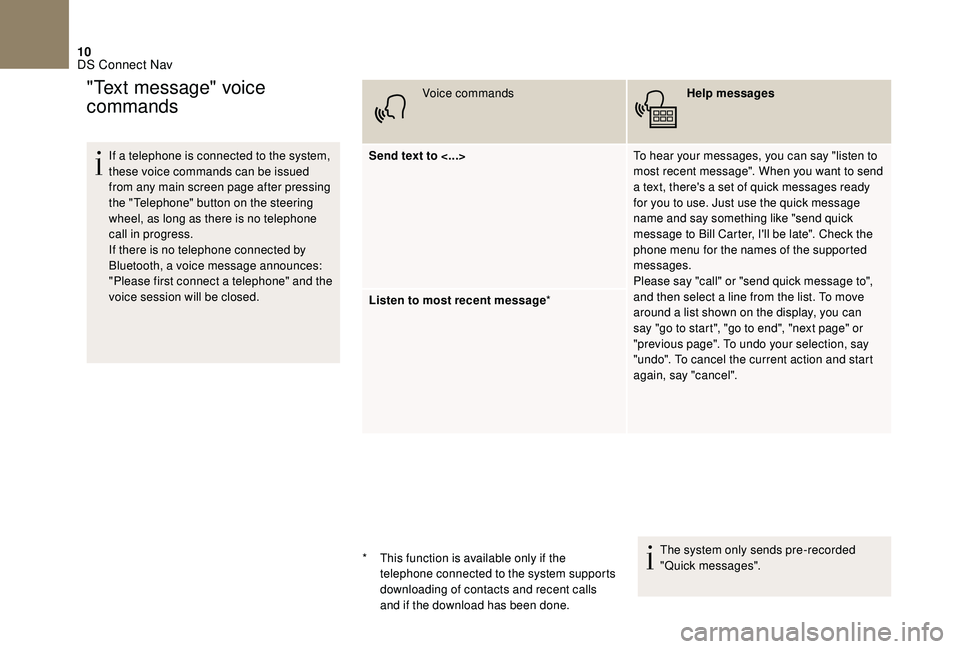
If a telephone is connected to the system,
these voice commands can be issued
from any main screen page after pressing
the "Telephone" button on the steering
wheel, as long as there is no telephone
call in progress.
If there is no telephone connected by
Bluetooth, a voice message announces:
"Please first connect a telephone" and the
voice session will be closed.Voice commands
Help messages
Send text to <...> To hear your messages, you can say "listen to
most recent message". When you want to send
a text, there's a set of quick messages ready
for you to use. Just use the quick message
name and say something like "send quick
message to Bill Carter, I'll be late". Check the
phone menu for the names of the supported
messages.
Please say "call" or "send quick message to",
and then select a line from the list. To move
around a list shown on the display, you can
say "go to start", "go to end", "next page" or
"previous page". To undo your selection, say
"undo". To cancel the current action and start
again, say "cancel".
Listen to most recent message
*
The system only sends pre-recorded
"Quick messages".
"Text message" voice
commands
* This function is available only if the telephone connected to the system supports
downloading of contacts and recent calls
and if the download has been done.
DS Connect Nav
Page 250 of 296
26
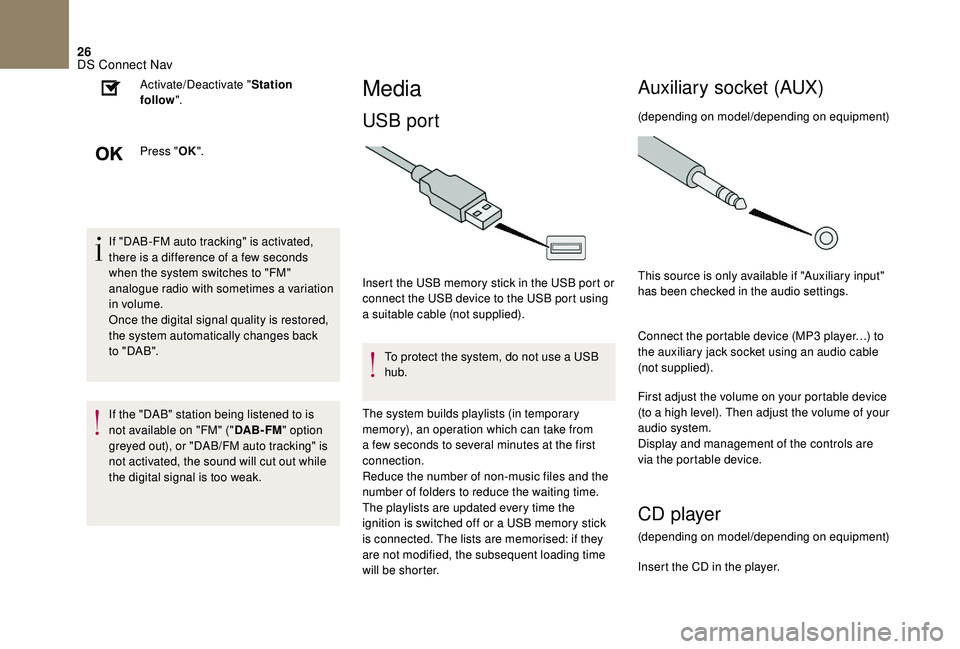
If "DAB-FM auto tracking" is activated,
there is a difference of a few seconds
when the system switches to "FM"
analogue radio with sometimes a variation
in volume.
Once the digital signal quality is restored,
the system automatically changes back
to " DA B ".
If the "DAB" station being listened to is
not available on "FM" ("DAB- FM" option
greyed out), or "DAB/FM auto tracking" is
not activated, the sound will cut out while
the digital signal is too weak. Activate/Deactivate "
Station
follow ".
Press " OK".
Media
USB port
Insert the USB memory stick in the USB port or
connect the USB device to the USB port using
a suitable cable (not supplied).
To protect the system, do not use a USB
hub.
The system builds playlists (in temporary
memory), an operation which can take from
a few seconds to several minutes at the first
connection.
Reduce the number of non-music files and the
number of folders to reduce the waiting time.
The playlists are updated every time the
ignition is switched off or a USB memory stick
is connected. The lists are memorised: if they
are not modified, the subsequent loading time
will be shorter.
Auxiliary socket (AUX)
(depending on model/depending on equipment)
This source is only available if "Auxiliary input"
has been checked in the audio settings.
Connect the portable device (MP3 player…) to
the auxiliary jack socket using an audio cable
(not supplied).
First adjust the volume on your portable device
(to a high level). Then adjust the volume of your
audio system.
Display and management of the controls are
via the portable device.
CD player
(depending on model/depending on equipment)
Insert the CD in the player.
DS Connect Nav
Page 251 of 296
27
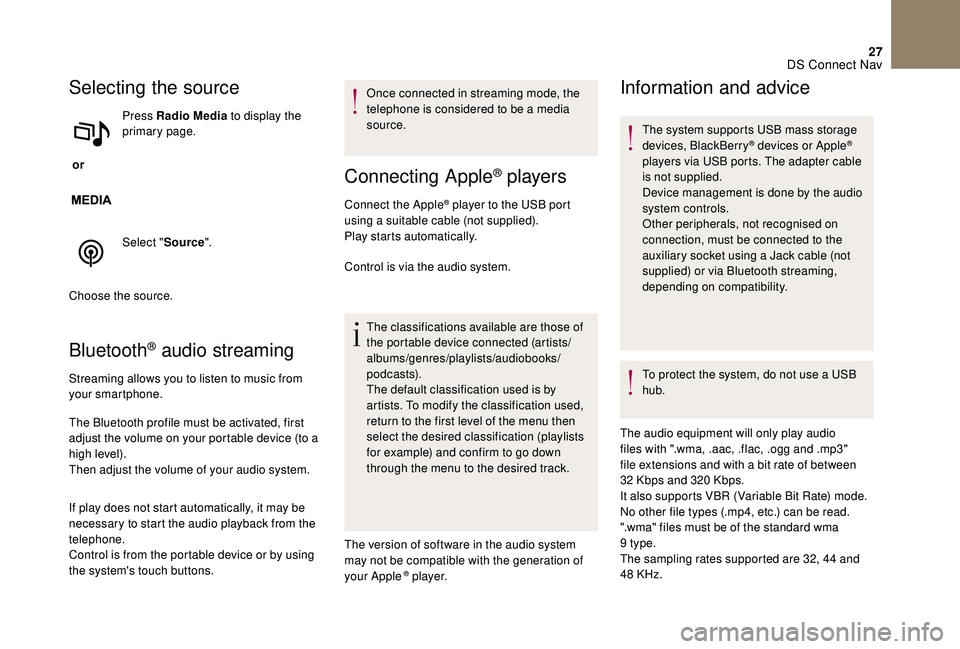
Selecting the source
or Press Radio Media
to display the
primary page.
Select " Source".
Choose the source.
Bluetooth® audio streaming
Streaming allows you to listen to music from
your smartphone.
The Bluetooth profile must be activated, first
adjust the volume on your portable device (to a
high level).
Then adjust the volume of your audio system.
If play does not start automatically, it may be
necessary to start the audio playback from the
telephone.
Control is from the portable device or by using
the system's touch buttons. Once connected in streaming mode, the
telephone is considered to be a media
source.
Connecting Apple® players
Connect the Apple® player to the USB port
using a suitable cable (not supplied).
Play starts automatically.
Control is via the audio system.
The classifications available are those of
the portable device connected (artists/
albums/genres/playlists/audiobooks/
podcasts).
The default classification used is by
artists. To modify the classification used,
return to the first level of the menu then
select the desired classification (playlists
for example) and confirm to go down
through the menu to the desired track.
The version of software in the audio system
may not be compatible with the generation of
your Apple
® p l aye r.
Information and advice
The system supports USB mass storage
devices, BlackBerry® devices or Apple®
players via USB ports. The adapter cable
is not supplied.
Device management is done by the audio
system controls.
Other peripherals, not recognised on
connection, must be connected to the
auxiliary socket using a Jack cable (not
supplied) or via Bluetooth streaming,
depending on compatibility.
To protect the system, do not use a USB
hub.
The audio equipment will only play audio
files with ".wma, .aac, .flac, .ogg and .mp3"
file extensions and with a bit rate of between
32
Kbps and 320 Kbps.
It also supports VBR (Variable Bit Rate) mode.
No other file types (.mp4, etc.) can be read.
".wma" files must be of the standard wma
9
type.
The sampling rates supported are 32, 44 and
48 KHz.
DS Connect Nav
Page 252 of 296
28
It is advisable to restrict file names to
20 characters, without using special characters
(e.g. " " ? . ; ù) so as to avoid any reading or
display problems.
Use only USB keys in FAT32 format (File
Allocation Table).
It is recommended that the original USB
cable for the portable device is used.
In order to be able to play a burned CDR or
CDRW, select standards ISO 9660 level 1, 2 or
Joliet if possible when burning the CD.
If the disc is burned in another format, it may
not be played correctly.
It is recommended that the same burning
standard is always used on an individual disc,
with the lowest speed possible (4x maximum)
for the best acoustic quality.
In the particular case of a multi-session CD, the
Joliet standard is recommended.Telephone
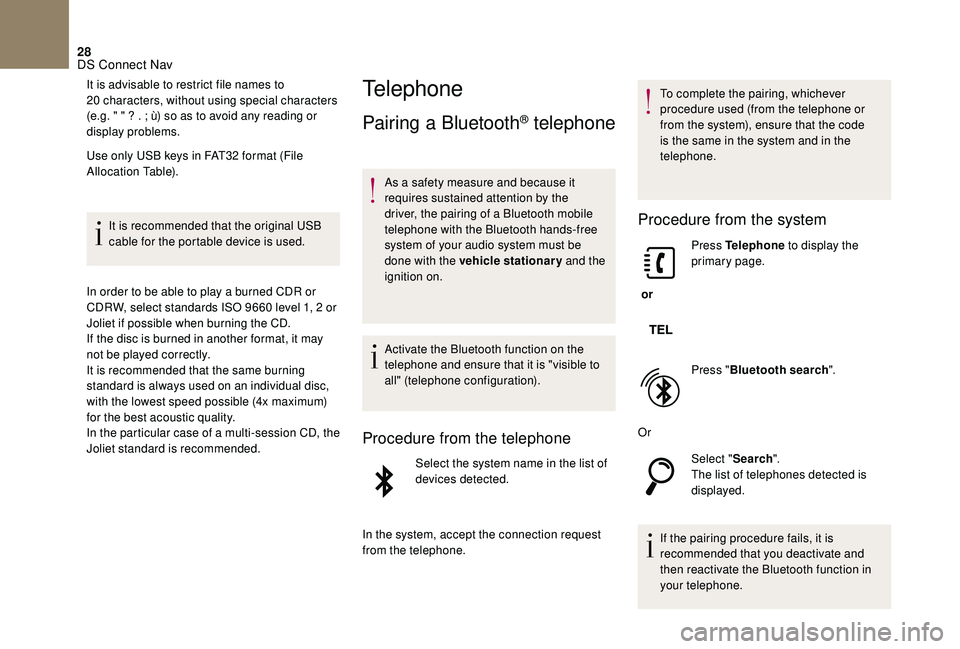
Pairing a Bluetooth® telephone
As a safety measure and because it
requires sustained attention by the
driver, the pairing of a Bluetooth mobile
telephone with the Bluetooth hands-free
system of your audio system must be
done with the vehicle stationary and the
ignition on.
Activate the Bluetooth function on the
telephone and ensure that it is "visible to
all" (telephone configuration).
Procedure from the telephone
Select the system name in the list of
devices detected.
In the system, accept the connection request
from the telephone. To complete the pairing, whichever
procedure used (from the telephone or
from the system), ensure that the code
is the same in the system and in the
telephone.
Procedure from the system
or
Press Telephone
to display the
primary page.
Press " Bluetooth search ".
Or Select "Search".
The list of telephones detected is
displayed.
If the pairing procedure fails, it is
recommended that you deactivate and
then reactivate the Bluetooth function in
your telephone.
DS Connect Nav
Page 259 of 296
35
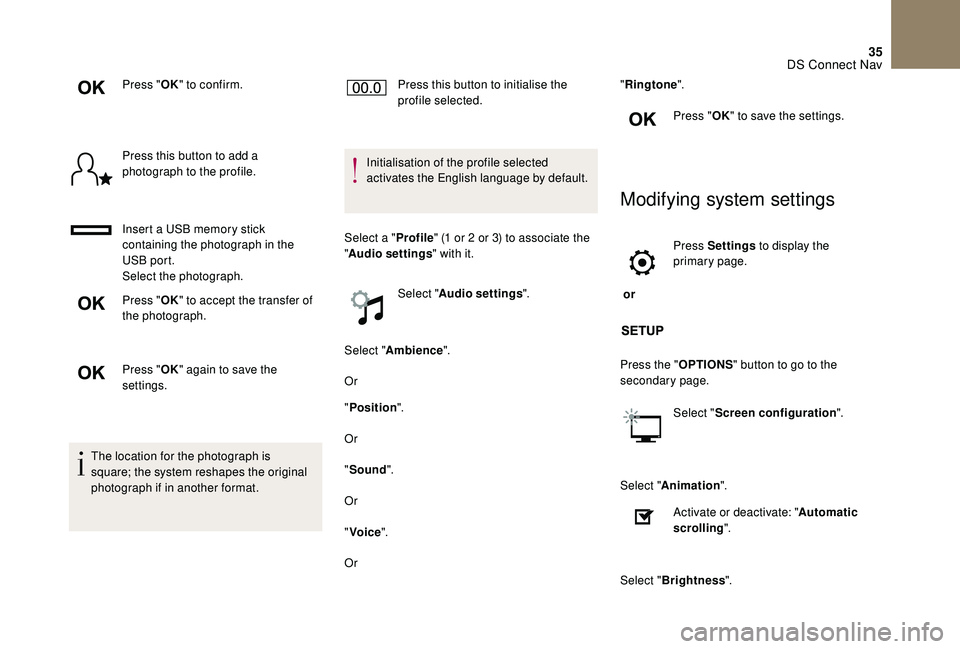
Press "OK" to confirm.
Press this button to add a
photograph to the profile.
Insert a USB memory stick
containing the photograph in the
USB port.
Select the photograph.
Press " OK" to accept the transfer of
the photograph.
Press " OK" again to save the
settings.
The location for the photograph is
square; the system reshapes the original
photograph if in another format. Press this button to initialise the
profile selected.
Initialisation of the profile selected
activates the English language by default.
Select a " Profile" (1 or 2 or 3) to associate the
" Audio settings " with it.
Select " Audio settings ".
Select " Ambience ".
Or
" Position ".
Or
" Sound ".
Or
" Voice ".
Or "
Ringtone ".
Press " OK" to save the settings.
Modifying system settings
or Press Settings
to display the
primary page.
Press the " OPTIONS" button to go to the
secondary page.
Select "Screen configuration ".
Select " Animation ".
Activate or deactivate: " Automatic
scrolling ".
Select " Brightness ".
DS Connect Nav
Page 274 of 296
4
RDS
RDS, if displayed, makes it possible
to continue listening to the same radio
station using the alternative frequencies
function. However, in certain conditions,
coverage of an RDS station may not be
assured throughout the entire country
as radio stations do not cover 100% of
the territory. This explains the loss of
reception of the station during a journey.When the radio station is displayed
in the screen, press OK to display
the contextual menu.
Select " RDS" and confirm to save.
" RDS " is displayed in the screen.
Hear TA messages
The TA (Traffic Announcement) function
gives priority to TA alert messages.
To operate, this function needs good
reception of a radio station that carries
this type of message. When a traffic report
is transmitted, the current audio source
(Radio, CD, USB, etc.) is interrupted
automatically to play the TA message.
Normal play of the media previously
playing is resumed at the end of the
message. Press TA I N FO
to activate or
deactivate the reception of traffic
messages.
Hear INFO messages
The INFO function gives priority to TA
alert messages. To be active, this function
needs good reception of a radio station
that transmits this type of message. When
a message is transmitted, the current
audio source (Radio, CD, USB, etc.) is
interrupted automatically to receive the
INFO message. Normal play of the media
previously playing is resumed at the end
of the message.
Make a long press on TA I N FO to
display the list of categories.
Select or deselect categories to
activate or deactivate the reception
of the corresponding messages.
Display TEXT INFO
Text info is information transmitted by
the radio station related to the current
programme or song.
Screen C
When the radio station is displayed
in the screen, press OK to display
the contextual menu.
Select " RadioText (TXT) display "
and confirm OK to save.
Bluetooth® audio system
Page 275 of 296
5
DAB (Digital Audio
Broadcasting) radio
Digital Radio
Digital radio provides a superior audio
quality and also additional categories of
traffic announcements (TA INFO).
The different multiplexes offer a choice
of radio stations arranged in alphabetical
o r d e r.Change band (FM1, FM2, DAB,...)
Change of station within the same
"multiplex service".
Start a search for the next "multiplex
service".
Long press: selection of the
categories of news desired among
Transport, News, Entertainment and
Special Flash (available according to
the station). When the radio station is displayed in
the screen , press "
OK" to display the
contextual menu.
(Frequency hopping (RDS), DAB / FM
auto tracking, RadioText (TXT) display,
Information on the station, etc.).
DAB/FM auto tracking
"DAB" does not cover 100% of the
te r r i to r y.
When the digital radio signal is weak,
"DAB
/ FM auto tracking" allows you to
continue listening to the same station,
by automatically switching to the
corresponding "FM" analogue station (if
there is one).
Press the " Menu" button.
Select " Multimedia " and confirm.
Select " DAB
/ FM auto tracking"
and confirm. If "DAB
/ FM auto tracking" is enabled,
there is a lag of a few seconds when the
system switches to analogue radio "FM",
sometimes with a change in volume.
Once the digital signal quality is restored,
the system automatically changes back
to " DA B ".
If the "DAB" station you are listening to is
not available on "FM" (" DAB/FM" option
struck-through), or if "DAB
/ FM auto
tracking" is not enabled, the sound will be
cut when the digital signal is too weak.
Bluetooth® audio system
Page 276 of 296
6
Media
USB port
* (Check the manual for your player)
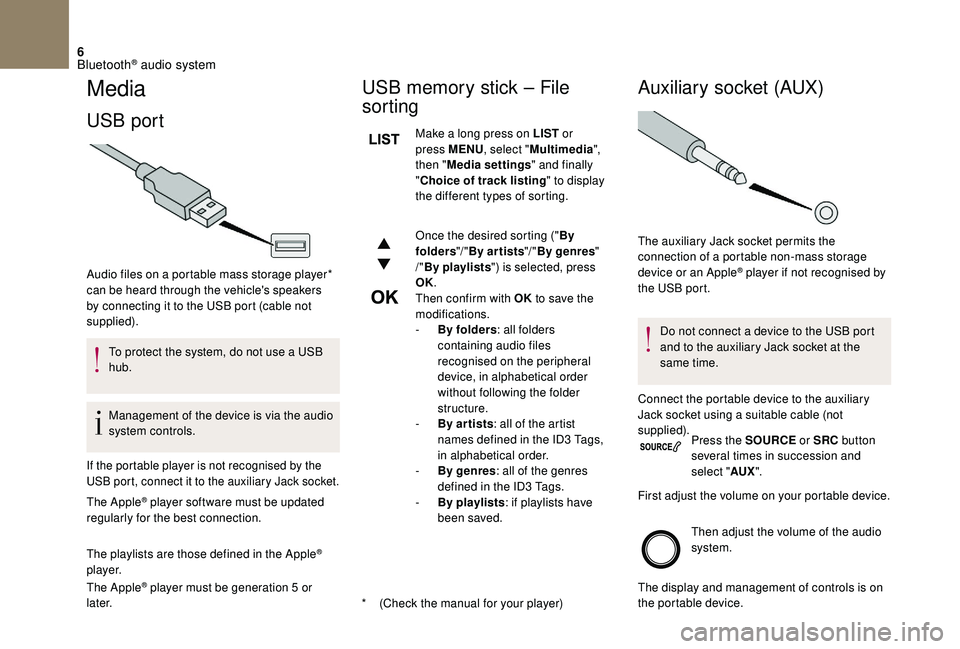
Audio files on a portable mass storage player*
can be heard through the vehicle's speakers
by connecting it to the USB port (cable not
supplied).
To protect the system, do not use a USB
hub.
Management of the device is via the audio
system controls.
If the portable player is not recognised by the
USB port, connect it to the auxiliary Jack socket.
The Apple® player software must be updated
regularly for the best connection.
The playlists are those defined in the Apple
®
p l aye r.
The Apple
® player must be generation 5 or
later.
USB memory stick – File
sorting
Make a long press on LIST or
press MENU , select "Multimedia ",
then " Media settings " and finally
" Choice of track listing " to display
the different types of sorting.
Once the desired sorting (" By
folders "/ "By ar tists "/ "By genres "
/" By playlists ") is selected, press
OK.
Then confirm with OK to save the
modifications.
-
B
y folders : all folders
containing audio files
recognised on the peripheral
device, in alphabetical order
without following the folder
structure.
-
B
y ar tists : all of the artist
names defined in the ID3 Tags,
in alphabetical order.
-
B
y genres : all of the genres
defined in the ID3 Tags.
-
By
playlists : if playlists have
been saved.
Auxiliary socket (AUX)
Do not connect a device to the USB port
and to the auxiliary Jack socket at the
same time.
Connect the portable device to the auxiliary
Jack socket using a suitable cable (not
supplied). Press the SOURCE or SRC button
several times in succession and
select " AUX".
First adjust the volume on your portable device.
Then adjust the volume of the audio
system.
The display and management of controls is on
the portable device.
The auxiliary Jack socket permits the
connection of a portable non-mass storage
device or an Apple
® player if not recognised by
the USB port.
Bluetooth® audio system
Page 277 of 296
7
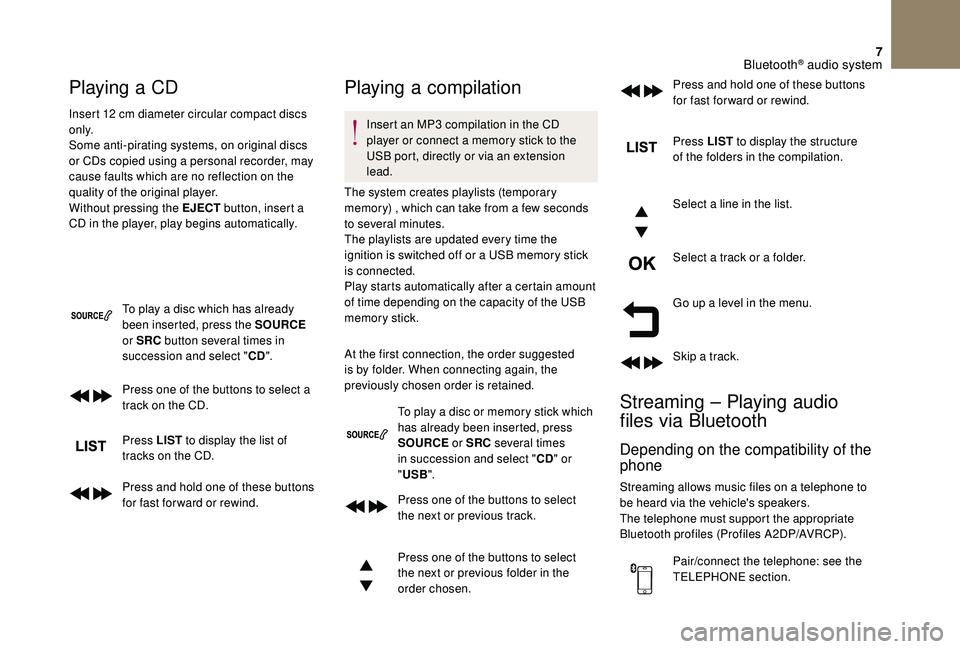
Playing a CD
Insert 12 cm diameter circular compact discs
o n l y.
Some anti-pirating systems, on original discs
or CDs copied using a personal recorder, may
cause faults which are no reflection on the
quality of the original player.
Without pressing the EJECT button, insert a
CD in the player, play begins automatically.
To play a disc which has already
been inserted, press the SOURCE
or SRC button several times in
succession and select " CD".
Press one of the buttons to select a
track on the CD.
Press LIST to display the list of
tracks on the CD.
Press and hold one of these buttons
for fast for ward or rewind.
Playing a compilation
Insert an MP3 compilation in the CD
player or connect a memory stick to the
USB port, directly or via an extension
lead.
The system creates playlists (temporary
memory) , which can take from a few seconds
to several minutes.
The playlists are updated every time the
ignition is switched off or a USB memory stick
is connected.
Play starts automatically after a certain amount
of time depending on the capacity of the USB
memory stick.
At the first connection, the order suggested
is by folder. When connecting again, the
previously chosen order is retained.
To play a disc or memory stick which
has already been inserted, press
SOURCE or SRC several times
in succession and select " CD" or
" USB ".
Press one of the buttons to select
the next or previous track.
Press one of the buttons to select
the next or previous folder in the
order chosen. Press LIST
to display the structure
of the folders in the compilation.
Select a line in the list.
Select a track or a folder.
Go up a level in the menu.
Skip a track.
Streaming – Playing audio
files via Bluetooth
Depending on the compatibility of the
phone
Streaming allows music files on a telephone to
be heard via the vehicle's speakers.
The telephone must support the appropriate
Bluetooth profiles (Profiles A2DP/AVRCP).
Pair/connect the telephone: see the
TELEPHONE section. Press and hold one of these buttons
for fast for ward or rewind.
Bluetooth® audio system
Page 279 of 296
9
It is recommended that the same burning
standard is always used on an individual disc,
with the lowest speed possible (4x maximum)
for the best acoustic quality.
In the particular case of a multi-session CD, the
Joliet standard is recommended.
Use only USB memory sticks formatted to FAT
32 (File Allocation Table).Do not connect a hard disk or USB device
other than audio players to the USB port.Telephone
Pairing a telephone
First-time connection
The services offered depend on the network,
the SIM card and the compatibility of the
Bluetooth telephone used.
Consult your telephone's manual and your
operator to find out which ser vices are
available to you.
As a safety measure and because they
require prolonged attention on the part
of the driver, the operations for pairing
of the Bluetooth mobile telephone with
the Bluetooth hands-free system of your
audio system must be carried out with the
vehicle stationary and the ignition on.
Visit www.dsautomobiles.co.uk for more
information (compatibility, more help, etc.).
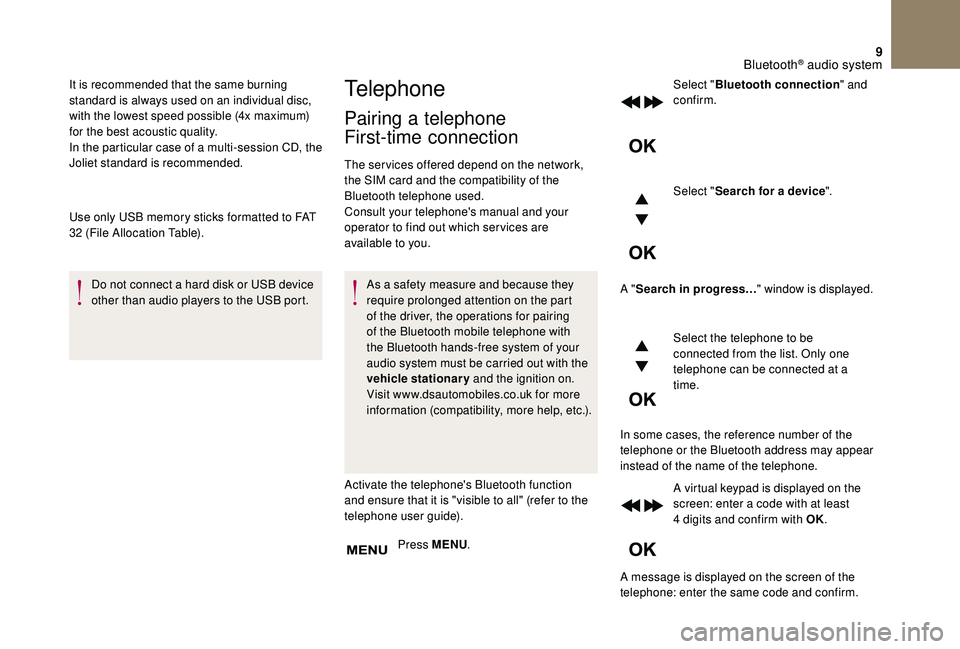
Activate the telephone's Bluetooth function
and ensure that it is "visible to all" (refer to the
telephone user guide). Press MENU . Select "
Bluetooth connection " and
confirm.
Select " Search for a device ".
A " Search in progress… " window is displayed.
Select the telephone to be
connected from the list. Only one
telephone can be connected at a
time.
In some cases, the reference number of the
telephone or the Bluetooth address may appear
instead of the name of the telephone. A virtual keypad is displayed on the
screen: enter a code with at least
4
digits and confirm with OK.
A message is displayed on the screen of the
telephone: enter the same code and confirm.
Bluetooth® audio system