phone Citroen DS5 RHD 2011.5 1.G Owner's Guide
[x] Cancel search | Manufacturer: CITROEN, Model Year: 2011.5, Model line: DS5 RHD, Model: Citroen DS5 RHD 2011.5 1.GPages: 348, PDF Size: 10.49 MB
Page 279 of 348
1
2
3
4
5
6
07
277
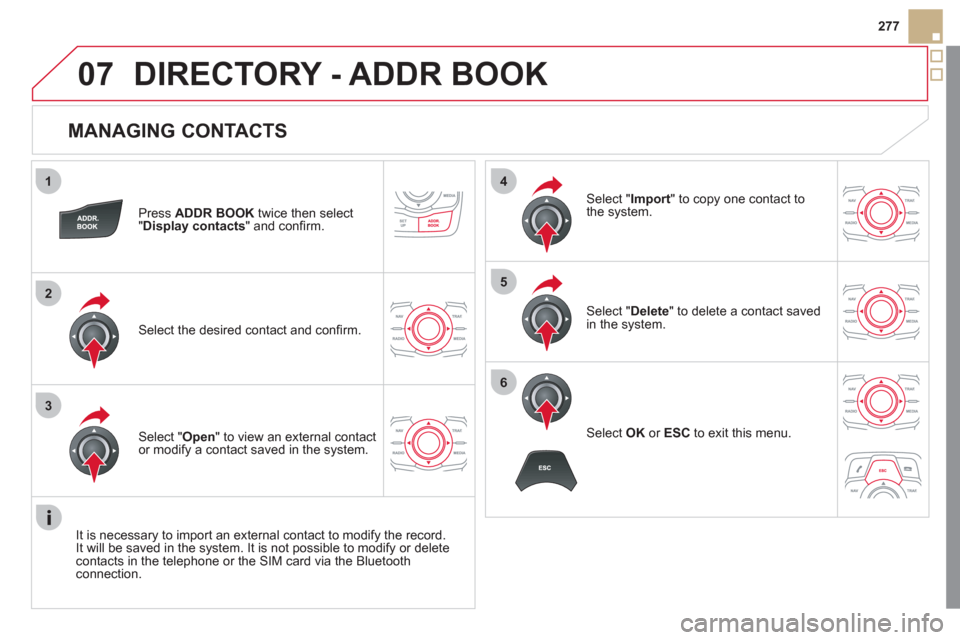
MANAGING CONTACTS
Press ADDR BOOK
twice then select
"Display contacts
" and confi rm.
Select the desired contact and confi rm.
Select " Import" to copy one contact to
the system.
Select " Open
" to view an external contact
or modify a contact saved in the system.
Select OK
or ESC
to exit this menu.
Select " Delete" to delete a contact savedin the system.
It is necessar
y to import an external contact to modify the record.
It will be saved in the system. It is not possible to modify or delete contacts in the telephone or the SIM card via the Bluetoothconnection.
DIRECTORY - ADDR BOOK
Page 287 of 348
1
2
1
2
09
285
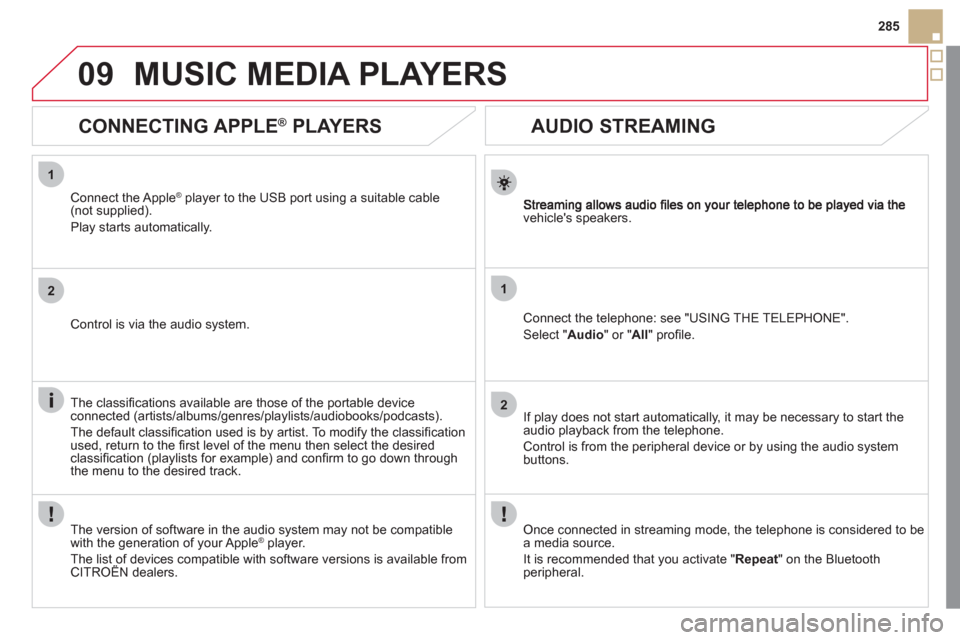
AUDIO STREAMING
vehicle's speakers.
Connect the telephone: see "USING THE TELEPHONE".
Select " Audio" or " All" profi le.
I
f play does not start automatically, it may be necessary to start the audio playback from the telephone.
Control is from the peripheral device or b
y using the audio system buttons.
Once connected in streaming mode, the telephone is considered to bea media source.
It is recommended that
you activate " Repeat" on the Bluetooth
peripheral.
MUSIC MEDIA PLAYERS
CONNECTING APPLE ®
PLAYERS
Connect the Apple ®player to the USB port using a suitable cable(not supplied).
Play starts automatically.
Control is via the audio system.
The classifi cations available are those of the portable device
connected (artists/albums/genres/playlists/audiobooks/podcasts).
The de
fault classifi cation used is by artist. To modify the classifi cationused, return to the fi rst level of the menu then select the desired classifi cation (playlists for example) and confi rm to go down through
the menu to the desired track.
The version o
f software in the audio system may not be compatible
with the generation of your Apple Æplayer.
The list of devices compatible with software versions is available from CITROÀN dealers.
Page 293 of 348
12
291
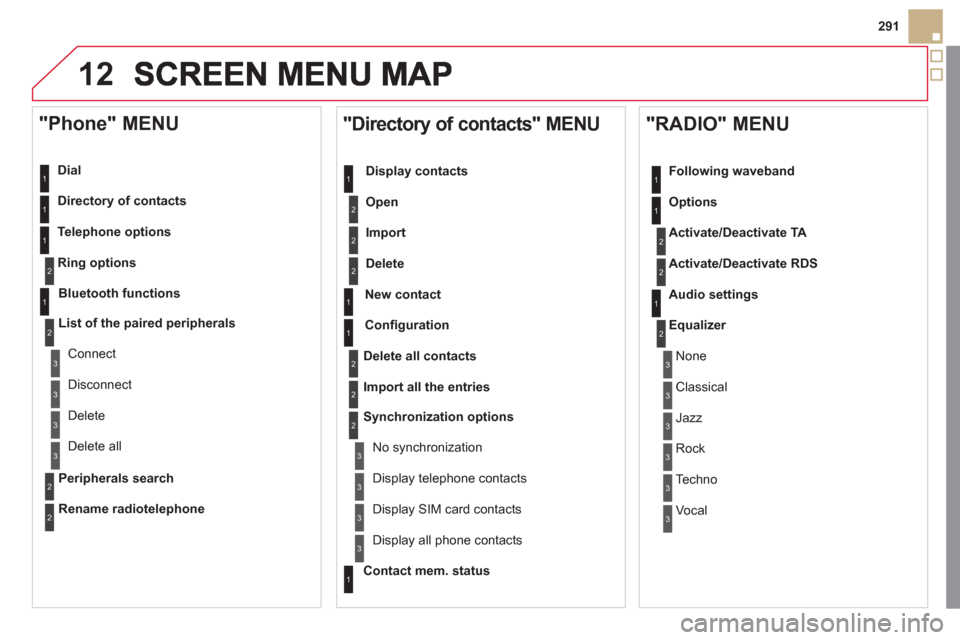
Dial
Director
y of contacts
Tele
phone options
Rin
g options
"Phone" MENU
1
2
1
1
3
3
2
1
3
3
2
2
1
2
2
2
1
1
2
2
2
1
3
3
3
3
1
2
2
1
1
3
3
3
3
3
3
2
Confi guration
Delete all contacts
Import all the entries
S
ynchronization options
No s
ynchronization
"Directory of contacts" MENU
Display contacts
Open
Import
Delete
New contact
Equalizer
"RADIO" MENU
Following waveband
Options
Activate/Deactivate TA
Activate/Deactivate RD
S
Audio settings
Displa
y telephone contacts
Displa
y SIM card contacts
Contact mem. status
Displa
y all phone contacts
Bluetooth functions
List of the paired peripherals
Connect
Di
sconnect
D
elete
Peripherals search D
elete all
Rename radiotele
phone
None
Classical
Jazz
Rock
Techno
Vocal
Page 296 of 348
FREQUENTLY ASKED QUESTIONS
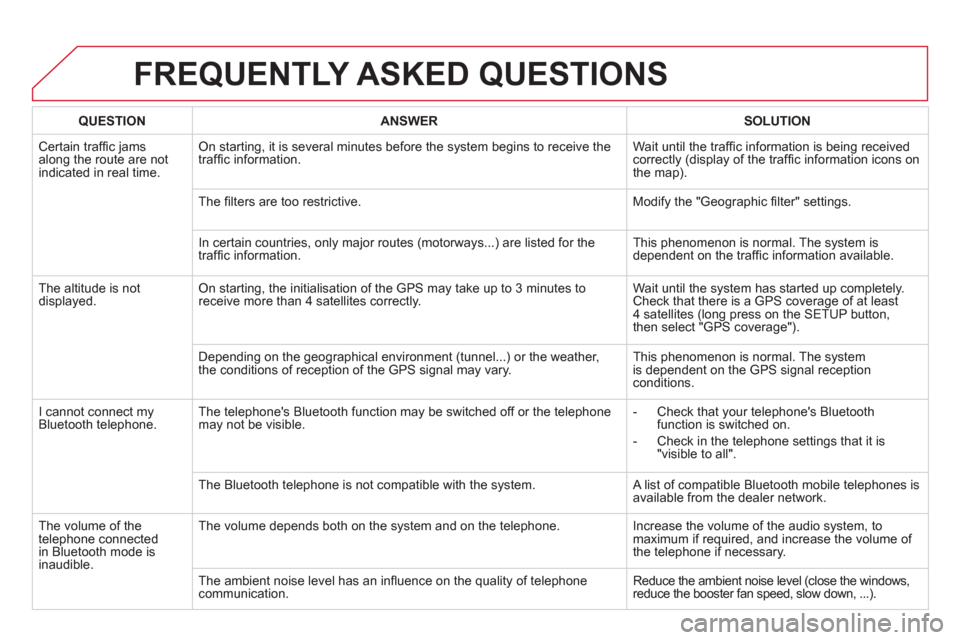
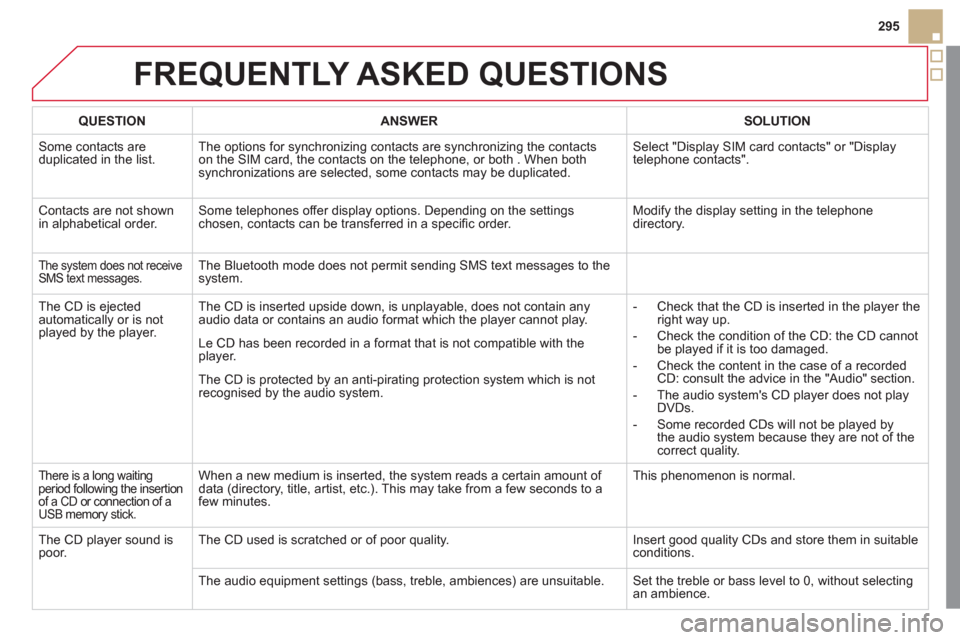
QUESTIONANSWERSOLUTION
Certain traffi c jams
along the route are not
indicated in real time.
On starting, it is several minutes before the system begins to receive the
traffi c information. Wait until the traffi c information is being received correctly (display of the traffi c information icons on
the map).
Th
e fi lters are too restrictive. Modify the "Geographic fi lter" settings.
In certain countries, onl
y major routes (motorways...) are listed for the
traffi c information. This phenomenon is normal. The system is
dependent on the traffi c information available.
Th
e altitude is not displayed. On starting, the initialisation of the GPS may take up to 3 minutes toreceive more than 4 satellites correctly. Wait until the system has started up completely.
Check that there is a GPS coverage of at least
4 satellites (long press on the SETUP button,
then select "GPS coverage").
Dependin
g on the geographical environment (tunnel...) or the weather,
the conditions of reception of the GPS signal may vary. This phenomenon is normal. The system
is dependent on the GPS signal receptionconditions.
I cannot connect myBluetooth telephone.The telephone's Bluetooth function may be switched off or the telephone
may not be visible.
- Check that your telephone's Bluetoothfunction is switched on.
-
Check in the telephone settings that it is "visible to all".
The Bluetooth telephone is not compatible with the s
ystem. A list of compatible Bluetooth mobile telephones is available from the dealer network.
Th
e volume of thetelephone connectedin Bluetooth mode isinaudible. The volume depends both on the s
ystem and on the telephone. Increase the volume of the audio system, tomaximum if required, and increase the volume of
the telephone if necessary.
The ambient noise level has an in
fl uence on the quality of telephone communication. Reduce the ambient noise level (close the windows, reduce the booster fan speed, slow down, ...).
Page 297 of 348
295
FREQUENTLY ASKED QUESTIONS
QUESTIONANSWERSOLUTION
Some contacts are
duplicated in the list.The options for synchronizing contacts are synchronizing the contacts
on the SIM card, the contacts on the telephone, or both . When both
synchronizations are selected, some contacts may be duplicated. Select "Displa
y SIM card contacts" or "Displaytelephone contacts".
Contacts are not shown
in alphabetical order.Some telephones offer display options. Depending on the settingschosen, contacts can be transferred in a specifi c order. Modify the display setting in the telephone
directory.
The system does not receiveSMS text messages.The Bluetooth mode does not permit sending SMS text messages to the
system.
The CD is e
jected
automatically or is not played by the player. The CD is inserted upside down, is unpla
yable, does not contain any audio data or contains an audio format which the player cannot play.
- Check that the CD is inserted in the player the
right way up.
-
Check the condition of the CD: the CD cannot
be played if it is too damaged.
-
Check the content in the case of a recordedCD: consult the advice in the "Audio" section.
- The audio s
ystem's CD player does not play
DVDs.
-
Some recorded CDs will not be played by
the audio system because they are not of thecorrect quality. Le
CD has been recorded in a format that is not compatible with the
player.
The CD is protected b
y an anti-pirating protection system which is not recognised by the audio system.
There is a long waiting period following the insertion
of a CD or connection of aUSB memory stick.
When a new medium is inserted, the system reads a certain amount of
data (directory, title, artist, etc.). This may take from a few seconds to a
few minutes. This phenomenon is normal.
The
CD player sound ispoor.The CD used is scratched or of poor quality. Insert good quality CDs and store them in suitable conditions.
The audio equipment settin
gs (bass, treble, ambiences) are unsuitable. Set the treble or bass level to 0, without selectingan ambience.
Page 300 of 348
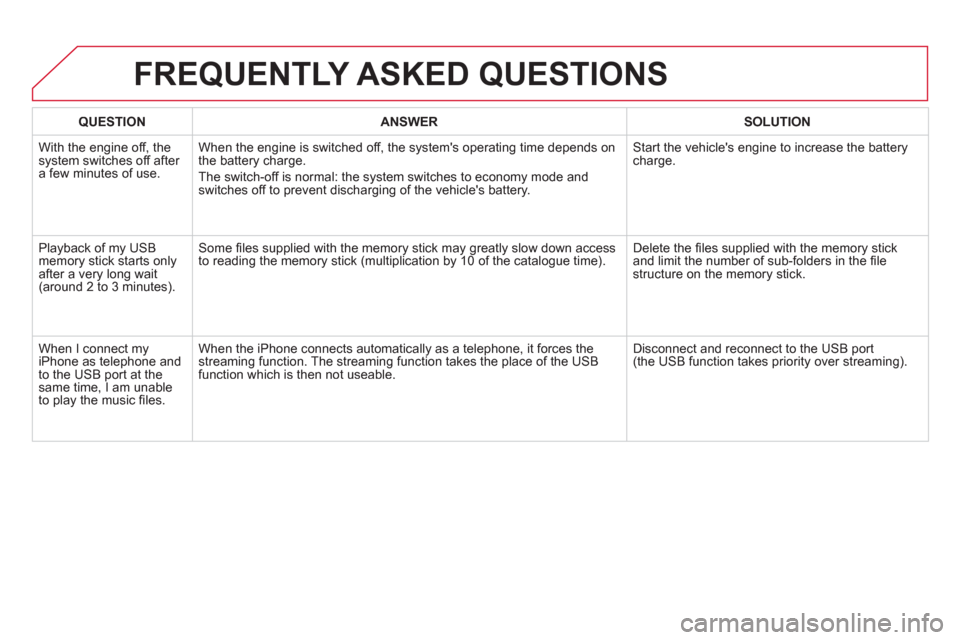
QUESTIONANSWER SOLUTION
With the engine off, the system switches off after a few minutes of use.When the en
gine is switched off, the system's operating time depends on
the battery charge.
The switch-off is normal: the s
ystem switches to economy mode and
switches off to prevent discharging of the vehicle's battery.
Start the vehicle's engine to increase the batterycharge.
Playback o
f my USB memory stick starts only
after a very long wait (around 2 to 3 minutes).
Some fi les supplied with the memory stick may greatly slow down access
to reading the memory stick (multiplication by 10 of the catalogue time). Delete the fi les supplied with the memory stickand limit the number of sub-folders in the fi le structure on the memory stick.
When I connect myiPhone as telephone and
to the USB port at thesame time, I am unable
to play the music fi les. When the iPhone connects automaticall
y as a telephone, it forces the
streaming function. The streaming function takes the place of the USBfunction which is then not useable. Disconnect and reconnect to the U
SB port(the USB function takes priority over streaming).
FREQUENTLY ASKED QUESTIONS
Page 301 of 348
299
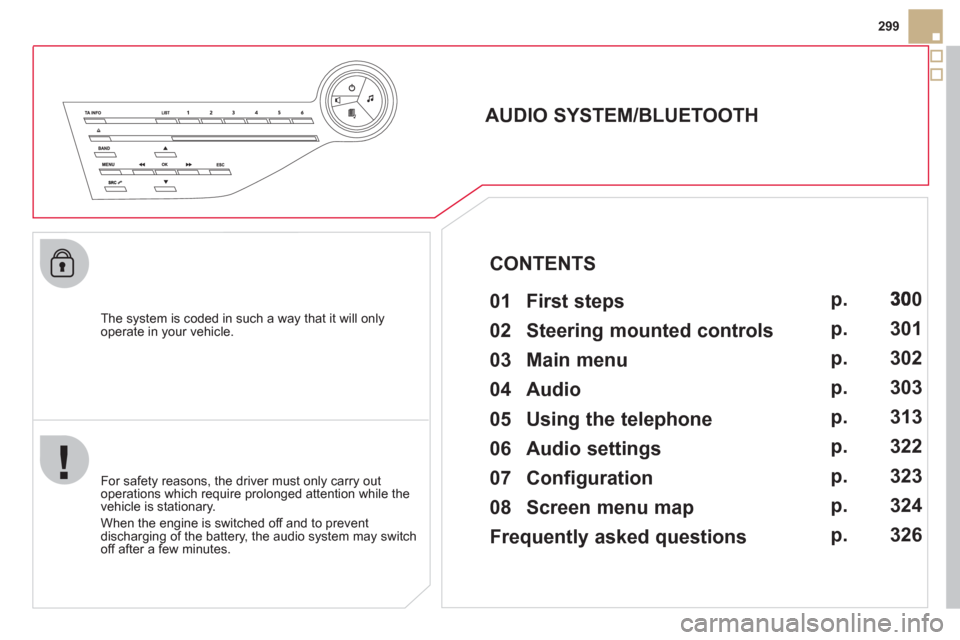
The system is coded in such a way that it will only
operate in your vehicle.
AUDIO SYSTEM/BLUETOOTH
01 First steps
For safety reasons, the driver must only carry out
operations which require prolonged attention while the
vehicle is stationary.
When the engine is switched o
ff and to prevent
discharging of the battery, the audio system may switch off after a few minutes.
CONTENTS
02 Steering mounted controls
03 Main menu
04 Audio
05 Using the telephone
06 Audio settings
07 Configuration
08 Screen menu map
Frequently asked questions p.
p.
p.
p.
p.
p.
p.
p.
p.
0
301
302
3
03
313
322
32
3
324
326
Page 302 of 348
01
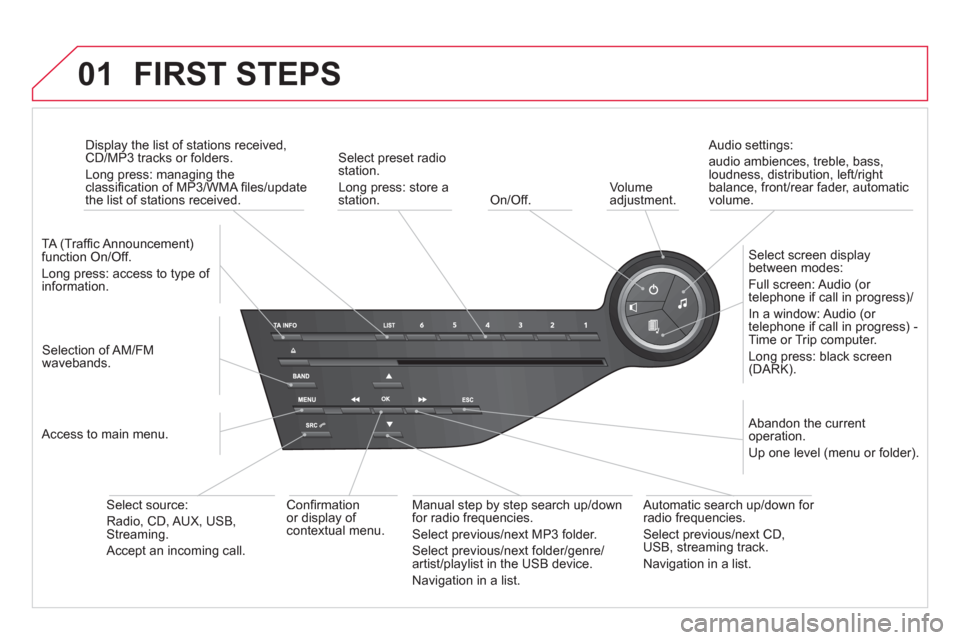
On/Off.
FIRST STEPS
Volume adjustment.
Select screen display between modes:
Full screen: Audio
(or
telephone if call in progress)/
In a window: Audio
(or
telephone if call in progress) -Time or Trip computer.
Long press: black screen (DARK).
Selection of AM/FM
wavebands.
Select preset radio station.
Long press: store a
station.
Displa
y the list of stations received,CD/MP3 tracks or folders.
Long press: managing the classifi cation of MP3/WMA fi les/update
the list of stations received.
TA
(Traffi c Announcement)
function On/Off.
Lon
g press: access to type of
information.
Confi rmation
or display of contextual menu.
Automatic search up
/down for
radio frequencies.
Select previous/next CD, USB, streaming track.
Navi
gation in a list.
A
bandon the current
operation.
Up one level (menu or folder).
Manual step b
y step search up/downfor radio frequencies.
Select previous/next MP3 folder.
Select previous/next folder/genre/
artist/playlist in the USB device.
Navigation in a list.
Select source:
Radio, CD, AUX, USB,Streaming.
Accept an incoming call.
Access to main menu.
Audio settings:
au
dio ambiences, treble, bass,loudness, distribution, left/right
balance, front/rear fader, automatic
volume.
Page 303 of 348
02
SRC
+
-
301
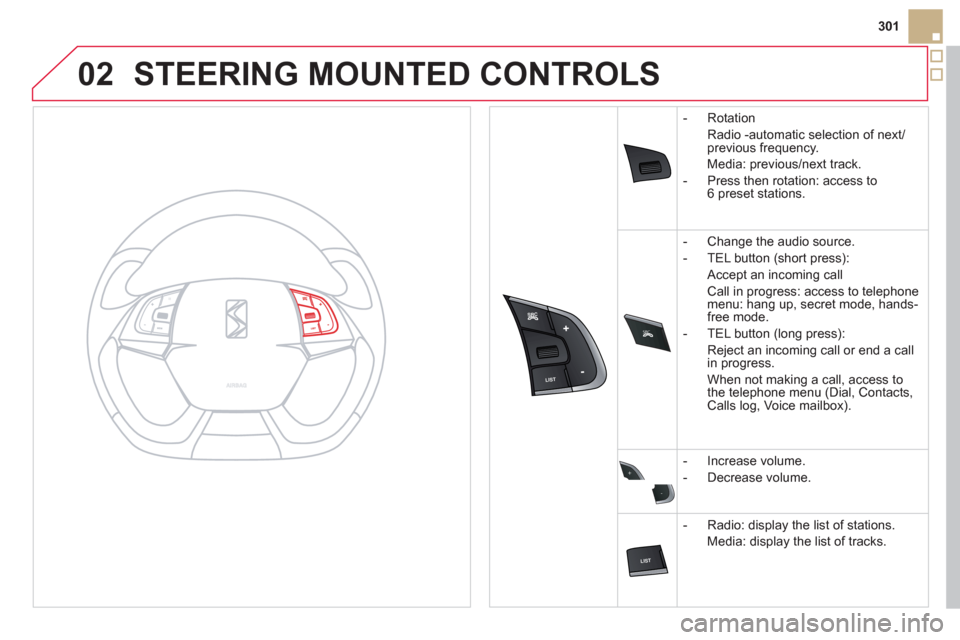
STEERING MOUNTED CONTROLS
- Rotation
R
adio -automatic selection of next/previous frequency.
Media:
previous/next track.
- Pr
ess then rotation: access to 6 preset stations.
-
Change the audio source.
- TEL button
(short press):
Accept an incomin
g call
Call in pro
gress: access to telephonemenu: hang up, secret mode, hands-
free mode.
- TEL button
(long press):
Reject an incoming call or end a call
in pro
gress.
When not makin
g a call, access to
the telephone menu (Dial, Contacts,Calls log, Voice mailbox).
-
Increase volume.
- D
ecrease volume.
- Radio: displa
y the list of stations.
Media: displa
y the list of tracks.
Page 304 of 348
03
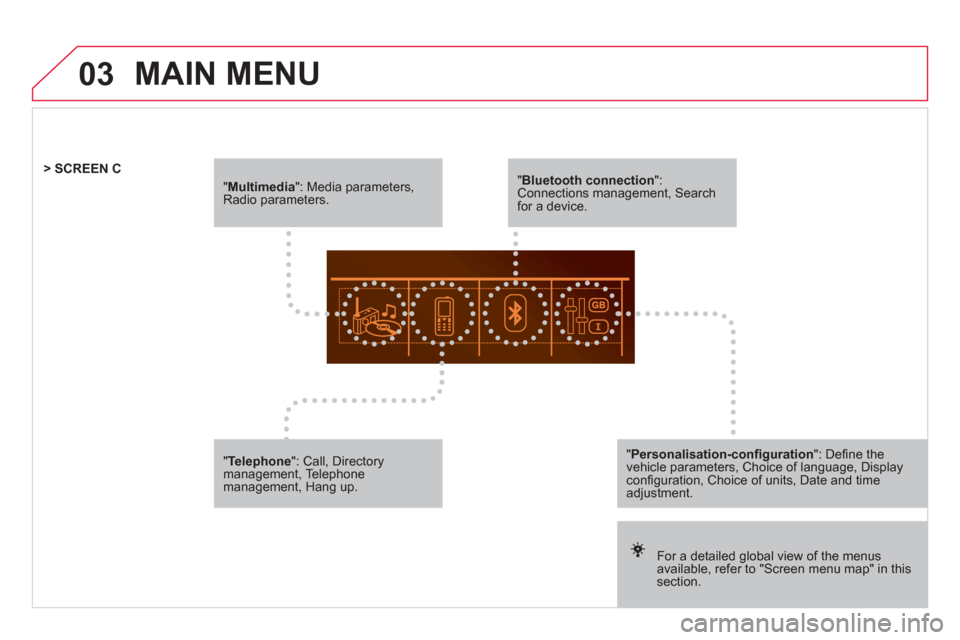
" Multimedia
": Media parameters, Radio parameters.
For a detailed global view of the menusavailable, refer to "Screen menu map" in this section.
> SCREEN C
"Bluetooth connection":Connections management, Search for a device.
" Telephone": Call, Directorymanagement, Telephone management, Hang up.
MAIN MENU
"Personalisation-confi guration": Defi ne thevehicle parameters, Choice of language, Display confi guration, Choice of units, Date and time adjustment.