phone Citroen JUMPY 2016 2.G Owner's Guide
[x] Cancel search | Manufacturer: CITROEN, Model Year: 2016, Model line: JUMPY, Model: Citroen JUMPY 2016 2.GPages: 595, PDF Size: 12.47 MB
Page 384 of 595

382
12:13
23 °C531 kHz
Jumpy_en_Chap10b_NAC-1_ed01-2016
MirrorLinkTM smartphone connection
Audio and Telematics
Page 385 of 595
383
Jumpy_en_Chap10b_NAC-1_ed01-2016
As a safety measure and because it
requires the sustained attention of
the driver, using a smartphone when
driving is prohibited.
Operation must be with the vehicle
stationary.
The synchronisation of a
smartphone allows applications on a
smartphone that are adapted to the
MirrorLink
TM technology to be displayed
i
n the vehicle's screen.
The principles and standards
are constantly evolving. For the
communication process between
the smartphone and the system to
work correctly, the smartphone must
be unlocked; update the operating
system of your smar tphone as
well as the date and time in the
smartphone and the system .
For the list of eligible smartphones,
connect to the brand's internet website
in your country. The "
MirrorLink
TM" function requires
the use of a compatible smartphone
and applications.
There may be a wait for the availability
of applications, depending on the
quality of your network.
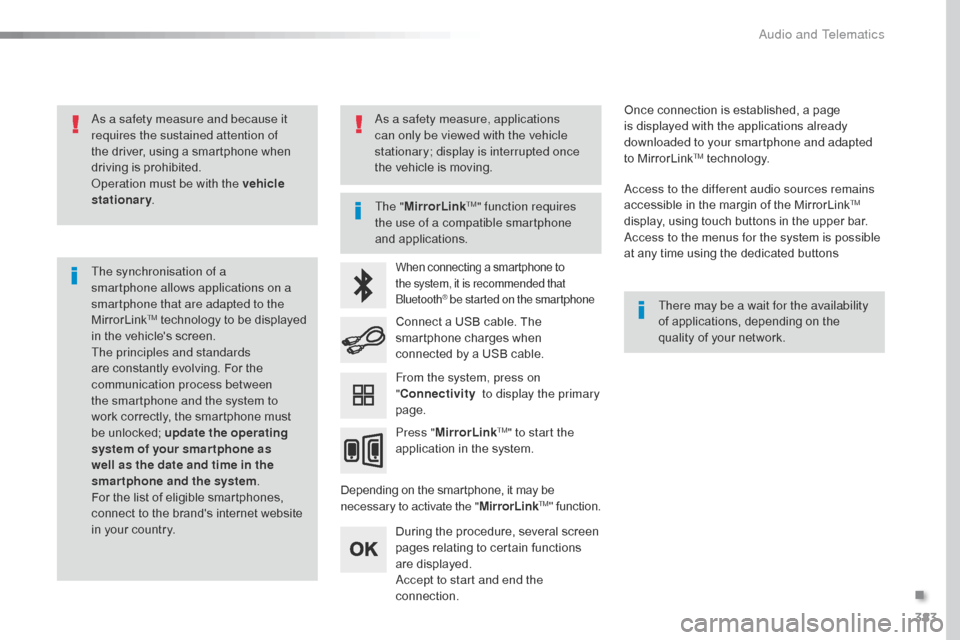
When connecting a smartphone to
the system, it is recommended that
Bluetooth
® be started on the smartphone
Depending on the smartphone, it may be
necessary to activate the "MirrorLinkTM" function.
During the procedure, several screen
pages relating to certain functions
are displayed.
Accept to start and end the
connection. Connect a USB cable. The
smartphone charges when
connected by a USB cable.
Press " MirrorLink
TM" to start the
application in the system. Once connection is established, a page
is displayed with the applications already
downloaded to your smartphone and adapted
to MirrorLink
TM technology.
Access to the different audio sources remains
accessible in the margin of the MirrorLink
TM
display, using touch buttons in the upper bar.
Access to the menus for the system is possible
at any time using the dedicated buttons
From the system, press on
" Connectivity to display the primary
page.
As a safety measure, applications
can only be viewed with the vehicle
stationary; display is interrupted once
the vehicle is moving.
.
Audio and Telematics
Page 387 of 595

385
Jumpy_en_Chap10b_NAC-1_ed01-2016
Level 1Level 2 Level 3 Comments
Connectivity MirrorLink
TM
Go to or return to the applications already
downloaded to your smartphone and adapted to
MirrorLink
TM technology.
Go to a menu list depending on the application
chosen.
"Back": abandon the current operation, go up
one level.
"Home": go to or return to the "Car mode" page
on your smartphone.
Go to the primary page of the "Connectivity"
menu.
.
Audio and Telematics
Page 388 of 595

386
12:13
23 °C531 kHz
Jumpy_en_Chap10b_NAC-1_ed01-2016
CarPlay® smartphone connection
Audio and Telematics
Page 389 of 595
387
Jumpy_en_Chap10b_NAC-1_ed01-2016
As a safety measure and because it
requires the sustained attention of
the driver, using a smartphone when
driving is prohibited.
Operation must be with the vehicle
stationary.
The synchronisation of a
smartphone allows applications on a
smartphone that are adapted to the
CarPlay
® technology to be displayed
i
n the vehicle's screen, having first
activated the CarPlay
® function in your
smartphone.
As the principles and standards
are constantly changing, it is
recommended that you keep your
smartphone's operating system
updated .
For the list of eligible smartphones, go
to the brand's internet website in your
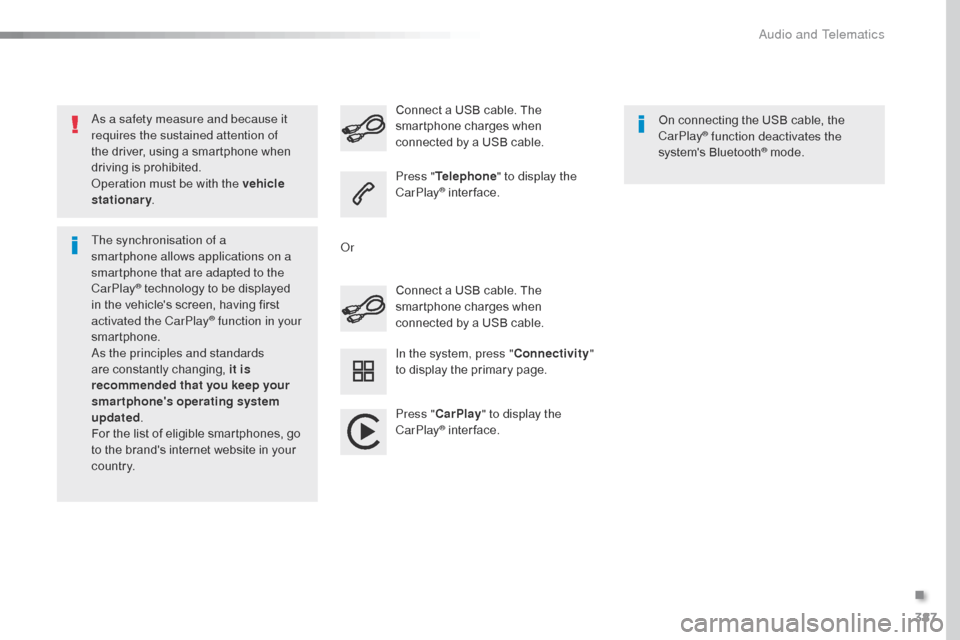
c o unt r y. Connect a USB cable. The
smartphone charges when
connected by a USB cable. Connect a USB cable. The
smartphone charges when
connected by a USB cable.
Press "
Telephone " to display the
CarPlay
® inter face.
Press " CarPlay " to display the
CarPlay
® inter face. On connecting the USB cable, the
CarPlay
® function deactivates the
system's Bluetooth® mode.
In the system, press " Connectivity"
to display the primary page.
Or
.
Audio and Telematics
Page 400 of 595
398
Jumpy_en_Chap10b_NAC-1_ed01-2016
Media
USB playerSelecting the source
Select "Source".
Press Radio Media
to display the
primary page.
The system builds playlists (in temporary
memory), an operation which can take from
a few seconds to several minutes at the first
connection.
Reduce the number of non-music files and the
number of folders to reduce the waiting time.
The playlists are updated every time the
ignition is switched off or connection of a USB
memory stick. The lists are memorised: if they
are not modified, the subsequent loading time
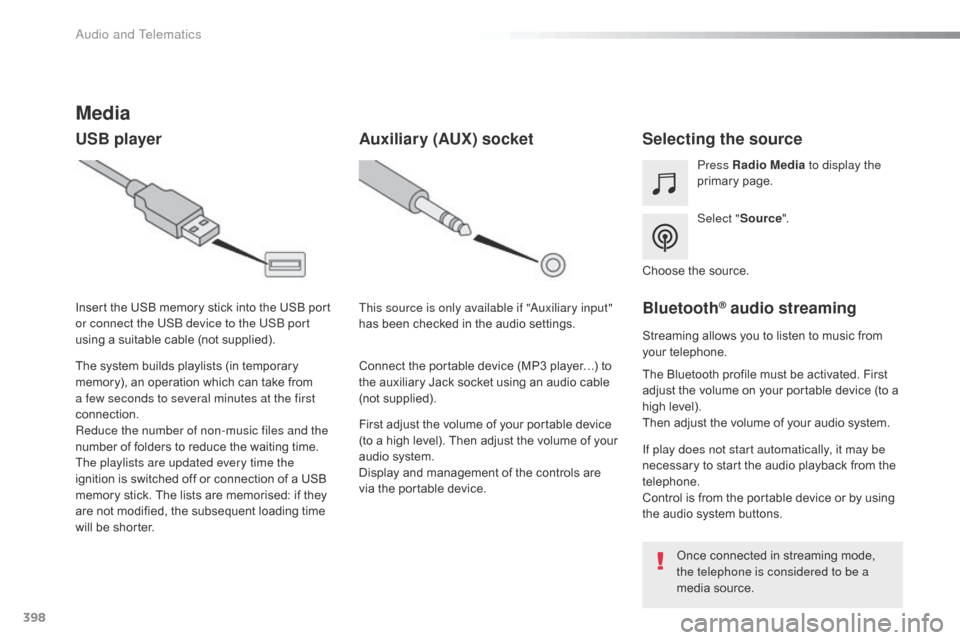
will be shorter. Insert the USB memory stick into the USB port
or connect the USB device to the USB port
using a suitable cable (not supplied).
Auxiliary (AUX) socket
First adjust the volume of your portable device
(to a high level). Then adjust the volume of your
audio system.
Display and management of the controls are
via the portable device. This source is only available if "Auxiliary input"
has been checked in the audio settings.
Connect the portable device (MP3 player…) to
the auxiliary Jack socket using an audio cable
(not supplied). Choose the source.
Bluetooth® audio streaming
Streaming allows you to listen to music from
your telephone.
The Bluetooth profile must be activated. First
adjust the volume on your portable device (to a
high level).
Then adjust the volume of your audio system.
If play does not start automatically, it may be
necessary to start the audio playback from the
telephone.
Control is from the portable device or by using
the audio system buttons.
Once connected in streaming mode,
the telephone is considered to be a
media source.
Audio and Telematics
Page 402 of 595
400
12:13
23 °C531 kHz
12:13
23 °C531 kHz
4
1
1
8
14
5
39
12
6
210
7
11
13
Jumpy_en_Chap10b_NAC-1_ed01-2016
Level 1
Telephone
Level 2 Level 3
Known devices Recent calls
Contacts and favourites
Audio and Telematics
Page 403 of 595

401
14
12
13
3
2
5
6
7
4
8
9
10
11
Jumpy_en_Chap10b_NAC-1_ed01-2016
Level 1Level 2 Level 3 Comments
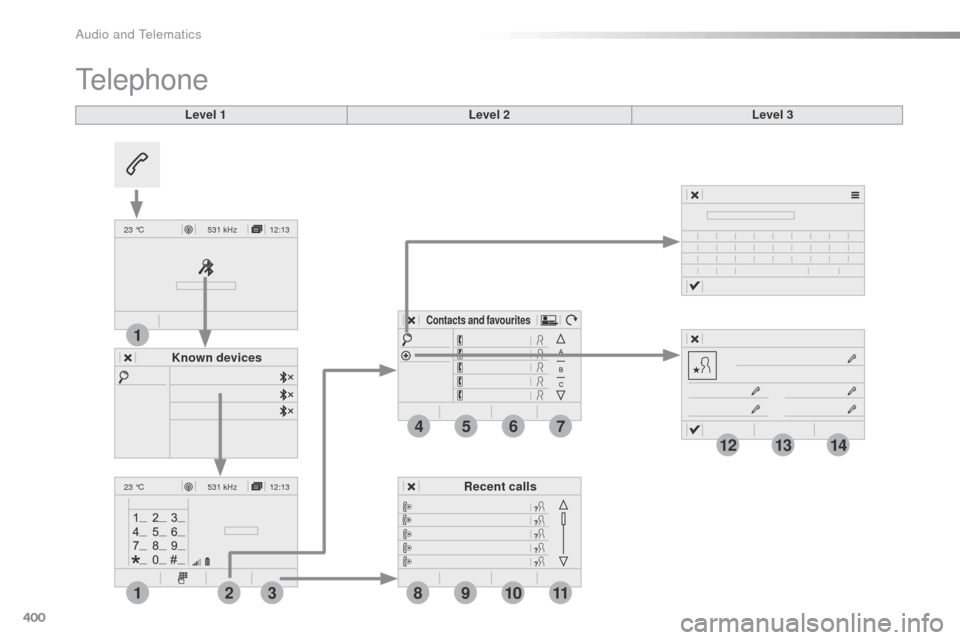
Telephone Bluetooth Contact All
View contacts according to presentation choices.
Select a contact or a favourite saved in the
system via the profile selected to start the call.
Telephone
Address
Favourites
Sort the contacts by Surname-First name or First
name-Surname.
Update the contacts from the telephone.
Search ConfirmSearch for a contact in the directory.
Create Telephone
Create a new contact in the system.
Address
Email
Confirm
Telephone Bluetooth Calls All
View calls according to choice of presentation.
Select a contact to start the call.
Incoming
Outgoing
Missed
View details for the contact.
.
Audio and Telematics
Page 405 of 595
403
1
1
1
19
20
21
22
15
16
17
18
Jumpy_en_Chap10b_NAC-1_ed01-2016
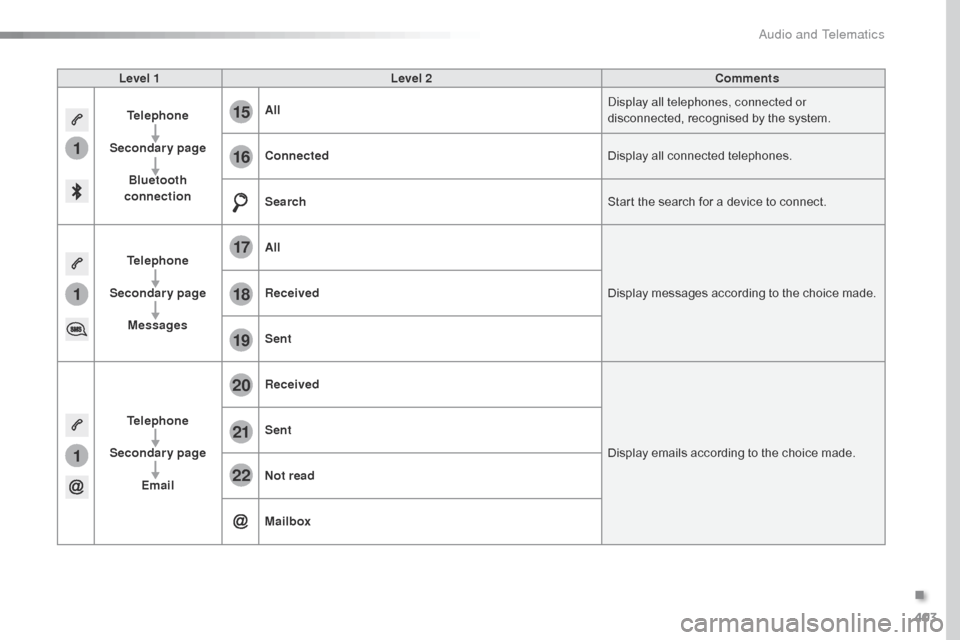
Level 1Level 2 Comments
Telephone
Secondary page Bluetooth
connection All
Display all telephones, connected or
disconnected, recognised by the system.
Connected Display all connected telephones.
Search Start the search for a device to connect.
Telephone
Secondary page Messages All
Display messages according to the choice made.
Received
Sent
Telephone
Secondary page Email Received
Display emails according to the choice made.
Sent
Not read
Mailbox
.
Audio and Telematics
Page 407 of 595

405
1
1
27
28
29
30
23
24
25
26
Jumpy_en_Chap10b_NAC-1_ed01-2016
Level 1Level 2 Comments
Telephone
Secondary page Options Security
Make driving safe.
Voicemail Enter and save the number for the telephone
voicemail.
Ringtone Adjust the ringtone volume.
Statistics Display data for the telephone connected.
Confirm Save the options.
Telephone
Secondary page
Quick messages Delayed
Select a quick message from the categories, as
required.
My arrival
Not available
Other
Create
Create a quick message.
.
Audio and Telematics