phone Citroen JUMPY 2016 2.G Owner's Guide
[x] Cancel search | Manufacturer: CITROEN, Model Year: 2016, Model line: JUMPY, Model: Citroen JUMPY 2016 2.GPages: 595, PDF Size: 12.47 MB
Page 408 of 595

406
Jumpy_en_Chap10b_NAC-1_ed01-2016
Pairing a Bluetooth® telephone
As a safety measure and because it
requires sustained attention by the
driver, the pairing of a Bluetooth mobile
telephone with theBluetooth hands-free
system of your audio system must be
done with the vehicle stationary and
the ignition on.
Procedure from the telephone
Select the system name in the list of
devices detected.
In the system, accept the connection request
from the telephone.
Procedure from the system
Press Telephone to display the
primary page.
Press Connect telephone .
Select " Search".
The list of telephones detected is
displayed.
If the pairing procedure fails, it is recommended
that you deactivate and then reactivate the
"Bluetooth" function in your telephone.
The system offers to connect the telephone
with 3 profiles:
-
T
elephone (hands-free kit, telephone
only),
-
S
treaming (wireless play of audio files on
the telephone),
-
M
obile internet data .
Depending on the type of telephone,
you may be asked to accept or not
the transfer of your contacts and
messages.
Select the name of the chosen
telephone in the list.
Press "
Confirm ".
Select one or more profiles.
O r.
Activate the Bluetooth function on the
telephone and ensure that it is "visible
to all" (telephone configuration).
To complete the pairing, whichever
procedure used (from the telephone or
from the system), ensure that the code
is the same in the system and in the
telephone. The "
Mobile internet data " profile
must be activated for connected
navigation, having first activated
sharing of this connection on your
smartphone.
Connection sharing
Audio and Telematics
Page 409 of 595

407
1
Jumpy_en_Chap10b_NAC-1_ed01-2016
Press Telephone to display the
primary page.
Select " Bluetooth connection " to
display the list of paired devices.
On return to the vehicle, if the last
telephone connected is present again,
it is automatically recognised and
within about 30 seconds of switching
on the ignition, the connection is
established without any action on your
part (Bluetooth activated).
The services available depend on
the network, the SIM card and the
compatibility of the Bluetooth devices
used. Check in your telephone's
manual and with your service provider
for the services available to you. The ability of the system to connect
with just one profile depends on the
telephone.
All three profiles may connect by default.
Go to the brand's website for more information
(compatibility, additional help, ...).
To modify the connection profile
:
Automatic reconnection
Press the "details" button. Press the "OPTIONS" button to go to
the secondary page.
Press on " Confirm".
Select one or more profiles.
The profiles compatible with the system
are HFP, OPP, PBAP, A2DP, AVRCP,
MAP and PAN.
.
Audio and Telematics
Page 410 of 595
408
1
Jumpy_en_Chap10b_NAC-1_ed01-2016
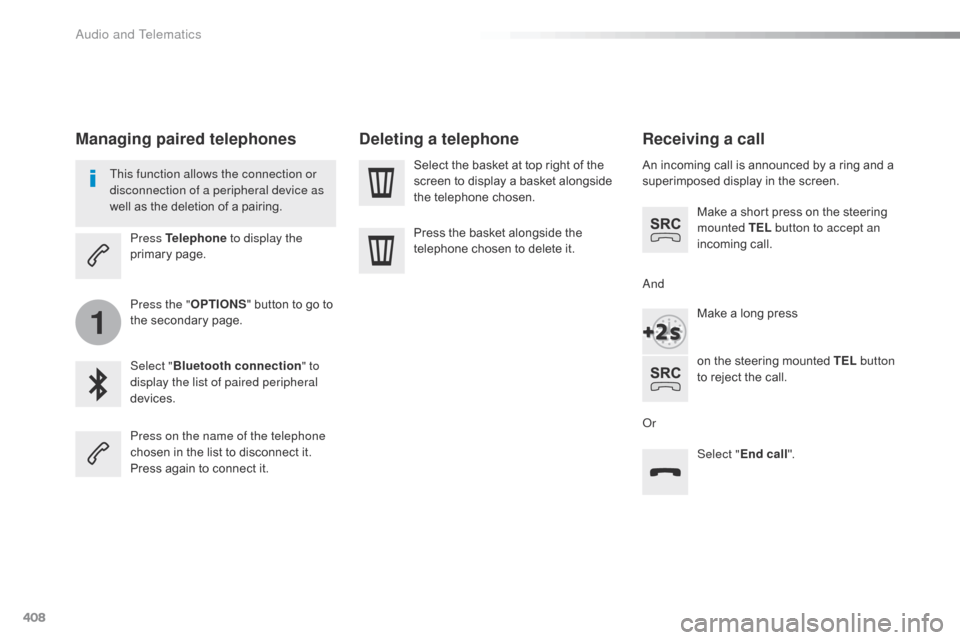
Receiving a call
An incoming call is announced by a ring and a
superimposed display in the screen.Make a short press on the steering
mounted TEL button to accept an
incoming call.
Make a long press
on the steering mounted TEL button
to reject the call.
Or And
Select "End call".
Press on the name of the telephone
chosen in the list to disconnect it.
Press again to connect it. Select the basket at top right of the
screen to display a basket alongside
the telephone chosen.
Press the basket alongside the
telephone chosen to delete it.
Managing paired telephones
This function allows the connection or
disconnection of a peripheral device as
well as the deletion of a pairing.
Press Telephone to display the
primary page.
Press the " OPTIONS" button to go to
the secondary page.
Select " Bluetooth connection " to
display the list of paired peripheral
devices.
Deleting a telephone
Audio and Telematics
Page 411 of 595
409
2
3
Jumpy_en_Chap10b_NAC-1_ed01-2016
on the steering mounted button.
Using the telephone is not
recommended while driving.
Park the vehicle.
Make the call using the steering
mounted controls.
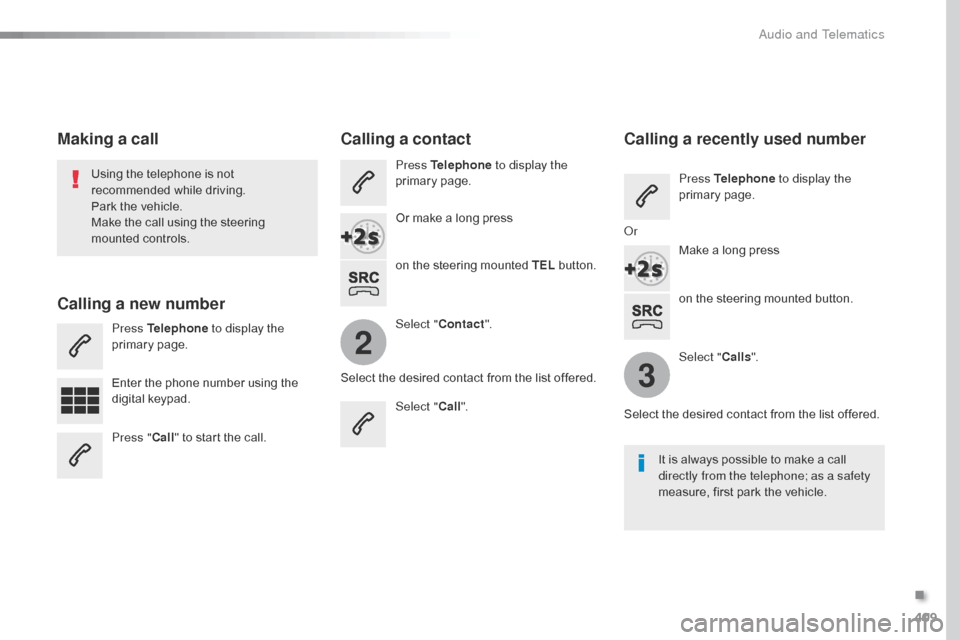
Making a call
Calling a new number
Press Telephone
to display the
primary page.
Enter the phone number using the
digital keypad.
Press " Call" to start the call.
Calling a contact
Press Telephone to display the
primary page.
Or make a long press
on the steering mounted TEL button.
Select " Contact ".
Select the desired contact from the list offered. Select "Call".
Calling a recently used number
Press Telephone to display the
primary page.
Make a long press
Select " Calls".
Select the desired contact from the list offered. It is always possible to make a call
directly from the telephone; as a safety
measure, first park the vehicle.
Or
.
Audio and Telematics
Page 412 of 595
410
2
12
13
14
1
Jumpy_en_Chap10b_NAC-1_ed01-2016
The access to "Messages" depends on
the compatibility of the smartphone and
the integral system.
Depending on the smartphone, access
to your messages or email may be
slow.
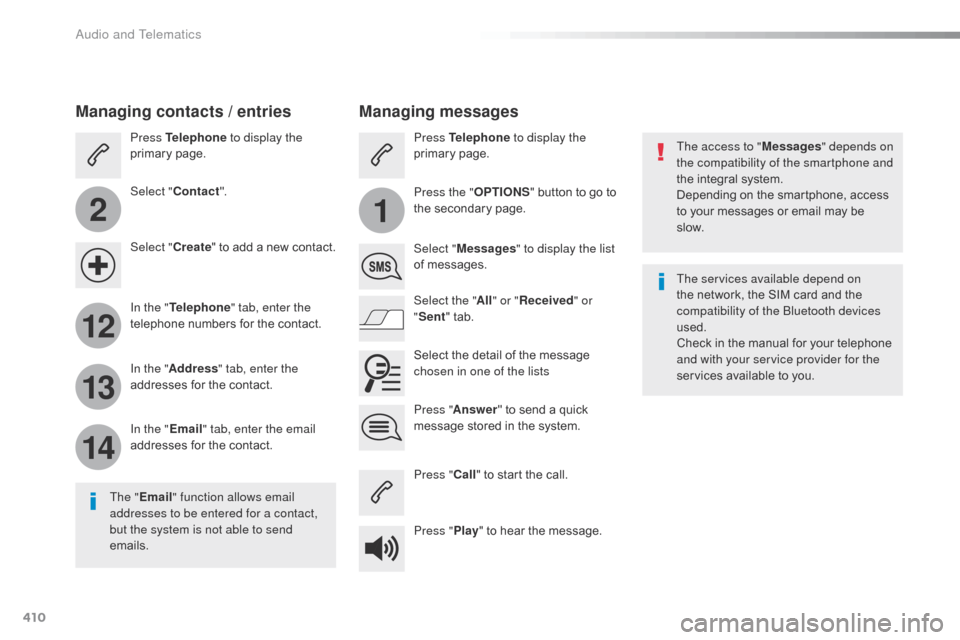
Managing messages
The " Email " function allows email
addresses to be entered for a contact,
but the system is not able to send
emails.
Managing contacts / entries
Press Telephone to display the
primary page.
Select " Contact ".
Select " Create" to add a new contact.
In the " Telephone " tab, enter the
telephone numbers for the contact.
In the " Address " tab, enter the
addresses for the contact.
In the " Email" tab, enter the email
addresses for the contact. Press "
Answer " to send a quick
message stored in the system. Press Telephone to display the
primary page.
Press the " OPTIONS" button to go to
the secondary page.
Select " Messages " to display the list
of messages.
Select the " All" or " Received " or
" Sent " tab.
Select the detail of the message
chosen in one of the lists
Press " Call" to start the call.
Press " Play" to hear the message. The services available depend on
the network, the SIM card and the
compatibility of the Bluetooth devices
used.
Check in the manual for your telephone
and with your service provider for the
services available to you.
Audio and Telematics
Page 413 of 595
411
11
Jumpy_en_Chap10b_NAC-1_ed01-2016
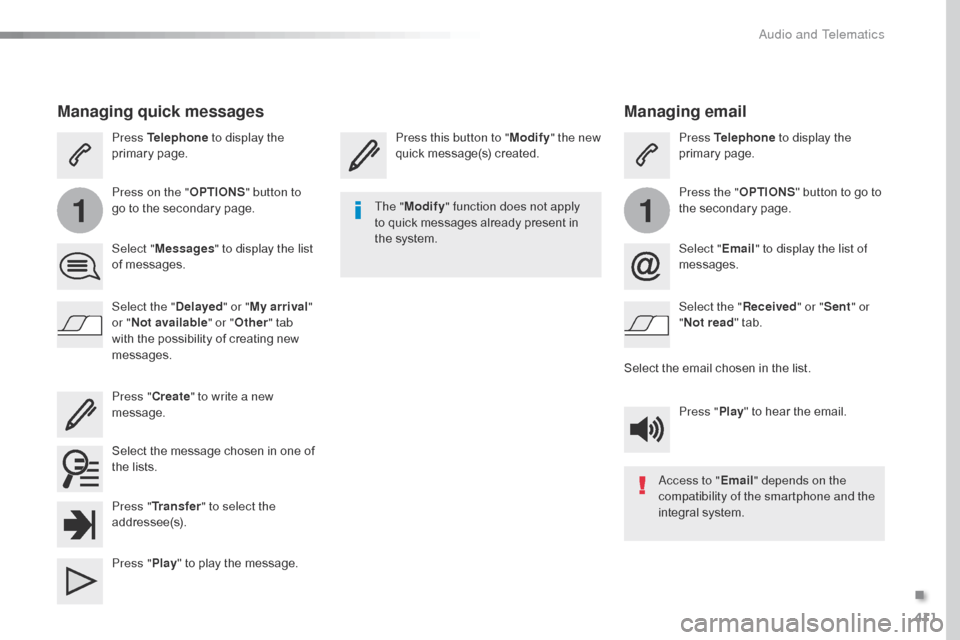
Managing email
Press this button to "Modify" the new
quick message(s) created. Press Telephone
to display the
primary page.
Press the " OPTIONS" button to go to
the secondary page.
Select " Email" to display the list of
messages.
Select the " Received" or "Sent " or
" Not read " tab.
Select the email chosen in the list. Press "Play" to hear the email.
The "
Modify " function does not apply
to quick messages already present in
the system.
Access to "Email" depends on the
compatibility of the smartphone and the
integral system.
Managing quick messages
Press Telephone to display the
primary page.
Press on the " OPTIONS" button to
go to the secondary page.
Select " Messages " to display the list
of messages.
Select the " Delayed" or "My arrival "
or " Not available" or " Other" tab
with the possibility of creating new
messages.
Select the message chosen in one of
the lists. Press " Create" to write a new
message.
Press " Transfer " to select the
addressee(s).
Press " Play" to play the message.
.
Audio and Telematics
Page 428 of 595

426
Jumpy_en_Chap10b_NAC-1_ed01-2016
QUESTIONANSWER SOLUTION
I cannot connect my
Bluetooth telephone. The telephone's Bluetooth function may be switched off or the
telephone may not be visible. Check that your telephone's Bluetooth function is
switched on.
Check in the telephone settings that it is "visible
to all".
The Bluetooth telephone is not compatible with the system. You can check the compatibility of your
telephone at the brand's website (services).
The volume of the
telephone connected
in Bluetooth mode is
inaudible. The volume depends both on the system and on the telephone.
Increase the volume of the audio system, to
maximum if required, and increase the volume of
the telephone if necessary.
The ambient noise level has an influence on the quality of
telephone communication. Reduce the ambient noise level (close the
windows, reduce the booster fan speed, slow
down, ...).
Some contacts are
duplicated in the list. The options for synchronizing contacts are synchronizing the
contacts on the SIM card, the contacts on the telephone, or both.
When both synchronizations are selected, some contacts may be
duplicated. Select "Display SIM card contacts" or "Display
telephone contacts".
Contacts are not shown in
alphabetical order. Some telephones offer display options. Depending on the settings
chosen, contacts can be transferred in a specific order. Modify the display setting in the telephone
di r e c to r y.
The system does not
receive SMS text messages. The Bluetooth mode does not permit sending SMS text messages
to the system.
Telephone
Audio and Telematics
Page 431 of 595

429
Jumpy_en_Chap10c_RCC-1_ed01-2016
CITROËN Connect Radio
Connectivity - Multimedia audio - Bluetooth® telephone
Contents
First steps
4 30
Steering mounted controls
4
32
Menus
4
33
Connectivity
4
34
Radio Media
4
44
Telephone
4
56
Settings
4
68
Frequently asked questions
4
78
The system is protected in such a way that it will only operate in
your vehicle.
The link below gives access to OSS (Open Source Software)
codes for the system.
http://www.psa-peugeot-citroen.com/oss As a safety measure and because it requires sustained attention
by the driver, the pairing of a Bluetooth mobile telephone with
the Bluetooth hands-free system of your audio system must be
done with the vehicle stationary
and the ignition on.
The display of the energy economy mode message signals that
a change to standby is imminent. For more information on the
Energy economy mode refer to the corresponding section.
.
Audio and Telematics
Page 433 of 595
431
12:13
23 °C531 kHz
Jumpy_en_Chap10c_RCC-1_ed01-2016
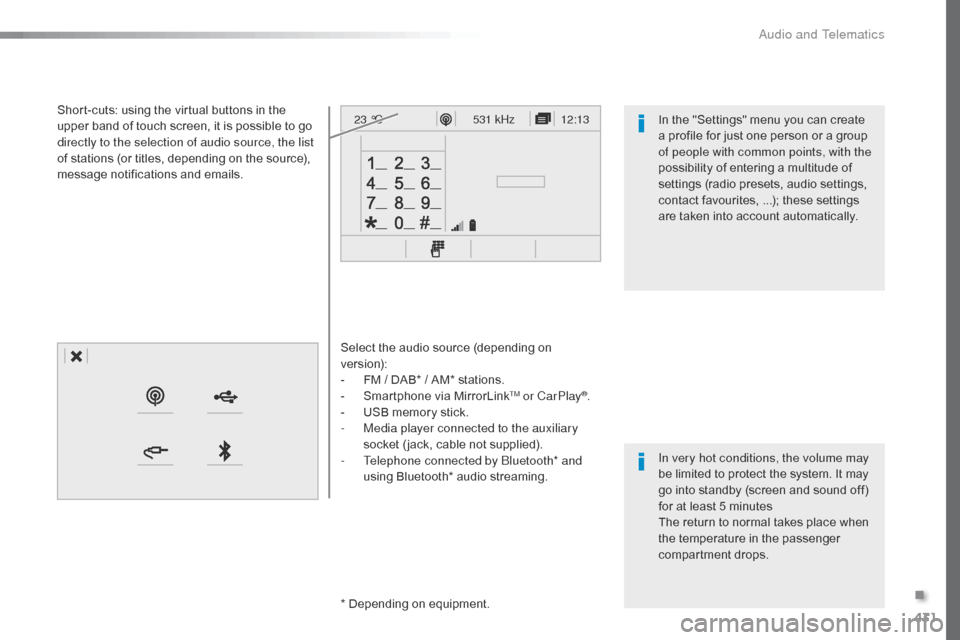
Select the audio source (depending on
version):
-
F
M / DAB* / AM* stations.
-
S
martphone via MirrorLink
TM or CarPlay®.
-
U
SB memory stick.
-
M
edia player connected to the auxiliary
socket ( jack, cable not supplied).
-
T
elephone connected by Bluetooth* and
using Bluetooth* audio streaming.
*
Depending on equipment.
Short-cuts: using the virtual buttons in the
upper band of touch screen, it is possible to go
directly to the selection of audio source, the list
of stations (or titles, depending on the source),
message notifications and emails.
In very hot conditions, the volume may
be limited to protect the system. It may
go into standby (screen and sound off)
for at least 5 minutes
The return to normal takes place when
the temperature in the passenger
compartment drops. In the "Settings" menu you can create
a profile for just one person or a group
of people with common points, with the
possibility of entering a multitude of
settings (radio presets, audio settings,
contact favourites, ...); these settings
are taken into account automatically.
.
Audio and Telematics
Page 434 of 595

432
Jumpy_en_Chap10c_RCC-1_ed01-2016
Steering mounted controls
Media (short press): change the
multimedia source.
Telephone (short press): call.
Call in progress (short press):
access to telephone menu.
Telephone (long press): reject an
incoming call, end call, access to
telephone menu. Decrease volume.
Voice commands
:
Long press, smartphone voice
commands via the system.
Mute/ Restore the sound.Radio
(rotate): automatic search for
the previous / next station.
Media (rotate): previous / next track,
move in a list.
Short press : Confirm a selection.
Other than selection, access to
presets.
Radio : display the list of stations.
Media : display the list of tracks.
Radio, press and hold : update the
list of stations received.
Increase volume.
Audio and Telematics