instrument cluster DODGE CHALLENGER 2015 3.G User Guide
[x] Cancel search | Manufacturer: DODGE, Model Year: 2015, Model line: CHALLENGER, Model: DODGE CHALLENGER 2015 3.GPages: 603, PDF Size: 14.97 MB
Page 224 of 603
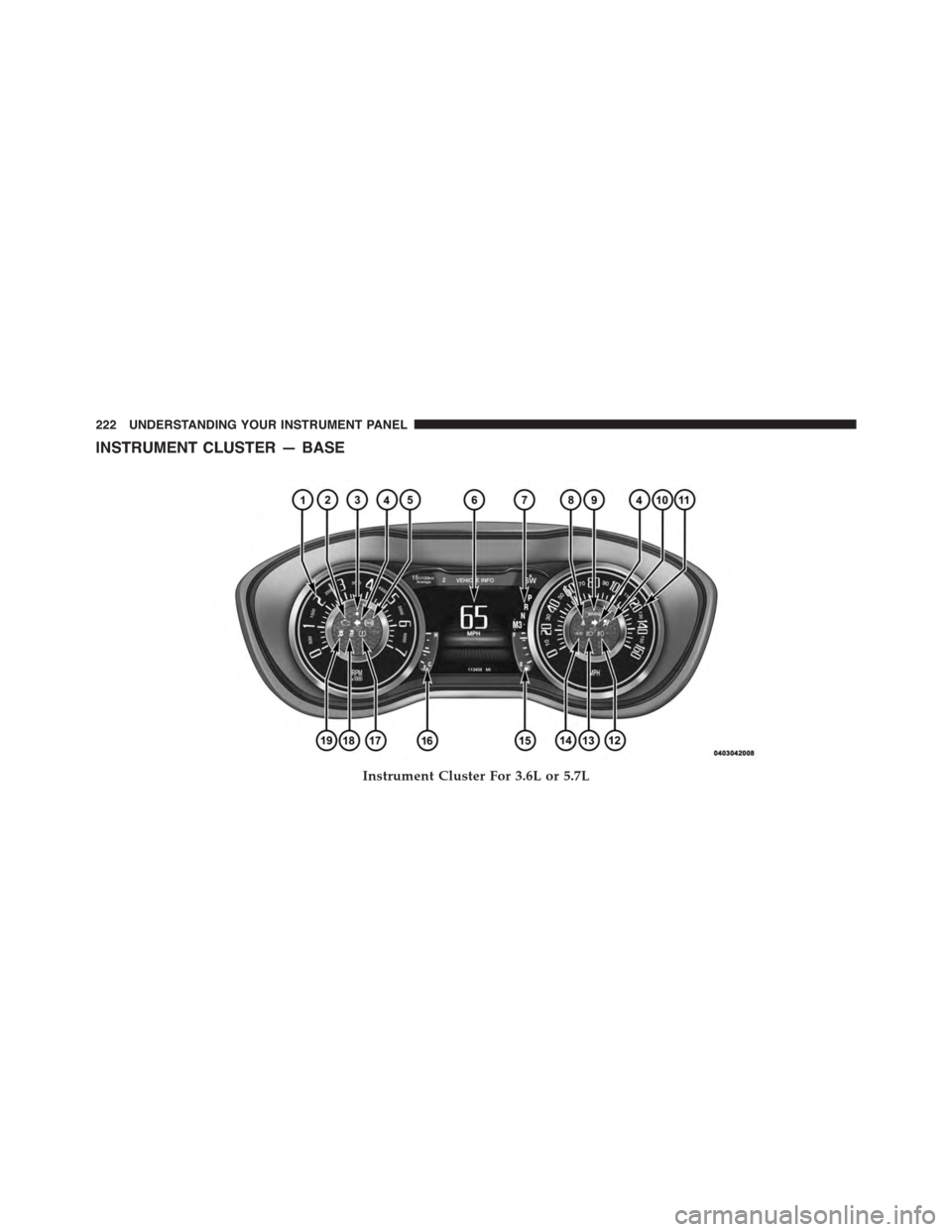
INSTRUMENT CLUSTER — BASE
Instrument Cluster For 3.6L or 5.7L
222 UNDERSTANDING YOUR INSTRUMENT PANEL
Page 225 of 603
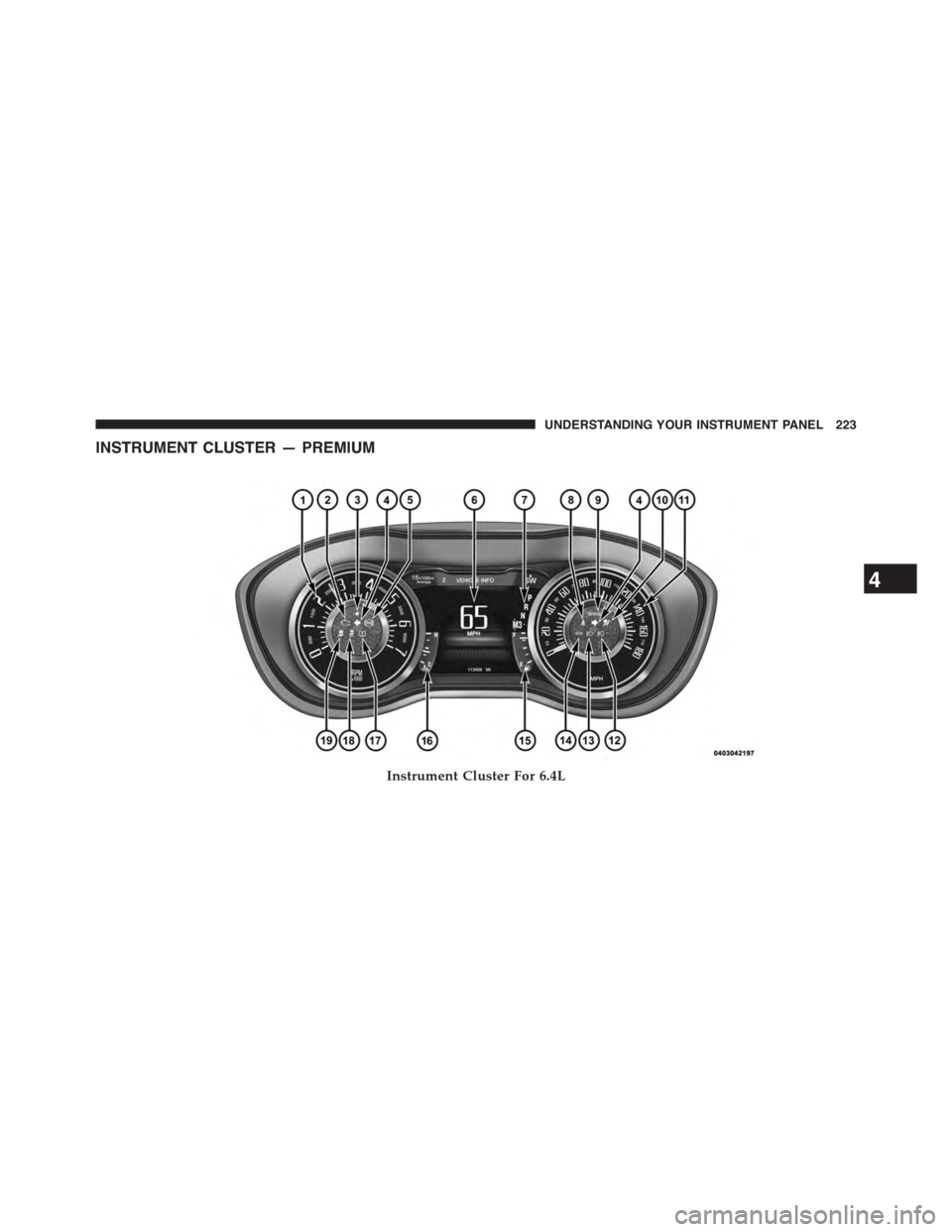
INSTRUMENT CLUSTER — PREMIUM
Instrument Cluster For 6.4L
4
UNDERSTANDING YOUR INSTRUMENT PANEL 223
Page 226 of 603
INSTRUMENT CLUSTER DESCRIPTIONS
1. Tachometer
The red segments indicate the maximum permissible
engine revolutions per minute (RPM x 1000) for each gear
range. Ease up on the accelerator before reaching the red
area.
2. Malfunction Indicator Light (MIL)
The Malfunction Indicator Light (MIL) is part of
an onboard diagnostic system called OBD. The
OBD system monitors engine and automatic
transmission control systems. The MIL will turn on when
the ignition is in the ON/RUN position before engine
start. If the MIL does not come on when turning the key
from OFF to ON/RUN, have the condition checked
promptly.
Certain conditions, such as a loose or missing gas cap,
poor fuel quality, etc., may illuminate the MIL after
engine start. The vehicle should be serviced if the MIL
stays on through several of your typical driving cycles. In
most situations, the vehicle will drive normally and will
not require towing.
CAUTION!
Prolonged driving with the Malfunction Indicator
Light (MIL) on could cause damage to the engine
control system. It also could affect fuel economy and
driveability. If the MIL is flashing, severe catalytic
converter damage and power loss will soon occur.
Immediate service is required.
WARNING!
A malfunctioning catalytic converter, as referenced
above, can reach higher temperatures than in normal
(Continued)
224 UNDERSTANDING YOUR INSTRUMENT PANEL
Page 229 of 603
7. Gear Status Indicator — Automatic Transmission
Only
The Gear Status Indicator is self-contained within the
instrument cluster. It displays the gear position of the
automatic transmission.
8. Seat Belt Reminder Light
This light will turn on for four to eight seconds as
a bulb check when the ignition switch is first
placed in ON/RUN. A chime will sound if the
driver’s seat belt is unbuckled during the bulb check. The
Seat Belt Warning Light will flash or remain on continu-
ously if the driver’s seat belt remains unbuckled after the
bulb check or when driving. Refer to “Occupant Re-
straints” in “Things To Know Before Starting Your Ve-
hicle” for further information.
9. Brake Warning Light
This light monitors various brake functions,
including brake fluid level and parking brake
application. If the brake light turns on it may
indicate that the parking brake is applied, that
the brake fluid level is low, or that there is a problem with
the anti-lock brake system reservoir.
If the light remains on when the parking brake has been
disengaged, and the fluid level is at the full mark on the
master cylinder reservoir, it indicates a possible brake
hydraulic system malfunction. In this case, the light will
remain on until the condition has been corrected.
The dual brake system provides a reserve braking capac-
ity in the event of a failure to a portion of the hydraulic
system. A leak in either half of the dual brake system is
indicated by the Brake Warning Light which will turn on
when the brake fluid level in the master cylinder has
dropped below a specified level.
4
UNDERSTANDING YOUR INSTRUMENT PANEL 227
Page 235 of 603
19. Electronic Stability Control (ESC) Activation/
Malfunction Indicator Light — If Equipped
The “ESC Activation/Malfunction Indicator
Light” in the instrument cluster will come on
when the ignition switch is turned to the
ON/RUN position. It should go out with the
engine running. If the “ESC Activation/Malfunction In-
dicator Light” comes on continuously with the engine
running, a malfunction has been detected in the ESC
system. If this light remains on after several ignition
cycles, and the vehicle has been driven several miles
(kilometers) at speeds greater than 30 mph (48 km/h), see
your authorized dealer as soon as possible to have the
problem diagnosed and corrected.
NOTE:
•The “ESC Off Indicator Light” and the “ESC
Activation/Malfunction Indicator Light” will come
on momentarily each time the ignition switch is
turned to ON/RUN.
•Each time the ignition is turned to ON/RUN, the
ESC system will be ON, even if it was turned off
previously.
•The ESC system will make buzzing or clicking
sounds when it is active. This is normal; the sounds
will stop when ESC becomes inactive following the
maneuver that caused the ESC activation.
4
UNDERSTANDING YOUR INSTRUMENT PANEL 233
Page 236 of 603
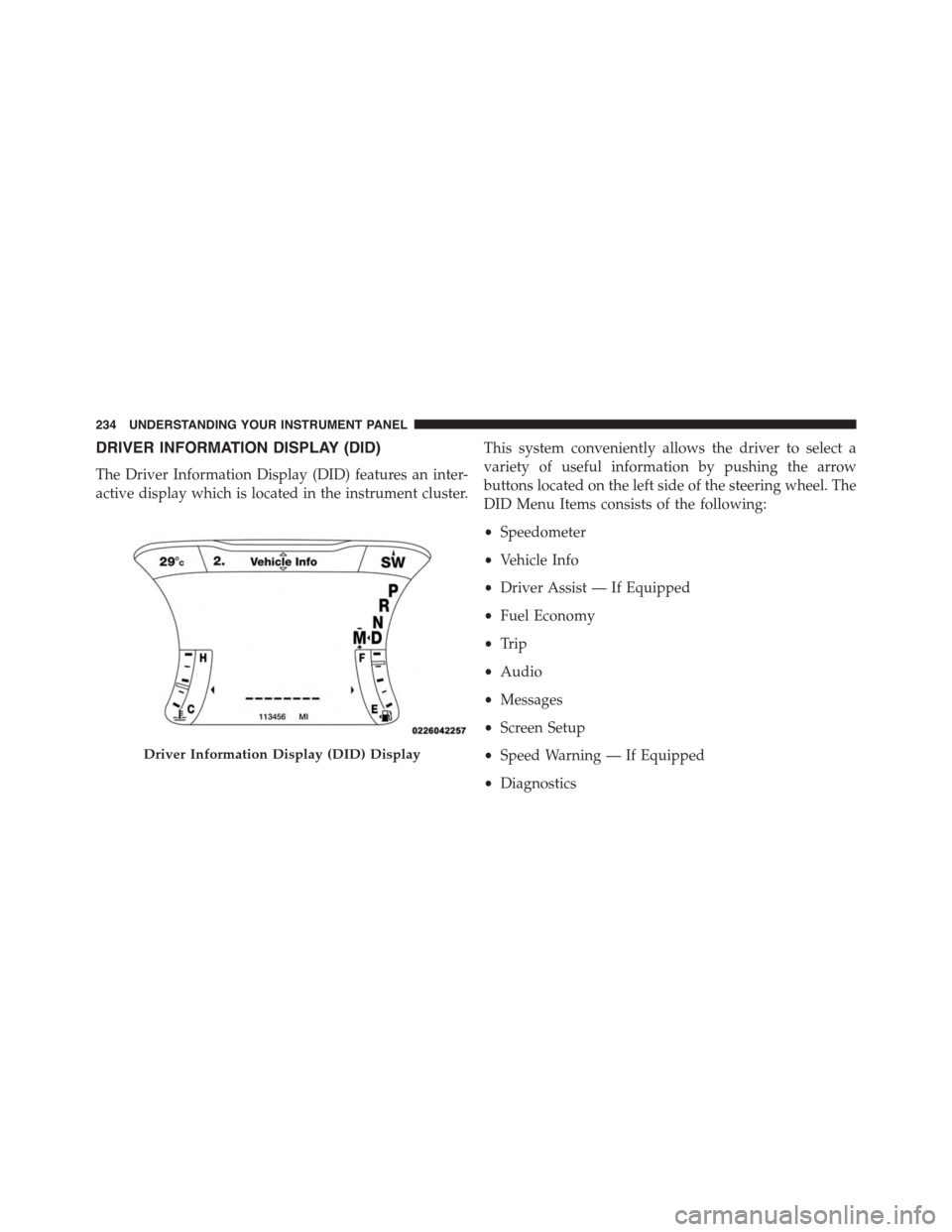
DRIVER INFORMATION DISPLAY (DID)
The Driver Information Display (DID) features an inter-
active display which is located in the instrument cluster.
This system conveniently allows the driver to select a
variety of useful information by pushing the arrow
buttons located on the left side of the steering wheel. The
DID Menu Items consists of the following:
•Speedometer
•Vehicle Info
•Driver Assist — If Equipped
•Fuel Economy
•Trip
•Audio
•Messages
•Screen Setup
•Speed Warning — If Equipped
•Diagnostics
Driver Information Display (DID) Display
234 UNDERSTANDING YOUR INSTRUMENT PANEL
Page 246 of 603
Braking Distance
When selected, this screen displays the vehicle’s braking
distance and the speed at which the brake pedal was
depressed.
•This feature will only function when applying the
brakes at speeds above 30 mph (48 km/h).
•Engaging the parking brake will disable this feature.
•The word “READY” will display when conditions are
met for the event to begin.
•The distance and speed measurements display while
the event is taking place.
•The distance measurement will be aborted if the brake
pedal is released before the vehicle comes to a com-
plete stop.
•The distance and speed measurements will continue to
display until theOKbutton is pushed.
•Pushing theOKbutton will clear the current run and
prepare the cluster to record a new run.
Current G-Force
When selected, this screen displays the current G-Force
(lateral and longitudinal) that displays the directions of
the forces.
Peak G-Force
When selected, this screen displays all four G-Force
values (two lateral and two longitudinal).
•When a force greater than zero is measured, the
display will update the value as it climbs. As the
G-Force falls, the peak forces will continue to display.
•Pushing theOKbutton will clear the peak force
values.
244 UNDERSTANDING YOUR INSTRUMENT PANEL
Page 248 of 603
Top Speed
When selected, this screen displays the To Speed during
a drive cycle:
•Populates a top speed from first drive cycle and every
time that speed is exceeded that number is stored here
unless/until the driver resets the screen.
•Latching over ignition cycles.
•Units will change with the global change in units.
Driver Assist
Adaptive Cruise Control (ACC) Menu
The DID displays the current ACC system settings. The
information displayed depends on ACC system status.
Push the ADAPTIVE CRUISE CONTROL (ACC) ON/
OFF button (located on the steering wheel) until one of
the following displays in the DID:
Adaptive Cruise Control Off
When ACC is deactivated, the display will read “Adap-
tive Cruise Control Off.”
Adaptive Cruise Control Ready
When ACC is activated but the vehicle speed setting has
not been selected, the display will read “Adaptive Cruise
Control Ready.”
Push the SET + or the SET- button (located on the steering
wheel) and the following will display in the DID:
ACC SET
When ACC is set, the set speed will display in the
instrument cluster.
The ACC screen may display once again if any ACC
activity occurs, which may include any of the following:
•Distance Setting Change
246 UNDERSTANDING YOUR INSTRUMENT PANEL
Page 250 of 603
Trip Info
Push and release the UP or DOWN arrow button until
the Trip Menu item is highlighted in the DID (Toggle left
or right to select Trip A or Trip B). The Trip information
will display the following:
•Distance
•Average Fuel Economy
•Elapsed Time
Hold the OK button to reset feature information.
Audio
Push and release the UP or DOWN arrow button until
the Audio Menu displays in the DID.
Stored Messages
Push and release the UP or DOWN arrow button until
the Messages Menu item is highlighted in the DID. This
feature shows the number of stored warning messages.
Pushing the RIGHT arrow button will allow you to see
what the stored messages are.
Screen Setup
Push and release the UP or DOWN arrow button until
the Screen Setup Menu displays in the DID. Push and
release the OK button to enter the sub-menus. The Screen
Setup feature allows you to change what information is
displayed in the instrument cluster as well as the location
that information is displayed.
248 UNDERSTANDING YOUR INSTRUMENT PANEL
Page 273 of 603
•Navigation Turn-By-Turn In Cluster — If Equipped
When this feature is selected, the turn-by-turn directions
will appear in the display as the vehicle approaches a
designated turn within a programmed route. To make
your selection, press the “Navigation Turn-By-Turn In
Cluster” button on the touchscreen, until a check-mark
appears next to the setting, showing that setting has been
selected. Press the back arrow button on the touchscreen
to return to the previous menu.
Units
After pressing the “Units” button on the touchscreen the
following settings will be available:
•Units
When in this display, you may select each unit of measure
independently displayed in the Driver Information Dis-
play (DID), and navigation system (if equipped). The
following selectable units of measure are listed below:
•Speed
Select from: “MPH” or “km/h.”
•Distance
Select from: “mi” or “km.”
•Fuel Consumption
Select from: “MPG” (US), “MPG” (UK), “L/100 km” or
“km/L.”
•Capacity
Select from: “gal” (US), “gal” (UK), or “L.”
•Pressure
Select from: “psi,” “kPa,” or “bar.”
•Temperature
Select from: “°C,” or “°F.”
4
UNDERSTANDING YOUR INSTRUMENT PANEL 271