instrument panel DODGE CHALLENGER 2015 3.G Workshop Manual
[x] Cancel search | Manufacturer: DODGE, Model Year: 2015, Model line: CHALLENGER, Model: DODGE CHALLENGER 2015 3.GPages: 603, PDF Size: 14.97 MB
Page 235 of 603
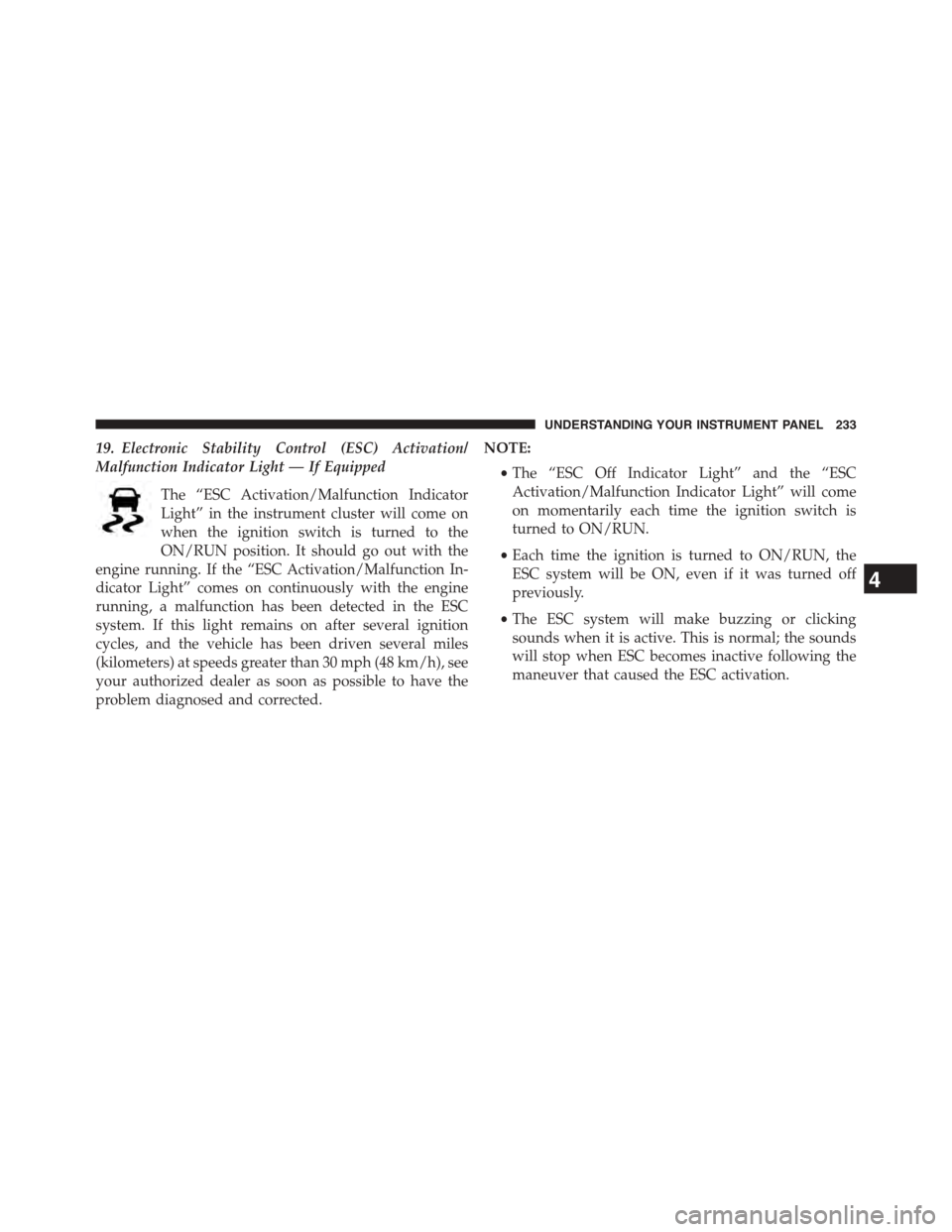
19. Electronic Stability Control (ESC) Activation/
Malfunction Indicator Light — If Equipped
The “ESC Activation/Malfunction Indicator
Light” in the instrument cluster will come on
when the ignition switch is turned to the
ON/RUN position. It should go out with the
engine running. If the “ESC Activation/Malfunction In-
dicator Light” comes on continuously with the engine
running, a malfunction has been detected in the ESC
system. If this light remains on after several ignition
cycles, and the vehicle has been driven several miles
(kilometers) at speeds greater than 30 mph (48 km/h), see
your authorized dealer as soon as possible to have the
problem diagnosed and corrected.
NOTE:
•The “ESC Off Indicator Light” and the “ESC
Activation/Malfunction Indicator Light” will come
on momentarily each time the ignition switch is
turned to ON/RUN.
•Each time the ignition is turned to ON/RUN, the
ESC system will be ON, even if it was turned off
previously.
•The ESC system will make buzzing or clicking
sounds when it is active. This is normal; the sounds
will stop when ESC becomes inactive following the
maneuver that caused the ESC activation.
4
UNDERSTANDING YOUR INSTRUMENT PANEL 233
Page 236 of 603
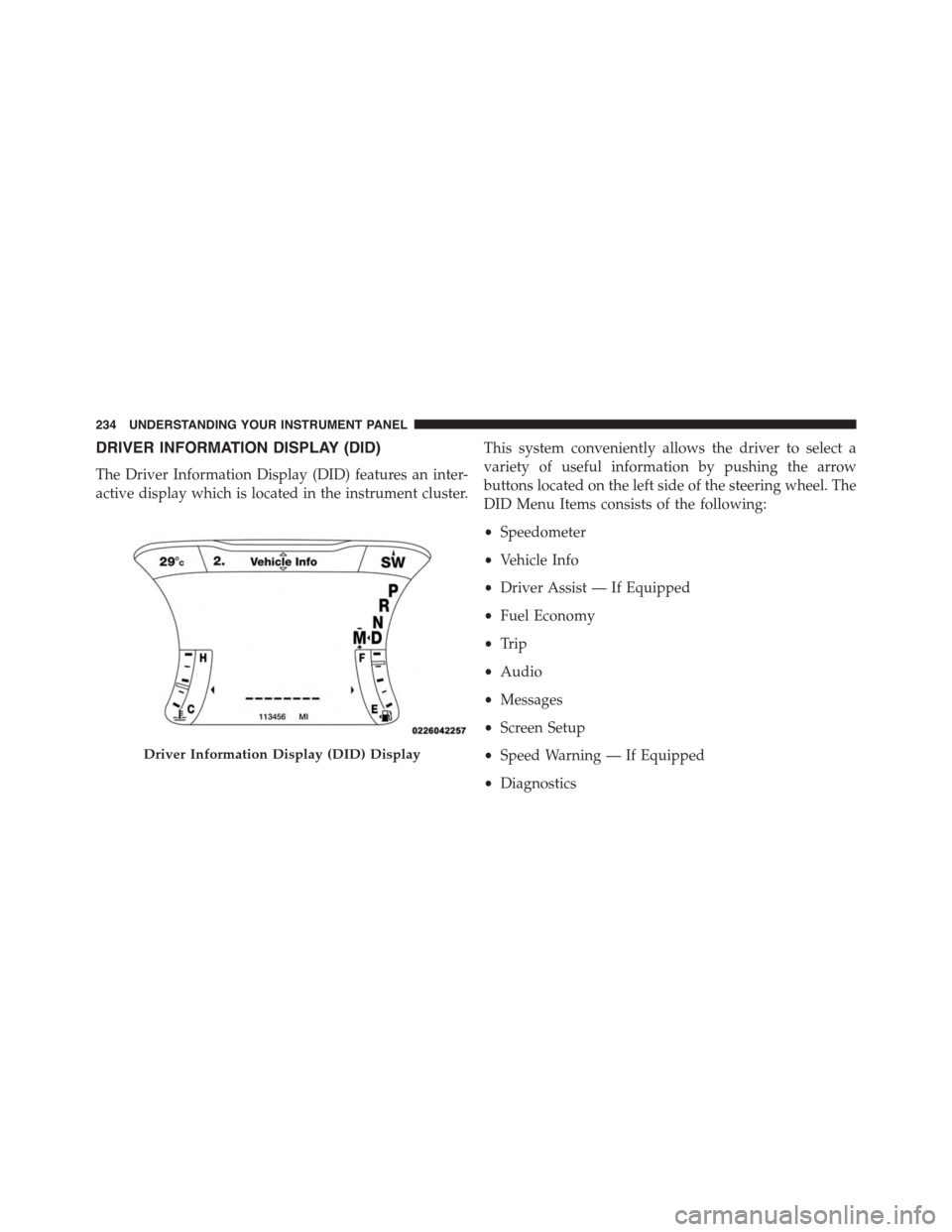
DRIVER INFORMATION DISPLAY (DID)
The Driver Information Display (DID) features an inter-
active display which is located in the instrument cluster.
This system conveniently allows the driver to select a
variety of useful information by pushing the arrow
buttons located on the left side of the steering wheel. The
DID Menu Items consists of the following:
•Speedometer
•Vehicle Info
•Driver Assist — If Equipped
•Fuel Economy
•Trip
•Audio
•Messages
•Screen Setup
•Speed Warning — If Equipped
•Diagnostics
Driver Information Display (DID) Display
234 UNDERSTANDING YOUR INSTRUMENT PANEL
Page 237 of 603
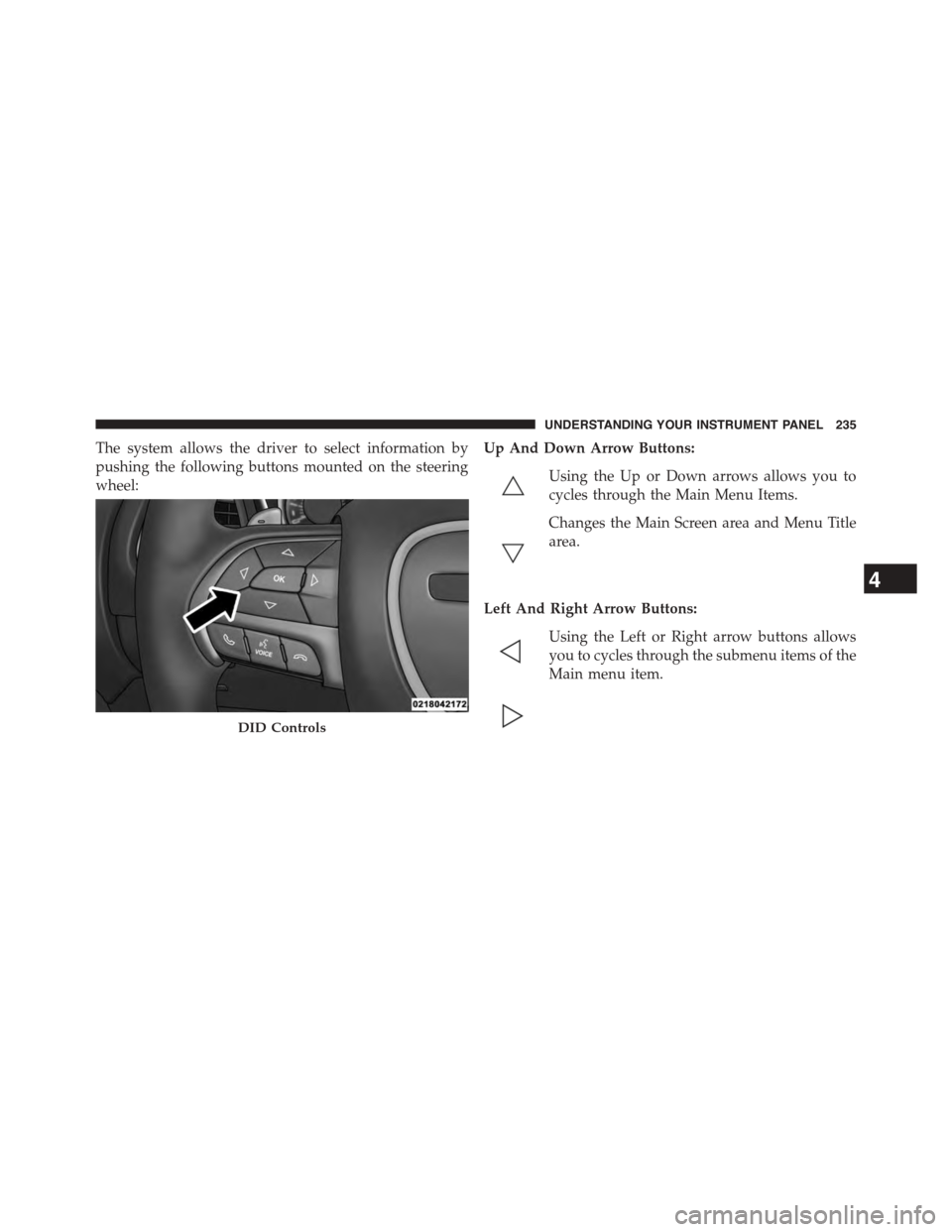
The system allows the driver to select information by
pushing the following buttons mounted on the steering
wheel:
Up And Down Arrow Buttons:
Using the Up or Down arrows allows you to
cycles through the Main Menu Items.
Changes the Main Screen area and Menu Title
area.
Left And Right Arrow Buttons:
Using the Left or Right arrow buttons allows
you to cycles through the submenu items of the
Main menu item.
DID Controls
4
UNDERSTANDING YOUR INSTRUMENT PANEL 235
Page 238 of 603
NOTE:
•Holding the Up/Down or Left/Right arrow buttons
will loop the user through the currently selected menu
or options presented on the screen.
•Main menu and submenu’s wrap for continuous
scrolling.
•Upon returning to a main menu, the last submenu
screen viewed within that main menu will be dis-
played.
OK Button:
For Digital Speedometer
•Pushing the OK button changes units (MPH or km/h).
For Screen Setup and Vehicle Settings:
•OK button allows user to enter menu and submenus.
•Within each submenu layer, the up/down arrows will
allow the user to select the item of interest.
•Pushing the OK button makes the selection and a
confirmation screen will appear (returning the user to
the 1st page of the submenu).
•Pushing the left arrow button will exit each submenu
layer and return to the main menu.
For the Trip and Fuel Economy menus (and new Perfor-
mance Timers):
•Information is reset by pushing and holding the OK
button.
Engine Oil Life Reset
Oil Change Required
Your vehicle is equipped with an engine oil change
indicator system. The “Oil Change Required” message
will display in the DID for five seconds after a single
236 UNDERSTANDING YOUR INSTRUMENT PANEL
Page 239 of 603
chime has sounded, to indicate the next scheduled oil
change interval. The engine oil change indicator system
is duty cycle based, which means the engine oil change
interval may fluctuate, dependent upon your personal
driving style.
Unless reset, this message will continue to display each
time you turn the ignition switch to the ON/RUN
position or cycle the ignition to the ON/RUN position if
equipped with Keyless Enter-N-Go™. To turn off the
message temporarily, push and release the OK button. To
reset the oil change indicator system (after performing
the scheduled maintenance) refer to the following proce-
dure.
Vehicles Equipped With Keyless Enter-N-Go™
1. Without pushing the brake pedal, push the ENGINE
START/STOP button and place the ignition to the
ON/RUN position (do not start the engine.)
2. Fully push the accelerator pedal, slowly, three times
within 10 seconds.
3. Without pushing the brake pedal, push the ENGINE
START/STOP button once to return the ignition to the
OFF/LOCK position.
NOTE:If the indicator message illuminates when you
start the vehicle, the oil change indicator system did not
reset. If necessary, repeat this procedure.
Secondary Method Of Navigating To The Oil Life
Screen In The DID And Holding Ok
Your vehicle is equipped with an engine oil change
indicator system. The “Oil Change Required” message
will flash in the DID display for approximately 10
seconds after a single chime has sounded, to indicate the
next scheduled oil change interval. The engine oil change
indicator system is duty cycle based, which means the
engine oil change interval may fluctuate, dependent
upon your personal driving style.
4
UNDERSTANDING YOUR INSTRUMENT PANEL 237
Page 240 of 603
Use the steering wheel DID controls for the following
procedure(s):
1. Without pushing the brake pedal, cycle the ignition to
the ON/RUN position (do not start the engine.)
2. Push and release theDOWNarrow button to scroll
downward through the main menu to “Vehicle Info”.
3. Push and release theRIGHTarrow button to access
the ”Oil Life” screen.
4. Push and hold theOKbutton until the ”Oil Life”
screen displays.
5. Push and release theDOWNarrow button to select “
Ye s”, then push and release theOKbutton to select
reset of the Oil Life.
6. Push and release theUparrow button to exit the sub
menu screen.
NOTE:If the indicator message illuminates when you
start the vehicle, the oil change indicator system did not
reset. If necessary, repeat this procedure.
DID Selectable Menu Items
Push and release the UP or DOWN arrow buttons until
the desired Selectable Menu item is highlighted in the
DID.
Follow the Menu or submenu prompts as desired.
238 UNDERSTANDING YOUR INSTRUMENT PANEL
Page 241 of 603
Speedometer
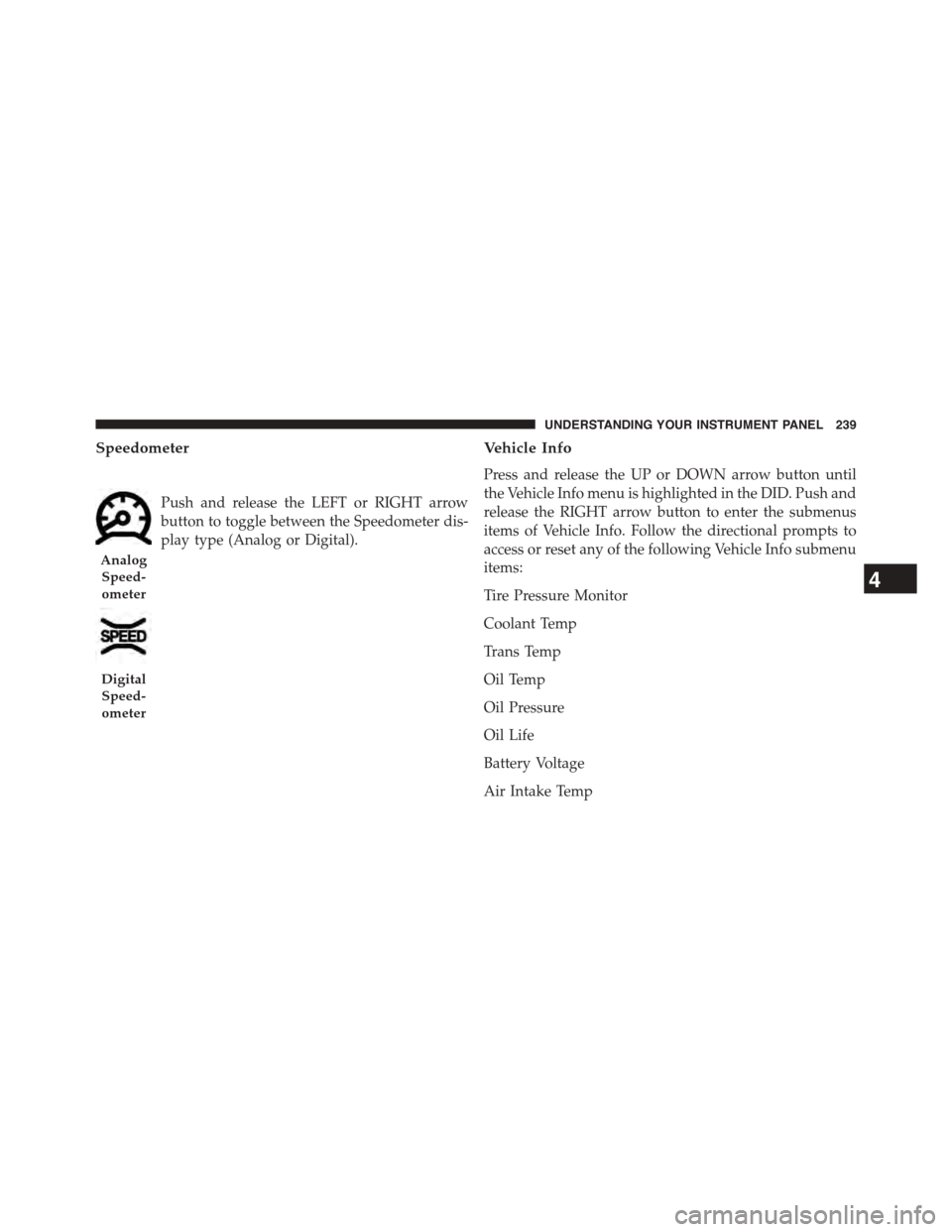
Push and release the LEFT or RIGHT arrow
button to toggle between the Speedometer dis-
play type (Analog or Digital).
Vehicle Info
Press and release the UP or DOWN arrow button until
the Vehicle Info menu is highlighted in the DID. Push and
release the RIGHT arrow button to enter the submenus
items of Vehicle Info. Follow the directional prompts to
access or reset any of the following Vehicle Info submenu
items:
Tire Pressure Monitor
Coolant Temp
Trans Temp
Oil Temp
Oil Pressure
Oil Life
Battery Voltage
Air Intake Temp
Analog
Speed-
ometer
Digital
Speed-
ometer
4
UNDERSTANDING YOUR INSTRUMENT PANEL 239
Page 242 of 603
Engine Torque
Engine Power
NOTE:Depending on what your vehicles configuration,
the Performance Pages feature must be initially launched
in order to view certain gauges through the DID display.
Refer to “Uconnect Settings®” in this section for further
information.
Performance Features
WARNING!
Measurement of vehicle statistics with the Perfor-
mance Features is intended for off-highway or off-
road use only and should not be done on any public
roadways. It is recommended that these features be
used in a controlled environment and within the
limits of the law. The capabilities of the vehicle as
(Continued)
WARNING!(Continued)
measured by the performance pages must never be
exploited in a reckless or dangerous manner, which
can jeopardize the user ’s safety or the safety of
others. Only a safe, attentive, and skillful driver can
prevent accidents.
Refer to “Driver Information Display (DID)” in “ Under-
standing Your Instrument Panel” for Main Menu/Sub-
Menu selectable items and navigation.
This mode provides performance based suspension tun-
ing with improved handling and acceleration through an
electronic controlled dampening system. This system
reduces body roll and pitch in many driving situations
including cornering, acceleration and braking.
240 UNDERSTANDING YOUR INSTRUMENT PANEL
Page 243 of 603
The Performance Features include the following:
•0-60 mph (0-100 km/h) Timer
– Best
– Last
– Current
– Reaction Timer
•0-100 mph (0-160 km/h) Timer
– Best
– Last
– Current
– Reaction Timer
•1/8 Mile Timer
– Best
– Last
– Current
– Reaction Timer
•1/4 Mile Timer
– Best
– Last
– Current
– Reaction Timer
•Braking Distance
– Distance
– From Speed
•Current G-Forces
•Peak G-Forces
•Lap Timer
•Lap History
– Will list the last 5 lap with the best lap highlighted
in green.
4
UNDERSTANDING YOUR INSTRUMENT PANEL 241
Page 244 of 603
•Top Speed
The following describes each feature and its operation:
0-60 mph (0-100 km/h)
When selected, this screen displays the time it takes for
the vehicle to go from 0 to 60 mph (0 to 100 km/h) within
10 seconds.
•The feature will “ready” when the vehicle speed is at
0 mph (0 km/h). The word “READY” will flash when
conditions are met for the event to begin.
•Dashes will display if the vehicle fails to reach 60 mph
(100 km/h) in less then 10 seconds.
•The time will continue to display until theOKbutton
is pushed.
•Pushing theOKbutton will clear the current run time
and display the vehicle’s best 0-60 mph (0-100 km/h)
time.
•To clear the vehicle’s best 0-60 mph (0-100 km/h) time,
push and hold theOKbutton for five seconds.
0 to 100 mph (0 to 161 km/h)
When selected, this screen displays the time it takes for
the vehicle to go from 0 to 100 mph (0 to 161 km/h)
within 10 seconds.
•The feature will “ready” when the vehicle speed is at
0 mph (0 km/h). The word “READY” will flash when
conditions are met for the event to begin.
•Dashes will display if the vehicle fails to reach 0 to 100
mph (0 to 161 km/h) in less then 10 seconds.
•The time will continue to display until theOKbutton
is pushed.
•Pushing theOKbutton will clear the current run time
and display the vehicle’s best 0 to 100 mph (0 to
161 km/h) time.
242 UNDERSTANDING YOUR INSTRUMENT PANEL