ignition DODGE CHALLENGER 2015 3.G Repair Manual
[x] Cancel search | Manufacturer: DODGE, Model Year: 2015, Model line: CHALLENGER, Model: DODGE CHALLENGER 2015 3.GPages: 603, PDF Size: 14.97 MB
Page 240 of 603
Use the steering wheel DID controls for the following
procedure(s):
1. Without pushing the brake pedal, cycle the ignition to
the ON/RUN position (do not start the engine.)
2. Push and release theDOWNarrow button to scroll
downward through the main menu to “Vehicle Info”.
3. Push and release theRIGHTarrow button to access
the ”Oil Life” screen.
4. Push and hold theOKbutton until the ”Oil Life”
screen displays.
5. Push and release theDOWNarrow button to select “
Ye s”, then push and release theOKbutton to select
reset of the Oil Life.
6. Push and release theUparrow button to exit the sub
menu screen.
NOTE:If the indicator message illuminates when you
start the vehicle, the oil change indicator system did not
reset. If necessary, repeat this procedure.
DID Selectable Menu Items
Push and release the UP or DOWN arrow buttons until
the desired Selectable Menu item is highlighted in the
DID.
Follow the Menu or submenu prompts as desired.
238 UNDERSTANDING YOUR INSTRUMENT PANEL
Page 247 of 603
Lap Timer
When selected the Lap Timer page will show the timer
always at 0:00.00 with the previous Best and Last time
data (unless the driver has cleared it via hold to Reset).
•PushingOKwill start “current” timer from 0:00.0
•WhenOKis pushed the times are updated accord-
ingly.
•As soon as the driver exits the Lap Timer pages the
“current” timer will stop and the time will be reset to
0:00.00
•If the driver stays on the Lap Timer pages the “cur-
rent” timer will reset to 0:00.0 when ignition is placed
in the off position, or ignition placed in the ON
position (or will roll over at 59:59.99 if ever possible).
•Each time the driver pushesOKfor a Lap that current
time populates the Last time and also populates the 1st
(top) space on the Timer History page the current time
resets to 0:00.0 at every push of theOKbutton.
•The timer will stop when the driver navigates away
from this page.
Lap History
When selected, this screen displays the Lap History, and
will color highlight the time that is the best time from the
Timer Page.
•Each time the driver presses the OK button (while on
the Lap Timer page) the current Lap Time populates
the 1st spot and the rest of the data shifts down.
•Color will indicate the time that is the best time from
the Timer Page.
•Holding theOKbutton only resets the page you are
on.
•Lap History page is a static display of lap times only.
4
UNDERSTANDING YOUR INSTRUMENT PANEL 245
Page 248 of 603
Top Speed
When selected, this screen displays the To Speed during
a drive cycle:
•Populates a top speed from first drive cycle and every
time that speed is exceeded that number is stored here
unless/until the driver resets the screen.
•Latching over ignition cycles.
•Units will change with the global change in units.
Driver Assist
Adaptive Cruise Control (ACC) Menu
The DID displays the current ACC system settings. The
information displayed depends on ACC system status.
Push the ADAPTIVE CRUISE CONTROL (ACC) ON/
OFF button (located on the steering wheel) until one of
the following displays in the DID:
Adaptive Cruise Control Off
When ACC is deactivated, the display will read “Adap-
tive Cruise Control Off.”
Adaptive Cruise Control Ready
When ACC is activated but the vehicle speed setting has
not been selected, the display will read “Adaptive Cruise
Control Ready.”
Push the SET + or the SET- button (located on the steering
wheel) and the following will display in the DID:
ACC SET
When ACC is set, the set speed will display in the
instrument cluster.
The ACC screen may display once again if any ACC
activity occurs, which may include any of the following:
•Distance Setting Change
246 UNDERSTANDING YOUR INSTRUMENT PANEL
Page 259 of 603
•ParkSense®
The ParkSense® system will scan for objects behind the
vehicle when the transmission shift lever/gear selector is
in REVERSE and the vehicle speed is less than 11 mph (18
km/h). It will provide an alert (audible and/or visual) to
indicate the proximity to other objects. The system can be
enabled with Sound Only, or Sound and Display. To
change the ParkSense® status, press and release the
“Sound Only” or “Sound and Display” button. Then
press the back arrow/Done button on the touchscreen.
Refer to “ParkSense®” in “Understanding The Features
Of Your Vehicle” for system function and operating
information.
•Rear ParkSense® Chime Volume
The Rear ParkSense® Chime Volume settings can be
selected from the DID or Uconnect® System — if
equipped. The chime volume settings include LOW,
MEDIUM, and HIGH. The factory default volume setting
is MEDIUM. To make your selection, press the “Rear
ParkSense® Volume” button on the touchscreen, then
select from “Low,” “Med,” or “High.” Press the back
arrow/Done button on the touchscreen to return to the
previous menu. ParkSense® will retain its last known
configuration state through ignition cycles.
•Blind Spot Alert
When this feature is selected, the Blind Spot Alert feature
Provides alerts, visual and/or audible, to indicate objects
in your blind spot. The Blind Spot Alert feature can be
activated in Lights mode. When this mode is selected, the
Blind Spot Monitor (BSM) system is activated and will
only show a visual alert in the exterior mirrors. When
Lights & Chime mode is activated, the Blind Spot Moni-
tor (BSM) will show a visual alert in the exterior mirrors
as well as an audible alert when the turn signal is on.
When Off is selected, the Blind Spot Monitor (BSM)
system is deactivated. To change the Blind Spot Alert
4
UNDERSTANDING YOUR INSTRUMENT PANEL 257
Page 260 of 603
status, press the “Off,” “Lights,” or “Lights & Chime”
button on the touchscreen. Then press the back arrow/
Done button on the touchscreen.
NOTE:If your vehicle has experienced any damage in
the area where the sensor is located, even if the fascia is
not damaged, the sensor may have become misaligned.
Take your vehicle to an authorized dealer to verify sensor
alignment. Having a sensor that is misaligned will result
in the BSM not operating to specification.
•ParkView® Backup Camera Active Guidelines
Your vehicle may be equipped with the ParkView® Rear
Back Up Camera Active Guidelines that allows you to see
active guidelines over the ParkView Back up camera
display whenever the shift lever/gear selector is put into
REVERSE. The image will be displayed on the radio
touchscreen display along with a caution note to “check
entire surroundings” across the top of the screen. After
five seconds, this note will disappear. To enable or
disable, press the “ParkView® Backup Camera Active
Guidelines” button on the touchscreen, and select “On”
or “Off.” Press the back arrow/Done button on the
touchscreen to return to the previous menu.
•ParkView® Backup Camera Delay
When the vehicle is shifted out of REVERSE (with camera
delay turned OFF), the rear camera mode is exited and
the navigation or audio screen appears again. When the
vehicle is shifted out of REVERSE (with camera delay
turned ON), the rear view image with dynamic grid lines
will be displayed for up to 10 seconds after shifting out of
“REVERSE” unless the forward vehicle speed exceeds
8 mph (12 km/h), the transmission is shifted into PARK
or the ignition is switched to the OFF position. To set the
ParkView® Backup Camera Delay press the “Controls”
button on the touchscreen, the “settings” button on the
touchscreen, then the “Safety & Assistance” button on the
258 UNDERSTANDING YOUR INSTRUMENT PANEL
Page 266 of 603
10 minutes after the ignition is cycled to OFF. Opening
either front door will cancel this feature. To change the
Engine Off Power Delay status press the “Engine Off
Power Delay” button and select from “0 seconds,” “45
seconds,” “5 minutes” or “10 minutes” buttons on the
touchscreen. Press the back arrow/Done button on the
touchscreen to return to the previous menu.
Compass Settings — If Equipped
After pressing the “Compass Settings” button on the
touchscreen the following settings will be available:
•Variance
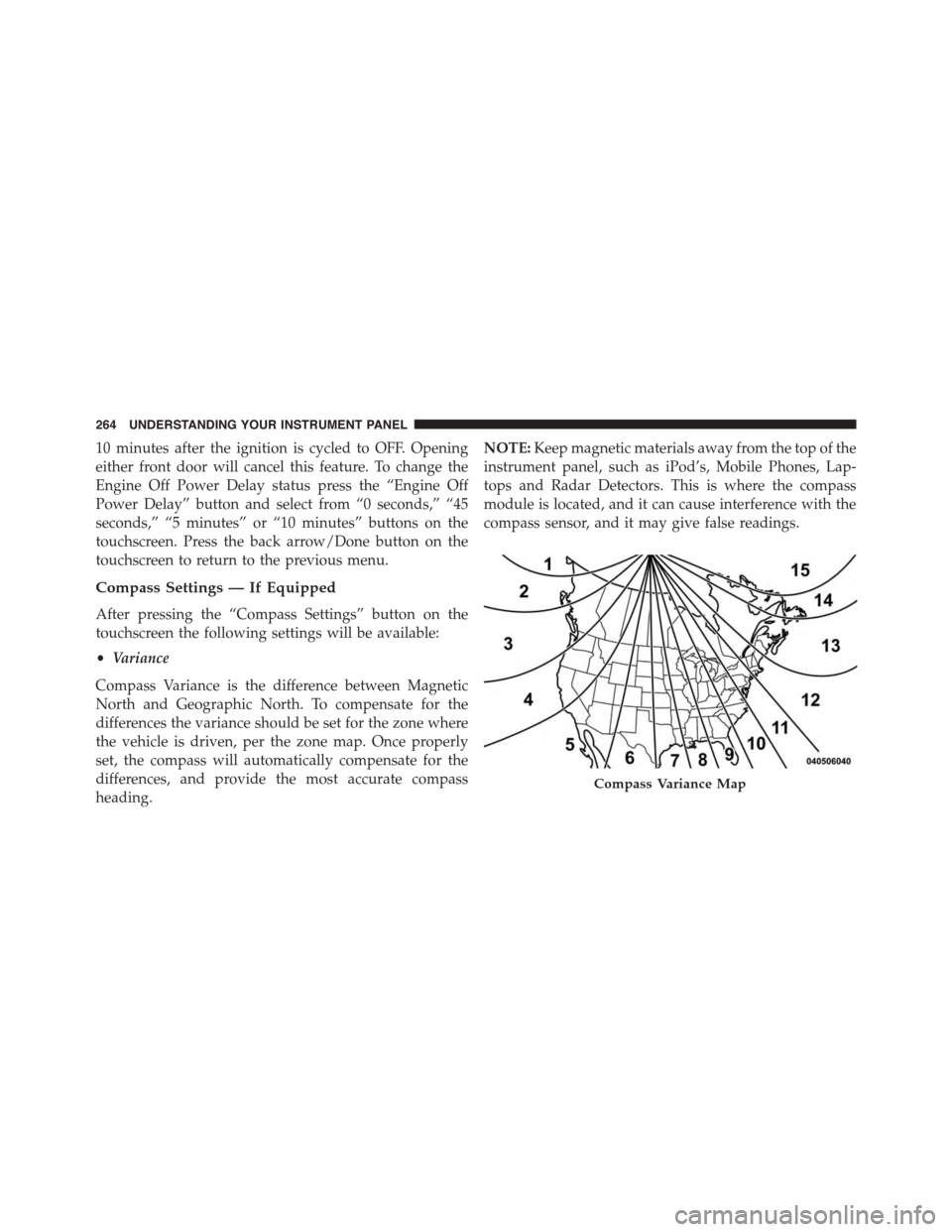
Compass Variance is the difference between Magnetic
North and Geographic North. To compensate for the
differences the variance should be set for the zone where
the vehicle is driven, per the zone map. Once properly
set, the compass will automatically compensate for the
differences, and provide the most accurate compass
heading.
NOTE:Keep magnetic materials away from the top of the
instrument panel, such as iPod’s, Mobile Phones, Lap-
tops and Radar Detectors. This is where the compass
module is located, and it can cause interference with the
compass sensor, and it may give false readings.
Compass Variance Map
264 UNDERSTANDING YOUR INSTRUMENT PANEL
Page 277 of 603
•ParkSense®
The ParkSense® system will scan for objects behind the
vehicle when the transmission shift lever is in REVERSE
and the vehicle speed is less than 11 mph (18 km/h). It
will provide an alert (audible and/or visual) to indicate
the proximity to other objects. The system can be enabled
with Sound Only, or Sound and Display. To change the
ParkSense® status, press and release the “Sound Only”
or “Sound and Display” button. Then press the back
arrow button on the touchscreen. Refer to “ParkSense®”
in “Understanding The Features Of Your Vehicle” for
system function and operating information.
•Rear ParkSense® Chime Volume
The Rear ParkSense® Chime Volume settings can be
selected from the DID or Uconnect® System — if
equipped. The chime volume settings include LOW,
MEDIUM, and HIGH. The factory default volume setting
is MEDIUM. To make your selection, press the
“ParkSense® Rear Chime Volume” button on the touch-
screen, until a check-mark appears next to setting, indi-
cating that the setting had been selected. Press the back
arrow button on the touchscreen to return to the previous
menu. ParkSense® will retain its last known configura-
tion state through ignition cycles.
•Blind Spot Alert
When this feature is selected, the Blind Spot Alert feature
Provides alerts, visual and/or audible, to indicate objects
in your blind spot. The Blind Spot Alert feature can be
activated in “Lights” mode. When this mode is selected,
the Blind Spot Monitor (BSM) system is activated and
will only show a visual alert in the exterior mirrors.
When “Lights & Chime” mode is activated, the Blind
Spot Monitor (BSM) will show a visual alert in the
exterior mirrors as well as an audible alert when the turn
signal is on. When “Off” is selected, the Blind Spot
Monitor (BSM) system is deactivated. To change the
4
UNDERSTANDING YOUR INSTRUMENT PANEL 275
Page 278 of 603

Blind Spot Alert status, press the “Off,” “Lights” or
“Lights & Chime” button on the touchscreen. Then press
the back arrow button on the touchscreen.
NOTE:If your vehicle has experienced any damage in
the area where the sensor is located, even if the fascia is
not damaged, the sensor may have become misaligned.
Take your vehicle to an authorized dealer to verify sensor
alignment. Having a sensor that is misaligned will result
in the BSM not operating to specification.
•ParkView® Backup Camera Active Guidelines
Your vehicle may be equipped with the ParkView® Rear
Back Up Camera Active Guidelines that allows you to see
active guidelines over the ParkView Back up camera
display whenever the shift lever is put into REVERSE.
The image will be displayed on the radio touchscreen
display along with a caution note to “check entire sur-
roundings” across the top of the screen. After five sec-
onds, this note will disappear. To make your selection,
press the “ParkView Backup Camera Active Guidelines”
button on the touchscreen, until a check-mark appears
next to setting, indicating that the setting had been
selected. Press the back arrow button on the touchscreen
to return to the previous menu.
•ParkView® Backup Camera Delay
When the vehicle is shifted out of REVERSE (with camera
delay turned OFF), the rear camera mode is exited and
the navigation or audio screen appears again. When the
vehicle is shifted out of REVERSE (with camera delay
turned ON), the rear view image with dynamic grid lines
will be displayed for up to 10 seconds after shifting out of
“REVERSE” unless the forward vehicle speed exceeds
8 mph (12 km/h), the transmission is shifted into
“PARK” or the ignition is switched to the OFF position.
To set the ParkView® Backup Camera Delay press the
“Controls” button on the touchscreen, the “settings”
button on the touchscreen, then the “Safety & Driving
276 UNDERSTANDING YOUR INSTRUMENT PANEL
Page 284 of 603
“Remote Start” or “All Starts” until a check-mark ap-
pears next to setting, showing that setting has been
selected. Press the back arrow button on the touchscreen
to return to the previous menu.
Engine Off Options
After pressing the “Engine Off Options” button on the
touchscreen the following settings will be available:
•Easy Exit Seats — If Equipped
When this feature is selected, the Driver ’s seat will
automatically move rearward once the engine is shut off.
To make your selection, press the “Easy Exit Seats”
button on the touchscreen, until a check-mark appears
next to setting, showing that setting has been selected.
Press the back arrow button on the touchscreen to return
to the previous menu.
•Engine Off Power Delay
When this feature is selected, the power window
switches, radio, Uconnect® Phone system (if equipped),
DVD video system (if equipped), power sunroof (if
equipped), and power outlets will remain active for up to
10 minutes after the ignition is cycled to OFF. Opening
either front door will cancel this feature. To change the
Engine Off Power Delay setting, press the “+” or “-”
button on the touchscreen to select your desired time
interval, and choose from “0 seconds,” “45 seconds,” “5
minutes” or “10 minutes.” Press the back arrow button
on the touchscreen to return to the previous menu.
Audio
After pressing the “Audio” button on the touchscreen the
following settings will be available.
282 UNDERSTANDING YOUR INSTRUMENT PANEL
Page 297 of 603
When G-Force is selected, the following features will be
available:
•Lateral G-Force Left and Right
The lateral g-force measures the (sideways) left and right
force of the vehicle.
•Longitudinal G-Force Fore and Aft
The longitudinal g-force measures the acceleration and
braking force of the vehicle.
•Peak G-Forces Fore Aft, Left and Right
This shows the maximum g-forces that have been
achieved since the last reset from the DID. Peak values
are maintained through ignition cycles by the DID until
they are cleared by the driver.
•Vehicle Speed
Vehicle Speed measures the current speed of the vehicle
in either mph or km/h, starting at 0 with no maximum
value.
•Steering Wheel Angle
Steering Wheel Angle utilizes the steering angle sensor to
measure the degree of the steering wheel relative to zero.
The zero degree measurement indicates a steering wheel
straight ahead position. When the steering angle value is
negative, this indicates a turn to the left, and when the
steering angle value is positive, a turn to the right.
4
UNDERSTANDING YOUR INSTRUMENT PANEL 295