phone DODGE CHARGER 2014 7.G Owner's Manual
[x] Cancel search | Manufacturer: DODGE, Model Year: 2014, Model line: CHARGER, Model: DODGE CHARGER 2014 7.GPages: 148, PDF Size: 3.77 MB
Page 69 of 148
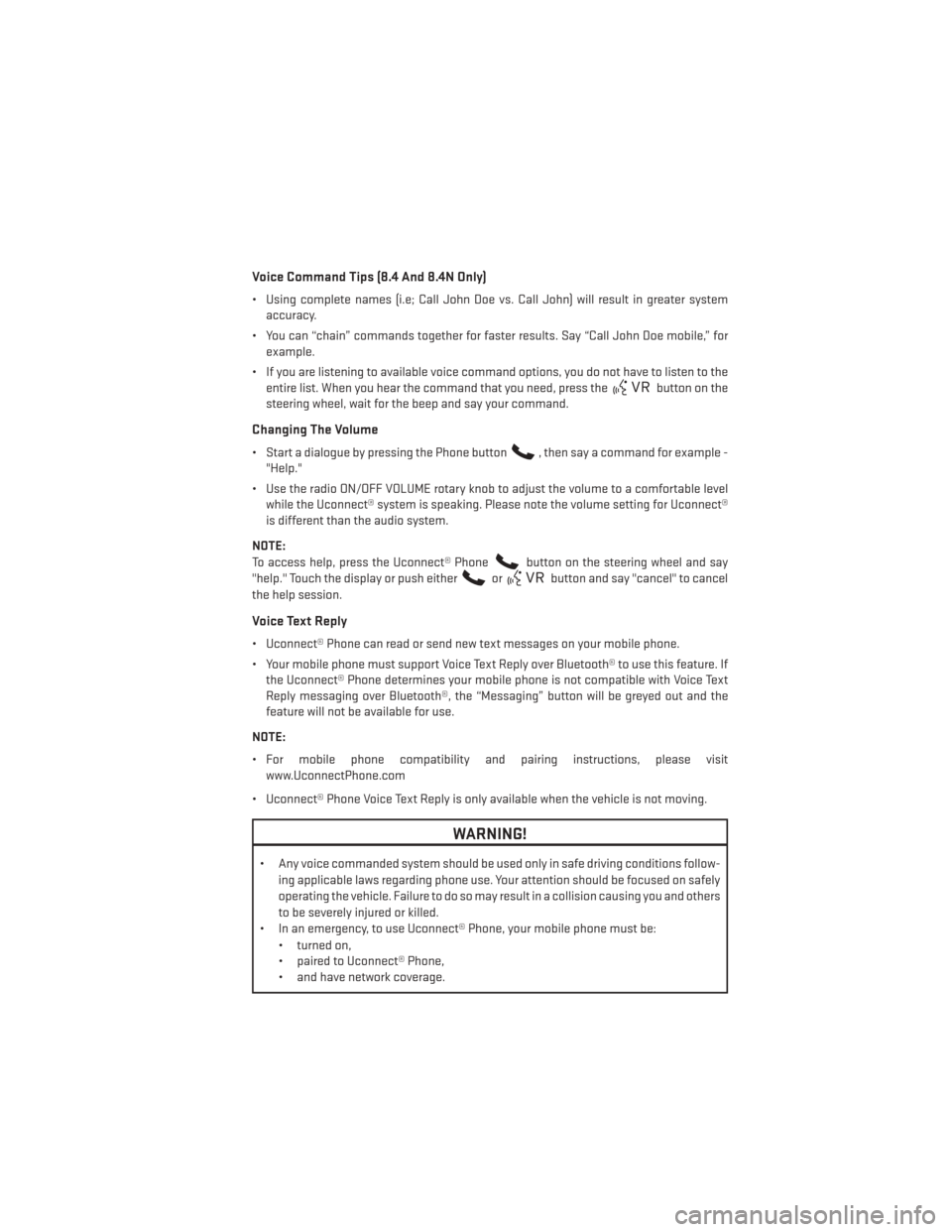
Voice Command Tips (8.4 And 8.4N Only)
• Using complete names (i.e; Call John Doe vs. Call John) will result in greater systemaccuracy.
• You can “chain” commands together for faster results. Say “Call John Doe mobile,” for example.
• If you are listening to available voice command options, you do not have to listen to the entire list. When you hear the command that you need, press the
button on the
steering wheel, wait for the beep and say your command.
Changing The Volume
• Start a dialogue by pressing the Phone button, then say a command for example -
"Help."
• Use the radio ON/OFF VOLUME rotary knob to adjust the volume to a comfortable level while the Uconnect® system is speaking. Please note the volume setting for Uconnect®
is different than the audio system.
NOTE:
To access help, press the Uconnect® Phone
button on the steering wheel and say
"help." Touch the display or push either
orbutton and say "cancel" to cancel
the help session.
Voice Text Reply
• Uconnect® Phone can read or send new text messages on your mobile phone.
• Your mobile phone must support Voice Text Reply over Bluetooth® to use this feature. If the Uconnect® Phone determines your mobile phone is not compatible with Voice Text
Reply messaging over Bluetooth®, the “Messaging” button will be greyed out and the
feature will not be available for use.
NOTE:
• For mobile phone compatibility and pairing instructions, please visit www.UconnectPhone.com
• Uconnect® Phone Voice Text Reply is only available when the vehicle is not moving.
WARNING!
• Any voice commanded system should be used only in safe driving conditions follow- ing applicable laws regarding phone use. Your attention should be focused on safely
operating the vehicle. Failure to do so may result in a collision causing you and others
to be severely injured or killed.
• In an emergency, to use Uconnect® Phone, your mobile phone must be:
• turned on,
• paired to Uconnect® Phone,
• and have network coverage.
ELECTRONICS
67
Page 72 of 148
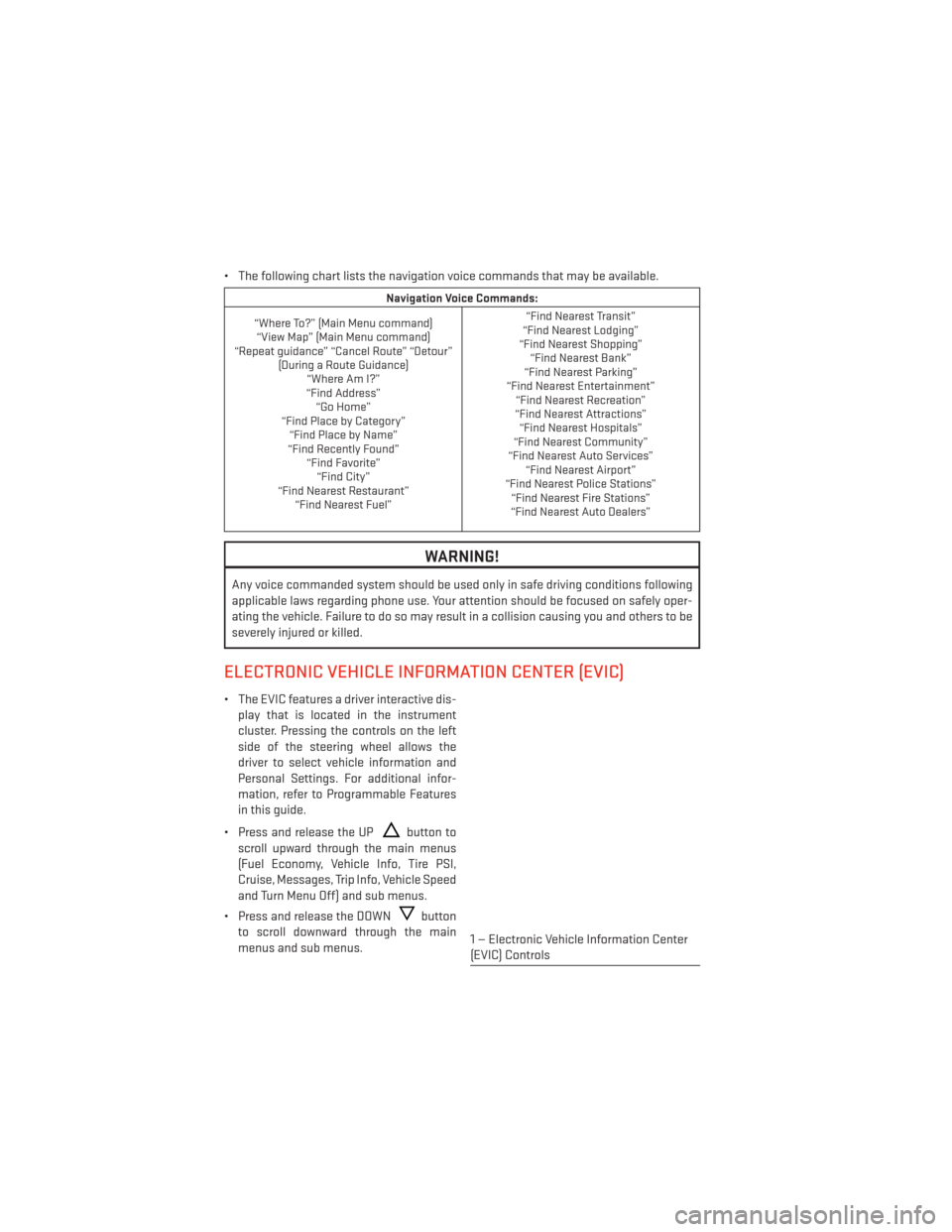
• The following chart lists the navigation voice commands that may be available.
Navigation Voice Commands:
“Where To?” (Main Menu command) “View Map” (Main Menu command)
“Repeat guidance” “Cancel Route” “Detour” (During a Route Guidance)“Where Am I?”
“Find Address” “Go Home”
“Find Place by Category” “Find Place by Name”
“Find Recently Found” “Find Favorite”“Find City”
“Find Nearest Restaurant” “Find Nearest Fuel” “Find Nearest Transit”
“Find Nearest Lodging”
“Find Nearest Shopping” “Find Nearest Bank”
“Find Nearest Parking”
“Find Nearest Entertainment” “Find Nearest Recreation”
“Find Nearest Attractions” “Find Nearest Hospitals”
“Find Nearest Community”
“Find Nearest Auto Services” “Find Nearest Airport”
“Find Nearest Police Stations” “Find Nearest Fire Stations”
“Find Nearest Auto Dealers”
WARNING!
Any voice commanded system should be used only in safe driving conditions following
applicable laws regarding phone use. Your attention should be focused on safely oper-
ating the vehicle. Failure to do so may result in a collision causing you and others to be
severely injured or killed.
ELECTRONIC VEHICLE INFORMATION CENTER (EVIC)
• The EVIC features a driver interactive dis-
play that is located in the instrument
cluster. Pressing the controls on the left
side of the steering wheel allows the
driver to select vehicle information and
Personal Settings. For additional infor-
mation, refer to Programmable Features
in this guide.
• Press and release the UP
button to
scroll upward through the main menus
(Fuel Economy, Vehicle Info, Tire PSI,
Cruise, Messages, Trip Info, Vehicle Speed
and Turn Menu Off) and sub menus.
• Press and release the DOWN
button
to scroll downward through the main
menus and sub menus.
1 — Electronic Vehicle Information Center
(EVIC) Controls
ELECTRONICS
70
Page 74 of 148
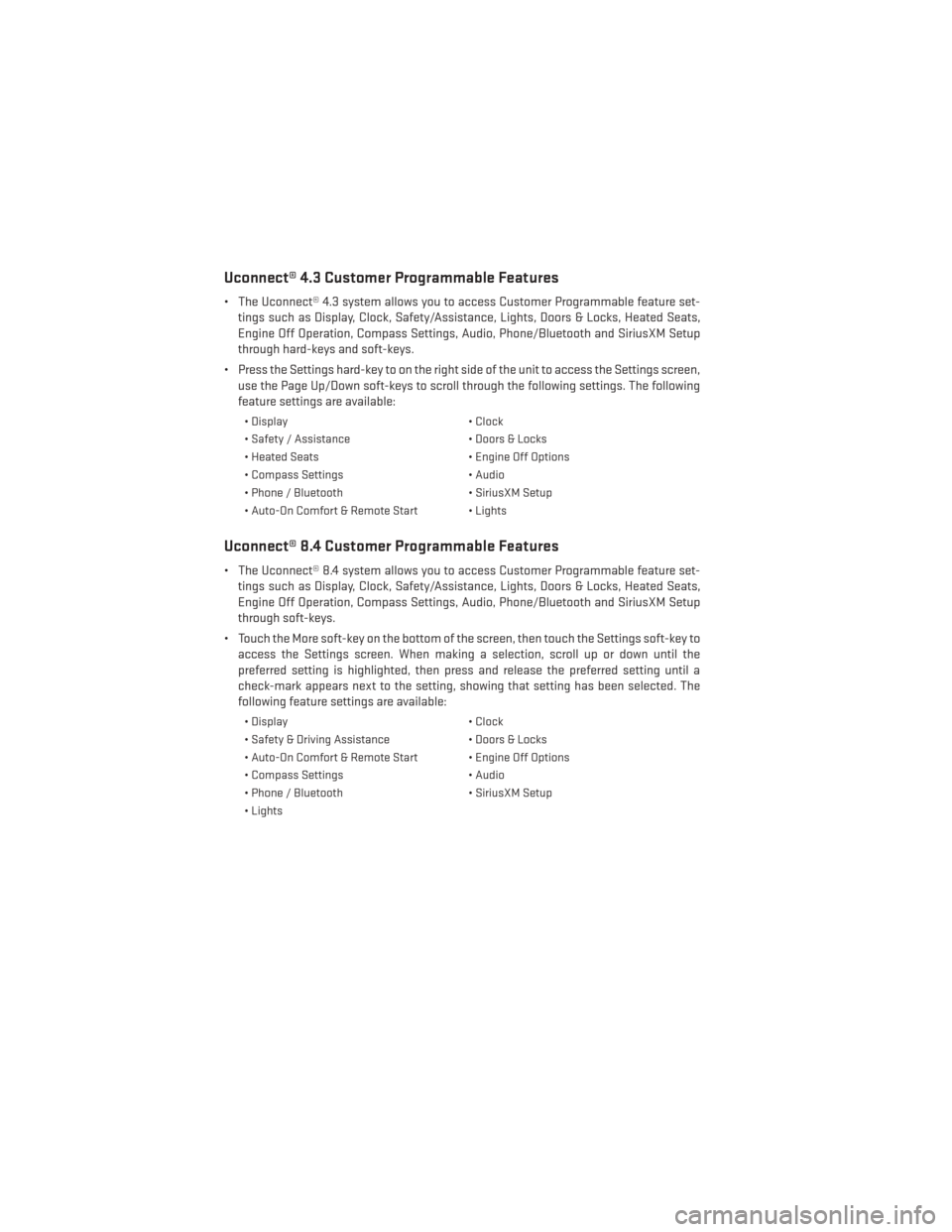
Uconnect® 4.3 Customer Programmable Features
• The Uconnect® 4.3 system allows you to access Customer Programmable feature set-tings such as Display, Clock, Safety/Assistance, Lights, Doors & Locks, Heated Seats,
Engine Off Operation, Compass Settings, Audio, Phone/Bluetooth and SiriusXM Setup
through hard-keys and soft-keys.
• Press the Settings hard-key to on the right side of the unit to access the Settings screen, use the Page Up/Down soft-keys to scroll through the following settings. The following
feature settings are available:
• Display • Clock
• Safety / Assistance • Doors & Locks
• Heated Seats • Engine Off Options
• Compass Settings • Audio
• Phone / Bluetooth • SiriusXM Setup
• Auto-On Comfort & Remote Start • Lights
Uconnect® 8.4 Customer Programmable Features
• The Uconnect® 8.4 system allows you to access Customer Programmable feature set- tings such as Display, Clock, Safety/Assistance, Lights, Doors & Locks, Heated Seats,
Engine Off Operation, Compass Settings, Audio, Phone/Bluetooth and SiriusXM Setup
through soft-keys.
• Touch the More soft-key on the bottom of the screen, then touch the Settings soft-key to access the Settings screen. When making a selection, scroll up or down until the
preferred setting is highlighted, then press and release the preferred setting until a
check-mark appears next to the setting, showing that setting has been selected. The
following feature settings are available:
• Display • Clock
• Safety & Driving Assistance • Doors & Locks
• Auto-On Comfort & Remote Start • Engine Off Options
• Compass Settings • Audio
• Phone / Bluetooth • SiriusXM Setup
• Lights
ELECTRONICS
72
Page 86 of 148
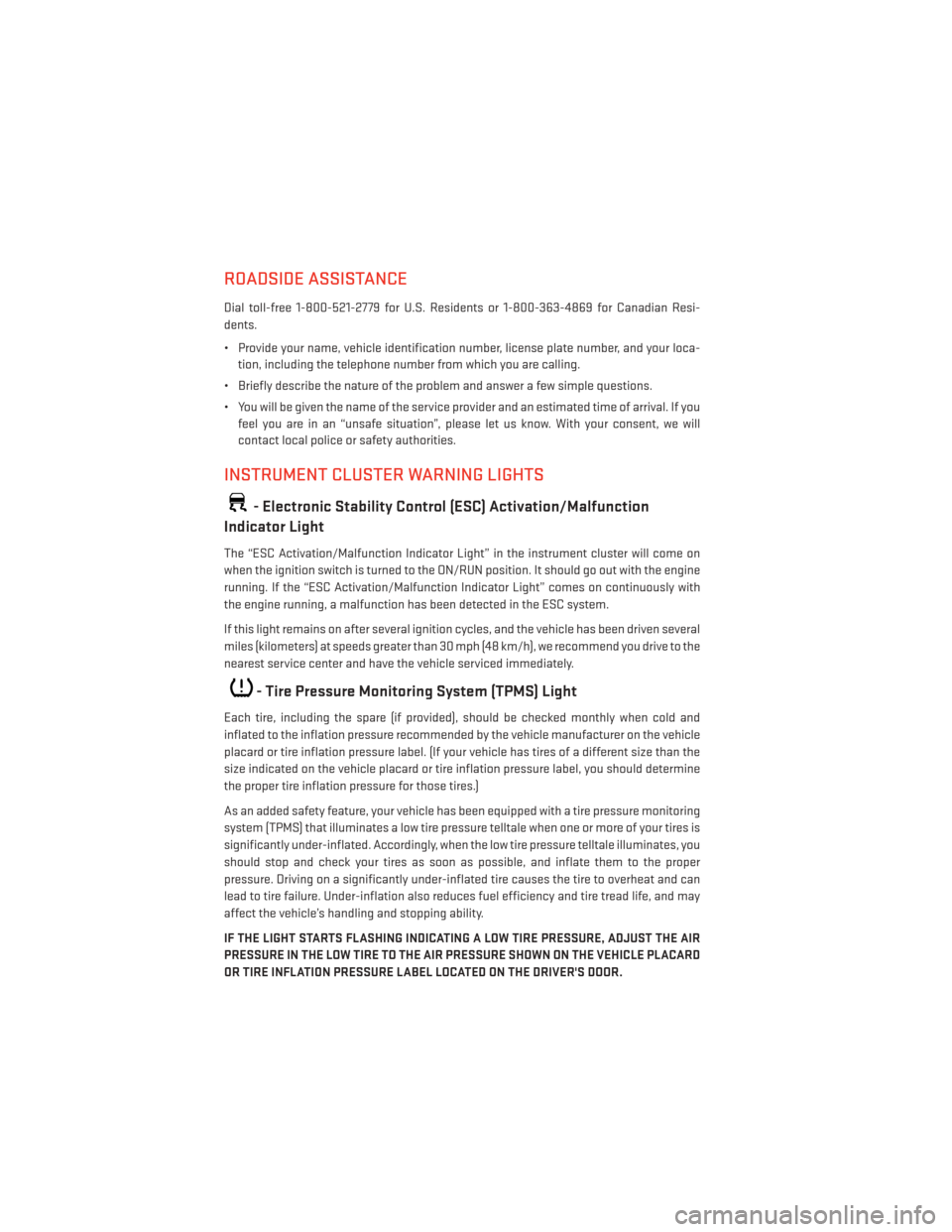
ROADSIDE ASSISTANCE
Dial toll-free 1-800-521-2779 for U.S. Residents or 1-800-363-4869 for Canadian Resi-
dents.
• Provide your name, vehicle identification number, license plate number, and your loca-tion, including the telephone number from which you are calling.
• Briefly describe the nature of the problem and answer a few simple questions.
• You will be given the name of the service provider and an estimated time of arrival. If you feel you are in an “unsafe situation”, please let us know. With your consent, we will
contact local police or safety authorities.
INSTRUMENT CLUSTER WARNING LIGHTS
- Electronic Stability Control (ESC) Activation/Malfunction
Indicator Light
The “ESC Activation/Malfunction Indicator Light” in the instrument cluster will come on
when the ignition switch is turned to the ON/RUN position. It should go out with the engine
running. If the “ESC Activation/Malfunction Indicator Light” comes on continuously with
the engine running, a malfunction has been detected in the ESC system.
If this light remains on after several ignition cycles, and the vehicle has been driven several
miles (kilometers) at speeds greater than 30 mph (48 km/h), we recommend you drive to the
nearest service center and have the vehicle serviced immediately.
- Tire Pressure Monitoring System (TPMS) Light
Each tire, including the spare (if provided), should be checked monthly when cold and
inflated to the inflation pressure recommended by the vehicle manufacturer on the vehicle
placard or tire inflation pressure label. (If your vehicle has tires of a different size than the
size indicated on the vehicle placard or tire inflation pressure label, you should determine
the proper tire inflation pressure for those tires.)
As an added safety feature, your vehicle has been equipped with a tire pressure monitoring
system (TPMS) that illuminates a low tire pressure telltale when one or more of your tires is
significantly under-inflated. Accordingly, when the low tire pressure telltale illuminates, you
should stop and check your tires as soon as possible, and inflate them to the proper
pressure. Driving on a significantly under-inflated tire causes the tire to overheat and can
lead to tire failure. Under-inflation also reduces fuel efficiency and tire tread life, and may
affect the vehicle’s handling and stopping ability.
IF THE LIGHT STARTS FLASHING INDICATING A LOW TIRE PRESSURE, ADJUST THE AIR
PRESSURE IN THE LOW TIRE TO THE AIR PRESSURE SHOWN ON THE VEHICLE PLACARD
OR TIRE INFLATION PRESSURE LABEL LOCATED ON THE DRIVER'S DOOR.
WHAT TO DO IN EMERGENCIES
84
Page 104 of 148
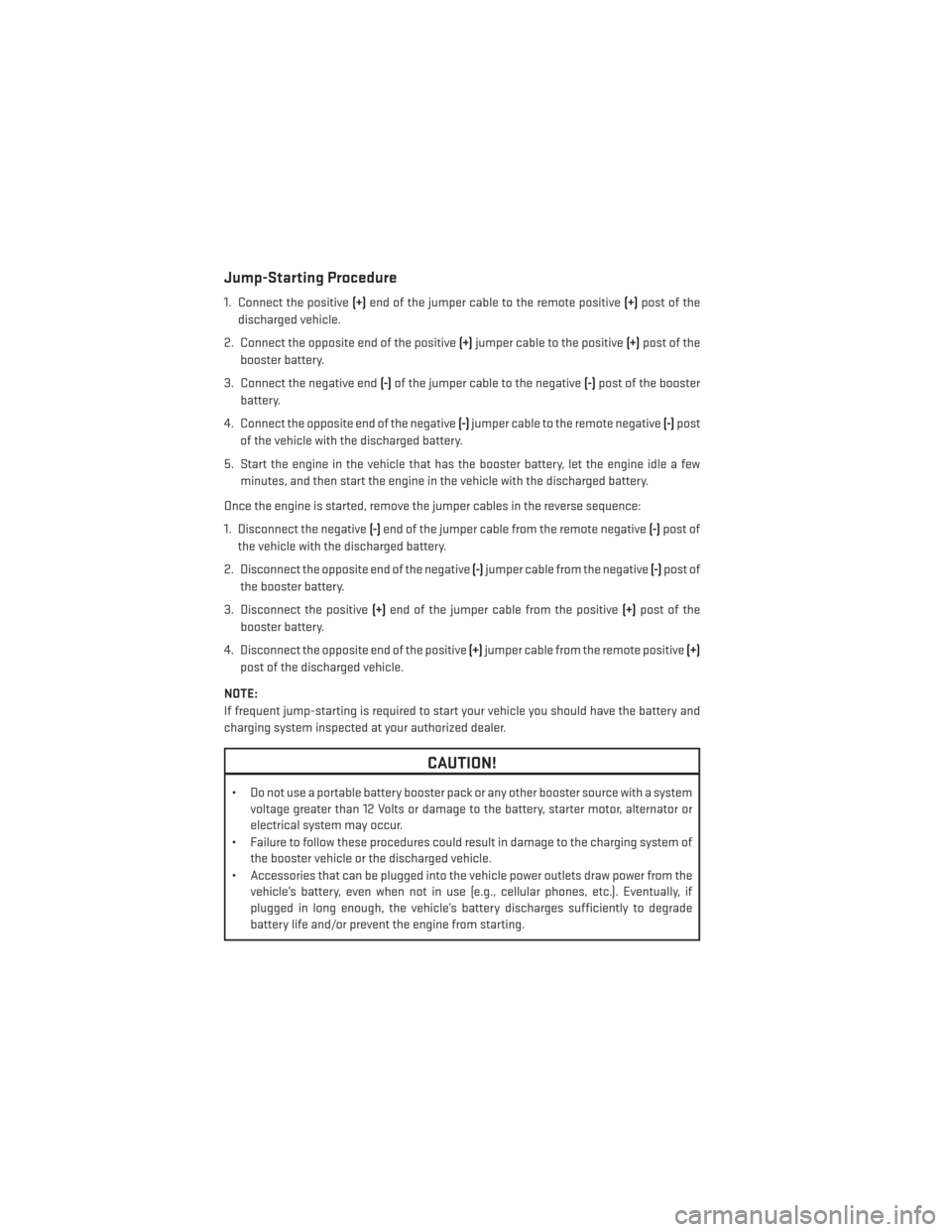
Jump-Starting Procedure
1. Connect the positive(+)end of the jumper cable to the remote positive (+)post of the
discharged vehicle.
2. Connect the opposite end of the positive (+)jumper cable to the positive (+)post of the
booster battery.
3. Connect the negative end (-)of the jumper cable to the negative (-)post of the booster
battery.
4. Connect the opposite end of the negative (-)jumper cable to the remote negative (-)post
of the vehicle with the discharged battery.
5. Start the engine in the vehicle that has the booster battery, let the engine idle a few minutes, and then start the engine in the vehicle with the discharged battery.
Once the engine is started, remove the jumper cables in the reverse sequence:
1. Disconnect the negative (-)end of the jumper cable from the remote negative (-)post of
the vehicle with the discharged battery.
2. Disconnect the opposite end of the negative (-)jumper cable from the negative (-)post of
the booster battery.
3. Disconnect the positive (+)end of the jumper cable from the positive (+)post of the
booster battery.
4. Disconnect the opposite end of the positive (+)jumper cable from the remote positive (+)
post of the discharged vehicle.
NOTE:
If frequent jump-starting is required to start your vehicle you should have the battery and
charging system inspected at your authorized dealer.
CAUTION!
• Do not use a portable battery booster pack or any other booster source with a system voltage greater than 12 Volts or damage to the battery, starter motor, alternator or
electrical system may occur.
• Failure to follow these procedures could result in damage to the charging system of the booster vehicle or the discharged vehicle.
• Accessories that can be plugged into the vehicle power outlets draw power from the vehicle’s battery, even when not in use (e.g., cellular phones, etc.). Eventually, if
plugged in long enough, the vehicle’s battery discharges sufficiently to degrade
battery life and/or prevent the engine from starting.
WHAT TO DO IN EMERGENCIES
102
Page 134 of 148
CHRYSLER GROUP LLC CUSTOMER CENTER
P.O. Box 21–8004 Auburn Hills, MI 48321–8004 Phone: 1–800–423–6343
CHRYSLER CANADA INC. CUSTOMER CENTER
P.O. Box 1621 Windsor, Ontario N9A 4H6 Phone: 1–800–465–2001 (English) Phone:
1–800–387–9983 (French)
ASSISTANCE FOR THE HEARING IMPAIRED
To assist customers who have hearing difficulties, the manufacturer has installed special
TDD (Telecommunication Devices for the Deaf) equipment at its customer center. Any
hearing or speech impaired customer, who has access to a TDD or a conventional teletype-
writer (TTY) in the United States, can communicate with the manufacturer by dialing
1–800–380–CHRY. Canadian residents with hearing difficulties that require assistance can
use the special needs relay service offered by Bell Canada. For TTY teletypewriter users, dial
711 and for Voice callers, dial 1–800–855–0511 to connect with a Bell Relay Service operator.
WARNING!
Engine exhaust, some of its constituents, and certain vehicle components contain, or
emit, chemicals known to the State of California to cause cancer and birth defects, or
other reproductive harm. In addition, certain fluids contained in vehicles and certain
products of component wear contain, or emit, chemicals known to the State of California
to cause cancer and birth defects, or other reproductive harm.
PUBLICATIONS ORDERING
•If you are the first registered retail owner of your vehicle, you may obtain one free
printed copy of the Owner's Manual, Warranty Booklet or Radio Manuals on your DVD by
calling 1–800–423–6343 (U.S.) or 1–800–387–1143 (Canada) or by contacting your dealer.
• Replacement User Guide kits or DVDs or, if you prefer, additional printed copies of the Owner's Manual, Warranty Booklet or Radio Manuals may be purchased by visiting
www.techauthority.com or by calling 1–800–890–4038 (U.S.) or 1–800–387–1143
(Canada). Visa, Master Card, American Express and Discover orders are accepted. If you
prefer mailing your order, please call the above numbers for an order form.
NOTE:
• A street address is required when ordering manuals (no P.O. Boxes).
• The Owner's Manual and User Guide electronic files are also available on the Chrysler, Jeep, Ram Truck, Dodge and SRT websites.
• Click on the “For Owners” tab, select “Owner/Service Manuals”, then select your desired model year and vehicle from the drop down lists.
CONSUMER ASSISTANCE
132
Page 136 of 148
AUTHENTIC ACCESSORIES BY MOPAR®
• The following highlights just some of the many Authentic Dodge Accessories by MOPAR®featuring a fit, finish, and functionality specifically for your Dodge Charger.
• In choosing Authentic Accessories you gain far more than expressive style, premium protection, or extreme entertainment, you also benefit from enhancing your vehicle with
accessories that have been thoroughly tested and factory-approved.
• For the full line of Authentic Dodge Accessories by MOPAR®, visit your local Dodge dealership or online at mopar.com for U.S. residents and mopar.ca for Canadian
residents.
EXTERIOR:
• Rear Spoiler • Chrome Grille Insert • Fog Lights
• Molded Splash Guards • Lower Front Fascia Air Dam • Front End Cover
• Custom Wheels • Graphics Packages
INTERIOR:
• Premium Carpet Floor Mats • Slush Mats • Bright Pedal Kit
• Door Sill Guards • Premium Carpet Cargo Mat • Pistol Grip Shifter
• Instrument Panel Bezel Kits • Katzkin Leather Interiors
ELECTRONICS:
• Rear Park Assist • Uconnect® Phone • Remote Start
• Kicker® Sound System • MOPAR® Web • DVD Rear Seat Video™
PERFORMANCE
• Cold Air Intake • Cat Back Exhaust • Strut Tower Brace
• Anti Sway Bars • Performance Suspension
• Kicker® is a registered trademark of Stillwater Designs and Audio, Inc.
MOPAR® ACCESSORIES
134
Page 137 of 148
FAQ’s
GETTING STARTED
• How do I install my LATCH Equipped Child Seat? pg. 18
• How do I program my Front Seat Memory? pg. 21
ELECTRONICS
• How do I know which radio I have?• Uconnect® 4.3, 4.3S pg. 47
• Uconnect® 8.4, 8.4N pg. 48
• How do I select the AUX music source? pg. 60
• How do I set the clock on my radio?
• Uconnect® 4.3, 4.3S pg. 47
• Uconnect® 8.4, 8.4N pg. 48
• How do I use the Navigation feature? pg. 56
• How do I pair my cell phone via Bluetooth® with the Uconnect® Hands-Free Voice Activation System? pg. 62
UTILITY
• How do I know how much I can tow with my Dodge Charger? pg. 77
WHAT TO DO IN EMERGENCIES
• What do I do if my TPMS warning light is blinking? pg. 84
• How do I change a flat tire? pg. 89
• How do I Jump-Start my vehicle? pg. 101
MAINTAINING YOUR VEHICLE
• Where is my Fuse Block located? pg. 125
• What type of oil do I use? pg. 114
• How often should I change my engine’s oil? pg. 116
• How often should I change my SRT engine’s oil? pg. 121
• What should my tire pressure be set at? pg. 130
FREQUENTLY ASKED QUESTIONS
135
Page 139 of 148
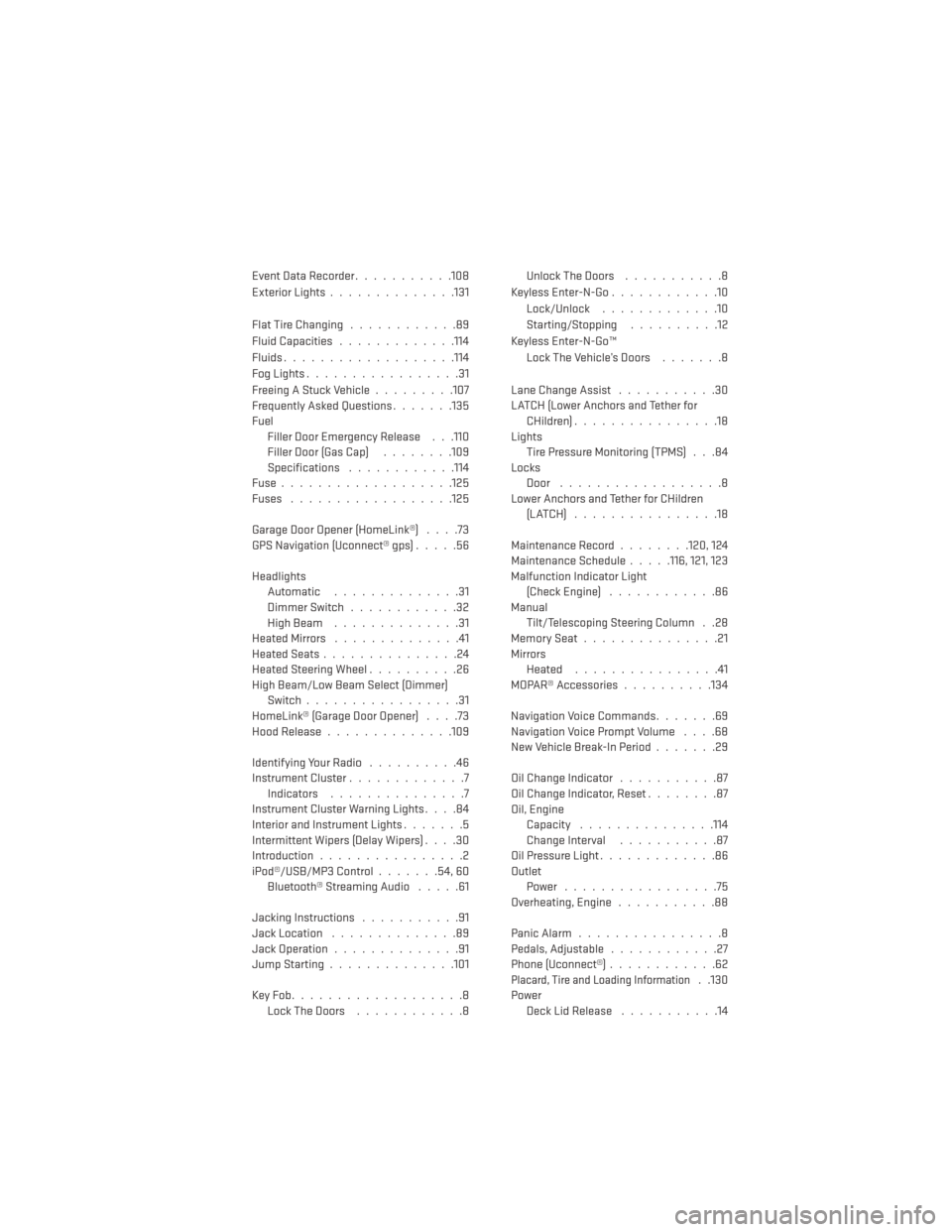
Event Data Recorder...........108
Exterior Lights ..............131
FlatTireChanging ............89
Fluid Capacities .............114
Fluids.................. .114
Fog Lights .................31
Freeing A Stuck Vehicle .........107
Frequently Asked Questions .......135
Fuel Filler Door Emergency Release . . .110
Filler Door (Gas Cap) ........109
Specifications ............114
Fuse...................125
Fuses ..................125
Garage Door Opener (HomeLink®) ....73
GPS Navigation (Uconnect® gps) .....56
Headlights Automatic ..............31
Dimmer Switch ............32
HighBeam ..............31
HeatedMirrors ..............41
HeatedSeats...............24
HeatedSteeringWheel..........26
High Beam/Low Beam Select (Dimmer) Switch .................31
HomeLink® (Garage Door Opener) ....73
Hood Release ..............109
IdentifyingYourRadio ..........46
Instrument Cluster .............7
Indicators ...............7
Instrument Cluster Warning Lights ....84
Interior and Instrument Lights .......5
Intermittent Wipers (Delay Wipers) ....30
Introduction ................2
iPod®/USB/MP3 Control .......54,60
Bluetooth® Streaming Audio .....61
Jacking Instructions ...........91
Jack Location ..............89
Jack Operation ..............91
JumpStarting..............101
KeyFob...................8 LockTheDoors ............8 Unlock The Doors
...........8
Keyless Enter-N-Go ............10
Lock/Unlock .............10
Starting/Stopping ..........12
Keyless Enter-N-Go™ Lock The Vehicle’s Doors .......8
Lane Change Assist ...........30
LATCH (Lower Anchors and Tether for CHildren) ................18
Lights Tire Pressure Monitoring (TPMS) . . .84
Locks Door ..................8
Lower Anchors and Tether for CHildren (LATCH) ................18
Maintenance Record ........120, 124
Maintenance Schedule .....116, 121, 123
Malfunction Indicator Light (Check Engine) ............86
Manual Tilt/Telescoping Steering Column . .28
MemorySeat...............21
Mirrors Heated ................41
MOPAR® Accessories ..........134
Navigation Voice Commands .......
69
Navigation Voice Prompt Volume ....68
New Vehicle Break-In Period .......29
Oil Change Indicator ...........87
Oil Change Indicator, Reset ........87
Oil, Engine Capacity ...............114
Change Interval ...........87
Oil Pressure Light .............86
Outlet Power .................75
Overheating, Engine ...........88
Panic Alarm ................8
Pedals, Adjustable ............27
Phone (Uconnect®) ............62
Placard, Tire and Loading Information. .130
Power Deck Lid Release ...........14
INDEX
137
Page 147 of 148
> IMPORTANT
The driver’s primary responsibility is the safe operation of the vehicle. Driving while
distracted can result in loss of vehicle control, resulting in a collision and personal injury.
Chrysler Group LLC strongly recommends that the driver use extreme caution when using any
device or feature that may take their attention off the road. Use of any electrical devices such
as cell phones, computers, portable radios, vehicle navigation or other devices by the driver while
the vehicle is moving is dangerous and could lead to a serious collision. Texting while driving is
also dangerous and should never be done while the vehicle is moving. If you find yourself unable
to devote your full attention to vehicle operation, pull off the road to a safe location and stop your
vehicle. Some States or Provinces prohibit the use of cellular telephones or texting while driving.
It is always the driver’s responsibility to comply with all local laws.
If you are the first registered retail owner of your vehicle, you
may obtain a complimentary printed copy of the Owner’s
Manual, Navigation/Uconnect
® Manuals or Warranty Booklet
by calling 1-800-423-6343 (U.S.) or 1-800-387-1143 (Canada)
or by contacting your dealer.
This User Guide is intended to familiarize you with the important features of your vehicle.
The DVD enclosed contains your Owner’s Manual, Navigation/Uconnect® Manuals, Warranty
Booklets, Tire Warranty and Roadside Assistance (new vehicles purchased in the U.S.) or
Roadside Assistance (new vehicles purchased in Canada) in electronic format. We hope you
find it useful. Replacement DVD kits may be purchased by visiting www.techauthority.com.
Copyright 2014 Chrysler Group LLC.
DODGE.COM
WARNING!
Driving after drinking can lead to an accident. Your perceptions are less sharp, your reflexes are
slower, and your judgment is impaired when you have been drinking. Never drink and then drive.
DRIVING AND ALCOHOL
Drunken driving is one of the most frequent causes of accidents. Your driving ability can be
seriously impaired with blood alcohol levels far below the legal minimum. If you are drinking, don’t
drive. Ride with a designated non-drinking driver, call a cab, a friend, or use public transportation. This guide has been prepared to help you get quickly acquainted with your new Dodge and to
provide a convenient reference source for common questions. However, it is not a substitute for
your Owner’s Manual.
For complete operational instructions, maintenance procedures and important safety messages,
please consult your Owner’s Manual, Navigation/Uconnect
® Manuals and other Warning Labels in
your vehicle.
Not all features shown in this guide may apply to your vehicle. For additional information on
accessories to help personalize your vehicle, visit www.mopar.com (U.S.), www.mopar.ca (Canada)
or your local Dodge dealer.
1596112_14d_Dodge_Charger_UG_020714.indd 22/7/14 2:36 PM