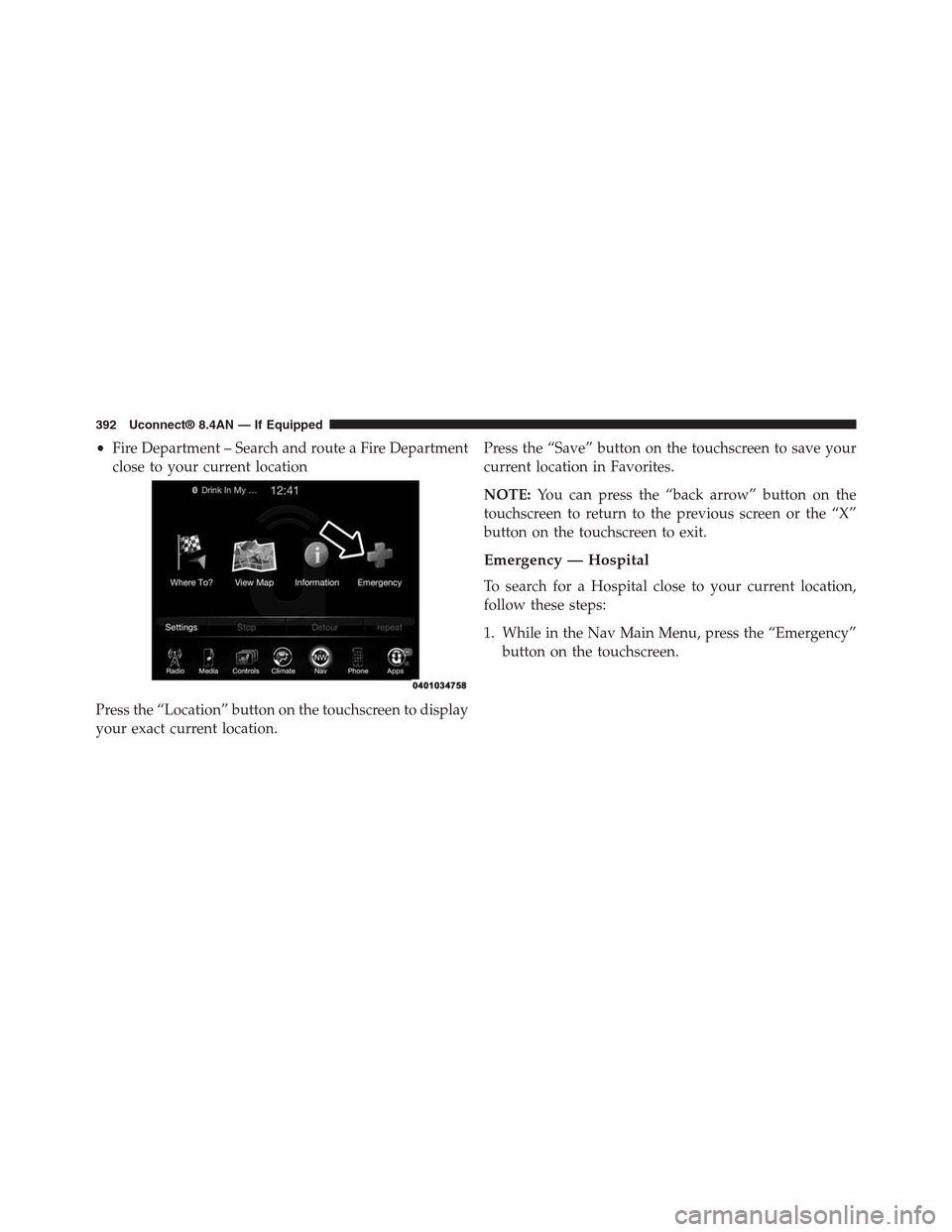
•Fire Department – Search and route a Fire Department
close to your current location
Press the “Location” button on the touchscreen to display
your exact current location.
Press the “Save” button on the touchscreen to save your
current location in Favorites.
NOTE:You can press the “back arrow” button on the
touchscreen to return to the previous screen or the “X”
button on the touchscreen to exit.
Emergency — Hospital
To search for a Hospital close to your current location,
follow these steps:
1. While in the Nav Main Menu, press the “Emergency”
button on the touchscreen.
392 Uconnect® 8.4AN — If Equipped
WARNING!
If anyone in the vehicle could be in danger (e.g.,
fire or smoke is visible, dangerous road conditions
or location), do not wait for voice contact from a
9-1-1 operator. All occupants should exit the ve-
hicle immediately and move to a safe location.
WARNING!
Do not add any aftermarket electrical equipment to
the vehicle’s electrical system. This may prevent your
vehicle from sending a signal to initiate an emer-
gency call. To avoid interference that can cause the
9-1-1 Call system to fail, never add aftermarket
equipment (e.g., two way mobile radio, CB radio,
data recorder, etc.) to your vehicle’s electrical system
or modify the antennas on your vehicle.
9-1-1 Call System Limitations
Vehicles sold in Canada and Mexico DO NOT have 9-1-1
Call system capabilities.
9-1-1 or other emergency line operators in Canada and
Mexico may not answer or respond to 9-1-1 system calls.
If the 9-1-1 Call system detects a malfunction, any of the
following may occur at the time the malfunction is
detected, and at the beginning of each ignition cycle:
•The Rearview Mirror light will continuously be illu-
minated red.
•The Phone Screen will display the following message
“Vehicle phone requires service. Please contact your
dealer.”
•An In-Vehicle Audio message will state “Vehicle phone
requires service. Please contact your dealer.”
4
Uconnect® 8.4AN — If Equipped 403
Media
Uconnect® offers connections via USB, SD, Bluetooth®
and auxiliary ports. Voice operation is only available for
connected USB and iPod® devices. (Remote CD player
optional and not available on all vehicles.)
Press the VR button. After the beep, say one of the
following commands and follow the prompts to
switch your media source or choose an artist.
•Change source to Bluetooth®
•Change sourceto iPod®
•Change sourceto USB
•Play artistBeethoven;Play albumGreatest Hits;Play
songMoonlight Sonata;Play genreClassical
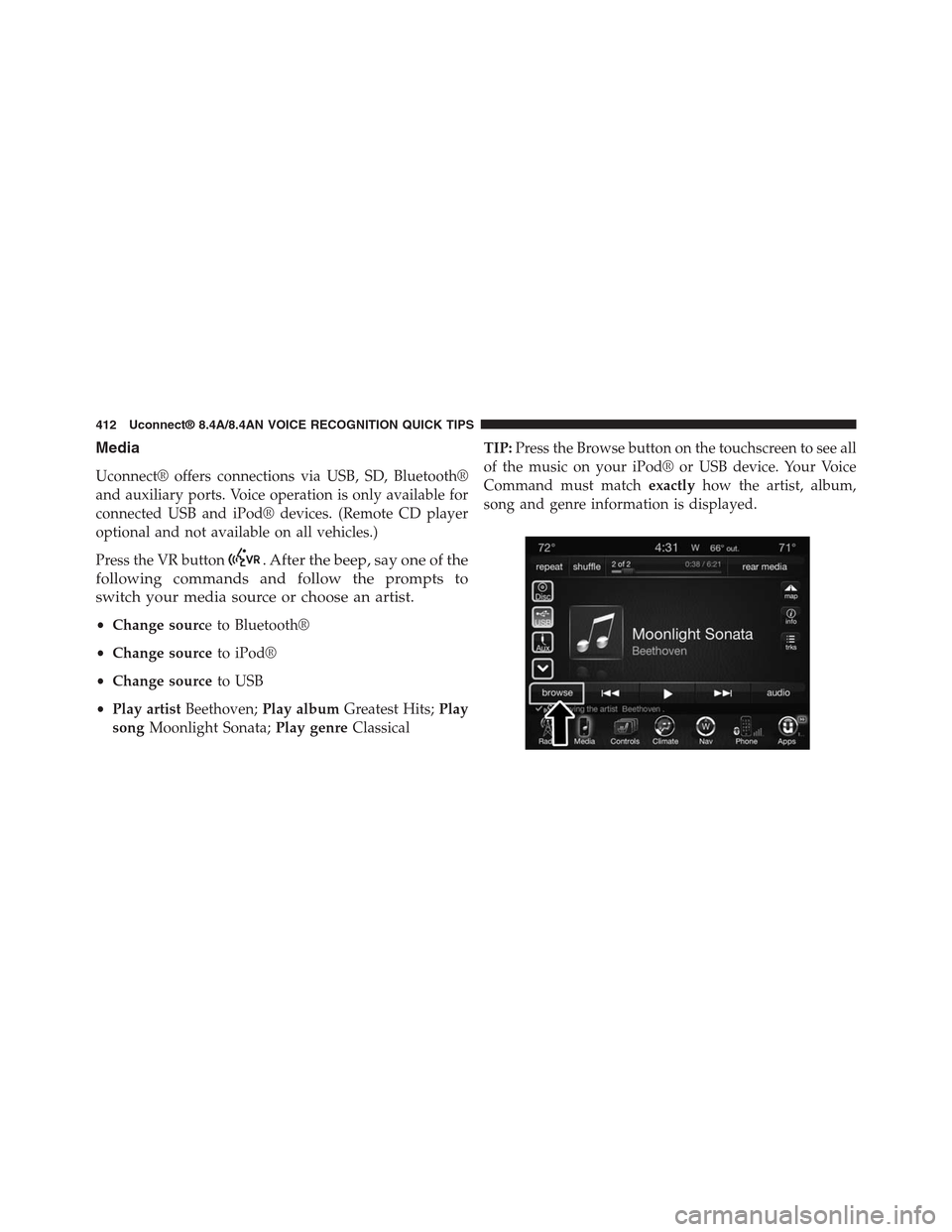
TIP:Press the Browse button on the touchscreen to see all
of the music on your iPod® or USB device. Your Voice
Command must matchexactlyhow the artist, album,
song and genre information is displayed.
412 Uconnect® 8.4A/8.4AN VOICE RECOGNITION QUICK TIPS
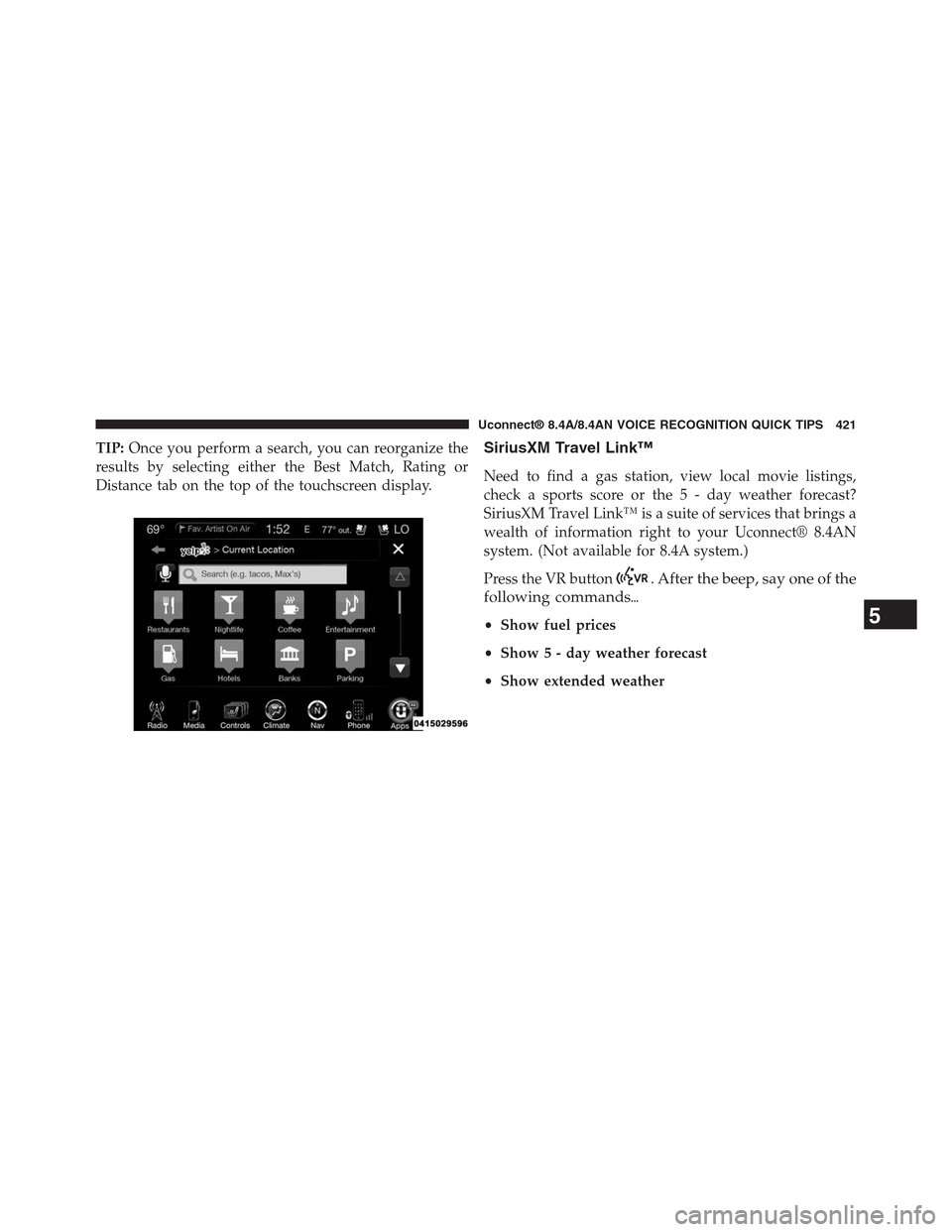
TIP:Once you perform a search, you can reorganize the
results by selecting either the Best Match, Rating or
Distance tab on the top of the touchscreen display.
SiriusXM Travel Link™
Need to find a gas station, view local movie listings,
check a sports score or the 5 - day weather forecast?
SiriusXM Travel Link™ is a suite of services that brings a
wealth of information right to your Uconnect® 8.4AN
system. (Not available for 8.4A system.)
Press the VR button. After the beep, say one of the
following commands%
•Show fuel prices
•Show 5 - day weather forecast
•Show extended weather
5
Uconnect® 8.4A/8.4AN VOICE RECOGNITION QUICK TIPS 421