ad blue DODGE CHARGER SRT 2015 7.G Uconnect 8.4A
[x] Cancel search | Manufacturer: DODGE, Model Year: 2015, Model line: CHARGER SRT, Model: DODGE CHARGER SRT 2015 7.GPages: 429, PDF Size: 4.01 MB
Page 140 of 429
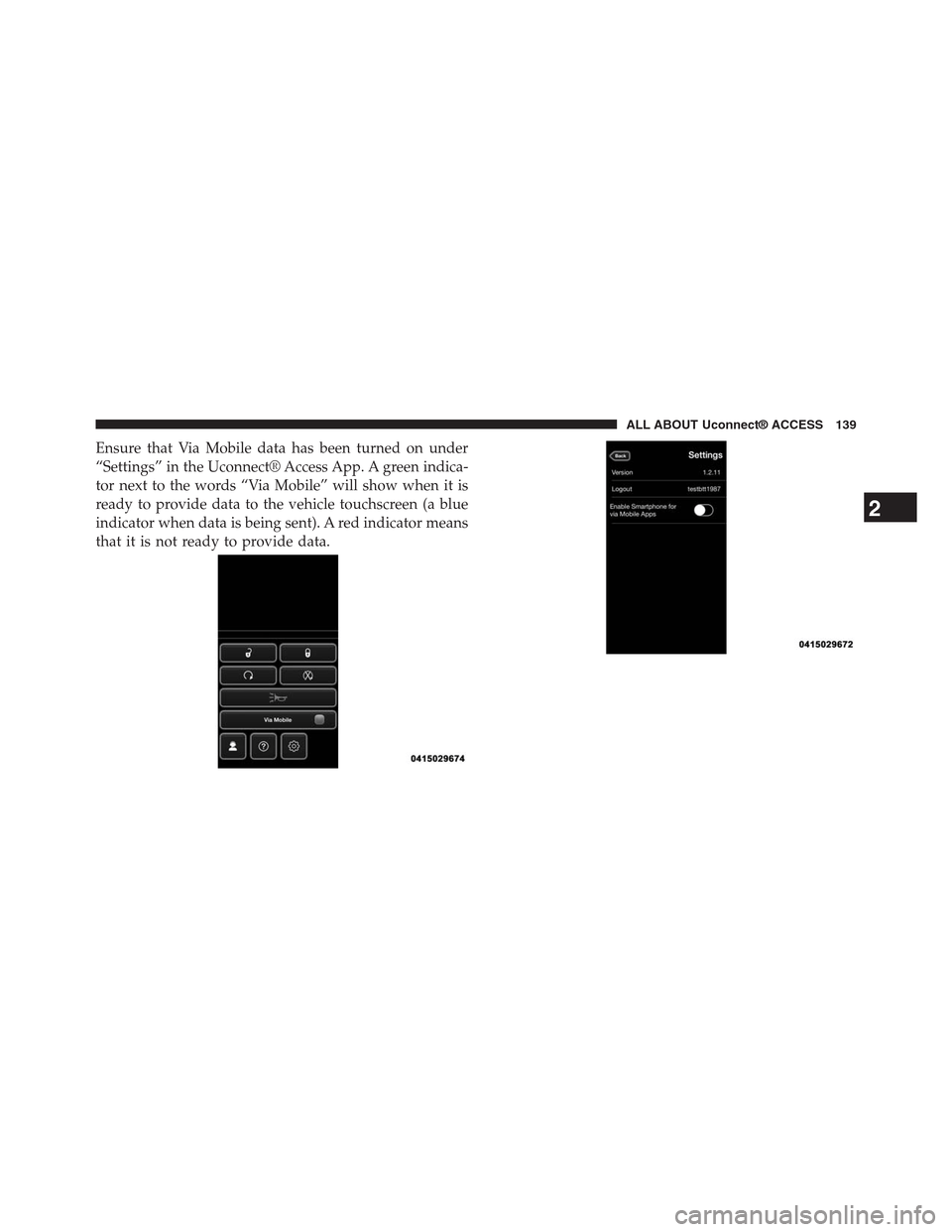
Ensure that Via Mobile data has been turned on under
“Settings” in the Uconnect® Access App. A green indica-
tor next to the words “Via Mobile” will show when it is
ready to provide data to the vehicle touchscreen (a blue
indicator when data is being sent). A red indicator means
that it is not ready to provide data.
2
ALL ABOUT Uconnect® ACCESS 139
Page 141 of 429
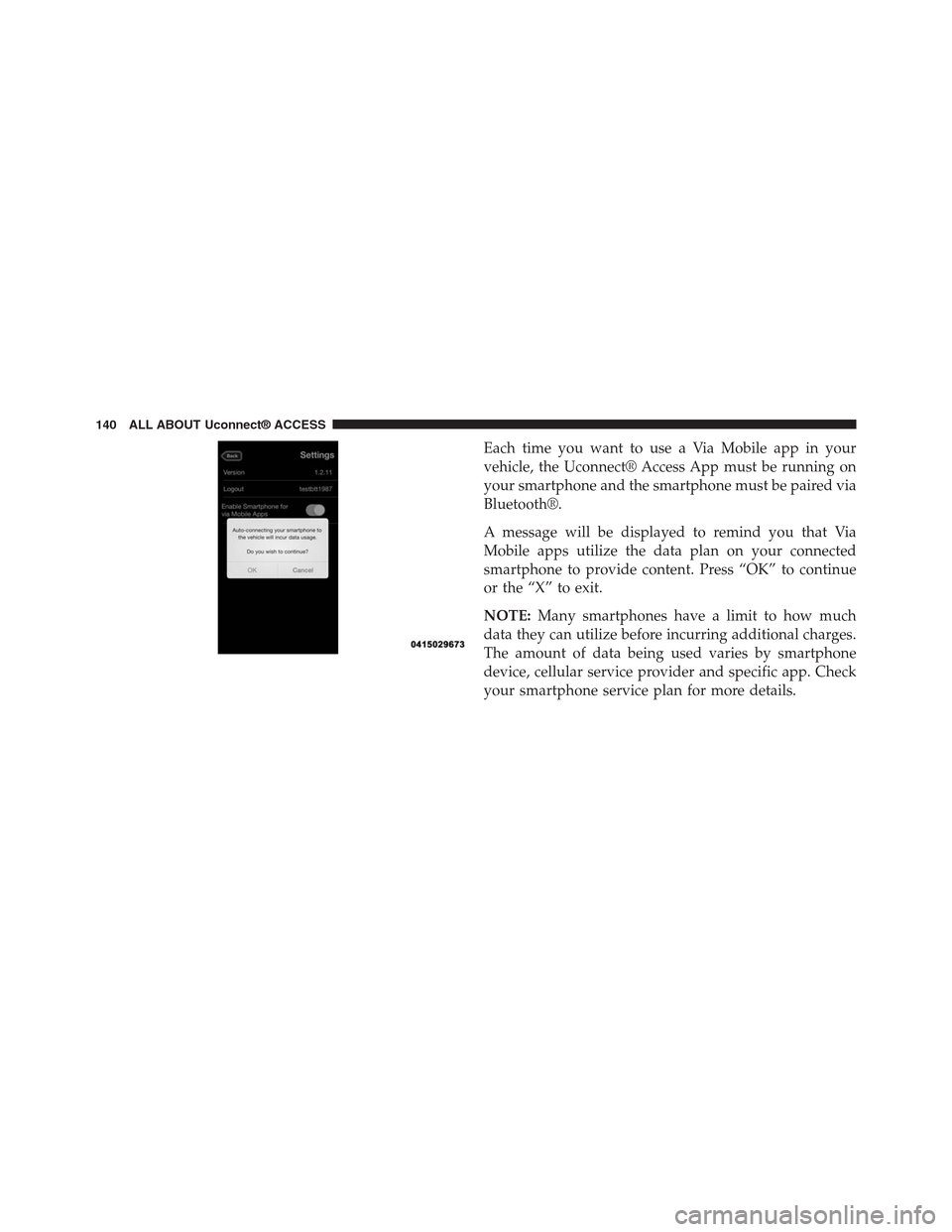
Each time you want to use a Via Mobile app in your
vehicle, the Uconnect® Access App must be running on
your smartphone and the smartphone must be paired via
Bluetooth®.
A message will be displayed to remind you that Via
Mobile apps utilize the data plan on your connected
smartphone to provide content. Press “OK” to continue
or the “X” to exit.
NOTE:Many smartphones have a limit to how much
data they can utilize before incurring additional charges.
The amount of data being used varies by smartphone
device, cellular service provider and specific app. Check
your smartphone service plan for more details.
140 ALL ABOUT Uconnect® ACCESS
Page 144 of 429
FAQs
1.Why can’t I get Slacker Radio Via Mobile to work?
Here are some things to consider:
•Check to ensure you have linked your Slacker Radio
account credentials with Uconnect® Access. This is
usually done during registration and setup. Then,
check to ensure you have properly connected your
compatible smartphone to the vehicle touchscreen.
The Uconnect® Access App must be open and you
must be logged in. A blue light indicates that it’s
providing data to the vehicle.
•If you recently changed your password for Slacker
Radio, it may need to be updated on Mopar Owner
Connect under the “Via Mobile” section.
2.How do I customize the music being played on the
station?As you listen to music, use the button on the
touchscreen to confirm your preference to the music
currently being played. Press the “like” icon to con-
firm what you want to hear more of, and the “dislike”
icon to eliminate what you do not want to hear.
3.How do I know when Slacker Radio is playing one
of the songs I indicated I “liked”?The heart button
on the touchscreen will appear in yellow when play-
ing a song you previously liked. When you see it
appear in yellow, you do not need to “like” it again,
and you know that Slacker Radio is playing your
preferences.
4.Can I ban a particular artist from playing in Slacker
Radio?Yes, Slacker Radio gives you the capability to
ban all songs from a particular artist or song by using
the “dislike” button on the touchscreen.
2
ALL ABOUT Uconnect® ACCESS 143
Page 147 of 429
1. If you have not yet registered with Uconnect® Access,
begin by pressing the “Apps” icon on the touchscreen
inside your vehicle, then pressing “Uconnect Registra-
tion.”
2. Once you receive an email from “Uconnect Access,”
click on the secure link to complete your registration
onmoparownerconnect.comwhere you will be
guided through the setup of your Via Mobile profile.
3. Next, link app accounts to your Via Mobile profile by
entering your login information for Aha™.
If you have already registered with Uconnect® Access,
log in tomoparownerconnect.comto set up your Via
Mobile profile. Click on “Via Mobile Profile.”
4. Next, connect your smartphone to the vehicle touch-
screen. The Uconnect® Access app is compatible with
select iPhone® and Android smartphones. Visit
UconnectPhone.comto confirm that your smart-
phone is compatible with Uconnect. Once you have
confirmed your smartphone is compatible, pair it to
the vehicle touchscreen via Bluetooth® to use Via
Mobile apps. If using an iPhone®, a USB cable may
also be supported for the data connection.
5. Launch the Uconnect® Access app on your connected
smartphone and log in with your Mopar Owner
Connect Username/Email and password. From the
vehicle touchscreen press the#Apps#button and select
Aha™ from the list. Aha™ is located within the “All
Apps” tab. To launch Aha™ using voice recognition,
push the VR button on the steering wheel and say,
“launch Aha™ Via Mobile.”
146 ALL ABOUT Uconnect® ACCESS
Page 148 of 429
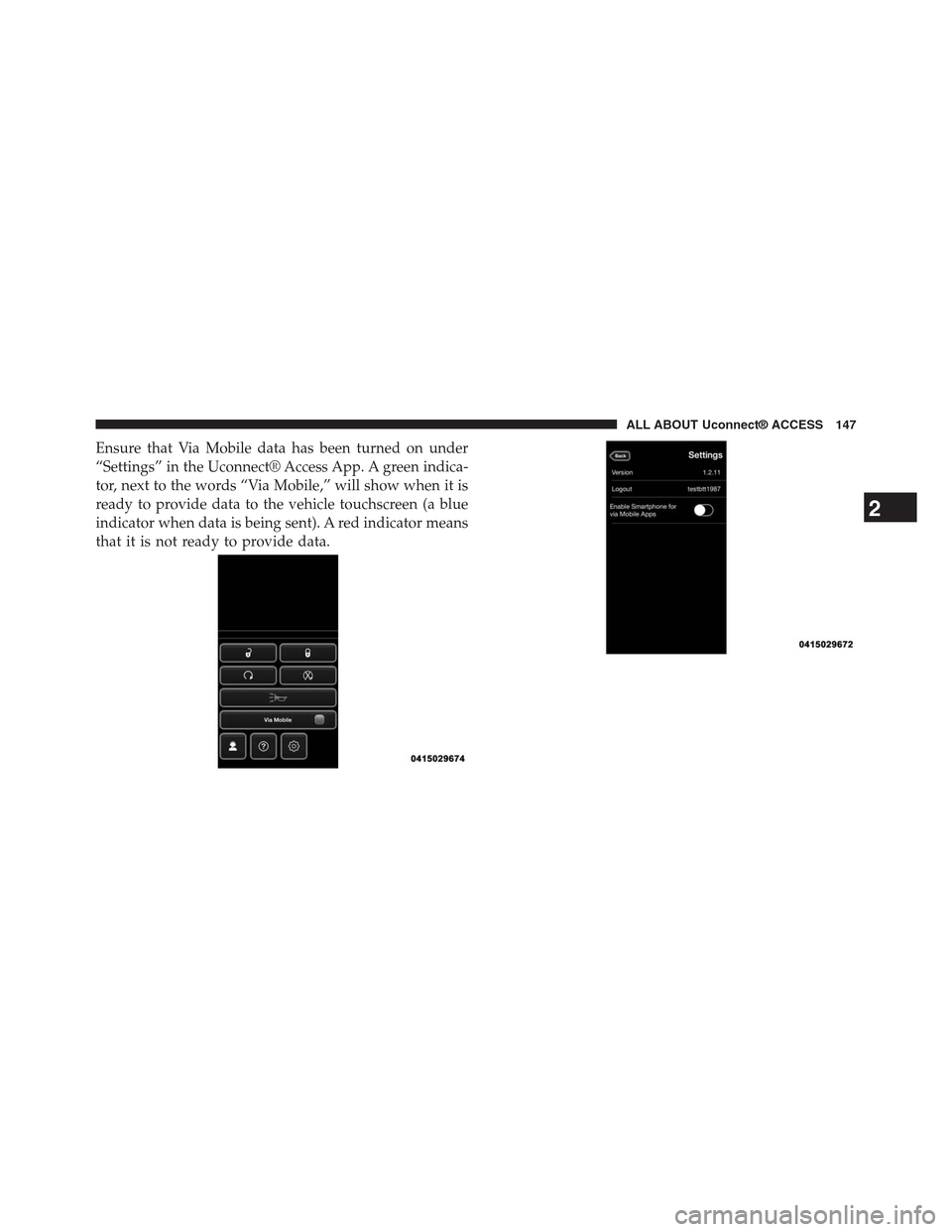
Ensure that Via Mobile data has been turned on under
“Settings” in the Uconnect® Access App. A green indica-
tor, next to the words “Via Mobile,” will show when it is
ready to provide data to the vehicle touchscreen (a blue
indicator when data is being sent). A red indicator means
that it is not ready to provide data.
2
ALL ABOUT Uconnect® ACCESS 147
Page 149 of 429
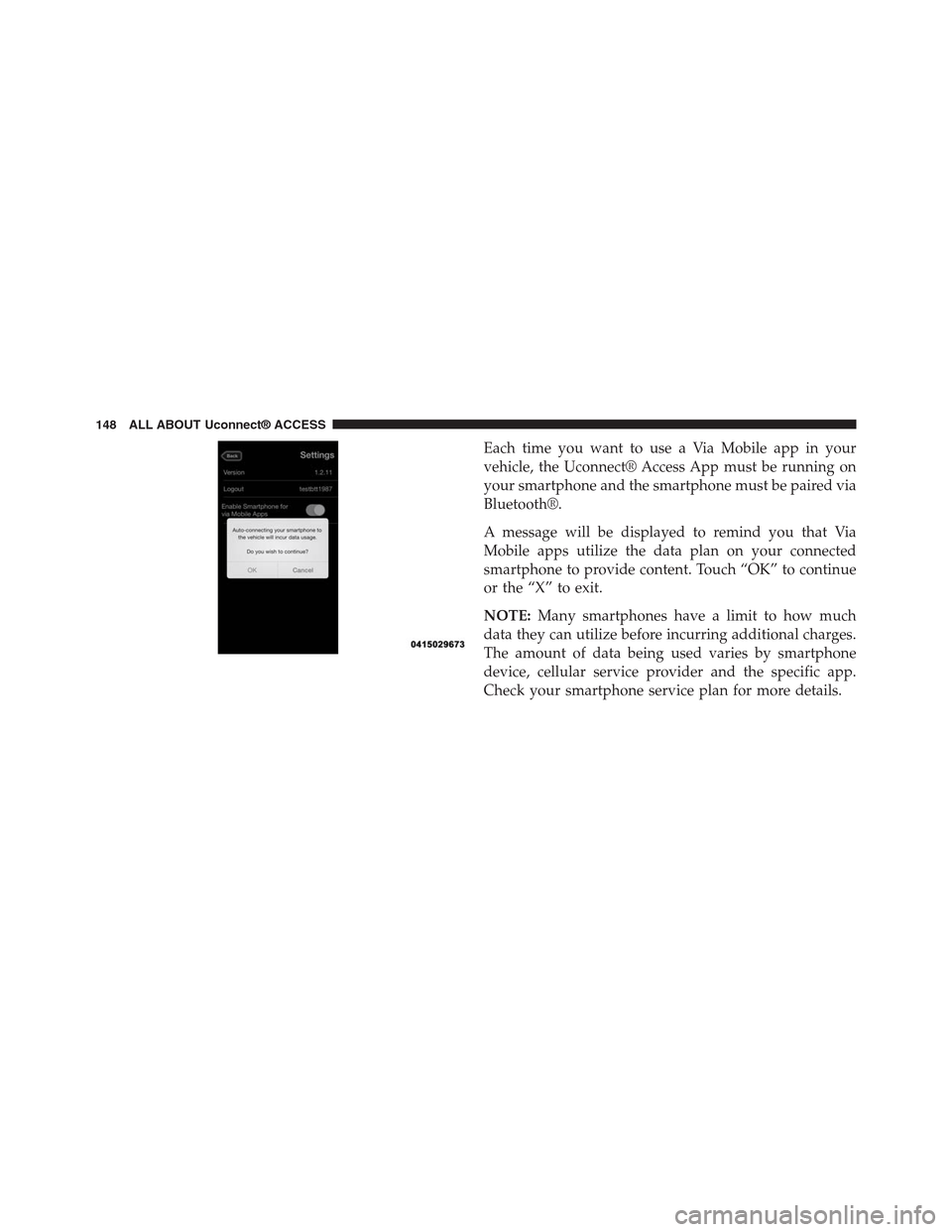
Each time you want to use a Via Mobile app in your
vehicle, the Uconnect® Access App must be running on
your smartphone and the smartphone must be paired via
Bluetooth®.
A message will be displayed to remind you that Via
Mobile apps utilize the data plan on your connected
smartphone to provide content. Touch “OK” to continue
or the “X” to exit.
NOTE:Many smartphones have a limit to how much
data they can utilize before incurring additional charges.
The amount of data being used varies by smartphone
device, cellular service provider and the specific app.
Check your smartphone service plan for more details.
148 ALL ABOUT Uconnect® ACCESS
Page 152 of 429
Requirements
•Vehicle must be properly equipped with the
Uconnect® Access System.
•Your smartphone must be compatible with the
Uconnect® Access App and properly connected to the
vehicle.
•Your connected smartphone must be in range of a
usable cellular signal.
•Vehicle must be registered with Uconnect® Access and
have an active subscription that includes the appli-
cable feature or app.
•Vehicle must be powered in the ON/RUN or ACC
(Accessory) position with a properly functioning elec-
trical system.
•Vehicle must be equipped with Uconnect 8.4A/8.4AN.
Not available on Uconnect 5.0.
Tips and Shortcuts
•Use the “like” and “dislike” option to continue to
refine music played on stations like Slacker.
•Link your Facebook® and Twitter® account on the
Aha™ website to share with others what you are
listening to while you drive.
FAQs
1.Why can’t I get Aha™ Via Mobile to work?Here are
some things to consider:
•Check to ensure you have linked your Aha™ account
credentials with Uconnect® Access. This is usually
done during registration and setup. Then, check to
ensure you have properly connected your compat-
ible smartphone to the vehicle touchscreen. The
Uconnect® Access App must be open and you must
be logged in. A blue light indicates that it’s providing
data to the vehicle.
2
ALL ABOUT Uconnect® ACCESS 151
Page 154 of 429
6.Why can’t I get Aha™ Via Mobile to work?Ensure
you have registered for Uconnect® Access and asso-
ciated your Aha™ account credentials with
Uconnect® Access. This is done during registration
and setup process. Then, ensure you have properly
connected your compatible smartphone to the vehicle
touchscreen. The Uconnect® Access App must be
open. A blue light indicates that it’s providing data to
the vehicle.
7.If I changed my password for Aha™, do I have to
update it with Uconnect® Access?Yes. Visit
moparownerconnect.com, log in, and click on Via
Mobile.
8.How do I set up an Aha™ account?You can create an
account with Aha™ by visitingaharadio.com.To
make changes to an existing Aha™ account, visit the
Aha™ website.
9.Can I create an Aha™ account during Uconnect®
Access registration and setup?There is a link from the
Via Mobile profile page where the customer can go to
the Aha™ website to create a new account.
10.How do I block explicit content?By default Aha™
automatically filters and blocks explicit content for
you. If you would like to enable the ability to listen to
explicit podcasts, as well as comedy or user-
generated shouts, you must visit the “Settings”
screen and switch the “Allow Explicit Content” set-
ting to ON.
11.Should I have the Aha™ app downloaded to my
smartphone to use Aha™ Via Mobile?You do not
need to have the Aha™ app on your smartphone to
use Aha™ Via Mobile. The Uconnect® Access App is
required.
2
ALL ABOUT Uconnect® ACCESS 153
Page 170 of 429
The internal wireless radio operates within guidelines
found in radio frequency safety standards and recom-
mendations, which reflect the consensus of the scientific
community. The radio manufacturer believes the internal
wireless radio is safe for use by consumers. The level of
energy emitted is far less than the electromagnetic energy
emitted by wireless devices such as mobile phones.
DEVICE CONNECTION AND AUDIO TIPS WITH
Uconnect®
•More than one phone or device can be paired to your
vehicle. The connected device with the highest priority
will be used. To transition between devices, Select
Phone > Settings, then press the desired device.
•Multiple devices may be connected at one time. For
example, a phone can be paired and connected for
hands-free calling and texting, while a USB media
source is connected for audio. However, only one
Bluetooth® connection can be used at a time.
•Phone calls will always have the highest priority
regardless of which connection is active (only the 9-1-1
Call and Assist will have a higher priority than the
phone). For example, if an App is launched and the
user receives a call, the user will be exited out of the
App and returned to the App when the call ends.
•After all devices are connected/paired, when switch-
ing to a different audio source, audio will auto-play
from the new source.
2
ALL ABOUT Uconnect® ACCESS 169
Page 172 of 429
Uconnect® 8.4A — If Equipped
CONTENTS
!Uconnect® 8.4A SYSTEM.................173
!RADIO MODE.........................174
▫Setting Presets........................177
▫SiriusXM Satellite Radio Mode — If Equipped . .178
▫Audio..............................185
!MEDIA MODE.........................187
▫Disc Mode — If Equipped...............187
▫USB/iPod® Mode.....................189
▫AUX Mode..........................190
▫SD Card Mode — If Equipped............191
▫Bluetooth® Mode.....................193
!Uconnect® PHONE.....................195
▫Overview...........................195
▫Operation...........................198
▫Phone Call Features...................208
▫Uconnect® Phone Features..............213
▫Advanced Phone Connectivity............217
▫Things You Should Know About Your Uconnect®
Phone.............................217
▫General Information...................224
3