buttons DODGE DURANGO 2008 2.G User Guide
[x] Cancel search | Manufacturer: DODGE, Model Year: 2008, Model line: DURANGO, Model: DODGE DURANGO 2008 2.GPages: 481, PDF Size: 7.75 MB
Page 149 of 481
CAUTION!
Do not place any article under the adjustable pedals
or impede its ability to move as it may cause damage
to the pedal controls. Pedal travel may become lim-
ited if movement is stopped by an obstruction in the
adjustable pedal's path.
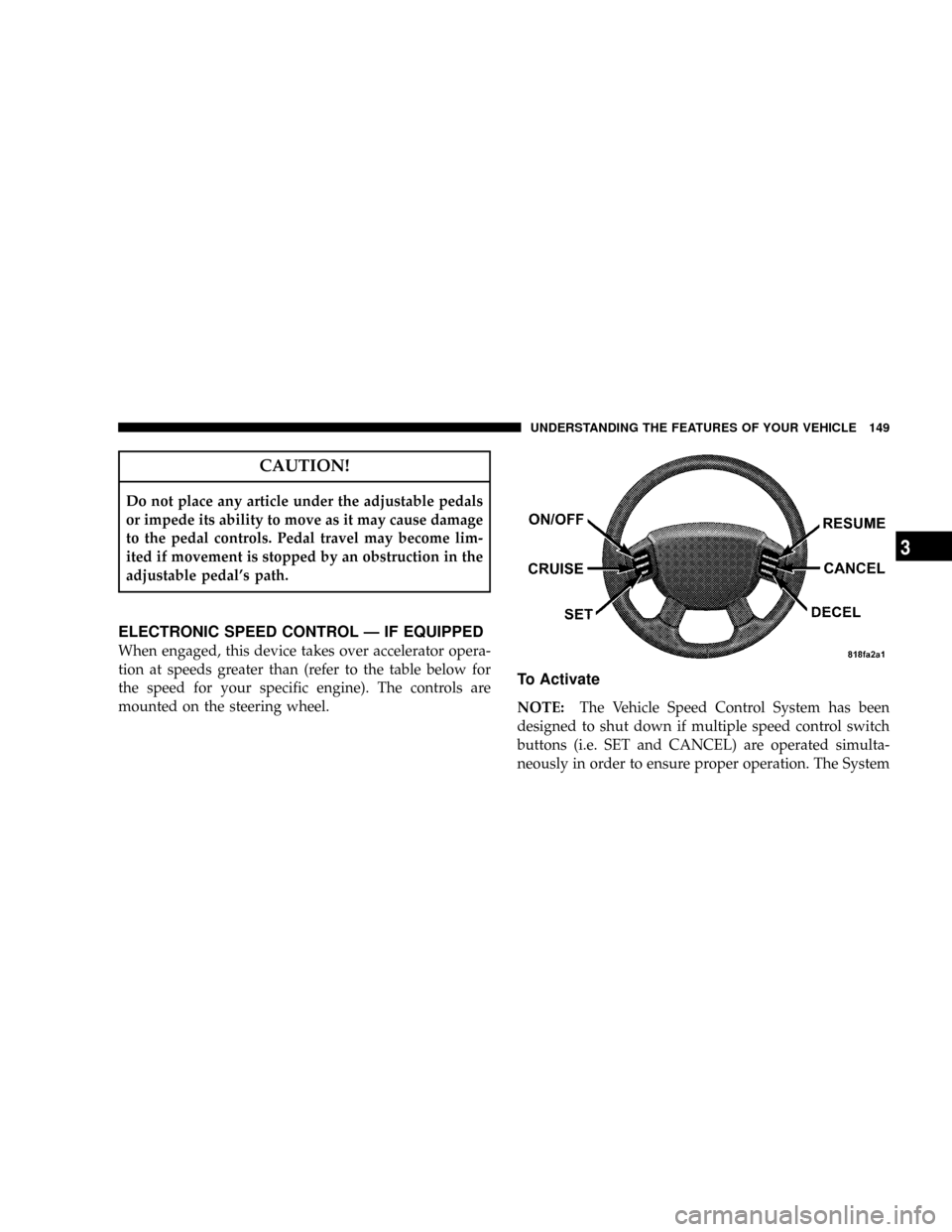
ELECTRONIC SPEED CONTROL Ð IF EQUIPPED
When engaged, this device takes over accelerator opera-
tion at speeds greater than (refer to the table below for
the speed for your specific engine). The controls are
mounted on the steering wheel.
To Activate
NOTE:The Vehicle Speed Control System has been
designed to shut down if multiple speed control switch
buttons (i.e. SET and CANCEL) are operated simulta-
neously in order to ensure proper operation. The System
UNDERSTANDING THE FEATURES OF YOUR VEHICLE 149
3
Page 169 of 481
WARNING!
Vehicle exhaust contains carbon monoxide, a danger-
ous gas. Do not run your vehicle in the garage while
training the transceiver. Exhaust gas can cause seri-
ous injury or death.
Programming HomeLinkT
Before You Begin
If you have not trained any of the HomeLinktbuttons,
erase all channels before you begin training.
To do this, press and hold the two outside buttons for 20
seconds. The EVIC will display ªCLEARING CHAN-
NELS.º Release the buttons when the EVIC message
states ªCHANNELS CLEARED.º
It is recommended that a new battery be placed in the
hand-held transmitter of the device being programmedto HomeLinktfor more efficient training and accurate
transmission of the radio-frequency signal.
Your vehicle should be parked outside of the garage
while training.
1. Turn the ignition switch to the ON/RUN position.
2. Place the hand-held transmitter 1±3 inches (3±8 cm)
from the HomeLinktbuttons while keeping the EVIC
display in view.
For optimal training, point the battery end of the hand-
held transmitter away from the HomeLinkt.
3. Simultaneously press and hold both the chosen
HomeLinktbutton and the hand-held transmitter button
until the EVIC display changes from ªCHANNEL #
TRAININGº to ªCHANNEL # TRAINED.º
Then release both the HomeLinktand hand-held trans-
mitter buttons.
UNDERSTANDING THE FEATURES OF YOUR VEHICLE 169
3
Page 171 of 481

6. Firmly press and release the ªlearnº or ªtrainingº
button. The name and color of the button may vary by
manufacturer.
NOTE:There are 30 seconds in which to initiate the next
step after the ªLearnº button has been pressed.7. Return to the vehicle and press the programmed
HomeLinktbutton twice (holding the button for 2 sec-
onds each time). If the device is plugged in and activates,
programming is complete.
If the device does not activate, press the button a third
time (for 2 seconds) to complete the training.
If you are have any problems, or require assistance,
please call toll-free 1±800±355±3515 or, on the Internet at
www.HomeLink.com for information or assistance.
To program the remaining two HomeLinktbuttons,
repeat each step for each remaining button. DO NOT
erase the channels.Gate Operator/Canadian Programming
Canadian radio-frequency laws require transmitter sig-
nals to ªtime-outº (or quit) after several seconds of
transmission ± which may not be long enough for
HomeLinktto pick up the signal during programming.
1 Ð Garage Door Opener
2 Ð Training ButtonUNDERSTANDING THE FEATURES OF YOUR VEHICLE 171
3
Page 173 of 481

3.Without releasing the button,proceed with PRO-
GRAMMING HOMELINK Step #2 and follow all remain-
ing steps.
Security
It is advised to erase all channels before you sell or turn
in your vehicle.
To do this, press and hold the two outside buttons for 20
seconds until the EVIC message states ªCHANNELS
CLEARED.º Note that all channels will be erased. Indi-
vidual channels cannot be erased.
The HomeLinktUniversal Transceiver is disabled when
the Vehicle Security Alarm is active.
Troubleshooting Tips
If you are having trouble programming HomeLinkt, here
are some of the most common solutions:
²Replace the battery in the original transmitter.
²Press the Learn Button on the Garage Door Opener to
complete the training for Rolling Code.
²Did you unplug the device for training, and remember
to plug it back in?
If you are have any problems, or require assistance,
please call toll-free 1±800±355±3515 or, on the Internet at
www.HomeLink.com for information or assistance.
General Information
This device complies with FCC rules part 15 and Industry
Canada RSS-210. Operation is subject to the following
two conditions:
1. This device may not cause harmful interference
2. This device must accept any interference that may be
received including interference that may cause undesired
operation
UNDERSTANDING THE FEATURES OF YOUR VEHICLE 173
3
Page 188 of 481

mSales Code RES Ð AM/FM Stereo Radio With
CD Player (MP3 AUX Jack)................209
NOperating Instructions - Radio Mode.......209
NOperation Instructions - CD Mode For CD
And MP3 Audio Play..................215
NNotes On Playing MP3 Files.............217
NList Button (CD Mode For MP3 Play).......219
NInfo Button (CD Mode For MP3 Play).......219
mSales Code REQ Ð AM/FM Stereo Radio
And 6±Disc CD/DVD Changer
(MP3/WMA AUX Jack)..................221
NOperating Instructions - Radio Mode.......221
NOperation Instructions - (Disc Mode For CD
And MP3/WMA Audio Play, DVD-Video)....229
NNotes On Playing MP3/WMA Files........231NList Button (Disc Mode For MP3/WMA
Play)..............................234
NInfo Button (Disc Mode For MP3/WMA
Play)..............................234
mSales Code RER Ð Multimedia System Ð If
Equipped............................236
NOperating Instructions Ð Satellite Radio.....237
NOperating Instructions Ð Hands-Free
Communication (UConnectŸ) (If Equipped) . . 237
NClock Setting Procedure.................237
mUniversal Consumer Interface (UCI) Ð If
Equipped............................240
NConnecting The iPodt..................240
NControlling The iPodtUsing Radio Buttons . . . 240
NPlay Mode..........................241
188 INSTRUMENT PANEL AND CONTROLS
Page 209 of 481

SALES CODE RES Ð AM/FM STEREO RADIO
WITH CD PLAYER (MP3 AUX JACK)
NOTE:The radio sales code is located on the lower right
side of your radio faceplate.
Operating Instructions - Radio Mode
NOTE:The ignition switch must be in the ON or ACC
position to operate the radio.
Power Switch/Volume Control (Rotary)
Press the ON/VOLUME control knob to turn on the
radio. Press the ON/VOLUME control knob a second
time to turn off the radio.
Electronic Volume Control
The electronic volume control turns continuously (360
degrees) in either direction without stopping. Turning the
ON/VOLUME control knob to the right increases the
volume and to the left decreases it.
When the audio system is turned on, the sound will be
set at the same volume level as last played.
SEEK Buttons
Press and release the SEEK buttons to search for the next
listenable station in AM/FM mode. Press the right switch
RES Radio (Non-Satellite Model Shown -
With Satellite Similar)
INSTRUMENT PANEL AND CONTROLS 209
4
Page 211 of 481

3. After adjusting the hours, press the right side TUNE
control knob to set the minutes. The minutes will begin to
blink.
4. Adjust the minutes using the right side TUNE control
knob. Press the TUNE control knob to save time change.
5. To exit, press any button/knob or wait 5 seconds.
The clock can also be set by pressing the SETUP button.
For vehicles equipped with satellite radio, press the
SETUP button, use the TUNE control to select SET
CLOCK, and then follow the above procedure, starting at
Step 2. For vehicles not equipped with satellite radio,
press the SETUP button and then follow the above
procedure, starting at Step 2.
INFO Button
Press the INFO button for an RDS station (one with call
letters displayed). The radio will return a Radio Text
message broadcast from an FM station (FM mode only).
RW/FF
Pressing the RW (Rewind) or FF (Fast Forward) buttons
causes the tuner to search for the next frequency in the
direction of the arrows. This feature operates in either
AM or FM frequencies.
TUNE Control
Turn the right side rotary control clockwise to increase or
counter-clockwise to decrease the frequency.
Setting the Tone, Balance, and Fade
Press the rotary TUNE control knob and BASS will
display. Turn the TUNE control knob to the right or left to
increase or decrease the Bass tones.
Press the rotary TUNE control knob a second time and
MID will display. Turn the TUNE control knob to the
right or left to increase or decrease the Mid Range tones.
INSTRUMENT PANEL AND CONTROLS 211
4
Page 214 of 481

AM and FM Buttons
Press the buttons to select AM or FM Modes.
SET Button Ð To Set the Push-Button Memory
When you are receiving a station that you wish to
commit to push-button memory, press the SET button.
The symbol SET 1 will now show in the display window.
Select the button (1-6) you wish to lock onto this station
and press and release that button. If a button is not
selected within 5 seconds after pressing the SET button,
the station will continue to play but will not be stored
into push-button memory.
You may add a second station to each push-button by
repeating the above procedure with this exception: Press
the SET button twice and SET 2 will show in the display
window. Each button can be set for SET 1 and SET 2 in
both AM and FM. This allows a total of 12 AM and 12 FMstations to be stored into push-button memory. The
stations stored in SET 2 memory can be selected by
pressing the push-button twice.
Every time a preset button is used, a corresponding
button number will display.
Buttons1-6
These buttons tune the radio to the stations that you
commit to push-button memory {12 AM and 12 FM
stations}.
DISC Button
Pressing the DISC button will allow you to switch from
AM/FM modes to Disc modes.
214 INSTRUMENT PANEL AND CONTROLS
Page 221 of 481

SALES CODE REQ Ð AM/FM STEREO RADIO
AND 6±DISC CD/DVD CHANGER (MP3/WMA AUX
JACK)
NOTE:The radio sales code is located on the lower right
side of your radio faceplate.
Operating Instructions - Radio Mode
NOTE:The ignition switch must be in the ON or ACC
position to operate the radio.
Power Switch/Volume Control (Rotary)
Press the ON/VOL control to turn the radio ON. Press
the ON/VOL a second time to turn OFF the radio.
Electronic Volume Control
The electronic volume control turns continuously (360
degrees) in either direction without stopping. Turning the
volume control to the right increases the volume and to
the left decreases it.
When the audio system is turned on, the sound will be
set at the same volume level as last played.
SEEK Buttons (Radio Mode)
Press and release the SEEK buttons to search for the next
listenable station in AM/FM mode. Press the right switch
to seek up and the left switch to seek down. The radio
REQ Radio
INSTRUMENT PANEL AND CONTROLS 221
4
Page 228 of 481

Audio DRC Ð If Equipped
Selecting this item will allow the user to limit maximum
audio dynamic range - The default is set to9High,9and
under this setting, dialogues will play at 11 db higher
than if the setting is9Normal.9
Aspect Ratio Ð If Equipped
Selecting this item will allow the user to choose between
wide screen, pan scan, and letter box.
AutoPlay Ð If Equipped
When this is set to ON and a DVD video is inserted, it
will bypass the DVD menu screen and automatically play
the movie. In some rare cases, the DVD player may not
auto play the main title. In such cases, use the menu
button on the remote control to select desired title to play.
NOTE:The user will have to set these defaults before
loading a disc. If changes are made to these settings aftera disc is loaded, changes will not be effective. Also, the
defaults are effective only if the disc supports the
customer-preferred settings.
AM and FM Buttons (Radio Mode)
Press the buttons to select AM or FM Modes.
SET Button (Radio Mode) Ð To Set the
Push-Button Memory
When you are receiving a station that you wish to
commit to push-button memory, press the SET button.
The symbol SET 1 will now show in the display window.
Select the button (1-6) you wish to lock onto this station
and press and release that button. If a button is not
selected within 5 seconds after pressing the SET button,
the station will continue to play but will not be stored
into push-button memory.
You may add a second station to each push-button by
repeating the above procedure with this exception: Press
the SET button twice and SET 2 will show in the display
228 INSTRUMENT PANEL AND CONTROLS