display DODGE DURANGO 2014 3.G Repair Manual
[x] Cancel search | Manufacturer: DODGE, Model Year: 2014, Model line: DURANGO, Model: DODGE DURANGO 2014 3.GPages: 664, PDF Size: 4.79 MB
Page 346 of 664
•Lane Departure Warning (LDW) — If Equipped
The Lane Departure Warning (LDW) sets the distance at
which the steering wheel will provide feedback for
potential lane departures. The LDW sensitivity can be set
to provide either an early, medium or late warning zone
start point. To make your selection, touch the “Lane
Departure Warning” soft-key, until a check-mark appears
next to setting, indicating that the setting had been
selected. Touch the back arrow soft-key to return to the
previous menu.
• Lane Departure Warning (LDW) Strength — If
Equipped
When this feature is selected, it sets the strength of the
steering wheel feedback for potential lane departures.
The amount of directional torque the steering system can
apply to the steering wheel to correct for vehicle lane
departure can be set at Low, Medium or High. To make
your selection, touch the “Lane Departure Warning” soft-key until a check-mark appears next to setting,
indicating that the setting had been selected. Touch the
back arrow soft-key to return to the previous menu.
•
ParkSense®
The ParkSense® system will scan for objects behind the
vehicle when the transmission shift lever is in REVERSE
and the vehicle speed is less than 11 mph (18 km/h). It
will provide an alert (audible and/or visual) to indicate
the proximity to other objects. The system can be enabled
with Sound Only, or Sound and Display. To change the
ParkSense® status, touch and release the “Sound Only”
or “Sounds and Display” button. Then touch the back
arrow soft-key. Refer to “ParkSense®” in “Understanding
The Features Of Your Vehicle” for system function and
operating information.
• Front ParkSense® Chime Volume — If Equipped
The Front ParkSense® Chime Volume settings can be
selected from the EVIC or Uconnect® System — if
344 UNDERSTANDING YOUR INSTRUMENT PANEL
Page 349 of 664
•ParkView® Backup Camera — If Equipped
Your vehicle may be equipped with the ParkView® Rear
Back Up Camera that allows you to see an on-screen
image of the rear surroundings of your vehicle whenever
the shift lever is put into REVERSE. The image will be
displayed on the radio touchscreen display along with a
caution note to “check entire surroundings” across the
top of the screen. After five seconds, this note will
disappear. The ParkView® camera is located on the rear
of the vehicle above the rear License plate. To make your
selection, touch the “ParkView Backup Camera” soft-key,
until a check-mark appears next to setting, indicating that
the setting had been selected. Touch the back arrow
soft-key to return to the previous menu.
• ParkView® Backup Camera Active Guidelines
Your vehicle may be equipped with the ParkView® Rear
Back Up Camera Active Guidelines that allows you to see
active guidelines over the ParkView Back up camera display whenever the shift lever is put into REVERSE.
The image will be displayed on the radio touchscreen
display along with a caution note to “check entire sur-
roundings” across the top of the screen. After five sec-
onds, this note will disappear. To make your selection,
touch the “ParkView Backup Camera Active Guidelines”
soft-key, until a check-mark appears next to setting,
indicating that the setting had been selected. Touch the
back arrow soft-key to return to the previous menu.
•
ParkView® Backup Camera Static Gridlines — If
Equipped
Your vehicle may be equipped with the ParkView® Rear
Back Up Camera Static Guidelines that allows you to see
straight grid line overlay over the ParkView Back up
camera display whenever the shift lever is put into
REVERSE. The image will be displayed on the radio
touchscreen display along with a caution note to “check
entire surroundings” across the top of the screen. After
4
UNDERSTANDING YOUR INSTRUMENT PANEL 347
Page 350 of 664
five seconds, this note will disappear. To make your
selection, touch the “ParkView Backup Camera Static
Gridlines” soft-key, until a check-mark appears next to
setting, indicating that the setting had been selected.
Touch the back arrow soft-key to return to the previous
menu.
•ParkView® Backup Camera Delay
When the vehicle is shifted out of REVERSE (with camera
delay turned OFF), the rear camera mode is exited and
the navigation or audio screen appears again. When the
vehicle is shifted out of REVERSE (with camera delay
turned ON), the rear view image with dynamic grid lines
will be displayed for up to 10 seconds after shifting out of
“REVERSE” unless the forward vehicle speed exceeds
8 mph (12 km/h), the transmission is shifted into
“PARK” or the ignition is switched to the OFF position.
To set the ParkView® Backup Camera Delay press the
“Controls” soft-key, the “settings” soft-key, then the “Safety & Driving Assistance” soft-key. Press the
“Parkview Backup camera Delay” soft-key to turn the
ParkView® Delay ON or OFF.
•
Rain Sensing Auto Wipers
When this feature is selected, the system will automati-
cally activate the windshield wipers if it senses moisture
on the windshield. To make your selection, touch the
“Rain Sensing” soft-key, until a check-mark appears next
to setting, indicating that the setting had been selected.
Touch the back arrow soft-key to return to the previous
menu.
• Hill Start Assist — If Equipped
When this feature is selected, the Hill Start Assist (HSA)
system is active. Refer to “Electronic Brake Control
System” in “Starting And Operating” for system function
and operating information. To make your selection, touch
348 UNDERSTANDING YOUR INSTRUMENT PANEL
Page 357 of 664
•Perform Compass Calibration
Touch the “Calibration” soft-key to change this setting.
This compass is self-calibrating, which eliminates the
need to manually reset the compass. When the vehicle is
new, the compass may appear erratic and the EVIC will
display CAL until the compass is calibrated. You may
also calibrate the compass by pressing the “ON” soft-key
and completing one or more 360-degree turns (in an area
free from large metal or metallic objects) until the CAL
indicator displayed in the EVIC turns off. The compass
will now function normally.
Audio
After pressing the “Audio” soft-key the following set-
tings will be available:
• Balance/Fade
When in this display you may adjust the Balance and
Fade settings. •
Equalizer
When in this display you may adjust the Bass, Mid and
Treble settings. Adjust the settings with the “+” and “–”
soft-keys or by selecting any point on the scale between
the “+” and “–” soft-keys. Then touch the back arrow
soft-key.
NOTE: Bass/Mid/Treble allow you to simply slide your
finger up or down to change the setting as well as touch
directly on the desired setting.
• Speed Adjusted Volume
This feature increases or decreases volume relative to
vehicle speed. To change the Speed Adjusted Volume
touch the “Off,” “1,” “2” or ”3” soft-key. Then touch the
back arrow soft-key.
4
UNDERSTANDING YOUR INSTRUMENT PANEL 355
Page 359 of 664
your selection, touch the “Channel Skip” soft-key, select
the channels you would like to skip followed by pressing
the back arrow soft-key.
•Subscription Information
New vehicle purchasers or lessees will receive a free
limited time subscription to SiriusXM Satellite Radio
with your radio. Following the expiration of the free
services, it will be necessary to access the information on
the Subscription Information screen to re-subscribe.
Touch the “Subscription Info” soft-key to access the
Subscription Information screen.
Write down the SIRIUS ID numbers for your receiver. To
reactivate your service, either call the number listed on
the screen or visit the provider online. NOTE:
SiriusXM Travel Link is a separate subscription
and is available for U.S. residents only.
Restore Settings
After pressing the “Restore Settings” soft-key the follow-
ing settings will be available:
• Restore Settings
When this feature is selected it will reset Display, Clock,
Audio, and Radio Settings to their default. To restore the
settings to their default setting touch the “Yes” or “No”
soft-key. A check mark will appear in the box when
selected. Then touch the back arrow soft-key.
4
UNDERSTANDING YOUR INSTRUMENT PANEL 357
Page 366 of 664
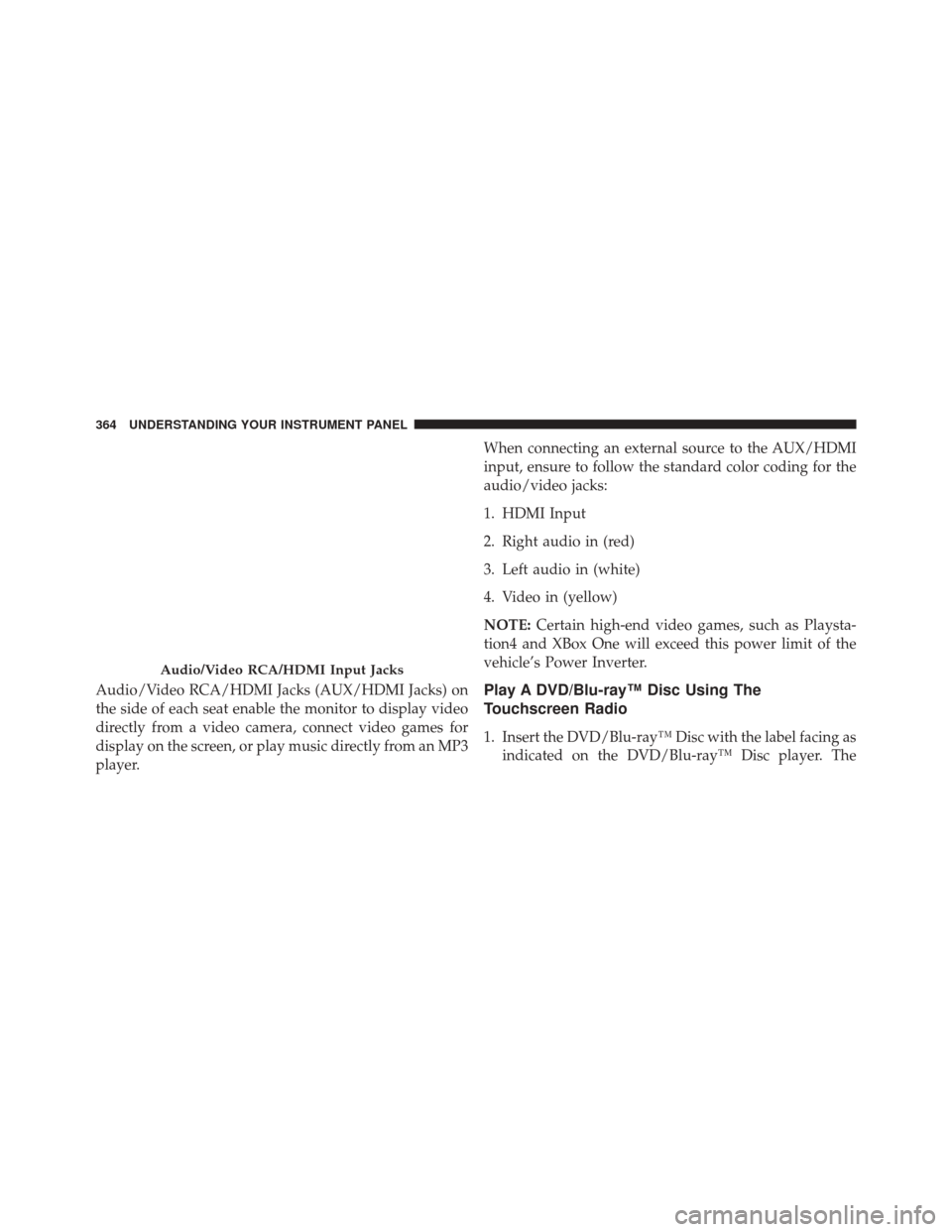
Audio/Video RCA/HDMI Jacks (AUX/HDMI Jacks) on
the side of each seat enable the monitor to display video
directly from a video camera, connect video games for
display on the screen, or play music directly from an MP3
player.When connecting an external source to the AUX/HDMI
input, ensure to follow the standard color coding for the
audio/video jacks:
1. HDMI Input
2. Right audio in (red)
3. Left audio in (white)
4. Video in (yellow)
NOTE:
Certain high-end video games, such as Playsta-
tion4 and XBox One will exceed this power limit of the
vehicle’s Power Inverter.Play A DVD/Blu-ray™ Disc Using The
Touchscreen Radio
1. Insert the DVD/Blu-ray™ Disc with the label facing as indicated on the DVD/Blu-ray™ Disc player. The
Audio/Video RCA/HDMI Input Jacks
364 UNDERSTANDING YOUR INSTRUMENT PANEL
Page 367 of 664
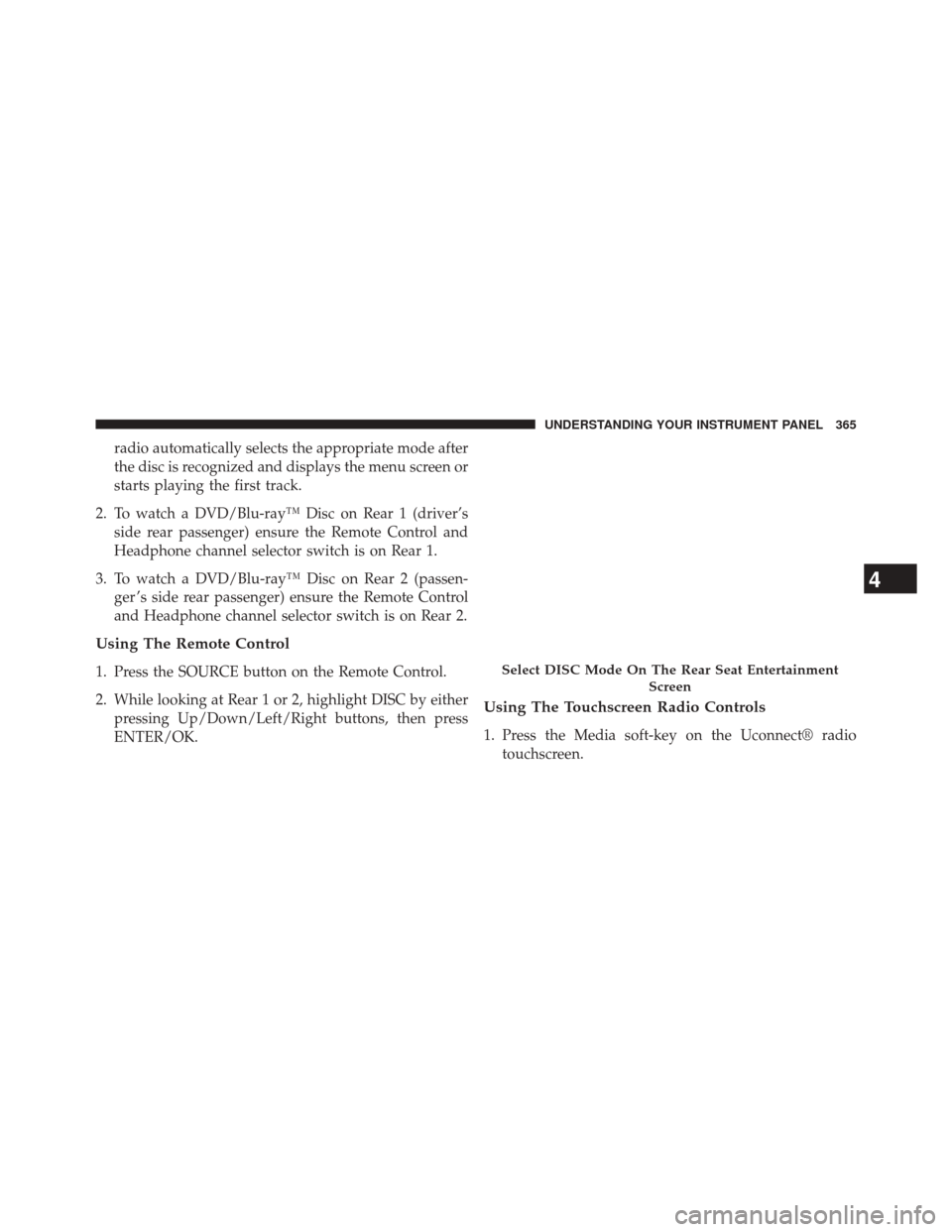
radio automatically selects the appropriate mode after
the disc is recognized and displays the menu screen or
starts playing the first track.
2. To watch a DVD/Blu-ray™ Disc on Rear 1 (driver’s side rear passenger) ensure the Remote Control and
Headphone channel selector switch is on Rear 1.
3. To watch a DVD/Blu-ray™ Disc on Rear 2 (passen- ger ’s side rear passenger) ensure the Remote Control
and Headphone channel selector switch is on Rear 2.
Using The Remote Control
1. Press the SOURCE button on the Remote Control.
2. While looking at Rear 1 or 2, highlight DISC by eitherpressing Up/Down/Left/Right buttons, then press
ENTER/OK.
Using The Touchscreen Radio Controls
1. Press the Media soft-key on the Uconnect® radiotouchscreen.
Select DISC Mode On The Rear Seat Entertainment
Screen
4
UNDERSTANDING YOUR INSTRUMENT PANEL 365
Page 368 of 664
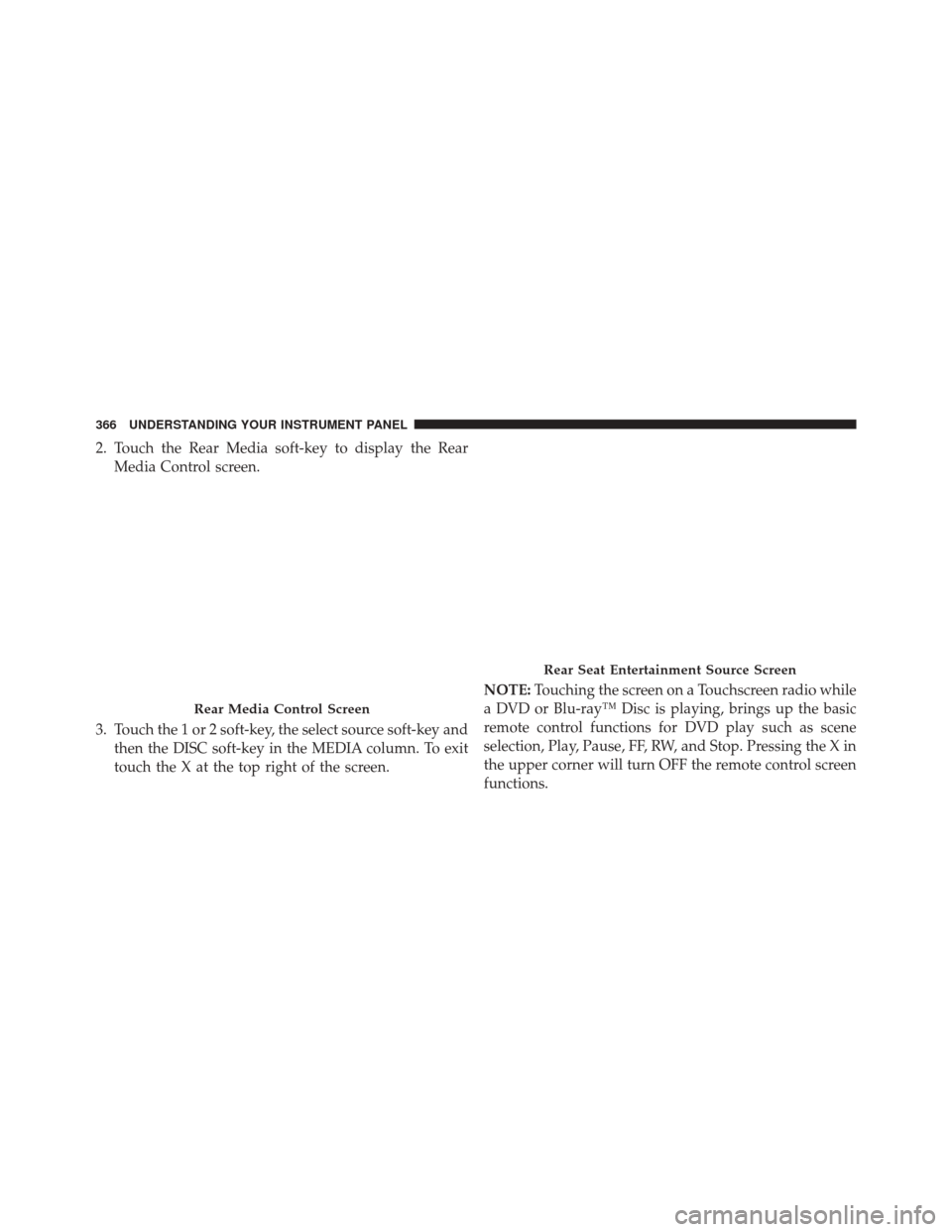
2. Touch the Rear Media soft-key to display the RearMedia Control screen.
3. Touch the 1 or 2 soft-key, the select source soft-key and then the DISC soft-key in the MEDIA column. To exit
touch the X at the top right of the screen. NOTE:
Touching the screen on a Touchscreen radio while
a DVD or Blu-ray™ Disc is playing, brings up the basic
remote control functions for DVD play such as scene
selection, Play, Pause, FF, RW, and Stop. Pressing the X in
the upper corner will turn OFF the remote control screen
functions.
Rear Media Control Screen
Rear Seat Entertainment Source Screen
366 UNDERSTANDING YOUR INSTRUMENT PANEL
Page 369 of 664
Important Notes For Dual Video Screen System
•The Rear Seat Entertainment System is able to transmit
two channels of stereo audio and video simultane-
ously.
• The Blu-ray™ Disc Player can play CDs, DVDs and
Blu-ray™ Discs.
• Selecting a video source on Rear 1, the video source
will display on Rear 1 and can be heard on Rear 1.
• Selecting a video source on Rear 2, the video source
will display on Rear 2 and can be heard on Rear 2.
• Audio can be heard through the headphones even
when the screen(s) are closed.
Blu-ray™ Disc Player Remote Control — If
Equipped
Blu-ray™ Player Remote Control
4
UNDERSTANDING YOUR INSTRUMENT PANEL 367
Page 375 of 664
FOR ANY GENERAL, SPECIAL, DIRECT, INDIRECT,
INCIDENTAL, CONSEQUENTIAL, EXEMPLARY, PU-
NITIVE OR OTHER DAMAGES OF ANY KIND OR
NATURE WHATSOEVER. Some states and jurisdictions
may not allow the exclusion or limitation of incidental or
consequential damages, so the above limitation may not
apply to you. This warranty gives you specific legal
rights. You may also have other rights, which vary from
jurisdiction to jurisdiction.
What Will Unwired® Do?Unwired®, at its option, will
repair or replace any defective Product. Unwired® re-
serves the right to replace any discontinued Product with
a comparable model. THIS WARRANTY IS THE SOLE
WARRANTY FOR THIS PRODUCT, SETS FORTH YOUR
EXCLUSIVE REMEDY REGARDING DEFECTIVE
PRODUCTS, AND IS IN LIEU OF ALL OTHER WAR-
RANTIES (EXPRESS OR IMPLIED), INCLUDING ANY
WARRANTY OR MERCHANTABILITY OR FITNESS
FOR A PARTICULAR PURPOSE.If you have any questions or comments regarding your
Unwired® wireless headphones, please phone 1-888-293-3332
or email [email protected].
You may register your Unwired® wireless headphones
online at www.unwiredtechnology.com or by phone at
1-888-293-3332.
System Information
Disc Menu
When listening to a CD Audio or CD Data disc, pressing
the remote control’s POP UP/MENU button displays a
list of all commands which control playback of the disc.
4
UNDERSTANDING YOUR INSTRUMENT PANEL 373