radio DODGE DURANGO 2015 3.G Owner's Manual
[x] Cancel search | Manufacturer: DODGE, Model Year: 2015, Model line: DURANGO, Model: DODGE DURANGO 2015 3.GPages: 689, PDF Size: 20.05 MB
Page 285 of 689
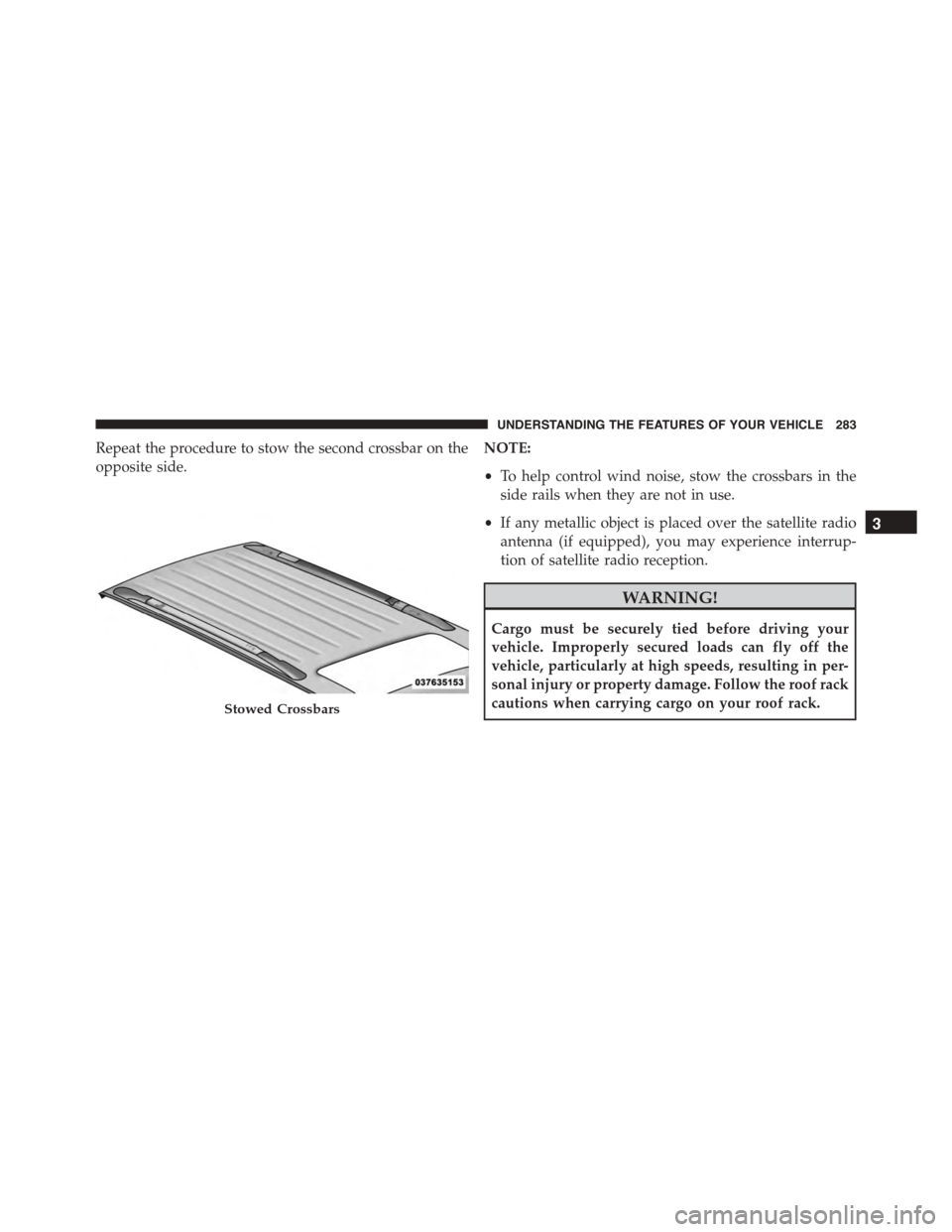
Repeat the procedure to stow the second crossbar on the
opposite side.
NOTE:
•To help control wind noise, stow the crossbars in the
side rails when they are not in use.
•If any metallic object is placed over the satellite radio
antenna (if equipped), you may experience interrup-
tion of satellite radio reception.
WARNING!
Cargo must be securely tied before driving your
vehicle. Improperly secured loads can fly off the
vehicle, particularly at high speeds, resulting in per-
sonal injury or property damage. Follow the roof rack
cautions when carrying cargo on your roof rack.Stowed Crossbars
3
UNDERSTANDING THE FEATURES OF YOUR VEHICLE 283
Page 290 of 689
!Uconnect® RADIOS — IF EQUIPPED........354
!iPod®/USB/MP3 CONTROL — IF EQUIPPED . .354
▫Connecting The iPod® Or External USB
Device.............................354
▫Using This Feature.....................355
▫Second Row USB Charging Port...........356
!Uconnect® REAR SEAT ENTERTAINMENT (RSE)
SYSTEM — IF EQUIPPED................357
▫Getting Started.......................357
▫Dual Video Screen.....................359
▫Blu-ray™ Disc Player...................360
▫Play Video Games.....................362
▫Play A DVD/Blu-ray™ Disc Using The
Touchscreen Radio.....................363
▫Important Notes For Dual Video Screen
System.............................365
▫Blu-ray™ Disc Player Remote Control — If
Equipped...........................366
▫Replacing The Remote Control Batteries......367
▫Headphones Operation.................368
▫Controls............................369
▫Replacing The Headphone Batteries.........370
▫Unwired® Stereo Headphone Lifetime Limited
Warranty...........................370
!STEERING WHEEL AUDIO CONTROLS — IF
EQUIPPED...........................377
▫Radio Operation......................378
▫CD Player...........................378
288 UNDERSTANDING YOUR INSTRUMENT PANEL
Page 291 of 689
!CD/DVD/Blu-ray™ Disc MAINTENANCE . . . .378
!RADIO OPERATION AND MOBILE PHONES . .379
▫Regulatory And Safety Information.........379
!CLIMATE CONTROLS...................381
▫General Overview.....................382
▫Climate Control Functions...............388
▫Automatic Temperature Control (ATC)......390
▫Rear Automatic Temperature Control (ATC) . .391
▫Operating Tips.......................396
!Uconnect® VOICE RECOGNITION QUICK
TIPS................................399
▫Introducing Uconnect®.................399
▫Get Started..........................400
▫Basic Voice Commands..................401
▫Radio..............................403
▫Media..............................404
▫Phone..............................406
▫Voice Text Reply......................407
▫Climate (8.4A/8.4AN)..................408
▫Navigation (8.4A/8.4AN)................409
▫Uconnect® Access* (8.4A/8.4AN)..........410
▫Register (8.4A/8.4AN)..................411
▫Mobile App (8.4A/8.4AN)...............412
▫Voice Texting (8.4A/8.4AN)..............413
▫Yelp® (8.4A/8.4AN)....................414
▫SiriusXM Travel Link™ (8.4A/8.4AN).......415
▫Additional Information.................416
4
UNDERSTANDING YOUR INSTRUMENT PANEL 289
Page 292 of 689
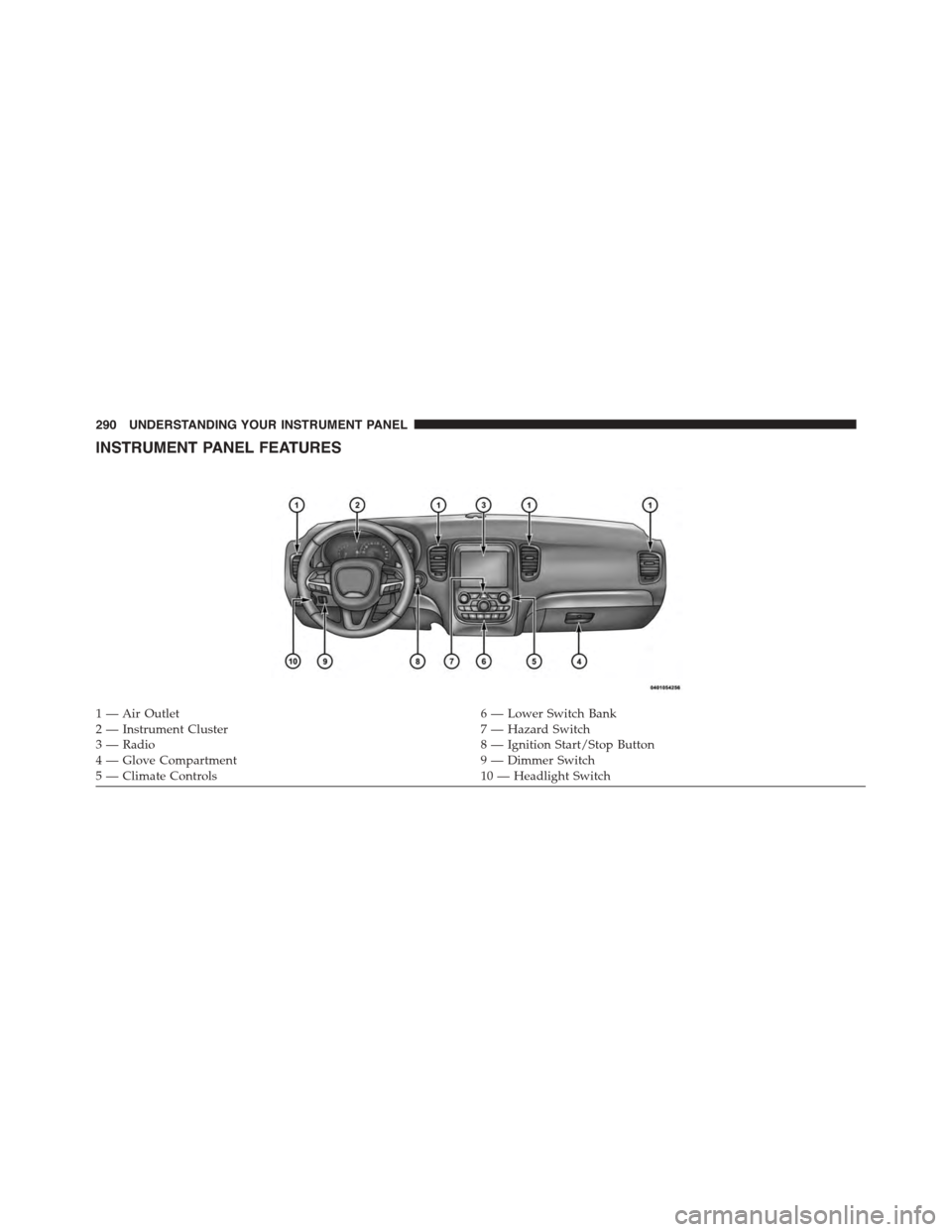
INSTRUMENT PANEL FEATURES
1—AirOutlet6—LowerSwitchBank2 — Instrument Cluster7 — Hazard Switch3—Radio8—IgnitionStart/StopButton4—GloveCompartment9—DimmerSwitch5 — Climate Controls10 — Headlight Switch
290 UNDERSTANDING YOUR INSTRUMENT PANEL
Page 322 of 689
and release the “Auto” or “Manual” button on the
touchscreen. Then press the arrow back button on the
touchscreen.
NOTE:When Day or Night is selected for the Display
Mode, the usage of the Parade Mode feature will cause
the radio to activate the Display Brightness Day control
even though the headlights are on.
•Display Brightness With Headlights ON
When in this display, you may select the overall screen
brightness with the headlights on. Adjust the brightness
with the “+” and “–” setting buttons on the touchscreen
or by selecting any point on the scale between the “+”
and “–” buttons on the touchscreen. Then press the arrow
back button on the touchscreen.
NOTE:To make changes to the#Display Brightness with
Headlights ON#setting, the headlights must be on and
the interior dimmer switch must not be in the#party#or
#parade#positions.
•Display Brightness With Headlights OFF
When in this display, you may select the overall screen
brightness with the headlights off. Adjust the brightness
with the “+” and “–” setting buttons on the touchscreen
or by selecting any point on the scale between the “+”
and “–” buttons on the touchscreen. Then press the arrow
back button on the touchscreen.
NOTE:To make changes to the#Display Brightness with
Headlights OFF#setting, the headlights must be off and
the interior dimmer switch must not be in the#party#or
#parade#positions.
320 UNDERSTANDING YOUR INSTRUMENT PANEL
Page 325 of 689
“Sound Only” or “Sounds and Display” button. Then
press the back arrow button on the touchscreen. Refer to
“ParkSense®” in “Understanding The Features Of Your
Vehicle” for system function and operating information.
•Tilt Mirrors In Reverse
When this feature is selected, the exterior sideview
mirrors will tilt downward when the ignition is in the
RUN position and the transmission shift lever/gear
selector is in the REVERSE position. The mirrors will
move back to their previous position when the transmis-
sion is shifted out of REVERSE. To make your selection,
press the “Tilt Mirrors In Reverse” button on the touch-
screen and make your selection. Press the back arrow
button on the touchscreen to return to the previous
menu.
•ParkView® Backup Camera Active Guidelines
Your vehicle may be equipped with the ParkView® Rear
Back Up Camera Active Guidelines that allows you to see
active guidelines over the ParkView Back up camera
display whenever the shift lever/gear selector is put into
REVERSE. The image will be displayed on the radio
touchscreen display along with a caution note to “check
entire surroundings” across the top of the screen. After
five seconds, this note will disappear. To make your
selection, press the “ParkView® Backup Camera Active
Guidelines” button on the touchscreen and make your
selection. Press arrow button on the touchscreen to return
to the previous menu.
•ParkView® Backup Camera Delay
When the vehicle is shifted out of REVERSE (with camera
delay turned OFF), the rear camera mode is exited and
the navigation or audio screen appears again. When the
vehicle is shifted out of REVERSE (with camera delay
turned ON), the rear view image with dynamic grid lines
will be displayed for up to 10 seconds after shifting out of
“REVERSE” unless the forward vehicle speed exceeds
4
UNDERSTANDING YOUR INSTRUMENT PANEL 323
Page 331 of 689
Engine Off Options
After pressing the “Engine Off Options” button on the
touchscreen the following settings will be available.
•Easy Exit Seats — If Equipped
When this feature is selected, the Driver ’s seat will
automatically move rearward once the engine is shut off.
To make your selection, press the “Easy Exit Seats”
button on the touchscreen and make your selection. Press
the back arrow button on the touchscreen to return to the
previous menu.
•Headlight Off Delay
When this feature is selected, the driver can choose to
have the headlights remain on for 0, 30, 60, or 90 seconds
when exiting the vehicle. Press the “Headlight Off Delay”
button on the touchscreen and choose from “0,” “30,”
“60,” or “90” seconds to select your desired time interval.
Press the back arrow button on the touchscreen to return
to the previous menu.
•Engine Off Power Delay
When this feature is selected, the power window
switches, radio, Uconnect® phone system (if equipped),
DVD video system (if equipped), power sunroof (if
equipped), and power outlets will remain active for up to
10 minutes after the ignition is cycled to OFF. Opening
either front door will cancel this feature. Press the “En-
gine Off Power Delay” button on the touchscreen and
choose from “0 sec,” “45 sec,” “5 min” or “10 min” to
select your desired time interval. Then press the arrow
back button on the touchscreen.
Compass Settings — If Equipped
After pressing the “Compass Settings” button on the
touchscreen the following settings will be available:
•Variance
Compass Variance is the difference between Magnetic
North and Geographic North. To compensate for the
4
UNDERSTANDING YOUR INSTRUMENT PANEL 329
Page 335 of 689
•Subscription Information
New vehicle purchasers or lessees will receive a free
limited time subscription to SiriusXM Satellite Radio
with your radio. Following the expiration of the free
services, it will be necessary to access the information on
the Subscription Information screen to re-subscribe.
Press the “Subscription Info” button on the touchscreen
to access the Subscription Information screen.
Write down the SIRIUS ID numbers for your receiver. To
reactivate your service, either call the number listed on
the screen or visit the provider online.
NOTE:SiriusXM Travel Link is a separate subscription
and is available for U.S. residents only.
Restore Settings
After pressing the “Restore Settings” button on the
touchscreen the following settings will be available:
•Restore Settings
When this feature is selected it will reset the Display,
Clock, Audio, and Radio Settings to their default settings.
To restore the settings to their default setting, press the
Restore Settings button. A pop-up will appear asking
#Are you sure you want to reset your settings to default?”
select “Yes” to restore, or “Cancel” to exit. Once the
settings are restored, a pop up appears stating#settings
reset to default.#Press the back arrow button on the
touchscreen to exit.
4
UNDERSTANDING YOUR INSTRUMENT PANEL 333
Page 337 of 689
Phone/Bluetooth®, SiriusXM Setup, Restore Settings,
Clear Personal Data, and System Information.
NOTE:Only one category may be selected at a time.
To adjust the setting of a programmable feature, press the
desired setting option. Once in the desired setting option,
press and release the preferred setting until a check-mark
appears next to the setting, showing that the setting has
been selected.
Once the setting is complete, press the Back Arrow
button on the touchscreen to return to the previous menu
or press the X button on the touchscreen to close out of
the settings screen. Pressing the Up or Down Arrow
button on the right side of the screen will allow you to
toggle up or down through the list of available settings.
Display
After pressing the “Display” button on the touchscreen
the following settings will be available.
•Display Mode
When in this display you may select one of the auto
display settings. To change Mode status, select from
“Day,” “Night” or “Auto” until a check-mark appears
next to the setting, showing that setting has been se-
lected. Then press the arrow back button on the touch-
screen.
NOTE:When Day or Night is selected for the Display
Mode, the usage of the Parade Mode feature will cause
the radio to activate the Display Brightness Day control
even though the headlights are on.
4
UNDERSTANDING YOUR INSTRUMENT PANEL 335
Page 340 of 689
Voice
After pressing the “Voice” button on the touchscreen the
following settings will be available:
•Voice Response Length
When in this display, you may change the Voice Re-
sponse Length settings. To change the Voice Response
Length, press the “Brief” or “Detailed” button on the
touchscreen until a check-mark appears next to the
setting, showing that setting has been selected. Press the
back arrow button on the touchscreen to return to the
previous menu.
•Show Command List
When in this display, you may choose to Always, With
Help, or Never display the Teleprompter with possible
options while in a voice session. To change the Show
Command List settings, press the “Always,” “With
Help,” or “Never” button on the touchscreen until a
check-mark appears next to the setting, showing that
setting has been selected. Press the back arrow button on
the touchscreen to return to the previous menu.
Clock
After pressing the “Clock” button on the touchscreen the
following settings will be available:
•Sync Time With GPS
This feature will allow the radio to sync time with a GPS
signal. To change the Sync Time setting, press the “Sync
time with GPS” button on the touchscreen until a check-
mark appears next to the setting, showing that setting has
been selected. Press the back arrow button on the touch-
screen to return to the previous menu.
•Set Time Hours
This feature will allow you to adjust the hours. The “Sync
time with GPS” button on the touchscreen must be
unchecked. To make your selection, press the “+” or “–”
338 UNDERSTANDING YOUR INSTRUMENT PANEL