Eco DODGE DURANGO 2020 Workshop Manual
[x] Cancel search | Manufacturer: DODGE, Model Year: 2020, Model line: DURANGO, Model: DODGE DURANGO 2020Pages: 464, PDF Size: 22.14 MB
Page 94 of 464
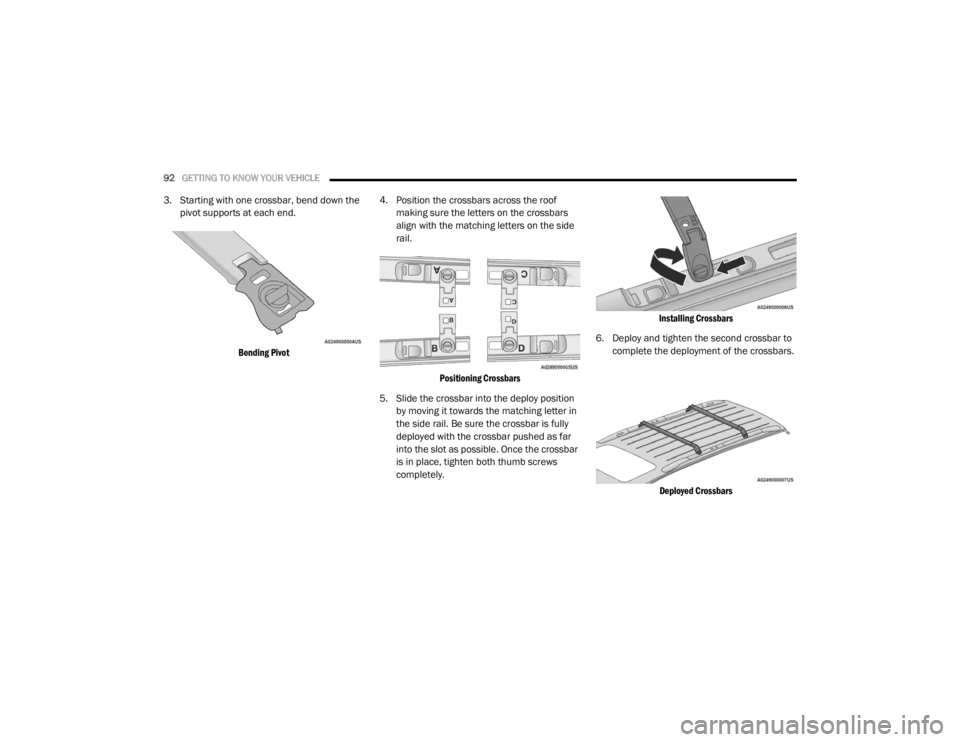
92GETTING TO KNOW YOUR VEHICLE
3. Starting with one crossbar, bend down the
pivot supports at each end.
Bending Pivot
4. Position the crossbars across the roof
making sure the letters on the crossbars
align with the matching letters on the side
rail.
Positioning Crossbars
5. Slide the crossbar into the deploy position by moving it towards the matching letter in
the side rail. Be sure the crossbar is fully
deployed with the crossbar pushed as far
into the slot as possible. Once the crossbar
is in place, tighten both thumb screws
completely.
Installing Crossbars
6. Deploy and tighten the second crossbar to complete the deployment of the crossbars.
Deployed Crossbars
20_WD_OM_EN_USC_t.book Page 92
Page 96 of 464
94GETTING TO KNOW YOUR VEHICLE
(Continued)
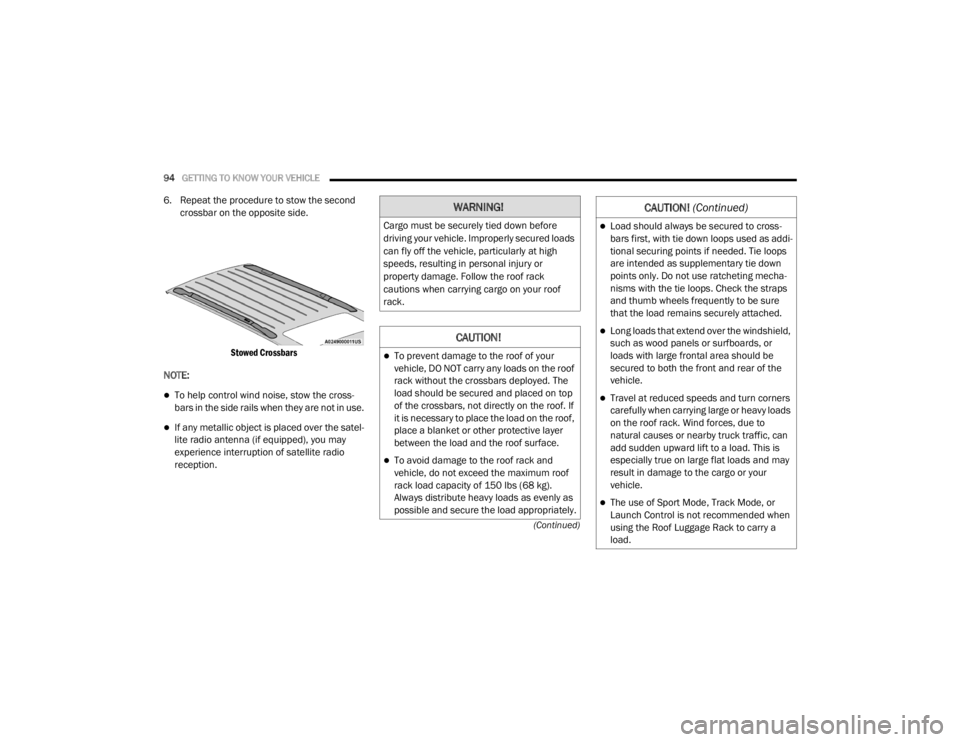
6. Repeat the procedure to stow the second crossbar on the opposite side.
Stowed Crossbars
NOTE:
To help control wind noise, stow the cross -
bars in the side rails when they are not in use.
If any metallic object is placed over the satel -
lite radio antenna (if equipped), you may
experience interruption of satellite radio
reception.
WARNING!
Cargo must be securely tied down before
driving your vehicle. Improperly secured loads
can fly off the vehicle, particularly at high
speeds, resulting in personal injury or
property damage. Follow the roof rack
cautions when carrying cargo on your roof
rack.
CAUTION!
To prevent damage to the roof of your
vehicle, DO NOT carry any loads on the roof
rack without the crossbars deployed. The
load should be secured and placed on top
of the crossbars, not directly on the roof. If
it is necessary to place the load on the roof,
place a blanket or other protective layer
between the load and the roof surface.
To avoid damage to the roof rack and
vehicle, do not exceed the maximum roof
rack load capacity of 150 lbs (68 kg).
Always distribute heavy loads as evenly as
possible and secure the load appropriately.
Load should always be secured to cross -
bars first, with tie down loops used as addi -
tional securing points if needed. Tie loops
are intended as supplementary tie down
points only. Do not use ratcheting mecha -
nisms with the tie loops. Check the straps
and thumb wheels frequently to be sure
that the load remains securely attached.
Long loads that extend over the windshield,
such as wood panels or surfboards, or
loads with large frontal area should be
secured to both the front and rear of the
vehicle.
Travel at reduced speeds and turn corners
carefully when carrying large or heavy loads
on the roof rack. Wind forces, due to
natural causes or nearby truck traffic, can
add sudden upward lift to a load. This is
especially true on large flat loads and may
result in damage to the cargo or your
vehicle.
The use of Sport Mode, Track Mode, or
Launch Control is not recommended when
using the Roof Luggage Rack to carry a
load.
CAUTION! (Continued)
20_WD_OM_EN_USC_t.book Page 94
Page 101 of 464
GETTING TO KNOW YOUR INSTRUMENT PANEL99
INSTRUMENT CLUSTER DISPLAY
Your vehicle will be equipped with an
instrument cluster display, which offers useful
information to the driver. With the ignition in the
OFF mode, opening/closing of a door will
activate the display for viewing, and display the
total miles, or kilometers, in the odometer. Your
instrument cluster display is designed to display
important information about your vehicle’s
systems and features. Using a driver interactive
display located on the instrument panel, your
instrument cluster display can show how
systems are working and give you warnings
when they are not. The steering wheel mounted
controls allow you to scroll through the main
menus and submenus. You can access the
specific information you want and make
selections and adjustments.
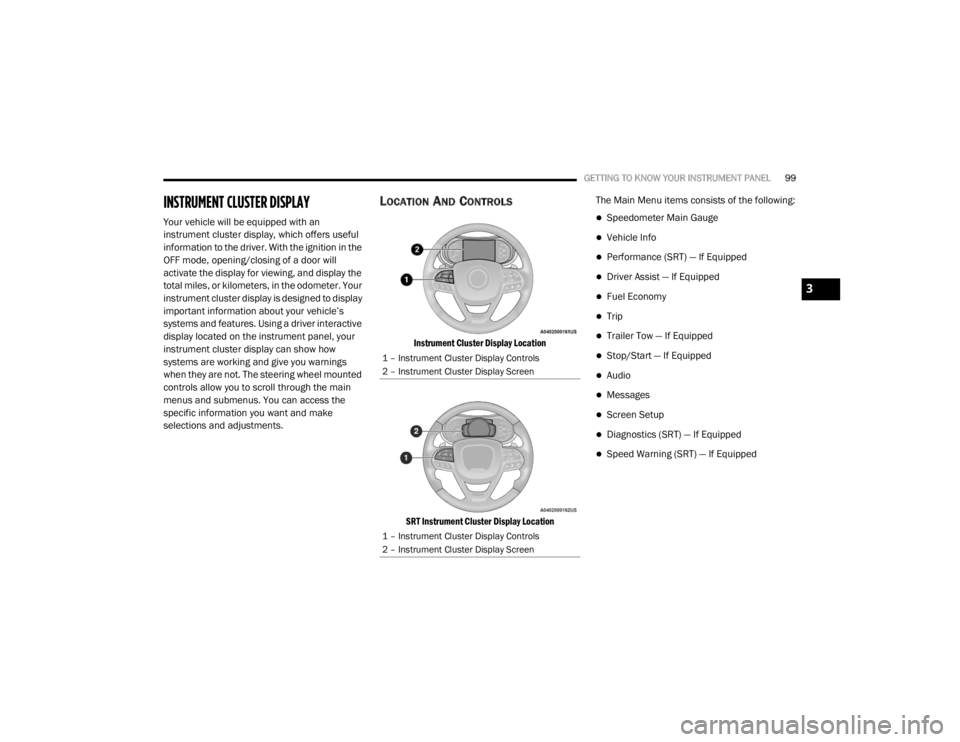
LOCATION AND CONTROLS
Instrument Cluster Display Location
SRT Instrument Cluster Display Location
The Main Menu items consists of the following:
Speedometer Main Gauge
Vehicle Info
Performance (SRT) — If Equipped
Driver Assist — If Equipped
Fuel Economy
Trip
Trailer Tow — If Equipped
Stop/Start — If Equipped
Audio
Messages
Screen Setup
Diagnostics (SRT) — If Equipped
Speed Warning (SRT) — If Equipped
1 – Instrument Cluster Display Controls
2 – Instrument Cluster Display Screen
1 – Instrument Cluster Display Controls
2 – Instrument Cluster Display Screen
3
20_WD_OM_EN_USC_t.book Page 99
Page 102 of 464
100GETTING TO KNOW YOUR INSTRUMENT PANEL
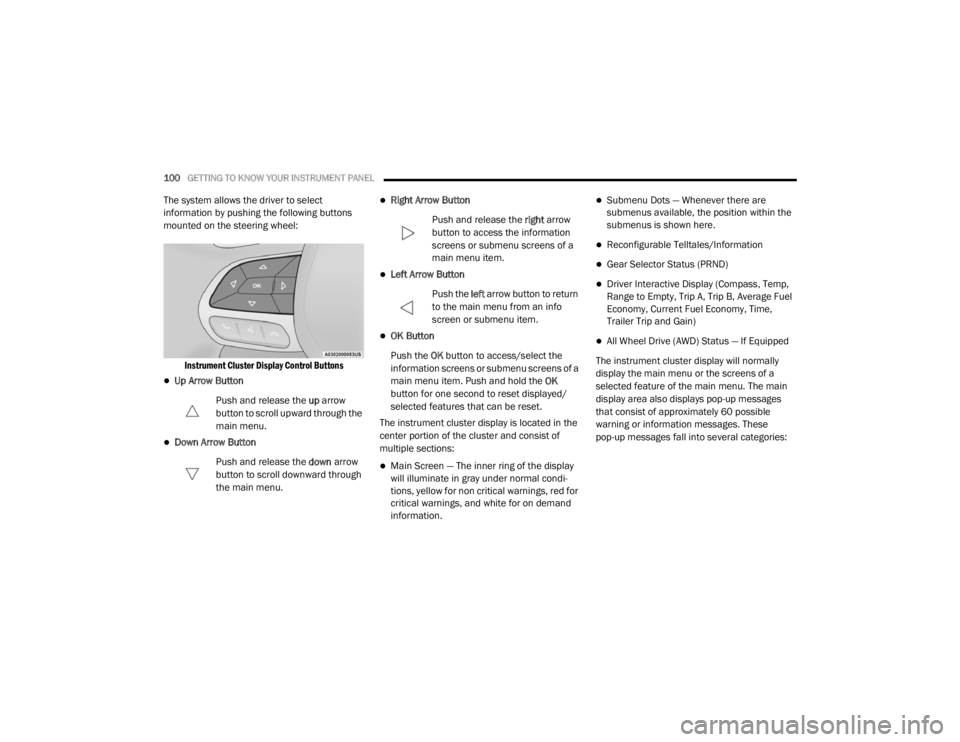
The system allows the driver to select
information by pushing the following buttons
mounted on the steering wheel:
Instrument Cluster Display Control Buttons
Up Arrow Button
Push and release the up arrow
button to scroll upward through the
main menu.
Down Arrow Button
Push and release the down arrow
button to scroll downward through
the main menu.
Right Arrow Button
Push and release the right arrow
button to access the information
screens or submenu screens of a
main menu item.
Left Arrow Button
Push the left arrow button to return
to the main menu from an info
screen or submenu item.
OK Button
Push the OK button to access/select the
information screens or submenu screens of a
main menu item. Push and hold the OK
button for one second to reset displayed/
selected features that can be reset.
The instrument cluster display is located in the
center portion of the cluster and consist of
multiple sections:
Main Screen — The inner ring of the display
will illuminate in gray under normal condi -
tions, yellow for non critical warnings, red for
critical warnings, and white for on demand
information.
Submenu Dots — Whenever there are
submenus available, the position within the
submenus is shown here.
Reconfigurable Telltales/Information
Gear Selector Status (PRND)
Driver Interactive Display (Compass, Temp,
Range to Empty, Trip A, Trip B, Average Fuel
Economy, Current Fuel Economy, Time,
Trailer Trip and Gain)
All Wheel Drive (AWD) Status — If Equipped
The instrument cluster display will normally
display the main menu or the screens of a
selected feature of the main menu. The main
display area also displays pop-up messages
that consist of approximately 60 possible
warning or information messages. These
pop-up messages fall into several categories:
20_WD_OM_EN_USC_t.book Page 100
Page 103 of 464

GETTING TO KNOW YOUR INSTRUMENT PANEL101
Five Second Stored Messages
When the appropriate conditions occur, this
type of message takes control of the main
display area for five seconds and then
returns to the previous screen. Most of the
messages of this type are then stored (as
long as the condition that activated it
remains active) and can be reviewed from
the “Messages” main menu item. Examples
of this message type are “Right Front Turn
Signal Lamp Out” and “Low Tire Pressure.”
Unstored Messages
This message type is displayed indefinitely or
until the condition that activated the
message is cleared. Examples of this
message type are “Turn Signal On” (if a turn
signal is left on) and “Lights On” (if driver
leaves the vehicle with the lights on).
Unstored Messages Until RUN
These messages deal primarily with the
Remote Start feature. This message type is
displayed until the ignition is in the RUN
state. Examples of this message type are
“Remote Start Canceled - Door Ajar” and
“Press Brake Pedal and Push Button to
Start.”
Five Second Unstored Messages
When the appropriate conditions occur, this
type of message takes control of the main
display area for five seconds and then
returns to the previous screen. An example of
this message type is “Automatic High Beams
On.”
ENGINE OIL LIFE RESET
Oil Change Required
Your vehicle is equipped with an engine oil
change indicator system. The “Oil Change
Required” message will display in the
instrument cluster display for five seconds after
a single chime has sounded, to indicate the next
scheduled oil change interval. The engine oil
change indicator system is duty cycle based,
which means the engine oil change interval may
fluctuate, dependent upon your personal
driving style.
Unless reset, this message will continue to
display each time the ignition is placed in the
ON/RUN position. To turn off the message
temporarily, push and release the OK or arrow
buttons. To reset the oil change indicator system (after
performing the scheduled maintenance), refer
to the following procedure.
Vehicles Equipped With Keyless Enter-N-Go —
Ignition
Use the steering wheel instrument cluster
display controls for the following procedure(s):
1. Without pressing the brake pedal, push the
ENGINE START/STOP button and place the
ignition in the ON/RUN position (do not
start the engine).
2. Push and release the down arrow button to
scroll downward through the main menu to
“Vehicle Info.”
3. Push and release the right arrow button to
access the ”Oil Life” screen.
4. Push and hold the OK button to reset oil life.
If conditions are met, the gauge and
numeric display will update to show 100%.
If conditions are not met a pop-up message
of “To reset oil life engine must be off with
ignition in run” will be displayed (for five
seconds), and the user will remain at the Oil
Life screen.
3
20_WD_OM_EN_USC_t.book Page 101
Page 104 of 464

102GETTING TO KNOW YOUR INSTRUMENT PANEL
5. Push and release the up or down arrow
button to exit the submenu screen.
NOTE:
If the indicator message illuminates when you
start the vehicle, the oil change indicator
system did not reset. If necessary, repeat this
procedure.
Secondary Method Of Resetting Engine Oil Life
1. Without pressing the brake pedal, push the ENGINE START/STOP button and place the
ignition to the ON/RUN position (do not
start the engine).
2. Fully press the accelerator pedal, slowly, three times within 10 seconds.
3. Without pushing the brake pedal, push the ENGINE START/STOP button once to return
the ignition to the OFF/LOCK position.
NOTE:
If the indicator message illuminates when you
start the vehicle, the oil change indicator
system did not reset. If necessary, repeat this
procedure.DISPLAY AND MESSAGES
Includes the following, but not limited to:
Front Seat Belts Unbuckled
Driver Seat Belt Unbuckled
Passenger Seat Belt Unbuckled
Traction Control Off
Washer Fluid Low
Oil Pressure Low
Oil Change Due
Fuel Low
Service Anti-lock Brake System
Service Electronic Throttle Control
Service Power Steering
Cruise Off
Cruise Ready
ACC Override
Cruise Set To XXX mph or km/h
Tire Pressure Screen With Low Tire(s)
Service Tire Pressure System
Park Brake Engaged
Brake Fluid Low
Engine Temperature Hot
Lights On
Right Front Turn Signal Light Out
Right Rear Turn Signal Light Out
Left Front Turn Signal Light Out
Left Rear Turn Signal Light Out
Ignition or Accessory On
Vehicle Not In Park
Remote Start Active Push Start Button
Remote Start Canceled Fuel Low
Remote Start Canceled Door Open
Remote Start Canceled Hood Open
Remote Start Canceled Liftgate Open
Remote Start Canceled Time Expired
Remote Start Disabled Start To Reset
20_WD_OM_EN_USC_t.book Page 102
Page 105 of 464

GETTING TO KNOW YOUR INSTRUMENT PANEL103
Service Air Bag System
Service Air Bag Warning Light
Door Open
Doors Open
Liftgate Open
Hood Open
Shift Not Allowed
Vehicle Speed Too High To Shift to D
Vehicle Speed is Too High to Shift to R
Vehicle Speed is Too High to Shift to P
Service Transmission
Service Shifter
The Reconfigurable Telltales section is divided
into the white or yellow telltales area on the left,
and the green or red telltales area on the right.
INSTRUMENT CLUSTER DISPLAY MENU
I
TEMS
The instrument cluster display can be used to
view the main menu items for several features.
Use the up and down arrow buttons to scroll
through the driver interactive display menu
options until the desired menu is reached.
NOTE:
Depending on the vehicle’s options, feature
settings may vary.
Speedometer
Non - SRT
Push and release the up or down arrow button
until the main gauge menu icon is displayed in
the instrument cluster display. Push and
release the left or right arrow button to select
the analog or digital type speedometer display.
Push and release the OK button to toggle units
(mph or km/h) (If Equipped) of the
speedometer. SRT
Push and release the
up or down arrow button
until the main gauge menu icon is displayed in
the instrument cluster display. Push and
release the left or right arrow buttons to change
between large and small speedometer display.
Push and release the OK button to toggle units
(mph or km/h) (If Equipped) of the
speedometer.
Vehicle Info
Push and release the up or down arrow button
until the Vehicle Info icon/title is highlighted in
the instrument cluster display. Push the left or
right arrow button to scroll through the
information submenus.
3
20_WD_OM_EN_USC_t.book Page 103
Page 106 of 464
104GETTING TO KNOW YOUR INSTRUMENT PANEL
Tire Pressure Monitor System
If tire pressure is OK for all tires a vehicle icon
is displayed with tire pressure values in each
corner of the icon.
If one or more tires have low pressure,
“Inflate Tire To XX” is displayed with the
vehicle icon and the tire pressure values in
each corner of the icon with the pressure
value of the low tire are displayed in a
different color than the other tire pressure
value.
If the Tire Pressure system requires service,
“Service Tire Pressure System” is displayed.
Tire Pressure is an information only function,
and cannot be reset.
Refer to “Tire Pressure Monitoring System
(TPMS)” in “Safety” for further information.
Coolant Temperature — If Equipped
Displays the current temperature of the
coolant.
Transmission Temperature
Displays the actual transmission tempera -
ture. Oil Temperature
Displays the actual oil temperature.
Oil Pressure
Displays the actual oil pressure.
Oil Life
Displays the current oil life of the vehicle.
Battery Voltage
Displays the current voltage level of the
battery.
Storage Mode — If Equipped
Through this option, the vehicle can be
placed into Storage Mode.
SRT Performance Features — If Equipped
Push and release the up or down arrow button
until the SRT icon/title is highlighted in the
instrument cluster display. Push and release
the left or right arrow button to scroll through
the performance feature submenus. The Performance Features include the
following:0-60 mph (0-100 km/h) Timer
Best
Last
Recent
Reaction Time — If Selected
WARNING!
Measurement of vehicle statistics with the
Performance Features is intended for
off-highway or track use only and should not
be done on any public roadways. It is
recommended that these features be used in
a controlled environment and within the limits
of the law. The capabilities of the vehicle as
measured by the performance pages must
never be exploited in a reckless or dangerous
manner, which can jeopardize the user’s
safety or the safety of others. Only a safe,
attentive, and skillful driver can prevent
accidents.
20_WD_OM_EN_USC_t.book Page 104
Page 107 of 464

GETTING TO KNOW YOUR INSTRUMENT PANEL105
0-100 mph (0-160 km/h) Timer
Best
Last
Recent
Reaction Time — If Selected
0-60 feet Timer
Best
Last
Recent
Reaction Time — If Selected
1/8 Mile (200 meters) Timer
Best
Last
Recent
Reaction Time — If Selected
1/4 Mile (400 meters) Timer
Best
Last
Recent
Reaction Time — If Selected
Braking Distance
Distance
From Speed
Current G-Forces
Peak G-Forces
Lap Timer
Lap History
Will list the last four laps with the best lap
highlighted in green.
Top Speed
Driver Assist — If Equipped
Push and release the up or down arrow button
until the Driver Assist display icon/title is
highlighted in the instrument cluster display.
For further information, refer to “Adaptive
Cruise Control (ACC) — If Equipped” in “Starting
And Operating.”
Fuel Economy
Push and release the up or down arrow button
until the Fuel Economy Menu icon/title is
highlighted. Push the left or right arrow button
to scroll the submenus, one with current fuel
economy display and one without it.
Range
Current MPG, L/100 km, or km/L
Average MPG, L/100 km, or km/L
Press the OK button to reset the average fuel
economy
NOTE:
The Range feature is not able to be reset
through the instrument cluster display controls.
3
20_WD_OM_EN_USC_t.book Page 105
Page 108 of 464
106GETTING TO KNOW YOUR INSTRUMENT PANEL
Trip
Push and release the up or down arrow button
until the Trip icon/title is highlighted in the
instrument cluster display, then push and
release the left or right arrow button to select
Trip A or Trip B.
The Trip A and Trip B information will display the
following:
Distance
Average Fuel Economy
Elapsed Time
Hold the OK button to reset all the information.
Trailer Tow — If Equipped
Push and release the up or down arrow button
until the Trailer Tow Menu icon/title is
highlighted in the instrument cluster display.
Push and release the left or right arrow button
to select Trailer Trip or Trailer Brake.
Trailer Trip will display the following:
Distance
NOTE:
Press and hold the OK button to reset all the
information. Trailer Brake will display the following:
Output
Type
Gain
Stop/Start – If Equipped
Push and release the
up or down
arrow button on the steering wheel to
scroll to the Stop/Start menu in the
driver interactive display.
For further information on the use and different
modes of the Stop/Start System, refer to “Stop/
Start System – If Equipped” in “Starting And
Operating”.
Audio
Push and release the up or down arrow button
until the Audio Menu icon/title is highlighted in
the instrument cluster display. This menu will
display the audio source information, including
the Song name, Artist name, and audio source
with an accompanying graphic.
Stored Messages
Push and release the up or down arrow button
until the Messages Menu item is highlighted. This feature shows the number of stored
warning messages. Pushing the
left or right
arrow button will allow you to see what the
stored messages are.
When no messages are present, main menu
icon will be a closed envelope.
Screen Setup
Push and release the up or down arrow button
until the Screen Setup Menu icon/title is
highlighted in the instrument cluster display.
Push and release the OK button to enter the
submenus and follow the prompts on the
screen as needed. The Screen Setup feature
allows you to change what information is
displayed in the instrument cluster as well as
the location that information is displayed.
Current Gear
On
Off (default setting)
Gear Display
Full (default setting)
Single
20_WD_OM_EN_USC_t.book Page 106