radio DODGE DURANGO 2021 Owner's Manual
[x] Cancel search | Manufacturer: DODGE, Model Year: 2021, Model line: DURANGO, Model: DODGE DURANGO 2021Pages: 340, PDF Size: 20.38 MB
Page 177 of 340
MULTIMEDIA175
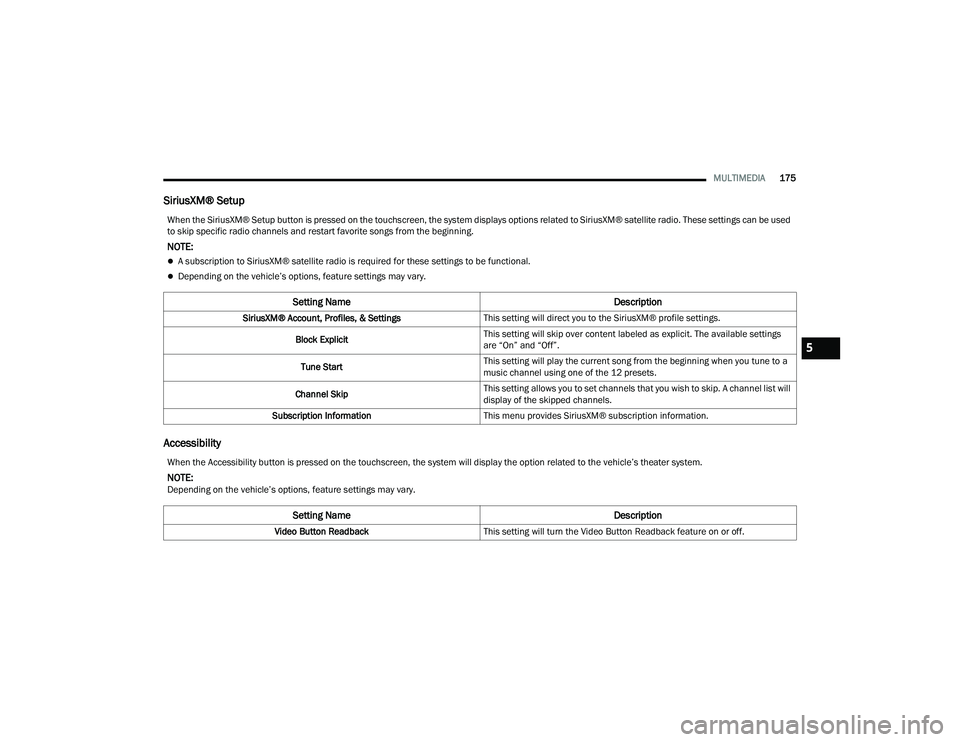
SiriusXM® Setup
Accessibility
When the SiriusXM® Setup button is pressed on the touchscreen, the system displays options related to SiriusXM® satellite radio. These settings can be used
to skip specific radio channels and restart favorite songs from the beginning.
NOTE:
A subscription to SiriusXM® satellite radio is required for these settings to be functional.
Depending on the vehicle’s options, feature settings may vary.
Setting Name Description
SiriusXM® Account, Profiles, & SettingsThis setting will direct you to the SiriusXM® profile settings.
Block Explicit This setting will skip over content labeled as explicit. The available settings
are “On” and “Off”.
Tune Start This setting will play the current song from the beginning when you tune to a
music channel using one of the 12 presets.
Channel Skip This setting allows you to set channels that you wish to skip. A channel list will
display of the skipped channels.
Subscription Information This menu provides SiriusXM® subscription information.
When the Accessibility button is pressed on the touchscreen, the system will display the option related to the vehicle’s theater system.
NOTE:Depending on the vehicle’s options, feature settings may vary.
Setting Name Description
Video Button ReadbackThis setting will turn the Video Button Readback feature on or off.
5
21_WD_OM_EN_USC_t.book Page 175
Page 178 of 340
176MULTIMEDIA
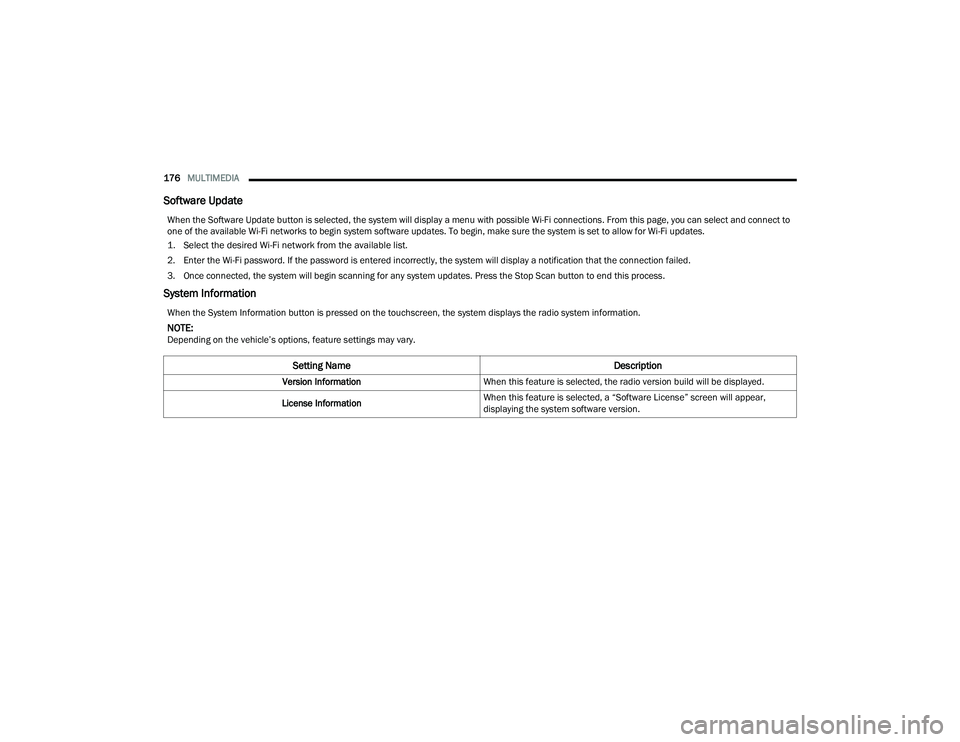
Software Update
System Information
When the Software Update button is selected, the system will display a menu with possible Wi-Fi connections. From this page, you can select and connect to
one of the available Wi-Fi networks to begin system software updates. To begin, make sure the system is set to allow for Wi-Fi updates.
1. Select the desired Wi-Fi network from the available list.
2. Enter the Wi-Fi password. If the password is entered incorrectly, the system will display a notification that the connection failed.
3. Once connected, the system will begin scanning for any system updates. Press the Stop Scan button to end this process.
When the System Information button is pressed on the touchscreen, the system displays the radio system information.
NOTE:Depending on the vehicle’s options, feature settings may vary.
Setting Name Description
Version InformationWhen this feature is selected, the radio version build will be displayed.
License Information When this feature is selected, a “Software License” screen will appear,
displaying the system software version.
21_WD_OM_EN_USC_t.book Page 176
Page 179 of 340
MULTIMEDIA177
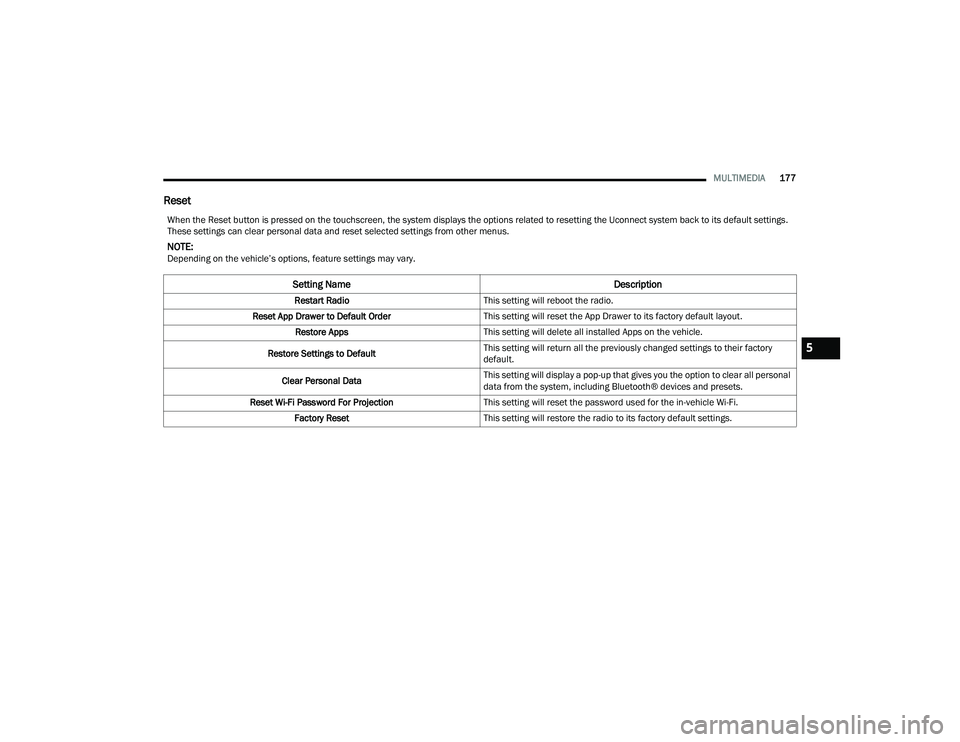
Reset
When the Reset button is pressed on the touchscreen, the system displays the options related to resetting the Uconnect system back to its default settings.
These settings can clear personal data and reset selected settings from other menus.
NOTE:Depending on the vehicle’s options, feature settings may vary.
Setting Name Description
Restart RadioThis setting will reboot the radio.
Reset App Drawer to Default Order This setting will reset the App Drawer to its factory default layout.
Restore Apps This setting will delete all installed Apps on the vehicle.
Restore Settings to Default This setting will return all the previously changed settings to their factory
default.
Clear Personal Data This setting will display a pop-up that gives you the option to clear all personal
data from the system, including Bluetooth® devices and presets.
Reset Wi-Fi Password For Projection This setting will reset the password used for the in-vehicle Wi-Fi.
Factory Reset This setting will restore the radio to its factory default settings.
5
21_WD_OM_EN_USC_t.book Page 177
Page 180 of 340
178MULTIMEDIA
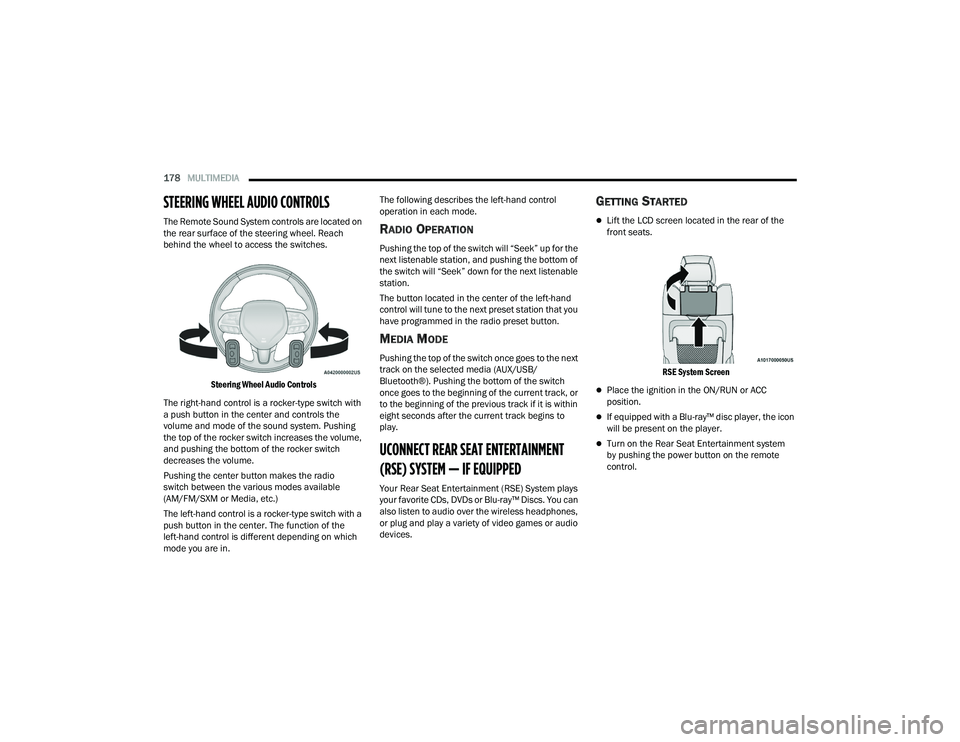
STEERING WHEEL AUDIO CONTROLS
The Remote Sound System controls are located on
the rear surface of the steering wheel. Reach
behind the wheel to access the switches.
Steering Wheel Audio Controls
The right-hand control is a rocker-type switch with
a push button in the center and controls the
volume and mode of the sound system. Pushing
the top of the rocker switch increases the volume,
and pushing the bottom of the rocker switch
decreases the volume.
Pushing the center button makes the radio
switch between the various modes available
(AM/FM/SXM or Media, etc.)
The left-hand control is a rocker-type switch with a
push button in the center. The function of the
left-hand control is different depending on which
mode you are in. The following describes the left-hand control
operation in each mode.RADIO OPERATION
Pushing the top of the switch will “Seek” up for the
next listenable station, and pushing the bottom of
the switch will “Seek” down for the next listenable
station.
The button located in the center of the left-hand
control will tune to the next preset station that you
have programmed in the radio preset button.
MEDIA MODE
Pushing the top of the switch once goes to the next
track on the selected media (AUX/USB/
Bluetooth®). Pushing the bottom of the switch
once goes to the beginning of the current track, or
to the beginning of the previous track if it is within
eight seconds after the current track begins to
play.
UCONNECT REAR SEAT ENTERTAINMENT
(RSE) SYSTEM — IF EQUIPPED
Your Rear Seat Entertainment (RSE) System plays
your favorite CDs, DVDs or Blu-ray™ Discs. You can
also listen to audio over the wireless headphones,
or plug and play a variety of video games or audio
devices.
GETTING STARTED
Lift the LCD screen located in the rear of the
front seats.
RSE System Screen
Place the ignition in the ON/RUN or ACC
position.
If equipped with a Blu-ray™ disc player, the icon
will be present on the player.
Turn on the Rear Seat Entertainment system
by pushing the power button on the remote
control.
21_WD_OM_EN_USC_t.book Page 178
Page 181 of 340
MULTIMEDIA179
When the Video Screen(s) are open and a
DVD/Blu-ray™ disc is inserted into the disc
player, the screen(s) turn(s) on automatically,
the headphone transmitters turn on, and play -
back begins.
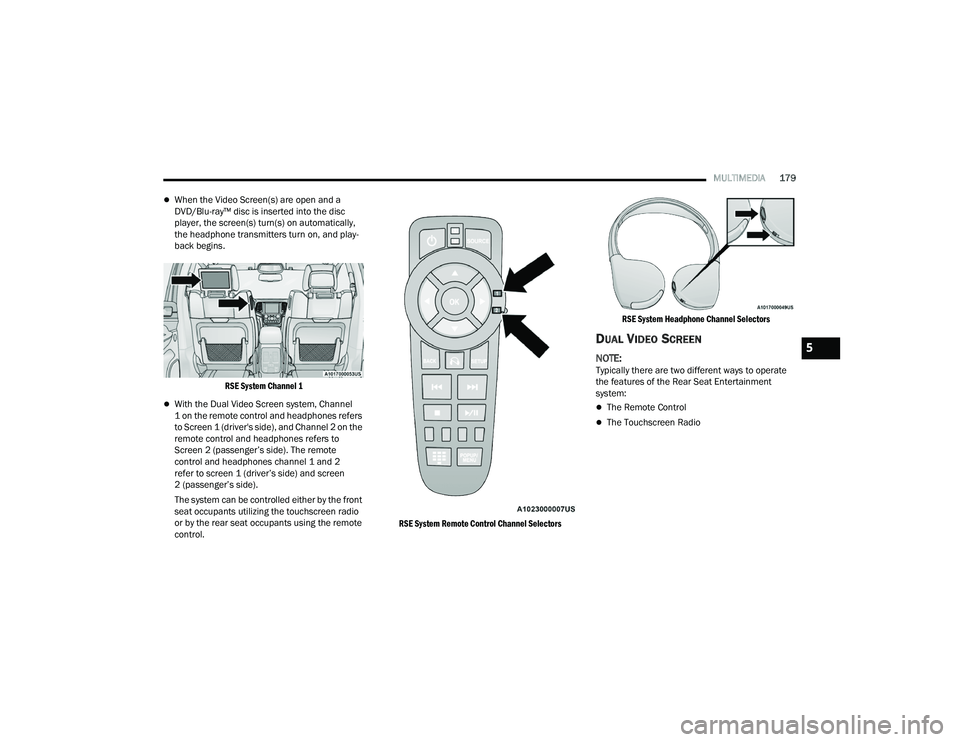
RSE System Channel 1
With the Dual Video Screen system, Channel
1 on the remote control and headphones refers
to Screen 1 (driver's side), and Channel 2 on the
remote control and headphones refers to
Screen 2 (passenger’s side). The remote
control and headphones channel 1 and 2
refer to screen 1 (driver’s side) and screen
2 (passenger’s side).
The system can be controlled either by the front
seat occupants utilizing the touchscreen radio
or by the rear seat occupants using the remote
control.
RSE System Remote Control Channel SelectorsRSE System Headphone Channel Selectors
DUAL VIDEO SCREEN
NOTE:Typically there are two different ways to operate
the features of the Rear Seat Entertainment
system:
The Remote Control
The Touchscreen Radio
5
21_WD_OM_EN_USC_t.book Page 179
Page 182 of 340
180MULTIMEDIA
PLAY A BLU-RAY™ DISC
The Blu-ray™ disc player is located in the center
console.
Blu-ray™ Disc Player Location
1. Insert the DVD/Blu-ray™ Disc with the label facing as indicated on the DVD/Blu-ray™ Disc
player. The radio automatically selects the
appropriate mode after the disc is recognized
and displays the menu screen or starts
playing the first track.
2. To watch a DVD/Blu-ray™ Disc on Channel 1 (driver’s side rear passenger), ensure the
Remote Control and Headphone channel
selector switches are on Channel 1.
3. To watch a DVD/Blu-ray™ Disc on Channel 2 (passenger’s side rear passenger), ensure
the Remote Control and Headphone channel
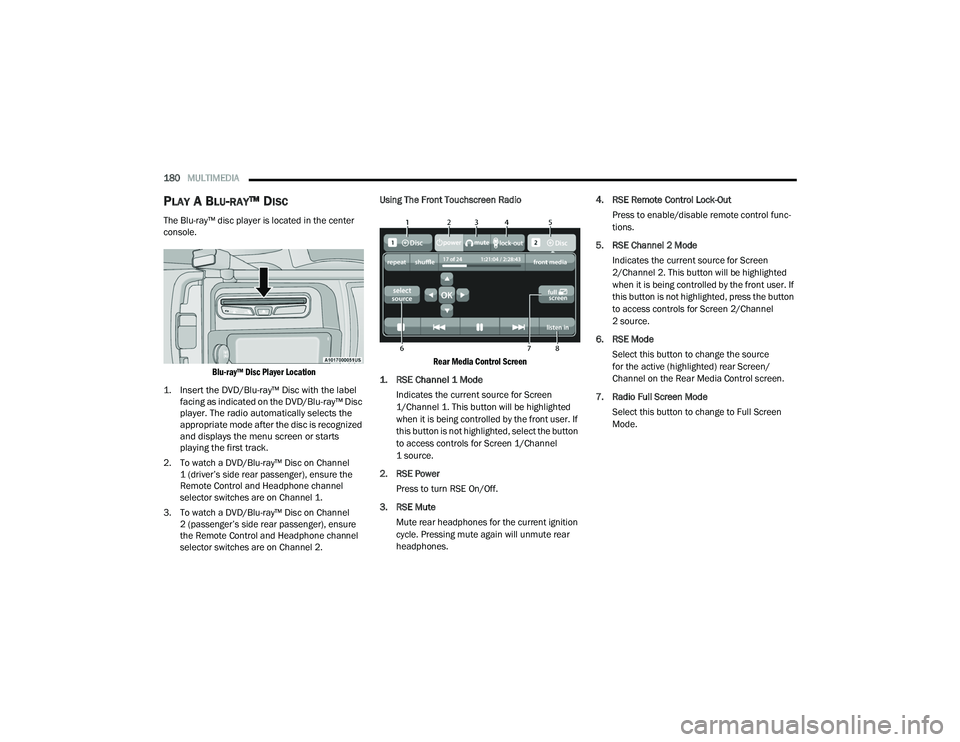
selector switches are on Channel 2. Using The Front Touchscreen Radio
Rear Media Control Screen
1. RSE Channel 1 Mode
Indicates the current source for Screen
1/Channel 1. This button will be highlighted
when it is being controlled by the front user. If
this button is not highlighted, select the button
to access controls for Screen 1/Channel
1 source.
2. RSE Power Press to turn RSE On/Off.
3. RSE Mute Mute rear headphones for the current ignition
cycle. Pressing mute again will unmute rear
headphones. 4. RSE Remote Control Lock-Out
Press to enable/disable remote control func -
tions.
5. RSE Channel 2 Mode Indicates the current source for Screen
2/Channel 2. This button will be highlighted
when it is being controlled by the front user. If
this button is not highlighted, press the button
to access controls for Screen 2/Channel
2 source.
6. RSE Mode Select this button to change the source
for the active (highlighted) rear Screen/
Channel on the Rear Media Control screen.
7. Radio Full Screen Mode Select this button to change to Full Screen
Mode.
21_WD_OM_EN_USC_t.book Page 180
Page 183 of 340
MULTIMEDIA181
8. Cabin Audio Mode Press this button to change the cabin audio to
the rear entertainment source currently shown
on the Rear Media Control screen.
Press the Media button on the touchscreen,
and then press the Rear Media button on the
touchscreen.
Press the OK button on the touchscreen to
begin playing the Blu-ray™ disc.
Using The Remote Control
Select an audio channel (Channel 1 or
Channel 2), and then press the source key.
Using the Up and Down arrows, highlight “Disc”
from the menu and press the OK button.
Press the pop-up/menu key to navigate the disc
menu and options.
Using The Remote Control
1. Push the SOURCE button on the Remote Control.
2. While looking at Channel 1 or 2, highlight “Disc” by either pushing Up/Down/Left/Right
buttons, then push ENTER/OK.
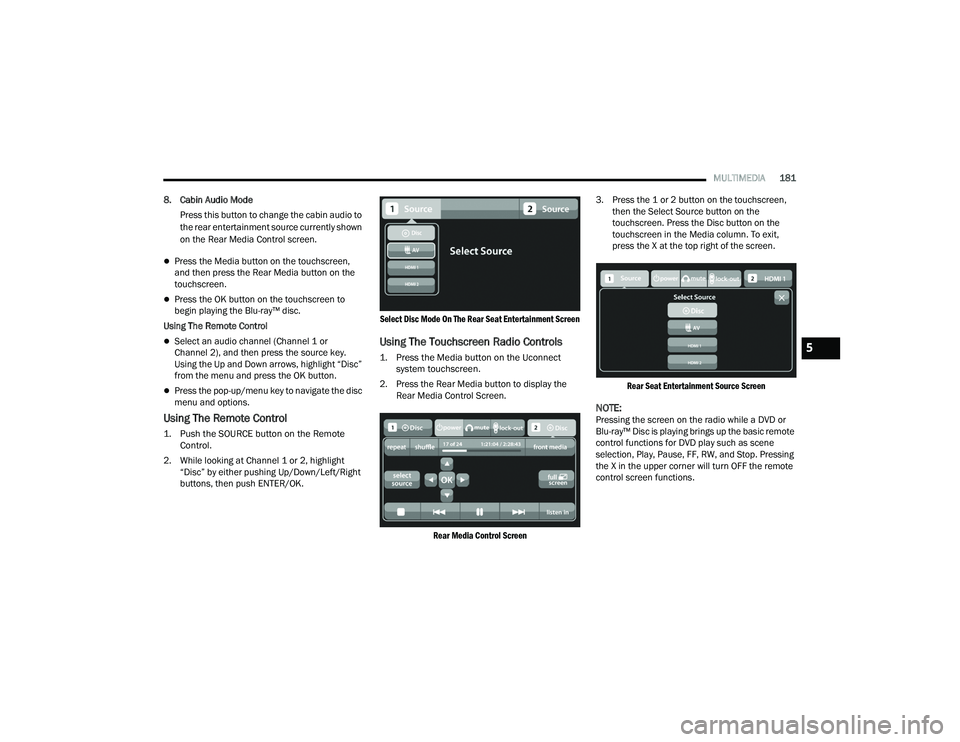
Select Disc Mode On The Rear Seat Entertainment Screen
Using The Touchscreen Radio Controls
1. Press the Media button on the Uconnect
system touchscreen.
2. Press the Rear Media button to display the Rear Media Control Screen.
Rear Media Control Screen
3. Press the 1 or 2 button on the touchscreen,
then the Select Source button on the
touchscreen. Press the Disc button on the
touchscreen in the Media column. To exit,
press the X at the top right of the screen.
Rear Seat Entertainment Source Screen
NOTE:Pressing the screen on the radio while a DVD or
Blu-ray™ Disc is playing brings up the basic remote
control functions for DVD play such as scene
selection, Play, Pause, FF, RW, and Stop. Pressing
the X in the upper corner will turn OFF the remote
control screen functions.
5
21_WD_OM_EN_USC_t.book Page 181
Page 189 of 340
MULTIMEDIA187
If you are still having trouble writing a disc that is
playable in the Blu-ray™ Disc player, check with the
disc recording software publisher for more
information about burning playable discs.
The recommended method for labeling recordable
discs (CD-R, CD-RW, and DVD-R) is with a
permanent marker. Do not use adhesive labels as
they may separate from the disc, become stuck,
and cause permanent damage to the DVD player.
Compressed Audio Files (MP3 and WMA)
The Blu-ray™ Disc player is capable of playing MP3
(MPEG-1 Audio Layer 3) and WMA (Windows Media
Audio) files from a CD Data disc (usually a CD-R or
CD-RW).
The Blu-ray™ Disc player always uses the file
extension to determine the audio format, so
MP3 files must always end with the extension
“.mp3” or “.MP3” and WMA files must always
end with the extension “.wma” or “.WMA”. To
prevent incorrect playback, do not use these
extensions for any other types of files.
For MP3 files, only version 1 ID3 tag data (such
as artist name, track title, album, etc.) are
supported.
Any file that is copy protected (such as those
downloaded from many online music stores) will
not play. The Blu-ray™ player will automatically
skip the file and begin playing the next available
file.
Other compression formats such as AAC, MP3
Pro, Ogg Vorbis, and ATRAC3 will not play. The
Blu-ray™ player will automatically skip the file
and begin playing the next available file.
If you are creating your own files, the recom -
mended fixed bit rate for MP3 files is between
96 and 192 Kbps and the recommended fixed
bit rate for WMA files is between 64 and
192Kbps. Variable bit rates are also supported.
For both formats, the recommended sample
rate is either 44.1 kHz or 48 kHz.
To change the current file, use the remote
control’s or Blu-ray™ Disc player’s ? button to
advance to the next file, or the ? button to return
to the start of the current or previous file. Disc Errors
If the Blu-ray™ Disc player is unable to read the
disc, a “Disc Error” message is displayed on the
rear screen and Radio displays. A dirty, damaged,
or incompatible disc format are all potential
causes for a “Disc Error” message.
If a disc has a damaged track which results in
audible or visible errors that persists for two
seconds, the Blu-ray™ Disc player will attempt to
continue playing the disc by skipping forward one
to three seconds at a time. If the end of the disc is
reached, the Blu-ray™ Disc player will return to the
beginning of the disc and attempt to play the start
of the first track.
The Blu-ray™ Disc player may shut down during
extremely hot conditions, such as when the
vehicle’s interior temperature is above 120°F
(48.9°C). When this occurs, the player will display
“High Temp” and will shut off the rear seat displays
until a safe temperature is reached. This shutdown
is necessary to protect the optics of the Blu-ray™
Disc player.
5
21_WD_OM_EN_USC_t.book Page 187
Page 190 of 340
188MULTIMEDIA
Product Agreement
This product incorporates copyright protection
technology that is protected by US patents and
other intellectual property rights. Use of this
copyright protection technology must be
authorized by Macrovision, and is intended for
home or other limited viewing uses otherwise
authorized by Macrovision. Reverse engineering or
disassembly is prohibited.
Dolby Digital and MLP Lossless
Manufactured under license from Dolby
Laboratories. "Dolby", "MLP Lossless",
and the double-D symbol are trademarks
of Dolby Laboratories. Confidential unpublished
works. Copyright 1992-1997 Dolby Laboratories.
All rights reserved.RADIO OPERATION AND MOBILE PHONES
Under certain conditions, the mobile phone being
on in your vehicle can cause erratic or noisy
performance from your radio. This condition may
be lessened or eliminated by repositioning the
mobile phone within the vehicle. This condition is
not harmful to the radio. If your radio performance
does not satisfactorily improve from repositioning
the mobile phone, it is recommended that the
volume be turned down or off during mobile phone
operation when not using the Uconnect system.
REGULATORY AND SAFETY
I
NFORMATION
US/CANADA
Exposure to Radio Frequency Radiation
The radiated output power of the internal wireless
radio is far below the FCC and IC radio frequency
exposure limits. Nevertheless, the wireless radio
will be used in such a manner that the radio is
8 in (20 cm) or further from the human body. The internal wireless radio operates within
guidelines found in radio frequency safety
standards and recommendations, which reflect
the consensus of the scientific community.
The radio manufacturer believes the internal
wireless radio is safe for use by consumers.
The level of energy emitted is far less than the
electromagnetic energy emitted by wireless
devices such as mobile phones. However, the use
of wireless radios may be restricted in some
situations or environments, such as aboard
airplanes. If you are unsure of restrictions, you are
encouraged to ask for authorization before turning
on the wireless radio Ú
page 327.
21_WD_OM_EN_USC_t.book Page 188
Page 191 of 340
189
(Continued)
SAFETY
SAFETY FEATURES
ANTI-LOCK BRAKE SYSTEM (ABS)
The ABS provides increased vehicle stability and
brake performance under most braking conditions.
The system automatically prevents wheel lock, and
enhances vehicle control during braking.
The ABS performs a self-check cycle to ensure that
the ABS is working properly each time the vehicle
is started and driven. During this self-check, you
may hear a slight clicking sound as well as some
related motor noises.
The ABS is activated during braking when the
system detects one or more wheels are beginning
to lock. Road conditions such as ice, snow, gravel,
bumps, railroad tracks, loose debris, or panic stops
may increase the likelihood of ABS activation(s).
You also may experience the following normal
characteristics when the ABS activates:
ABS motor noise or clicking sounds (you may
continue to hear for a short time after the stop).
Brake pedal pulsations.
A slight drop of the brake pedal at the end of
the stop.The ABS is designed to function with the Original
Equipment Manufacturer (OEM) tires. Modification
may result in degraded ABS performance.
Anti-Lock Brake System (ABS) Warning
Light
The yellow ABS Warning Light will turn on when the
ignition is placed in the ON/RUN mode and may
stay on for as long as four seconds.
If the ABS Warning Light remains on or comes on
while driving, it indicates that the anti-lock portion
of the brake system is not functioning and that
service is required. However, the conventional
brake system will continue to operate normally if
the ABS Warning Light is on.
WARNING!
The ABS contains sophisticated electronic
equipment that may be susceptible to interfer
-
ence caused by improperly installed or high
output radio transmitting equipment. This
interference can cause possible loss of
anti-lock braking capability. Installation of
such equipment should be performed by qual -
ified professionals.
Pumping of the Anti-Lock Brakes will diminish
their effectiveness and may lead to a collision.
Pumping makes the stopping distance longer.
Just press firmly on your brake pedal when you
need to slow down or stop.
The ABS cannot prevent the natural laws of
physics from acting on the vehicle, nor can it
increase braking or steering efficiency beyond
that afforded by the condition of the vehicle
brakes and tires or the traction afforded.
The ABS cannot prevent collisions, including
those resulting from excessive speed in turns,
following another vehicle too closely, or hydro -
planing.
The capabilities of an ABS equipped vehicle
must never be exploited in a reckless or
dangerous manner that could jeopardize the
user’s safety or the safety of others.
WARNING!
6
21_WD_OM_EN_USC_t.book Page 189