esc DODGE HORNET 2023 Owner's Manual
[x] Cancel search | Manufacturer: DODGE, Model Year: 2023, Model line: HORNET, Model: DODGE HORNET 2023Pages: 288, PDF Size: 14.2 MB
Page 104 of 288
102STARTING AND OPERATING
TURNING ACTIVE DRIVING ASSIST ON
O
R OFF
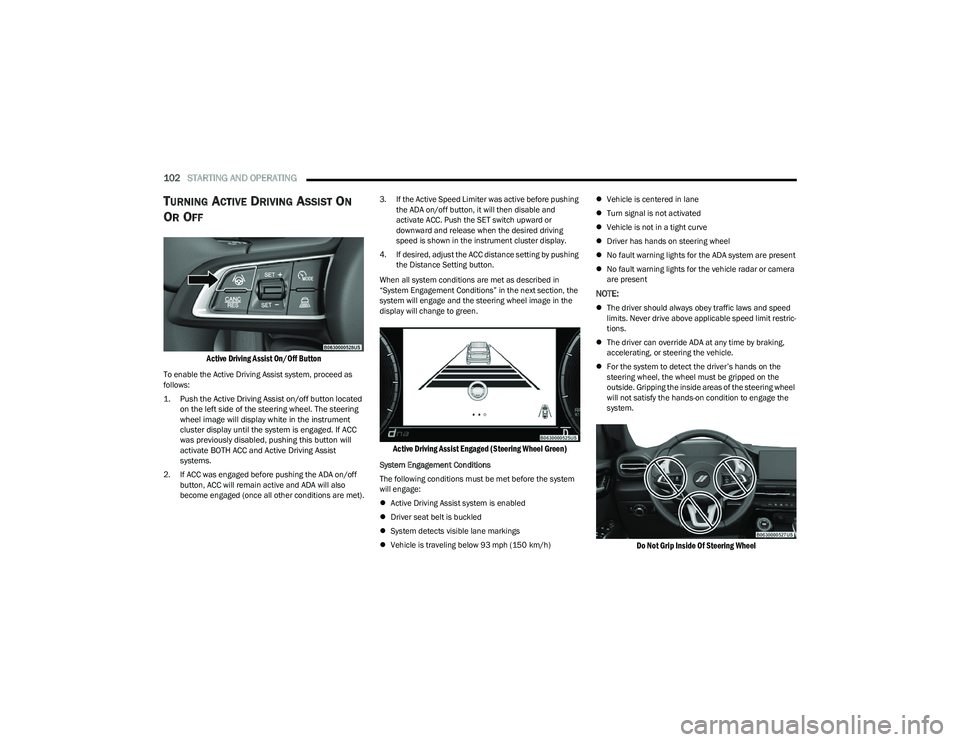
Active Driving Assist On/Off Button
To enable the Active Driving Assist system, proceed as
follows:
1. Push the Active Driving Assist on/off button located
on the left side of the steering wheel. The steering
wheel image will display white in the instrument
cluster display until the system is engaged. If ACC
was previously disabled, pushing this button will
activate BOTH ACC and Active Driving Assist
systems.
2. If ACC was engaged before pushing the ADA on/off button, ACC will remain active and ADA will also
become engaged (once all other conditions are met). 3. If the Active Speed Limiter was active before pushing
the ADA on/off button, it will then disable and
activate ACC. Push the SET switch upward or
downward and release when the desired driving
speed is shown in the instrument cluster display.
4. If desired, adjust the ACC distance setting by pushing the Distance Setting button.
When all system conditions are met as described in
“System Engagement Conditions” in the next section, the
system will engage and the steering wheel image in the
display will change to green.
Active Driving Assist Engaged (Steering Wheel Green)
System Engagement Conditions
The following conditions must be met before the system
will engage:
Active Driving Assist system is enabled
Driver seat belt is buckled
System detects visible lane markings
Vehicle is traveling below 93 mph (150 km/h)
Vehicle is centered in lane
Turn signal is not activated
Vehicle is not in a tight curve
Driver has hands on steering wheel
No fault warning lights for the ADA system are present
No fault warning lights for the vehicle radar or camera
are present
NOTE:
The driver should always obey traffic laws and speed
limits. Never drive above applicable speed limit restric -
tions.
The driver can override ADA at any time by braking,
accelerating, or steering the vehicle.
For the system to detect the driver’s hands on the
steering wheel, the wheel must be gripped on the
outside. Gripping the inside areas of the steering wheel
will not satisfy the hands-on condition to engage the
system.
Do Not Grip Inside Of Steering Wheel
23_GG_OM_EN_USC_t.book Page 102
Page 105 of 288
STARTING AND OPERATING103
System Deactivation
The system will be deactivated in any of the following
situations:
If the system has detected driver inattentiveness, and
has gone through all escalation warnings after hands
are no longer detected on the steering wheel
If the vehicle is driving in constant traffic
If lane markings are no longer detected
If the brake pedal is pressed or ACC system is deacti -
vated
If the Active Driving Assist on/off button is pushed
again (ADA will turn off)
If a turn signal is used (unless a target is in the blind
spot zone on the same side the turn signal is being
applied)
If the driver applies enough input to the steering wheel
If the driver’s seat belt is released
If the vehicle speed exceeds 93 mph (150 km/h)
If the Active Driving Assist on/off button is pushed
again (ADA will turn off)
If the Forward Collision Warning (FCW) system
becomes active and is providing warnings/braking
If there is glare from the sun on the vehicle’s camera
If the vehicle is driving on tight curves
If the camera has decreased visibility due to rain,
snow, etc.
If the driver quickly applies the accelerator pedal
NOTE:
Pushing the Active Driving Assist on/off button or deac -
tivating ACC will turn the system off. All other deactiva -
tion conditions will place the system back into the
“enabled” state with the steering wheel indicator
displayed in white until all engagement conditions are
met again.
When the system is deactivated, the system status
indicator lights will turn off, the LaneSense system will
return to its previous state, and ACC will disable.
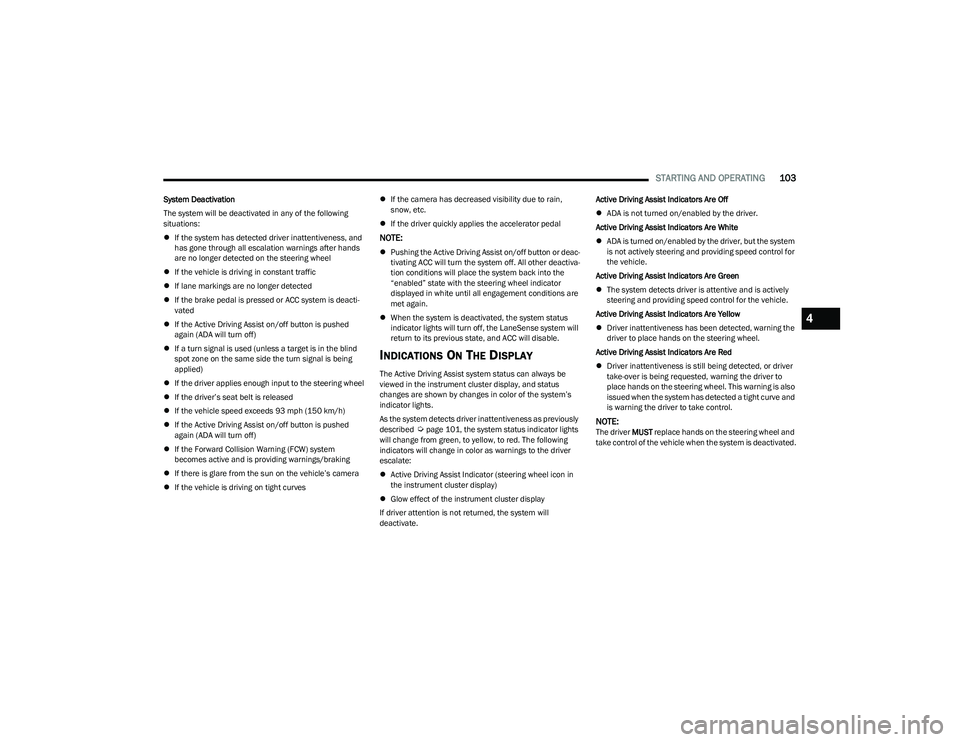
INDICATIONS ON THE DISPLAY
The Active Driving Assist system status can always be
viewed in the instrument cluster display, and status
changes are shown by changes in color of the system’s
indicator lights.
As the system detects driver inattentiveness as previously
described
Úpage 101, the system status indicator lights
will change from green, to yellow, to red. The following
indicators will change in color as warnings to the driver
escalate:
Active Driving Assist Indicator (steering wheel icon in
the instrument cluster display)
Glow effect of the instrument cluster display
If driver attention is not returned, the system will
deactivate. Active Driving Assist Indicators Are Off
ADA is not turned on/enabled by the driver.
Active Driving Assist Indicators Are White
ADA is turned on/enabled by the driver, but the system
is not actively steering and providing speed control for
the vehicle.
Active Driving Assist Indicators Are Green
The system detects driver is attentive and is actively
steering and providing speed control for the vehicle.
Active Driving Assist Indicators Are Yellow
Driver inattentiveness has been detected, warning the
driver to place hands on the steering wheel.
Active Driving Assist Indicators Are Red
Driver inattentiveness is still being detected, or driver
take-over is being requested, warning the driver to
place hands on the steering wheel. This warning is also
issued when the system has detected a tight curve and
is warning the driver to take control.NOTE:The driver MUST replace hands on the steering wheel and
take control of the vehicle when the system is deactivated.
4
23_GG_OM_EN_USC_t.book Page 103
Page 106 of 288
104STARTING AND OPERATING
MINIMUM RISK MANEUVER
When the vehicle begins the hands-off steering wheel
warning escalation, previously described, the system will
initiate the Minimum Risk Maneuver for bringing the
vehicle to a stop.
After 23 seconds from the initial absence of the hands on
the steering wheel, the Adaptive Cruise Control (ACC)
system will apply a brake jerk to warn the driver to take
vehicle control. If, after another 3 seconds the driver does
not take the control of the vehicle, the system will apply a
second brake jerk.
If the absence of hands on the steering wheel persists, the
system will apply automatic braking to bring the vehicle to
the stop and activate the vehicle’s hazard warning lights.
After the vehicle is stopped, the system will unlock the
doors (if previously locked).
NOTE:If the driver takes control of the vehicle during the
Minimum Risk Maneuver by placing hands on the steering
wheel or pressing the accelerator, the system Minimum
Risk Maneuver will be canceled, and the ADA system will
resume normal function.
SYSTEM STATUS
Along with changes in the system’s indicator lights (green,
yellow, and red), the system can also issue several
accompanying warnings intended to provide the driver
with enough time to react, avoid or mitigate a potential
collision.
Two haptic brake jerk warnings will be issued (red
warning light is being issued).
A steering wheel vibration warning (if enabled) will
occur if the vehicle crosses a lane marker, for example,
when driving on a tight curve. The steering wheel vibra -
tion feature can be turned on or off within the Uconnect
system
Úpage 130.
SYSTEM OPERATION/LIMITATIONS
The Active Driving Assist system DOES NOT:
Warn or prevent collisions with other vehicles
Steer your vehicle around stopped vehicles, slower
vehicles, construction equipment, pedestrians, or
animals
Respond to traffic lights or stop signs
Merge onto highways or exit off ramps
Turn your vehicle
Change lanes
React to cross traffic
NOTE:Adaptive Cruise Control (ACC) is a core component of ADA.
For ACC system limitations, see Úpage 92.
The Active Driving Assist system may have limited or
reduced functionality when one of the following conditions
occur:
The vehicle’s radar sensors and/or forward facing
camera is damaged, covered, misaligned, or
obstructed (e.g. by mud, ice, snow, etc.)
If the suspension alignment is not correct, if the vehicle
is modified (e.g. lifting or lowering the suspension,
installing different sized wheels or tires)
Driving near highway toll booths
NOTE:If damage to the windshield occurs, have the windshield
replaced by an authorized dealer as soon as possible.
WARNING!
The DDD system is an aid for driving and does not
relieve the driver of the responsibility of driving the
vehicle. If you experience fatigue while driving, pull over
safely for a break without waiting for the DDD warnings.
Only return to the road when you are in the right
physical and mental condition to prevent endangering
yourself and other drivers.
23_GG_OM_EN_USC_t.book Page 104
Page 124 of 288
122STARTING AND OPERATING
Trailer Sway Control (TSC)
The TSC can be a mechanical telescoping link that can be
installed between the hitch receiver and the trailer tongue
that typically provides adjustable friction associated with
the telescoping motion to dampen any unwanted trailer
swaying motions while traveling.
If equipped, the electronic TSC recognizes a swaying
trailer and automatically applies individual wheel brakes
and/or reduces engine power to attempt to eliminate the
trailer sway.
Weight-Carrying Hitch
A weight-carrying hitch supports the trailer tongue weight,
just as if it were luggage located at a hitch ball or some
other connecting point of the vehicle. These kinds of
hitches are commonly used to tow small and medium
sized trailers.
Weight-Distributing Hitch
A Weight-Distributing system works by applying leverage
through spring (load) bars. They are typically used for
heavier loads to distribute trailer tongue weight to the tow
vehicle's front axle and the trailer axle(s). When used in
accordance with the manufacturer's directions, it provides
for a more level ride, offering more consistent steering and
brake control thereby enhancing towing safety. The
addition of a friction/hydraulic sway control also dampens
sway caused by traffic and crosswinds and contributes
positively to tow vehicle and trailer stability. Trailer sway
control and a Weight-Distributing (load equalizing) Hitch
are recommended for heavier Tongue Weights (TW) and
may be required depending on vehicle and trailer
configuration/loading to comply with Gross Axle Weight
Rating (GAWR) requirements.
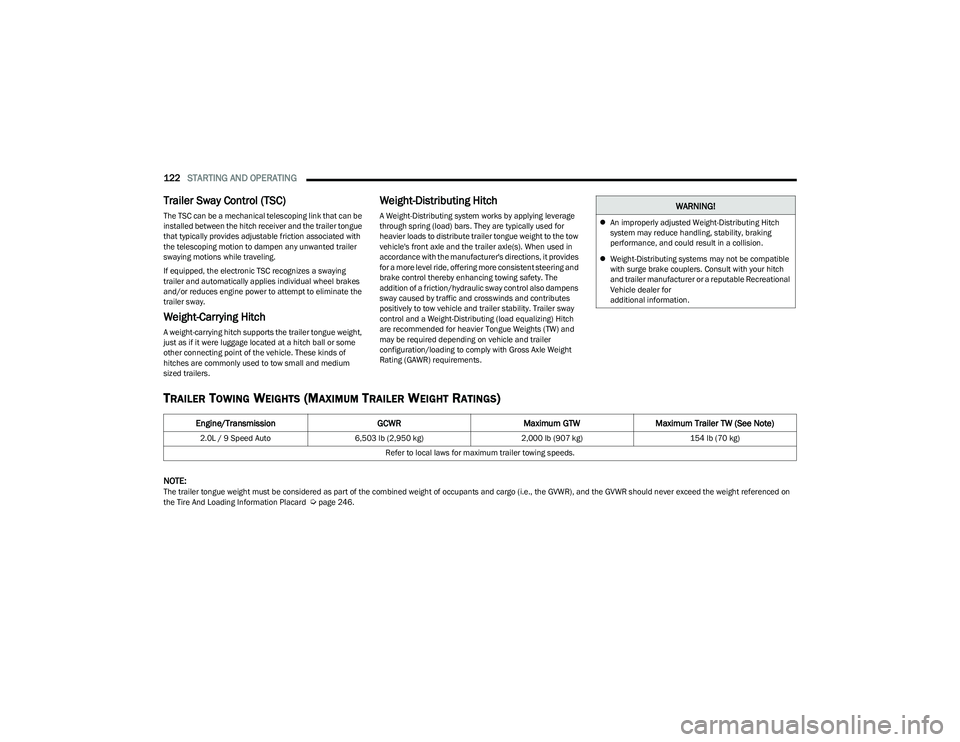
TRAILER TOWING WEIGHTS (MAXIMUM TRAILER WEIGHT RATINGS)
NOTE:The trailer tongue weight must be considered as part of the combined weight of occupants and cargo (i.e., the GVWR), and the GVWR should never exceed the weight referenced on
the Tire And Loading Information Placard Úpage 246.
WARNING!
An improperly adjusted Weight-Distributing Hitch
system may reduce handling, stability, braking
performance, and could result in a collision.
Weight-Distributing systems may not be compatible
with surge brake couplers. Consult with your hitch
and trailer manufacturer or a reputable Recreational
Vehicle dealer for
additional information.
Engine/Transmission GCWRMaximum GTWMaximum Trailer TW (See Note)
2.0L / 9 Speed Auto 6,503 lb (2,950 kg) 2,000 lb (907 kg) 154 lb (70 kg)
Refer to local laws for maximum trailer towing speeds.
23_GG_OM_EN_USC_t.book Page 122
Page 133 of 288
MULTIMEDIA131
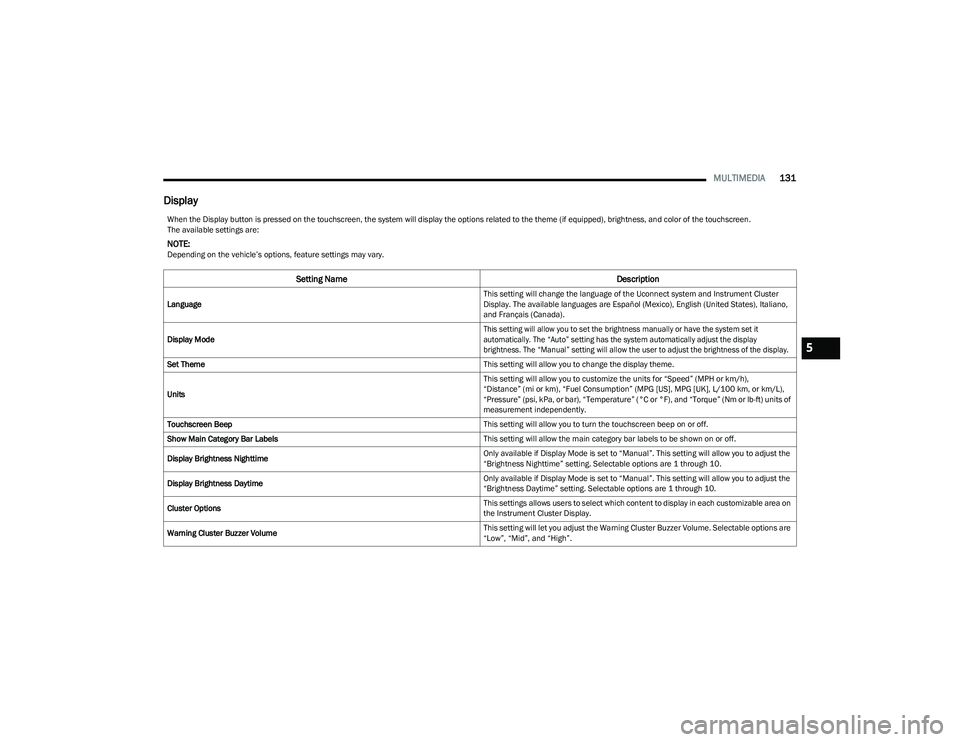
Display
When the Display button is pressed on the touchscreen, the system will display the options related to the theme (if equipped), brightness, and color of the touchscreen.
The available settings are:
NOTE:Depending on the vehicle’s options, feature settings may vary.
Setting Name Description
Language This setting will change the language of the Uconnect system and Instrument Cluster
Display. The available languages are Español (Mexico), English (United States), Italiano,
and Français (Canada).
Display Mode
This setting will allow you to set the brightness manually or have the system set it
automatically. The “Auto” setting has the system automatically adjust the display
brightness. The “Manual” setting will allow the user to adjust the brightness of the display.
Set Theme This setting will allow you to change the display theme.
Units This setting will allow you to customize the units for “Speed” (MPH or km/h),
“Distance” (mi or km), “Fuel Consumption” (MPG [US], MPG [UK], L/100 km, or km/L),
“Pressure” (psi, kPa, or bar), “Temperature” (°C or °F), and “Torque” (Nm or lb-ft) units of
measurement independently.
Touchscreen Beep This setting will allow you to turn the touchscreen beep on or off.
Show Main Category Bar Labels This setting will allow the main category bar labels to be shown on or off.
Display Brightness Nighttime Only available if Display Mode is set to “Manual”. This setting will allow you to adjust the
“Brightness Nighttime” setting. Selectable options are 1 through 10.
Display Brightness Daytime Only available if Display Mode is set to “Manual”. This setting will allow you to adjust the
“Brightness Daytime” setting. Selectable options are 1 through 10.
Cluster Options This settings allows users to select which content to display in each customizable area on
the Instrument Cluster Display.
Warning Cluster Buzzer Volume This setting will let you adjust the Warning Cluster Buzzer Volume. Selectable options are
“Low”, “Mid”, and “High”.
5
23_GG_OM_EN_USC_t.book Page 131
Page 134 of 288
132MULTIMEDIA
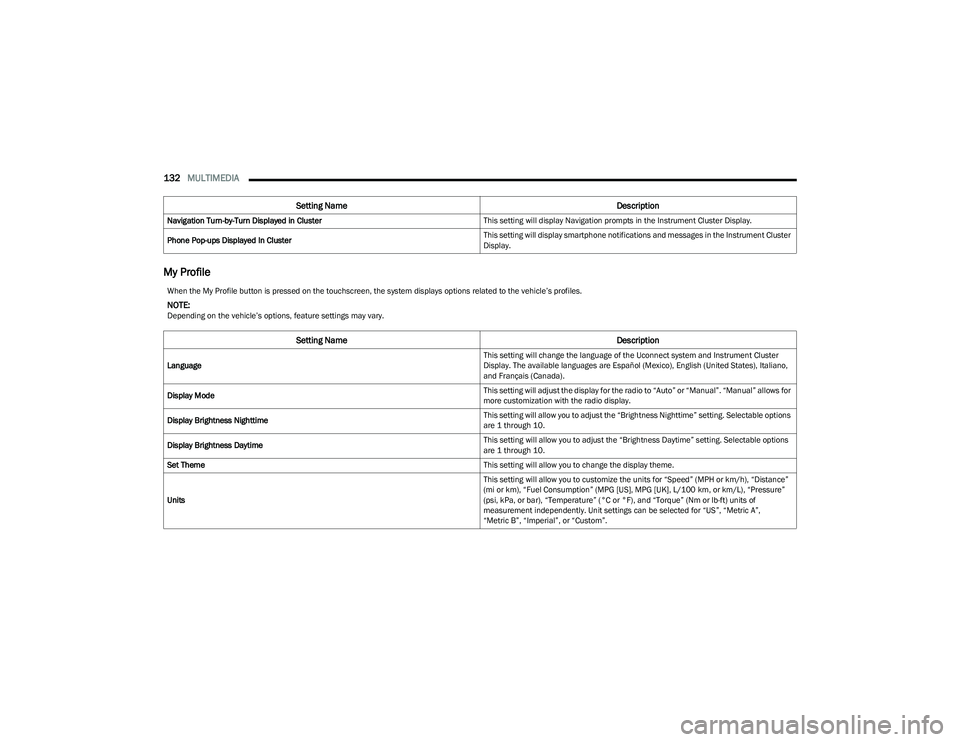
My Profile
Navigation Turn-by-Turn Displayed in Cluster This setting will display Navigation prompts in the Instrument Cluster Display.
Phone Pop-ups Displayed In Cluster This setting will display smartphone notifications and messages in the Instrument Cluster
Display.
Setting Name
Description
When the My Profile button is pressed on the touchscreen, the system displays options related to the vehicle’s profiles.
NOTE:Depending on the vehicle’s options, feature settings may vary.
Setting NameDescription
Language This setting will change the language of the Uconnect system and Instrument Cluster
Display. The available languages are Español (Mexico), English (United States), Italiano,
and Français (Canada).
Display Mode This setting will adjust the display for the radio to “Auto” or “Manual”. “Manual” allows for
more customization with the radio display.
Display Brightness Nighttime This setting will allow you to adjust the “Brightness Nighttime” setting. Selectable options
are 1 through 10.
Display Brightness Daytime This setting will allow you to adjust the “Brightness Daytime” setting. Selectable options
are 1 through 10.
Set Theme This setting will allow you to change the display theme.
Units This setting will allow you to customize the units for “Speed” (MPH or km/h), “Distance”
(mi or km), “Fuel Consumption” (MPG [US], MPG [UK], L/100 km, or km/L), “Pressure”
(psi, kPa, or bar), “Temperature” (°C or °F), and “Torque” (Nm or lb-ft) units of
measurement independently. Unit settings can be selected for “US”, “Metric A”,
“Metric B”, “Imperial”, or “Custom”.
23_GG_OM_EN_USC_t.book Page 132
Page 135 of 288
MULTIMEDIA133
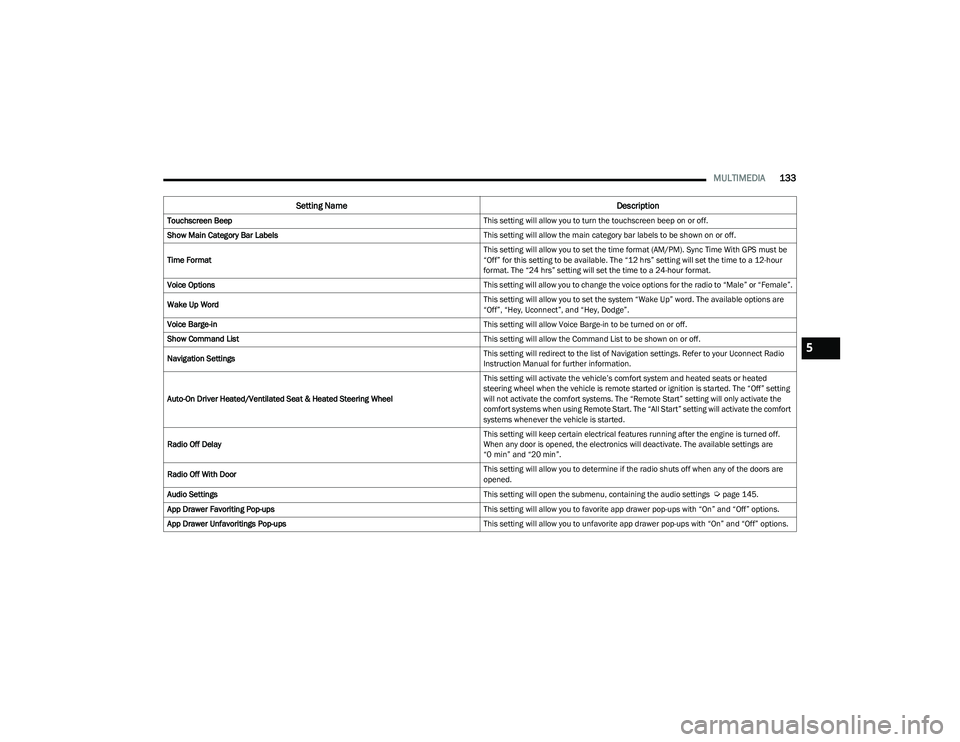
Touchscreen Beep This setting will allow you to turn the touchscreen beep on or off.
Show Main Category Bar Labels This setting will allow the main category bar labels to be shown on or off.
Time Format This setting will allow you to set the time format (AM/PM). Sync Time With GPS must be
“Off” for this setting to be available. The “12 hrs” setting will set the time to a 12-hour
format. The “24 hrs” setting will set the time to a 24-hour format.
Voice Options This setting will allow you to change the voice options for the radio to “Male” or “Female”.
Wake Up Word This setting will allow you to set the system “Wake Up” word. The available options are
“Off”, “Hey, Uconnect”, and “Hey, Dodge”.
Voice Barge-in This setting will allow Voice Barge-in to be turned on or off.
Show Command List This setting will allow the Command List to be shown on or off.
Navigation Settings This setting will redirect to the list of Navigation settings. Refer to your Uconnect Radio
Instruction Manual for further information.
Auto-On Driver Heated/Ventilated Seat & Heated Steering Wheel This setting will activate the vehicle’s comfort system and heated seats or heated
steering wheel when the vehicle is remote started or ignition is started. The “Off” setting
will not activate the comfort systems. The “Remote Start” setting will only activate the
comfort systems when using Remote Start. The “All Start” setting will activate the comfort
systems whenever the vehicle is started.
Radio Off Delay This setting will keep certain electrical features running after the engine is turned off.
When any door is opened, the electronics will deactivate. The available settings are
“0 min” and “20 min”.
Radio Off With Door This setting will allow you to determine if the radio shuts off when any of the doors are
opened.
Audio Settings This setting will open the submenu, containing the audio settings
Úpage 145.
App Drawer Favoriting Pop-ups This setting will allow you to favorite app drawer pop-ups with “On” and “Off” options.
App Drawer Unfavoritings Pop-ups This setting will allow you to unfavorite app drawer pop-ups with “On” and “Off” options.
Setting NameDescription
5
23_GG_OM_EN_USC_t.book Page 133
Page 136 of 288
134MULTIMEDIA
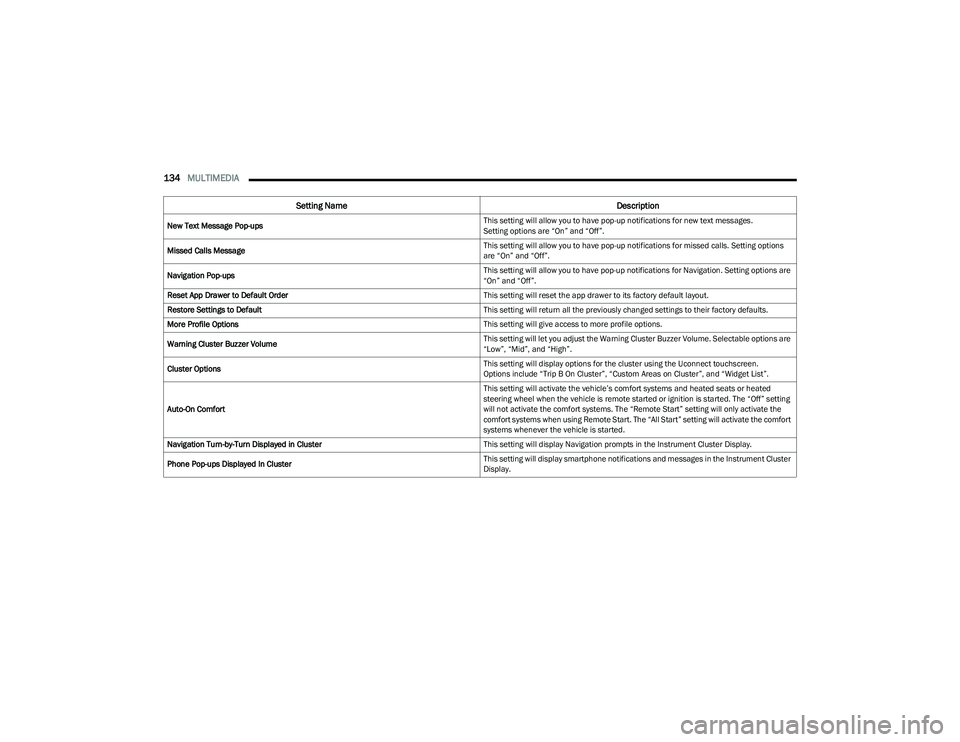
New Text Message Pop-ups This setting will allow you to have pop-up notifications for new text messages.
Setting options are “On” and “Off”.
Missed Calls Message This setting will allow you to have pop-up notifications for missed calls. Setting options
are “On” and “Off”.
Navigation Pop-ups This setting will allow you to have pop-up notifications for Navigation. Setting options are
“On” and “Off”.
Reset App Drawer to Default Order This setting will reset the app drawer to its factory default layout.
Restore Settings to Default This setting will return all the previously changed settings to their factory defaults.
More Profile Options This setting will give access to more profile options.
Warning Cluster Buzzer Volume This setting will let you adjust the Warning Cluster Buzzer Volume. Selectable options are
“Low”, “Mid”, and “High”.
Cluster Options This setting will display options for the cluster using the Uconnect touchscreen.
Options include “Trip B On Cluster”, “Custom Areas on Cluster”, and “Widget List”.
Auto-On Comfort This setting will activate the vehicle’s comfort systems and heated seats or heated
steering wheel when the vehicle is remote started or ignition is started. The “Off” setting
will not activate the comfort systems. The “Remote Start” setting will only activate the
comfort systems when using Remote Start. The “All Start” setting will activate the comfort
systems whenever the vehicle is started.
Navigation Turn-by-Turn Displayed in Cluster This setting will display Navigation prompts in the Instrument Cluster Display.
Phone Pop-ups Displayed In Cluster This setting will display smartphone notifications and messages in the Instrument Cluster
Display.
Setting Name
Description
23_GG_OM_EN_USC_t.book Page 134
Page 137 of 288
MULTIMEDIA135
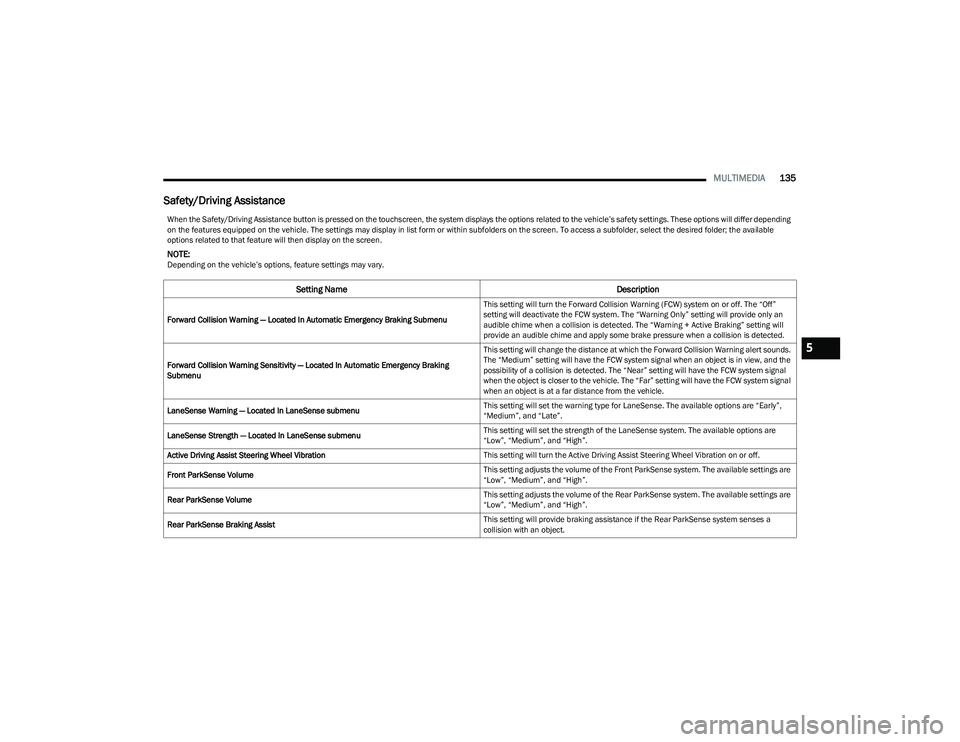
Safety/Driving Assistance
When the Safety/Driving Assistance button is pressed on the touchscreen, the system displays the options related to the vehicle’s safety settings. These options will differ depending
on the features equipped on the vehicle. The settings may display in list form or within subfolders on the screen. To access a subfolder, select the desired folder; the available
options related to that feature will then display on the screen.
NOTE:Depending on the vehicle’s options, feature settings may vary.
Setting Name Description
Forward Collision Warning — Located In Automatic Emergency Braking Submenu This setting will turn the Forward Collision Warning (FCW) system on or off. The “Off”
setting will deactivate the FCW system. The “Warning Only” setting will provide only an
audible chime when a collision is detected. The “Warning + Active Braking” setting will
provide an audible chime and apply some brake pressure when a collision is detected.
Forward Collision Warning Sensitivity — Located In Automatic Emergency Braking
Submenu This setting will change the distance at which the Forward Collision Warning alert sounds.
The “Medium” setting will have the FCW system signal when an object is in view, and the
possibility of a collision is detected. The “Near” setting will have the FCW system signal
when the object is closer to the vehicle. The “Far” setting will have the FCW system signal
when an object is at a far distance from the vehicle.
LaneSense Warning — Located In LaneSense submenu This setting will set the warning type for LaneSense. The available options are “Early”,
“Medium”, and “Late”.
LaneSense Strength — Located In LaneSense submenu This setting will set the strength of the LaneSense system. The available options are
“Low”, “Medium”, and “High”.
Active Driving Assist Steering Wheel Vibration This setting will turn the Active Driving Assist Steering Wheel Vibration on or off.
Front ParkSense Volume This setting adjusts the volume of the Front ParkSense system. The available settings are
“Low”, “Medium”, and “High”.
Rear ParkSense Volume This setting adjusts the volume of the Rear ParkSense system. The available settings are
“Low”, “Medium”, and “High”.
Rear ParkSense Braking Assist This setting will provide braking assistance if the Rear ParkSense system senses a
collision with an object.
5
23_GG_OM_EN_USC_t.book Page 135
Page 138 of 288
136MULTIMEDIA
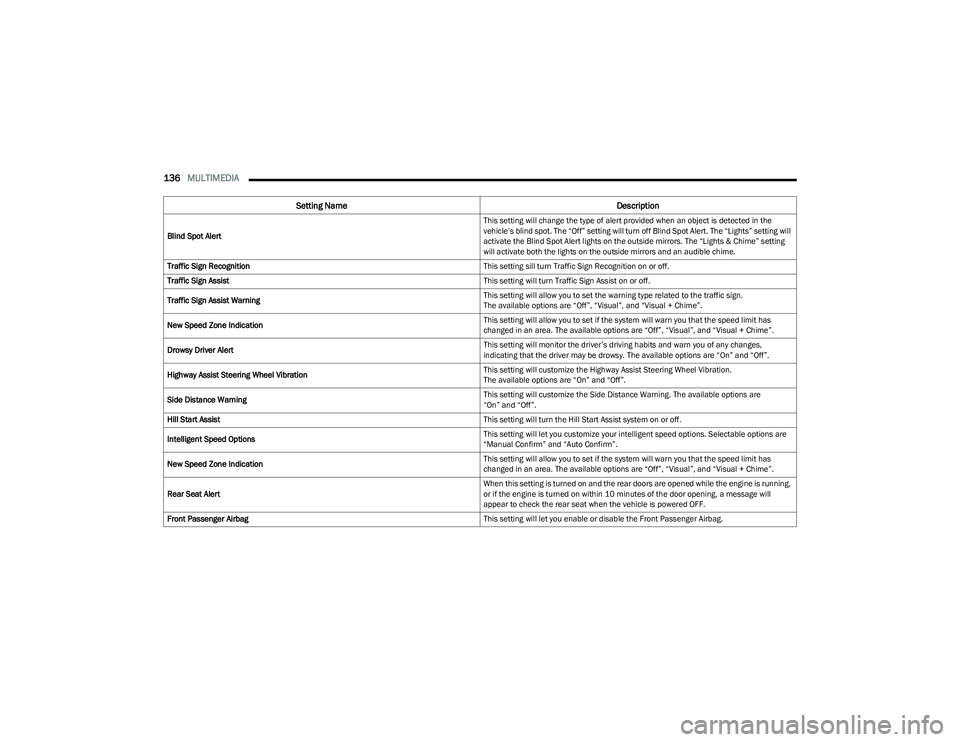
Blind Spot Alert This setting will change the type of alert provided when an object is detected in the
vehicle’s blind spot. The “Off” setting will turn off Blind Spot Alert. The “Lights” setting will
activate the Blind Spot Alert lights on the outside mirrors. The “Lights & Chime” setting
will activate both the lights on the outside mirrors and an audible chime.
Traffic Sign Recognition This setting sill turn Traffic Sign Recognition on or off.
Traffic Sign Assist This setting will turn Traffic Sign Assist on or off.
Traffic Sign Assist Warning This setting will allow you to set the warning type related to the traffic sign.
The available options are “Off”, “Visual”, and “Visual + Chime”.
New Speed Zone Indication This setting will allow you to set if the system will warn you that the speed limit has
changed in an area. The available options are “Off”, “Visual”, and “Visual + Chime”.
Drowsy Driver Alert This setting will monitor the driver’s driving habits and warn you of any changes,
indicating that the driver may be drowsy. The available options are “On” and “Off”.
Highway Assist Steering Wheel Vibration This setting will customize the Highway Assist Steering Wheel Vibration.
The available options are “On” and “Off”.
Side Distance Warning This setting will customize the Side Distance Warning. The available options are
“On” and “Off”.
Hill Start Assist This setting will turn the Hill Start Assist system on or off.
Intelligent Speed Options This setting will let you customize your intelligent speed options. Selectable options are
“Manual Confirm” and “Auto Confirm”.
New Speed Zone Indication This setting will allow you to set if the system will warn you that the speed limit has
changed in an area. The available options are “Off”, “Visual”, and “Visual + Chime”.
Rear Seat Alert When this setting is turned on and the rear doors are opened while the engine is running,
or if the engine is turned on within 10 minutes of the door opening, a message will
appear to check the rear seat when the vehicle is powered OFF.
Front Passenger Airbag This setting will let you enable or disable the Front Passenger Airbag.
Setting NameDescription
23_GG_OM_EN_USC_t.book Page 136