wheel DODGE JOURNEY 2015 1.G Owner's Manual
[x] Cancel search | Manufacturer: DODGE, Model Year: 2015, Model line: JOURNEY, Model: DODGE JOURNEY 2015 1.GPages: 648
Page 171 of 648
1. Press the “More” button on the touchscreen (where
available), then press the “Settings” button on the
touchscreen.
2. Press the “Display” button on the touchscreen, then
scroll down to Voice Response Length.
3. Select either “Brief” or “Detailed” by pressing the box
next to the selection. A check-mark will appear to
indicate your selection.
Phone And Network Status Indicators
Uconnect® Phone will provide notification to inform you
of your phone and network status when you are attempt-
ing to make a phone call using Uconnect® Phone. The
status is given for network signal strength and phone
battery strength.
Dialing Using The Mobile Phone Keypad
WARNING!
Driving while distracted can result in loss of vehicle
control, accident and injury. It is strongly recom-
mended that you use extreme caution when using
any device or feature that may take your focus off the
road or your hands off the steering wheel. Your
primary responsibility is the safe operation of your
vehicle. We recommend against the use of any hand-
held device while driving, encourage the use of
voice-operated systems when possible and that you
become aware of applicable laws that may affect the
use of electronic devices while driving.
You can dial a phone number with your mobile phone
keypad and still use the Uconnect® Phone (while dialing
via the mobile phone keypad, the user must exercise
caution and take precautionary safety measures). By
3
UNDERSTANDING THE FEATURES OF YOUR VEHICLE 169
Page 180 of 648
NOTE:
1. You can replace “John Smith” with any name in your
mobile or favorite phone book. You can also say “Send
a message to John Smith” and the system will ask you
which phone number you want to send a message to
for John Smith.
2. You can replace “Mobile” with “Home,” “Work” or
“Other.”
3. You can replace “Incoming Calls” with “Outgoing
Calls” or “Missed Calls.”
4. You can replace “248 555 1212” with any phone
number supported by your Mobile phone.
5. These commands can be used during a phone call after
pushing the Uconnect® Voice Command button on
the steering wheel. Please note the call will be muted
while the VR session is active.
6. Send dial tones for automated systems is available
while a call is active. This is an example that uses a
Phonebook Record named “Voicemail Password.”
7. Storing Dial tones in contact names is possible but
only the first number encountered in a contact name
will be sent. For example if there is a number stored in
the Home and Work numbers for the contact “Voice-
mail password” only the Home number will be sent.
8. If your phone does not support phonebook download
or call log download over Bluetooth® then these
commands will return a response that the contact does
not exist in the phonebook.
178 UNDERSTANDING THE FEATURES OF YOUR VEHICLE
Page 236 of 648
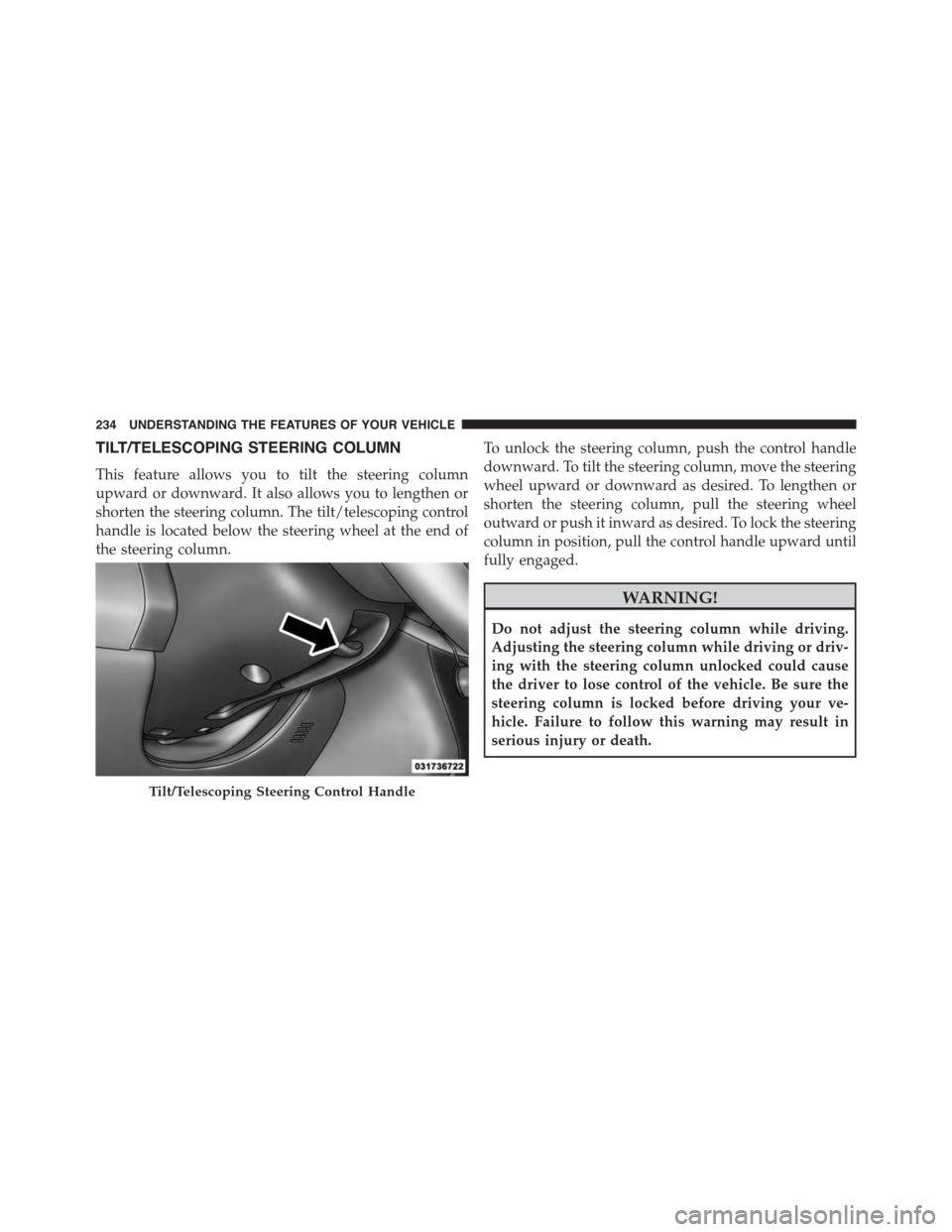
TILT/TELESCOPING STEERING COLUMN
This feature allows you to tilt the steering column
upward or downward. It also allows you to lengthen or
shorten the steering column. The tilt/telescoping control
handle is located below the steering wheel at the end of
the steering column.
To unlock the steering column, push the control handle
downward. To tilt the steering column, move the steering
wheel upward or downward as desired. To lengthen or
shorten the steering column, pull the steering wheel
outward or push it inward as desired. To lock the steering
column in position, pull the control handle upward until
fully engaged.
WARNING!
Do not adjust the steering column while driving.
Adjusting the steering column while driving or driv-
ing with the steering column unlocked could cause
the driver to lose control of the vehicle. Be sure the
steering column is locked before driving your ve-
hicle. Failure to follow this warning may result in
serious injury or death.
Tilt/Telescoping Steering Control Handle
234 UNDERSTANDING THE FEATURES OF YOUR VEHICLE
Page 237 of 648
HEATED STEERING WHEEL — IF EQUIPPED
The steering wheel contains a heating element that helps
warm your hands in cold weather. The heated steering
wheel has only one temperature setting. Once the heated
steering wheel has been turned on it will operate for up
to 80 minutes before automatically shutting off. The
heated steering wheel can shut off early or may not turn
on when the steering wheel is already warm.
The heated steering wheel control button is located
within the Uconnect® system. You can gain access to the
control button through the climate screen or the controls
screen.
•Press the heated steering wheel buttononce to
turn the heating element ON.
•Press the heated steering wheel buttona second
time to turn the heating element OFF.
NOTE:The engine must be running for the heated
steering wheel to operate.
Vehicles Equipped With Remote Start
On models that are equipped with remote start, the
heated steering wheel can be programmed to come on
during a remote start through the Uconnect® system.
Refer to “Uconnect® Settings” in “Understanding Your
Instrument Panel” for further information.
3
UNDERSTANDING THE FEATURES OF YOUR VEHICLE 235
Page 238 of 648
WARNING!
•Persons who are unable to feel pain to the skin
because of advanced age, chronic illness, diabetes,
spinal cord injury, medication, alcohol use, exhaus-
tion, or other physical conditions must exercise
care when using the steering wheel heater. It may
cause burns even at low temperatures, especially if
used for long periods.
•Do not place anything on the steering wheel that
insulates against heat, such as a blanket or steering
wheel covers of any type and material. This may
cause the steering wheel heater to overheat.
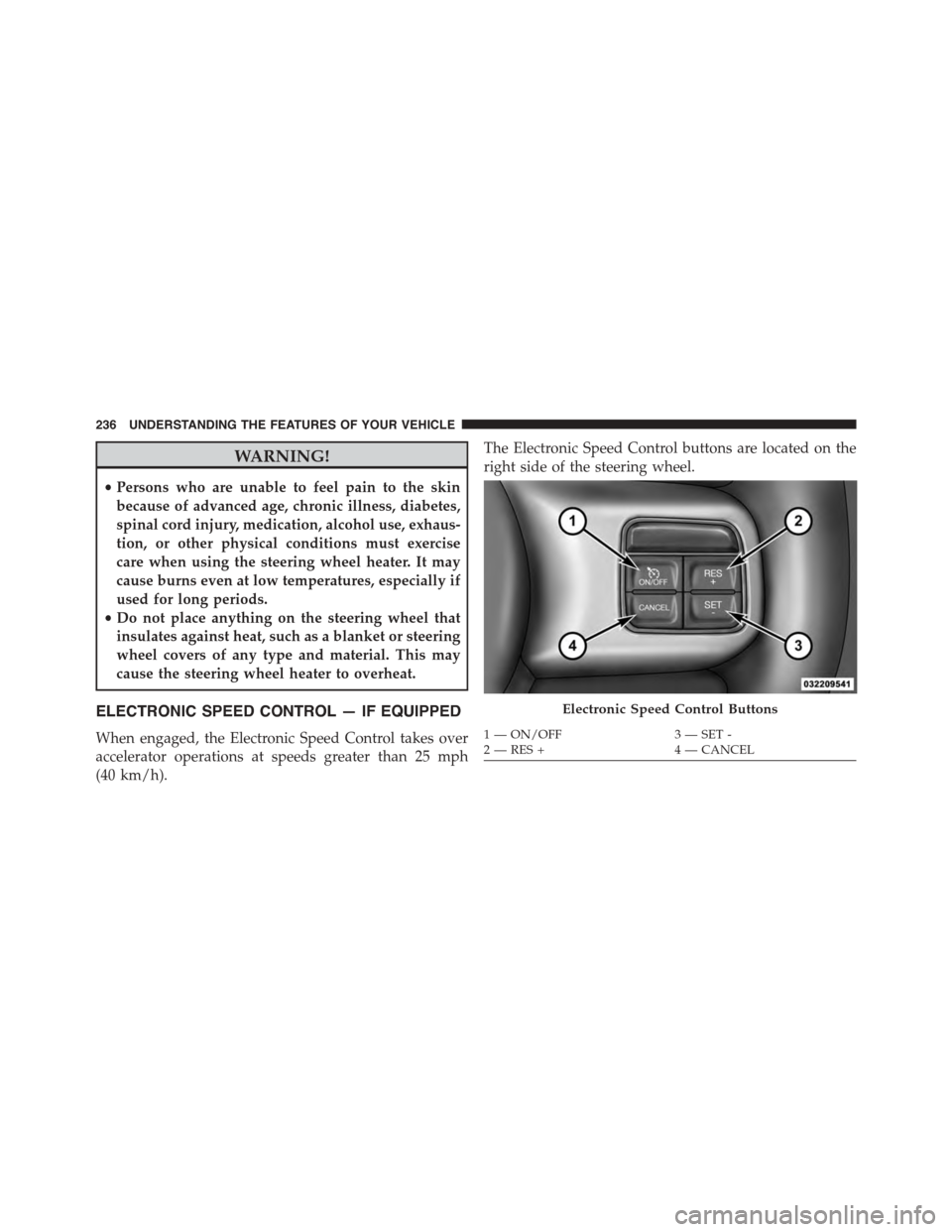
ELECTRONIC SPEED CONTROL — IF EQUIPPED
When engaged, the Electronic Speed Control takes over
accelerator operations at speeds greater than 25 mph
(40 km/h).
The Electronic Speed Control buttons are located on the
right side of the steering wheel.
Electronic Speed Control Buttons
1—ON/OFF3—SET-2—RES+4—CANCEL
236 UNDERSTANDING THE FEATURES OF YOUR VEHICLE
Page 297 of 648
!iPod®/USB/MP3 CONTROL..............370
!STEERING WHEEL AUDIO CONTROLS......370
▫Right-Hand Switch Functions.............371
▫Left-Hand Switch Functions For Radio
Operation...........................371
▫Left-Hand Switch Functions For Media (i.e., CD)
Operation..........................371
!CD/DVD DISC MAINTENANCE...........372
!RADIO OPERATION AND MOBILE PHONES . .372
!CLIMATE CONTROLS...................373
▫Manual Climate Controls With Touchscreen — If
Equipped...........................373
▫Rear Manual Temperature Control (MTC) — If
Equipped...........................381
▫Automatic Temperature Control (ATC) With
Touchscreen — If Equipped..............386
▫Rear Automatic Temperature Control (ATC) — If
Equipped...........................395
4
UNDERSTANDING YOUR INSTRUMENT PANEL 295
Page 304 of 648
Your vehicle has also been equipped with a TPMS
malfunction indicator to indicate when the system is not
operating properly. The TPMS malfunction indicator is
combined with the low tire pressure telltale. When the
system detects a malfunction, the telltale will flash for
approximately one minute and then remain continuously
illuminated. This sequence will continue upon subse-
quent vehicle start-ups as long as the malfunction exists.
When the malfunction indicator is illuminated, the sys-
tem may not be able to detect or signal low tire pressure
as intended. TPMS malfunctions may occur for a variety
of reasons, including the installation of replacement or
alternate tires or wheels on the vehicle that prevent the
TPMS from functioning properly. Always check the
TPMS malfunction telltale after replacing one or more
tires or wheels on your vehicle, to ensure that the
replacement or alternate tires and wheels allow the TPMS
to continue to function properly.
CAUTION!
The TPMS has been optimized for the original
equipment tires and wheels. TPMS pressures and
warning have been established for the tire size
equipped on your vehicle. Undesirable system opera-
tion or sensor damage may result when using re-
placement equipment that is not of the same size,
type, and/or style. Aftermarket wheels can cause
sensor damage. Do not use tire sealant from a can or
balance beads if your vehicle is equipped with a
TPMS, as damage to the sensors may result.
11. Seat Belt Reminder Light
When the ignition switch is first turned to ON/
RUN, this light will turn on for four to eight
seconds as a bulb check. During the bulb check, if
the driver or front passenger’s seat belt is unbuckled, a
chime will sound. After the bulb check or when driving,
302 UNDERSTANDING YOUR INSTRUMENT PANEL
Page 309 of 648
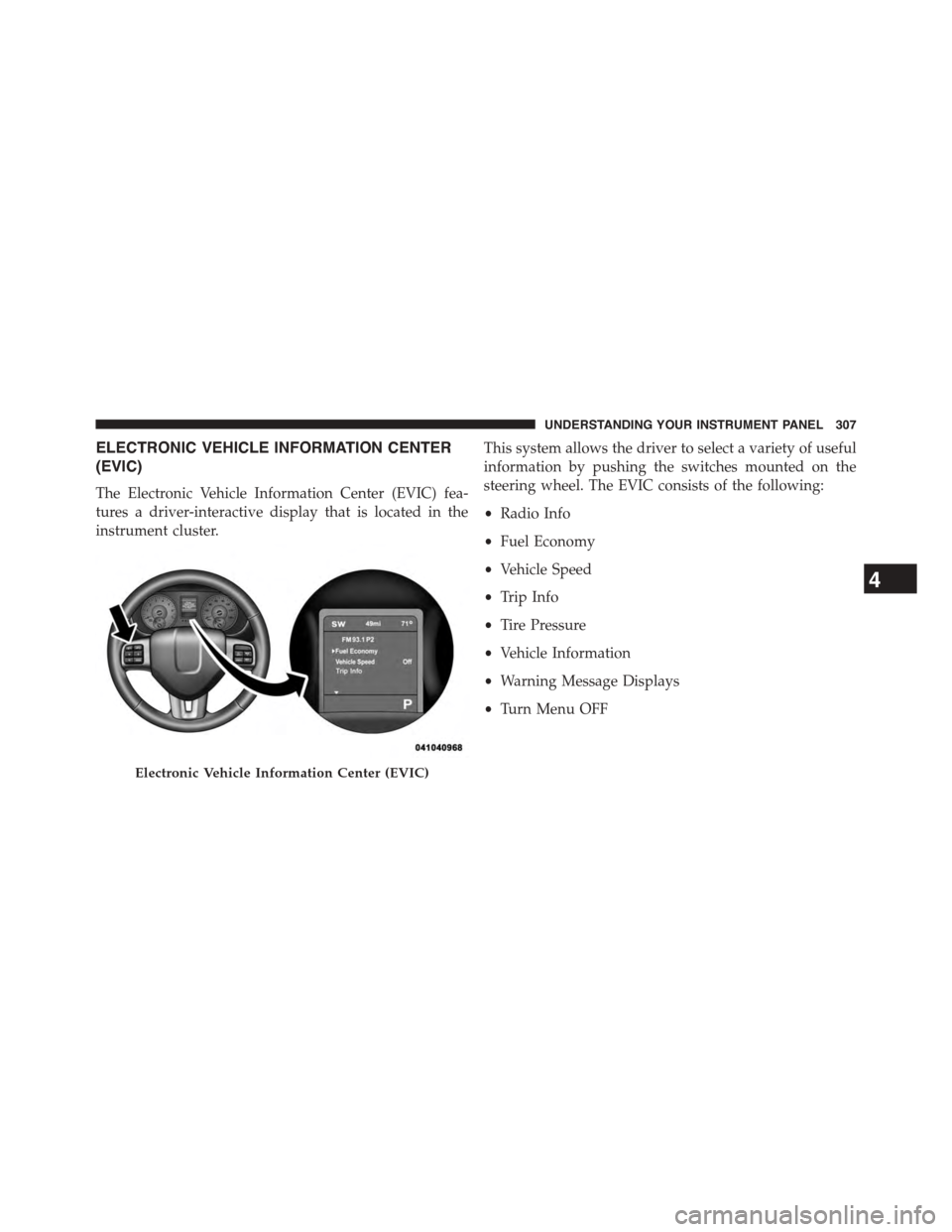
ELECTRONIC VEHICLE INFORMATION CENTER
(EVIC)
The Electronic Vehicle Information Center (EVIC) fea-
tures a driver-interactive display that is located in the
instrument cluster.
This system allows the driver to select a variety of useful
information by pushing the switches mounted on the
steering wheel. The EVIC consists of the following:
•Radio Info
•Fuel Economy
•Vehicle Speed
•Trip Info
•Tire Pressure
•Vehicle Information
•Warning Message Displays
•Turn Menu OFF
Electronic Vehicle Information Center (EVIC)
4
UNDERSTANDING YOUR INSTRUMENT PANEL 307
Page 310 of 648
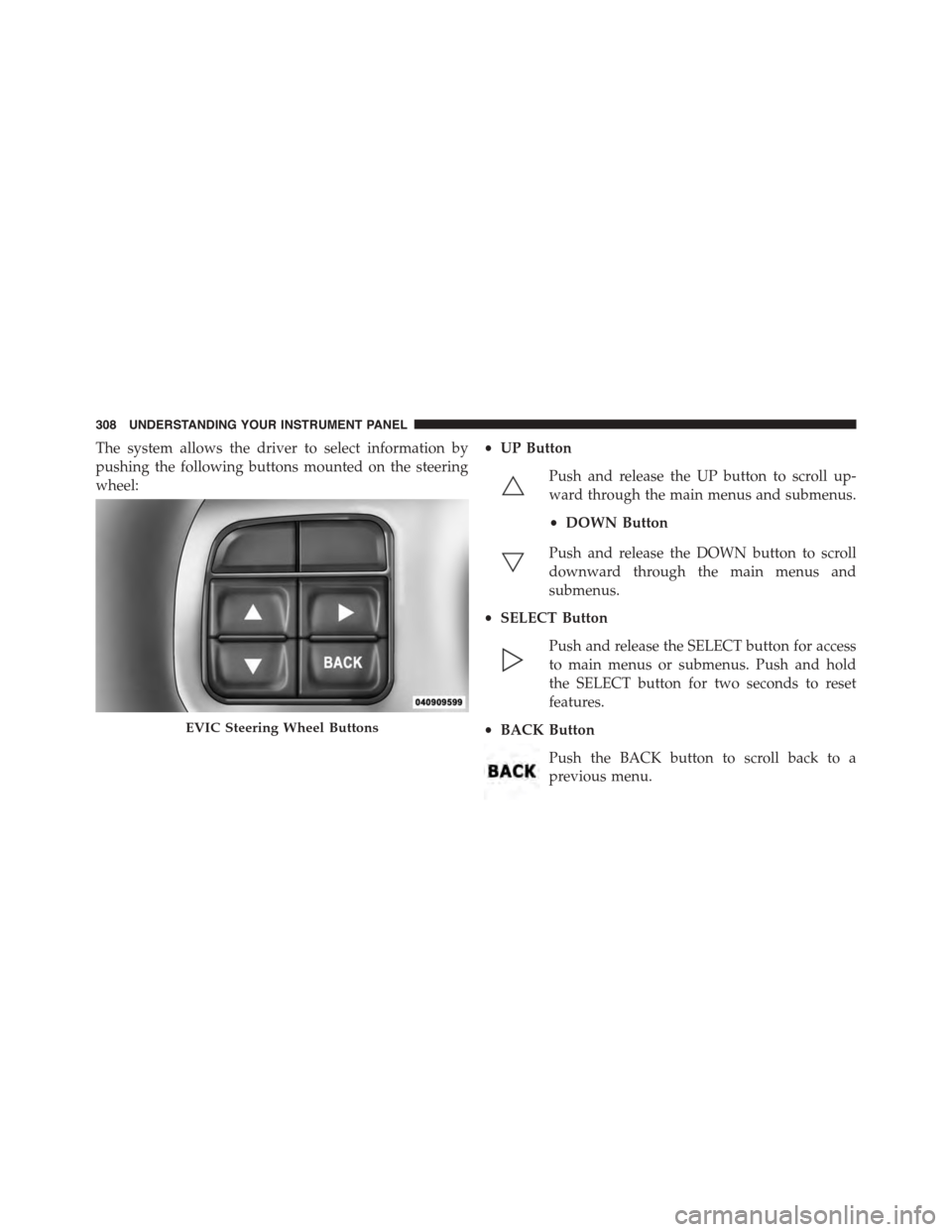
The system allows the driver to select information by
pushing the following buttons mounted on the steering
wheel:
•UP Button
Push and release the UP button to scroll up-
ward through the main menus and submenus.
•DOWN Button
Push and release the DOWN button to scroll
downward through the main menus and
submenus.
•SELECT Button
Push and release the SELECT button for access
to main menus or submenus. Push and hold
the SELECT button for two seconds to reset
features.
•BACK Button
Push the BACK button to scroll back to a
previous menu.
EVIC Steering Wheel Buttons
308 UNDERSTANDING YOUR INSTRUMENT PANEL
Page 322 of 648
Messages
Push and release the UP or DOWN button until “Mes-
sages: XX” displays highlighted in the EVIC. If there is
more than one message, pushing the SELECT button will
display a stored warning message. Push and release the
UP and DOWN buttons if there is more than one message
to step through the remaining stored messages. If there
are no message, pushing the SELECT button will do
nothing.
Turn Menu OFF
Select from Main Menu using the DOWN button. Push-
ing the SELECT button blanks the menu display. Pushing
any one of the four steering wheel buttons brings the
menu back.
Uconnect® SETTINGS
The Uconnect® system uses a combination of buttons on
the touchscreen and buttons on the faceplate located on
the center of the instrument panel that allows you to
access and change the customer programmable features.
Buttons On The Faceplate
Buttons on the faceplate are located on the left and right
side of the Uconnect® 4.3 screen. In addition, there is a
Scroll/Enter control knob located on the right side of the
Climate Controls in the center of the instrument panel.
Turn the control knob to scroll through menus and
change settings (i.e., 30, 60, 90), push the center of the
control knob one or more times to select or change a
setting (i.e., ON, OFF).
Buttons On The Touchscreen
Buttons on the touchscreen are accessible on the
Uconnect® Touchscreen.
320 UNDERSTANDING YOUR INSTRUMENT PANEL