phone DODGE JOURNEY 2020 Owner's Manual
[x] Cancel search | Manufacturer: DODGE, Model Year: 2020, Model line: JOURNEY, Model: DODGE JOURNEY 2020Pages: 396, PDF Size: 25.53 MB
Page 301 of 396
MULTIMEDIA 299
A maximum of 2,000 entries per phone will
be downloaded and updated every time a
phone is connected to the Uconnect Phone.
Depending on the maximum number of entries
downloaded, there may be a short delay
before the latest downloaded names can be
used. Until then, if available, the previously
downloaded phonebook is available for use.
Only the phonebook of the currently
connected mobile phone is accessible.
This downloaded phonebook cannot be
edited or deleted on the Uconnect Phone.
These can only be edited on the mobile
phone. The changes are transferred and
updated to Uconnect Phone on the next
phone connection.
Emergency And Towing Assistance
The 911/Help numbers can only be altered.
Th
ese can not be deleted or the names can not
be changed. To change the 911/Help number, follow these
s
t
eps:
1. P ress the Phonebook button on the
t
ouchscreen from the Phone main screen.
2. P ress the 911/Help button on the
t
ouchscreen. Press the appropriate listing
to alter, Emergency for example.
3. O nce Emergency is pressed, the Edit button
o
n the touchscreen appears. Press the Edit
button on the touchscreen and you will be
given the choice to Edit Number or Reset to
Default.
4. F ollow the on-screen prompts to complete
t
he task.
Phone Call Features
The following features can be accessed through
the Uconnect Phone if the feature(s) are
available on your mobile service plan.
For example, if your mobile service plan
p r
ovides three-way calling, this feature can
be accessed through the Uconnect Phone.
C h
eck with your mobile service provider for the
features that you have. Ways To Initiate A Phone Call
Listed below are all the ways you can initiate a
p
h
one call with Uconnect Phone.
Redial
Dial by pressing in the number
Voice Commands (Dial by Saying a Number,
Call by Saying a Phonebook Name, Redial, or
Call Back)
Mobile Phonebook
Recent Call Log
NOTE:
All of the above operations except Redial can be
do
ne with one call or less active.
Dial By Saying A Number
1. P ush the Phone
button to begin.
2. A fter the “Listening” prompt and the
f
ollowing beep, say “Dial 248-555-1212.”
3. T he Uconnect Phone will dial
2
48-555-1212.
9
Page 302 of 396
300 MULTIMEDIA
Call By Saying A Phonebook Name
1. Push the VR button on your steering wheel
t
o begin.
2. A fter the “Listening” prompt and the
f
ollowing beep, say “Call John Doe Mobile.”
3. T he Uconnect Phone will dial the number
a
ssociated with John Doe, or if there are
multiple numbers it will ask which number
you want to call for John Doe.
Call Controls
The touchscreen allows you to control the
f o
llowing call features:
Answer
End
Ignore
Hold/Unhold
Mute/Unmute
Transfer the call to/from the phone
Swap two active calls
Join two active calls together Touch-Tone Number Entry
1. P
ress the Phone button on the
t
ouchscreen.
2. P ress the Dial button on the touchscreen.
3
. T he Touch-Tone screen will be displayed.
4
. U se the numbered buttons on the touchscreen
t
o enter the number and press Call.
To send a touch tone using Voice Recognition
( V
R), push the Voice Command button while
in a call and say “1234#” or you can say “Send
V o
icemail Password” if Voicemail password is
stored in your mobile phonebook.
Recent Calls
You may browse up to 34 of the most recent of
e a
ch of the following call types:
Incoming Calls
Outgoing Calls
Missed Calls
All Calls These can be accessed by touching the recent
c
a
lls button on the touchscreen on the Phone
main screen.
You can also push the Phone button and say
“Show my incoming calls” from any screen and
t h
e Incoming calls will be displayed.
NOTE:
Incoming can also be replaced with “Outgoing”,
“ R
ecent” or “Missed”.
Answer Or Reject An Incoming Call — No Call
C u
rrently In Progress
When you receive a call on your mobile phone,
t h
e Uconnect Phone will interrupt the vehicle
audio system, if on, and will display a pop-up
showing Answer or Ignore. Press the Answer
button on the touchscreen or push the Phone
button on the steering wheel to accept the call.
Answer Or Ignore An Incoming Call — Call
C u
rrently In Progress
If a call is currently in progress and you have
a n
other incoming call, you will hear the same
network tones for call waiting that you normally
hear when using your mobile phone. Push the
Phone button on the steering wheel, or press
Page 303 of 396
MULTIMEDIA 301
the answer button on the touchscreen, or caller
ID box, to place the current call on hold and
answer the incoming call.
NOTE:
The Uconnect Phone compatible phones in the
ma
rket today do not support rejecting an
incoming call when another call is in progress.
Therefore, the user can only answer an
incoming call or ignore it.
Making A Second Call While Current Call Is In
Pr
ogress
To make a second call while you are currently on
a
call, push the Voice Command button and
say “Dial” or “Call” followed by the phone
n u
mber or phonebook entry you wish to call.
The first call will be on hold while the second call
is in progress. Or you can place a call on hold by
pressing the Hold button on the touchscreen,
then dial a number from the dial-pad, recent
calls or from the phonebooks. To go back to the
first call, refer to “Toggling Between Calls” in
this section. To combine two calls, refer to “Join
Calls” in this section. Toggling Between Calls
If two calls are in progress (one active and one
o
n
hold), push the Phone button until you
hear a single beep, indicating that the active
a n
d hold status of the two calls have switched.
Only one call can be placed on hold at a time.
Also you can press the Swap button on the
touchscreen, on the Phone main screen.
Join Calls
When two calls are in progress (one active and
o n
e on hold), press the Join Calls button on the
Phone main screen to combine all calls into a
Conference Call.
Call Termination
To end a call in progress, momentarily press the
E n
d button on the touchscreen or the Phone
button. Only the active call(s) will be terminated
a n
d if there is a call on hold, it will become the
new active call. If the active call is terminated by
the far end, a call on hold may not become
active automatically. This is cell
phone-dependent. Redial
1. P
ress the Redial button on the
t
ouchscreen, or push the Phone button
and after the “Listening” prompt and the
f o
llowing beep, say “Redial”.
2. T he Uconnect Phone will call the last
n
umber that was dialed from your mobile
phone.
Call Continuation
Call continuation is the progression of a phone
c a
ll on the Uconnect Phone after the vehicle
ignition key has been switched to OFF.
After the ignition is switched to OFF, a call
can continue on the Uconnect Phone either
until the call ends, or until the vehicle battery
condition dictates cessation of the call on the
Uconnect Phone and transfer of the call to
the mobile phone.
9
Page 304 of 396
302 MULTIMEDIA
Uconnect Phone Features
Emergency Assistance
If you are in an emergency and the mobile
ph
one is reachable:
Pick up the phone and manually dial the
emergency number for your area.
If the phone is not reachable and the Uconnect
P h
one is operational, you may reach the
emergency number as follows:
Push the Phone button to begin.
After the “Listening” prompt and the
following beep, say “Emergency” and the
Uconnect Phone will instruct the paired
mobile phone to call the emergency number.
This feature is supported in the US, Canada,
and Mexico.
NOTE:
The emergency number dialed is based on
the country where the vehicle is purchased
(911 for the US and Canada and 060 for
Mexico). The number dialed may not be appli -
cable with the available mobile service and
a r
ea.
The Uconnect Phone slightly lowers your
chances of successfully making a phone call
to the mobile phone directly.
Roadside Assistance/Towing Assistance
If you need roadside/towing assistance:
Push the Phone button to begin.
After the “Listening” prompt and the
following beep, say “Roadside Assistance” or
say “Towing Assistance.”
NOTE:
The roadside/towing assistance number dialed
i s
based on the country where the vehicle is
purchased (1-800-521-2779 for U.S.,
1-800-363-4869 for Canada, 55-14-3454 for
Mexico City and 1-800-712-3040 for outside
Mexico City in Mexico). Please refer to the FCA
US LLC 24-Hour “Roadside Assistance” coverage details in the Warranty Information
Booklet and on the 24-Hour Roadside Assis
-
tance Card.
Voice Mail Calling
To learn how to access your voice mail, refer to
“ W
orking with Automated Systems.”
Working With Automated Systems
This method is used in instances where one
g e
nerally has to push numbers on the mobile
phone keypad while navigating through an
automated telephone system.
You can use your Uconnect Phone to access a
v o
ice mail system or an automated service, such
as a paging service or automated customer
service line. Some services require immediate
response selection. In some instances, that may
be too quick for use of the Uconnect Phone.
When calling a number with your Uconnect
P h
one that normally requires you to enter in a
touch-tone sequence on your mobile phone
keypad, you can utilize the touchscreen or push
the Voice Command button and say the word
“Send” then the sequence you wish to enter.
F o
r example, if required to enter your PIN
followed with a pound, (3 7 4 6 #), you can push
WARNING!
Your phone must be turned on and connected
to the Uconnect Phone to allow use of this
vehicle feature in emergency situations, when
the mobile phone has network coverage and
stays connected
to the Uconnect Phone.
Page 305 of 396
MULTIMEDIA 303
the Voice Command button and say, “Send
3 7 4 6 #.” Saying “Send” followed by a number,
o r
sequence of numbers, is also to be used for
navigating through an automated customer
service center menu structure, and to leave a
number on a pager.
You can also send stored mobile phonebook
en
tries as tones for fast and easy access to
voice mail and pager entries. For example, if you
previously created a Phonebook entry and/or
Last Name as “Voice Password,” then if you
push the Voice Command button and say
“Send Voicemail Password,” the Uconnect
P h
one will then send the corresponding phone
number associated with the phonebook entry,
as tones over the phone.
NOTE:
The first number encountered for that
contact will be sent. All other numbers
entered for that contact will be ignored.
You may not hear all of the tones due to
mobile phone network configurations.
This is normal.
Some paging and voice mail systems have
system time out settings that are too short
and may not allow the use of this feature.
Pauses, wait or other characters that are
supported by some phones are not
supported over Bluetooth®. These additional
symbols will be ignored when dialing a
numbered sequence.
Barge In — Overriding Prompts
The Voice Command button can be used
when you wish to skip part of a prompt and
i s
sue your voice command immediately.
For example, if a prompt is asking “There are
t w
o numbers with the name John. Say the full
name” you could push the Voice Command
button and say, “John Smith” to select that
o p
tion without having to listen to the rest of the
voice prompt.
Voice Response Length
It is possible for you to choose between Brief
a n
d Detailed Voice Response Length.
1. P ush the MORE button on the faceplate,
t
hen press the Settings button on the
touchscreen.
2. P ress the Display button on the
t
ouchscreen, then scroll down to Voice
Response Length. 3. S
elect either “Brief” or “Detailed” by
p
ressing the box next to the selection.
A check-mark will appear to indicate your
s e
lection.
Phone And Network Status Indicators
Uconnect Phone will provide notification to
in
form you of your phone and network status
when you are attempting to make a phone call
using Uconnect Phone. The status is given for
network signal strength and phone battery
strength.
Dialing Using The Mobile Phone Keypad
You can dial a phone number with your mobile
p h
one keypad and still use the Uconnect Phone
(while dialing via the mobile phone keypad, the
user must exercise caution and take
precautionary safety measures). By dialing a
number with your connected Bluetooth® mobile
phone, the audio will be played through your
vehicle's audio system. The Uconnect Phone will
work the same as if you dial the number using a
voice command.
NOTE:
Certain brands of mobile phones do not send
t h
e dial ring to the Uconnect Phone to play it on
the vehicle audio system, so you will not hear it.
9
Page 306 of 396
304 MULTIMEDIA
Under this situation, after successfully dialing a
number the user may feel that the call did not
go through even though the call is in progress.
Once your call is answered, you will hear the
audio.
Mute/Un-Mute (Mute OFF)
When you mute the Uconnect Phone, you will
st
ill be able to hear the conversation coming
from the other party, but the other party will not
be able to hear you. To mute the Uconnect
Phone simply press the Mute button on the
Phone main screen.
Advanced Phone Connectivity
Transfer Call To And From Mobile Phone
The Uconnect Phone allows ongoing calls to be
t r
ansferred from your mobile phone to the
Uconnect Phone without terminating the call.
To transfer an ongoing call from your connected
m o
bile phone to the Uconnect Phone or vice
versa, press the Transfer button on the Phone
main screen. Connect Or Disconnect Link Between the
U
c
onnect Phone And Mobile Phone
If you would like to connect or disconnect the
B l
uetooth® connection between a Uconnect
Phone paired mobile phone and the Uconnect
Phone, follow the instructions described in your
mobile phone User's Manual.
Things You Should Know About Your
Uconnect Phone
Voice Command
For best performance:
Adjust the rearview mirror to provide at least
½-inch (1 cm) gap between the overhead
console (if equipped) and the mirror.
Always wait for the beep before speaking.
Speak normally without pausing, just as you
would speak to a person sitting a few feet/
meters away from you.
Make sure that no one other than you is
speaking during a Voice Command period. Performance is maximized under:
Low-to-medium blower setting
Low-to-medium vehicle speed
Low road noise
Smooth road surface
Fully closed windows
Dry weather conditions
NOTE:
Even though the system is designed for users
speaking in North American English, French,
and Spanish accents, the system may not
always work for some.
When navigating through an automated
system such as voice mail, or when sending
a page, at the end of speaking the digit string,
make sure to say “Send.”
Storing names in the phonebook when the
vehicle is not in motion is recommended.
It is not recommended to store similar
sounding names in the Uconnect Phonebook.
Page 307 of 396
MULTIMEDIA 305
Phonebook (Downloaded and Uconnect
Phone Local) name recognition rate is opti -
mized when the entries are not similar.
Numbers must be spoken in single digits.
“800” must be spoken “eight-zero-zero” not
“eight hundred.”
You can say “O” (letter “O”) for “0” (zero).
Even though international dialing for most
number combinations is supported, some
shortcut dialing number combinations may
not be supported.
Far End Audio Performance
Audio quality is maximized under:
Low-to-medium blower setting
Low-to-medium vehicle speed
Low road noise
Smooth road surface
Fully closed windows
Dry weather conditions
Operation from the driver's seat
Performance, such as audio clarity, echo,
and loudness to a large degree, relies on the
phone and network, and not the Uconnect
Phone
Echo at the phone far end can sometimes be
reduced by lowering the in-vehicle audio
volume
Bluetooth® Communication Link
Mobile phones have been found to lose
c o
nnection to the Uconnect Phone. When this
happens, the connection can generally be
reestablished by switching the phone off/on.
Your mobile phone is recommended to remain
in Bluetooth® ON mode.
Power-Up
After switching the ignition key from OFF to
e i
ther the ON/RUN or ACC position, or after a
language change, you must wait at least
15 seconds prior to using the system.
MORE MODE
More Button
Push the MORE button to display the More Main
Menu. The More Main Menu contains the
following options:
Economy — If Equipped
Phone
Outlet — If Equipped
Time
Compass
Clock Setting
1. P ush the MORE button on the right side of
t
he display, then press the Time button.
Next, press the Set button.
Or,
Push the SETTINGS button on the right side
of
the display, then press the Clock button.
The Time setting screen is displayed and
t h
e clock can be adjusted as described in
the following procedure.
9
Page 309 of 396
MULTIMEDIA 307
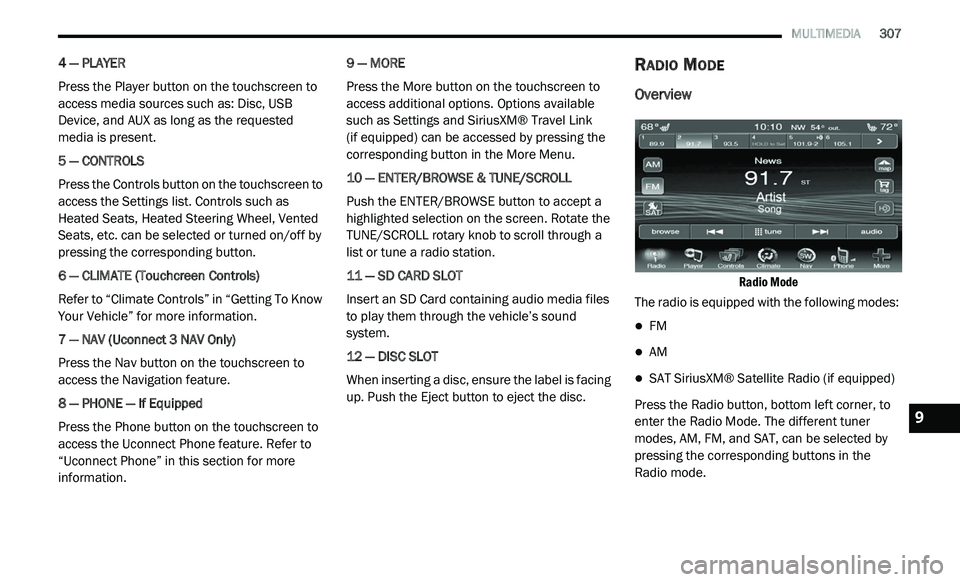
4 — PLAYER
Press the Player button on the touchscreen to
ac
cess media sources such as: Disc, USB
Device, and AUX as long as the requested
media is present.
5 — CONTROLS
Press the Controls button on the touchscreen to
a c
cess the Settings list. Controls such as
Heated Seats, Heated Steering Wheel, Vented
Seats, etc. can be selected or turned on/off by
pressing the corresponding button.
6 — CLIMATE (Touchcreen Controls)
Refer to “Climate Controls” in “Getting To Know
Y o
ur Vehicle” for more information.
7 — NAV (Uconnect 3 NAV Only)
Press the Nav button on the touchscreen to
ac
cess the Navigation feature.
8 — PHONE — If Equipped
Press the Phone button on the touchscreen to
ac
cess the Uconnect Phone feature. Refer to
“Uconnect Phone” in this section for more
information. 9 — MORE
Press the More button on the touchscreen to
a
c
cess additional options. Options available
such as Settings and SiriusXM® Travel Link
(if equipped) can be accessed by pressing the
c o
rresponding button in the More Menu.
10 — ENTER/BROWSE & TUNE/SCROLL
Push the ENTER/BROWSE button to accept a
hi
ghlighted selection on the screen. Rotate the
TUNE/SCROLL rotary knob to scroll through a
list or tune a radio station.
11 — SD CARD SLOT
Insert an SD Card containing audio media files
t o
play them through the vehicle’s sound
system.
12 — DISC SLOT
When inserting a disc, ensure the label is facing
u p
. Push the Eject button to eject the disc.
RADIO MODE
Overview
Radio Mode
The radio is equipped with the following modes:
FM
AM
SAT SiriusXM® Satellite Radio (if equipped)
Press the Radio button, bottom left corner, to
e n
ter the Radio Mode. The different tuner
modes, AM, FM, and SAT, can be selected by
pressing the corresponding buttons in the
Radio mode.9
Page 325 of 396
MULTIMEDIA 323
Source
Press the Source button on the touchscreen to
se
lect the desired audio source, Disc/USB/SD
Card/AUX/ or Bluetooth®. This screen will time
out after a few seconds and return to the main
radio screen if no selection is made.
Repeat
Press the Repeat button to toggle the repeat
f u
nctionality. The Repeat button is highlighted
when active. The Radio will continue to play the
current track, repeatedly, as long as the repeat
is active.
Shuffle
Press the Shuffle button to play the selections
o n
the Auxiliary device in random order to
provide an interesting change of pace. Press
the Shuffle button a second time to turn this
feature off.
Info
Press the Info button to display the current
t r
ack information. Press the Info button a
second time to cancel this feature. Tracks
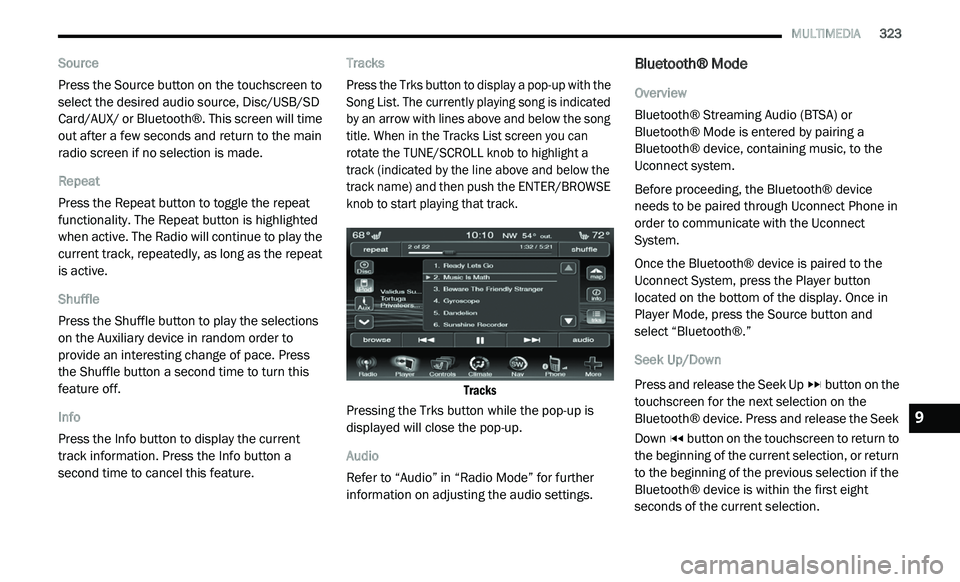
Press the Trks button to display a pop-up with the
S
o
ng List. The currently playing song is indicated
by an arrow with lines above and below the song
title. When in the Tracks List screen you can
rotate the TUNE/SCROLL knob to highlight a
track (indicated by the line above and below the
track name) and then push the ENTER/BROWSE
knob to start playing that track.
Tracks
Pressing the Trks button while the pop-up is
d i
splayed will close the pop-up.
Audio
Refer to “Audio” in “Radio Mode” for further
i n
formation on adjusting the audio settings.
Bluetooth® Mode
Overview
Bluetooth® Streaming Audio (BTSA) or
Bl
uetooth® Mode is entered by pairing a
Bluetooth® device, containing music, to the
Uconnect system.
Before proceeding, the Bluetooth® device
n e
eds to be paired through Uconnect Phone in
order to communicate with the Uconnect
System.
Once the Bluetooth® device is paired to the
U c
onnect System, press the Player button
located on the bottom of the display. Once in
Player Mode, press the Source button and
select “Bluetooth®.”
Seek Up/Down
Press and release the Seek Up button on the
touchscreen for the next selection on the
B l
uetooth® device. Press and release the Seek
Down button on the touchscreen to return to
the beginning of the current selection, or return
t o
the beginning of the previous selection if the
Bluetooth® device is within the first eight
seconds of the current selection.
9
Page 326 of 396
324 MULTIMEDIA
Fast Seek Up
Press and hold the Seek Up button and the
Bluetooth® device will begin to fast forward
th
rough the current track until the button is
released.
Fast Seek Down
Press and hold the Seek Down button and
the Bluetooth® device will begin to rewind
t h
rough the current track until the button is
released.
Source
Press the Source button on the touchscreen to
s e
lect the desired audio source, Disc/USB/SD
Card/AUX/ or Bluetooth®. This screen will time
out after a few seconds and return to the main
radio screen if no selection is made.
Repeat
Press the Repeat button to toggle the repeat
f u
nctionality. The Repeat button is highlighted
when active. The Radio will continue to play the
current track, repeatedly, as long as the repeat
is active. Info
Press the Info button to display the current
t
r
ack information. Press the Info button a
second time to cancel this feature.
Audio
Refer to “Audio” in “Radio Mode” for further
i n
formation on adjusting the audio settings.
UCONNECT PHONE
Uconnect Phone is a voice-activated,
hands-free, in-vehicle communications system.
Uconnect Phone allows you to dial a phone
number with your mobile phone.
Uconnect Phone supports the following
fe
atures:
Voice Activated Features:
Hands-Free dialing via Voice (“Call John
Smith Mobile” or, “Dial 248 555 1212”).
Hands-Free text-to-speech listening of your
incoming SMS messages.
Hands-Free text messaging (“Send a
message to John Smith Mobile”).
Redialing last dialed numbers (“Redial”).
Calling Back the last incoming call number
(“Call Back”).
Viewing Call logs on screen (“Show Incoming
Calls,” “Show Outgoing Calls,” “Show Missed
Calls,” “Show Recent Calls”).
Searching Contacts phone number (“Search
for John Smith Mobile”).
Screen Activated Features
Dialing via Keypad using touchscreen.
Viewing and Calling contacts from Phone -
books displayed on the touchscreen.
Setting Favorite Contact Phone numbers so
they are easily accessible on the Main Phone
screen.
Viewing and Calling contacts from Recent
Call logs.
Reviewing your recent Incoming SMS.
Sending a text message via the touchscreen.