phone DODGE JOURNEY 2020 Owner's Guide
[x] Cancel search | Manufacturer: DODGE, Model Year: 2020, Model line: JOURNEY, Model: DODGE JOURNEY 2020Pages: 396, PDF Size: 25.53 MB
Page 327 of 396
MULTIMEDIA 325
Listening to Music on your Bluetooth®
Device via the touchscreen.
Pairing up to 10 phones/audio devices for
easy access to connect to them quickly.
NOTE:
Your phone must be capable of SMS messaging
v i
a Bluetooth® for messaging features to work
properly. Your mobile phone’s audio is trans -
mitted through your vehicles audio system; the
s y
stem will automatically mute your radio when
using the Uconnect Phone. For Uconnect
customer support, visit the following website:
US residents — visit UconnectPhone.com or
call 1-877-855-8400.
Canadian residents — visit Uconnect-
Phone.com or call 1-800-465-2001 (English)
or 1-800-387-9983 (French).
Uconnect Phone allows you to transfer calls
b e
tween the system and your mobile phone as
you enter or exit your vehicle and enables you to
mute the system's microphone for private
conversation. The Uconnect Phone is driven through your
B
l
uetooth® “Hands-Free Profile” mobile phone.
Uconnect features Bluetooth® technology — the
global standard that enables different
electronic devices to connect to each other
without wires or a docking station, so Uconnect
Phone works no matter where you stow your
mobile phone (be it your purse, pocket, or
briefcase), as long as your phone is turned on
and has been paired to the vehicle's Uconnect
Phone.
The Uconnect Phone allows up to 10 mobile
p h
ones or audio devices to be linked to the
system. Only one linked (or paired) mobile
phone and one audio device can be used with
the system at a time. The system is available in
English, Spanish, or French languages. Uconnect Phone Button
The Uconnect Phone button
is used to enter
the phone mode and make calls, show recent
i n
coming and outgoing calls, view phonebook
along with other features. When you push the
button you will hear a BEEP. The beep is your
signal to give a command.
Uconnect Voice Command Button
The Voice Recognition button is only used for
“barge in” and when you are already in a call and
y o
u want to send Tones or make another call.
The Voice Recognition button is also used to
access the Voice Commands for the Uconnect
V o
ice Command features if your vehicle is
equipped. Please see the Uconnect Voice
Command section for direction on how to use
the Voice Command button.
The Uconnect Phone is fully integrated with the
ve
hicle’s audio system. The volume of the
Uconnect Phone can be adjusted either from the
radio volume control knob or from the steering
wheel radio control (right switch), if so equipped.
WARNING!
Any voice commanded system should be
used only in safe driving conditions following
all applicable laws, including laws regarding
phone use. Your attention should be focused
on safely operating the vehicle. Failure to do
so may result in an accident causing serious
injury or death.
9
Page 328 of 396
326 MULTIMEDIA
Operation
Voice commands can be used to operate the
Uconnect Phone and to navigate through the
Uconnect Phone menu structure. Voice
commands are required after most Uconnect
Phone prompts. There are two general methods
for how Voice Command works:
1. Say compound commands like “Call John
S
mith Mobile.”
2. S ay the individual commands and allow the
s
ystem to guide you to complete the task.
You will be prompted for a specific command
a n
d then guided through the available options.
Prior to giving a voice command, one must
wait for the beep, which follows the “Listen”
prompt or another prompt.
For certain operations, compound
commands can be used. For example,
instead of saying “Call” and then “John
Smith” and then “mobile”, the following
compound command can be said: “Call John
Smith mobile.”
For each feature explanation in this section, only
the compound command form of the voice
command is given. You can also break the
commands into parts and say each part of
the command when you are asked for it.
For example, you can use the compound
c o
mmand form voice command “Search for
John Smith,” or you can break the compound
c o
mmand form into two voice commands:
“Search Contact” and when asked “John Smith.”
Please remember, the Uconnect Phone works
best when you talk in a normal conversational
tone, as if speaking to someone sitting a few
feet/meters away from you.
Natural Speech
Your Uconnect Phone Voice system uses a
N a
tural Language Voice Recognition (VR)
engine.
Natural speech allows the user to speak
c o
mmands in phrases or complete sentences.
The system filters out certain non-word
utterances and sounds such as “ah” and “eh.”
The system handles fill-in words such as “I would
like to.”
The system handles multiple inputs in the same
p
h
rase or sentence such as “make a phone
call” and “to Kelly Smith.” For multiple inputs in
the same phrase or sentence, the system
identifies the topic or context and provides the
associated follow-up prompt such as “Who do
you want to call?” in the case where a phone
call was requested but the specific name was
not recognized.
The system utilizes continuous dialog; when the
s y
stem requires more information from the user
it will ask a question to which the user can
respond without pushing the Voice Recognition
button on your steering wheel.
Help Command
If you need assistance at any prompt, or if you
w a
nt to know your options at any prompt, say
“Help” following the beep.
To activate the Uconnect Phone from idle,
s i
mply push the Phone button (if active) on
your steering wheel and say a command or say
“ H
elp.” All Uconnect Phone sessions begin with
a push of the VR button or the Phone button
(if active) on the radio control head.
Page 329 of 396
MULTIMEDIA 327
Cancel Command
At any prompt, after the beep, you can say
“C
ancel” and you will be returned to the main
menu.
You can also push the VR button or
Phone button (if active) on your steering
wheel when the system is listening for a
c o
mmand and be returned to the main or
previous menu.
Pair (Link) Uconnect Phone To A Mobile Phone
To begin using your Uconnect Phone, you must
p a
ir your compatible Bluetooth® enabled
mobile phone.
NOTE:
You must have Bluetooth® enabled on your
mobile phone to complete this procedure.
The vehicle must be in PARK.
To complete the pairing process, you will need
t o
reference your mobile phone Owner's
Manual. The Uconnect website may also
provide detailed instructions for pairing.
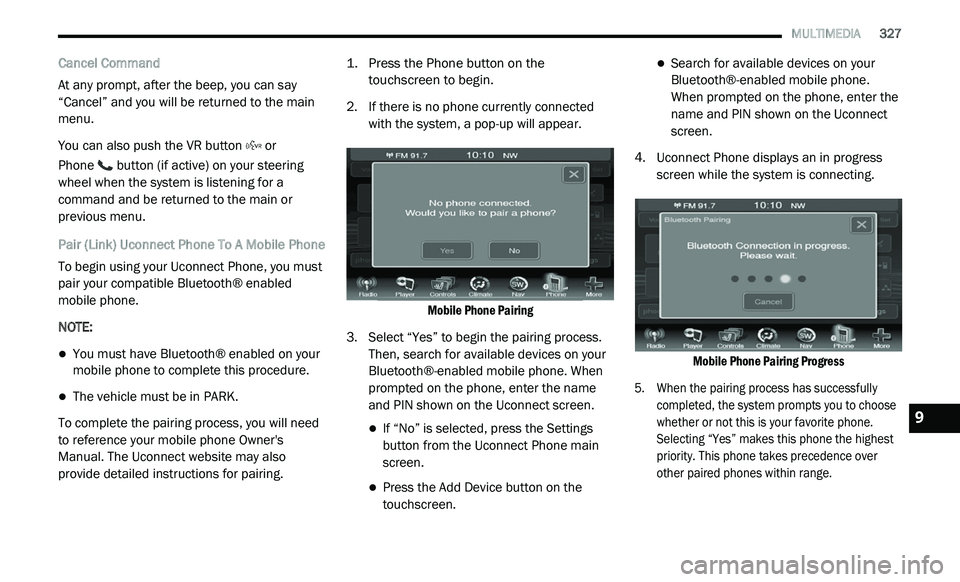
1. P
ress the Phone button on the
t
ouchscreen to begin.
2. I f there is no phone currently connected
w
ith the system, a pop-up will appear.
Mobile Phone Pairing
3. S elect “Yes” to begin the pairing process.
T
hen, search for available devices on your
Bluetooth®-enabled mobile phone. When
prompted on the phone, enter the name
and PIN shown on the Uconnect screen.
If “No” is selected, press the Settings
button from the Uconnect Phone main
screen.
Press the Add Device button on the
touchscreen.
Search for available devices on your
Bluetooth®-enabled mobile phone.
When prompted on the phone, enter the
name and PIN shown on the Uconnect
screen.
4. U connect Phone displays an in progress
s
creen while the system is connecting.
Mobile Phone Pairing Progress
5. W hen the pairing process has successfully
c
ompleted, the system prompts you to choose
whether or not this is your favorite phone.
Selecting “Yes” makes this phone the highest
priority. This phone takes precedence over
other paired phones within range.
9
Page 330 of 396
328 MULTIMEDIA
NOTE:
Software updates on your phone or the
U c
onnect system may interfere with the
Bluetooth® connection. If this happens, simply
r e
peat the pairing process. However, first, make
sure to delete the device from the list of phones
on your Uconnect system. Next, be sure to
remove Uconnect from the list of devices in your
phone’s Bluetooth® settings.
Pair Additional Mobile Phones
1. P ress the Settings button from the Phone
m
ain screen.
2. P ress the Add Device button on the
t
ouchscreen.
3. S earch for available devices on your
B
luetooth®-enabled mobile phone. When
prompted on the phone, enter the name
and PIN shown on the Uconnect screen.
4. U connect Phone will display an in-process
s
creen while the system is connecting.
5. W hen the pairing process has successfully been
c
ompleted, the system will prompt you to choose
whether or not this is your favorite phone.
Selecting “Yes” will make this phone the highest priority. This phone will take precedence over
other paired phones within range.
NOTE:
For phones which are not made a favorite, the
p h
one priority is determined by the order in
which it was paired. The latest phone paired will
have the higher priority.
You can also use the following VR commands to
br
ing up the Paired Phone screen from any
screen on the radio:
“Show Paired Phones”
“Connect My Phone”
Pair A Bluetooth® Streaming Audio Device
1. P ress the Player button on the touchscreen
t
o begin.
2. C hange the Source to Bluetooth®.
3
. P ress the Bluetooth® button on the
t
ouchscreen to display the Paired Audio
Devices screen.
4. P ress the Add Device button on the
t
ouchscreen. NOTE:
If there is no device currently connected with
t h
e system, a pop-up will appear.
5. S earch for available devices on your
B
luetooth®-enabled audio device. When
prompted on the device, enter the PIN
shown on the Uconnect screen.
6. Uconnect Phone will display an in-process s
creen while the system is connecting.
7. W hen the pairing process has successfully
b
een completed, the system will prompt you
to choose whether or not this is your favorite
device. Selecting “Yes” will make this device
the highest priority. This device will take
precedence over other paired devices
within range.
NOTE:
For devices which are not made a favorite, the
d e
vice priority is determined by the order in
which it was paired. The latest device paired will
have the higher priority.
Page 331 of 396
MULTIMEDIA 329
You can also use the following VR command to
bring up a list of paired audio devices:
“Show Paired Phones”
“Connect My Phone”
Connecting To A Particular Mobile Phone Or
A u
dio Device After Pairing
Uconnect Phone will automatically connect to
t h
e highest priority paired phone and/or Audio
Device within range. If you need to choose a
particular phone or Audio Device follow these
steps:
1. P ress the Settings button on the
t
ouchscreen.
2. P ress the Paired Phones or Paired Audio
S
ources button on the touchscreen.
3. P ress to select the particular Phone or the
p
articular Audio Device.
4. P ress the “X” to exit out of the Settings
s
creen. Disconnecting A Phone Or Audio Device
1. P
ress the Settings button on the
t
ouchscreen.
2. P ress the Paired Phones or Paired Audio
D
evices button on the touchscreen.
3. P ress the Settings icon button located to
t
he right of the device name.
4. T he options pop-up will be displayed.
5
. P ress the Disconnect Device button on the
t
ouchscreen.
6. P ress the “X” to exit out of the Settings
s
creen.
Deleting A Phone Or Audio Device
1. P ress the Settings button on the
t
ouchscreen.
2. P ress the Pair Phones or Paired Audio
D
evices button on the touchscreen.
3. P ress the Settings icon button located to
t
he right of the device name for a different
Phone or Audio Device than the currently
connected device. 4. The options pop-up will be displayed.
5
. P ress the Delete Device button on the
t
ouchscreen.
6. P ress the “X” to exit out of the Settings
s
creen.
Making A Phone Or Audio Device A Favorite
1. P ress the Settings button on the
t
ouchscreen.
2. P ress the Paired Phones or Paired Audio
D
evices button on the touchscreen.
3. P ress the Settings icon button located to
t
he right of the device name.
4. T he options pop-up will be displayed.
5
. P ress the Make Favorite button on the
t
ouchscreen; you will see the chosen device
move to the top of the list.
6. P ress the “X” to exit out of the Settings
s
creen.9
Page 332 of 396
330 MULTIMEDIA
Phonebook Download (Automatic Phonebook
Transfer From Mobile Phone) — If Equipped
If equipped and specifically supported by your
ph
one, Uconnect Phone automatically
downloads names (text names) and number
entries from the mobile phone’s phonebook.
Specific Bluetooth® Phones with Phone Book
Access Profile may support this feature.
See Uconnect website, UconnectPhone.com,
for supported phones.
To call a name from a downloaded mobile
phone book, follow the procedure in the
Voice Recognition Quick Reference section.
Automatic download and update of a phone
book, if supported, begins as soon as the
Bluetooth® wireless phone connection is
made to the Uconnect Phone, for example,
after you start the vehicle.
A maximum of 2,000 entries per phone will
be downloaded and updated every time a
phone is connected to the Uconnect Phone.
Depending on the maximum number of entries
downloaded, there ma\y be a short delay
before the latest downloaded names can be
used. Until then, if available, the previously
downloaded phonebook is available for use.
Only the phonebook of the currently
connected mobile phone is accessible.
This downloaded phonebook cannot be
edited or deleted on the Uconnect Phone.
These can only be edited on the mobile
phone. The changes are transferred and
updated to Uconnect Phone on the next
phone connection.
Managing Your Favorite Phonebook
There are three ways you can add an entry to
yo
ur Favorite Phonebook.
1. D uring an active call of a number to make
a
favorite, press and hold a favorite button
on the top of the phone main screen.
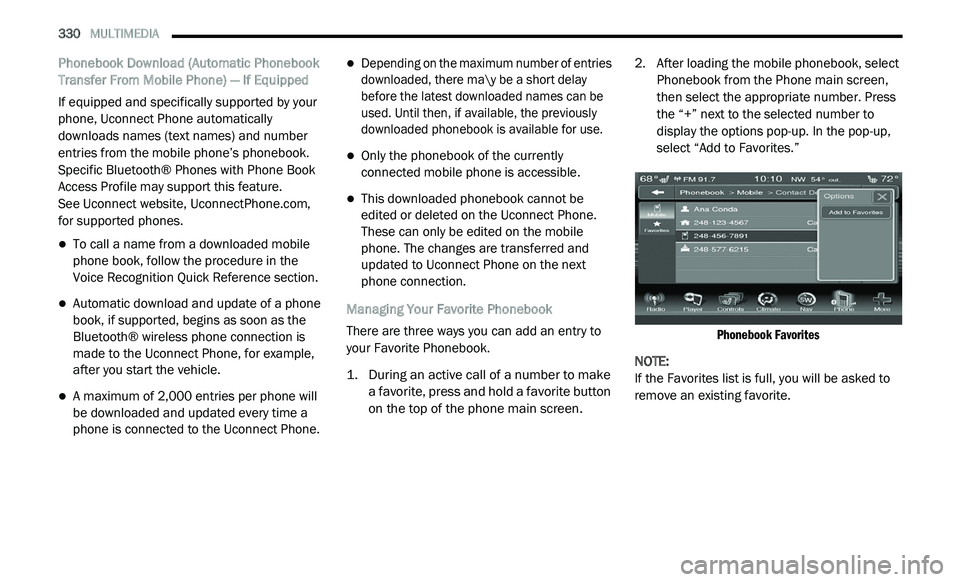
2. A
fter loading the mobile phonebook, select
P
honebook from the Phone main screen,
then select the appropriate number. Press
the “+” next to the selected number to
display the options pop-up. In the pop-up,
select “Add to Favorites.”
Phonebook Favorites
NOTE:
If the Favorites list is full, you will be asked to
r e
move an existing favorite.
Page 333 of 396
MULTIMEDIA 331
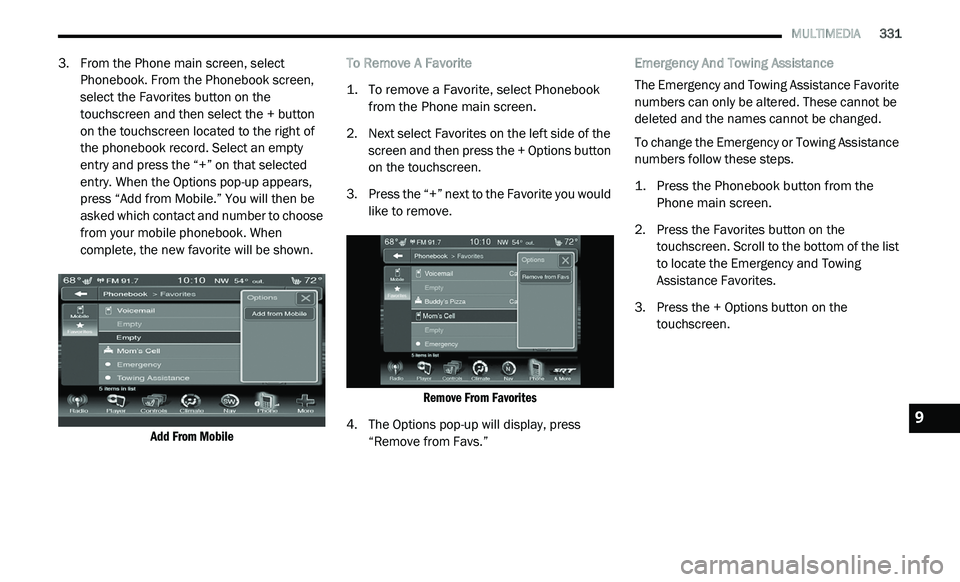
3. From the Phone main screen, select
Phonebook. From the Phonebook screen,
select the Favorites button on the
touchscreen and then select the + button
on the touchscreen located to the right of
the phonebook record. Select an empty
entry and press the “+” on that selected
entry. When the Options pop-up appears,
press “Add from Mobile.” You will then be
asked which contact and number to choose
from your mobile phonebook. When
complete, the new favorite will be shown.
Add From Mobile
To Remove A Favorite
1. T
o remove a Favorite, select Phonebook
f
rom the Phone main screen.
2. N ext select Favorites on the left side of the
s
creen and then press the + Options button
on the touchscreen.
3. P ress the “+” next to the Favorite you would
l
ike to remove.
Remove From Favorites
4. T he Options pop-up will display, press
“
Remove from Favs.” Emergency And Towing Assistance
The Emergency and Towing Assistance Favorite
n
u
mbers can only be altered. These cannot be
deleted and the names cannot be changed.
To change the Emergency or Towing Assistance
n u
mbers follow these steps.
1. P ress the Phonebook button from the
P
hone main screen.
2. P ress the Favorites button on the
t
ouchscreen. Scroll to the bottom of the list
to locate the Emergency and Towing
Assistance Favorites.
3. Press the + Options button on the t
ouchscreen.
9
Page 334 of 396
332 MULTIMEDIA
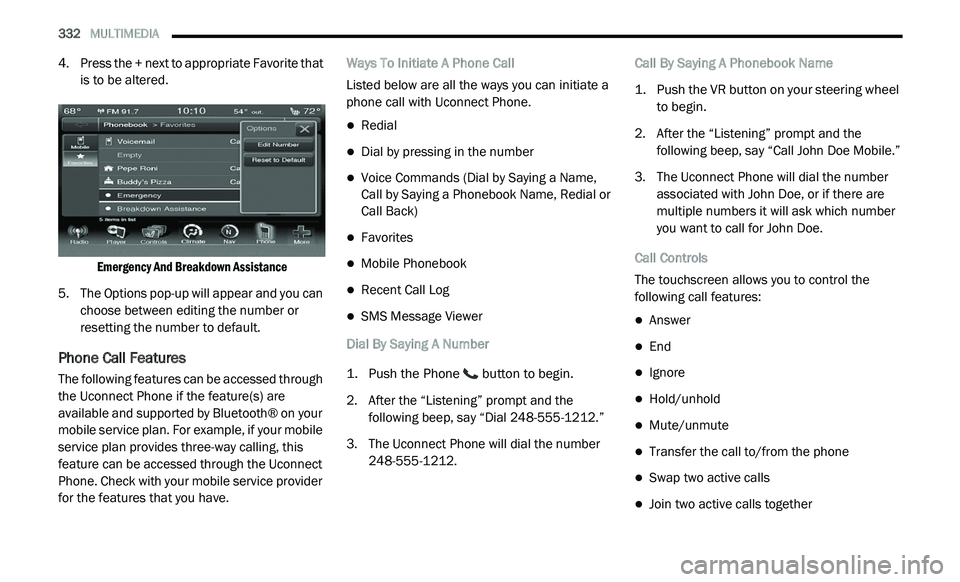
4. Press the + next to appropriate Favorite that
is to be altered.
Emergency And Breakdown Assistance
5. T he Options pop-up will appear and you can
c
hoose between editing the number or
resetting the number to default.
Phone Call Features
The following features can be accessed through
the Uconnect Phone if the feature(s) are
available and supported by Bluetooth® on your
mobile service plan. For example, if your mobile
service plan provides three-way calling, this
feature can be accessed through the Uconnect
Phone. Check with your mobile service provider
for the features that you have. Ways To Initiate A Phone Call
Listed below are all the ways you can initiate a
p
h
one call with Uconnect Phone.
Redial
Dial by pressing in the number
Voice Commands (Dial by Saying a Name,
Call by Saying a Phonebook Name, Redial or
Call Back)
Favorites
Mobile Phonebook
Recent Call Log
SMS Message Viewer
Dial By Saying A Number
1. P ush the Phone
button to begin.
2. A fter the “Listening” prompt and the
f
ollowing beep, say “Dial 248-555-1212.”
3. T he Uconnect Phone will dial the number
2
48-555-1212. Call By Saying A Phonebook Name
1. P
ush the VR button on your steering wheel
t
o begin.
2. A fter the “Listening” prompt and the
f
ollowing beep, say “Call John Doe Mobile.”
3. T he Uconnect Phone will dial the number
a
ssociated with John Doe, or if there are
multiple numbers it will ask which number
you want to call for John Doe.
Call Controls
The touchscreen allows you to control the
f o
llowing call features:
Answer
End
Ignore
Hold/unhold
Mute/unmute
Transfer the call to/from the phone
Swap two active calls
Join two active calls together
Page 335 of 396
MULTIMEDIA 333
Touch-Tone Number Entry
1. Press the Phone button on the
t
ouchscreen.
2. P ress the Dial button on the touchscreen.
3
. T he Touch-Tone screen will be displayed.
4
. U se the numbered buttons on the
t
ouchscreen to enter the number and press
“Call.”
To send a touch-tone using Voice Recognition
(V
R), push the Voice Command button on
your steering wheel while in a call and say
“ S
end 1234#” or you can say “Send Voicemail
Password” if Voicemail password is stored in
your mobile phonebook.
Recent Calls
You may browse up to 34 of the most recent of
e a
ch of the following call types:
Incoming Calls
Outgoing Calls
Missed Calls
All Calls These can be accessed by pressing the Recent
C
a
lls button on the touchscreen on the Phone
main screen.
You can also push the Phone button and say
“Show my incoming calls” from any screen and
t h
e Incoming calls will be displayed.
You can also push the Phone button and say
“Show my recent calls” from any screen and the
A l
l Calls screen will be displayed.
NOTE:
Incoming can also be replaced with “Outgoing,”
“ R
ecent”, or “Missed.”
Answer Or Ignore An Incoming Call — No Call
C u
rrently In Progress
When you receive a call on your mobile phone,
t h
e Uconnect Phone will interrupt the vehicle
audio system. Push the Phone button on the
steering wheel to accept the call. You can also
p r
ess the Answer button on the touchscreen, or
press the caller ID box. Answer Or Ignore An Incoming Call — Call
C
u
rrently In Progress
If a call is currently in progress and you have
a n
other incoming call, you will hear the same
network tones for call waiting that you normally
hear when using your mobile phone. Push the
Phone button on the steering wheel, or press
the Answer button on the touchscreen, or caller
I D
box, to place the current call on hold and
answer the incoming call.
NOTE:
The Uconnect Phone-compatible phones in
the market today do not support rejecting an
i n
coming call when another call is in progress.
Therefore, the user can only answer an
incoming call or ignore it.
Making A Second Call While Current Call Is In
P r
ogress
You can place a call on hold by pressing the
H o
ld button on the Phone main screen, then
dial a number from the dialpad, recent calls,
SMS Inbox or from the phonebooks. To go back
to the first call, refer to “Toggling Between Calls”
in this section. To combine two calls, refer to
“Join Calls” in this section.
9
Page 336 of 396
334 MULTIMEDIA
Place/Retrieve A Call From Hold
During an active call, press the Hold button on
th
e Phone main screen.
Toggling Between Calls
If two calls are in progress (one active and one
o n
hold), press the Swap button on the Phone
main screen. Only one call can be placed on
hold at a time.
You can also push the Phone button to
toggle between the active and held phone call.
Join Calls
When two calls are in progress (one active and
on
e on hold), press the Join Calls button on the
Phone main screen to combine all calls into a
Conference Call.
Call Termination
To end an in-progress call, momentarily push
t h
e Phone button or press the End button on
the touchscreen. Only the active call(s) will be
t e
rminated and if there is a call on hold, it will
become the new active call. Redial
Press the Redial button on the touchscreen, or
p
u
sh the VR button and after the “Listening”
prompt and the following beep, say “Redial.”
The Uconnect Phone will call the last number
t h
at was dialed from your mobile phone.
Call Continuation
Call continuation is the progression of a phone
c a
ll on the Uconnect Phone after the vehicle
ignition has been switched to Off.
NOTE:
The call will remain within the vehicle audio
sy
stem until the phone becomes out of range
for the Bluetooth® connection. It is recom -
mended to press the Transfer button on the
t o
uchscreen when leaving the vehicle.
Uconnect Phone Features
Emergency Assistance
If you are in an emergency and the mobile
ph
one is reachable:
Pick up the phone and manually dial the
emergency number for your area. If the phone is not reachable and the Uconnect
P
h
one is operational, you may reach the
emergency number as follows:
1. P ush the Phone
button to begin.
2. A fter the “Listening” prompt and the
f
ollowing beep, say “Dial Emergency” and
the Uconnect Phone will instruct the paired
mobile phone to call the emergency
number. This feature is supported in the US,
Canada, and Mexico.
NOTE:
The Emergency call may also be initiated by
using the touchscreen.
The emergency number dialed is based on the
country where the vehicle is purchased (911
for the US and Canada and 060 for Mexico).
The number dialed may not be applicable with
the available mobile service and area.
The Uconnect Phone does slightly lower your
chances of successfully making a phone call
as to that for the mobile phone directly.