lock FIAT 124 SPIDER 2016 2.G Workshop Manual
[x] Cancel search | Manufacturer: FIAT, Model Year: 2016, Model line: 124 SPIDER, Model: FIAT 124 SPIDER 2016 2.GPages: 216, PDF Size: 3.1 MB
Page 170 of 216
IMPORTANT Do not spray water in the
engine compartment. Otherwise, it
could result in engine-starting problems
or damage to electrical parts.
IMPORTANT When washing and
waxing the vehicle, be careful not to
apply excessive force to any single area
of the vehicle bonnet. Otherwise, you
could dent the vehicle.
IMPORTANT Do not use automatic car
washing machines and car washing
devices using high water pressure.
IMPORTANT Make sure that the fuel
flap is closed and lock the doors.
Otherwise, the fuel flap may be
forcefully opened by water pressure
causing damage to the vehicle or fuel
flap.
IMPORTANT Do not use steel wool,
abrasive cleaners, or strong detergents
containing highly alkaline or caustic
agents on chromeplated or anodised
aluminium parts. This may damage the
protective coating; also, cleaners and
detergents may discolour or deteriorate
the paint.
Thoroughly rinse off all soap with
lukewarm or cold water. Do not allow
soap to dry on the finish.
211)
WARNING
211)Dry off brakes that have become wet
by driving slowly, releasing the accelerator
pedal and lightly applying the brakes
several times until the brake performance
returns to normal. Driving with wet brakes
is dangerous. Increased stopping distance
or the vehicle pulling to one side when
braking could result in a serious accident.
Light braking will indicate whether the
brakes have been affected.
IMPORTANT
52)In order to preserve the appearance of
the paint abrasive products and/or polishes
should not be used for cleaning the vehicle.53)Avoid washing with rollers and/or
brushes in washing stations. Wash the
vehicle only by hand using neutral pH
detergents; dry it with a wet chamois
leather. Abrasive products and/or polishes
should not be used for cleaning the car.
Bird droppings must be washed off
immediately and thoroughly as the acid
they contain is particularly aggressive.
Avoid (if at all possible) parking the vehicle
under trees; remove vegetable resins
immediately as, when dried, it may only be
possible to remove them with abrasive
products and/or polishes, which is highly
inadvisable as they could alter the typical
opaqueness of the paint. Do not use pure
windscreen washer fluid for cleaning the
front windscreen and rear window; dilute it
min. 50% with water. Only use pure screen
washer fluid when strictly necessary due to
outside temperature conditions.
IMPORTANT
7)Detergents cause water pollution. Only
wash your vehicle in areas equipped to
collect and treat wastewater from this type
of activity.
168
MAINTENANCE AND CARE
Page 191 of 216
STEERING WHEEL
CONTROLS
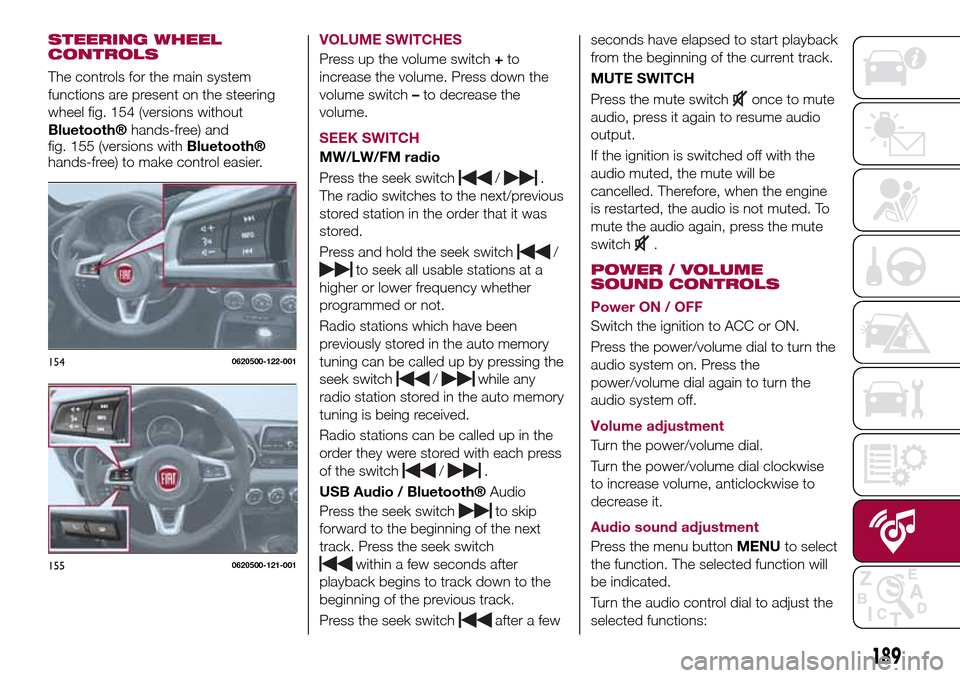
The controls for the main system
functions are present on the steering
wheel fig. 154 (versions without
Bluetooth®hands-free) and
fig. 155 (versions withBluetooth®
hands-free) to make control easier.VOLUME SWITCHES
Press up the volume switch+to
increase the volume. Press down the
volume switch–to decrease the
volume.
SEEK SWITCH
MW/LW/FM radio
Press the seek switch
/.
The radio switches to the next/previous
stored station in the order that it was
stored.
Press and hold the seek switch
/
to seek all usable stations at a
higher or lower frequency whether
programmed or not.
Radio stations which have been
previously stored in the auto memory
tuning can be called up by pressing the
seek switch
/while any
radio station stored in the auto memory
tuning is being received.
Radio stations can be called up in the
order they were stored with each press
of the switch
/.
USB Audio /
Bluetooth®Audio
Press the seek switch
to skip
forward to the beginning of the next
track. Press the seek switch
within a few seconds after
playback begins to track down to the
beginning of the previous track.
Press the seek switch
after a fewseconds have elapsed to start playback
from the beginning of the current track.
MUTE SWITCH
Press the mute switch
once to mute
audio, press it again to resume audio
output.
If the ignition is switched off with the
audio muted, the mute will be
cancelled. Therefore, when the engine
is restarted, the audio is not muted. To
mute the audio again, press the mute
switch
.
POWER / VOLUME
SOUND CONTROLS
Power ON / OFF
Switch the ignition to ACC or ON.
Press the power/volume dial to turn the
audio system on. Press the
power/volume dial again to turn the
audio system off.
Volume adjustment
Turn the power/volume dial.
Turn the power/volume dial clockwise
to increase volume, anticlockwise to
decrease it.
Audio sound adjustment
Press the menu buttonMENUto select
the function. The selected function will
be indicated.
Turn the audio control dial to adjust the
selected functions:
1540620500-122-001
1550620500-121-001
189
Page 192 of 216
AF (Alternative Frequency);
REG (Regional Programme);
ALC (Automatic volume adjustment);
BASS (Low pitch sound);
TREB (Treble sound);
FADE (Front/back volume balance);
BAL (Left/right volume balance);
BEEP (Audio operation sound);
12Hr < > 24Hr (12 Hr/24 Hr time
adjustment).
CLOCK
Setting the time
The clock can be set at any time when
the ignition is switched to ACC or ON.
To adjust the time, press the clock
buttonFM/AMfor about 2 seconds
until a beep is heard. The clock's
current time will flash.
Time adjustment
To adjust the time, press the
hour/minute set button
/
while the clock's current time is
flashing.
The hours advance while the hour set
button
is pressed. The minutes
advance while the minute
set
button is pressed.
Press the clock buttonFM/AMagain
to start the clock.
OPERATING THE RADIO
Radio ON: press a band selector
button FM/AM to turn the radio on.
Band selection: press the band
selector buttonFM/AMto switch the
bands as follows: M1–FM2–MW/LW
Manual tuning: select the station by
pressing the tuning button
/
lightly.
Seek tuning: press tuning button
/. The search stops when a
station is found.
Scan tuning: press and hold the scan
buttonMEDIAto automatically sample
strong stations. Scanning stops at each
station for about 5 seconds. To hold a
station, press and hold the scan button
MEDIA again during this interval.
Preset channel tuning
The 6 preset channels can be used to
store 6 MW/LW and 12 FM stations.
To set a channel first select MW/LW,
FM1, or FM2. Tune to the desired
station.
Press a channel preset button for
about 2 seconds until a beep is heard.
The preset channel number or station
frequency will be displayed. The station
is now held in the memory.
Repeat this operation for the other
stations and bands you want to store.
To tune one in the memory, selectMW/LW, FM1, or FM2 and then press
its channel preset button. The station
frequency or the channel number will be
displayed.
AUX / USB / iPod MODE
Auxiliary jack / USB port
Audio can be heard from the vehicle's
speakers by connecting a commercially
available portable audio unit to the
auxiliary jack. A commercially-available,
non-impedance (3.5 Ø) stereo mini plug
lead is required. In addition, audio can
be played from the vehicle audio device
by connecting a USB device or an iPod
to the USB port.
How to use AUX mode
Switch the ignition to ACC or ON, press
the power/volume dial to turn the audio
system on and press theMEDIA
button of the audio unit to change to
the AUX mode.
How to use USB mode
This unit does not support a USB
3.0 device. In addition, other devices
may not be supported depending on
the model or OS version.
Playback
Switch the ignition to ACC or ON, press
the power/volume dial to turn the audio
system on and press theMEDIA
190
MULTIMEDIA
Page 196 of 216
displays the Entertainment
screen.
NAVdisplays the Navigation screen
(only navigation-equipped
vehicles). If the SD card for the
navigation system is not inserted,
the compass indicating the
direction in which the vehicle is
moving is displayed.
displays the Favourites screen.
Long-press to store particular
items in “Favourites” (radio,
phonebook and destination of
the navigation system can be
programmed).
returns to previous screen.
Volume dial operation
Press theVOLdial to switch the audio
MUTE on and off.
Turn the volume dial to adjust the
volume. The volume increases by
turning the dial clockwise, and
decreases by turning it anticlockwise.
Selection of icons on screen
Tilt or turn the commander knob and
move the cursor to the desired icon.
Press the commander knob and select
the icon.
NOTE Long-press operation of the
commander knob is also possible for
some functions.Touch panel operation
Touch & Tap: touch or tap on the item
indicated on the screen. The operation
is launched and the next item is
displayed.
Slide: touch the setting item displaying
a slider bar. Touch the slider with your
finger and move to the desired level.
Swipe: touch the screen with your
finger and move up or down. Items
which were not displayed can be
displayed.
IMPORTANT Do not press the screen
strongly or press it with a sharp-pointed
object. Otherwise, the screen could be
damaged.
NOTE For safety reasons, touch panel
operation is disabled while the vehicle is
moving.
AUDIO SOUND
ADJUSTMENT
Select theicon on the home screen
to display the Settings screen.
Select theSoundto select the item you
would like to change:
Bass(Low pitch sound): + Side low
pitch enhancement/– Side: low pitch
reduction;
Treble(Treble sound): + Side: treble
enhancement/– Side: treble reduction;
Fade(Front/rear volume balance):
Front (front speaker volumeenhancement)/Rear (rear speaker
volume enhancement);
Balance(Left/right volume balance):
Left (left speaker volume
enhancement)/Right (right speaker
volume enhancement);
ALC(Automatic volume adjustment)
(standard audio): Off-Adjustment at
seven levels;
Bose®AudioPilot(Automatic
volume adjustment) (Bose®Sound
System, where provided): On/Off;
Beep(Audio operation sound):
On/Off.
HOME SCREEN
Icons visualized on home screen are:
Applications: information such
as average fuel economy,
maintenance, and warnings can
be verified. Depending on the
grade and specification, the
screen display may differ.
Entertainment: operates audio
such as the radio. The audio
source most recently used is
displayed. An audio source
which cannot be used at that
time is skipped and the previous
audio source is displayed. To
change the audio source, select
the icon displayed at the bottom
of the screen.
194
MULTIMEDIA
Page 197 of 216
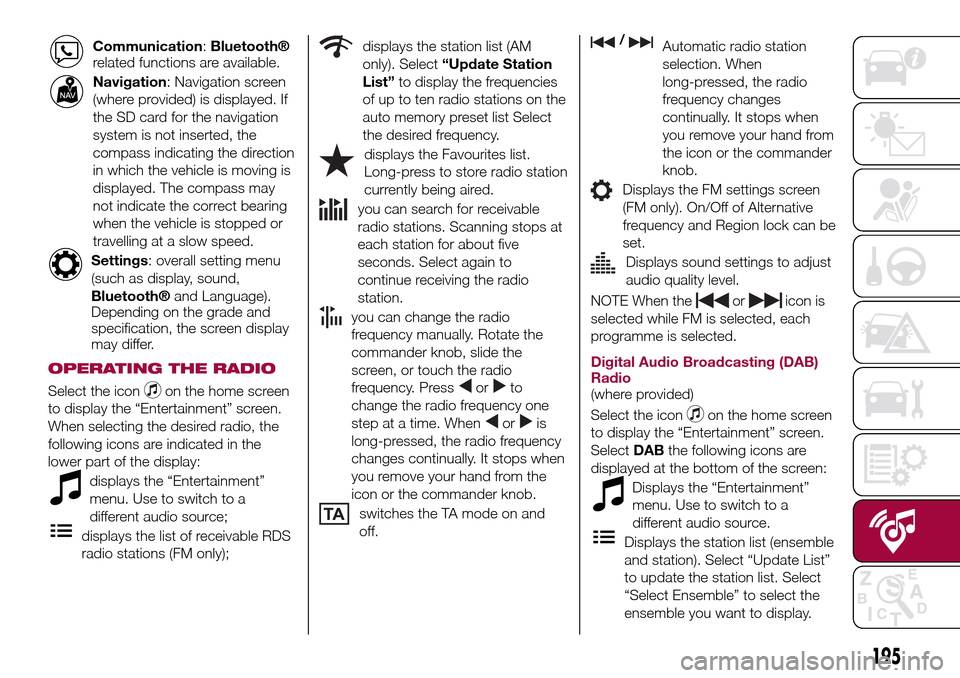
Communication:Bluetooth®
related functions are available.
Navigation: Navigation screen
(where provided) is displayed. If
the SD card for the navigation
system is not inserted, the
compass indicating the direction
in which the vehicle is moving is
displayed. The compass may
not indicate the correct bearing
when the vehicle is stopped or
travelling at a slow speed.
Settings: overall setting menu
(such as display, sound,
Bluetooth®and Language).
Depending on the grade and
specification, the screen display
may differ.
OPERATING THE RADIO
Select the iconon the home screen
to display the “Entertainment” screen.
When selecting the desired radio, the
following icons are indicated in the
lower part of the display:
displays the “Entertainment”
menu. Use to switch to a
different audio source;
displays the list of receivable RDS
radio stations (FM only);
displays the station list (AM
only). Select“Update Station
List”to display the frequencies
of up to ten radio stations on the
auto memory preset list Select
the desired frequency.
displays the Favourites list.
Long-press to store radio station
currently being aired.
you can search for receivable
radio stations. Scanning stops at
each station for about five
seconds. Select again to
continue receiving the radio
station.
you can change the radio
frequency manually. Rotate the
commander knob, slide the
screen, or touch the radio
frequency. Press
orto
change the radio frequency one
step at a time. When
oris
long-pressed, the radio frequency
changes continually. It stops when
you remove your hand from the
icon or the commander knob.
switches the TA mode on and
off.
/Automatic radio station
selection. When
long-pressed, the radio
frequency changes
continually. It stops when
you remove your hand from
the icon or the commander
knob.
Displays the FM settings screen
(FM only). On/Off of Alternative
frequency and Region lock can be
set.
Displays sound settings to adjust
audio quality level.
NOTE When theoricon is
selected while FM is selected, each
programme is selected.
Digital Audio Broadcasting (DAB)
Radio
(where provided)
Select the icon
on the home screen
to display the “Entertainment” screen.
SelectDABthe following icons are
displayed at the bottom of the screen:
Displays the “Entertainment”
menu. Use to switch to a
different audio source.
Displays the station list (ensemble
and station). Select “Update List”
to update the station list. Select
“Select Ensemble” to select the
ensemble you want to display.
195
Page 198 of 216
Displays the favorites list. Press
and hold to store the currently
tuned station to the favorites list.
Searches your desired station
from the station list. Tunes to
each station in the station list for
10 seconds. Select again when
your desired station is tuned. If
the station list is not available, it
switches to the station list update
screen. Perform the station list
updating.
Switches the TA mode on and
off.
/Returns to the
previous/goes to the next
station. Touch and hold to
return to the top station in
the previous/next ensemble.
Displays the DAB radio setting
screen.
Displays sound settings to adjust
audio quality level.
SETTINGS
NOTE Depending on the grade and
specification, the screen display may
differ.
Select the
icon on the home screen
to display the Settings screen. Switch
the tab and select the setting item you
want to change.You can customize settings in the setup
display as follows:
“Display”: refer to “Volume/Display/
Sound controls” paragraph in Radio 7
supplement;
“Sound”: refer to “Volume/Display/
Sound controls” paragraph in Radio 7
supplement;
“Clock”: “Adjust Time”, “GPS Sync”,
“Time Format”, “Time Zone Select”,
“Daylight Savings Time”;
“Vehicle”: rain sensing Wiper/Door
Lock/Other;
“Devices”: selectBluetooth®or
“Network Management”;
“System”: “Tool Tips”, “Language”,
“Temperature”, “Distance”, “Music
Database Update”, “Factory Reset”,
“About (agreements and disclaimers)”,
“About (version Information)”
AUX / USB / iPod MODE
Audio can be heard from the vehicle's
speakers by connecting a commercially
available portable audio unit to the
auxiliary jack. A commercially-available,
non-impedance (3.5 Ø) stereo mini plug
lead is required.
In addition, audio can be played from
the vehicle audio device by connecting
a USB device or an iPod to the USB
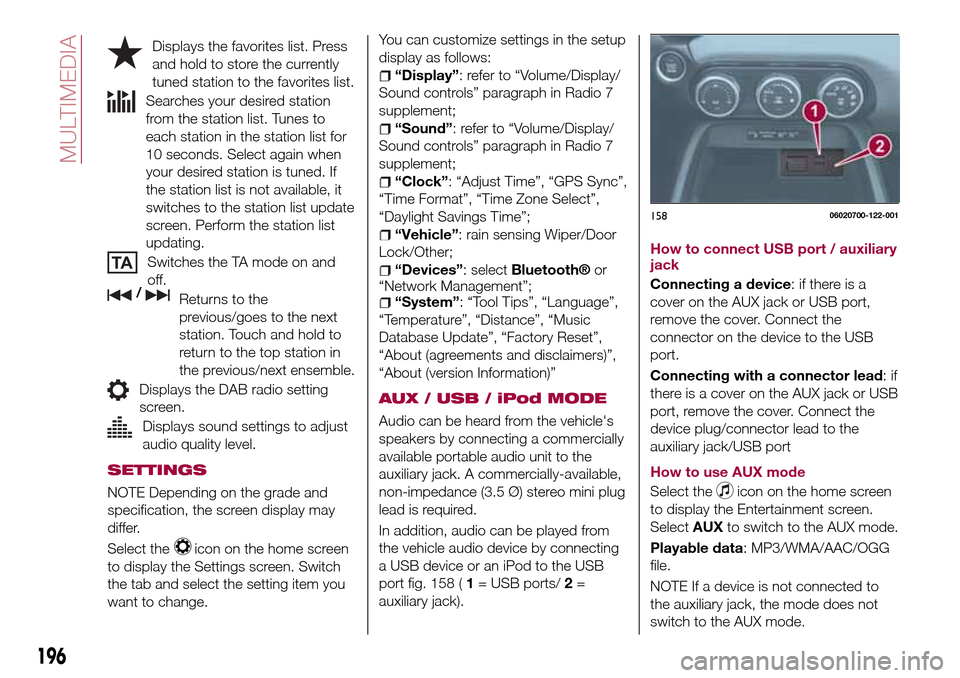
port fig. 158 (1= USB ports/2=
auxiliary jack).How to connect USB port / auxiliary
jack
Connecting a device: if there is a
cover on the AUX jack or USB port,
remove the cover. Connect the
connector on the device to the USB
port.
Connecting with a connector lead:if
there is a cover on the AUX jack or USB
port, remove the cover. Connect the
device plug/connector lead to the
auxiliary jack/USB port
How to use AUX mode
Select the
icon on the home screen
to display the Entertainment screen.
SelectAUXto switch to the AUX mode.
Playable data: MP3/WMA/AAC/OGG
file.
NOTE If a device is not connected to
the auxiliary jack, the mode does not
switch to the AUX mode.
15806020700-122-001
196
MULTIMEDIA
Page 200 of 216
phonebook or the name of a person
whose phone number has been
registered in the
Bluetooth®
hands-free. Press the talk button and
wait for the beep sound, say: “Call
XXXXX... (Ex. “John”) Mobile” and follow
the voice guidance to place the call.
Import contact (download
Phonebook)
Phonebook data from your device
(Mobile phone) can be sent and
registered to your
Bluetooth®
hands-free phonebook using
Bluetooth®.
Automatic downloading: the “Auto
Download Contacts” setting must be
on. When hands-free is connected to
the device, the phonebook is
downloaded automatically.
Manually downloading: if the “Auto
Download Contacts” setting is off,
download the phonebook using the
following procedure:
select theicon on the home
screen to display the “Communication”
screen;
selectContactsto display the
contact list;
selectEdit Contacts;
selectImport All Contactsor
Import Selected Contactto switch to
the device operation. IfImport All
Contactsis selected, select
Download. Download will be startedfrom the mobile phone.
NOTE A maximum of 1000 contacts
can be registered to the phonebook.
Receiving an incoming call
When an incoming call is received, the
incoming call notification screen is
displayed. The “Incoming Call
Notifications” setting must be on.
To accept the callpress steering
wheel button on the audio control
switch or selectAnsweron the screen.
To reject the callpress the hang-up
button on the audio control switch or
selectIgnoreon the screen.
NAVIGATION
SD CARD
To use the navigation system, the SD
card containing the map information
needs to be inserted in the SD card
slot.
When inserting the SD card, never
move the slider on the side of the SD
card to the LOCK position. If the slider
is set to LOCK, the SD card cannot be
read and the navigation system will not
operate.
This SD card is valid for use in only one
vehicle. Never use it in another vehicle.
If the SD card is used first in one vehicle
and then in another, the navigation
system for either one of the vehicles
may become inoperable.NAVIGATION MENU
Select
and open the navigation
menu.
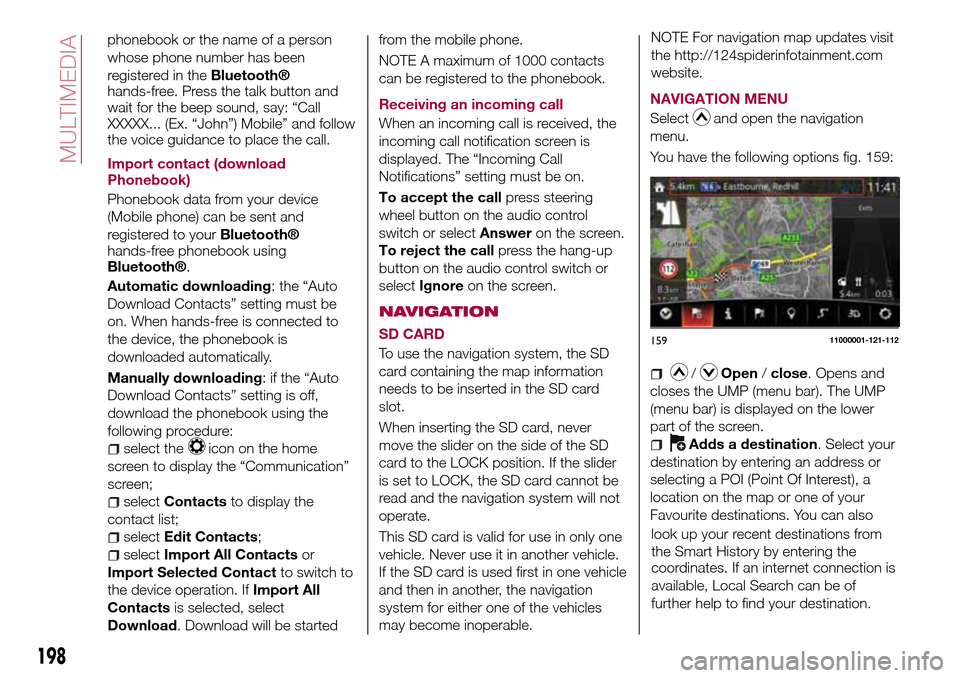
You have the following options fig. 159:
/Open/close. Opens and
closes the UMP (menu bar). The UMP
(menu bar) is displayed on the lower
part of the screen.
Adds a destination. Select your
destination by entering an address or
selecting a POI (Point Of Interest), a
location on the map or one of your
Favourite destinations. You can also
15911000001-121-112
198
MULTIMEDIA
NOTE For navigation map updates visit
the http://124spiderinfotainment.com
website.
coordinates. If an internet connection is
available, Local Search can be of
further help to find your destination. look up your recent destinations from
the Smart History by entering the
Page 203 of 216
the route. Additionally, the route can be
revised by selecting other options.
SELECTING A NEW DESTINATION
Proceed as follows:
SelectNew Routeto plan a new
route to the newly selected location.
The previous destination and
waypoint(s) are deleted.
SelectWaypointto add the newly
selected location as an intermediate
destination to your route. The other
destinations of the route remain intact.
Note: the new waypoint is placed
among destinations to keep the route
optimal. To decide where a waypoint to
appear, use the Edit Route feature.
SelectFinal Destinationto append
the newly selected destination at the
end of the route. The other destinations
of the route remain intact. The previous
final destination is now the last
waypoint.
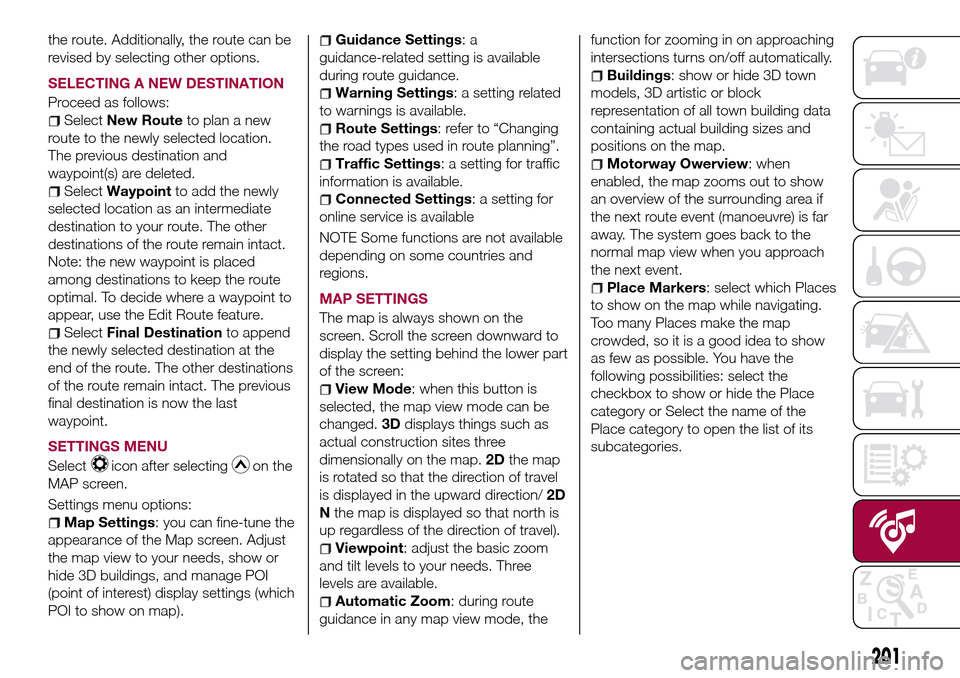
SETTINGS MENU
Select
icon after selectingon the
MAP screen.
Settings menu options:
Map Settings: you can fine-tune the
appearance of the Map screen. Adjust
the map view to your needs, show or
hide 3D buildings, and manage POI
(point of interest) display settings (which
POI to show on map).
Guidance Settings:a
guidance-related setting is available
during route guidance.
Warning Settings: a setting related
to warnings is available.
Route Settings: refer to “Changing
the road types used in route planning”.
Traffic Settings: a setting for traffic
information is available.
Connected Settings: a setting for
online service is available
NOTE Some functions are not available
depending on some countries and
regions.
MAP SETTINGS
The map is always shown on the
screen. Scroll the screen downward to
display the setting behind the lower part
of the screen:
View Mode: when this button is
selected, the map view mode can be
changed.3Ddisplays things such as
actual construction sites three
dimensionally on the map.2Dthe map
is rotated so that the direction of travel
is displayed in the upward direction/2D
Nthe map is displayed so that north is
up regardless of the direction of travel).
Viewpoint: adjust the basic zoom
and tilt levels to your needs. Three
levels are available.
Automatic Zoom: during route
guidance in any map view mode, thefunction for zooming in on approaching
intersections turns on/off automatically.
Buildings: show or hide 3D town
models, 3D artistic or block
representation of all town building data
containing actual building sizes and
positions on the map.
Motorway Owerview: when
enabled, the map zooms out to show
an overview of the surrounding area if
the next route event (manoeuvre) is far
away. The system goes back to the
normal map view when you approach
the next event.
Place Markers: select which Places
to show on the map while navigating.
Too many Places make the map
crowded, so it is a good idea to show
as few as possible. You have the
following possibilities: select the
checkbox to show or hide the Place
category or Select the name of the
Place category to open the list of its
subcategories.
201
Page 212 of 216
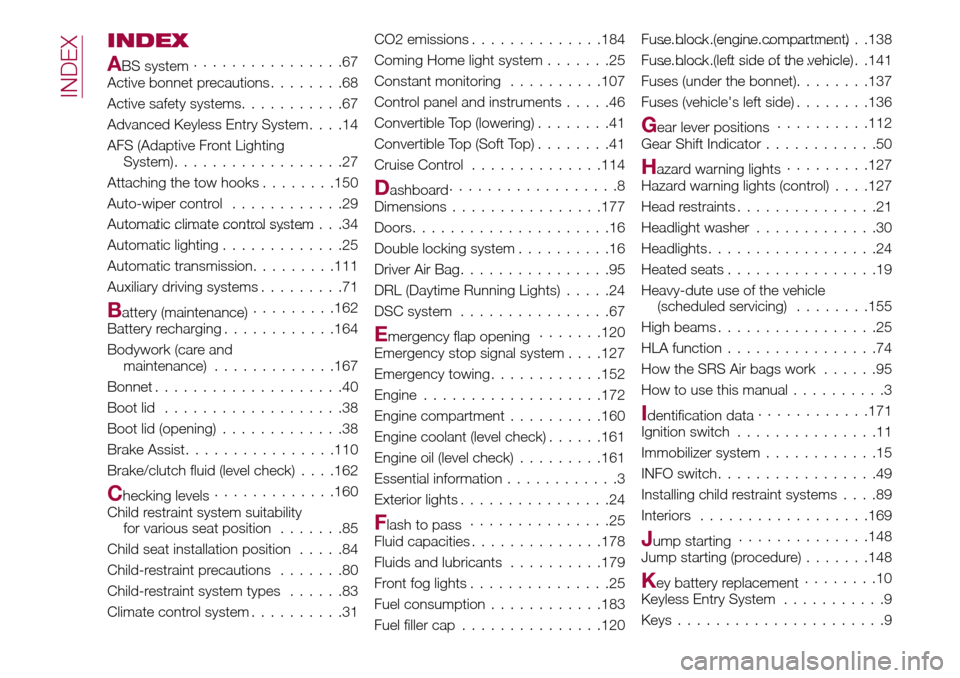
INDEX
ABS system................67
Active bonnet precautions........68
Active safety systems...........67
Advanced Keyless Entry System....14
AFS (Adaptive Front Lighting
System)..................27
Attaching the tow hooks........150
Auto-wiper control............29
Automatic climate control system.......................34
Automatic lighting.............25
Automatic transmission.........111
Auxiliary driving systems.........71
Battery (maintenance).........162
Battery recharging............164
Bodywork (care and
maintenance).............167
Bonnet....................40
Boot lid...................38
Boot lid (opening).............38
Brake Assist................110
Brake/clutch fluid (level check). . . .162
Checking levels.............160
Child restraint system suitability
for various seat position.......85
Child seat installation position.....84
Child-restraint precautions.......80
Child-restraint system types......83
Climate control system..........31CO2 emissions..............184
Coming Home light system.......25
Constant monitoring..........107
Control panel and instruments.....46
Convertible Top (lowering)........41
Convertible Top (Soft Top)........41
Cruise Control..............114
Dashboard..................8
Dimensions................177
Doors.....................16
Double locking system..........16
Driver Air Bag................95
DRL (Daytime Running Lights).....24
DSC system................67
Emergency flap opening.......120
Emergency stop signal system. . . .127
Emergency towing............152
Engine...................172
Engine compartment..........160
Engine coolant (level check)......161
Engine oil (level check).........161
Essential information............3
Exterior lights................24
Flash to pass...............25
Fluid capacities..............178
Fluids and lubricants..........179
Front fog lights...............25
Fuel consumption............183
Fuel filler cap...............120Fuse block (engine compartment)......................138
Fuse block (left side of the vehicle)......................141
Fuses (under the bonnet)........137
Fuses (vehicle's left side)........136
Gear lever positions..........112
Gear Shift Indicator............50
Hazard warning lights.........127
Hazard warning lights (control). . . .127
Head restraints...............21
Headlight washer.............30
Headlights..................24
Heated seats................19
Heavy-dute use of the vehicle
(scheduled servicing)........155
High beams.................25
HLA function................74
How the SRS Air bags work......95
How to use this manual..........3
Identification data............171
Ignition switch...............11
Immobilizer system............15
INFO switch.................49
Installing child restraint systems....89
Interiors..................169
Jump starting..............148
Jump starting (procedure).......148
Key battery replacement........10
Keyless Entry System...........9
Keys......................9
INDEX
Page 213 of 216
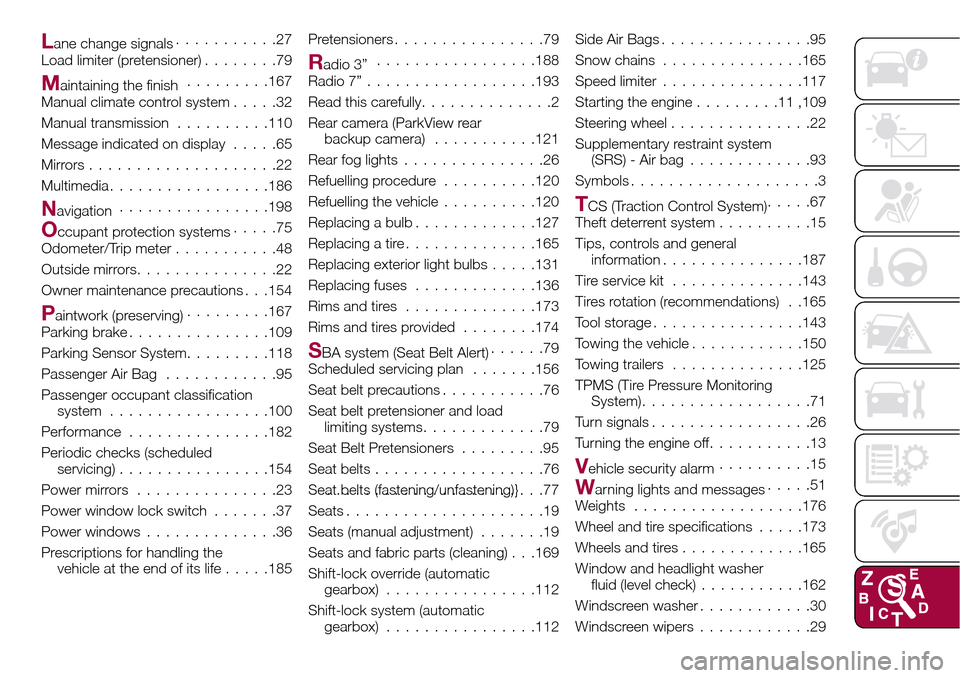
Lane change signals...........27
Load limiter (pretensioner)........79
Maintaining the finish.........167
Manual climate control system.....32
Manual transmission..........110
Message indicated on display.....65
Mirrors....................22
Multimedia.................186
Navigation................198
Occupant protection systems.....75
Odometer/Trip meter...........48
Outside mirrors...............22
Owner maintenance precautions . . .154
Paintwork (preserving).........167
Parking brake...............109
Parking Sensor System.........118
Passenger Air Bag............95
Passenger occupant classification
system.................100
Performance...............182
Periodic checks (scheduled
servicing)................154
Power mirrors...............23
Power window lock switch.......37
Power windows..............36
Prescriptions for handling the
vehicle at the end of its life.....185Pretensioners................79
Radio 3”.................188
Radio 7”..................193
Read this carefully..............2
Rear camera (ParkView rear
backup camera)...........121
Rear fog lights...............26
Refuelling procedure..........120
Refuelling the vehicle..........120
Replacing a bulb.............127
Replacing a tire..............165
Replacing exterior light bulbs.....131
Replacing fuses.............136
Rims and tires..............173
Rims and tires provided........174
SBA system (Seat Belt Alert)......79
Scheduled servicing plan.......156
Seat belt precautions...........76
Seat belt pretensioner and load
limiting systems.............79
Seat Belt Pretensioners.........95
Seat belts..................76
Seat belts (fastening/unfastening)}.......................77
Seats.....................19
Seats (manual adjustment).......19
Seats and fabric parts (cleaning) . . .169
Shift-lock override (automatic
gearbox)................112
Shift-lock system (automatic
gearbox)................112Side Air Bags................95
Snow chains...............165
Speed limiter...............117
Starting the engine.........11,109
Steering wheel...............22
Supplementary restraint system
(SRS) - Air bag.............93
Symbols....................3
TCS (Traction Control System).....67
Theft deterrent system..........15
Tips, controls and general
information...............187
Tire service kit..............143
Tires rotation (recommendations) . .165
Tool storage................143
Towing the vehicle............150
Towing trailers..............125
TPMS (Tire Pressure Monitoring
System)..................71
Turn signals.................26
Turning the engine off...........13
Vehicle security alarm..........15
Warning lights and messages.....51
Weights..................176
Wheel and tire specifications.....173
Wheels and tires.............165
Window and headlight washer
fluid (level check)...........162
Windscreen washer............30
Windscreen wipers............29