light FIAT 500 2017 2.G Workshop Manual
[x] Cancel search | Manufacturer: FIAT, Model Year: 2017, Model line: 500, Model: FIAT 500 2017 2.GPages: 350, PDF Size: 3.01 MB
Page 142 of 350
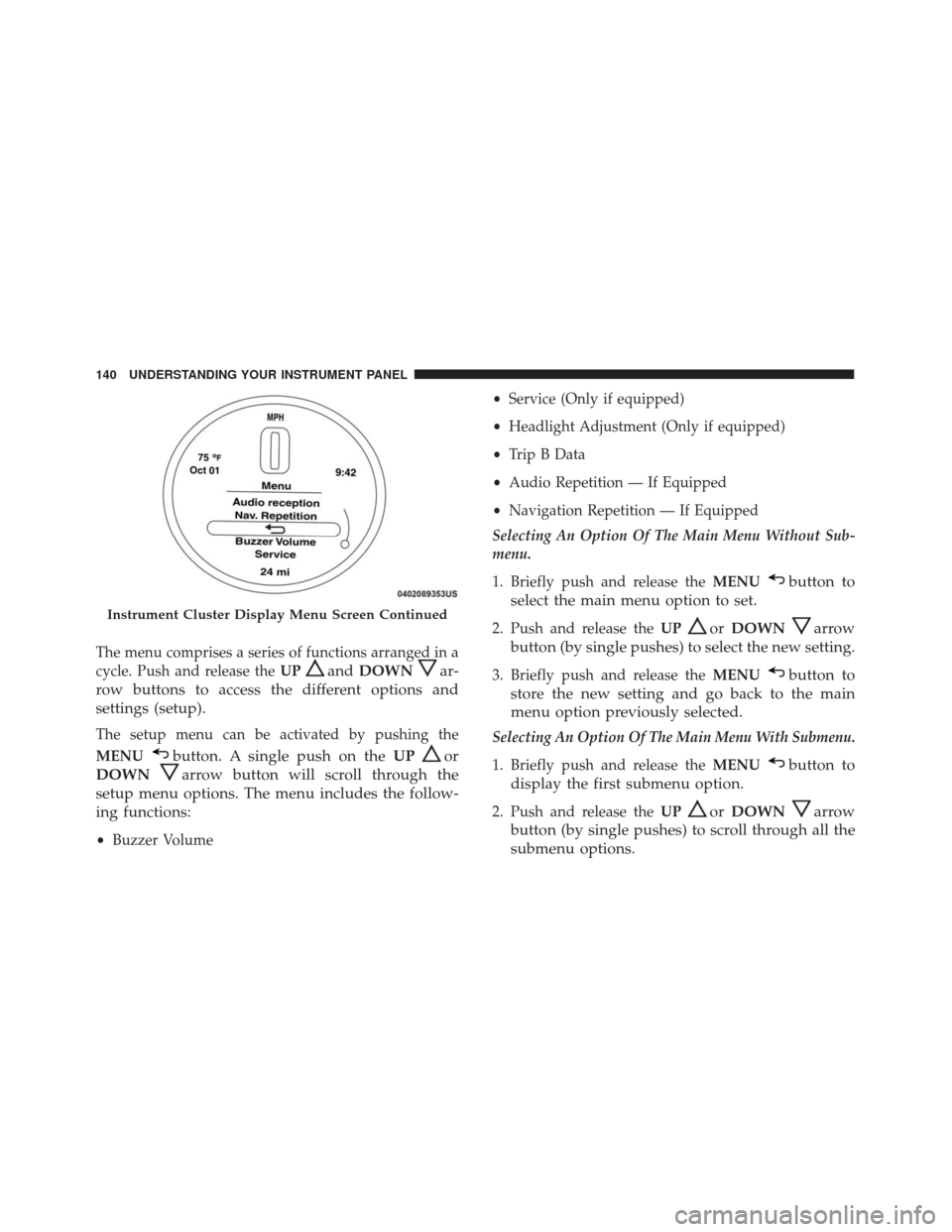
The menu comprises a series of functions arranged in a
cycle. Push and release theUP
andDOWNar-
row buttons to access the different options and
settings (setup).
The setup menu can be activated by pushing the
MENU
button. A single push on the UPor
DOWN
arrow button will scroll through the
setup menu options. The menu includes the follow-
ing functions:
• Buzzer Volume •
Service (Only if equipped)
• Headlight Adjustment (Only if equipped)
• Trip B Data
• Audio Repetition — If Equipped
• Navigation Repetition — If Equipped
Selecting An Option Of The Main Menu Without Sub-
menu.
1. Briefly push and release the MENU
button to
select the main menu option to set.
2. Push and release the UPorDOWNarrow
button (by single pushes) to select the new setting.
3. Briefly push and release the MENUbutton to
store the new setting and go back to the main
menu option previously selected.
Selecting An Option Of The Main Menu With Submenu.
1. Briefly push and release the MENU
button to
display the first submenu option.
2. Push and release the UPorDOWNarrow
button (by single pushes) to scroll through all the
submenu options.
Instrument Cluster Display Menu Screen Continued
140 UNDERSTANDING YOUR INSTRUMENT PANEL
Page 146 of 350
Travel Time
This value shows the time elapsed since the last reset.
Submenu Personal Settings
Buzzer Volume (Adjusting The Failure/Warning
Buzzer Volume)
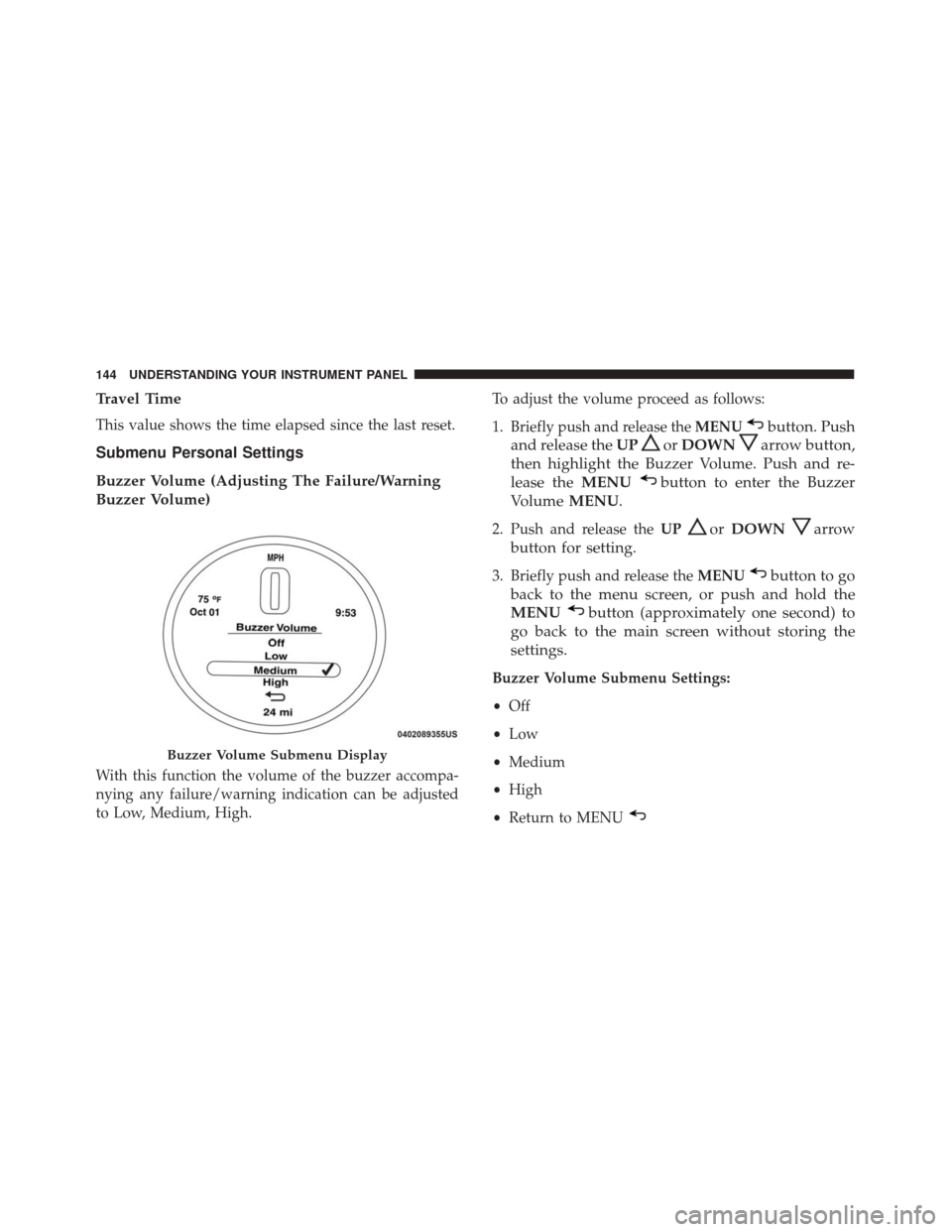
With this function the volume of the buzzer accompa-
nying any failure/warning indication can be adjusted
to Low, Medium, High.To adjust the volume proceed as follows:
1. Briefly push and release the
MENU
button. Push
and release the UP
orDOWNarrow button,
then highlight the Buzzer Volume. Push and re-
lease the MENU
button to enter the Buzzer
Volume MENU.
2. Push and release the UPorDOWNarrow
button for setting.
3. Briefly push and release the MENUbutton to go
back to the menu screen, or push and hold the
MENU
button (approximately one second) to
go back to the main screen without storing the
settings.
Buzzer Volume Submenu Settings:
• Off
• Low
• Medium
• High
• Return to MENU
Buzzer Volume Submenu Display
144 UNDERSTANDING YOUR INSTRUMENT PANEL
Page 147 of 350
Service – If Equipped
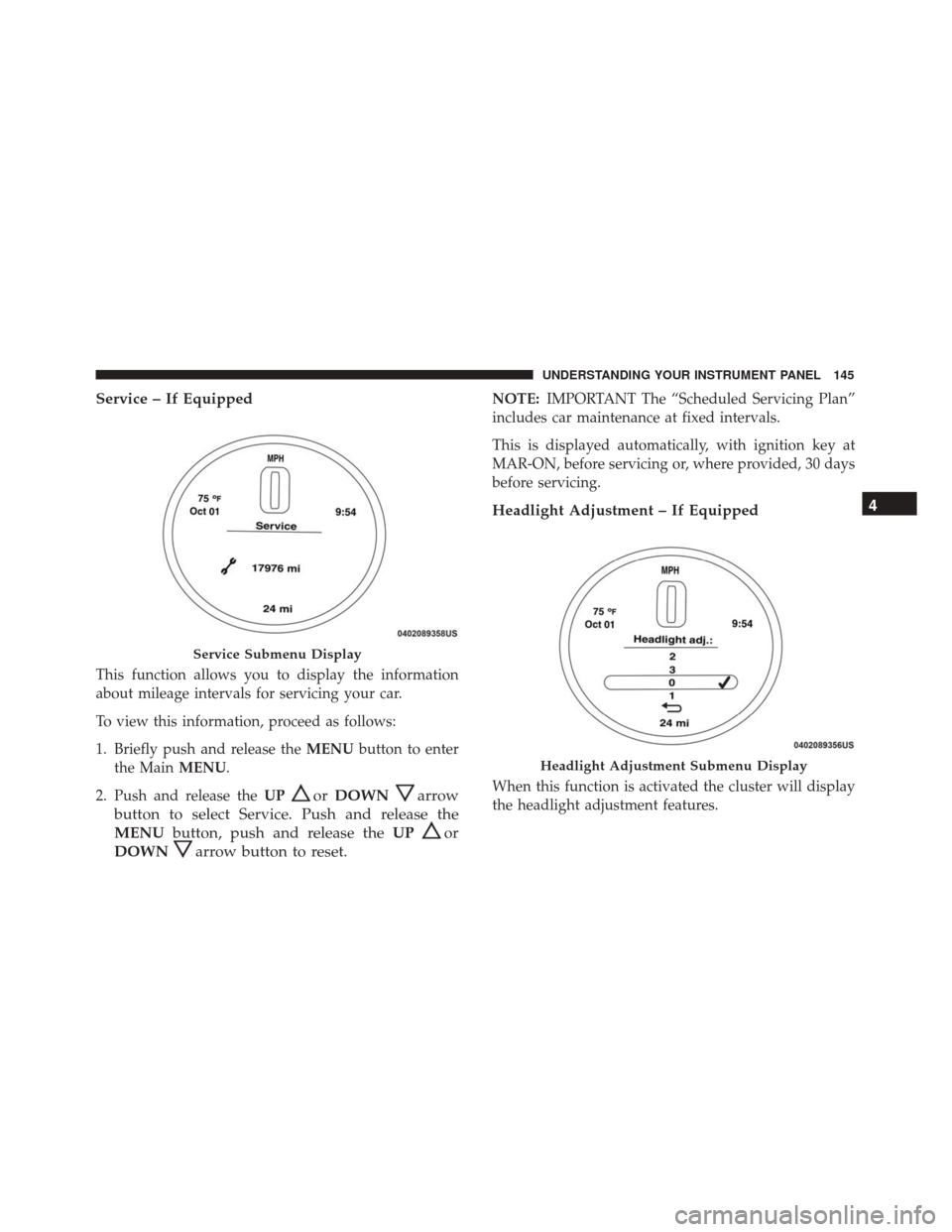
This function allows you to display the information
about mileage intervals for servicing your car.
To view this information, proceed as follows:
1. Briefly push and release theMENUbutton to enter
the Main MENU.
2. Push and release the UP
orDOWNarrow
button to select Service. Push and release the
MENU button, push and release the UP
or
DOWN
arrow button to reset.
NOTE: IMPORTANT The “Scheduled Servicing Plan”
includes car maintenance at fixed intervals.
This is displayed automatically, with ignition key at
MAR-ON, before servicing or, where provided, 30 days
before servicing.
Headlight Adjustment – If Equipped
When this function is activated the cluster will display
the headlight adjustment features.
Service Submenu Display
Headlight Adjustment Submenu Display
4
UNDERSTANDING YOUR INSTRUMENT PANEL 145
Page 148 of 350
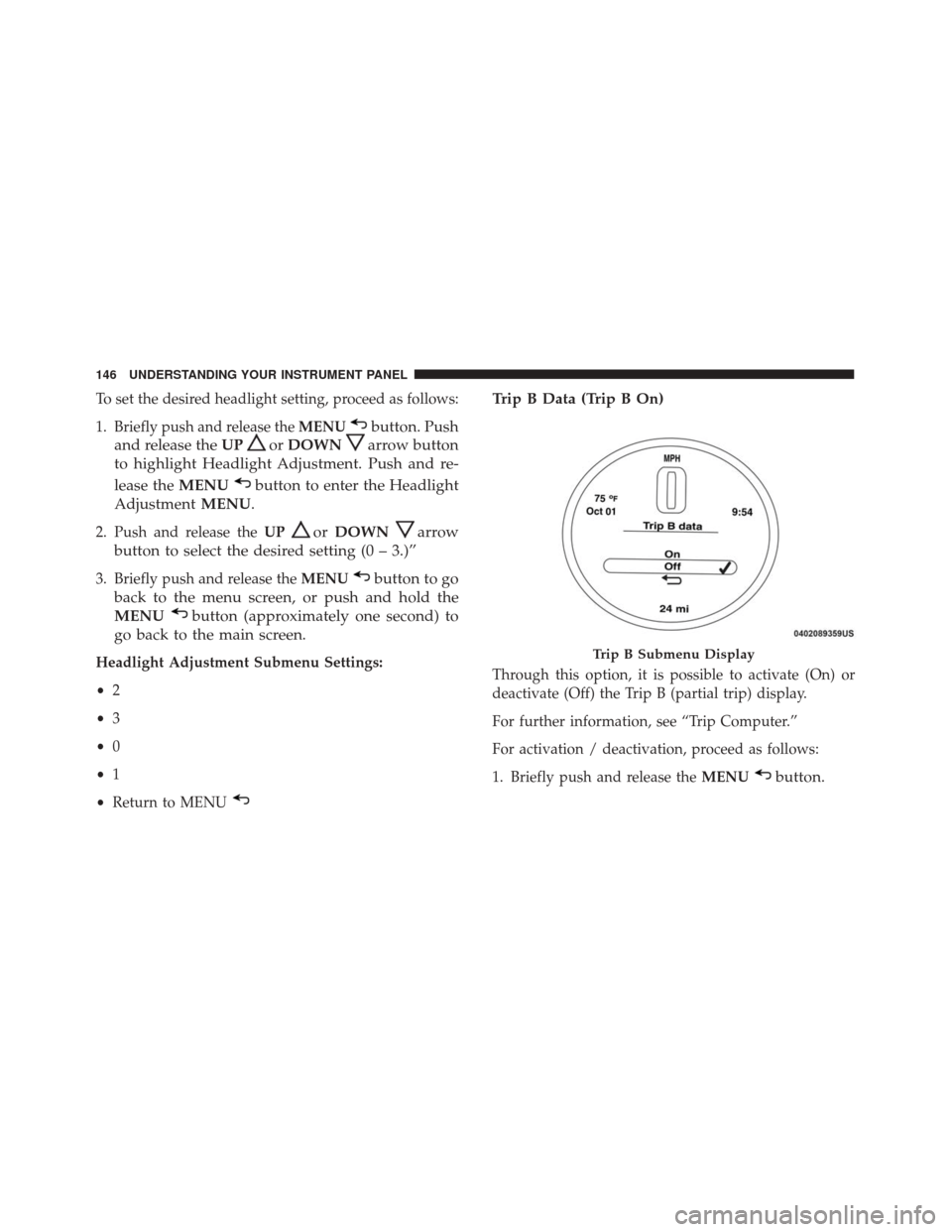
To set the desired headlight setting, proceed as follows:
1. Briefly push and release theMENU
button. Push
and release the UP
orDOWNarrow button
to highlight Headlight Adjustment. Push and re-
lease the MENU
button to enter the Headlight
Adjustment MENU.
2. Push and release the UPorDOWNarrow
button to select the desired setting (0 – 3.)”
3. Briefly push and release the MENUbutton to go
back to the menu screen, or push and hold the
MENU
button (approximately one second) to
go back to the main screen.
Headlight Adjustment Submenu Settings:
• 2
• 3
• 0
• 1
• Return to MENU
Trip B Data (Trip B On)
Through this option, it is possible to activate (On) or
deactivate (Off) the Trip B (partial trip) display.
For further information, see “Trip Computer.”
For activation / deactivation, proceed as follows:
1. Briefly push and release the MENU
button.
Trip B Submenu Display
146 UNDERSTANDING YOUR INSTRUMENT PANEL
Page 150 of 350
To activate (On) or to deactivate (Off) the sound system
info displaying, proceed as follows:
1. Briefly push and release theMENU
button. Push
and release the UP
orDOWNarrow button
to highlight See Radio and push and release the
MENU
button.
2. Push and release the UPorDOWNarrow
button for setting.
3. Briefly push and release the MENUbutton to go
back to the menu screen, or push and hold the
MENU button (approximately one second) to go
back to the main screen without storing the set-
tings.
If the radio has Uconnect, refer to the appropriate
“Uconnect Radio Supplement” for further information.
Audio Repetition Submenu Settings:
• Off
• On
• Return to MENU
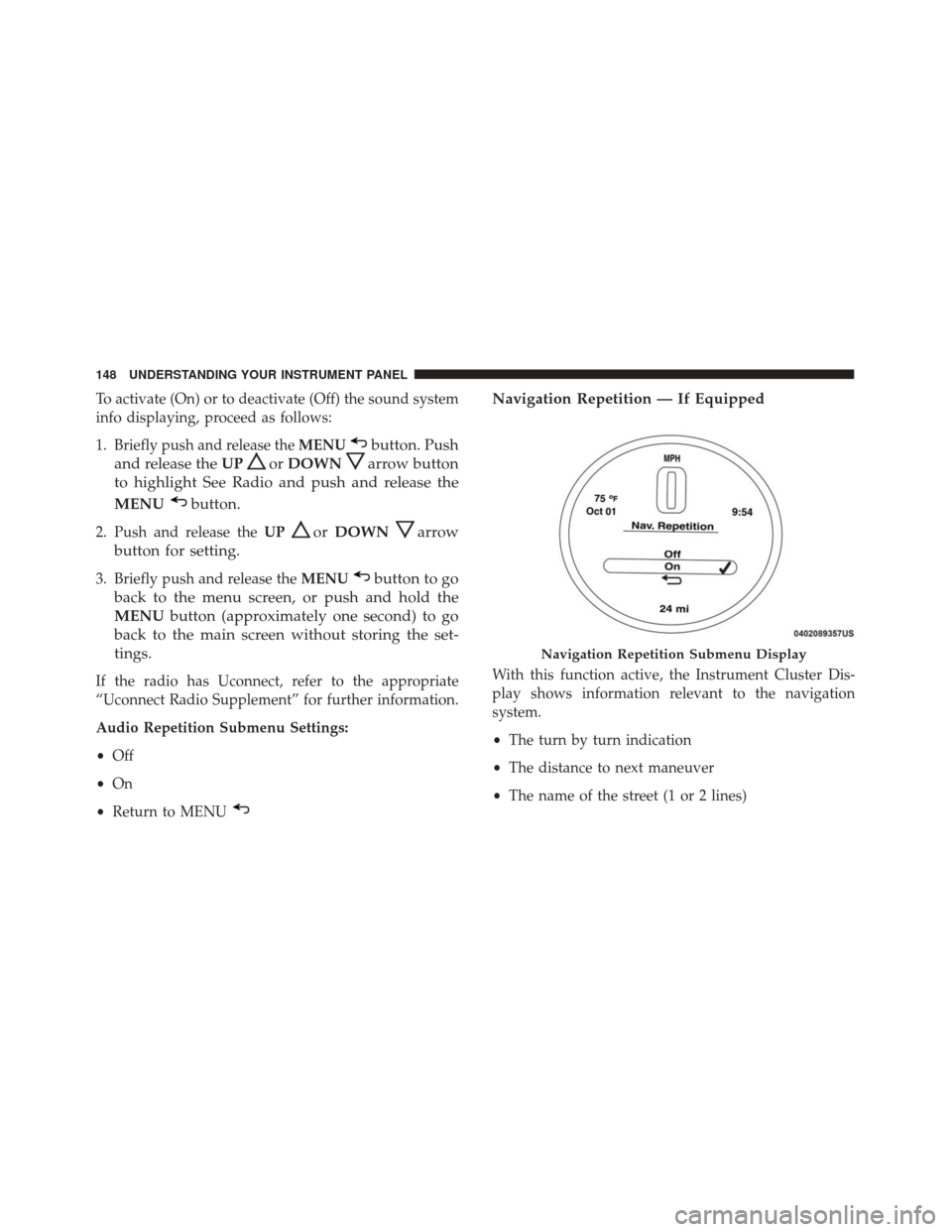
Navigation Repetition — If Equipped
With this function active, the Instrument Cluster Dis-
play shows information relevant to the navigation
system.
•The turn by turn indication
• The distance to next maneuver
• The name of the street (1 or 2 lines)
Navigation Repetition Submenu Display
148 UNDERSTANDING YOUR INSTRUMENT PANEL
Page 151 of 350
To activate (On) or to deactivate (Off) the navigation
system info displaying, proceed as follows:
1. Briefly push and release theMENU
button. Push
and release the UP
orDOWNbutton to
highlight Navigation Repetition and push and
release the MENU
button.
2. Push and release the UPorDOWNbutton
for setting.
3. Briefly push and release the MENUbutton to go
back to the menu screen, or push and hold the
MENU
button (approximately one second) to
go back to the main screen without storing the
settings.
• Off
• On
• Return to MENU
CYBERSECURITY
Your vehicle may be a connected vehicle and may be
equipped with both wired and wireless networks.
These networks allow your vehicle to send and receive information. This information allows systems and fea-
tures in your vehicle to function properly.
Your vehicle may be equipped with certain security
features to reduce the risk of unauthorized and unlaw-
ful access to vehicle systems and wireless communica-
tions. Vehicle software technology continues to evolve
over time and FCA US LLC, working with its suppliers,
evaluates and takes appropriate steps as needed. Simi-
lar to a computer or other devices, your vehicle may
require software updates to improve the usability and
performance of your systems or to reduce the potential
risk of unauthorized and unlawful access to your
vehicle systems.
The risk of unauthorized and unlawful access to your
vehicle systems may still exist, even if the most recent
version of vehicle software (such as Uconnect software)
is installed.
WARNING!
•
It is not possible to know or to predict all of the
possible outcomes if your vehicle’s systems are
breached. It may be possible that vehicle systems,
(Continued)
4
UNDERSTANDING YOUR INSTRUMENT PANEL 149
Page 155 of 350
Display
After pressing the “Display” button on the touchscreen
the following settings will be available.
Setting NameSelectable Options
Display Mode Auto Manual
NOTE: When the “Display Mode” feature is set to “Auto” the radio touchscreen’s brightness will be adjusted
with all other Instrument Panel displays and lights when they are adjusted using the Instrument Cluster Dis-
play buttons on the right-hand side of the Instrument Cluster Display. When the “Display Mode” feature is set
to “Manual” the radio screen brightness can be adjusted independently using the “Brightness” feature below.
Brightness +–
Language EnglishEspañol Français
Touchscreen Beep On Off
Units
After pressing the “Units” button on the touchscreen,
you may select each unit of measure independently displayed in the Instrument Cluster Display. The fol-
lowing selectable units of measure are listed below:
Setting Name
Selectable Options
US Changes the Instrument Cluster Display to US units of measure.
Metric Changes the Instrument Cluster Display to Metric units of measure.
4
UNDERSTANDING YOUR INSTRUMENT PANEL 153
Page 158 of 350
Lights
After pressing the “Lights” button on the touchscreen,
the following settings will be available.
Setting NameSelectable Options
Daytime Running Lights OnOff
Doors & Locks
After pressing the “Doors & Locks” button on the
touchscreen, the following setting will be available.
Setting Name Selectable Options
Auto Door Locks OnOff
NOTE: When the “Auto Door Locks” feature is selected, all doors will lock automatically when the vehicle
reaches a speed of 12 mph (20 km/h).
Remote Door Unlock/Door Unlock DriverAll
NOTE: When “Driver” is selected, only the driver ’s door will unlock on the first push of the key fob UNLOCK
button, you must push the key fob UNLOCK button twice to unlock the passenger ’s doors. When “All” is
selected, all of the doors will unlock on the first press of the key fob UNLOCK button.
156 UNDERSTANDING YOUR INSTRUMENT PANEL
Page 166 of 350
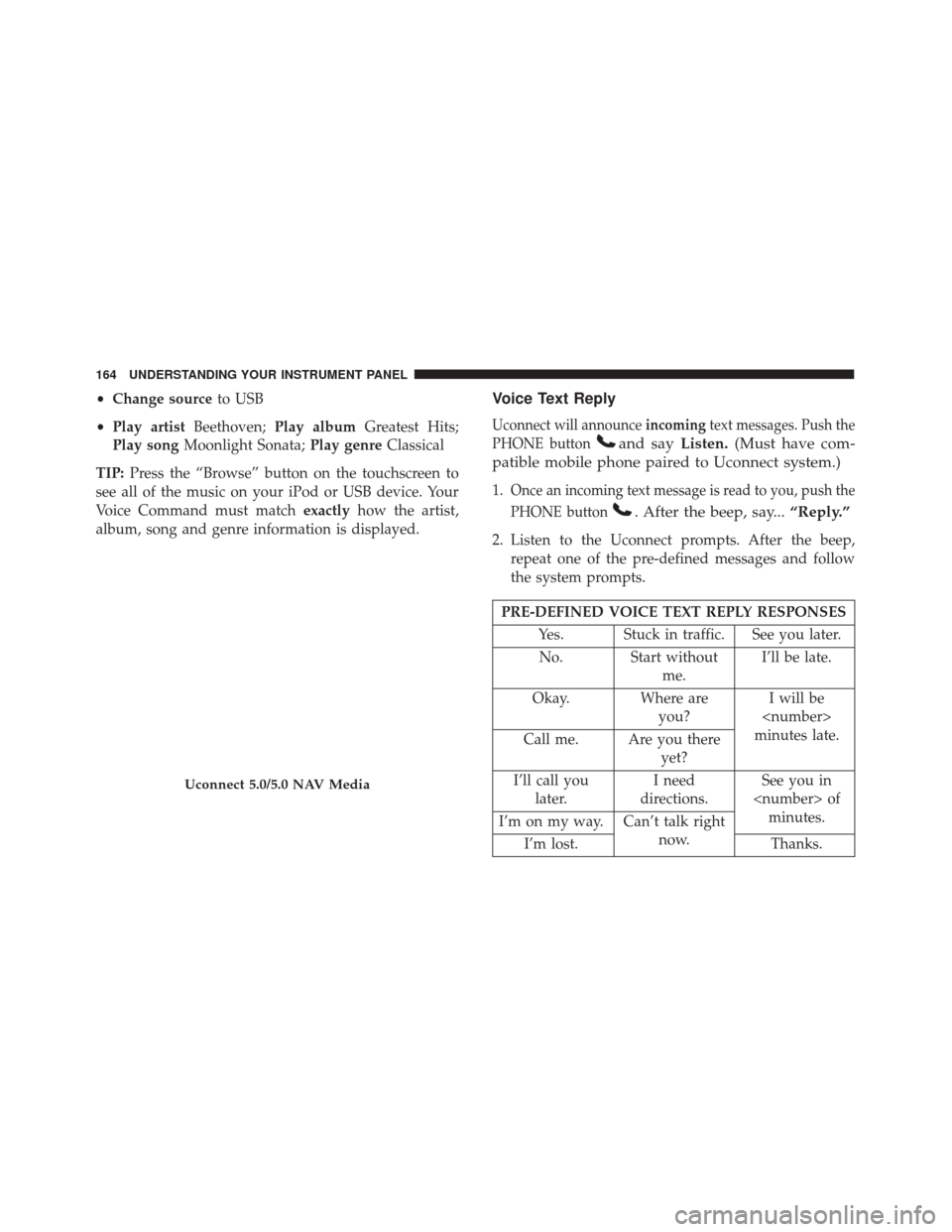
•Change source to USB
• Play artist Beethoven;Play album Greatest Hits;
Play song Moonlight Sonata; Play genreClassical
TIP: Press the “Browse” button on the touchscreen to
see all of the music on your iPod or USB device. Your
Voice Command must match exactlyhow the artist,
album, song and genre information is displayed.Voice Text Reply
Uconnect will announce incomingtext messages. Push the
PHONE button
and say Listen.(Must have com-
patible mobile phone paired to Uconnect system.)
1.Once an incoming text message is read to you, push the
PHONE button
. After the beep, say... “Reply.”
2. Listen to the Uconnect prompts. After the beep,
repeat one of the pre-defined messages and follow
the system prompts.
PRE-DEFINED VOICE TEXT REPLY RESPONSES
Yes. Stuck in traffic. See you later.No. Start without me.I’ll be late.
Okay. Where are you?I will be
minutes late.
Call me. Are you there
yet?
I’ll call you later. I need
directions. See you in
I’m on my way. Can’t talk right
now.
I’m lost. Thanks.
Uconnect 5.0/5.0 NAV Media
164 UNDERSTANDING YOUR INSTRUMENT PANEL
Page 172 of 350
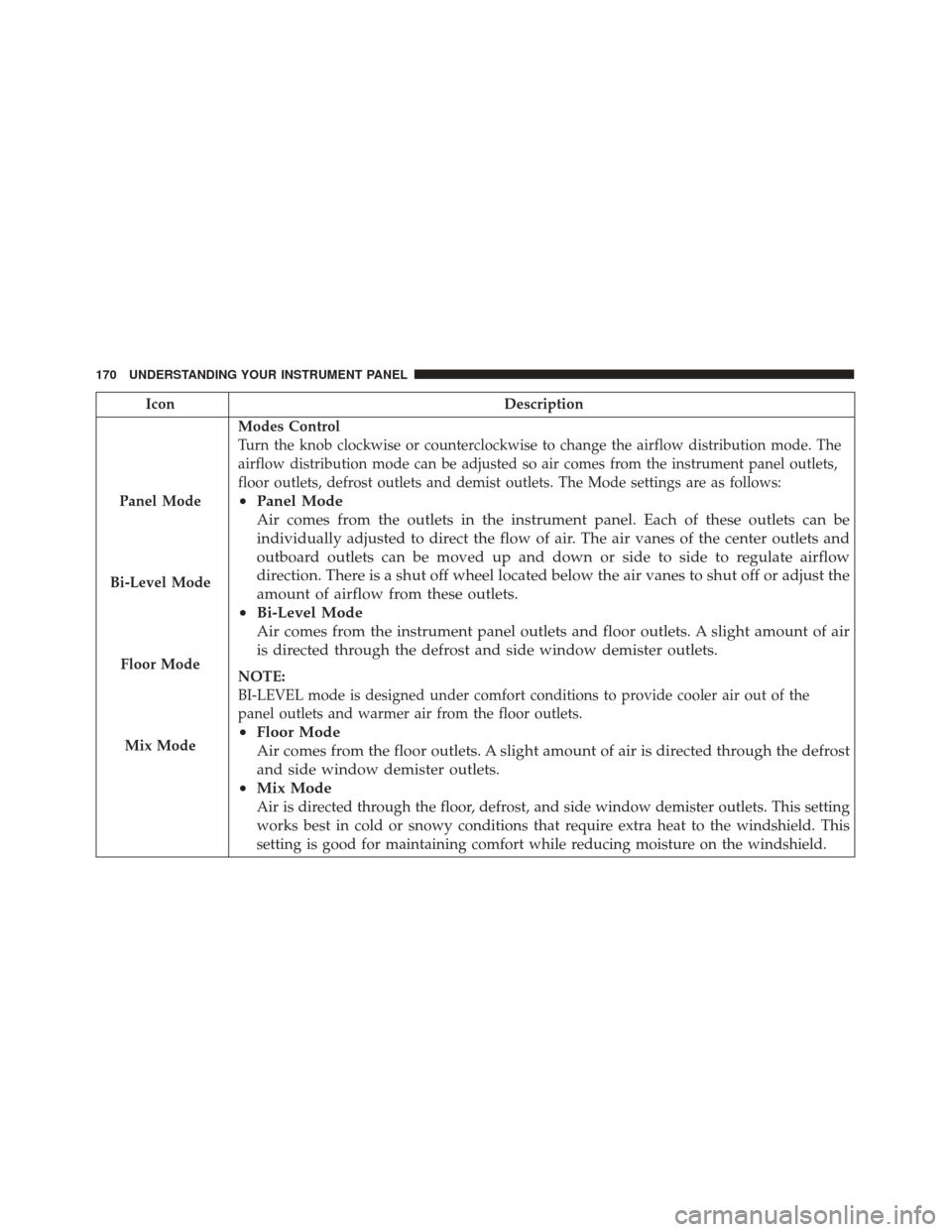
IconDescription
Panel Mode
Bi-Level Mode
Floor Mode
Mix Mode
Modes Control
Turn the knob clockwise or counterclockwise to change the airflow distribution mode. The
airflow distribution mode can be adjusted so air comes from the instrument panel outlets,
floor outlets, defrost outlets and demist outlets. The Mode settings are as follows:
• Panel Mode
Air comes from the outlets in the instrument panel. Each of these outlets can be
individually adjusted to direct the flow of air. The air vanes of the center outlets and
outboard outlets can be moved up and down or side to side to regulate airflow
direction. There is a shut off wheel located below the air vanes to shut off or adjust the
amount of airflow from these outlets.
• Bi-Level Mode
Air comes from the instrument panel outlets and floor outlets. A slight amount of air
is directed through the defrost and side window demister outlets.
NOTE:
BI-LEVEL mode is designed under comfort conditions to provide cooler air out of the
panel outlets and warmer air from the floor outlets.
•Floor Mode
Air comes from the floor outlets. A slight amount of air is directed through the defrost
and side window demister outlets.
• Mix Mode
Air is directed through the floor, defrost, and side window demister outlets. This setting
works best in cold or snowy conditions that require extra heat to the windshield. This
setting is good for maintaining comfort while reducing moisture on the windshield.
170 UNDERSTANDING YOUR INSTRUMENT PANEL