display FIAT 500L LIVING 2014 2.G Manual PDF
[x] Cancel search | Manufacturer: FIAT, Model Year: 2014, Model line: 500L LIVING, Model: FIAT 500L LIVING 2014 2.GPages: 420, PDF Size: 9.77 MB
Page 366 of 420
DAB RADIO
(for versions/markets, where provided)
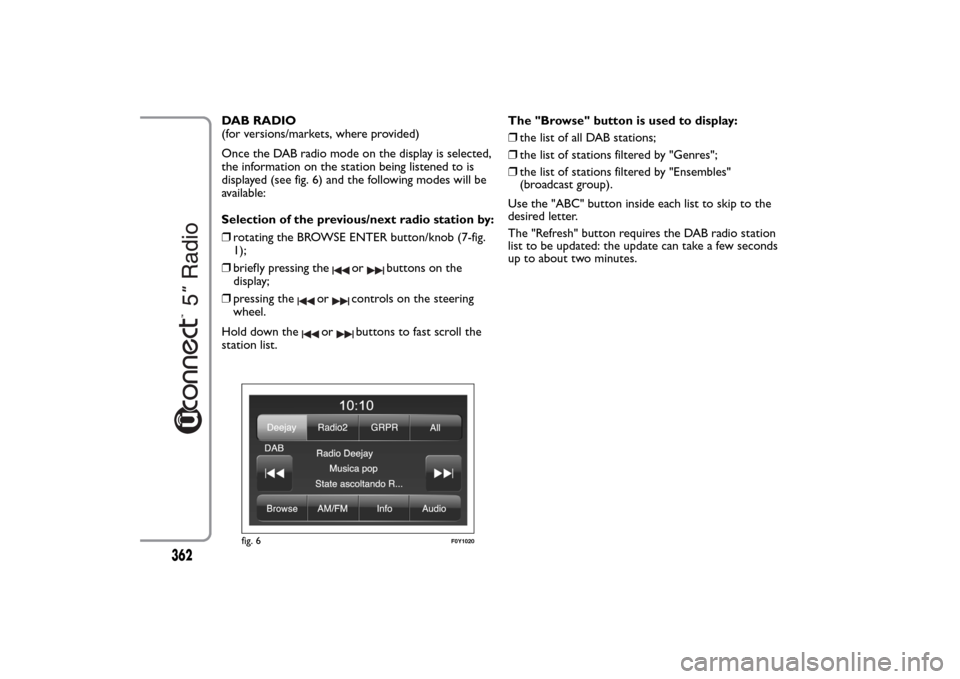
Once the DAB radio mode on the display is selected,
the information on the station being listened to is
displayed (see fig. 6) and the following modes will be
available:
Selection of the previous/next radio station by:
❒rotating the BROWSE ENTER button/knob (7-fig.
1);
❒briefly pressing the
or
buttons on the
display;
❒pressing the
or
controls on the steering
wheel.
Hold down the
or
buttons to fast scroll the
station list.The "Browse" button is used to display:
❒the list of all DAB stations;
❒the list of stations filtered by "Genres";
❒the list of stations filtered by "Ensembles"
(broadcast group).
Use the "ABC" button inside each list to skip to the
desired letter.
The "Refresh" button requires the DAB radio station
list to be updated: the update can take a few seconds
up to about two minutes.
fig. 6
F0Y1020
362
Page 367 of 420
SETTING THE PRESELECTIONS
Preselections are available in all system modes and
are activated by touching one of the preselection
buttons located at the top of the display.
To store the radio station being listened to, press and
hold down the button corresponding to the desired
preset until a confirmation acoustic signal is heard.
The system can store up to 12 radio station in each
mode: 4 radio stations are displayed at the top.
Press the "All" button on the display to show all the
radio stations stored in the frequency band selected.AUDIO
To enter the "Audio" menu, press the SETTINGS
button (10-fig. 1) on the front panel, scroll the menu
then select and press the "Audio" item on the display.
The following adjustments can be carried out using
the "Audio" menu:
❒"Equalizer" (for versions/markets, where provided);
❒"Balance/Fade" (left/right and front/rear balance
adjustment);
❒"Volume/Speed" (excluding versions with Hi-Fi
system) speed-dependent automatic volume
adjustment;
❒"Loudness" (for versions/markets, where provided);
❒"Auto-On Radio";
❒"Radio Off Delay".
To exit the "Audio" menu, press the
/Done button.
NOTE When a setting is changed, thebutton is
replaced with the word "Done".
363
Page 368 of 420
Equalizer
(for versions/markets, where provided)
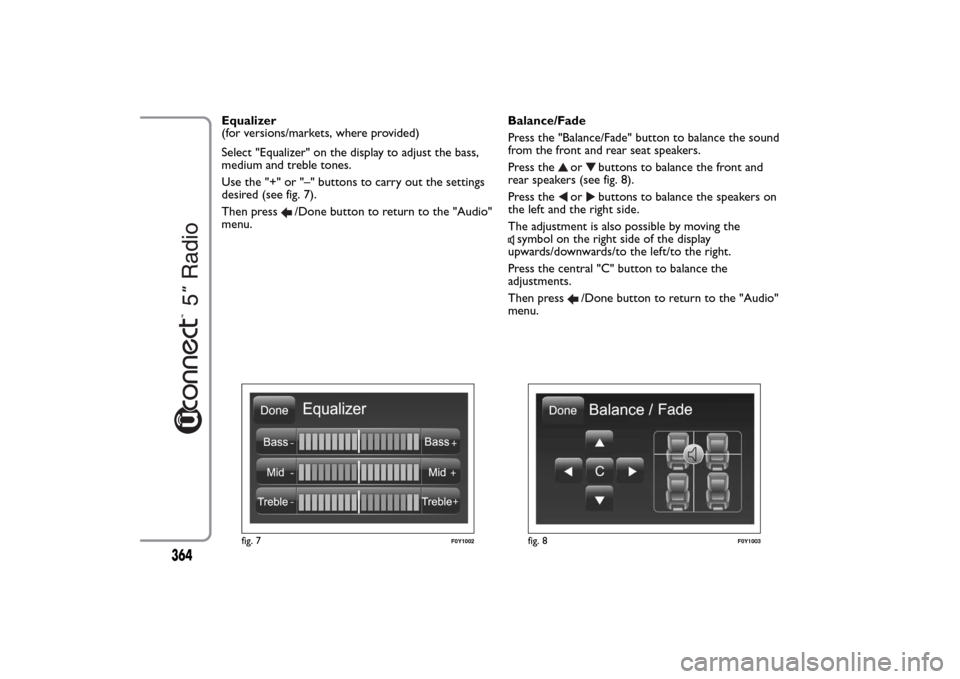
Select "Equalizer" on the display to adjust the bass,
medium and treble tones.
Use the "+" or "–" buttons to carry out the settings
desired (see fig. 7).
Then press
/Done button to return to the "Audio"
menu.Balance/Fade
Press the "Balance/Fade" button to balance the sound
from the front and rear seat speakers.
Press the
or
buttons to balance the front and
rear speakers (see fig. 8).
Press the
or
buttons to balance the speakers on
the left and the right side.
The adjustment is also possible by moving the
symbol on the right side of the display
upwards/downwards/to the left/to the right.
Press the central "C" button to balance the
adjustments.
Then press
/Done button to return to the "Audio"
menu.
fig. 7
F0Y1002
fig. 8
F0Y1003
364
Page 369 of 420
Volume/Speed
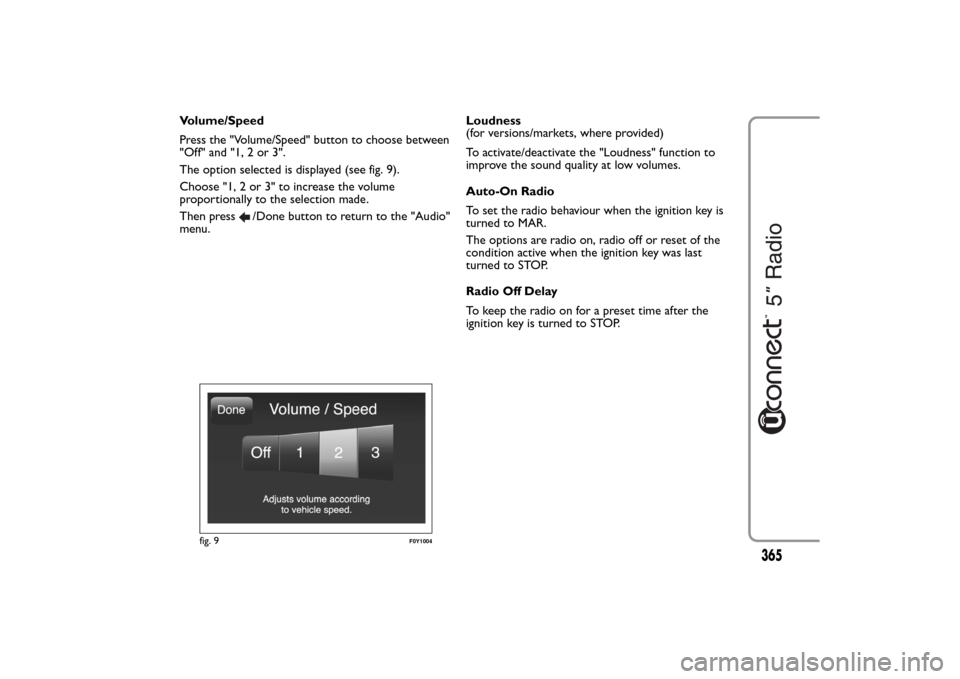
Press the "Volume/Speed" button to choose between
"Off" and "1, 2 or 3".
The option selected is displayed (see fig. 9).
Choose "1, 2 or 3" to increase the volume
proportionally to the selection made.
Then press
/Done button to return to the "Audio"
menu.Loudness
(for versions/markets, where provided)
To activate/deactivate the "Loudness" function to
improve the sound quality at low volumes.
Auto-On Radio
To set the radio behaviour when the ignition key is
turned to MAR.
The options are radio on, radio off or reset of the
condition active when the ignition key was last
turned to STOP.
Radio Off Delay
To keep the radio on for a preset time after the
ignition key is turned to STOP.
fig. 9
F0Y1004
365
Page 371 of 420
NOTE Not allBluetooth® devices enable to scroll
the information on the tracks. To consult the list of
audioBluetooth® devices and supported functions,
visit the www.fiat.it website (for Italy) or the
www.fiat.com website (for other countries) or call
Customer Service on 00800.3428.0000 (the number
may vary depending on the country: please refer to
the reference table in the "Customer Service number
list" paragraph herein).
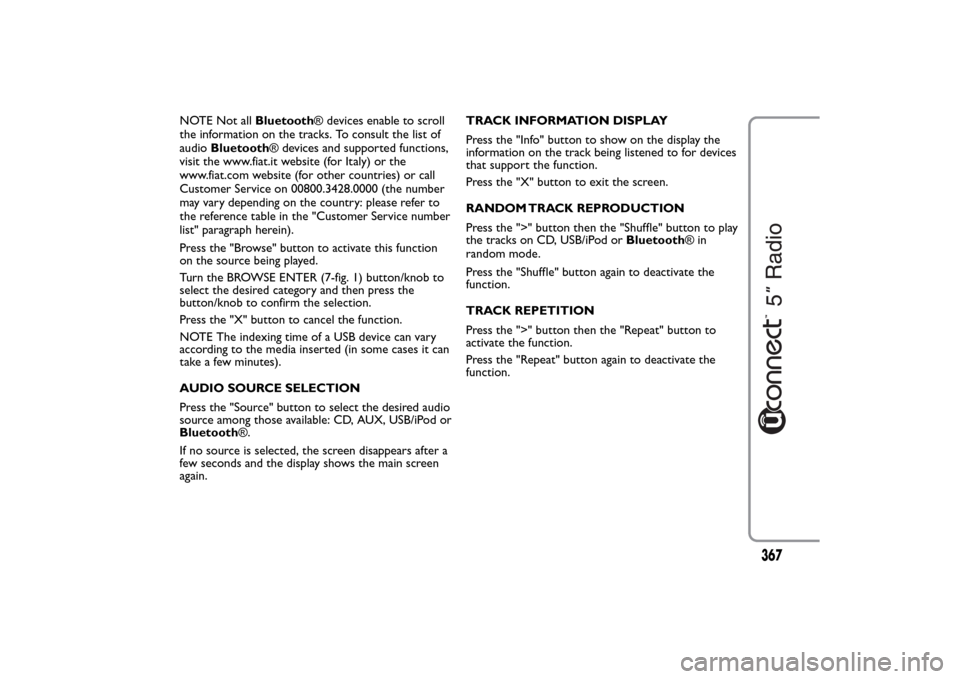
Press the "Browse" button to activate this function
on the source being played.
Turn the BROWSE ENTER (7-fig. 1) button/knob to
select the desired category and then press the
button/knob to confirm the selection.
Press the "X" button to cancel the function.
NOTE The indexing time of a USB device can vary
according to the media inserted (in some cases it can
take a few minutes).
AUDIO SOURCE SELECTION
Press the "Source" button to select the desired audio
source among those available: CD, AUX, USB/iPod or
Bluetooth®.
If no source is selected, the screen disappears after a
few seconds and the display shows the main screen
again.TRACK INFORMATION DISPLAY
Press the "Info" button to show on the display the
information on the track being listened to for devices
that support the function.
Press the "X" button to exit the screen.
RANDOM TRACK REPRODUCTION
Press the ">" button then the "Shuffle" button to play
the tracks on CD, USB/iPod orBluetooth®in
random mode.
Press the "Shuffle" button again to deactivate the
function.
TRACK REPETITION
Press the ">" button then the "Repeat" button to
activate the function.
Press the "Repeat" button again to deactivate the
function.
367
Page 372 of 420
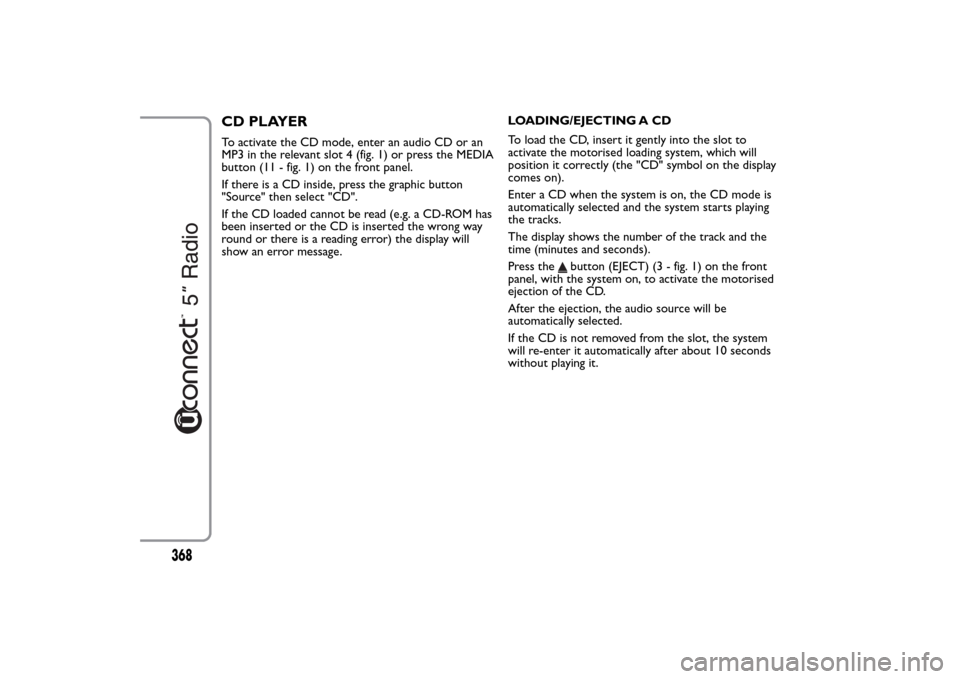
CD PLAYERTo activate the CD mode, enter an audio CD or an
MP3 in the relevant slot 4 (fig. 1) or press the MEDIA
button (11 - fig. 1) on the front panel.
If there is a CD inside, press the graphic button
"Source" then select "CD".
If the CD loaded cannot be read (e.g. a CD-ROM has
been inserted or the CD is inserted the wrong way
round or there is a reading error) the display will
show an error message.LOADING/EJECTING A CD
To load the CD, insert it gently into the slot to
activate the motorised loading system, which will
position it correctly (the "CD" symbol on the display
comes on).
Enter a CD when the system is on, the CD mode is
automatically selected and the system starts playing
the tracks.
The display shows the number of the track and the
time (minutes and seconds).
Press the
button (EJECT) (3 - fig. 1) on the front
panel, with the system on, to activate the motorised
ejection of the CD.
After the ejection, the audio source will be
automatically selected.
If the CD is not removed from the slot, the system
will re-enter it automatically after about 10 seconds
without playing it.
368
Page 373 of 420
Bluetooth
® SOURCE
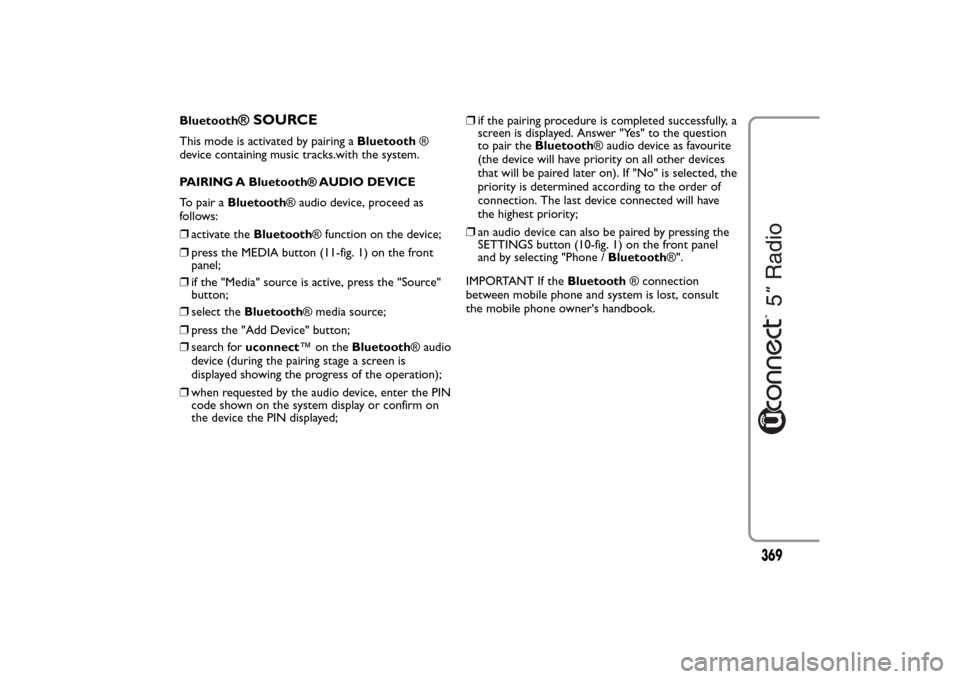
This mode is activated by pairing aBluetooth®
device containing music tracks.with the system.
PAIRING A Bluetooth® AUDIO DEVICE
To pair aBluetooth® audio device, proceed as
follows:
❒activate theBluetooth® function on the device;
❒press the MEDIA button (11-fig. 1) on the front
panel;
❒if the "Media" source is active, press the "Source"
button;
❒select theBluetooth® media source;
❒press the "Add Device" button;
❒search foruconnect™ontheBluetooth® audio
device (during the pairing stage a screen is
displayed showing the progress of the operation);
❒when requested by the audio device, enter the PIN
code shown on the system display or confirm on
the device the PIN displayed;❒if the pairing procedure is completed successfully, a
screen is displayed. Answer "Yes" to the question
to pair theBluetooth® audio device as favourite
(the device will have priority on all other devices
that will be paired later on). If "No" is selected, the
priority is determined according to the order of
connection. The last device connected will have
the highest priority;
❒an audio device can also be paired by pressing the
SETTINGS button (10-fig. 1) on the front panel
and by selecting "Phone /Bluetooth®".
IMPORTANT If theBluetooth® connection
between mobile phone and system is lost, consult
the mobile phone owner's handbook.
369
Page 375 of 420
PHONE MODEPHONE MODE ACTIVATION
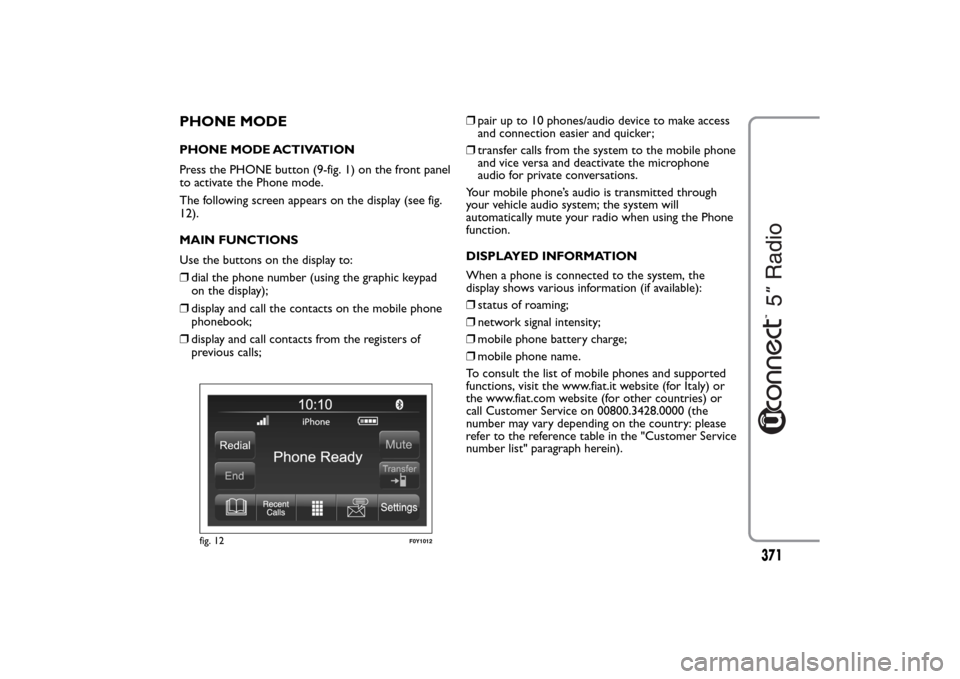
Press the PHONE button (9-fig. 1) on the front panel
to activate the Phone mode.
The following screen appears on the display (see fig.
12).
MAIN FUNCTIONS
Use the buttons on the display to:
❒dial the phone number (using the graphic keypad
on the display);
❒display and call the contacts on the mobile phone
phonebook;
❒display and call contacts from the registers of
previous calls;❒pair up to 10 phones/audio device to make access
and connection easier and quicker;
❒transfer calls from the system to the mobile phone
and vice versa and deactivate the microphone
audio for private conversations.
Your mobile phone’s audio is transmitted through
your vehicle audio system; the system will
automatically mute your radio when using the Phone
function.
DISPLAYED INFORMATION
When a phone is connected to the system, the
display shows various information (if available):
❒status of roaming;
❒network signal intensity;
❒mobile phone battery charge;
❒mobile phone name.
To consult the list of mobile phones and supported
functions, visit the www.fiat.it website (for Italy) or
the www.fiat.com website (for other countries) or
call Customer Service on 00800.3428.0000 (the
number may vary depending on the country: please
refer to the reference table in the "Customer Service
number list" paragraph herein).
fig. 12
F0Y1012
371
Page 376 of 420
PAIRING A MOBILE PHONE
IMPORTANT Carry out this operation only with car
stationary and in safety conditions; this function is
deactivated when the car is moving.
Even though the mobile phone pairing procedure is
described below we always recommend to consult
the mobile phone owner's handbook.
To pair the mobile phone, proceed as follows:
❒activate theBluetooth® function on the mobile
phone;
❒press the PHONE button (9-fig. 1) on the front
panel;
❒if no phone is paired with the system yet, the
display shows a dedicated screen;
❒select "Yes" to start the pairing procedure then
search for theuconnect™ device on the mobile
phone (if "No" is selected, the Phone main screen
is displayed);
❒when prompted by the mobile phone, use its
keyboard to enter the PIN code shown on the
system display or confirm on the mobile phone the
PIN displayed;
❒from the "Phone" screen you can always pair a
mobile phone pressing the "Settings" button: press
the "Add Device" button and proceed as described
above;
❒during the pairing stage a screen is displayed
showing the progress of the operation;❒if the pairing procedure is completed successfully, a
screen is displayed: answer "Yes" to the question to
pair the mobile phone as favourite (the mobile
phone will have priority on all other mobile phones
that will be paired later on). If no other devices are
paired, the system will consider the first associated
device as favourite.
Note
The priority is determined according to the order of
connection for mobile phones which are not set as
favourite. The last phone connected will have the
highest priority.
STORING NAMES/NUMBERS IN THE
MOBILE PHONE PHONEBOOK
Before pairing your mobile phone, you must make
sure you have stored the names you want to contact
in the phonebook on your mobile phone so that you
can call them using the car's hands-free system.
If your phonebook does not contain any names,
enter new names for the most frequently used
numbers.
For further details, consult your mobile phone
owner's handbook.
IMPORTANT The names in the phonebook not
containing phone numbers or name and surname will
not be displayed.
372
Page 377 of 420
CONNECTION/DISCONNECTION OF A
MOBILE PHONE OR A Bluetooth® AUDIO
DEVICE
Connection
The system connects automatically to the mobile
phone paired with the highest priority.
To choose a specific mobile phone orBluetooth®
audio device, proceed as follows:
❒press the SETTINGS button (10-fig. 1) on the front
panel;
❒select "Phone / Bluetooth" on the display;
❒select the "Paired Phones" or "Paired Audio" list
using the corresponding button on the display;
❒select the specific device (mobile phone or
Bluetooth® device);
❒press the "Connect" button;
❒during the connection stage a screen is displayed
showing the progress of the operation;
❒the device connected is highlighted in the list.Disconnection
To disconnect a specific mobile phone or
Bluetooth® audio device, proceed as follows:
❒press the SETTINGS button (10-fig. 1) on the front
panel;
❒select "Phone / Bluetooth" on the display;
❒select the "Paired Phones" or "Paired Audio" list
using the corresponding button on the display;
❒select the specific device (mobile phone or
Bluetooth® device);
❒press the "Disconnect" button.
DELETION OF A MOBILE PHONE OR A
Bluetooth® AUDIO DEVICE
To delete a mobile phone orBluetooth® audio
device from a list, proceed as follows:
❒press the SETTINGS button (10-fig. 1) on the front
panel;
❒select "Phone / Bluetooth" on the display;
❒select the "Paired Phones" or "Paired Audio" list
using the corresponding button on the display;
❒select the device (mobile phone orBluetooth®
device);
❒press the "Delete Device" button;
❒a confirmation screen will appear on the display:
press "Yes" to delete the device or "No" to cancel
the operation.
373