lock FIAT 500X 2015 2.G Workshop Manual
[x] Cancel search | Manufacturer: FIAT, Model Year: 2015, Model line: 500X, Model: FIAT 500X 2015 2.GPages: 240, PDF Size: 10.72 MB
Page 175 of 240
IDENTIFICATION
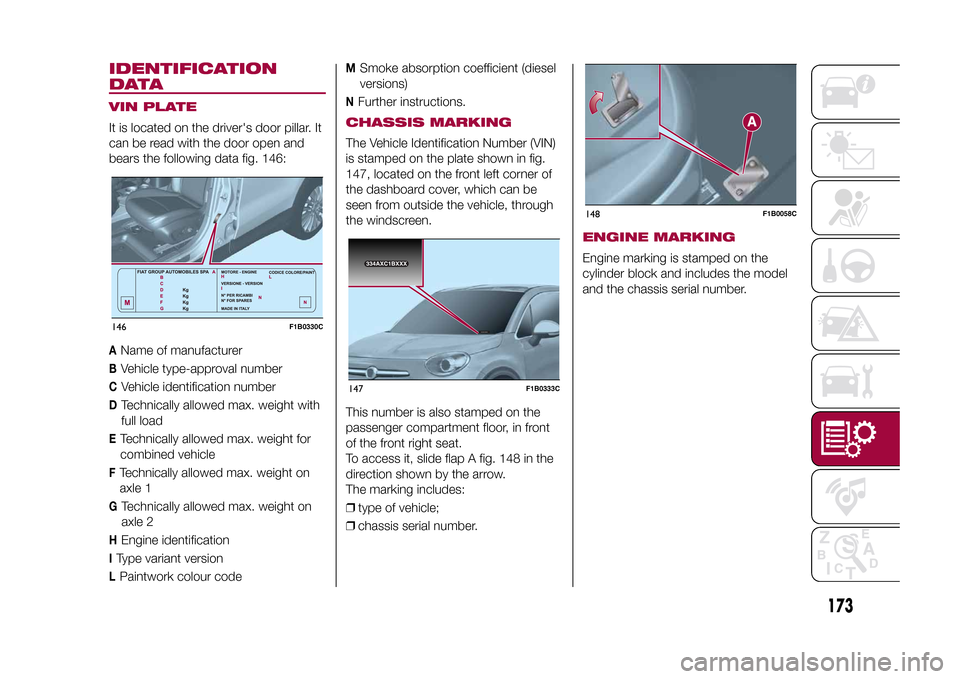
DATAVIN PLATEIt is located on the driver's door pillar. It
can be read with the door open and
bears the following data fig. 146:A
Name of manufacturer
B
Vehicle type-approval number
C
Vehicle identification number
D
Technically allowed max. weight with
full load
ETechnically allowed max. weight for
combined vehicleFTechnically allowed max. weight on
axle 1G
Technically allowed max. weight on
axle 2
H
Engine identification
IType variant versionLPaintwork colour code
M
Smoke absorption coefficient (diesel
versions)
N
Further instructions.
CHASSIS MARKINGThe Vehicle Identification Number (VIN)
is stamped on the plate shown in fig.
147, located on the front left corner of
the dashboard cover, which can be
seen from outside the vehicle, through
the windscreen.
This number is also stamped on the
passenger compartment floor, in front
of the front right seat.
To access it, slide flap A fig. 148 in the
direction shown by the arrow.
The marking includes:
❒type of vehicle;
❒chassis serial number.
ENGINE MARKINGEngine marking is stamped on the
cylinder block and includes the model
and the chassis serial number.
146
F1B0330C
334AXC1BXXX
334AXC1BXXX
147
F1B0333C
148
F1B0058C
173
15-12-2014 8:23 Pagina 173
Page 193 of 240
TIPS, CONTROLS
AND GENERAL
INFORMATIONROAD SAFETYLearn how to use the various system
functions before setting off.
Read the instructions for the system
carefully before setting off.
181) 182)
RECEPTION CONDITIONSReception conditions change
constantly while driving. Reception may
be interfered with by the presence of
mountains, buildings or bridges,
especially when you are far away from
the broadcaster.
IMPORTANT The volume may be
increased when receiving traffic alerts
and news.CARE AND
MAINTENANCEObserve the following precautions to
ensure the system is fully operational:
❒the display lens should not come into
contact with pointed or rigid objects
which could damage its surface; use a
soft, dry anti-static cloth to clean and
do not press.
❒never use alcohol, petrols and
derivatives to clean the display lens.❒prevent any liquid from entering the
system: this could damage it beyond
repair.
78) 79)
ANTI-THEFT
PROTECTIONThe system is equipped with an
anti-theft protection system based on
the exchange of information with the
electronic control unit (Body Computer)
on the vehicle.
This guarantees maximum safety and
prevents the secret code from being
entered after the power supply has
been disconnected.
If the check has a positive outcome, the
system will start to operate, whereas if
the comparison codes are not the
same or if the electronic control unit
(Body Computer) is replaced, the
system will ask the user to enter the
secret code according to the procedure
described in the paragraph below.Entering the secret code(Uconnect™Radio Nav 6.5" excluded)
When the system is switched on, if the
code is requested, the display will
show "Please enter Anti-Theft Code"
followed by the video page showing
a keypad to enter the secret code.The secret code is made up of four
digits, from 0 to 9: to insert the first digit
of the code, turn the "BROWSE
ENTER" right knob and press
to confirm.
After inserting the fourth digit, move the
cursor to "OK" and press the
"BROWSE ENTER" right knob: the
system will start to operate.
If an incorrect code is entered, the
system displays "Incorrect Code" to
notify the user of the need to enter the
correct code.
After the 3 available attempts to enter
the code, the system displays
"Incorrect Code. Radio locked. Wait for
30 minutes". Once the text has
disappeared you can start the code
entering procedure again.
Vehicle radio passport(Uconnect™Radio Nav 6.5" excluded)
This document certifies ownership of
the system. The vehicle radio passport
shows the system model, serial number
and secret code.
In the case of loss of the vehicle radio
passport, contact the Fiat Dealership,
taking an ID document and the vehicle
ownership documents.
191
15-12-2014 8:23 Pagina 191
Page 196 of 240
Button Functions Mode
Switching on/off
Brief button press
Volume adjustment
Knob clockwise/anticlockwise turningVolume activation/deactivation (Mute/Pause) Brief button pressExit the selection/return to previous screen Brief button press
BROWSE ENTERScrolling the list or tuning to a radio station or select
previous/next trackKnob clockwise/anticlockwise turning
Confirmation of the option displayed Brief button press
INFODisplay mode selection (Radio, Media Player) Brief button press
AUDIOAccess to the sound setting and adjustment functions Brief button press
MENUAccess to the Settings menu Brief button press
MEDIASource selection: USB/iPod or AUX Brief button press
RADIOAccess to the Radio mode Brief button press
1-2-3-4-5-6Store current radio station Long button press
Stored radio station recall Brief button press
A-B-CSelection of the group of radio presets or selection of
the desired letter in each listBrief button pressSearch for previous radio station or selection of USB/
iPod previous trackBrief button press
Scan of lower frequencies until released/Fast rewind of
USB/iPod trackLong button pressSearch for next radio station or selection of USB/iPod
next trackBrief button press
Scan of higher frequencies until released/Fast forward
of USB/iPod trackLong button press
194
MULTIMEDIA
15-12-2014 8:23 Pagina 194
Page 199 of 240
SWITCHING THE SYSTEM
ON/OFFThe system is switched on/off by
pressing the
button/knob.
Turn the button/knob clockwise to
increase the radio volume or
anticlockwise to decrease it.
RADIO (TUNER) MODEThe system features the following
tuners: AM, FM.Radio mode selectionPress the RADIO button on the front
panel to activate radio mode.Selecting a frequency
bandThe different tuning modes can be
selected by pressing the RADIO button
on the front panel.Indications on displayAfter the desired radio station is
selected on the display, the following
information is shown (INFO mode
activated):
In the upper part: the preset station, the
time and the other active radio settings
are highlighted.
In the central part: the name of the
current station, the frequency and the
radio text information (if any) are
highlighted.
FM station listPress the BROWSE ENTER button/
knob to display the complete list of the
FM stations that can be received.AM/FM radio station
storageThe preset stations are available in all
system modes and are selected by
touching one of the presetting buttons
1-2-3-4-5-6on the front panel.
If you are tuned to a radio station that
you wish to store, hold down the button
on the display which corresponds to
the desired preset until an acoustic
confirmation signal is emitted.AM/FM radio station
selectionTo search for the desired radio station
press the
or
button or use
the wheel of the steering wheel controls
, or turn the "BROWSE ENTER"
knob.
Previous/next radio
station searchPress briefly the
or
button or
use the wheel of the steering wheel
controls
: when the button is
released the previous or next
radio station is displayed.
Previous/next radio
station fast searchHold down the
or
button to
start the fast search: when the button is
released, the first tunable radio is
played.
MEDIA MODEInteraction modes for AUX, USB/iPod
operation.Track change
(next/previous)Briefly press the
button or turn the
BROWSE ENTER button/knob
clockwise to play the next track.
Briefly press thebutton or turn the
BROWSE ENTER button/knob
anticlockwise to return to the beginning
of the selected track or to the beginning
of the previous track (if this has been
played for less than 3 seconds).
Fast forward/rewind
through tracksHold down the
button to fast
forward the selected track.
Hold down thebutton to fast
rewind the track.
197
15-12-2014 8:23 Pagina 197
Page 206 of 240
SWITCHING THE SYSTEM
ON/OFFThe system is switched on/off by
pressing the
(ON/OFF) button/knob.
Turn the button/knob clockwise to
increase the radio volume or
anticlockwise to decrease it.
USB/iPOD SOURCEThe vehicle is equipped with USB port
and AUX socket. Some versions are
equipped with an SD-SDHC reader
able to read/manage cards with SPI
technology.
Some versions are also equipped with
another USB port, located in the front
armrest compartment.RADIO MODEAfter the desired radio station is
selected, the following information is
shown on the display:
At the top: the list of radio stations
stored (preset) is displayed; the station
being listened to is highlighted.
In the middle: the name of the radio
station being listened to and the
buttons to select the previous or the
next radio station are displayed.
At the bottom: display of the following
buttons:
❒"Browse": list of the radio stations
available;❒"AM/FM", "AM/DAB", "FM/DAB":
selection of the desired frequency band
(button reconfigurable according to
the band selected: AM, FM or DAB);
❒"Tune" : manual radio station tuning
(not available for DAB radios);
❒"Info": additional information on the
source being listened to;
❒"Audio": access to the "Audio
settings" screen.
Audio menuThe following adjustments can be
carried out using the "Audio" menu:
❒"Equaliser" (where provided);
❒"Balance/Fader" (left/right and
front/rear sound balance adjustment);
❒"Speed/Volume" (speed-dependent
automatic volume control);
❒"Loudness" (where provided);
❒"Radio Auto-On";
❒"Radio Off Delay".
To exit the "Audio" menu, press the
/Done button.
MEDIA MODE
Audio source selectionPress the "choose source" button to
select the desired audio source among
those available: AUX, USB / iPod, SD
(where provided) orBluetooth®.
Note: Applications used on portable
devices may be not compatible with the
Uconnect™system.Track selection
(Browse)With Media mode active, briefly press
the
/
buttons to play the
previous/next track or keep the
/
buttons pressed to fast rewind/
forward the track.
Note: For languages not supported by
the system which feature special
characters (e.g. Greek), the keyboard is
not available. In these cases this
function will be limited.
Bluetooth® SOURCE
Pairing a Bluetooth®
audio deviceTo pair aBluetooth® audio device,
proceed as follows:
❒activate theBluetooth® function on
the device;
❒Press the MEDIA button on the front
panel;
❒if the "Media" source is active, press
the "Source" button;
204
MULTIMEDIA
15-12-2014 8:23 Pagina 204
Page 211 of 240
my:Carmy:Car allows you to keep the
condition of your vehicle always under
control.
my:Car can detect malfunction in real
time and inform the user about the
expiry of the servicing interval. Press
the "my:Car" button to interact with the
application.
The display will show a screen with the
"care:Index" section, which provides
all the detailed information about the
status of the vehicle. Press the "Active
warnings" button to show (if present)
the details of the vehicle's faults which
caused a warning light to switch on.
The vehicle status can be seen both on
www.DriveUconnect.eu or through
theApp Uconnect™LIVE.SETTINGSPress the
button on the front panel
to display the main "Settings" menu.
Note: The menu items displayed vary
according to the versions.
The menu includes the following items:
❒Display;
❒Units;
❒Voice commands;
❒Clock & Date;
❒Safety/Assistance (where provided);
❒Lights (where provided);
❒Doors & Locks;❒Vehicle Off Options;
❒Audio;
❒Phone/Bluetooth;
❒SiriusXM Setup (where provided);
❒Radio Setup;
❒Restore Settings
Safety/Assistance(where provided)
This function can be used to carry out
the following adjustments:
❒"Rear View camera"(where
provided): this function can be used to
carry out the following adjustments:
- "Active Guidelines" (where provided):
permits the activation of dynamic grids
that indicate the route of the vehicle
on the display.
- "Rear View cam.delay" (where
provided): permits a delay in the
disappearance of images from the
camera when reverse is disengaged.
❒"Frnt Coll. Warning"(where provided):
this function can be used to select the
Full Brake Control system intervention
mode.
The options available are:
- "Off": the system is deactivated;
- "Only warning": the system intervenes
only by providing the driver with an
acoustic warning (where provided);- "Only active braking": the system
intervenes by activating automatic
braking (where provided);
- "Warning + active braking": the
system intervenes by providing the
driver with an acoustic warning and
activating automatic braking.
❒"Fwd Coll. Sensitivity"(where
provided): this function can be used to
select the "readiness" of the system
to intervene, on the basis of distance
from the obstacle.
The options available are "Near",
"Med", "Far".
❒"Park Assist"(where provided): this
function can be used to select the type
of warning provided by the Park Assist
system.
The options available are:
- "Sound Only": the system warns the
driver that an obstacle is present
through acoustic warnings only, via the
speakers in the vehicle.
- "Sound & Display": the system warns
the driver that an obstacle is present
through acoustic (via the speakers
in the vehicle) and visual (on the
instrument panel) warnings.
❒"Front Park Assist vol."(where
provided): this function can be used to
select the volume of the acoustic
warnings provided by the front Park
Assist system.
209
15-12-2014 8:23 Pagina 209
Page 213 of 240
❒The USB device must use a FAT-32
file system.
❒The USB device must not be blocked
and must allow files to be saved.
Note: the use of a memory stick is
recommended, while the use of mass
storage devices, such as mobile
phones or multimedia players, is not
recommended.
To prepare an USB device, proceed as
follows:
❒SelectNavigation updatesin the
settingsmenu.
You are asked whether you wish to
prepare an USB device for
downloading updates.
❒SelectYe s.
❒Insert the USB device.
Note: if the system continues to ask
you to insert the USB device, check
that the device meets the requirements
indicated previously, then retry.
The system starts to prepare the USB
device.
When the USB device is ready, a
dedicated message is displayed.
❒Remove the USB device and connect
it to the computer. The new map can
now be downloaded to the USB
device.
TomTom HOME
installationTo install TomTom HOME and create a
MyTomTom account, proceed as
follows:
❒Download and install the TomTom
HOME application on the computer. On
the computer, access
www.tomtom.com/getstarted. Select
"Download TomTom HOME", then
follow the instructions provided.
❒Connect the USB device prepared
with the computer. TomTom HOME
is started automatically.
❒Select "Enter" in the top right corner.
❒Select "Create account" and enter
the required details to create a
MyTomTom account. A MyTomTom
account is required to receive map
updates.
After the account is created, you are
asked whether you wish to connect the
Uconnect™system to your account.
The USB device prepared represents
yourUconnect™system.
❒Select "Connect device", then select
"close".
A map can now be downloaded to the
USB device.
Download a mapThe map can be updated in two ways:
❒Most recent maps guarantee: if a
new map is available for your system
within 90 days of initial use, it can
be downloaded once free of charge.
❒Map update: it is possible to
purchase a new version of the map
installed on the system.
To check availability or purchase a map,
make sure that you have prepared an
USB device and installed TomTom
HOME on your computer.
Connect the USB device to the
computer.
Downloading a map
If a map update is available for the
system, this update is included in the
list of updates available.
Note: if the most recent map is already
installed on the system, the update is
not proposed.
Select the map that you wish to
download, then select "Update and
install".
The map is downloaded and copied to
your USB device.
Select "Done" when the process is
complete.
Note: don’t disconnect the USB device
from the computer while map
downloading and copying is in
progress.
211
15-12-2014 8:23 Pagina 211
Page 220 of 240
SWITCHING THE SYSTEM
ON/OFFThe system is switched on/off by
pressing the
(ON/OFF) button/knob.
Turn the button/knob clockwise to
increase the radio volume or
anticlockwise to decrease it.
RADIO (TUNER) MODEThe system has the following tuners:
AM, FM and DAB (where provided).Radio mode selectionPress the RADIO button on the front
panel to activate radio mode.
The different tuning modes can be
selected with the corresponding button
on the display.
Up to 12 favourite radio stations can be
stored in each mode.Selecting a frequency
bandPress one of the buttons at the left of
the display to select the frequency
band: AM, FM and DAB (where
provided).Indications on displayAfter the desired radio station is
selected, the following information is
shown on the display:At the top: display of the stored radio
station (preset) list. If the current station
is in the list of presets, it will be
highlighted on the display.
In the middle: the name of the radio
station being listened to and the
buttons to select the previous or the
next radio station are displayed.
At the bottom: display of the following
buttons:
❒"browse": search available radio
stations
❒"tune" : manual radio station tuning
(not available for DAB radios);
❒"audio": access to the "Audio
settings" screen
❒
and
: permit searching for
the desired radio station.
Select previous/next
radio stationThe previous/next radio station can be
selected using the following methods:
turning the BROWSE ENTER
button/knob, briefly pressing the
or
button on the display, pressing of
the buttons behind the steering wheel.
Holding down the
or
buttons
on the display activates rapid scrolling
through the active frequency band.
Previous/next radio
station fast searchTo start the fast search press the
or
button on the display, or use the
corresponding steering wheel controls.
AM/FM radio station
tuningPress the "tune" button, then select the
first digit of the desired radio station.
Press the
button to delete a wrong
number (and enter the correct station
number).
After entering the last digit of the station
the system will tune to the selected
one.
The screen disappears automatically
after 5 seconds or manually by pressing
the OK button.
DAB radio (where
provided)Once DAB radio mode is selected, the
information on the current station is
displayed and the following functions.
The "browse" button is used to display:
❒the list of all DAB stations;
❒the list of all the favourites;
❒the list of stations filtered by
"Ensembles" (broadcast group).
Within each list, the "ABC" button
allows the user to skip to the desired
letter in the list.
218
MULTIMEDIA
15-12-2014 8:23 Pagina 218
Page 221 of 240
The "Refresh" button requests an
update of the DAB radio station list: the
update may last from a few seconds
to about two minutes.Pre-selection settingsPresets are available in all system
modes and are activated by touching
one of the preset buttons located in the
upper area of the display.
The system can store up to 12 radio
stations in each mode: 4 of these
are displayed in the upper area.
Press the "browse" button on the
display to show all the radio stations
stored in the selected frequency band.Audio SettingsThe Audio Settings menu, which can be
accessed by pressing the "audio"
button at the bottom of the display, can
be used to change the following
settings:
❒"Balance/Fader" (left/right and
front/rear sound balance adjustment);
❒"Equaliser" (where provided);
❒"Speed/Volume" (speed-dependent
automatic volume control);
❒"Surround Sound" (where provided);
❒"AUX Volume comp.";
❒"Loudness" (where provided);❒"Auto-On radio" (allows you to set
the automatic switching on of the radio
when the engine is started).
To exit the "audio" menu, press the
/Done button.
MEDIA MODE
Audio source selectionPress the "choose source" button to
select the desired audio source among
those available: AUX, USB / iPod, SD
(where provided) orBluetooth®.
Note: Applications used on portable
devices may be not compatible with the
Uconnect™system.Track change
(next/previous)Briefly press the
button or turn the
BROWSE ENTER button/knob
clockwise to play the next track.
Briefly press thebutton or turn the
BROWSE ENTER button/knob
anticlockwise to return to the beginning
of the selected track or to the beginning
of the previous track (if this has been
played for less than 8 seconds).
Fast forward/rewind
through tracksHold down the
button to fast
forward the selected track.
Hold down thebutton to fast
rewind the track.
Track selection
(browse)Use this function to scroll through and
select the tracks on the active device.
Within each list, the "ABC" button
allows the user to skip to the desired
letter in the list.
Press the "Browse" button to activate
this function on the source being
played.
Turn the BROWSE ENTER button/knob
to select the desired category and
then press the button/knob to confirm
the selection.
Press the "X" button to cancel the
function.
NOTE The "Browse" button may be
disabled for someApple® devices.
NOTE The "Browse" button does not
allow any operation on an AUX device.
NOTE Not allBluetooth® devices
enable you to scroll the information on
the tracks.
219
15-12-2014 8:23 Pagina 219
Page 224 of 240
must support the SMS exchange
function throughBluetooth®.
If this function is not supported by the
phone, the corresponding
button is
deactivated (greyed out).
When a text message is received, the
display will show a screen where the
options "Listen", "Call" or "Ignore" can
be selected.
The list of SMS messages received
from the mobile phone can be
accessed by pressing thebutton.
APPS MODEPress the APPS button on the front
panel to display the following settings:
❒Media/Radio mode
❒Clock
❒General information
❒Compass
❒TripMedia/Radio modePressing the button on the left side of
the display allows you to display the
"Media and Radio" information.ClockPressing the time at the middle of the
top of the display allows you to set the
time.
General informationThe general information about the
vehicle is displayed in the central part of
the display:
❒the outside temperature, expressed
in the selected unit of measurement;
❒mobile phone battery charge (when a
mobile is paired);
❒the
icon (if aBluetooth® device is
connected);
❒phone network signal intensity (if a
mobile phone is connected).
CompassPress the "Compass" button to display
the direction in which you are driving
and "Navigation mode" information.TripPress the "Trip" button to access the
screens containing the Trip Computer
information processed by the
instrument panel.SETTINGSPress the
button on the front panel
to display the "Settings" menu.
NOTE The menu items displayed can
vary according to the versions.
The menu includes the following items:
❒Display;
❒Units;
❒Voice commands;
❒Clock & Date;❒Safety & Driving Assistance;
❒Lights;
❒Doors & Locks;
❒Vehicle Shutdown Options;
❒Audio;
❒Phone/Bluetooth;
❒Sirius XM Setup (where provided);
❒Radio Setup;
❒System Information;
❒Restore Default Settings;
222
MULTIMEDIA
15-12-2014 8:23 Pagina 222
❒Clear Personal Data.Safety & Driving
Assistance(where provided)
This function can be used to carry out
the following adjustments:
❒"Rear View Camera" (where
provided): allows you to activate the
display of images from the camera
when reverse is engaged.
❒"Rear view camera delayed
deactivation" (where provided): allows
you to delay the disappearance of
images from the rear camera when
reverse is disengaged.
❒"Guidelines for load platform camera"
(where provided): allows you to
activate dynamic grids that indicate the
route of the vehicle.