ECU FORD B MAX 2012 1.G Owner's Manual
[x] Cancel search | Manufacturer: FORD, Model Year: 2012, Model line: B MAX, Model: FORD B MAX 2012 1.GPages: 256, PDF Size: 19.67 MB
Page 137 of 256
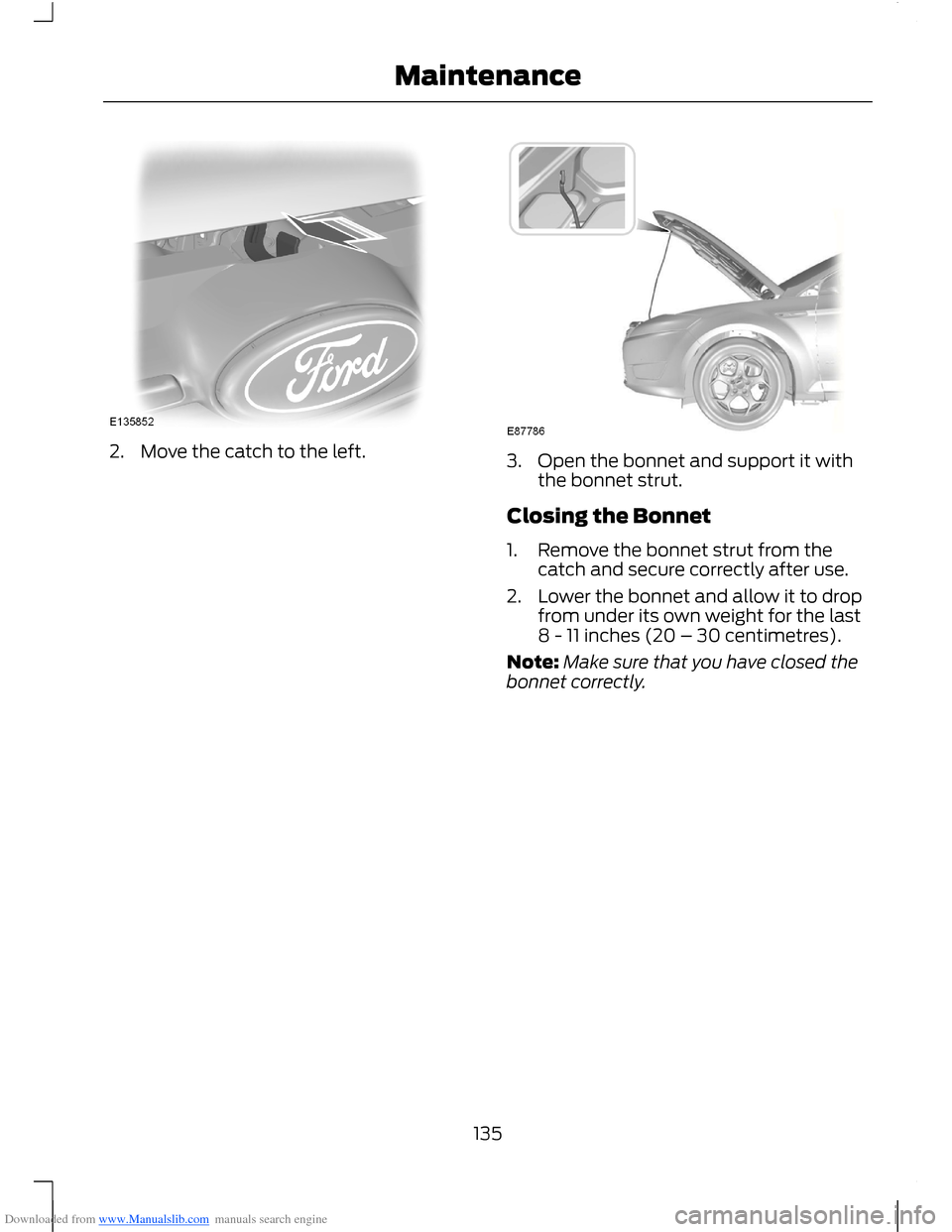
Downloaded from www.Manualslib.com manuals search engine 2.Move the catch to the left.3.Open the bonnet and support it withthe bonnet strut.
Closing the Bonnet
1.Remove the bonnet strut from thecatch and secure correctly after use.
2.Lower the bonnet and allow it to dropfrom under its own weight for the last8 - 11 inches (20 – 30 centimetres).
Note:Make sure that you have closed thebonnet correctly.
135Maintenance
Page 165 of 256
Downloaded from www.Manualslib.com manuals search engine Note:Make sure that you pull the wheeltrim remover at right angles to the trim.
Removing a Road Wheel
WARNINGS
Park your vehicle in such a positionthat neither the traffic nor you arehindered or endangered.
Set up a warning triangle.
Make sure that your vehicle is on firm,level ground with the wheels pointingstraight ahead.
Switch the ignition off and apply theparking brake.
If your vehicle has a manualtransmission, move the selector leverto first or reverse gear. If it has anautomatic transmission, move the selectorlever to position (P).
Have the passengers leave yourvehicle.
Secure the diagonally oppositewheel with an appropriate block orwheel chock.
Make sure that the arrows ondirectional tyres point in the directionof rotation when your vehicle ismoving forward. If you have to fit a sparewheel with the arrows pointing in theopposite direction, have the tyre refittedin the correct direction by an authoriseddealer.
Do not work underneath your vehiclewhen it is supported only by a jack.
Make sure that the jack is vertical tothe jacking point and the base is flaton the ground.
Note:Do not lay alloy wheels face downon the ground, this will damage the paint.
Note:The spare wheel is located under thefloor cover in the luggage compartment.
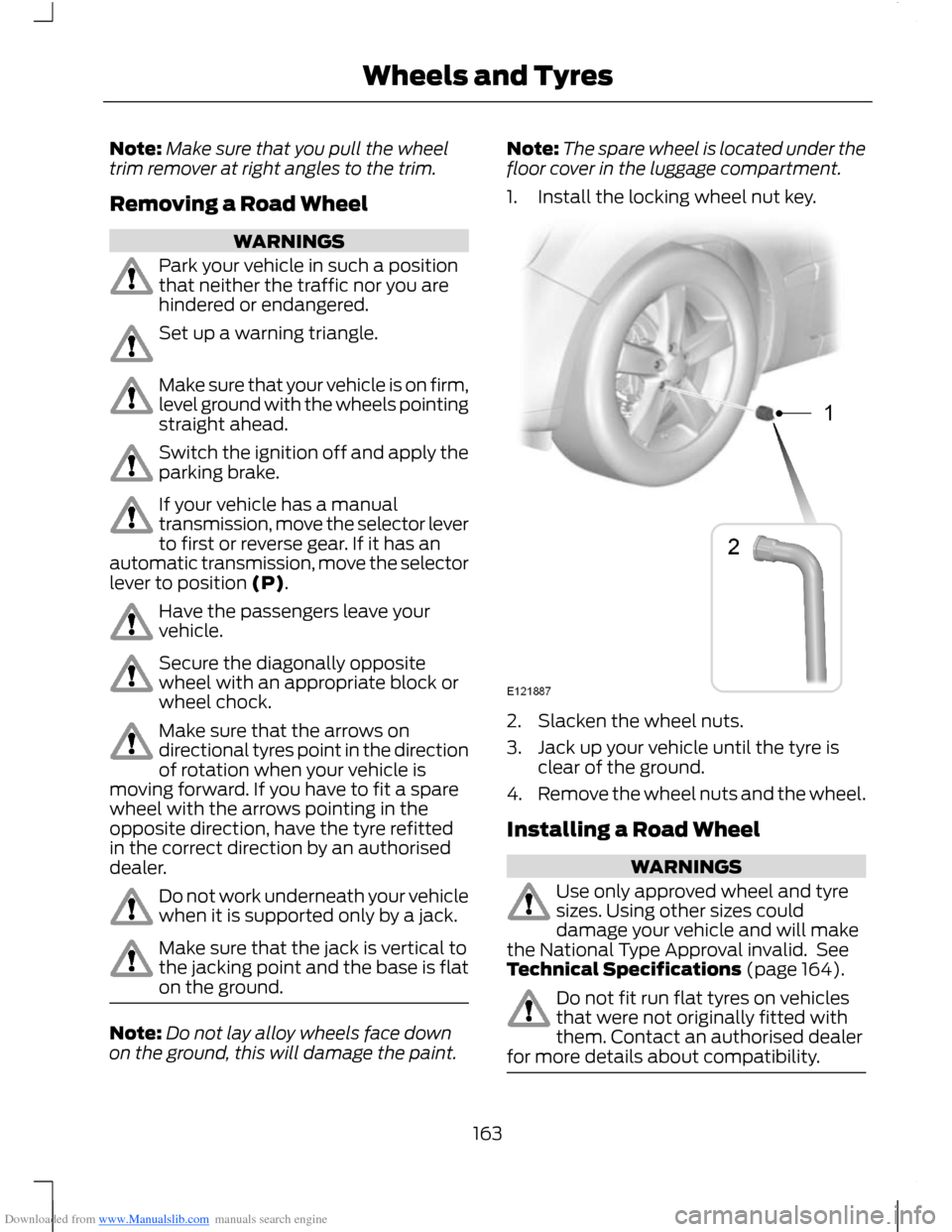
1.Install the locking wheel nut key.
2.Slacken the wheel nuts.
3.Jack up your vehicle until the tyre isclear of the ground.
4.Remove the wheel nuts and the wheel.
Installing a Road Wheel
WARNINGS
Use only approved wheel and tyresizes. Using other sizes coulddamage your vehicle and will makethe National Type Approval invalid. SeeTechnical Specifications (page 164).
Do not fit run flat tyres on vehiclesthat were not originally fitted withthem. Contact an authorised dealerfor more details about compatibility.
163Wheels and Tyres
Page 189 of 256
Downloaded from www.Manualslib.com manuals search engine When selected, AF will be shown in thedisplay.
1.Press the MENU button.
2.Select AUDIO or AUDIO SETTINGS.
3.Scroll to ALTERNAT FREQ. orALTERNATIVE FREQ. and turn on oroff with the OK button.
4.Press the MENU button to return.
Regional Mode
Regional mode controls the behaviour ofalternative frequencies switching betweenregionally related networks of a parentbroadcaster. A broadcaster may run a fairlylarge network across a large part of thecountry. At various times of the day thislarge network may be broken down into anumber of smaller regional networks,typically centred on major towns or cities.When the network is not split into regionalvariants, the whole network caries thesame programming.
Regional mode ON: This prevents randomalternative frequency switches whenneighbouring regional networks are notcarrying the same programming.
Regional mode OFF: This allows a largercoverage area if neighbouring regionalnetworks are carrying the sameprogramming, but can cause 'random'alternative frequency switches if they arenot.
1.Press the MENU button.
2.Select AUDIO or AUDIO SETTINGS.
3.Scroll to RDS REGIONAL and turn onor off with the OK button.
4.Press the MENU button to return.
AUDIO SYSTEM SECURITY
Each unit incorporates a unique code thatis linked to the vehicle identificationnumber. The system will automaticallycheck that the audio unit and vehiclematch before allowing operation.
If a security code message appears, see anauthorised dealer.
COMPACT DISC PLAYER -
VEHICLES WITH: AM/FM/CD
Compact Disc Playback
Note:During playback, the display indicatesthe disc, track and time that has elapsedsince the start of the track.
During radio reception, press the CD buttononce to start CD playback.
After a disc is loaded, playback will startimmediately.
Track Selection
•Press the seek down button once toreplay the current track. If pressedwithin two seconds of the start of atrack, the previous track will beselected.
•Press the up or down arrow buttons toselect the required track, then pressthe OK button.
Fast Forward and Reverse
Press and hold the seek down or upbuttons to search backward or forwardwithin the tracks on the disc.
Shuffle and Random
Random track playback, also known asshuffle, plays all tracks on the CD inrandom order.
187Audio System
Page 196 of 256
Downloaded from www.Manualslib.com manuals search engine AUXILIARY INPUT SOCKET
WARNINGS
Driving while distracted can result inloss of vehicle control, accident andinjury. We strongly recommend thatyou use extreme caution when using anydevice or feature that may take your focusoff the road. Your primary responsibility isthe safe operation of your vehicle. Werecommend against the use of anyhandheld device while driving andencourage the use of voice-operatedsystems when possible. Make sure you areaware of all applicable local laws that mayaffect the use of electronic devices whiledriving.
For safety reasons, do not connector adjust the settings on yourportable music player while yourvehicle is moving.
Store the portable music player in asecure location, such as the centreconsole or the glove box, when yourvehicle is in moving. Hard objects maybecome projectiles in a collision or suddenstop, which may increase the risk of seriousinjury. The audio extension cable must belong enough to allow the portable musicplayer to be safely stored while yourvehicle is moving.
The auxiliary input jack allows you toconnect and play music from your portablemusic player through your vehicle speakers.You can use any portable music playerdesigned for use with headphones. Youraudio extension cable must have maleone-eighth inch (three and one-halfmillimetre) connectors at each end.
1.Make sure your vehicle, radio andportable music player are turned offand move the transmission selectorlever to position P.
2.Plug the extension cable from theportable music player into the auxiliaryinput jack.
3.Switch the radio on. Select either atuned FM station or a CD.
4.Adjust the volume as desired.
5.Switch the portable music player onand adjust its volume to half itsmaximum level.
6.Press AUX until LINE or LINE INappears in the display. You should hearmusic from your device even if it is low.
7.Adjust the volume on your portablemusic player until it reaches the volumelevel of the FM station or CD. Do thisby switching back and forth betweenthe AUX and FM or CD controls.
194Audio System
Page 211 of 256
Downloaded from www.Manualslib.com manuals search engine You CanIf You Select
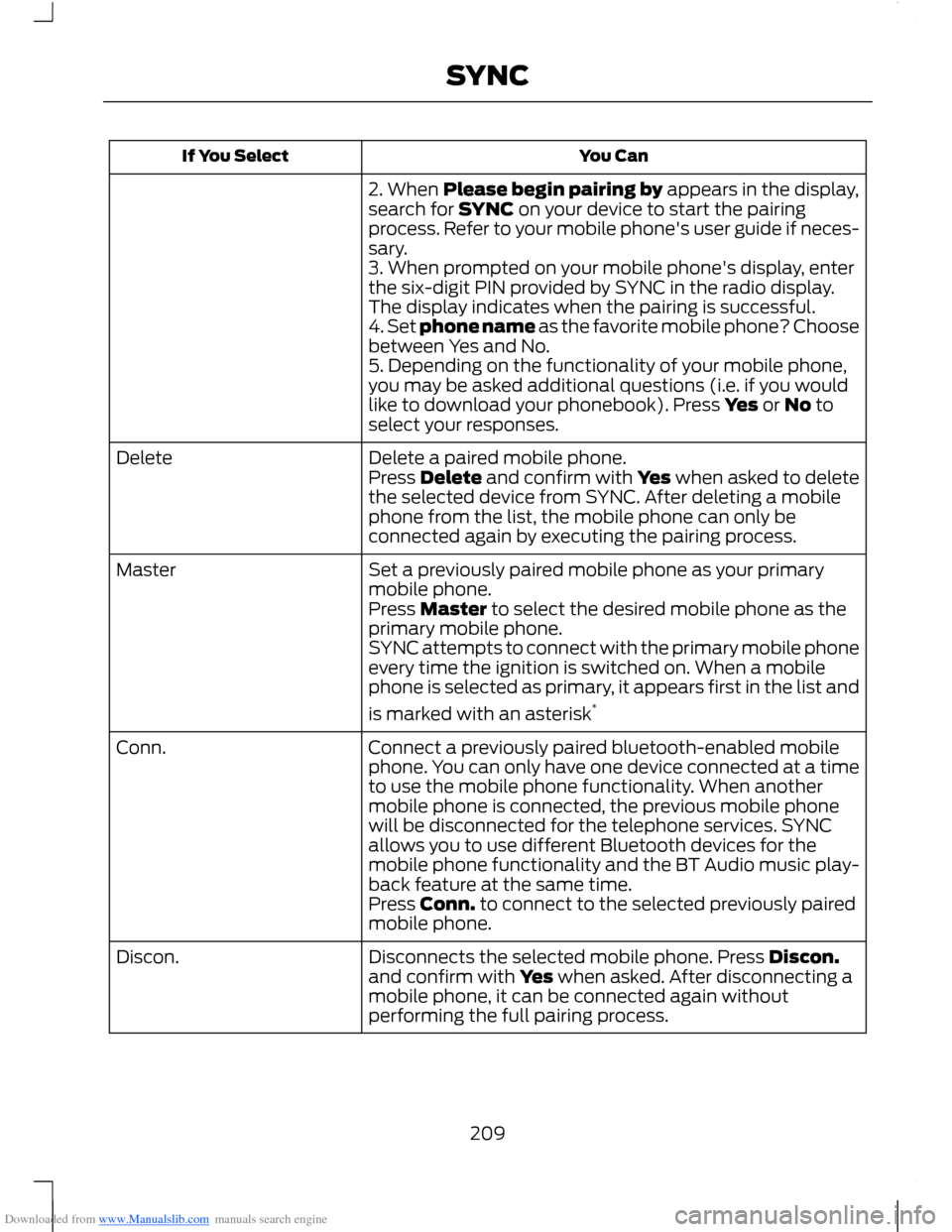
2. When Please begin pairing by appears in the display,search for SYNC on your device to start the pairingprocess. Refer to your mobile phone's user guide if neces-sary.3. When prompted on your mobile phone's display, enterthe six-digit PIN provided by SYNC in the radio display.The display indicates when the pairing is successful.4. Set phone name as the favorite mobile phone? Choosebetween Yes and No.5. Depending on the functionality of your mobile phone,you may be asked additional questions (i.e. if you wouldlike to download your phonebook). Press Yes or No toselect your responses.
Delete a paired mobile phone.DeletePress Delete and confirm with Yes when asked to deletethe selected device from SYNC. After deleting a mobilephone from the list, the mobile phone can only beconnected again by executing the pairing process.
Set a previously paired mobile phone as your primarymobile phone.Master
Press Master to select the desired mobile phone as theprimary mobile phone.SYNC attempts to connect with the primary mobile phoneevery time the ignition is switched on. When a mobilephone is selected as primary, it appears first in the list and
is marked with an asterisk*
Connect a previously paired bluetooth-enabled mobilephone. You can only have one device connected at a timeto use the mobile phone functionality. When anothermobile phone is connected, the previous mobile phonewill be disconnected for the telephone services. SYNCallows you to use different Bluetooth devices for themobile phone functionality and the BT Audio music play-back feature at the same time.
Conn.
Press Conn. to connect to the selected previously pairedmobile phone.
Disconnects the selected mobile phone. Press Discon.and confirm with Yes when asked. After disconnecting amobile phone, it can be connected again withoutperforming the full pairing process.
Discon.
209SYNC
Page 213 of 256
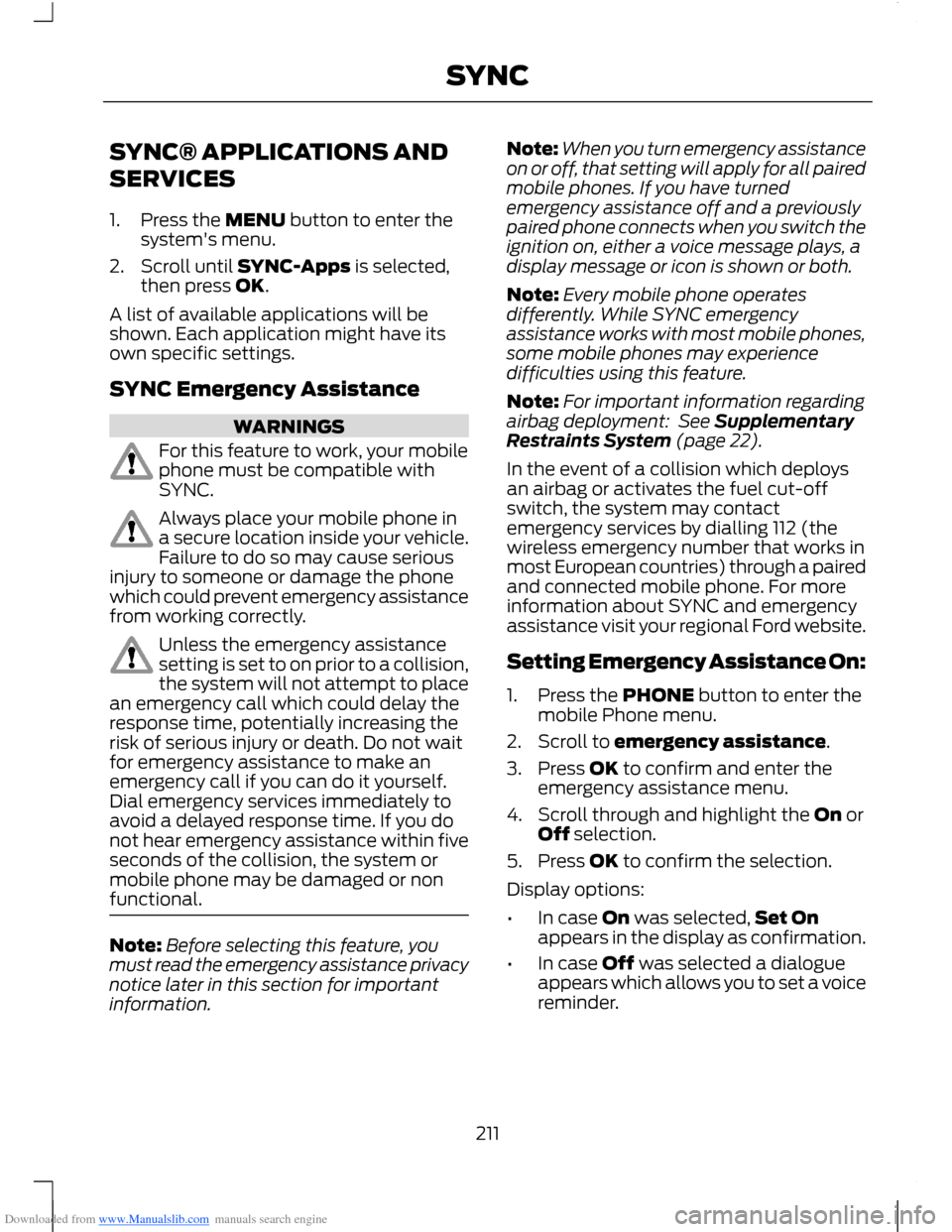
Downloaded from www.Manualslib.com manuals search engine SYNC® APPLICATIONS AND
SERVICES
1.Press the MENU button to enter thesystem's menu.
2.Scroll until SYNC-Apps is selected,then press OK.
A list of available applications will beshown. Each application might have itsown specific settings.
SYNC Emergency Assistance
WARNINGS
For this feature to work, your mobilephone must be compatible withSYNC.
Always place your mobile phone ina secure location inside your vehicle.Failure to do so may cause seriousinjury to someone or damage the phonewhich could prevent emergency assistancefrom working correctly.
Unless the emergency assistancesetting is set to on prior to a collision,the system will not attempt to placean emergency call which could delay theresponse time, potentially increasing therisk of serious injury or death. Do not waitfor emergency assistance to make anemergency call if you can do it yourself.Dial emergency services immediately toavoid a delayed response time. If you donot hear emergency assistance within fiveseconds of the collision, the system ormobile phone may be damaged or nonfunctional.
Note:Before selecting this feature, youmust read the emergency assistance privacynotice later in this section for importantinformation.
Note:When you turn emergency assistanceon or off, that setting will apply for all pairedmobile phones. If you have turnedemergency assistance off and a previouslypaired phone connects when you switch theignition on, either a voice message plays, adisplay message or icon is shown or both.
Note:Every mobile phone operatesdifferently. While SYNC emergencyassistance works with most mobile phones,some mobile phones may experiencedifficulties using this feature.
Note:For important information regardingairbag deployment: See SupplementaryRestraints System (page 22).
In the event of a collision which deploysan airbag or activates the fuel cut-offswitch, the system may contactemergency services by dialling 112 (thewireless emergency number that works inmost European countries) through a pairedand connected mobile phone. For moreinformation about SYNC and emergencyassistance visit your regional Ford website.
Setting Emergency Assistance On:
1.Press the PHONE button to enter themobile Phone menu.
2.Scroll to emergency assistance.
3.Press OK to confirm and enter theemergency assistance menu.
4.Scroll through and highlight the On orOff selection.
5.Press OK to confirm the selection.
Display options:
•In case On was selected,Set Onappears in the display as confirmation.
•In case Off was selected a dialogueappears which allows you to set a voicereminder.
211SYNC
Page 221 of 256
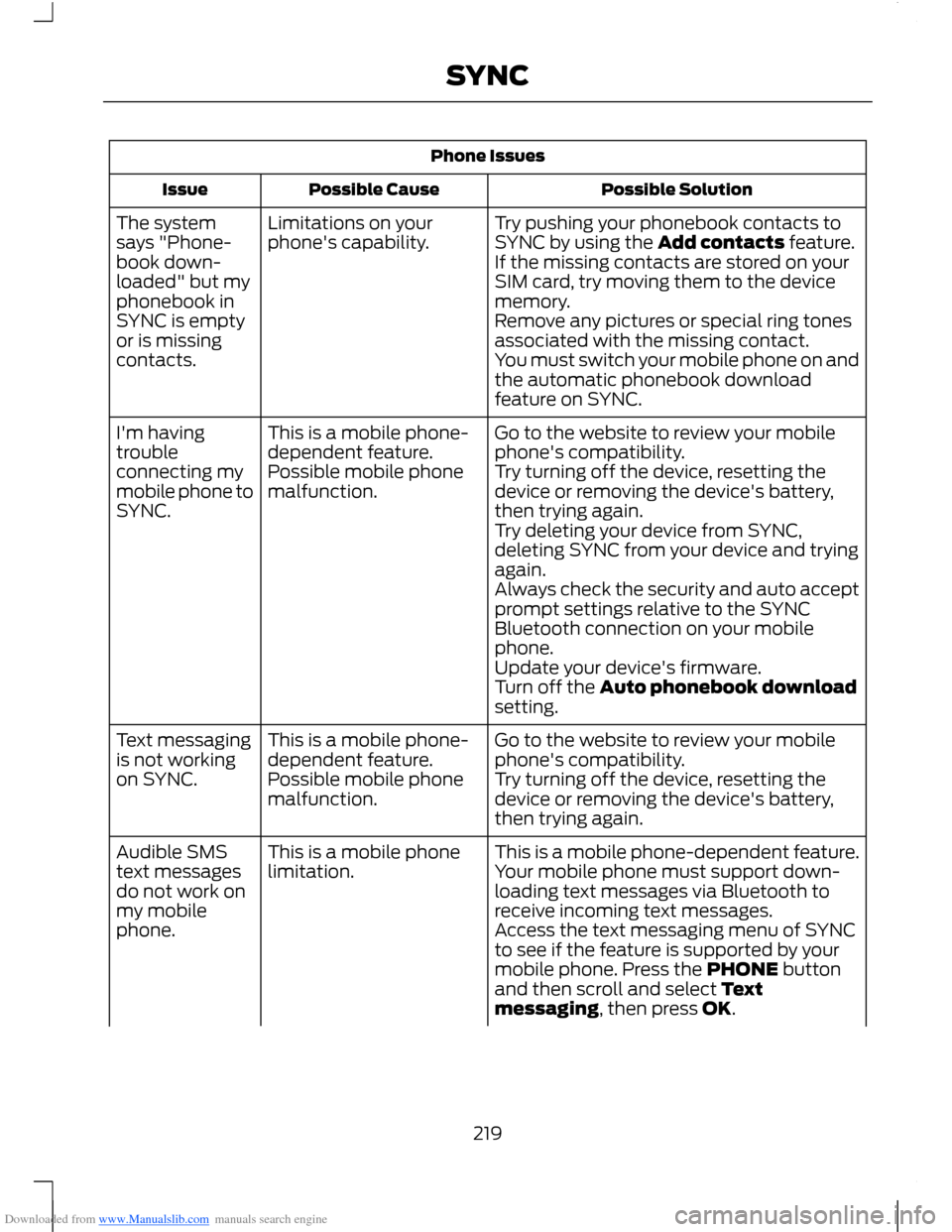
Downloaded from www.Manualslib.com manuals search engine Phone Issues
Possible SolutionPossible CauseIssue
Try pushing your phonebook contacts toSYNC by using the Add contacts feature.Limitations on yourphone's capability.The systemsays "Phone-book down-loaded" but myphonebook inSYNC is emptyor is missingcontacts.
If the missing contacts are stored on yourSIM card, try moving them to the devicememory.Remove any pictures or special ring tonesassociated with the missing contact.You must switch your mobile phone on andthe automatic phonebook downloadfeature on SYNC.
Go to the website to review your mobilephone's compatibility.This is a mobile phone-dependent feature.I'm havingtroubleconnecting mymobile phone toSYNC.
Try turning off the device, resetting thedevice or removing the device's battery,then trying again.
Possible mobile phonemalfunction.
Try deleting your device from SYNC,deleting SYNC from your device and tryingagain.Always check the security and auto acceptprompt settings relative to the SYNCBluetooth connection on your mobilephone.Update your device's firmware.Turn off the Auto phonebook downloadsetting.
Go to the website to review your mobilephone's compatibility.This is a mobile phone-dependent feature.Text messagingis not workingon SYNC.Try turning off the device, resetting thedevice or removing the device's battery,then trying again.
Possible mobile phonemalfunction.
This is a mobile phone-dependent feature.Your mobile phone must support down-loading text messages via Bluetooth toreceive incoming text messages.
This is a mobile phonelimitation.Audible SMStext messagesdo not work onmy mobilephone.Access the text messaging menu of SYNCto see if the feature is supported by yourmobile phone. Press the PHONE buttonand then scroll and select Textmessaging, then press OK.
219SYNC
Page 222 of 256
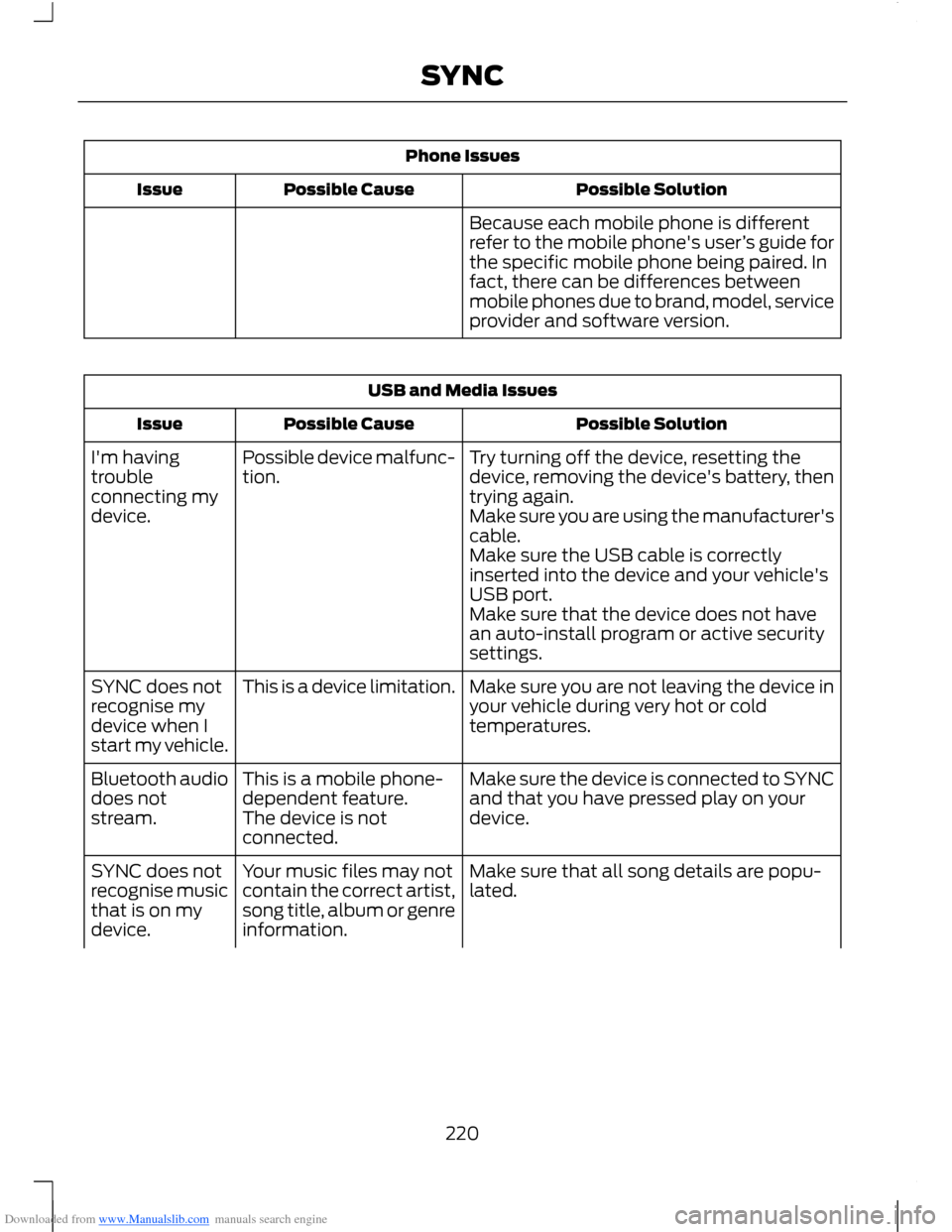
Downloaded from www.Manualslib.com manuals search engine Phone Issues
Possible SolutionPossible CauseIssue
Because each mobile phone is differentrefer to the mobile phone's user’s guide forthe specific mobile phone being paired. Infact, there can be differences betweenmobile phones due to brand, model, serviceprovider and software version.
USB and Media Issues
Possible SolutionPossible CauseIssue
Try turning off the device, resetting thedevice, removing the device's battery, thentrying again.
Possible device malfunc-tion.I'm havingtroubleconnecting mydevice.Make sure you are using the manufacturer'scable.Make sure the USB cable is correctlyinserted into the device and your vehicle'sUSB port.Make sure that the device does not havean auto-install program or active securitysettings.
Make sure you are not leaving the device inyour vehicle during very hot or coldtemperatures.
This is a device limitation.SYNC does notrecognise mydevice when Istart my vehicle.
Make sure the device is connected to SYNCand that you have pressed play on yourdevice.
This is a mobile phone-dependent feature.The device is notconnected.
Bluetooth audiodoes notstream.
Make sure that all song details are popu-lated.Your music files may notcontain the correct artist,song title, album or genreinformation.
SYNC does notrecognise musicthat is on mydevice.
220SYNC
Page 224 of 256
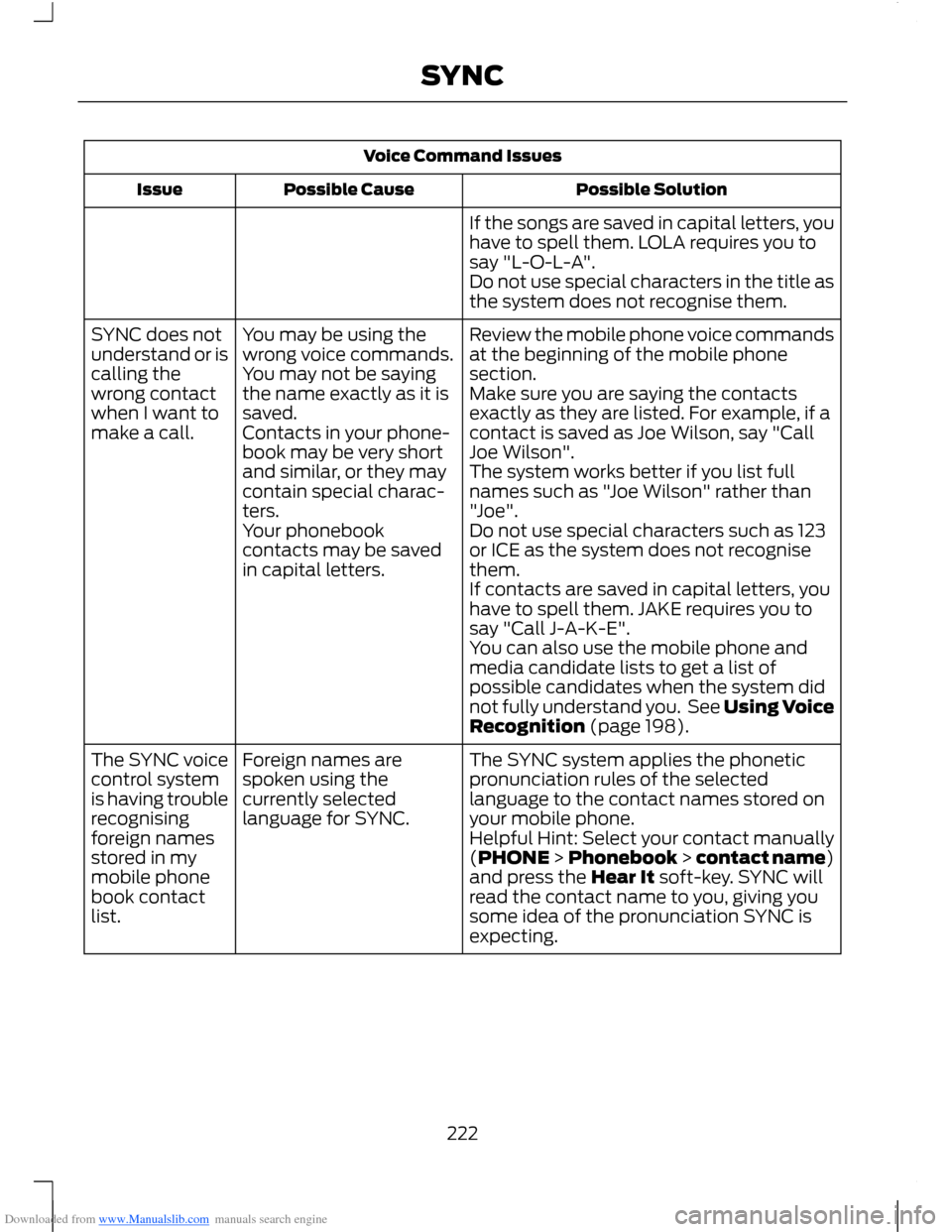
Downloaded from www.Manualslib.com manuals search engine Voice Command Issues
Possible SolutionPossible CauseIssue
If the songs are saved in capital letters, youhave to spell them. LOLA requires you tosay "L-O-L-A".Do not use special characters in the title asthe system does not recognise them.
Review the mobile phone voice commandsat the beginning of the mobile phonesection.
You may be using thewrong voice commands.You may not be sayingthe name exactly as it issaved.
SYNC does notunderstand or iscalling thewrong contactwhen I want tomake a call.
Make sure you are saying the contactsexactly as they are listed. For example, if acontact is saved as Joe Wilson, say "CallJoe Wilson".Contacts in your phone-book may be very shortand similar, or they maycontain special charac-ters.
The system works better if you list fullnames such as "Joe Wilson" rather than"Joe".Your phonebookcontacts may be savedin capital letters.
Do not use special characters such as 123or ICE as the system does not recognisethem.If contacts are saved in capital letters, youhave to spell them. JAKE requires you tosay "Call J-A-K-E".You can also use the mobile phone andmedia candidate lists to get a list ofpossible candidates when the system didnot fully understand you. See Using VoiceRecognition (page 198).
The SYNC system applies the phoneticpronunciation rules of the selectedlanguage to the contact names stored onyour mobile phone.
Foreign names arespoken using thecurrently selectedlanguage for SYNC.
The SYNC voicecontrol systemis having troublerecognisingforeign namesstored in mymobile phonebook contactlist.
Helpful Hint: Select your contact manually(PHONE > Phonebook > contact name)and press the Hear It soft-key. SYNC willread the contact name to you, giving yousome idea of the pronunciation SYNC isexpecting.
222SYNC
Page 225 of 256
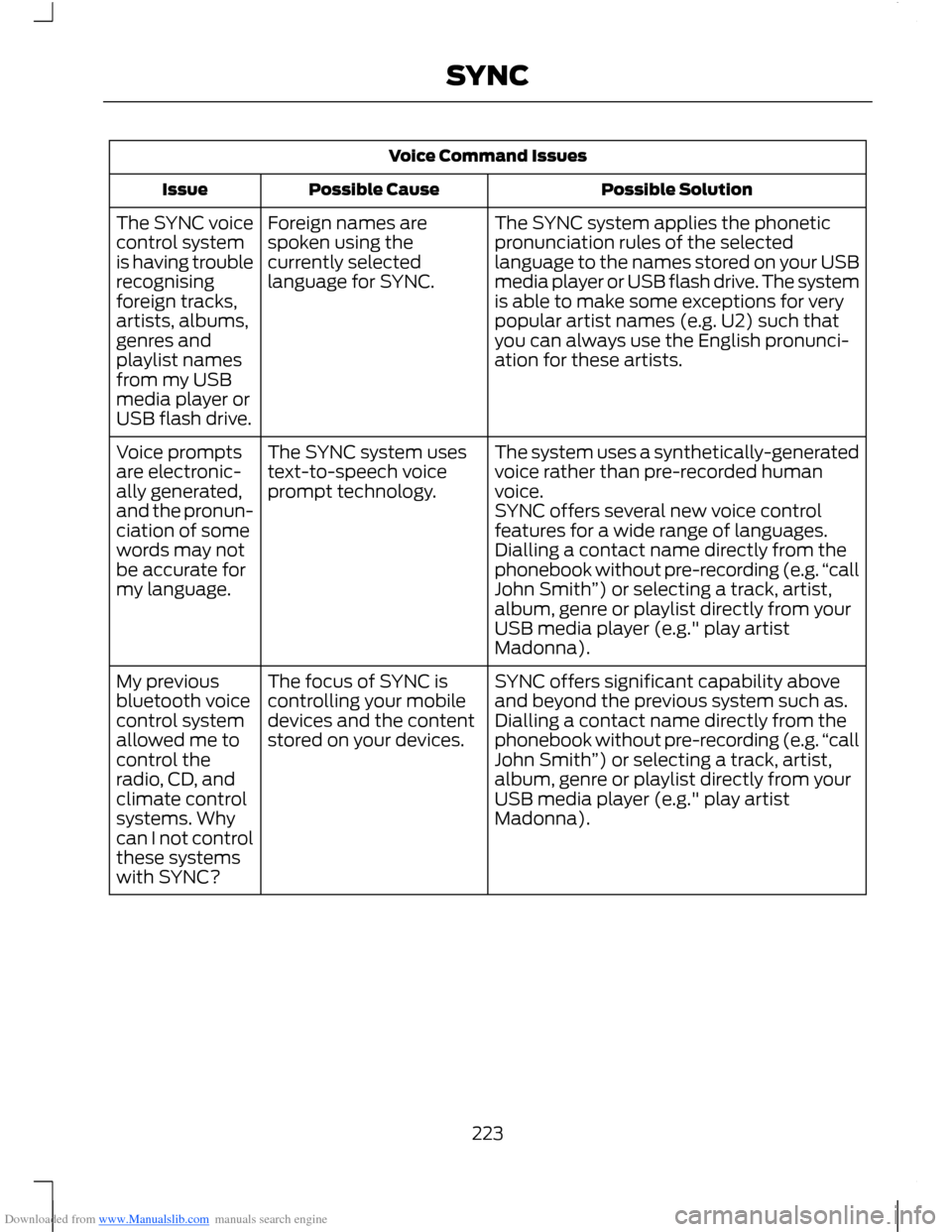
Downloaded from www.Manualslib.com manuals search engine Voice Command Issues
Possible SolutionPossible CauseIssue
The SYNC system applies the phoneticpronunciation rules of the selectedlanguage to the names stored on your USBmedia player or USB flash drive. The systemis able to make some exceptions for verypopular artist names (e.g. U2) such thatyou can always use the English pronunci-ation for these artists.
Foreign names arespoken using thecurrently selectedlanguage for SYNC.
The SYNC voicecontrol systemis having troublerecognisingforeign tracks,artists, albums,genres andplaylist namesfrom my USBmedia player orUSB flash drive.
The system uses a synthetically-generatedvoice rather than pre-recorded humanvoice.
The SYNC system usestext-to-speech voiceprompt technology.
Voice promptsare electronic-ally generated,and the pronun-ciation of somewords may notbe accurate formy language.
SYNC offers several new voice controlfeatures for a wide range of languages.Dialling a contact name directly from thephonebook without pre-recording (e.g.“callJohn Smith”) or selecting a track, artist,album, genre or playlist directly from yourUSB media player (e.g." play artistMadonna).
SYNC offers significant capability aboveand beyond the previous system such as.The focus of SYNC iscontrolling your mobiledevices and the contentstored on your devices.
My previousbluetooth voicecontrol systemallowed me tocontrol theradio, CD, andclimate controlsystems. Whycan I not controlthese systemswith SYNC?
Dialling a contact name directly from thephonebook without pre-recording (e.g.“callJohn Smith”) or selecting a track, artist,album, genre or playlist directly from yourUSB media player (e.g." play artistMadonna).
223SYNC