AUX FORD E SERIES 2015 4.G Owner's Manual
[x] Cancel search | Manufacturer: FORD, Model Year: 2015, Model line: E SERIES, Model: FORD E SERIES 2015 4.GPages: 360, PDF Size: 3.28 MB
Page 305 of 360
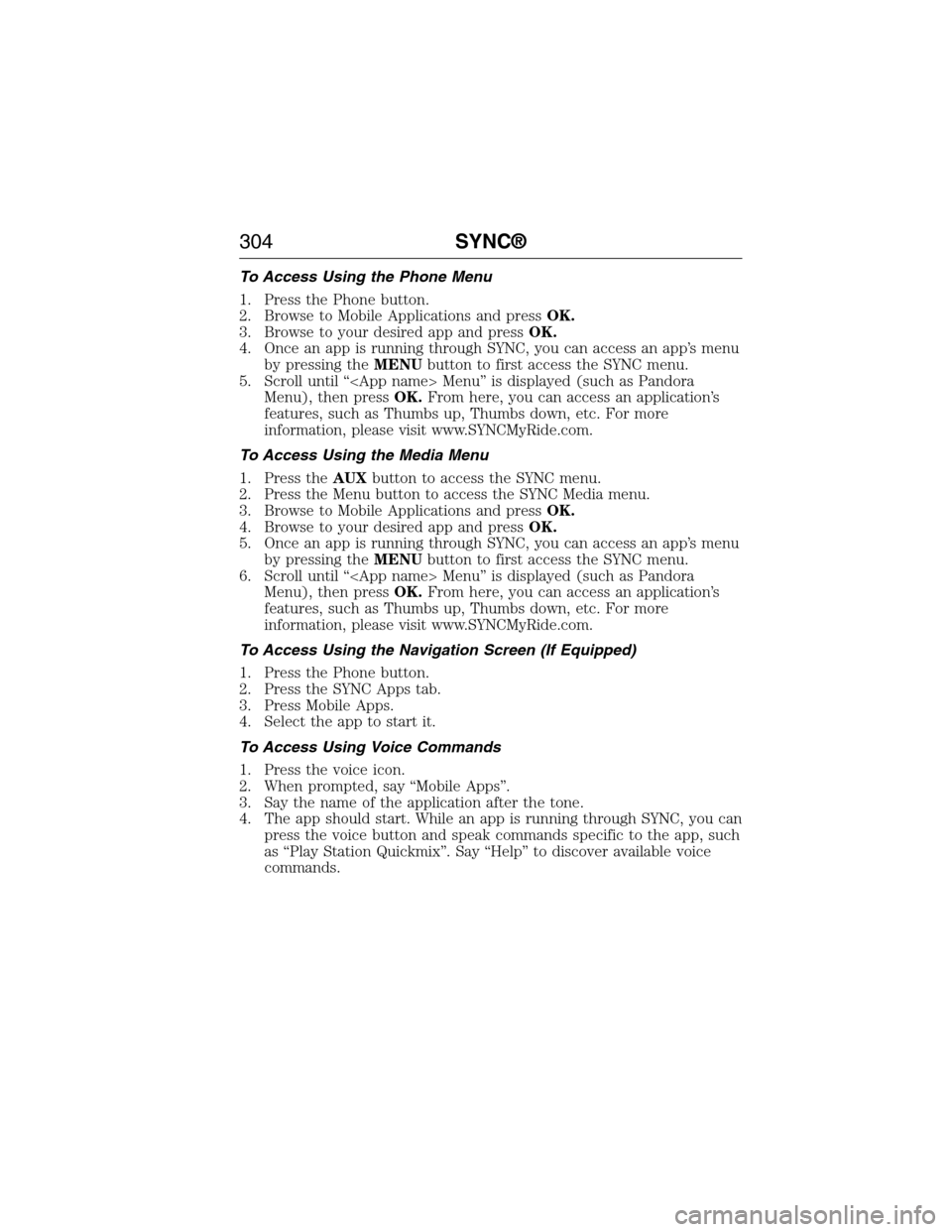
To Access Using the Phone Menu
1. Press the Phone button.
2. Browse to Mobile Applications and pressOK.
3. Browse to your desired app and pressOK.
4. Once an app is running through SYNC, you can access an app’s menu
by pressing theMENUbutton to first access the SYNC menu.
5. Scroll until “
Menu), then pressOK.From here, you can access an application’s
features, such as Thumbs up, Thumbs down, etc. For more
information, please visit www.SYNCMyRide.com.
To Access Using the Media Menu
1. Press theAUXbutton to access the SYNC menu.
2. Press the Menu button to access the SYNC Media menu.
3. Browse to Mobile Applications and pressOK.
4. Browse to your desired app and pressOK.
5. Once an app is running through SYNC, you can access an app’s menu
by pressing theMENUbutton to first access the SYNC menu.
6. Scroll until “
Menu), then pressOK.From here, you can access an application’s
features, such as Thumbs up, Thumbs down, etc. For more
information, please visit www.SYNCMyRide.com.
To Access Using the Navigation Screen (If Equipped)
1. Press the Phone button.
2. Press the SYNC Apps tab.
3. Press Mobile Apps.
4. Select the app to start it.
To Access Using Voice Commands
1. Press the voice icon.
2. When prompted, say “Mobile Apps”.
3. Say the name of the application after the tone.
4. The app should start. While an app is running through SYNC, you can
press the voice button and speak commands specific to the app, such
as “Play Station Quickmix”. Say “Help” to discover available voice
commands.
304SYNC®
2015 Econoline(eco)
Owners Guide gf, 1st Printing, June 2014
USA(fus)
Page 306 of 360
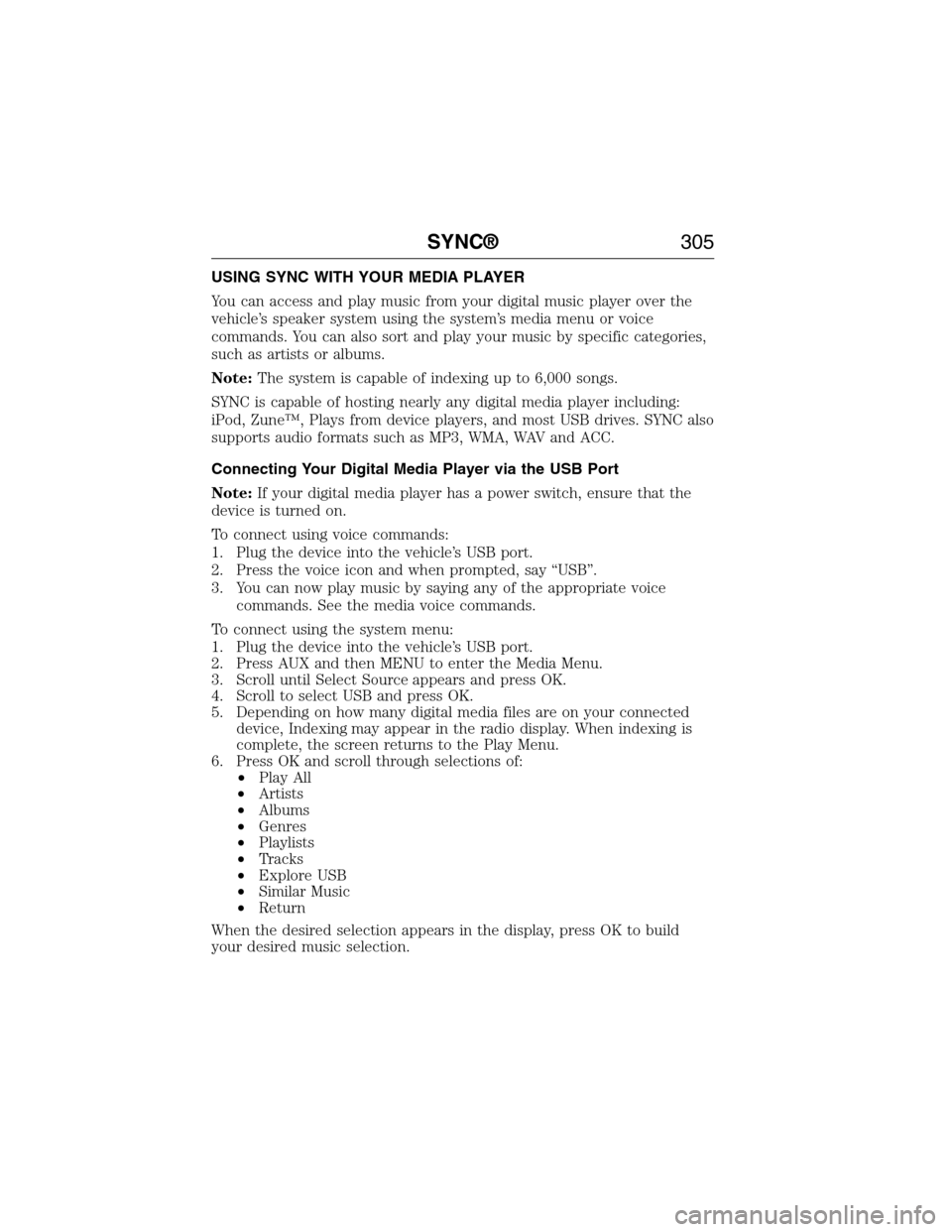
USING SYNC WITH YOUR MEDIA PLAYER
You can access and play music from your digital music player over the
vehicle’s speaker system using the system’s media menu or voice
commands. You can also sort and play your music by specific categories,
such as artists or albums.
Note:The system is capable of indexing up to 6,000 songs.
SYNC is capable of hosting nearly any digital media player including:
iPod, Zune™, Plays from device players, and most USB drives. SYNC also
supports audio formats such as MP3, WMA, WAV and ACC.
Connecting Your Digital Media Player via the USB Port
Note:If your digital media player has a power switch, ensure that the
device is turned on.
To connect using voice commands:
1. Plug the device into the vehicle’s USB port.
2. Press the voice icon and when prompted, say “USB”.
3. You can now play music by saying any of the appropriate voice
commands. See the media voice commands.
To connect using the system menu:
1. Plug the device into the vehicle’s USB port.
2. Press AUX and then MENU to enter the Media Menu.
3. Scroll until Select Source appears and press OK.
4. Scroll to select USB and press OK.
5. Depending on how many digital media files are on your connected
device, Indexing may appear in the radio display. When indexing is
complete, the screen returns to the Play Menu.
6. Press OK and scroll through selections of:
•Play All
•Artists
•Albums
•Genres
•Playlists
•Tracks
•Explore USB
•Similar Music
•Return
When the desired selection appears in the display, press OK to build
your desired music selection.
SYNC®305
2015 Econoline(eco)
Owners Guide gf, 1st Printing, June 2014
USA(fus)
Page 309 of 360
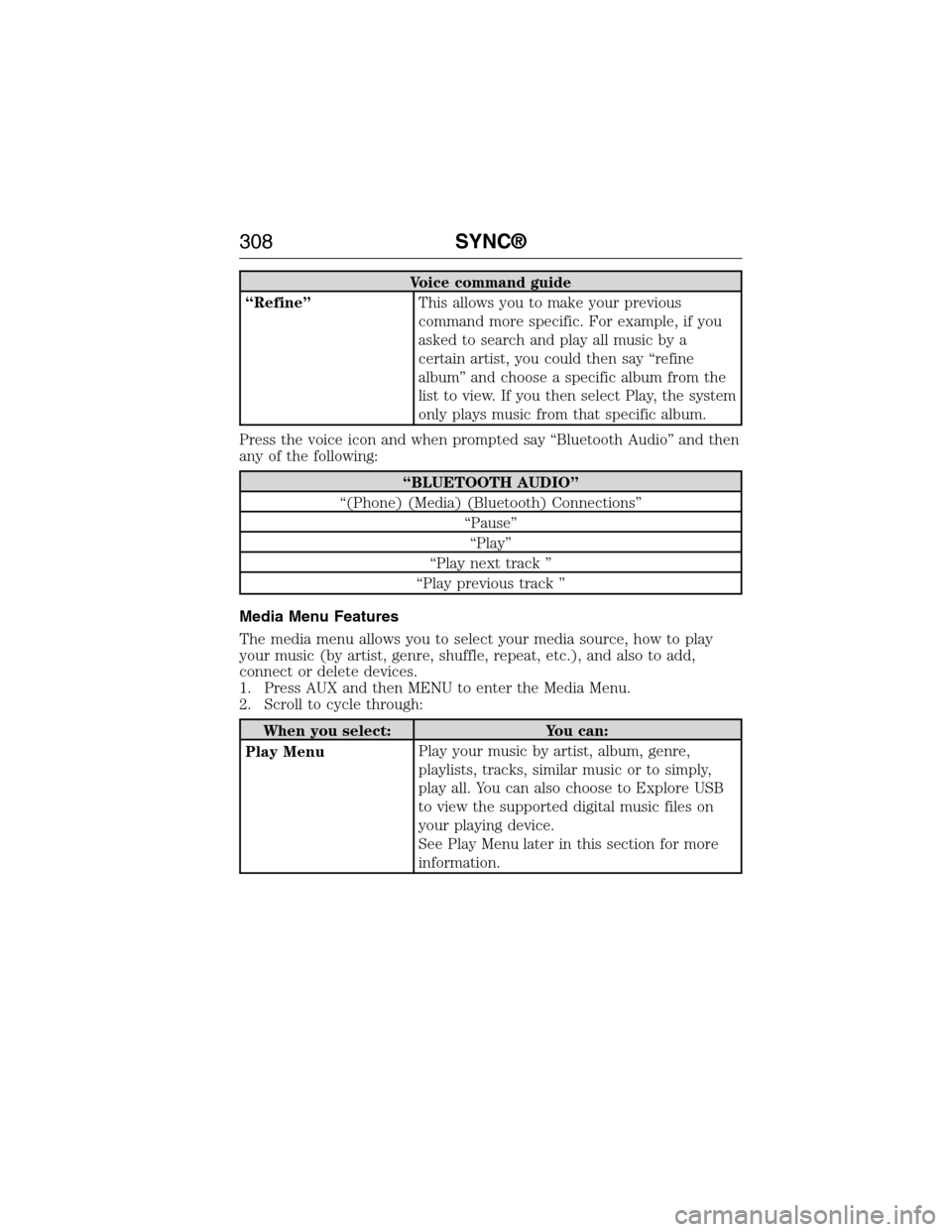
Voice command guide
“Refine”This allows you to make your previous
command more specific. For example, if you
asked to search and play all music by a
certain artist, you could then say “refine
album” and choose a specific album from the
list to view. If you then select Play, the system
only plays music from that specific album.
Press the voice icon and when prompted say “Bluetooth Audio” and then
any of the following:
“BLUETOOTH AUDIO”
“(Phone) (Media) (Bluetooth) Connections”
“Pause”
“Play”
“Play next track ”
“Play previous track ”
Media Menu Features
The media menu allows you to select your media source, how to play
your music (by artist, genre, shuffle, repeat, etc.), and also to add,
connect or delete devices.
1. Press AUX and then MENU to enter the Media Menu.
2. Scroll to cycle through:
When you select: You can:
Play MenuPlay your music by artist, album, genre,
playlists, tracks, similar music or to simply,
play all. You can also choose to Explore USB
to view the supported digital music files on
your playing device.
See Play Menu later in this section for more
information.
308SYNC®
2015 Econoline(eco)
Owners Guide gf, 1st Printing, June 2014
USA(fus)
Page 312 of 360
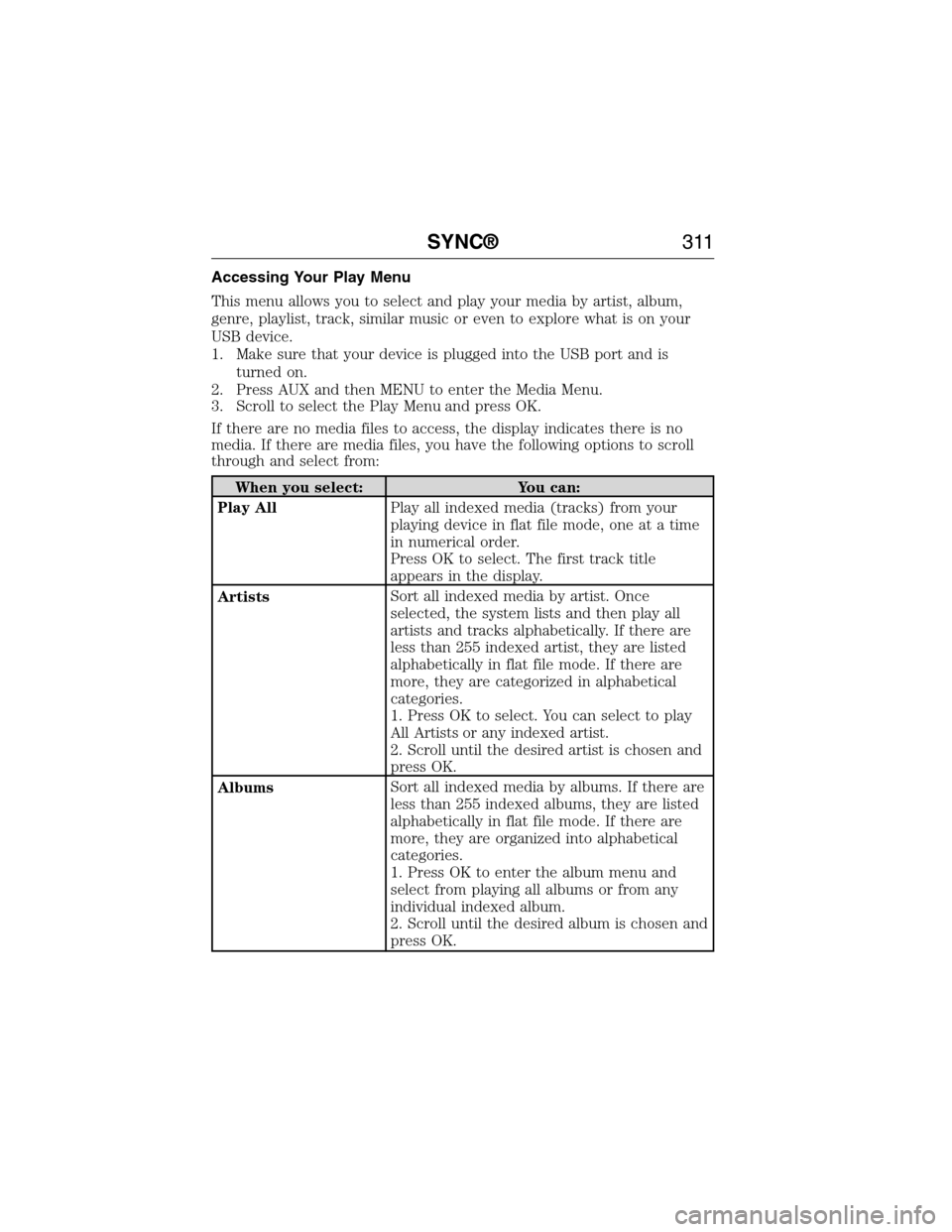
Accessing Your Play Menu
This menu allows you to select and play your media by artist, album,
genre, playlist, track, similar music or even to explore what is on your
USB device.
1. Make sure that your device is plugged into the USB port and is
turned on.
2. Press AUX and then MENU to enter the Media Menu.
3. Scroll to select the Play Menu and press OK.
If there are no media files to access, the display indicates there is no
media. If there are media files, you have the following options to scroll
through and select from:
When you select: You can:
Play AllPlay all indexed media (tracks) from your
playing device in flat file mode, one at a time
in numerical order.
Press OK to select. The first track title
appears in the display.
ArtistsSort all indexed media by artist. Once
selected, the system lists and then play all
artists and tracks alphabetically. If there are
less than 255 indexed artist, they are listed
alphabetically in flat file mode. If there are
more, they are categorized in alphabetical
categories.
1. Press OK to select. You can select to play
All Artists or any indexed artist.
2. Scroll until the desired artist is chosen and
press OK.
AlbumsSort all indexed media by albums. If there are
less than 255 indexed albums, they are listed
alphabetically in flat file mode. If there are
more, they are organized into alphabetical
categories.
1. Press OK to enter the album menu and
select from playing all albums or from any
individual indexed album.
2. Scroll until the desired album is chosen and
press OK.
SYNC®311
2015 Econoline(eco)
Owners Guide gf, 1st Printing, June 2014
USA(fus)
Page 314 of 360
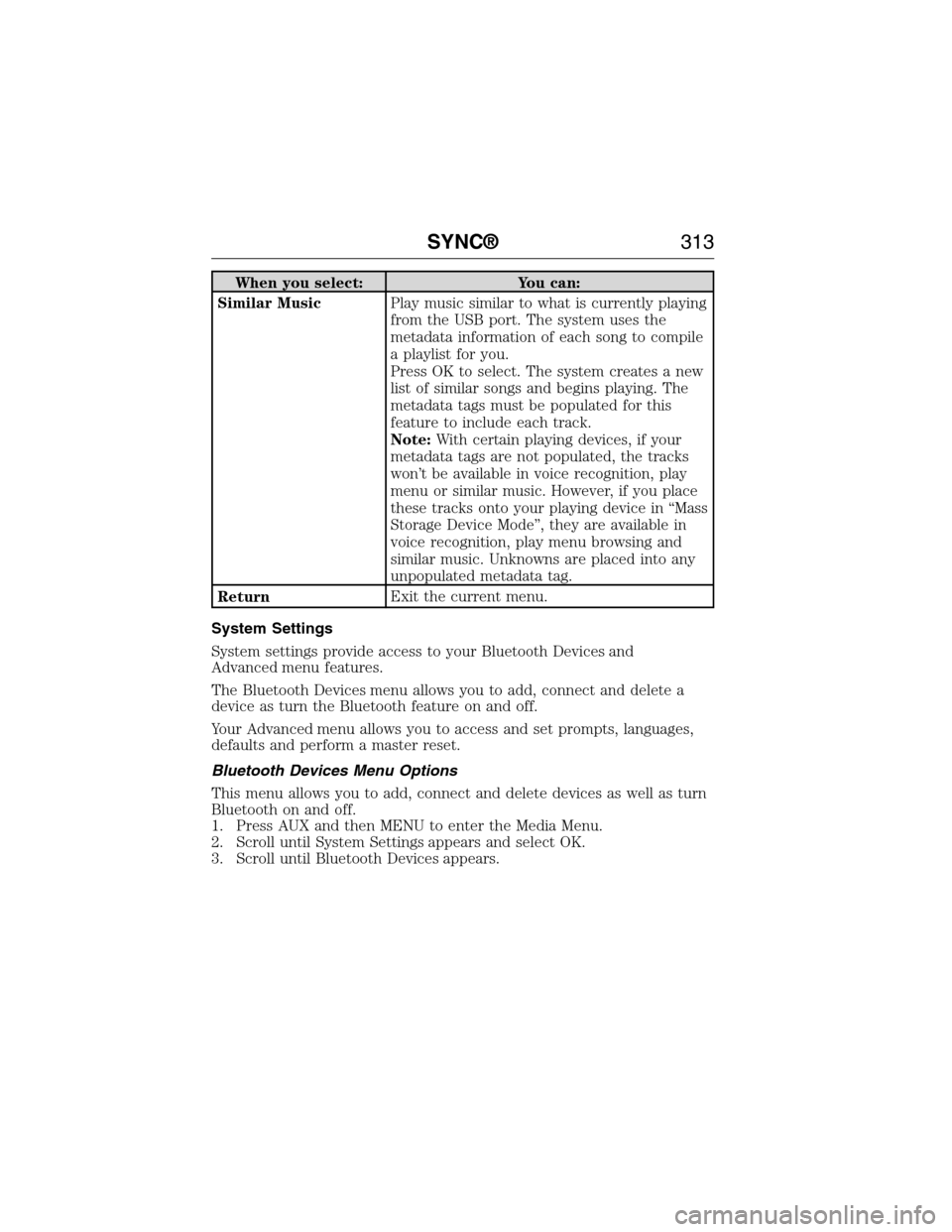
When you select: You can:
Similar MusicPlay music similar to what is currently playing
from the USB port. The system uses the
metadata information of each song to compile
a playlist for you.
Press OK to select. The system creates a new
list of similar songs and begins playing. The
metadata tags must be populated for this
feature to include each track.
Note:With certain playing devices, if your
metadata tags are not populated, the tracks
won’t be available in voice recognition, play
menu or similar music. However, if you place
these tracks onto your playing device in “Mass
Storage Device Mode”, they are available in
voice recognition, play menu browsing and
similar music. Unknowns are placed into any
unpopulated metadata tag.
ReturnExit the current menu.
System Settings
System settings provide access to your Bluetooth Devices and
Advanced menu features.
The Bluetooth Devices menu allows you to add, connect and delete a
device as turn the Bluetooth feature on and off.
Your Advanced menu allows you to access and set prompts, languages,
defaults and perform a master reset.
Bluetooth Devices Menu Options
This menu allows you to add, connect and delete devices as well as turn
Bluetooth on and off.
1. Press AUX and then MENU to enter the Media Menu.
2. Scroll until System Settings appears and select OK.
3. Scroll until Bluetooth Devices appears.
SYNC®313
2015 Econoline(eco)
Owners Guide gf, 1st Printing, June 2014
USA(fus)
Page 316 of 360
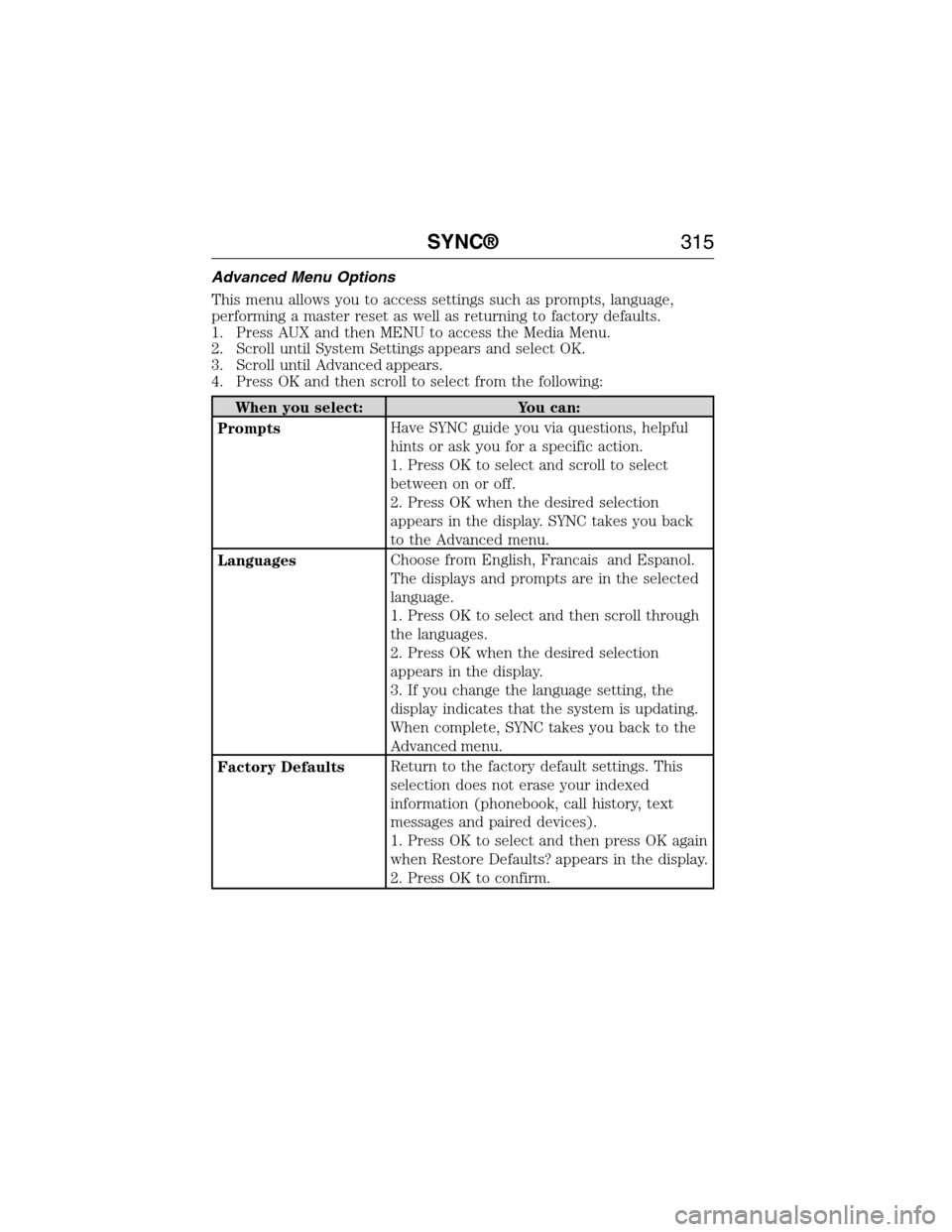
Advanced Menu Options
This menu allows you to access settings such as prompts, language,
performing a master reset as well as returning to factory defaults.
1. Press AUX and then MENU to access the Media Menu.
2. Scroll until System Settings appears and select OK.
3. Scroll until Advanced appears.
4. Press OK and then scroll to select from the following:
When you select: You can:
PromptsHave SYNC guide you via questions, helpful
hints or ask you for a specific action.
1. Press OK to select and scroll to select
between on or off.
2. Press OK when the desired selection
appears in the display. SYNC takes you back
to the Advanced menu.
LanguagesChoose from English, Francais and Espanol.
The displays and prompts are in the selected
language.
1. Press OK to select and then scroll through
the languages.
2. Press OK when the desired selection
appears in the display.
3. If you change the language setting, the
display indicates that the system is updating.
When complete, SYNC takes you back to the
Advanced menu.
Factory DefaultsReturn to the factory default settings. This
selection does not erase your indexed
information (phonebook, call history, text
messages and paired devices).
1. Press OK to select and then press OK again
when Restore Defaults? appears in the display.
2. Press OK to confirm.
SYNC®315
2015 Econoline(eco)
Owners Guide gf, 1st Printing, June 2014
USA(fus)
Page 355 of 360
911 Assist™ ..............................296
A
ABS (see Brakes) .....................113
Accessing call history/phone
book during active call .............284
Accessing your media menu
features ......................................308
Accessing your phone menu
features ......................................286
Accessory delay ..........................63
Active call menu options .........284
Advanced menu options ...294, 315
Advanced menu options
(prompts, languages, defaults,
master reset, installing
applications) ..............................294
Airbag supplemental restraint
system ..........................................40
and child safety seats ..............41
description ................................40
disposal ......................................47
driver airbag ..............................40
passenger airbag .......................40
passenger deactivation
switch ........................................41
side airbag .................................40
Air cleaner filter .......190–191, 255
Air conditioning ....................82–83
manual heating and air
conditioning system ...........82–83
Ambulance packages ..................14
Antifreeze (see Engine
coolant) .....................................172
Anti-lock brake system (see
Brakes) ......................................113Anti-theft system ........................55
arming the system ....................56
AppLink™ .................................303
Audio system
Single CD ........................266–267
Audio system
(see Radio) ........................266–267
Automatic transmission
driving an automatic
overdrive .................................108
fluid, adding ............................177
fluid, checking ........................177
fluid, refill capacities ..............250
fluid, specification ..................250
Auxiliary input jack (Line in) ..272
Auxiliary powerpoint ..................90
Axle
lubricant specifications ..........250
refill capacities ........................250
traction lok ..............................112
B
Battery .......................................186
acid, treating emergencies .....186
jumping a disabled battery ....148
maintenance-free ....................186
replacement, specifications ...255
servicing ..................................186
Booster seats ...............................21
Brakes ........................................113
anti-lock ...................................113
anti-lock brake system (ABS)
warning light ...........................113
brake warning light ................113
fluid, checking and adding ....184
fluid, refill capacities ..............250
fluid, specifications .................250
lubricant specifications ..........250
354Index
2015 Econoline(eco)
Owners Guide gf, 1st Printing, June 2014
USA(fus)