wheel FORD EDGE 2014 1.G Owners Manual
[x] Cancel search | Manufacturer: FORD, Model Year: 2014, Model line: EDGE, Model: FORD EDGE 2014 1.GPages: 540, PDF Size: 7.52 MB
Page 458 of 540
Internet Data Connection
If your phone is compatible, use this screen to adjust your internet data
connection. Select to make your connection profile with the personal
area network or to turn off your connection. You can also choose to
adjust your settings or have the system always connect, never connect
when roaming or query on connect. Press?for more information.
Manage Phonebook
Touch this button to access features such as automatic phonebook
download, re-download your phonebook, add contacts from your phone
as well as delete or upload your phonebook.
Roaming Warning
Touch this button to have the system alert you when your phone is in
roaming mode.
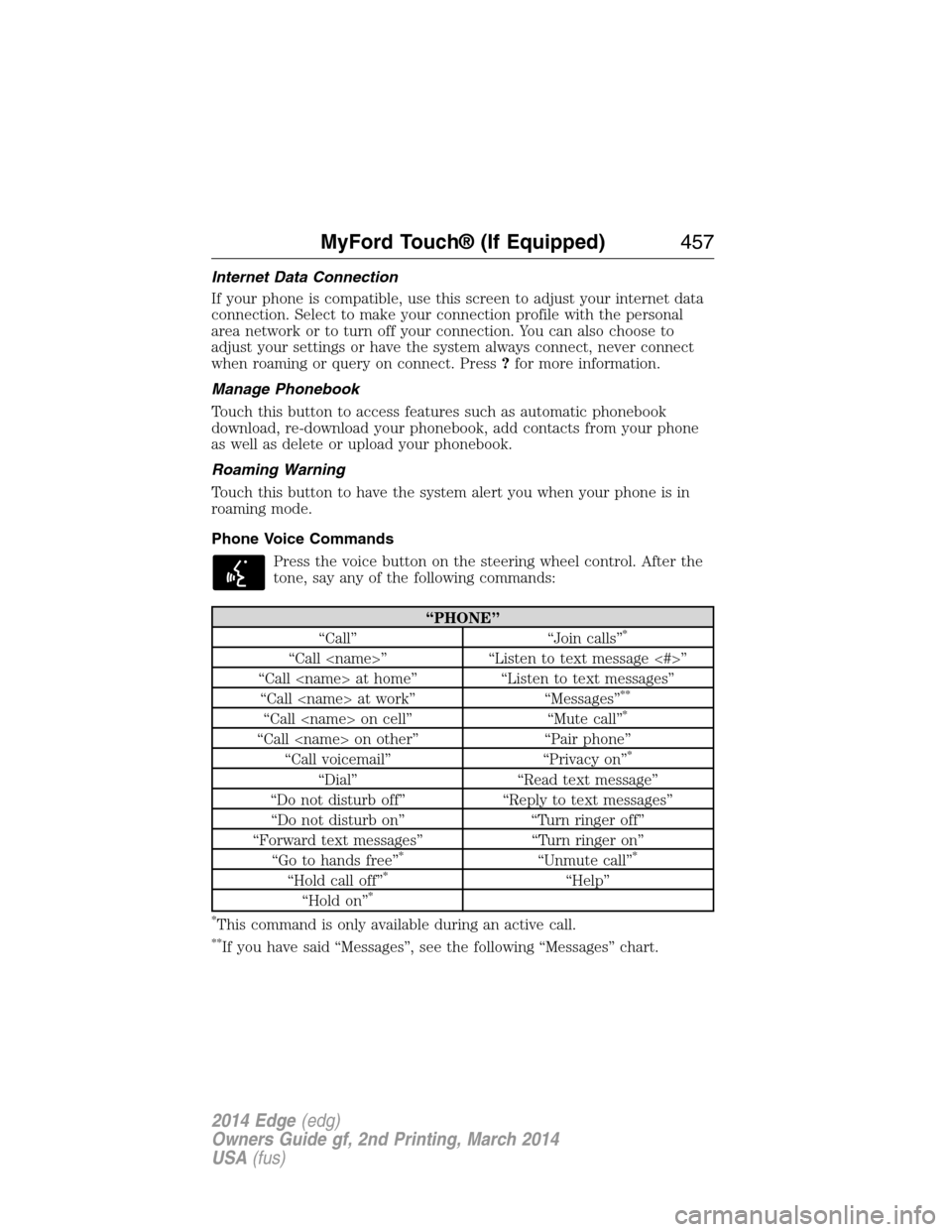
Phone Voice Commands
Press the voice button on the steering wheel control. After the
tone, say any of the following commands:
“PHONE”
“Call” “Join calls”*
“Call
“Call
“Call
**
“Call
“Call
“Call voicemail” “Privacy on”*
“Dial” “Read text message”
“Do not disturb off” “Reply to text messages”
“Do not disturb on” “Turn ringer off”
“Forward text messages” “Turn ringer on”
“Go to hands free”
*“Unmute call”*
“Hold call off”*“Help”
“Hold on”*
*
This command is only available during an active call.
**If you have said “Messages”, see the following “Messages” chart.
MyFord Touch® (If Equipped)457
2014 Edge(edg)
Owners Guide gf, 2nd Printing, March 2014
USA(fus)
Page 461 of 540
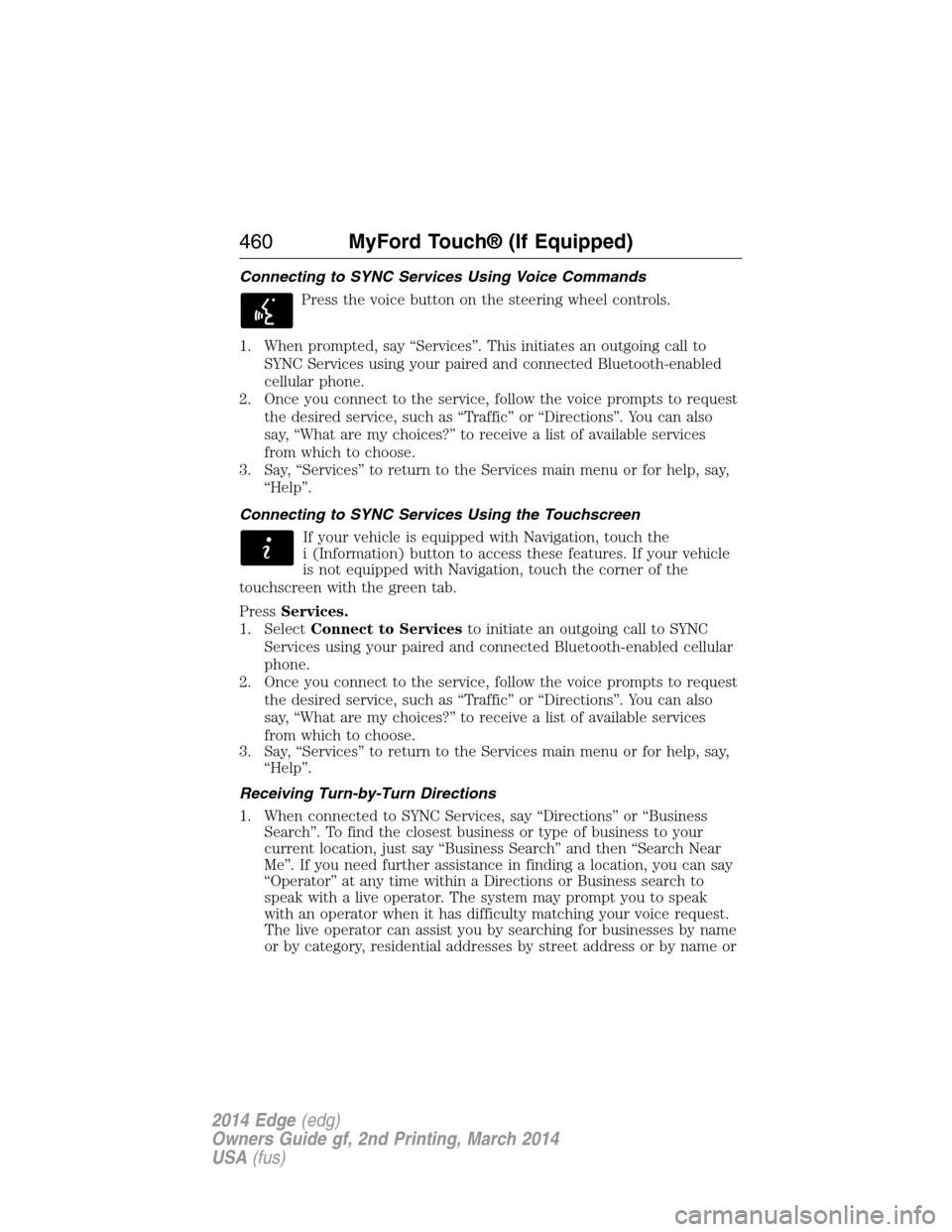
Connecting to SYNC Services Using Voice Commands
Press the voice button on the steering wheel controls.
1. When prompted, say “Services”. This initiates an outgoing call to
SYNC Services using your paired and connected Bluetooth-enabled
cellular phone.
2. Once you connect to the service, follow the voice prompts to request
the desired service, such as “Traffic” or “Directions”. You can also
say, “What are my choices?” to receive a list of available services
from which to choose.
3. Say, “Services” to return to the Services main menu or for help, say,
“Help”.
Connecting to SYNC Services Using the Touchscreen
If your vehicle is equipped with Navigation, touch the
i (Information) button to access these features. If your vehicle
is not equipped with Navigation, touch the corner of the
touchscreen with the green tab.
PressServices.
1. SelectConnect to Servicesto initiate an outgoing call to SYNC
Services using your paired and connected Bluetooth-enabled cellular
phone.
2. Once you connect to the service, follow the voice prompts to request
the desired service, such as “Traffic” or “Directions”. You can also
say, “What are my choices?” to receive a list of available services
from which to choose.
3. Say, “Services” to return to the Services main menu or for help, say,
“Help”.
Receiving Turn-by-Turn Directions
1. When connected to SYNC Services, say “Directions” or “Business
Search”. To find the closest business or type of business to your
current location, just say “Business Search” and then “Search Near
Me”. If you need further assistance in finding a location, you can say
“Operator” at any time within a Directions or Business search to
speak with a live operator. The system may prompt you to speak
with an operator when it has difficulty matching your voice request.
The live operator can assist you by searching for businesses by name
or by category, residential addresses by street address or by name or
460MyFord Touch® (If Equipped)
2014 Edge(edg)
Owners Guide gf, 2nd Printing, March 2014
USA(fus)
Page 462 of 540
specific street intersections. Operator Assist is a feature of your
SYNC Services subscription. For more information on Operator
Assist, visit www.SYNCMyRide.com/support.
2. Follow the voice prompts to select your Destination. After the route
download is finished, the phone call automatically ends.
If your vehicle is not equipped with Navigation:
•Turn-by-turn directions appear in the information display, in the
status bar of your touchscreen system and on the SYNC Services
screen. You also receive driving instructions from audible prompts.
•When on an active route, you can selectRoute SummaryorRoute
Statususing the touchscreen controls or voice commands to view
theRoute Summary Turn Listor theRoute Status ETA.You can
also turn voice guidance on or off, cancel the route or update the
route.
If you miss a turn, SYNC automatically asks if you want the route
updated. Just say, “Yes” when prompted and the system delivers a new
route to your vehicle.
If your vehicle is equipped with Navigation, SYNC Services downloads
your requested destination to the navigation system. The navigation
system then calculates the route and provides driving instructions.
See theNavigation systemsection for more information.
Disconnecting from SYNC Services
1. Press and hold the phone button on the steering wheel.
2. Say “Good-bye” from the SYNC Services main menu.
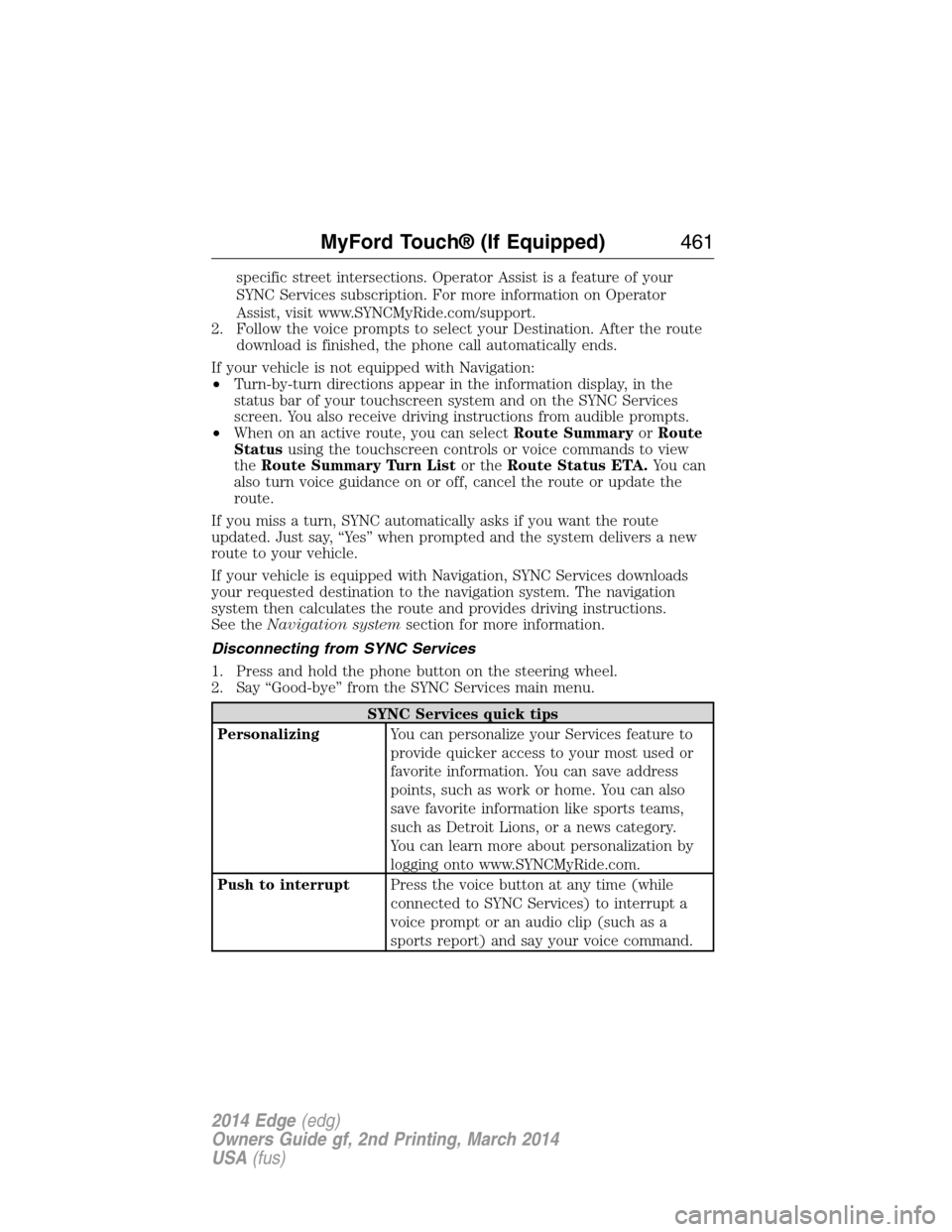
SYNC Services quick tips
PersonalizingYou can personalize your Services feature to
provide quicker access to your most used or
favorite information. You can save address
points, such as work or home. You can also
save favorite information like sports teams,
such as Detroit Lions, or a news category.
You can learn more about personalization by
logging onto www.SYNCMyRide.com.
Push to interruptPress the voice button at any time (while
connected to SYNC Services) to interrupt a
voice prompt or an audio clip (such as a
sports report) and say your voice command.
MyFord Touch® (If Equipped)461
2014 Edge(edg)
Owners Guide gf, 2nd Printing, March 2014
USA(fus)
Page 463 of 540
SYNC Services quick tips
PortableYour subscription is associated with your
Bluetooth-enabled cellular phone number,
not your VIN (Vehicle Identification Number).
You can pair and connect your phone to any
vehicle equipped with SYNC Services and
continue enjoying your personalized services.
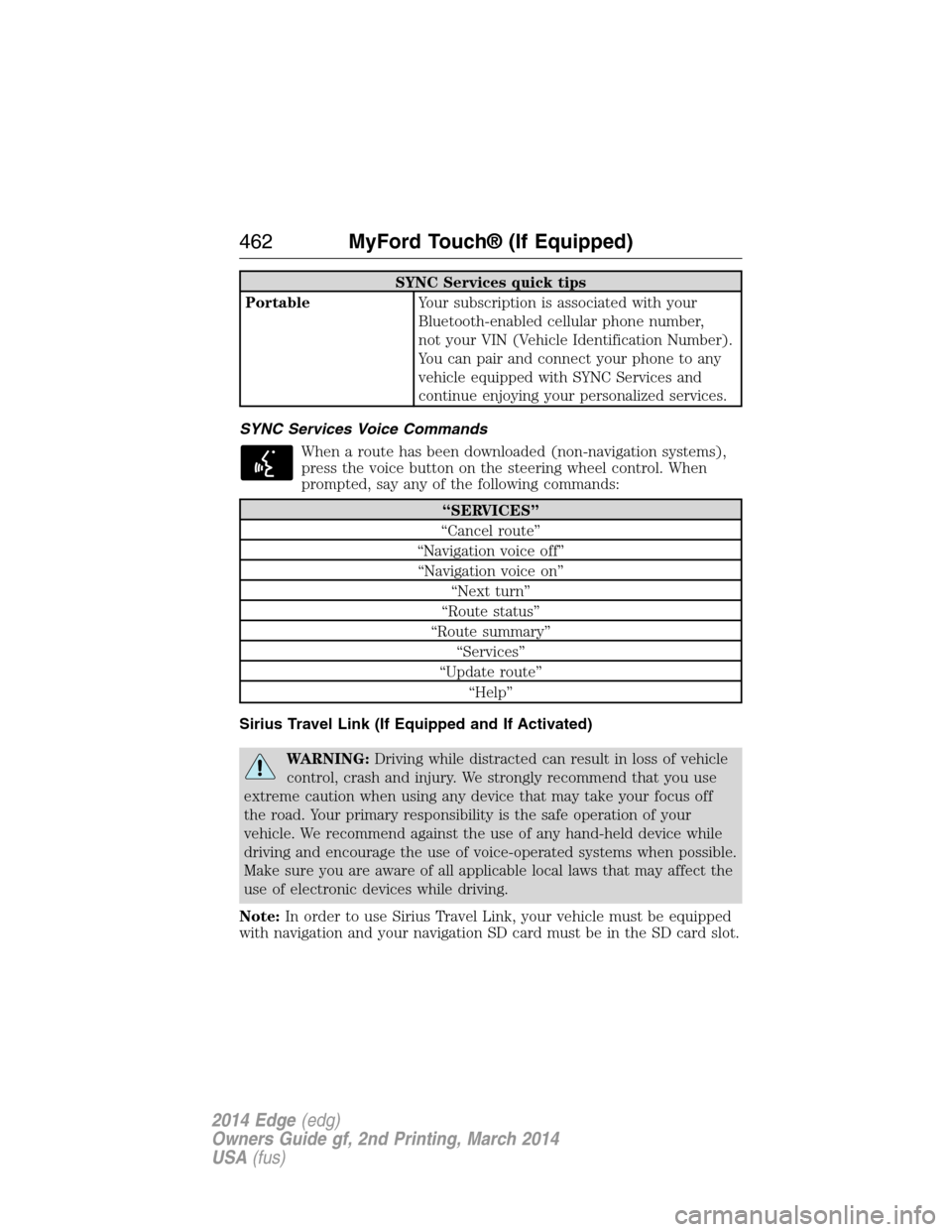
SYNC Services Voice Commands
When a route has been downloaded (non-navigation systems),
press the voice button on the steering wheel control. When
prompted, say any of the following commands:
“SERVICES”
“Cancel route”
“Navigation voice off”
“Navigation voice on”
“Next turn”
“Route status”
“Route summary”
“Services”
“Update route”
“Help”
Sirius Travel Link (If Equipped and If Activated)
WARNING:Driving while distracted can result in loss of vehicle
control, crash and injury. We strongly recommend that you use
extreme caution when using any device that may take your focus off
the road. Your primary responsibility is the safe operation of your
vehicle. We recommend against the use of any hand-held device while
driving and encourage the use of voice-operated systems when possible.
Make sure you are aware of all applicable local laws that may affect the
use of electronic devices while driving.
Note:In order to use Sirius Travel Link, your vehicle must be equipped
with navigation and your navigation SD card must be in the SD card slot.
462MyFord Touch® (If Equipped)
2014 Edge(edg)
Owners Guide gf, 2nd Printing, March 2014
USA(fus)
Page 465 of 540
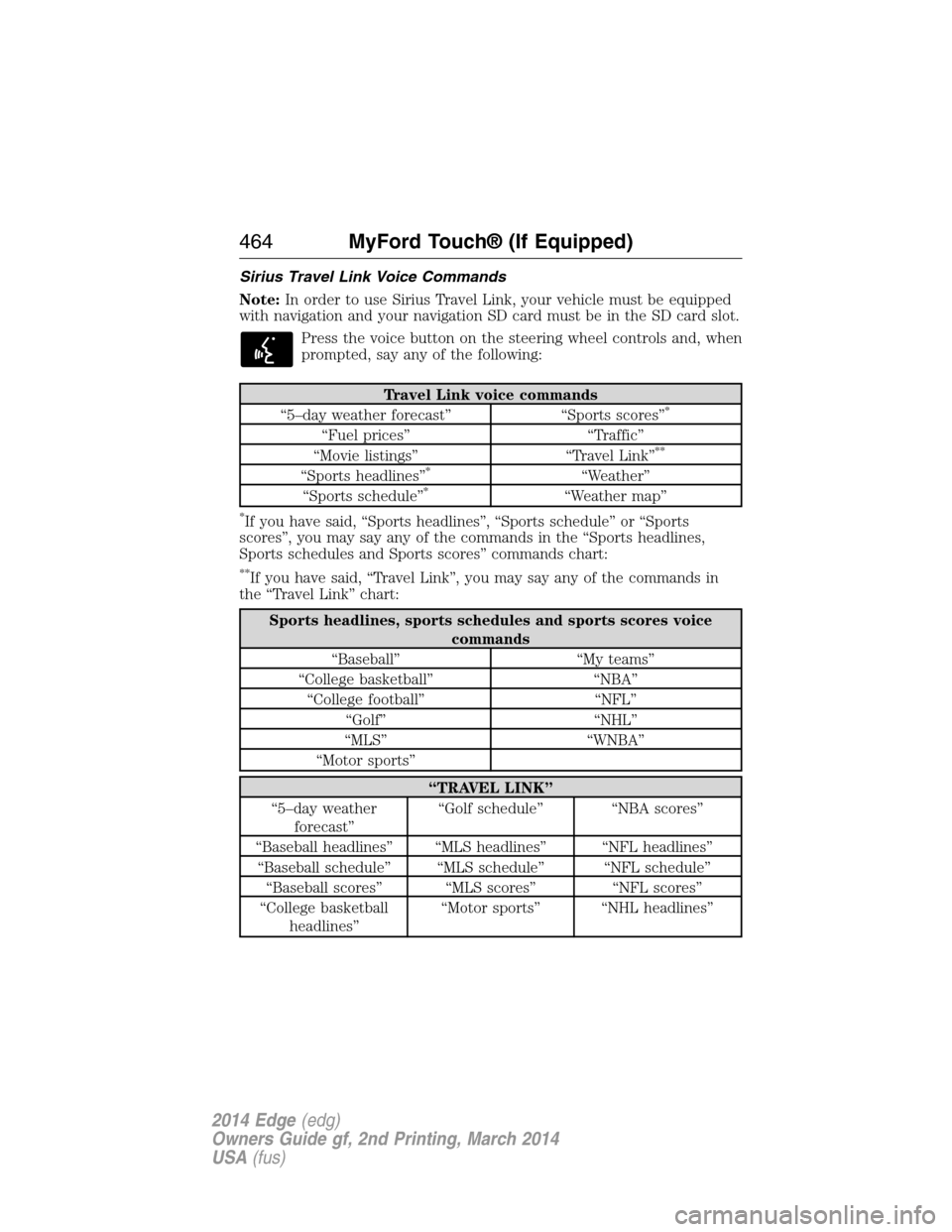
Sirius Travel Link Voice Commands
Note:In order to use Sirius Travel Link, your vehicle must be equipped
with navigation and your navigation SD card must be in the SD card slot.
Press the voice button on the steering wheel controls and, when
prompted, say any of the following:
Travel Link voice commands
“5–day weather forecast” “Sports scores”*
“Fuel prices” “Traffic”
“Movie listings” “Travel Link”**
“Sports headlines”*“Weather”
“Sports schedule”*“Weather map”
*If you have said, “Sports headlines”, “Sports schedule” or “Sports
scores”, you may say any of the commands in the “Sports headlines,
Sports schedules and Sports scores” commands chart:
**If you have said, “Travel Link”, you may say any of the commands in
the “Travel Link” chart:
Sports headlines, sports schedules and sports scores voice
commands
“Baseball” “My teams”
“College basketball” “NBA”
“College football” “NFL”
“Golf” “NHL”
“MLS” “WNBA”
“Motor sports”
“TRAVEL LINK”
“5–day weather
forecast”“Golf schedule” “NBA scores”
“Baseball headlines” “MLS headlines” “NFL headlines”
“Baseball schedule” “MLS schedule” “NFL schedule”
“Baseball scores” “MLS scores” “NFL scores”
“College basketball
headlines”“Motor sports” “NHL headlines”
464MyFord Touch® (If Equipped)
2014 Edge(edg)
Owners Guide gf, 2nd Printing, March 2014
USA(fus)
Page 468 of 540
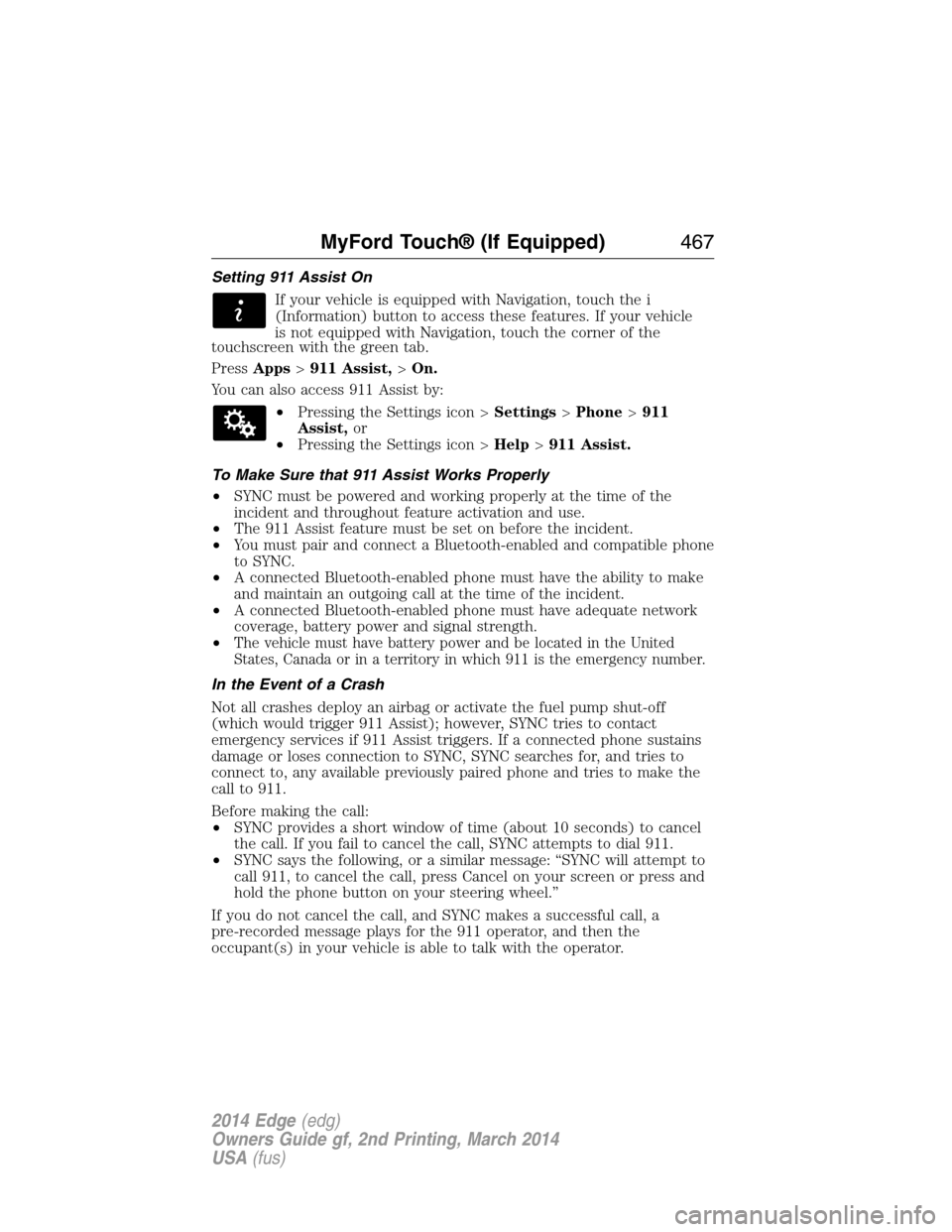
Setting 911 Assist On
If your vehicle is equipped with Navigation, touch the i
(Information) button to access these features. If your vehicle
is not equipped with Navigation, touch the corner of the
touchscreen with the green tab.
PressApps>911 Assist,>On.
You can also access 911 Assist by:
•Pressing the Settings icon >Settings>Phone>911
Assist,or
•Pressing the Settings icon >Help>911 Assist.
To Make Sure that 911 Assist Works Properly
•SYNC must be powered and working properly at the time of the
incident and throughout feature activation and use.
•The 911 Assist feature must be set on before the incident.
•You must pair and connect a Bluetooth-enabled and compatible phone
to SYNC.
•A connected Bluetooth-enabled phone must have the ability to make
and maintain an outgoing call at the time of the incident.
•A connected Bluetooth-enabled phone must have adequate network
coverage, battery power and signal strength.
•
The vehicle must have battery power and be located in the United
States, Canada or in a territory in which 911 is the emergency number.
In the Event of a Crash
Not all crashes deploy an airbag or activate the fuel pump shut-off
(which would trigger 911 Assist); however, SYNC tries to contact
emergency services if 911 Assist triggers. If a connected phone sustains
damage or loses connection to SYNC, SYNC searches for, and tries to
connect to, any available previously paired phone and tries to make the
call to 911.
Before making the call:
•SYNC provides a short window of time (about 10 seconds) to cancel
the call. If you fail to cancel the call, SYNC attempts to dial 911.
•SYNC says the following, or a similar message: “SYNC will attempt to
call 911, to cancel the call, press Cancel on your screen or press and
hold the phone button on your steering wheel.”
If you do not cancel the call, and SYNC makes a successful call, a
pre-recorded message plays for the 911 operator, and then the
occupant(s) in your vehicle is able to talk with the operator.
MyFord Touch® (If Equipped)467
2014 Edge(edg)
Owners Guide gf, 2nd Printing, March 2014
USA(fus)
Page 470 of 540
Note:In order to allow a break-in period for your vehicle, you may not
be able to create a Vehicle Health Report until your vehicle odometer has
reached 200 miles.
Note:Cellular phone and SMS charges may apply when making a report.
Register for Vehicle Health Report and set your report preferences at
www.SYNCMyRide.com. After registering, you can request a Vehicle
Health Report (inside your vehicle). Return to your account at
www.SYNCMyRide.com to view your report. You can also choose for
SYNC to remind you automatically to run reports at specific mileage
intervals. Cellular phone airtime usage may apply when reporting.
The system allows you to check your vehicle’s overall health in the form
of a diagnostic report card. The Vehicle Health Report contains valuable
information, such as:
•Vehicle Diagnostic Information
•Scheduled maintenance
•Open Recalls and Field Service Actions
•Items noted during vehicle inspections by your authorized dealer that
still need servicing.
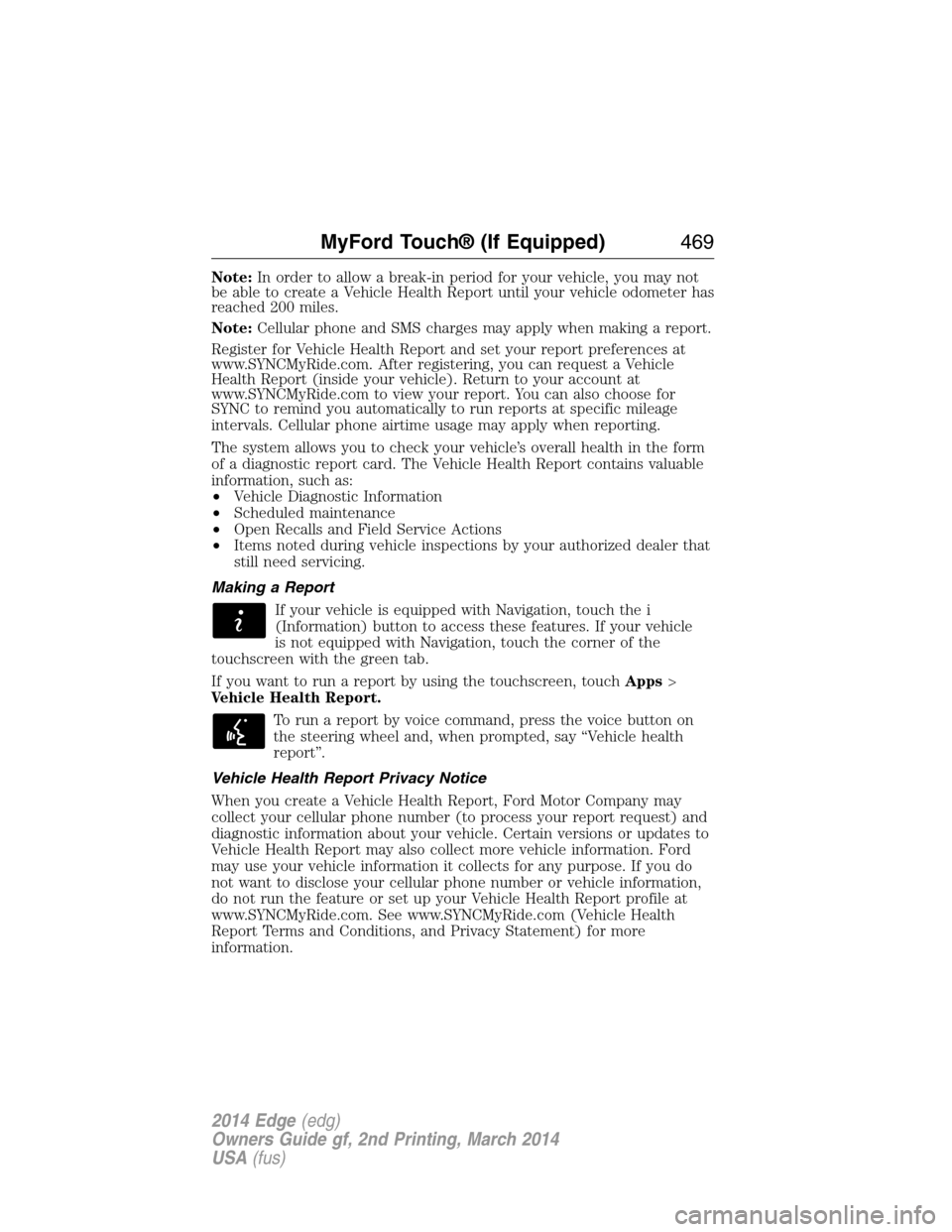
Making a Report
If your vehicle is equipped with Navigation, touch the i
(Information) button to access these features. If your vehicle
is not equipped with Navigation, touch the corner of the
touchscreen with the green tab.
If you want to run a report by using the touchscreen, touchApps>
Vehicle Health Report.
To run a report by voice command, press the voice button on
the steering wheel and, when prompted, say “Vehicle health
report”.
Vehicle Health Report Privacy Notice
When you create a Vehicle Health Report, Ford Motor Company may
collect your cellular phone number (to process your report request) and
diagnostic information about your vehicle. Certain versions or updates to
Vehicle Health Report may also collect more vehicle information. Ford
may use your vehicle information it collects for any purpose. If you do
not want to disclose your cellular phone number or vehicle information,
do not run the feature or set up your Vehicle Health Report profile at
www.SYNCMyRide.com. See www.SYNCMyRide.com (Vehicle Health
Report Terms and Conditions, and Privacy Statement) for more
information.
MyFord Touch® (If Equipped)469
2014 Edge(edg)
Owners Guide gf, 2nd Printing, March 2014
USA(fus)
Page 472 of 540
You can also turn the outside air temperature display on and off. It
appears at the top center of the touchscreen, next to the time and date.
The system automatically saves any updates you make to the settings.
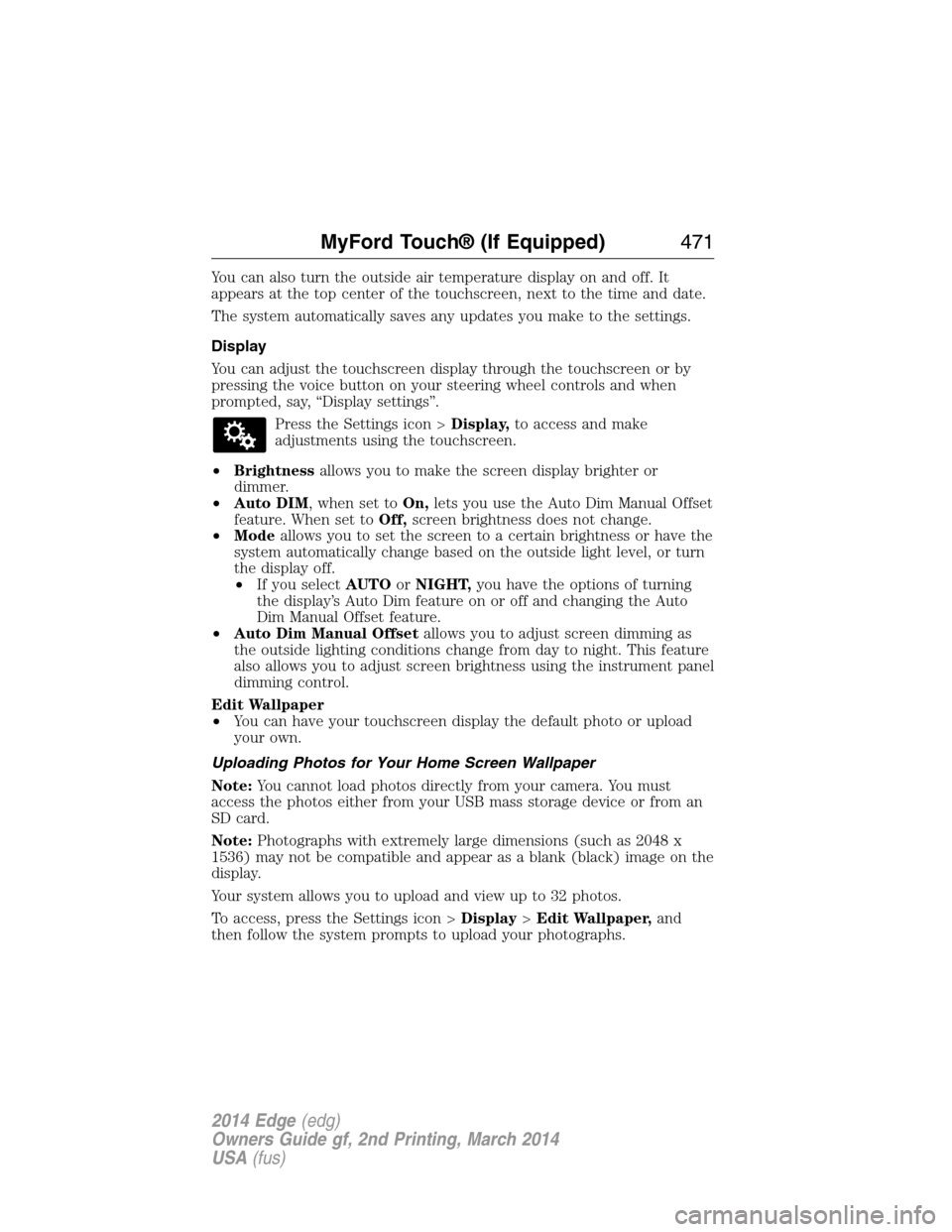
Display
You can adjust the touchscreen display through the touchscreen or by
pressing the voice button on your steering wheel controls and when
prompted, say, “Display settings”.
Press the Settings icon >Display,to access and make
adjustments using the touchscreen.
•Brightnessallows you to make the screen display brighter or
dimmer.
•Auto DIM, when set toOn,lets you use the Auto Dim Manual Offset
feature. When set toOff,screen brightness does not change.
•Modeallows you to set the screen to a certain brightness or have the
system automatically change based on the outside light level, or turn
the display off.
•If you selectAUTOorNIGHT,you have the options of turning
the display’s Auto Dim feature on or off and changing the Auto
Dim Manual Offset feature.
•Auto Dim Manual Offsetallows you to adjust screen dimming as
the outside lighting conditions change from day to night. This feature
also allows you to adjust screen brightness using the instrument panel
dimming control.
Edit Wallpaper
•You can have your touchscreen display the default photo or upload
your own.
Uploading Photos for Your Home Screen Wallpaper
Note:You cannot load photos directly from your camera. You must
access the photos either from your USB mass storage device or from an
SD card.
Note:Photographs with extremely large dimensions (such as 2048 x
1536) may not be compatible and appear as a blank (black) image on the
display.
Your system allows you to upload and view up to 32 photos.
To access, press the Settings icon >Display>Edit Wallpaper,and
then follow the system prompts to upload your photographs.
MyFord Touch® (If Equipped)471
2014 Edge(edg)
Owners Guide gf, 2nd Printing, March 2014
USA(fus)
Page 495 of 540
Navigation Map Updates
Annual navigation map updates are available for purchase through your
dealership, by calling 1-800-NAVMAPS (in Mexico, call 01–800–557–5539)
or going to www.navigation.com/ford. You need to specify the make and
model of your vehicle to determine if there is an update available.
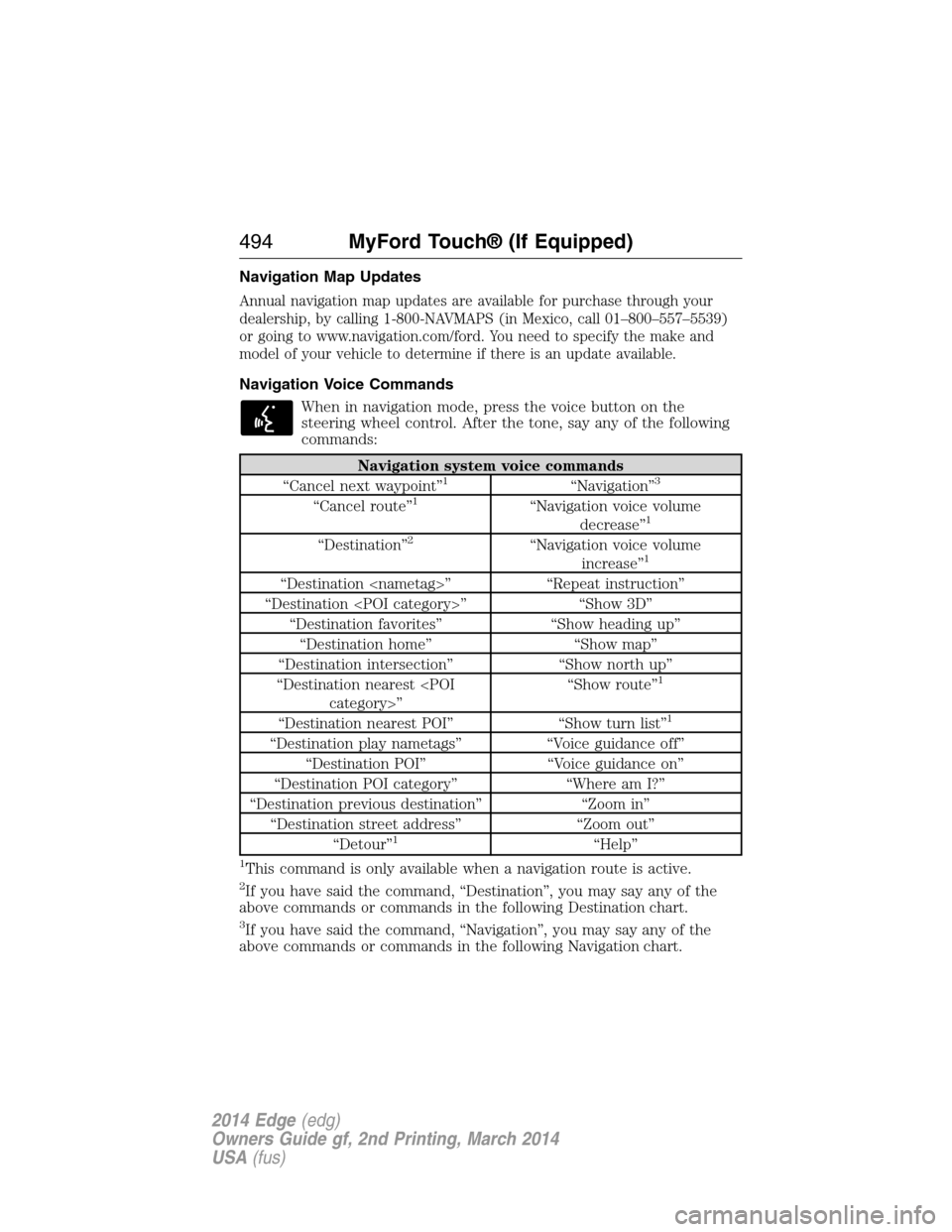
Navigation Voice Commands
When in navigation mode, press the voice button on the
steering wheel control. After the tone, say any of the following
commands:
Navigation system voice commands
“Cancel next waypoint”1“Navigation”3
“Cancel route”1“Navigation voice volume
decrease”1
“Destination”2“Navigation voice volume
increase”1
“Destination
“Destination
“Destination favorites” “Show heading up”
“Destination home” “Show map”
“Destination intersection” “Show north up”
“Destination nearest
1
“Destination nearest POI” “Show turn list”1
“Destination play nametags” “Voice guidance off”
“Destination POI” “Voice guidance on”
“Destination POI category” “Where am I?”
“Destination previous destination” “Zoom in”
“Destination street address” “Zoom out”
“Detour”
1“Help”
1This command is only available when a navigation route is active.
2If you have said the command, “Destination”, you may say any of the
above commands or commands in the following Destination chart.
3If you have said the command, “Navigation”, you may say any of the
above commands or commands in the following Navigation chart.
494MyFord Touch® (If Equipped)
2014 Edge(edg)
Owners Guide gf, 2nd Printing, March 2014
USA(fus)
Page 502 of 540
REMEDY FAILS OF ITS ESSENTIAL PURPOSE. IN NO EVENT SHALL
MS, MICROSOFT CORPORATION AND/OR THEIR AFFILIATES BE
LIABLE FOR ANY AMOUNT IN EXCESS OF U.S. TWO HUNDRED
FIFTY DOLLARS (U.S.$250.00).
•THERE ARE NO WARRANTIES OTHER THAN THOSE THAT MAY
EXPRESSLY BE PROVIDED FOR YOUR NEW VEHICLE.
End user notice
Microsoft® Windows® Mobile for Automotive Important Safety
Information
This system Ford SYNC™ contains software that is licensed to
Manufacturer FORD MOTOR COMPANY by an affiliate of Microsoft
Corporation pursuant to a license agreement. Any removal, reproduction,
reverse engineering or other unauthorized use of the software from this
system in violation of the license agreement is strictly prohibited and
may subject you to legal action.
Read and follow instructions
Before using your Windows Automotive-based system, read and follow all
instructions and safety information provided in this end user manual
(“User’s Guide”). Not following precautions found in this User’s Guide
can lead to an accident or other serious consequences.
Keep User’s Guide in Vehicle
When kept in the vehicle, the User’s Guide will be a ready reference for
you and other users unfamiliar with the Windows Automotive-based
system. Please make certain that before using the system for the first
time, all persons have access to the User’s Guide and read its
instructions and safety information carefully.
WARNING:Operating certain parts of this system while driving
can distract your attention away from the road, and possibly
cause an accident or other serious consequences. Do not change
system settings or enter data non-verbally (using your hands) while
driving. Stop the vehicle in a safe and legal manner before attempting
these operations. This is important since while setting up or changing
some functions you might be required to distract your attention away
from the road and remove your hands from the wheel.
Appendices501
2014 Edge(edg)
Owners Guide gf, 2nd Printing, March 2014
USA(fus)