buttons FORD EDGE 2014 1.G User Guide
[x] Cancel search | Manufacturer: FORD, Model Year: 2014, Model line: EDGE, Model: FORD EDGE 2014 1.GPages: 540, PDF Size: 7.52 MB
Page 156 of 540
HOMELINK® WIRELESS CONTROL SYSTEM (IF EQUIPPED)
WARNING:Make sure that the garage door and security device
are free from obstruction when you are programming. Do not
program the system with the vehicle in the garage.
WARNING:Do not use the system with any garage door opener
that does not have the safety stop and reverse feature as
required by U.S. Federal Safety Standards (this includes any garage
door opener manufactured before April 1, 1982).
Note:Make sure you keep the original remote control transmitter for
use in other vehicles as well as for future system programming.
Note:We recommend that upon the sale or lease termination of your
vehicle, you erase the programmed function buttons for security reasons.
SeeErasing the function button codeslater in this section.
Note:You can program a maximum of three devices. To change or
replace any of the three devices after it has been initially programmed,
you must first erase the current settings. SeeErasing the function
button codeslater in this section.
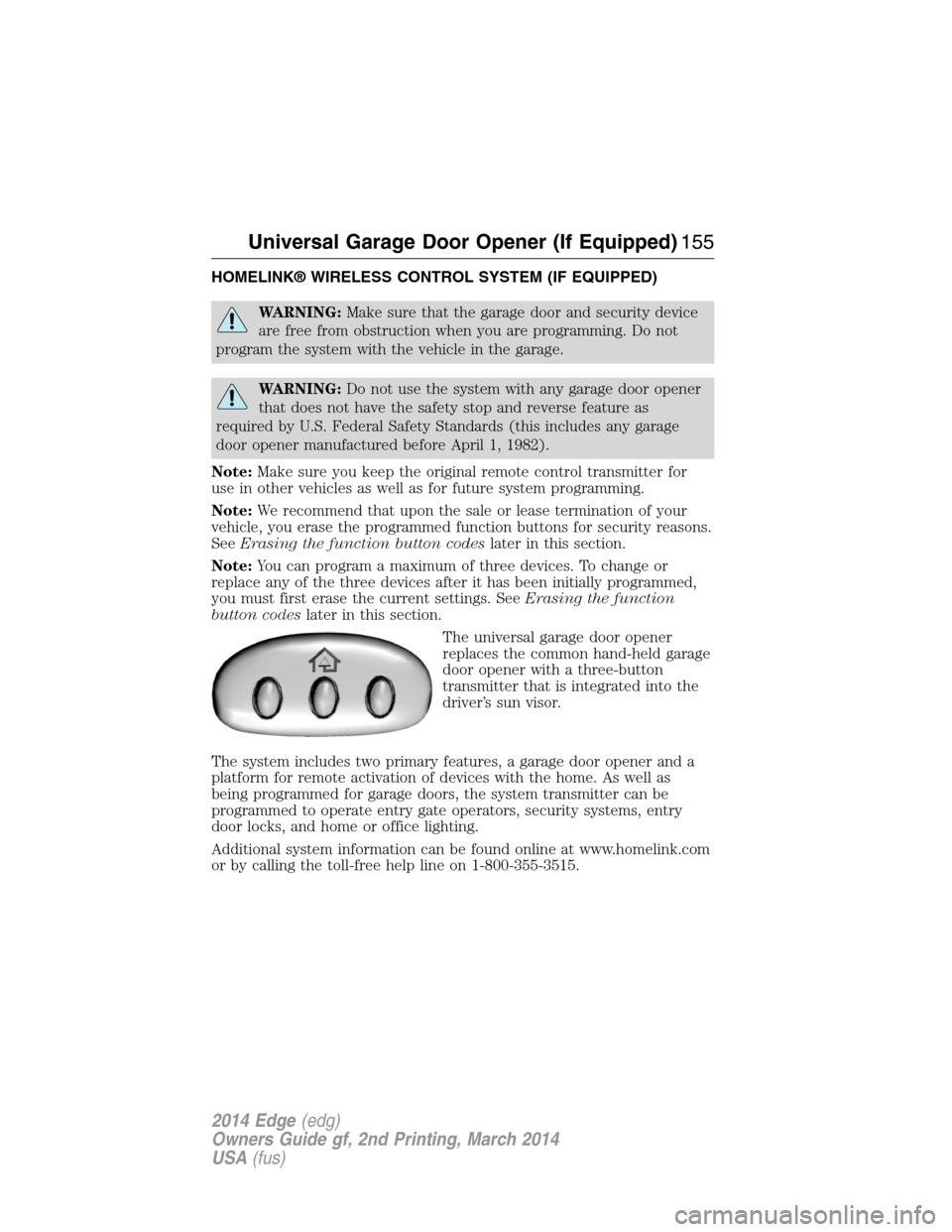
The universal garage door opener
replaces the common hand-held garage
door opener with a three-button
transmitter that is integrated into the
driver’s sun visor.
The system includes two primary features, a garage door opener and a
platform for remote activation of devices with the home. As well as
being programmed for garage doors, the system transmitter can be
programmed to operate entry gate operators, security systems, entry
door locks, and home or office lighting.
Additional system information can be found online at www.homelink.com
or by calling the toll-free help line on 1-800-355-3515.
Universal Garage Door Opener (If Equipped)155
2014 Edge(edg)
Owners Guide gf, 2nd Printing, March 2014
USA(fus)
Page 157 of 540
Programming
Note:Put a new battery in the hand-held transmitter. This will ensure
quicker training and accurate transmission of the radio-frequency signal.
1. With your vehicle parked outside of the garage and your key in the
ignition, turn the key so that the ignition is in the on position.
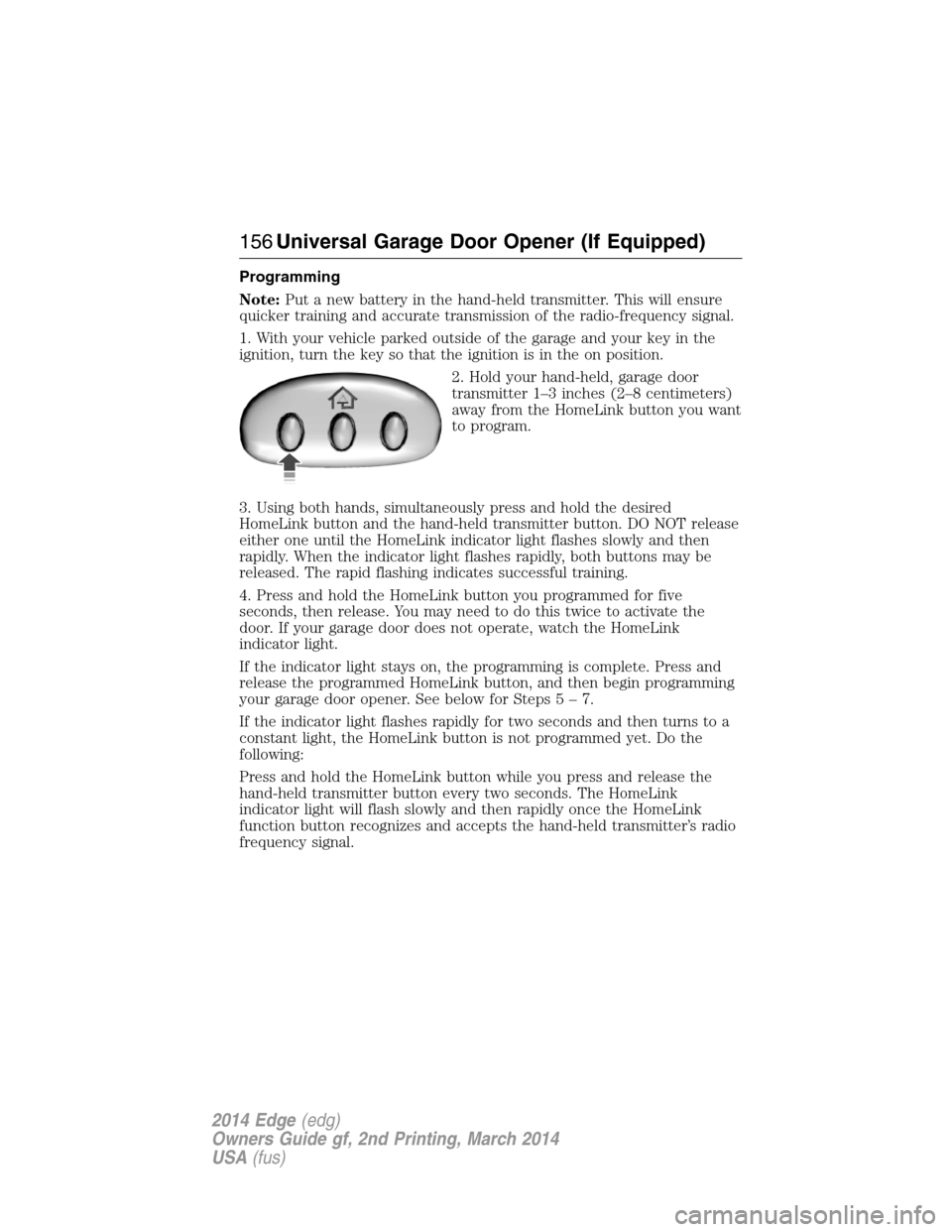
2. Hold your hand-held, garage door
transmitter 1–3 inches (2–8 centimeters)
away from the HomeLink button you want
to program.
3. Using both hands, simultaneously press and hold the desired
HomeLink button and the hand-held transmitter button. DO NOT release
either one until the HomeLink indicator light flashes slowly and then
rapidly. When the indicator light flashes rapidly, both buttons may be
released. The rapid flashing indicates successful training.
4. Press and hold the HomeLink button you programmed for five
seconds, then release. You may need to do this twice to activate the
door. If your garage door does not operate, watch the HomeLink
indicator light.
If the indicator light stays on, the programming is complete. Press and
release the programmed HomeLink button, and then begin programming
your garage door opener. See below for Steps5–7.
If the indicator light flashes rapidly for two seconds and then turns to a
constant light, the HomeLink button is not programmed yet. Do the
following:
Press and hold the HomeLink button while you press and release the
hand-held transmitter button every two seconds. The HomeLink
indicator light will flash slowly and then rapidly once the HomeLink
function button recognizes and accepts the hand-held transmitter’s radio
frequency signal.
156Universal Garage Door Opener (If Equipped)
2014 Edge(edg)
Owners Guide gf, 2nd Printing, March 2014
USA(fus)
Page 158 of 540
After programming the HomeLink button, follow Steps5–7aslisted
below to program your garage door opener.
Note:You may need a ladder to reach the unit
and you may need to remove the cover or
lamp lens on your garage door opener.
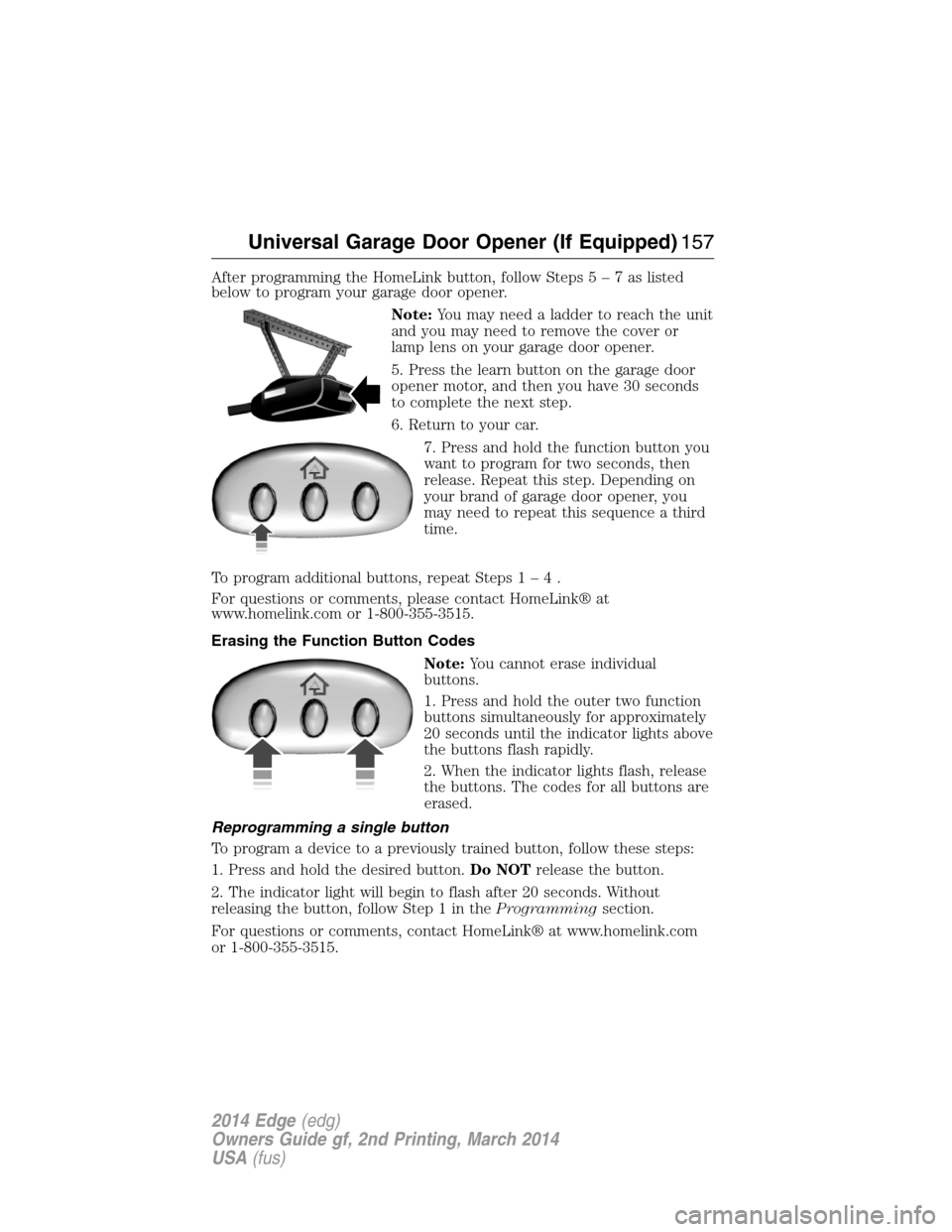
5. Press the learn button on the garage door
opener motor, and then you have 30 seconds
to complete the next step.
6. Return to your car.
7. Press and hold the function button you
want to program for two seconds, then
release. Repeat this step. Depending on
your brand of garage door opener, you
may need to repeat this sequence a third
time.
To program additional buttons, repeat Steps1–4.
For questions or comments, please contact HomeLink® at
www.homelink.com or 1-800-355-3515.
Erasing the Function Button Codes
Note:You cannot erase individual
buttons.
1. Press and hold the outer two function
buttons simultaneously for approximately
20 seconds until the indicator lights above
the buttons flash rapidly.
2. When the indicator lights flash, release
the buttons. The codes for all buttons are
erased.
Reprogramming a single button
To program a device to a previously trained button, follow these steps:
1. Press and hold the desired button.Do NOTrelease the button.
2. The indicator light will begin to flash after 20 seconds. Without
releasing the button, follow Step 1 in theProgrammingsection.
For questions or comments, contact HomeLink® at www.homelink.com
or 1-800-355-3515.
Universal Garage Door Opener (If Equipped)157
2014 Edge(edg)
Owners Guide gf, 2nd Printing, March 2014
USA(fus)
Page 159 of 540
Programming HomeLink to a Genie Intellicode 2 garage door opener
Note:The Genie Intellicode 2 transmitter must already be programmed
to operate with the garage door opener.
Programing the transmitters
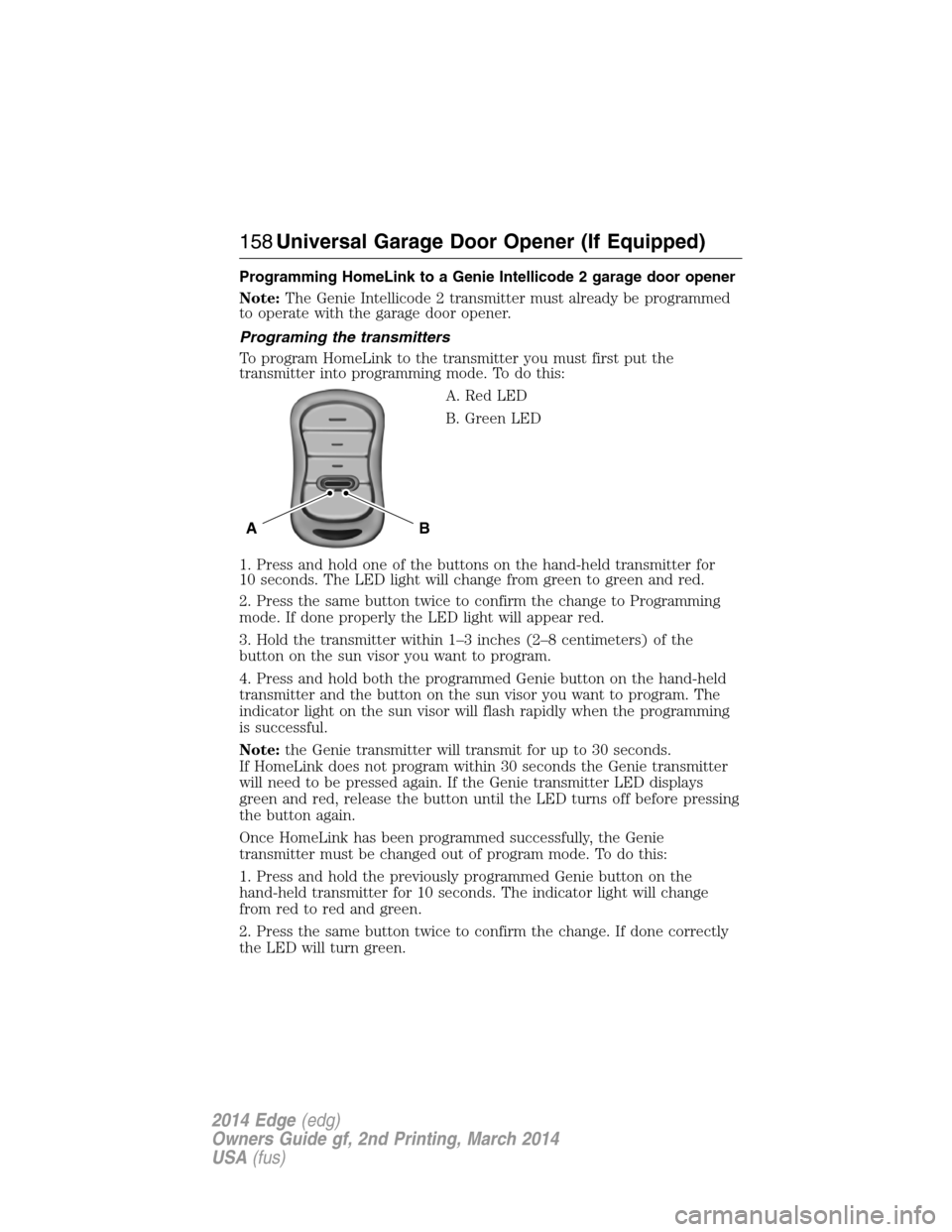
To program HomeLink to the transmitter you must first put the
transmitter into programming mode. To do this:
A. Red LED
B. Green LED
1. Press and hold one of the buttons on the hand-held transmitter for
10 seconds. The LED light will change from green to green and red.
2. Press the same button twice to confirm the change to Programming
mode. If done properly the LED light will appear red.
3. Hold the transmitter within 1–3 inches (2–8 centimeters) of the
button on the sun visor you want to program.
4. Press and hold both the programmed Genie button on the hand-held
transmitter and the button on the sun visor you want to program. The
indicator light on the sun visor will flash rapidly when the programming
is successful.
Note:the Genie transmitter will transmit for up to 30 seconds.
If HomeLink does not program within 30 seconds the Genie transmitter
will need to be pressed again. If the Genie transmitter LED displays
green and red, release the button until the LED turns off before pressing
the button again.
Once HomeLink has been programmed successfully, the Genie
transmitter must be changed out of program mode. To do this:
1. Press and hold the previously programmed Genie button on the
hand-held transmitter for 10 seconds. The indicator light will change
from red to red and green.
2. Press the same button twice to confirm the change. If done correctly
the LED will turn green.
BA
158Universal Garage Door Opener (If Equipped)
2014 Edge(edg)
Owners Guide gf, 2nd Printing, March 2014
USA(fus)
Page 160 of 540
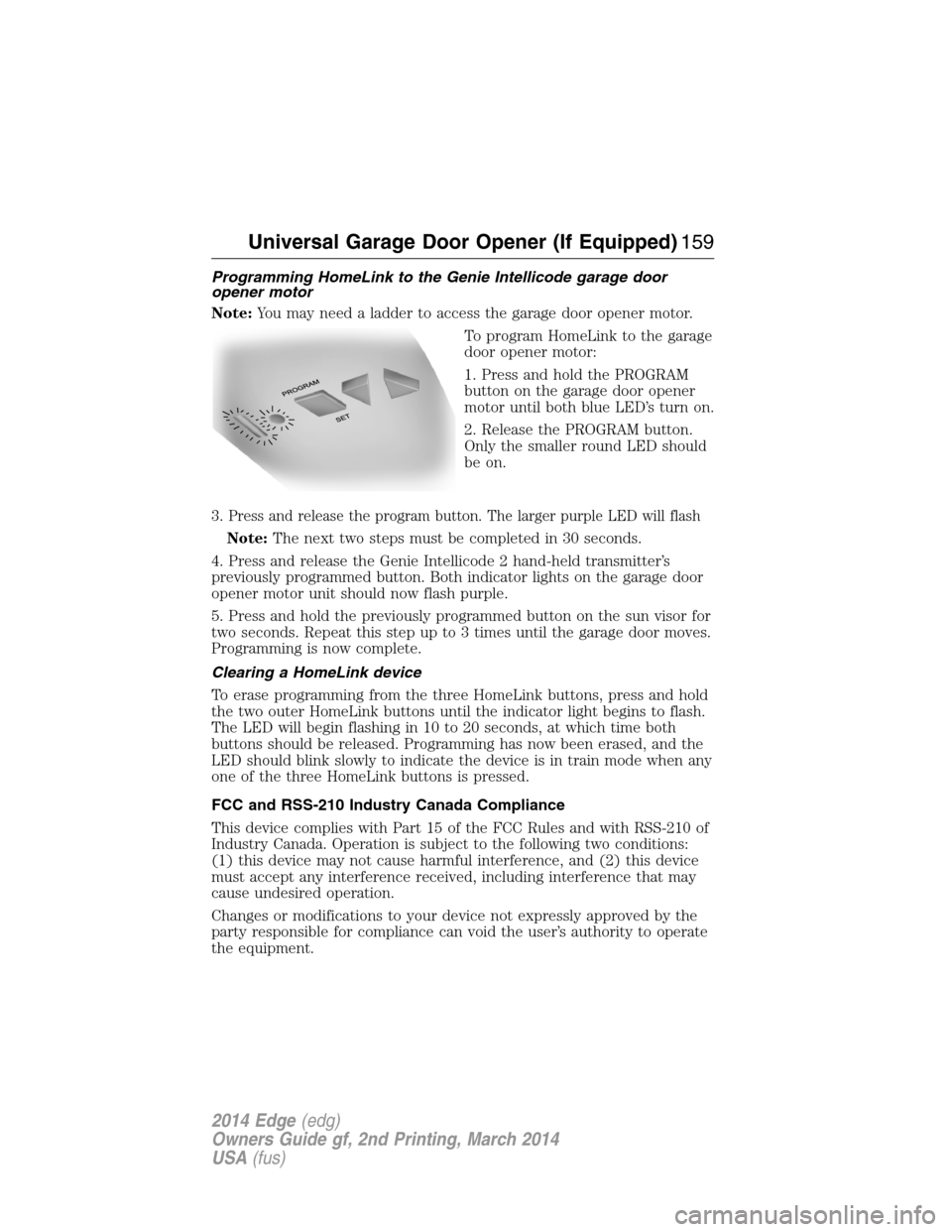
Programming HomeLink to the Genie Intellicode garage door
opener motor
Note:You may need a ladder to access the garage door opener motor.
To program HomeLink to the garage
door opener motor:
1. Press and hold the PROGRAM
button on the garage door opener
motor until both blue LED’s turn on.
2. Release the PROGRAM button.
Only the smaller round LED should
be on.
3.
Press and release the program button. The larger purple LED will flash
Note:The next two steps must be completed in 30 seconds.
4. Press and release the Genie Intellicode 2 hand-held transmitter’s
previously programmed button. Both indicator lights on the garage door
opener motor unit should now flash purple.
5. Press and hold the previously programmed button on the sun visor for
two seconds. Repeat this step up to 3 times until the garage door moves.
Programming is now complete.
Clearing a HomeLink device
To erase programming from the three HomeLink buttons, press and hold
the two outer HomeLink buttons until the indicator light begins to flash.
The LED will begin flashing in 10 to 20 seconds, at which time both
buttons should be released. Programming has now been erased, and the
LED should blink slowly to indicate the device is in train mode when any
one of the three HomeLink buttons is pressed.
FCC and RSS-210 Industry Canada Compliance
This device complies with Part 15 of the FCC Rules and with RSS-210 of
Industry Canada. Operation is subject to the following two conditions:
(1) this device may not cause harmful interference, and (2) this device
must accept any interference received, including interference that may
cause undesired operation.
Changes or modifications to your device not expressly approved by the
party responsible for compliance can void the user’s authority to operate
the equipment.
Universal Garage Door Opener (If Equipped)159
2014 Edge(edg)
Owners Guide gf, 2nd Printing, March 2014
USA(fus)
Page 166 of 540
Vehicles with an Ignition Key
Note:Do not touch the accelerator pedal.
1. Fully press the brake pedal.
2. Turn the key to the start position. Release the key when the engine
starts.
Note:The engine may continue cranking for up to 15 seconds or until it
starts.
Note:If you cannot start the engine on the first try, wait for a short
period and try again.
Vehicles with Keyless Start
Note:Do not touch the accelerator pedal.
1. Fully press the brake pedal.
2. Press the button.
The system does not function if:
•The key frequencies are jammed.
•The key battery has no charge.
If you are unable to start your vehicle, do the following:
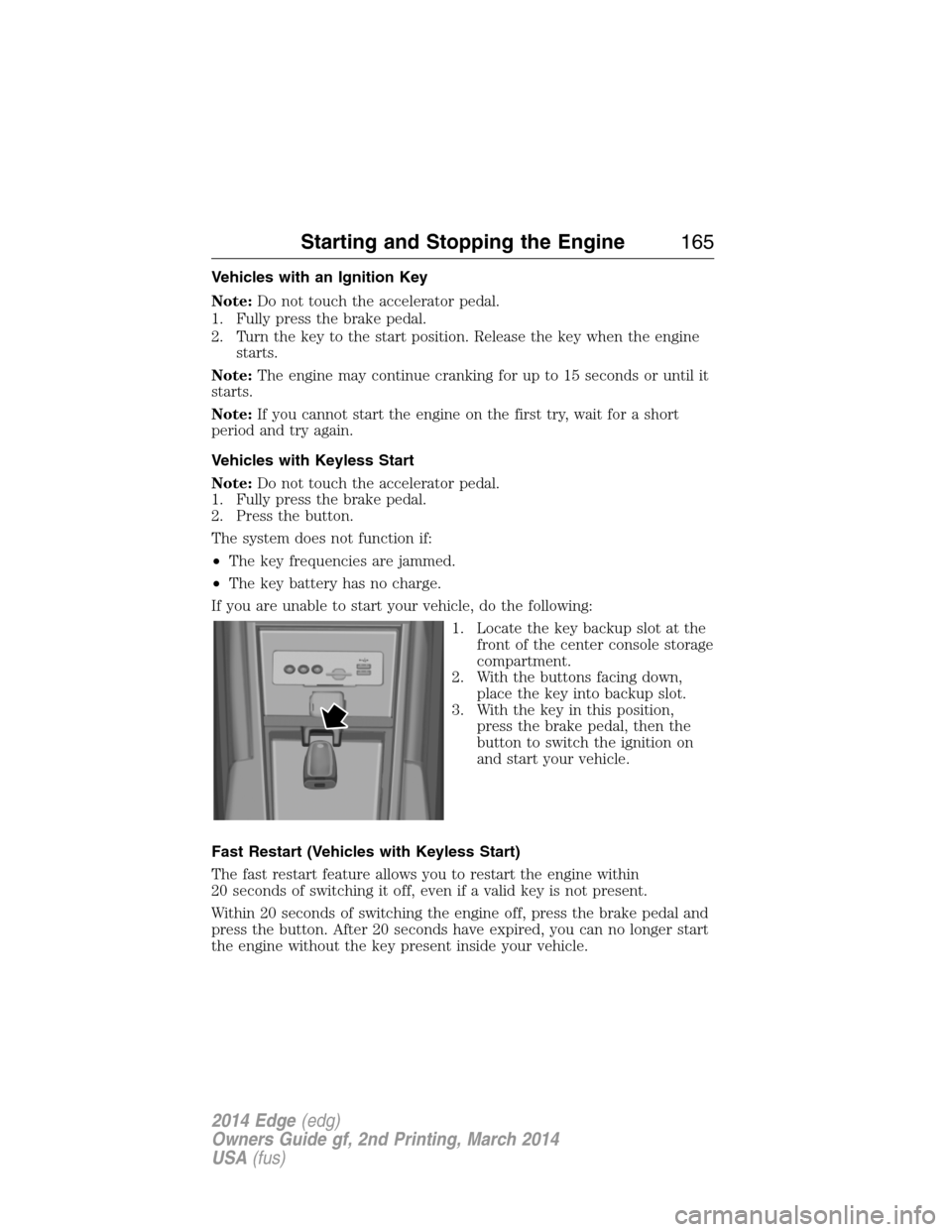
1. Locate the key backup slot at the
front of the center console storage
compartment.
2. With the buttons facing down,
place the key into backup slot.
3. With the key in this position,
press the brake pedal, then the
button to switch the ignition on
and start your vehicle.
Fast Restart (Vehicles with Keyless Start)
The fast restart feature allows you to restart the engine within
20 seconds of switching it off, even if a valid key is not present.
Within 20 seconds of switching the engine off, press the brake pedal and
press the button. After 20 seconds have expired, you can no longer start
the engine without the key present inside your vehicle.
Starting and Stopping the Engine165
2014 Edge(edg)
Owners Guide gf, 2nd Printing, March 2014
USA(fus)
Page 182 of 540
S (Sport) (if equipped)
Moving the gearshift lever to S (Sport mode):
•Provides additional grade (engine) braking and extends lower gear
operation to enhance performance for uphill climbs, hilly terrain or
mountainous areas. This will increase engine RPM during engine
braking.
•Provides additional lower gear operation through the automatic
transmission shift strategy which reacts to vehicle inputs (vehicle
acceleration, accelerator pedal, brake pedal and vehicle speed).
•Gears are selected more quickly and at higher engine speeds.
Note:The system will stay in S (Sport) until the gear shift lever is
moved into another gear for example P (park) or D (Drive).
SelectShift Automatic® Transmission (If Equipped)
Your SelectShift automatic transmission gives you the ability to manually
change gears if you’d like. To use SelectShift, move the gearshift lever
into S (Sport). Now you can use select shift to manually change gears.
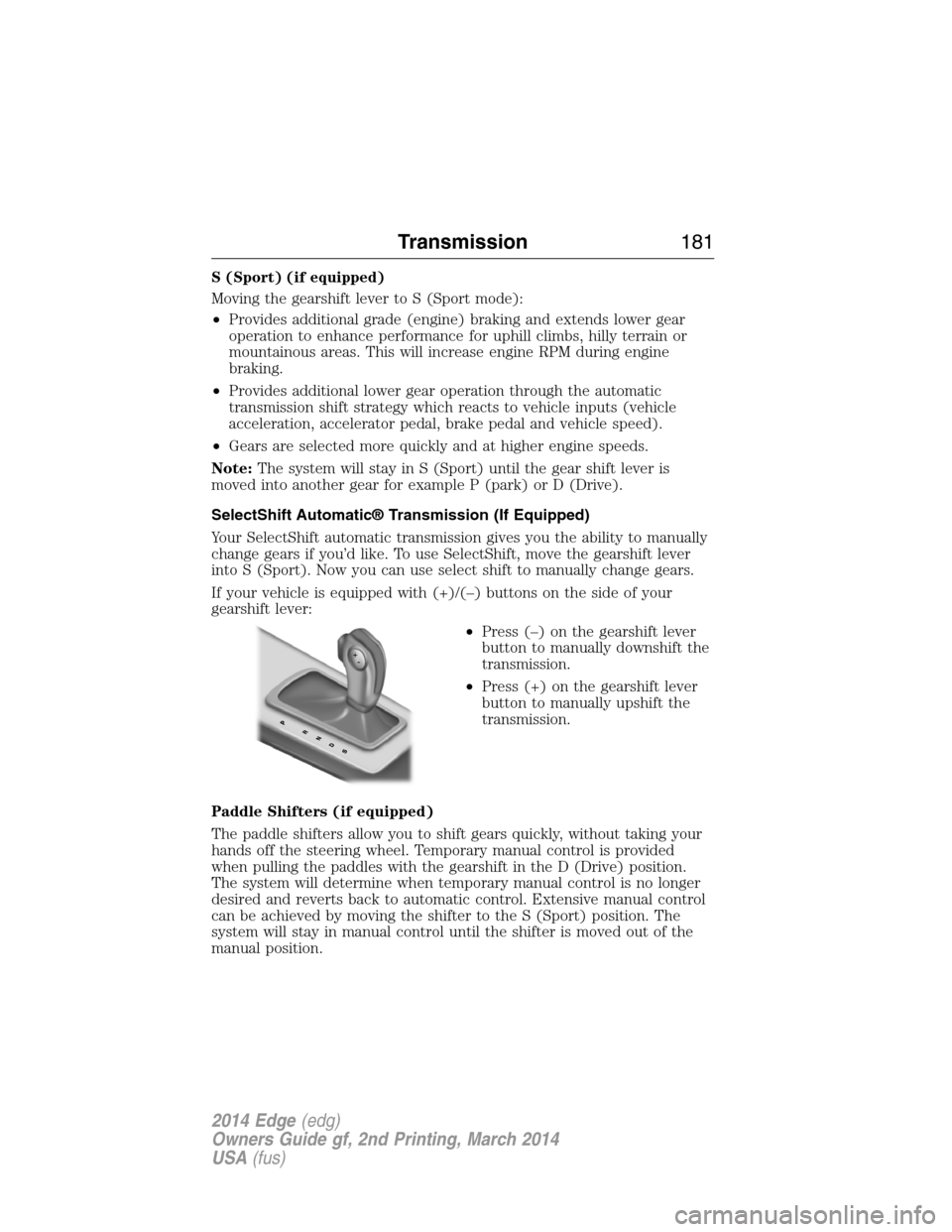
If your vehicle is equipped with (+)/(–) buttons on the side of your
gearshift lever:
•Press (–) on the gearshift lever
button to manually downshift the
transmission.
•Press (+) on the gearshift lever
button to manually upshift the
transmission.
Paddle Shifters (if equipped)
The paddle shifters allow you to shift gears quickly, without taking your
hands off the steering wheel. Temporary manual control is provided
when pulling the paddles with the gearshift in the D (Drive) position.
The system will determine when temporary manual control is no longer
desired and reverts back to automatic control. Extensive manual control
can be achieved by moving the shifter to the S (Sport) position. The
system will stay in manual control until the shifter is moved out of the
manual position.
Transmission181
2014 Edge(edg)
Owners Guide gf, 2nd Printing, March 2014
USA(fus)
Page 352 of 540
MyFord® SYSTEM
WARNING:Driving while distracted can result in loss of vehicle
control, crash and injury. We strongly recommend that you use
extreme caution when using any device that may take your focus off
the road. Your primary responsibility is the safe operation of your
vehicle. We recommend against the use of any hand-held device while
driving and encourage the use of voice-operated systems when possible.
Make sure you are aware of all applicable local laws that may affect the
use of electronic devices while driving.
Note:Some features, such as Sirius satellite radio, may not be available
in your location. Check with an authorized dealer.
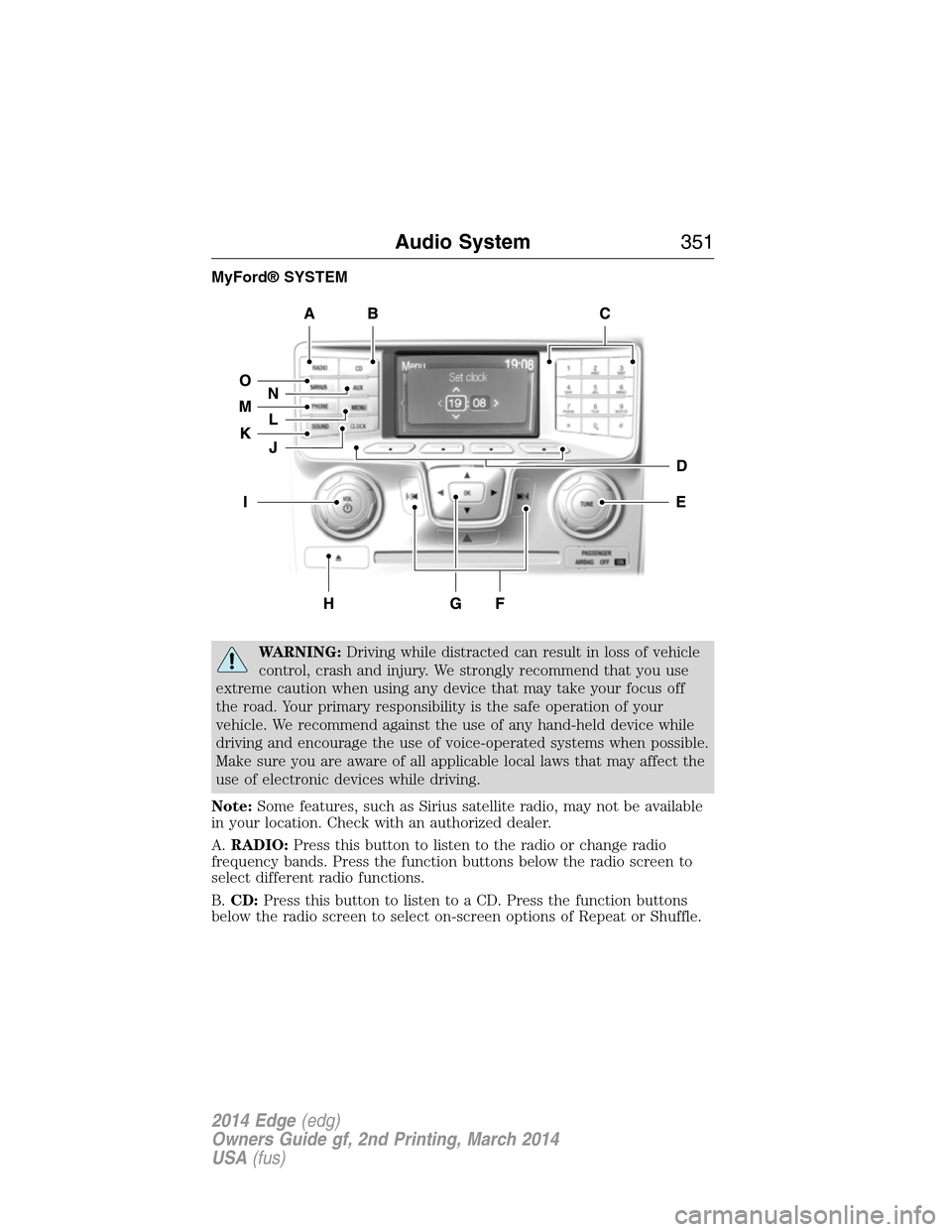
A.RADIO:Press this button to listen to the radio or change radio
frequency bands. Press the function buttons below the radio screen to
select different radio functions.
B.CD:Press this button to listen to a CD. Press the function buttons
below the radio screen to select on-screen options of Repeat or Shuffle.
Audio System351
2014 Edge(edg)
Owners Guide gf, 2nd Printing, March 2014
USA(fus)
Page 353 of 540
C.Memory presets:
•In radio mode, store your favorite radio stations. To store a radio
station, tune to the station, then press and hold a preset button until
sound returns.
•In CD mode, press one of these buttons to select a track.
D.Function buttons:Select different functions of the audio system
depending on which mode you are in (such as Radio mode or CD mode).
E.TUNE:
•In radio mode, turn the control to manually search the frequency
band.
•In satellite radio mode, turn the control to tune to the next or
previous channel.
F.Reverse and Fast Forward; AM/FM/CD Seek:
•In radio mode, select a frequency band and press one of these
buttons. The system stops at the first station it finds in that direction.
Press and hold one of these buttons to move quickly in that direction
to the next strong radio station or memory preset.
•In Sirius mode, press one of these buttons to select the previous or
next channel. If you select a specific category (such as Jazz, Rock or
News), use these buttons to find the previous or next channel in the
selected category. Press and hold one of these buttons to move
quickly in that direction to the next channel or category.
•In CD mode, press one of these buttons to select the previous or next
track. Press and hold one of these buttons to move quickly in that
direction within the current track.
G.OK and arrow buttons:
•Press the up and down or left and right arrow buttons to browse
menu selections.
•PressOKto confirm menu selections.
H.Eject:Press this button to eject a CD.
I.Power and Volume:
•Press this button to switch the system off and on.
•Turn it to adjust the volume.
J.CLOCK:Press this button to access the clock setting. Use the center
arrow controls to change the hours and minutes.
352Audio System
2014 Edge(edg)
Owners Guide gf, 2nd Printing, March 2014
USA(fus)
Page 354 of 540
K.SOUND:Press this button to adjust settings for Treble, Midrange,
Bass, Balance and Fade.
L.MENU:Press this button to access different audio system features.
SeeMenu structurelater in this section.
M.PHONE:Press this button to access the phone features of the SYNC
system. See theSYNCchapter for more information.
N.AUX:Press this button to access your auxiliary input jack or switch
between devices you plug into the input jack or USB port. SeeAuxiliary
input jacklater in this chapter.
O.SIRIUS:Press this button to listen to Sirius satellite radio.
Menu Structure
Note:Depending on your system, some options may appear slightly
different.
PressMENU.
Press the up and down arrow buttons to scroll through the options.
Press the right arrow to enter a menu. Press the left arrow to exit a
menu.
PressOKto confirm a selection.
Radio Settings
ScanSelect for a brief sampling of all available
channels.
Set CategorySelect to have the system search by certain
music categories (such as Rock, Pop or
Country).
RBDS/RDS TextSelect to view additional broadcast data, if
available. This feature defaults to off. RBDS
must be on for you to set a category.
Audio System353
2014 Edge(edg)
Owners Guide gf, 2nd Printing, March 2014
USA(fus)