warning FORD EXPEDITION 2015 3.G Owners Manual
[x] Cancel search | Manufacturer: FORD, Model Year: 2015, Model line: EXPEDITION, Model: FORD EXPEDITION 2015 3.GPages: 564, PDF Size: 6.71 MB
Page 376 of 564
AM/FM/CD SONY AUDIO SYSTEM
WARNING:Driving while distracted can result in loss of vehicle
control, crash and injury. We strongly recommend that you use
extreme caution when using any device that may take your focus off
the road. Your primary responsibility is the safe operation of your
vehicle. We recommend against the use of any hand-held device while
driving and encourage the use of voice-operated systems when possible.
Make sure you are aware of all applicable local laws that may affect the
use of electronic devices while driving.
Note:The MyFord Touch system controls most of the audio features.
See theMyFord Touchchapter for more information.
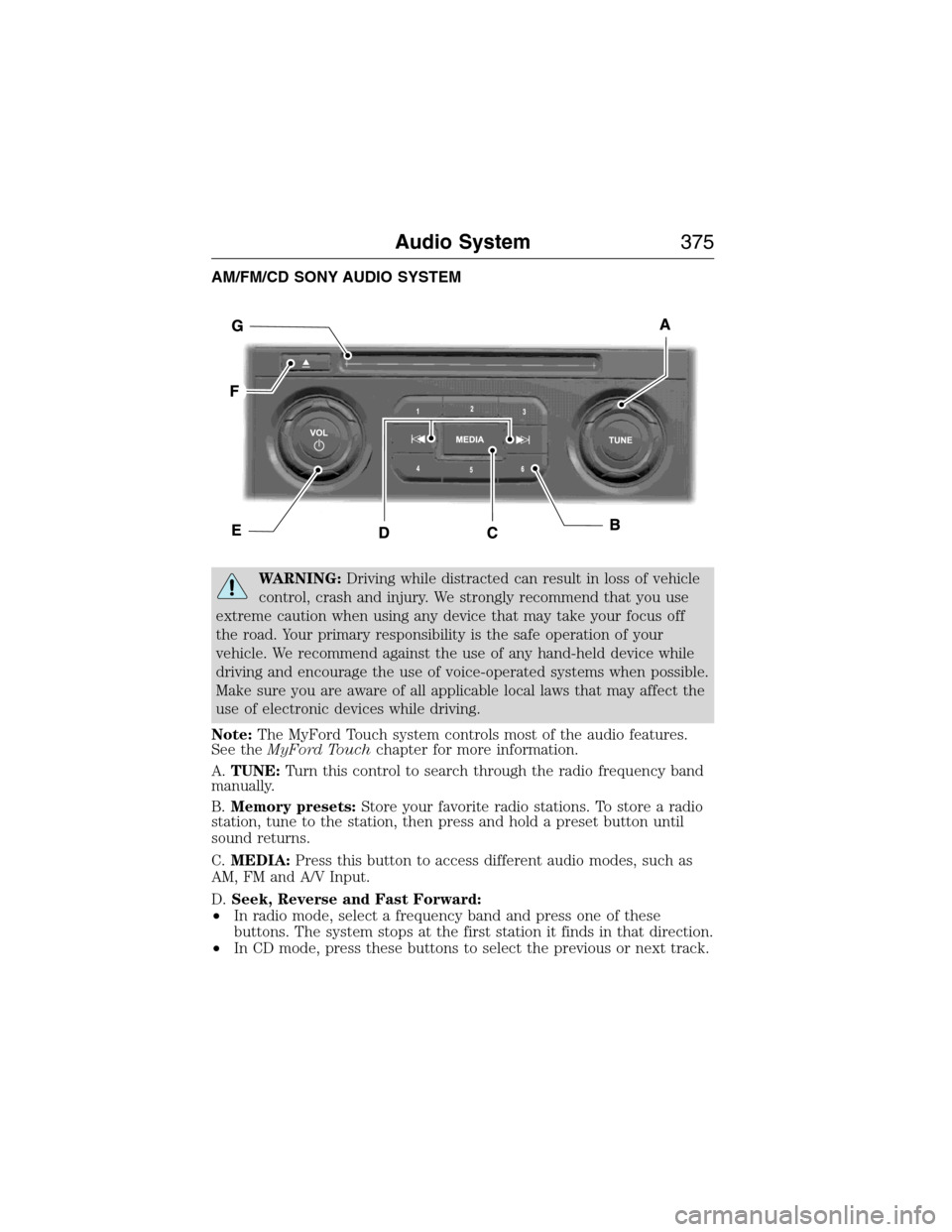
A.TUNE:Turn this control to search through the radio frequency band
manually.
B.Memory presets:Store your favorite radio stations. To store a radio
station, tune to the station, then press and hold a preset button until
sound returns.
C.MEDIA:Press this button to access different audio modes, such as
AM, FM and A/V Input.
D.Seek, Reverse and Fast Forward:
•In radio mode, select a frequency band and press one of these
buttons. The system stops at the first station it finds in that direction.
•In CD mode, press these buttons to select the previous or next track.
Audio System375
2015 Expedition(exd)
Owners Guide gf, 1st Printing, July 2014
USA(fus)
Page 384 of 564
AUXILIARY INPUT JACK
WARNING:Driving while distracted can result in loss of vehicle
control, crash and injury. We strongly recommend that you use
extreme caution when using any device that may take your focus off
the road. Your primary responsibility is the safe operation of your
vehicle. We recommend against the use of any hand-held device while
driving and encourage the use of voice-operated systems when possible.
Make sure you are aware of all applicable local laws that may affect the
use of electronic devices while driving.
WARNING:For safety reasons, do not connect or adjust the
settings on your portable music player while your vehicle is
moving.
WARNING:Store the portable music player in a secure location,
such as the center console or the glove box, when your vehicle is
moving. Hard objects may become projectiles in a crash or sudden stop,
which may increase the risk of serious injury. The audio extension cable
must be long enough to allow the portable music player to be safely
stored while your vehicle is moving.
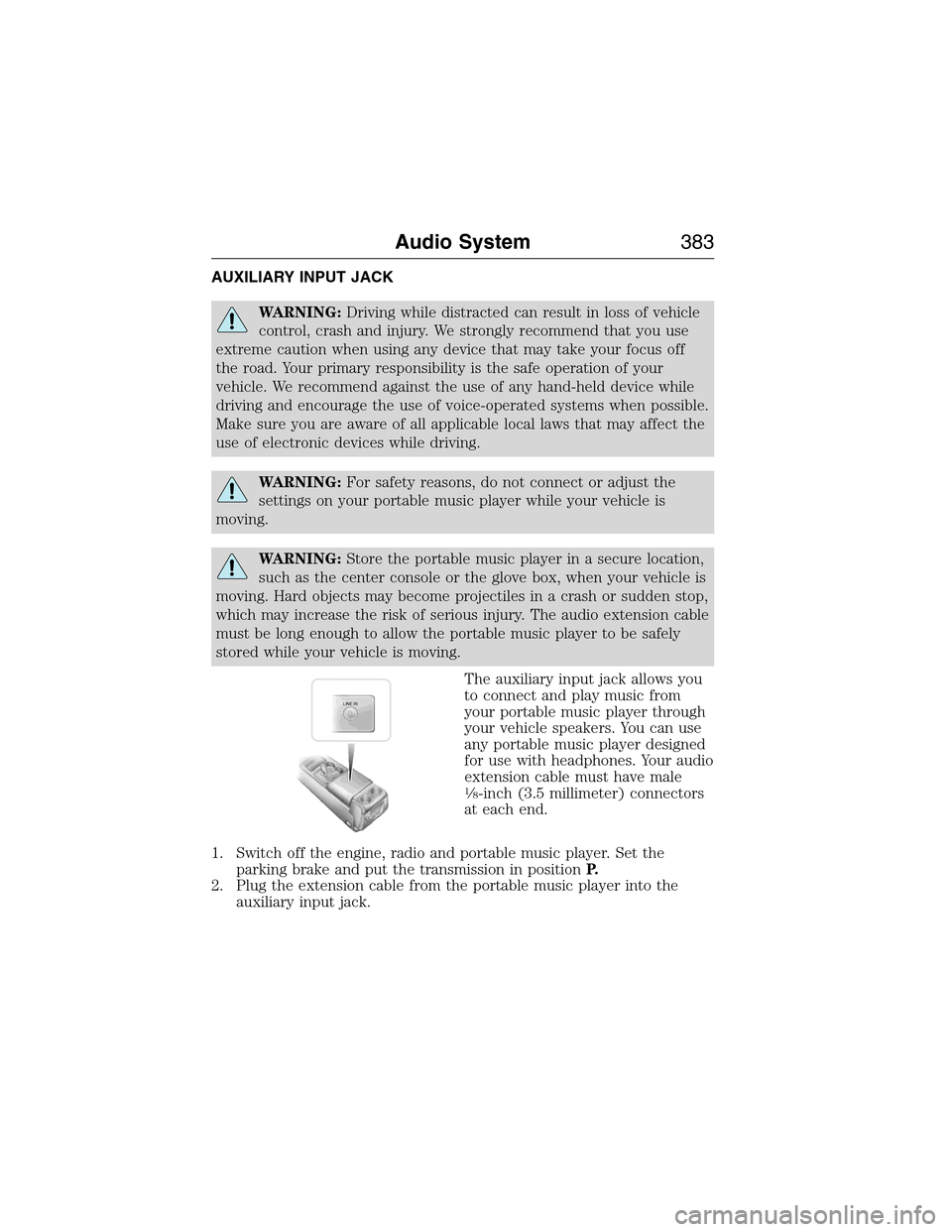
The auxiliary input jack allows you
to connect and play music from
your portable music player through
your vehicle speakers. You can use
any portable music player designed
for use with headphones. Your audio
extension cable must have male
18-inch (3.5 millimeter) connectors
at each end.
1. Switch off the engine, radio and portable music player. Set the
parking brake and put the transmission in positionP.
2. Plug the extension cable from the portable music player into the
auxiliary input jack.
LINE IN
Audio System383
2015 Expedition(exd)
Owners Guide gf, 1st Printing, July 2014
USA(fus)
Page 385 of 564
3. Switch the radio on. Select either a tuned FM station or a CD.
4. Adjust the volume as desired.
5. Switch your portable music player on and adjust its volume to half its
maximum level.
6. PressAUXuntilLINEorLINE INappears in the display. You
should hear music from your device even if it is low.
7. Adjust the volume on your portable music player until it reaches the
volume level of the FM station or CD. Do this by switching back and
forth between the AUX and FM or CD controls.
USB PORT (IF EQUIPPED)
WARNING:Driving while distracted can result in loss of vehicle
control, crash and injury. We strongly recommend that you use
extreme caution when using any device that may take your focus off
the road. Your primary responsibility is the safe operation of your
vehicle. We recommend against the use of any hand-held device while
driving and encourage the use of voice-operated systems when possible.
Make sure you are aware of all applicable local laws that may affect the
use of electronic devices while driving.
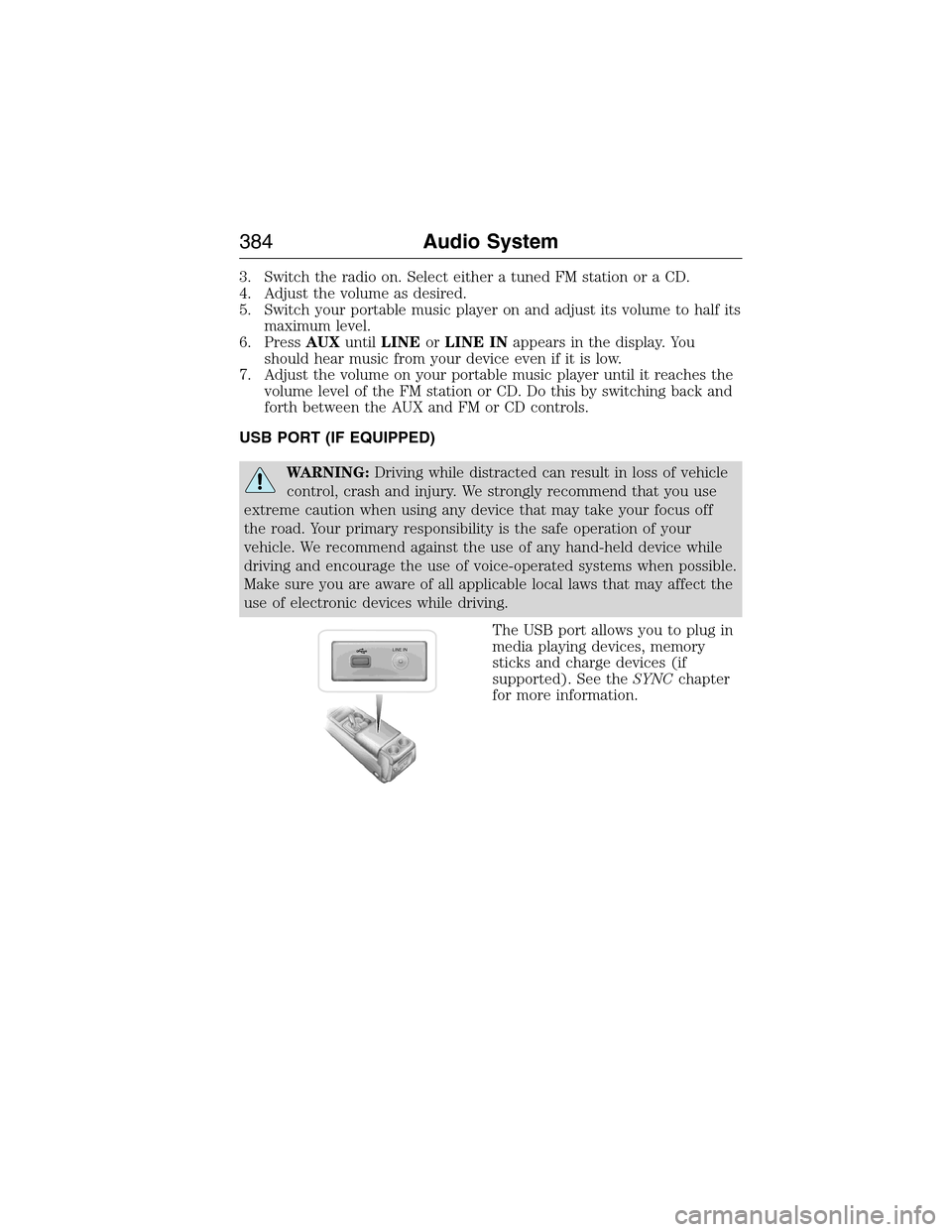
The USB port allows you to plug in
media playing devices, memory
sticks and charge devices (if
supported). See theSYNCchapter
for more information.
LINE IN
384Audio System
2015 Expedition(exd)
Owners Guide gf, 1st Printing, July 2014
USA(fus)
Page 388 of 564
GENERAL INFORMATION
Make sure you review your device’s manual before using it with SYNC.
Support
The SYNC support team is available to help you with any questions you
cannot answer on your own.
Monday-Saturday, 8:30am-9:00pm EST.
Sunday, 10:30am-7:30pm EST.
In the United States, call: 1–800–392–3673.
In Canada, call: 1–800–565–3673.
Times are subject to change due to holidays.
SYNC Owner Account
Why do I need a SYNC owner account?
•Required to activate Vehicle Health Report and to view the reports
online.
•Required to activate the subscription-based SYNC Services and to
personalize your Saved Points and Favorites.
•Essential for keeping up with the latest software downloads available
for SYNC.
•Access to customer support for any questions you may have.
Driving Restrictions
For your safety, certain features are speed-dependent and restricted
when your vehicle is traveling over 3 mph (5 km/h).
Safety Information
WARNING:Driving while distracted can result in loss of vehicle
control, crash and injury. We strongly recommend that you use
extreme caution when using any device that may take your focus off
the road. Your primary responsibility is the safe operation of your
vehicle. We recommend against the use of any handheld device while
driving and encourage the use of voice-operated systems when possible.
Make sure you are aware of all applicable local laws that may affect the
use of electronic devices while driving.
When using SYNC:
•Do not operate playing devices if the power cords or cables are
broken, split or damaged. Place cords and cables out of the way, so
they do not interfere with the operation of pedals, seats,
compartments or safe driving abilities.
SYNC®387
2015 Expedition(exd)
Owners Guide gf, 1st Printing, July 2014
USA(fus)
Page 406 of 564
SYNC APPLICATIONS AND SERVICES (IF EQUIPPED)
Note:In order for the following features to work, your cellular phone
must be compatible with SYNC. To check your phone’s compatibility, visit
www.SYNCMyRide.com, www.SYNCMyRide.ca or www.syncmaroute.ca.
•SYNC Services (if equipped, United States only): Provides access to
traffic, directions and information such as travel, horoscopes, stock
prices and more.
•911 Assist: Can alert 911 in the event of an emergency.
•Vehicle Health Report (if equipped, United States only): Provides a
diagnostic and maintenance report card of your vehicle.
911 Assist®
WARNING:Unless the 911 Assist setting is set on prior to a
crash, the system will not dial for help which could delay
response time, potentially increasing the risk of serious injury or death
after a crash.
WARNING:Do not wait for 911 Assist to make an emergency
call if you can do it yourself. Dial emergency services
immediately to avoid delayed response time which could increase the
risk of serious injury or death after a crash. If you do not hear 911
Assist within five seconds of the crash, the system or phone may be
damaged or non-functional.
WARNING:Always place your phone in a secure location in the
vehicle so it does not become a projectile or get damaged in a
crash. Failure to do so may cause serious injury to someone or damage
the phone which could prevent 911 Assist from working properly.
Note:SYNC 911 Assist feature must be set on prior to the incident.
Note:Before setting this feature on, ensure that you read the 911 Assist
privacy notice later in this section for important information.
Note:If 911 Assist is turned on or off by any user, that setting applies
for all paired phones. If 911 Assist is turned off, a voice message plays
and/or a display message/icon comes on when the vehicle is started after
a previously paired phone connects.
Note:Every phone operates differently. While SYNC 911 Assist works
with most cellular phones, some may have trouble using this feature.
SYNC®405
2015 Expedition(exd)
Owners Guide gf, 1st Printing, July 2014
USA(fus)
Page 409 of 564
Vehicle Health Report
WARNING:Always follow scheduled maintenance instructions,
regularly inspect your vehicle, and seek repair for any damage or
problem you suspect. Vehicle Health Report supplements, but cannot
replace normal maintenance and vehicle inspection. Vehicle Health
Report only monitors certain systems that are electronically monitored
by the vehicle and will not monitor or report the status of any other
system, (such as brake lining wear). Failure to perform scheduled
maintenance and regularly inspect your vehicle may result in vehicle
damage and serious injury.
Note:Your Vehicle Health Report feature requires activation prior to
use. Visit www.SYNCMyRide.com to register. There is no fee or
subscription associated with Vehicle Health Report, but you must register
to use this feature.
Note:This feature may not function properly if you have enabled caller
ID blocking on your mobile phone. Before running a report, review the
Vehicle Health Report privacy notice.
Note:In order to allow a break-in period for your vehicle, you may not
be able to create a Vehicle Health Report until your vehicle odometer has
reached 200 miles.
Register for Vehicle Health Report and set your report preferences at
www.SYNCMyRide.com. After registering, you can request a Vehicle
Health Report (inside your vehicle). Return to your account at
www.SYNCMyRide.com to view your report. You can also choose for
SYNC to automatically remind you to run reports at specific mileage
intervals. Cellular phone airtime usage may apply when reporting.
The system allows you to check your vehicle’s overall health in the form
of a diagnostic report card. The vehicle health report contains valuable
information such as:
•Vehicle Diagnostic Information
•Scheduled maintenance
•Open Recalls and Field Service Actions
•Unserviced items from vehicle inspections by your authorized dealer.
You can run a report (after the vehicle has been running a minimum of
60 seconds) by pressing the voice button and saying “Vehicle health
report”, or pressing the phone button.
408SYNC®
2015 Expedition(exd)
Owners Guide gf, 1st Printing, July 2014
USA(fus)
Page 437 of 564
GENERAL INFORMATION
WARNING:Driving while distracted can result in loss of vehicle
control, crash and injury. We strongly recommend that you use
extreme caution when using any device that may take your focus off
the road. Your primary responsibility is the safe operation of your
vehicle. We recommend against the use of any hand-held device while
driving and encourage the use of voice-operated systems when possible.
Make sure you are aware of all applicable local laws that may affect the
use of electronic devices while driving.
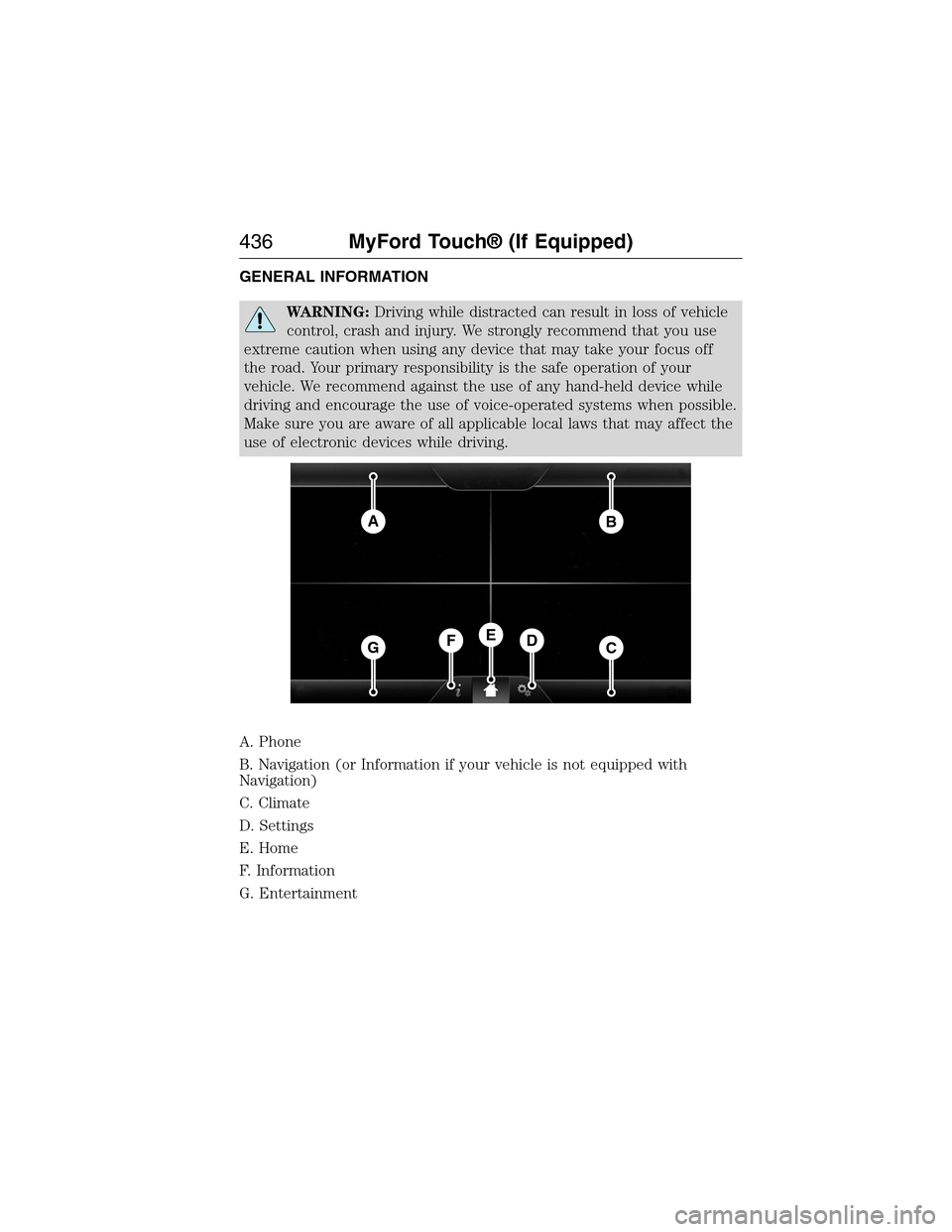
A. Phone
B. Navigation (or Information if your vehicle is not equipped with
Navigation)
C. Climate
D. Settings
E. Home
F. Information
G. Entertainment
AB
GCDFE
436MyFord Touch® (If Equipped)
2015 Expedition(exd)
Owners Guide gf, 1st Printing, July 2014
USA(fus)
Page 441 of 564
Cleaning the Touchscreen Display
Use a clean, soft cloth such as one used for cleaning glasses. If dirt or
fingerprints are still visible, apply a small amount of alcohol to the cloth.
Do not pour or spray alcohol onto the display. Do not use detergent or
any type of solvent to clean the display.
Support
The SYNC support team is available to help you with any questions you
cannot answer on your own.
Monday-Saturday, 8:30am-9:00pm EST.
Sunday, 10:30am-7:30pm EST.
In the United States, call: 1–800–392–3673.
In Canada, call: 1–800–565–3673.
Times are subject to change due to holidays.
Safety Information
WARNING:Driving while distracted can result in loss of vehicle
control, crash and injury. We strongly recommend that you use
extreme caution when using any device that may take your focus off
the road. Your primary responsibility is the safe operation of your
vehicle. We recommend against the use of any handheld device while
driving and encourage the use of voice-operated systems when possible.
Make sure you are aware of all applicable local laws that may affect the
use of electronic devices while driving.
When using SYNC:
•Do not operate playing devices if the power cords or cables are
broken, split or damaged. Place cords and cables out of the way, so
they do not interfere with the operation of pedals, seats,
compartments or safe driving abilities.
•Do not leave playing devices in your vehicle during extreme conditions
as it could cause them damage. See your device’s manual for further
information.
•Do not attempt to service or repair the system. See your authorized
dealer.
For your safety, some SYNC functions are speed-dependent. Their use is
limited to when your vehicle is traveling at speeds under 3 mph (5 km/h).
Make sure that you review your device’s manual before using it with SYNC.
440MyFord Touch® (If Equipped)
2015 Expedition(exd)
Owners Guide gf, 1st Printing, July 2014
USA(fus)
Page 466 of 564
If your indexed media files contain no information embedded in these
metadata tags, SYNC may classify the empty metadata tags as
Unknown.
In order to playback video from your iPod® or iPhone®, (if compatible),
you MUST have a special combination USB/RCA composite video cable
(which you can buy from Apple®). When the cable is connected to your
iPod® or iPhone®, plug the other end into both the RCA jacks and the
USB port.
Bluetooth Audio
Your system allows you to stream audio over your vehicle’s speakers from
your connected, Bluetooth-enabled cellular phone.
To access, press the lower left corner on the touchscreen, then
select theBT Stereotab.
Bluetooth Audio Voice Commands
If you are listening to a Bluetooth audio device, press the voice
button on the steering wheel control. When prompted, say
“Next song”, “Pause”, “Play” or “Previous song”.
If you are not listening to a Bluetooth audio device, press the voice
button and, after the tone, say “Bluetooth Audio”, then “Next song”,
“Pause”, “Play” or “Previous song”.
Line In (Auxiliary Input Jack)
WARNING:Driving while distracted can result in loss of vehicle
control, crash and injury. We strongly recommend that you use
extreme caution when using any device that may take your focus off
the road. Your primary responsibility is the safe operation of your
vehicle. We recommend against the use of any hand-held device while
driving and encourage the use of voice-operated systems when possible.
Make sure you are aware of all applicable local laws that may affect the
use of electronic devices while driving.
WARNING:For safety reasons, do not connect or adjust the
settings on your portable music player while your vehicle is
moving.
MyFord Touch® (If Equipped)465
2015 Expedition(exd)
Owners Guide gf, 1st Printing, July 2014
USA(fus)
Page 467 of 564
WARNING:Store the portable music player in a secure location,
such as the center console or the glove box, when your vehicle is
in motion. Hard objects may become projectiles in a crash or sudden
stop, which may increase the risk of serious injury. The audio extension
cable must be long enough to allow the portable music player to be
safely stored while your vehicle is moving.
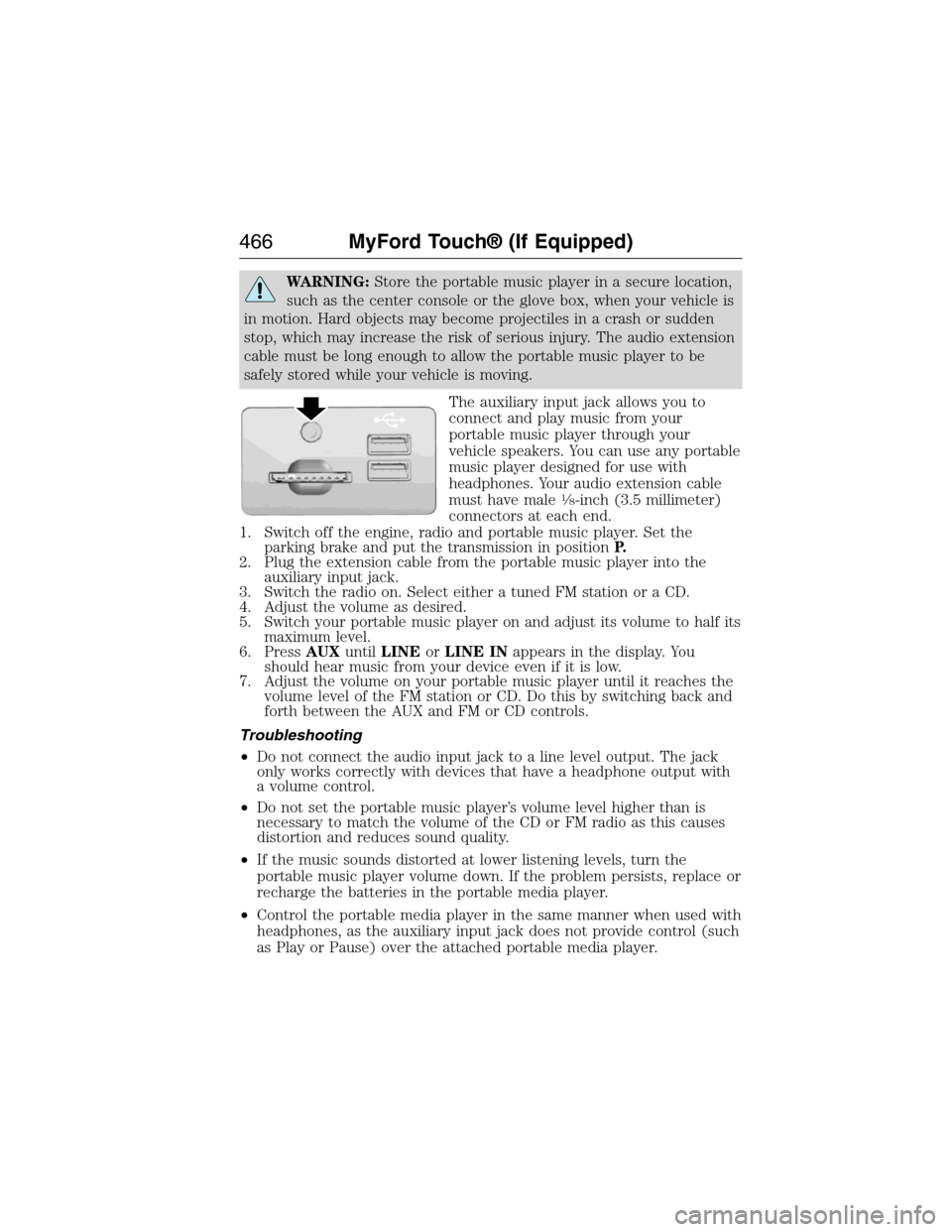
The auxiliary input jack allows you to
connect and play music from your
portable music player through your
vehicle speakers. You can use any portable
music player designed for use with
headphones. Your audio extension cable
must have male
18-inch (3.5 millimeter)
connectors at each end.
1. Switch off the engine, radio and portable music player. Set the
parking brake and put the transmission in positionP.
2. Plug the extension cable from the portable music player into the
auxiliary input jack.
3. Switch the radio on. Select either a tuned FM station or a CD.
4. Adjust the volume as desired.
5. Switch your portable music player on and adjust its volume to half its
maximum level.
6. PressAUXuntilLINEorLINE INappears in the display. You
should hear music from your device even if it is low.
7. Adjust the volume on your portable music player until it reaches the
volume level of the FM station or CD. Do this by switching back and
forth between the AUX and FM or CD controls.
Troubleshooting
•Do not connect the audio input jack to a line level output. The jack
only works correctly with devices that have a headphone output with
a volume control.
•Do not set the portable music player’s volume level higher than is
necessary to match the volume of the CD or FM radio as this causes
distortion and reduces sound quality.
•If the music sounds distorted at lower listening levels, turn the
portable music player volume down. If the problem persists, replace or
recharge the batteries in the portable media player.
•Control the portable media player in the same manner when used with
headphones, as the auxiliary input jack does not provide control (such
as Play or Pause) over the attached portable media player.
466MyFord Touch® (If Equipped)
2015 Expedition(exd)
Owners Guide gf, 1st Printing, July 2014
USA(fus)