ad blue FORD EXPEDITION 2023 User Guide
[x] Cancel search | Manufacturer: FORD, Model Year: 2023, Model line: EXPEDITION, Model: FORD EXPEDITION 2023Pages: 658, PDF Size: 16.16 MB
Page 305 of 658
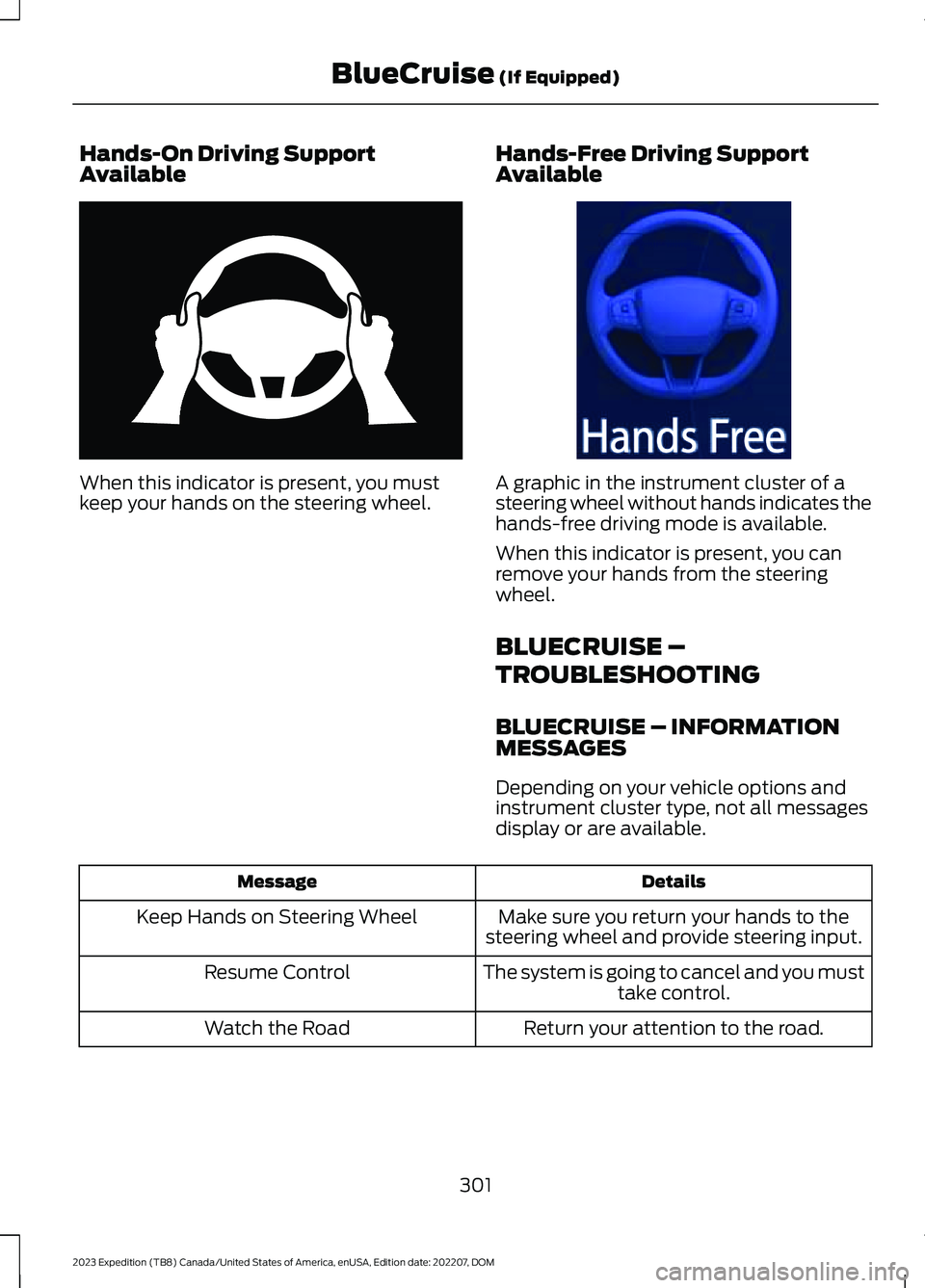
Hands-On Driving SupportAvailable
When this indicator is present, you mustkeep your hands on the steering wheel.
Hands-Free Driving SupportAvailable
A graphic in the instrument cluster of asteering wheel without hands indicates thehands-free driving mode is available.
When this indicator is present, you canremove your hands from the steeringwheel.
BLUECRUISE –
TROUBLESHOOTING
BLUECRUISE – INFORMATIONMESSAGES
Depending on your vehicle options andinstrument cluster type, not all messagesdisplay or are available.
DetailsMessage
Make sure you return your hands to thesteering wheel and provide steering input.Keep Hands on Steering Wheel
The system is going to cancel and you musttake control.Resume Control
Return your attention to the road.Watch the Road
301
2023 Expedition (TB8) Canada/United States of America, enUSA, Edition date: 202207, DOMBlueCruise (If Equipped)E333236 E333232
Page 306 of 658
DetailsMessage
Conditions exist preventing the system frombeing available. If the message continuesto display, have the system checked assoon as possible.
BlueCruise not available
Press the accelerator pedal and follow theprompts.Press Accelerator Pedal to Resume
Make sure your facial features are visibleand in the field of view of the driver facingcamera.
Driver monitor camera cannot detect faceSee manual
Make sure your hands, arms or other objectsare not obscuring the camera.Driver monitor camera is blocked Seemanual
Conditions exist preventing the system frombeing available. If the message continuesto display, have the system checked assoon as possible.
Driver monitor camera fault See manual
BlueCruise is active, keep your attention onthe road.BlueCruise On Watch the road Be preparedto resume control
The system is in standby mode, press thebutton on the steering wheel to activate.BlueCruise available Press {ICON} toactivate
Note:The instrument cluster display mayabbreviate or shorten certain messages.
302
2023 Expedition (TB8) Canada/United States of America, enUSA, Edition date: 202207, DOMBlueCruise (If Equipped)
Page 337 of 658
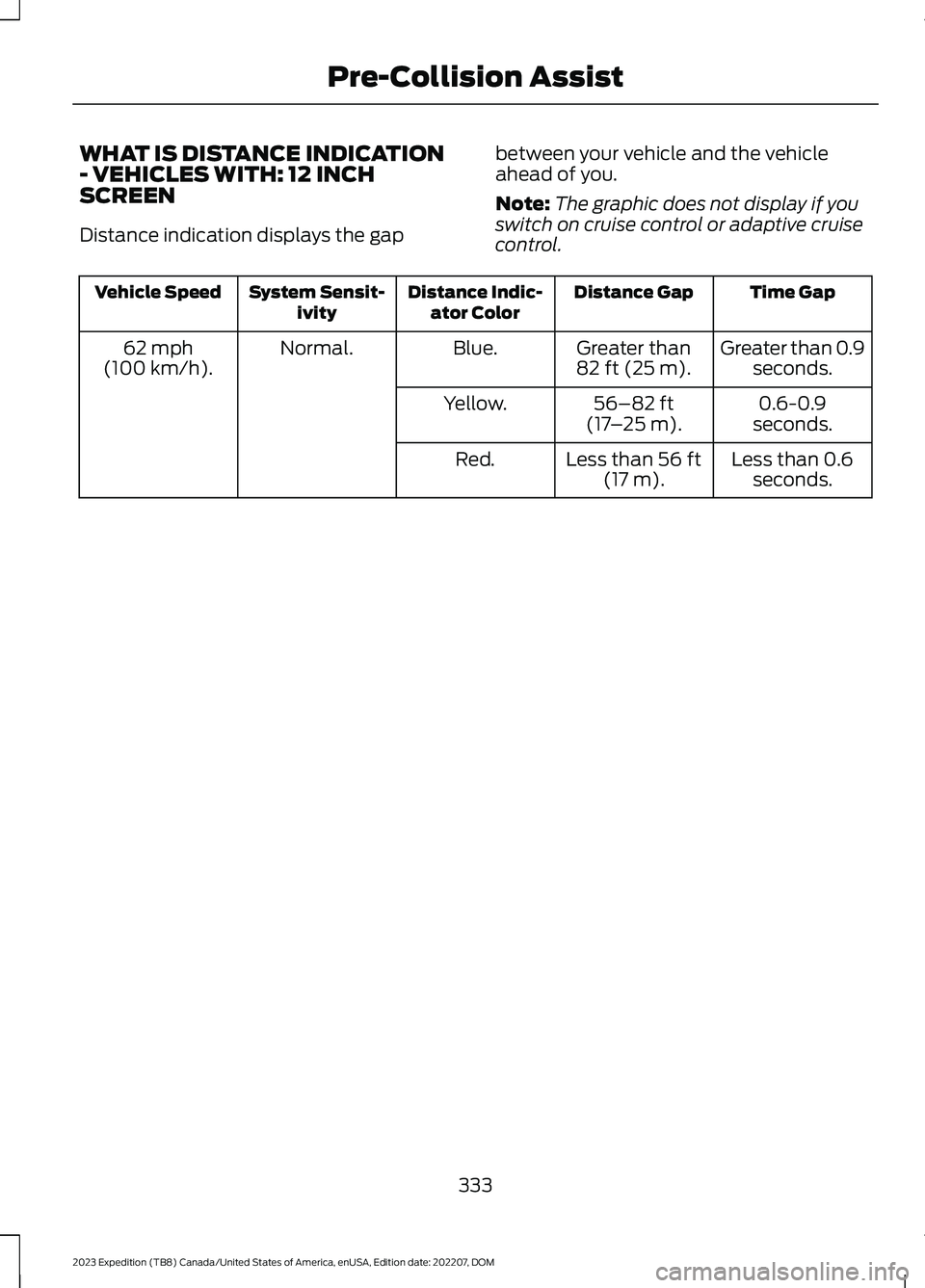
WHAT IS DISTANCE INDICATION- VEHICLES WITH: 12 INCHSCREEN
Distance indication displays the gap
between your vehicle and the vehicleahead of you.
Note:The graphic does not display if youswitch on cruise control or adaptive cruisecontrol.
Time GapDistance GapDistance Indic-ator ColorSystem Sensit-ivityVehicle Speed
Greater than 0.9seconds.Greater than82 ft (25 m).Blue.Normal.62 mph(100 km/h).
0.6-0.9seconds.56–82 ft(17–25 m).Yellow.
Less than 0.6seconds.Less than 56 ft(17 m).Red.
333
2023 Expedition (TB8) Canada/United States of America, enUSA, Edition date: 202207, DOMPre-Collision Assist
Page 503 of 658
CENTER DISPLAY
PRECAUTIONS
WARNING: Driving while distractedcan result in loss of vehicle control, crashand injury. We strongly recommend thatyou use extreme caution when using anydevice that may take your focus off theroad. Your primary responsibility is thesafe operation of your vehicle. Werecommend against the use of anyhand-held device while driving andencourage the use of voice-operatedsystems when possible. Make sure youare aware of all applicable local lawsthat may affect the use of electronicdevices while driving.
CENTER DISPLAY
LIMITATIONS
Speed-restricted Features
For your safety, some features are notavailable while the vehicle is in motion ator above 5 mph (8 km/h). Settings thatare not critical while driving your vehicleare shown as restricted on your display.Some of these settings include:
•Software updates.
•Personal profiles setup.
•Valet mode setup.
•Driver assistance settings.
•MyKey setup.
•Door keypad code setup.
These restricted features becomeavailable when your vehicle is no longer inmotion.
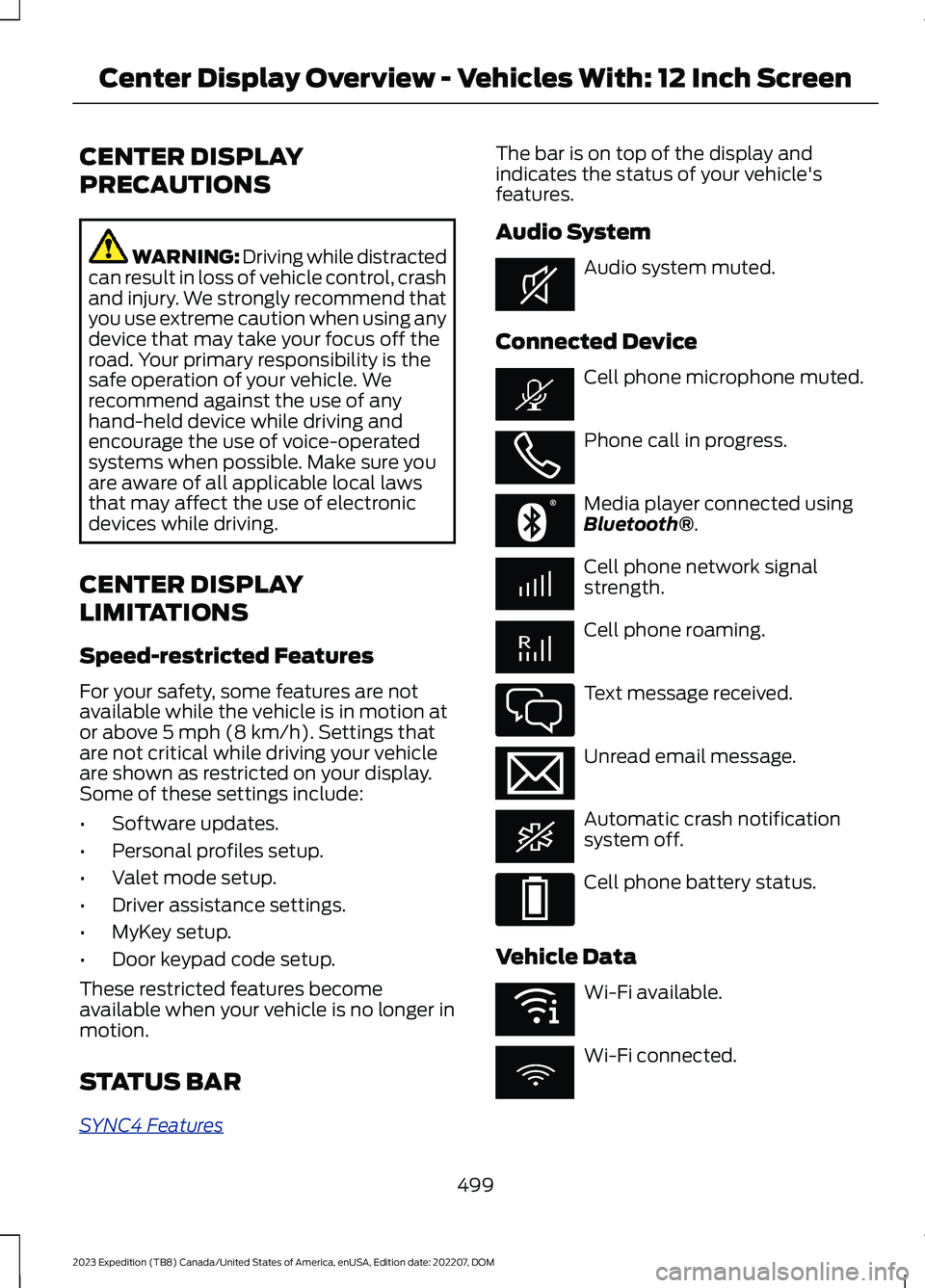
STATUS BAR
SYNC4 Features
The bar is on top of the display andindicates the status of your vehicle'sfeatures.
Audio System
Audio system muted.
Connected Device
Cell phone microphone muted.
Phone call in progress.
Media player connected usingBluetooth®.
Cell phone network signalstrength.
Cell phone roaming.
Text message received.
Unread email message.
Automatic crash notificationsystem off.
Cell phone battery status.
Vehicle Data
Wi-Fi available.
Wi-Fi connected.
499
2023 Expedition (TB8) Canada/United States of America, enUSA, Edition date: 202207, DOMCenter Display Overview - Vehicles With: 12 Inch ScreenE353221 E353213 E353208 E335295 E353216 E335293 E353219
Page 504 of 658
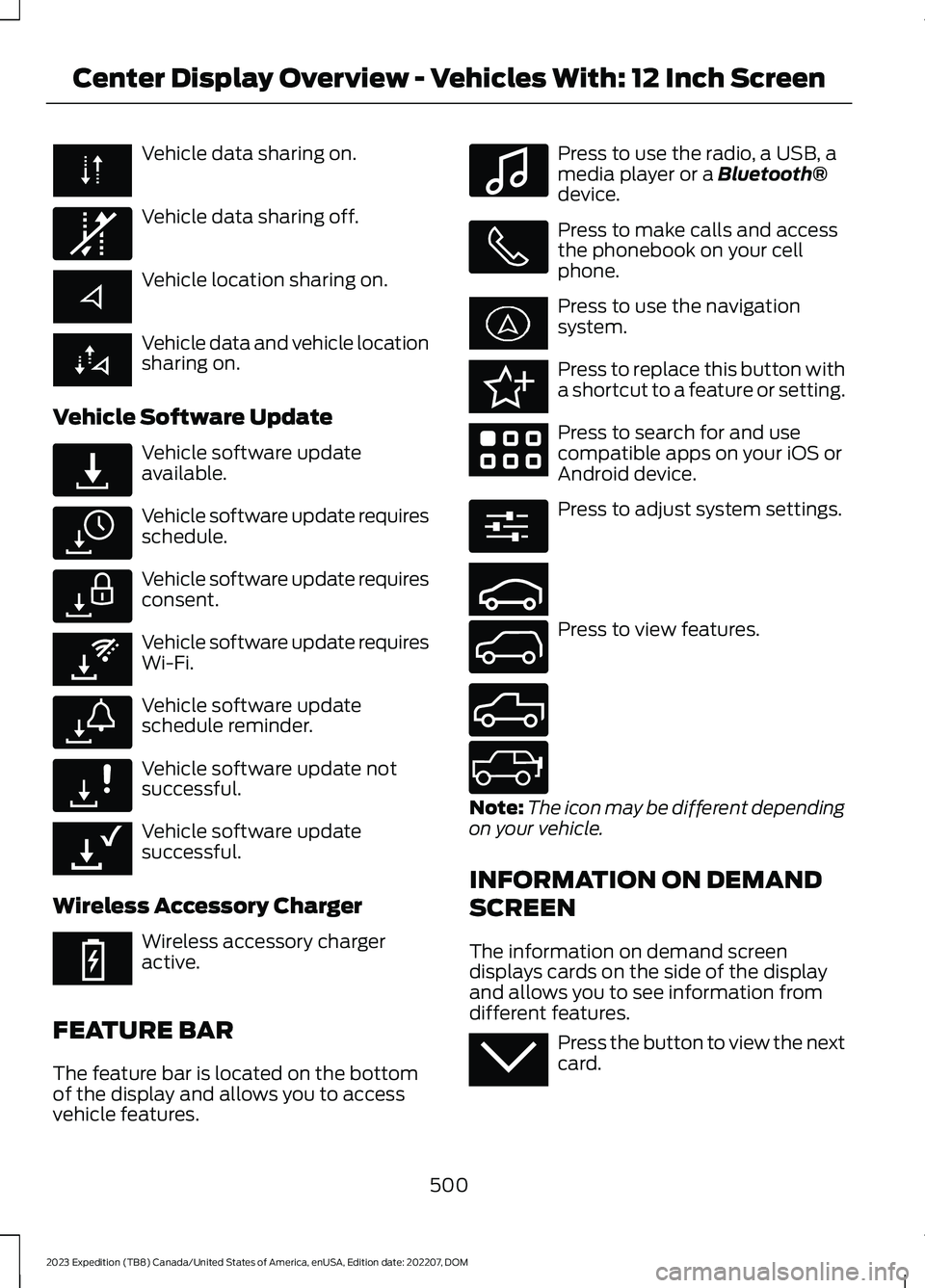
Vehicle data sharing on.
Vehicle data sharing off.
Vehicle location sharing on.
Vehicle data and vehicle locationsharing on.
Vehicle Software Update
Vehicle software updateavailable.
Vehicle software update requiresschedule.
Vehicle software update requiresconsent.
Vehicle software update requiresWi-Fi.
Vehicle software updateschedule reminder.
Vehicle software update notsuccessful.
Vehicle software updatesuccessful.
Wireless Accessory Charger
Wireless accessory chargeractive.
FEATURE BAR
The feature bar is located on the bottomof the display and allows you to accessvehicle features.
Press to use the radio, a USB, amedia player or a Bluetooth®device.
Press to make calls and accessthe phonebook on your cellphone.
Press to use the navigationsystem.
Press to replace this button witha shortcut to a feature or setting.
Press to search for and usecompatible apps on your iOS orAndroid device.
Press to adjust system settings.
Press to view features.
Note:The icon may be different dependingon your vehicle.
INFORMATION ON DEMAND
SCREEN
The information on demand screendisplays cards on the side of the displayand allows you to see information fromdifferent features.
Press the button to view the nextcard.
500
2023 Expedition (TB8) Canada/United States of America, enUSA, Edition date: 202207, DOMCenter Display Overview - Vehicles With: 12 Inch Screen E335292 E327789 E327785 E327786 E353217 E327787 E327788 E353218 E353214 E100027 E358432 E353220 E280315 E353210 E335299 E335300 E347104 E353212
Page 506 of 658
CENTER DISPLAY
PRECAUTIONS
WARNING: Driving while distractedcan result in loss of vehicle control, crashand injury. We strongly recommend thatyou use extreme caution when using anydevice that may take your focus off theroad. Your primary responsibility is thesafe operation of your vehicle. Werecommend against the use of anyhand-held device while driving andencourage the use of voice-operatedsystems when possible. Make sure youare aware of all applicable local lawsthat may affect the use of electronicdevices while driving.
CENTER DISPLAY
LIMITATIONS
Speed-restricted Features
For your safety, some features are notavailable while the vehicle is in motion ator above 5 mph (8 km/h). Settings thatare not critical while driving your vehicleare shown as restricted on your display.Some of these settings include:
•Software updates.
•Personal profiles setup.
•Valet mode setup.
•Driver assistance settings.
•MyKey setup.
•Door keypad code setup.
These restricted features becomeavailable when your vehicle is no longer inmotion.
STATUS BAR
SYNC4 Features
The bar is on top of the display andindicates the status of your vehicle'sfeatures. It also contains the Vehicle andApplication drawers. See Changing theLanguage (page 143).
Status Area
The status area is on the right side of thestatus bar and provides information aboutvehicle features.
Audio System
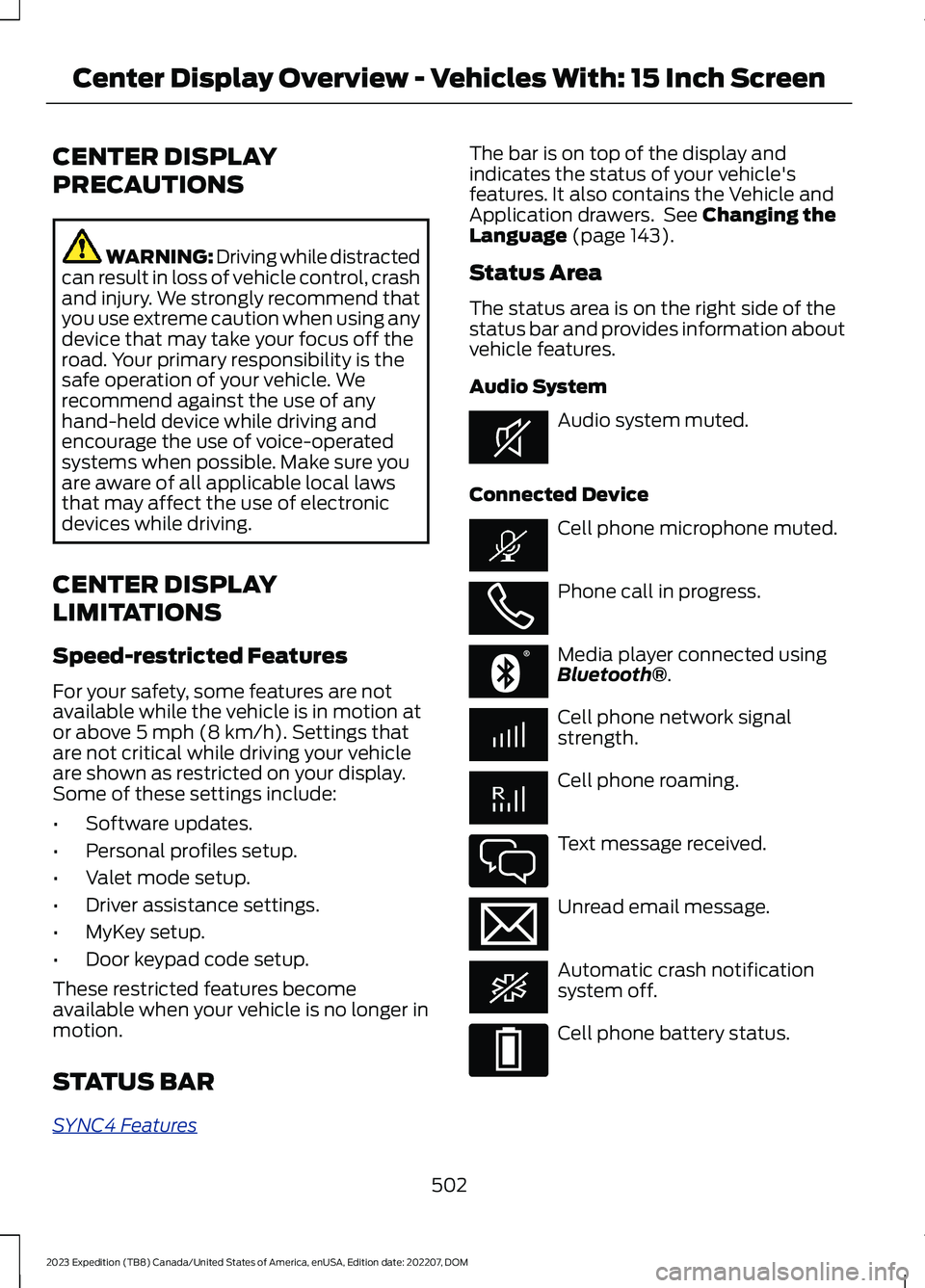
Audio system muted.
Connected Device
Cell phone microphone muted.
Phone call in progress.
Media player connected usingBluetooth®.
Cell phone network signalstrength.
Cell phone roaming.
Text message received.
Unread email message.
Automatic crash notificationsystem off.
Cell phone battery status.
502
2023 Expedition (TB8) Canada/United States of America, enUSA, Edition date: 202207, DOMCenter Display Overview - Vehicles With: 15 Inch ScreenE353221 E353213 E353208 E335295 E353216 E335293
Page 509 of 658
Press the button next to a menuoption for more information.
FORD ASSISTANT SETTINGS -VEHICLES WITH: 15 INCH SCREEN
To access the settings menu:
1.Access the vehicle drawer on thetouchscreen.
2.Press SETTINGS.
3.Press Ford Assistant.
From the settings menu you can do thefollowing:
•Switch listen for wake word on or off.
•Set the preferred wake word.
•Switch advance mode on or off.
•Switch phone confirmation on or off.
•Switch the commands list on or off.
•View the commands help menu.
Press the button next to a menuoption for more information.
FORD ASSISTANT – FREQUENTLYASKED QUESTIONS
Why does the system notunderstand what I am saying?
•You are speaking too soon. When usingthe button of the steering wheel, waitfor the tone before you speak.
Why does the system notunderstand the name of a track orartist?
•Bluetooth® does not support voicecommands.Connect your device to aUSB port.
•You are not saying the name exactlyas it appears on your device. Say thename of the track or artist exactly as itappears on your device. Spell out anyabbreviations in the name.
•The system does not recognize somespecial characters contained in thename of a song or artist, for example*, - or +. Rename the files on yourdevice or use the touchscreen to selectand play the track.
Why does the system notunderstand the name of a contactin the phonebook on my device andcalls the wrong contact?
•You are not saying the name exactlyas it appears on your device. Say thefirst and last name of the contactexactly as it appears on your device.Spell out any abbreviations in thename.
•The name contains special characters,for example *, - or +. Rename thecontact on your device or use thetouchscreen to select and call thecontact.
505
2023 Expedition (TB8) Canada/United States of America, enUSA, Edition date: 202207, DOMVoice InteractionE366956 E366956
Page 515 of 658
PHONE PRECAUTIONS
WARNING: Driving while distractedcan result in loss of vehicle control, crashand injury. We strongly recommend thatyou use extreme caution when using anydevice that may take your focus off theroad. Your primary responsibility is thesafe operation of your vehicle. Werecommend against the use of anyhand-held device while driving andencourage the use of voice-operatedsystems when possible. Make sure youare aware of all applicable local lawsthat may affect the use of electronicdevices while driving.
CONNECTING YOUR PHONE
Go to the settings menu on your device andswitch Bluetooth® on.
Press the phone option on thefeature bar.
1.Press Add Phone.
Note:A prompt alerts you to search for yourvehicle on your cell phone.
2.Select your vehicle on your cell phone.
Note:A number appears on your cell phoneand on the touchscreen.
3.Confirm the number on your cell phonematches the number on thetouchscreen.
Note:The touchscreen indicates that youhave successfully paired your cell phone.
4.Download the phonebook from yourcell phone when you are prompted.
Note:If you pair more than one cell phone,use the phone settings on the center displayto specify the primary phone. You canchange this setting at any time.
PHONE MENU
This menu becomes available after pairinga phone.
Recent Call List
Display and select an entry from a list ofprevious calls.
Contacts
Display a smart search form to look up yourcontacts. Use the List button toalphabetically sort your contacts.
Favorites
Display the list of favorite contacts thatare set up on your phone.
Messaging
Displays the list of text messages to read,listen to, or respond to.
Email
Displays the list of emails to read, listen to,or respond to.
Phone List
Display the list of paired or connecteddevices that you can select.
Note:Up to 12 devices can be stored.
Do Not Disturb
Reject incoming calls and switch ring tonesand alerts off.
Phone Keypad
Directly dial a number.
511
2023 Expedition (TB8) Canada/United States of America, enUSA, Edition date: 202207, DOMPhone - Vehicles With: 12 Inch Screen
Page 519 of 658
SWITCHING TEXT MESSAGE
NOTIFICATION ON AND OFF
iOS
1.Go to the settings menu on your cellphone.
2.Select Bluetooth®.
3.Select the information icon to the rightof your vehicle.
4.Switch text message notification on oroff.
Android
1.Go to the settings menu on your cellphone.
2.Select Bluetooth®.
3.Select the profiles option.
4.Select the phone profile.
5.Switch text message notification on oroff.
515
2023 Expedition (TB8) Canada/United States of America, enUSA, Edition date: 202207, DOMPhone - Vehicles With: 12 Inch Screen
Page 520 of 658
PHONE PRECAUTIONS
WARNING: Driving while distractedcan result in loss of vehicle control, crashand injury. We strongly recommend thatyou use extreme caution when using anydevice that may take your focus off theroad. Your primary responsibility is thesafe operation of your vehicle. Werecommend against the use of anyhand-held device while driving andencourage the use of voice-operatedsystems when possible. Make sure youare aware of all applicable local lawsthat may affect the use of electronicdevices while driving.
CONNECTING YOUR PHONE
Connecting your phone stores contact andcall data on your vehicle. This data is usedto provide intelligent suggestions. You canswitch this off in the touchscreen settingsmenu.
Note:Unpairing your phone will remove thecontact and call data from your vehicle andstop intelligent call suggestions.
Go to the settings menu on your device andswitch Bluetooth® on.
Select the phone option in thefeature drawer.
1.Select Add Phone.
2.Follow the instructions on the screento pair your device.
PHONE MENU
Press to view your favoritecontacts.
Press to view your recent calls.
Press to view your contacts
Press to use the phone keypad.
Press to display recent textmessages.
Press to view recent emails.
Press the down arrow to view additionalitems for a connected device.
Press to begin a voiceinteraction.
Press to switch to a differentconnected device.
Press to mute notifications.
Press to access phone settings.
516
2023 Expedition (TB8) Canada/United States of America, enUSA, Edition date: 202207, DOMPhone - Vehicles With: 15 Inch Screen E329089 E329088 E329086 E329087 E329085 E329084 E329083 E329082 E329081 E280315