ECO mode FORD EXPLORER 2014 5.G Service Manual
[x] Cancel search | Manufacturer: FORD, Model Year: 2014, Model line: EXPLORER, Model: FORD EXPLORER 2014 5.GPages: 586, PDF Size: 9.07 MB
Page 408 of 586
WARNING:Driving while distracted can result in loss of vehicle
control, crash and injury. We strongly recommend that you use
extreme caution when using any device that may take your focus off
the road. Your primary responsibility is the safe operation of your
vehicle. We recommend against the use of any hand-held device while
driving and encourage the use of voice-operated systems when possible.
Make sure you are aware of all applicable local laws that may affect the
use of electronic devices while driving.
Note:The MyFord Touch® system controls most of the audio features.
See theMyFord Touch®chapter for more information.
A.Eject:Press this button to eject a CD.
B.CD Slot:Insert a CD.
C.TUNE + and TUNE - :
•In radio mode, press these buttons to manually search through the
radio frequency band.
•In Sirius mode, press these buttons to find the next or previous
available satellite radio station.
D.Volume and Power:
•Press this button to switch the system off and on.
•Turn it to adjust the volume.
E.SEEK, Reverse and Fast Forward:
•In radio mode, select a frequency band and press one of these
buttons. The system stops at the first station it finds in that direction.
•In Sirius mode, press these buttons to select the previous or next
channel. If a specific category is selected (such as Jazz, Rock or
News), use these buttons to find the previous or next channel in the
selected category.
•In CD mode, press these buttons to select the previous or next track.
Audio System407
2014 Explorer(exp)
Owners Guide gf, 1st Printing, April 2013
USA(fus)
Page 409 of 586
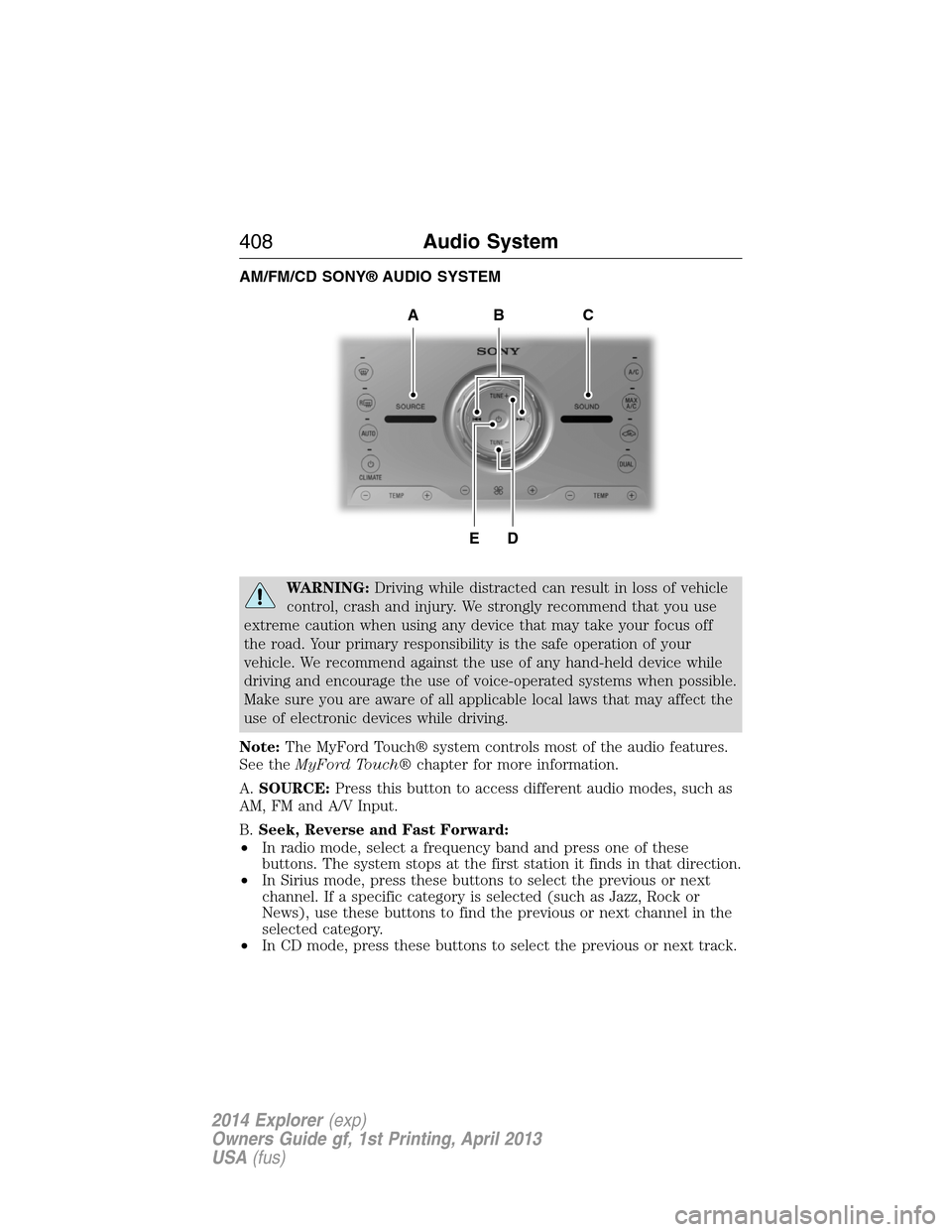
AM/FM/CD SONY® AUDIO SYSTEM
WARNING:Driving while distracted can result in loss of vehicle
control, crash and injury. We strongly recommend that you use
extreme caution when using any device that may take your focus off
the road. Your primary responsibility is the safe operation of your
vehicle. We recommend against the use of any hand-held device while
driving and encourage the use of voice-operated systems when possible.
Make sure you are aware of all applicable local laws that may affect the
use of electronic devices while driving.
Note:The MyFord Touch® system controls most of the audio features.
See theMyFord Touch®chapter for more information.
A.SOURCE:Press this button to access different audio modes, such as
AM, FM and A/V Input.
B.Seek, Reverse and Fast Forward:
•In radio mode, select a frequency band and press one of these
buttons. The system stops at the first station it finds in that direction.
•In Sirius mode, press these buttons to select the previous or next
channel. If a specific category is selected (such as Jazz, Rock or
News), use these buttons to find the previous or next channel in the
selected category.
•In CD mode, press these buttons to select the previous or next track.
DE
ACB
408Audio System
2014 Explorer(exp)
Owners Guide gf, 1st Printing, April 2013
USA(fus)
Page 415 of 586
Sirius satellite radio is a
subscription-based satellite radio
service that broadcasts a variety of
music, sports, news, weather, traffic
and entertainment programming.
Your factory-installed Sirius satellite
radio system includes hardware and
a limited subscription term which begins on the date of sale or lease of
your vehicle. See an authorized dealer for availability.
For more information on extended subscription terms (a service fee is
required), the online media player and a complete list of Sirius satellite
radio channels, and other features, please visit www.siriusxm.com in the
United States, www.sirius.ca in Canada, or call Sirius at 1–888–539–7474.
Satellite Radio Electronic Serial Number (ESN)
You need your ESN to activate, modify or track your satellite radio
account. When in satellite radio mode, you can view this number by
pressingSIRIUSand memory preset 1 at the same time. To access your
ESN, press the bottom left corner of the touchscreen, thenSIRIUS>
Options.
Troubleshooting
Radio display Condition Possible action
Acquiring Radio requires more
than two seconds to
produce audio for the
selected channel.No action required.
This message should
disappear shortly.
Sat Fault/SIRIUS
system failureThere is an internal
module or system
failure present.If this message does
not clear shortly, or
with an ignition key
cycle, your receiver
may have a fault. See
an authorized dealer
for service.
Invalid Channel The channel is no
longer available.Tune to another
channel or choose
another preset.
414Audio System
2014 Explorer(exp)
Owners Guide gf, 1st Printing, April 2013
USA(fus)
Page 422 of 586
USING VOICE RECOGNITION
This system helps you control many features using voice commands. This
allows you to keep your hands on the wheel and focus on what is in
front of you.
Initiating a Voice Session
Push the voice icon; a tone sounds and Listening appears in the
display. Say any of the following:
Say: If you want to:
“Phone” Make calls.
“USB” Access the device connected to your USB
port.
“Bluetooth Audio” Stream audio from your phone.
“Line in” Access the device connected to the auxiliary
input jack.
“Cancel” Cancel the requested action.
“SYNC” Return to the main menu.
“Voice settings” Adjust the level of voice interaction and
feedback.
“Vehicle Health Report” Run a vehicle health report.
*
“Services” Access the SYNC Services portal.*
“Mobile apps” Access mobile applications.*
“Help” Hear a list of voice commands available in the
current mode.
*If equipped, U.S. only.
System Interaction and Feedback
The system provides feedback through audible tones, prompts, questions
and spoken confirmations depending on the situation and the chosen
level of interaction (voice settings). You can customize the voice
recognition system to provide more or less instruction and feedback.
The default setting is to a higher level of interaction in order to help you
learn to use the system. You can change these settings at any time.
SYNC®421
2014 Explorer(exp)
Owners Guide gf, 1st Printing, April 2013
USA(fus)
Page 424 of 586
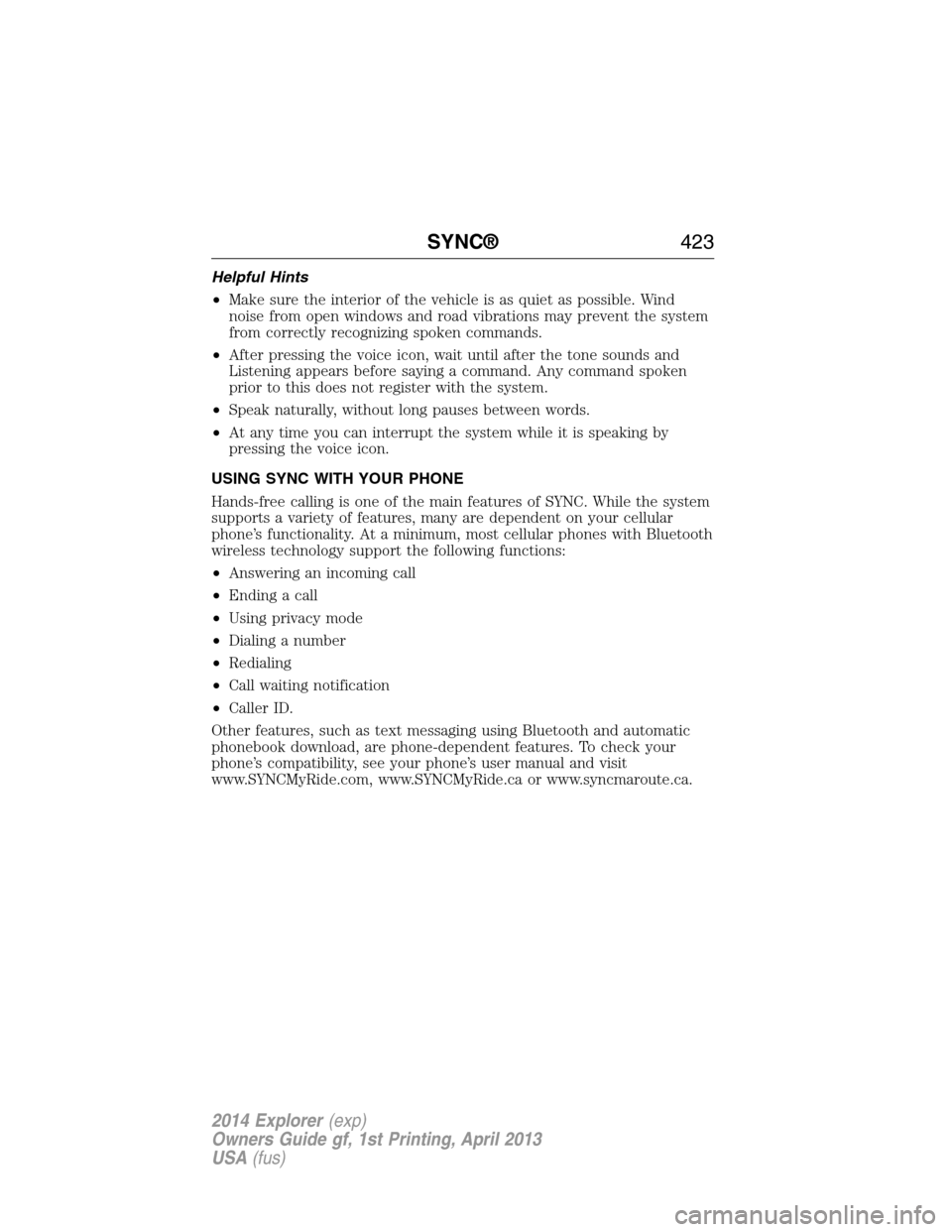
Helpful Hints
•Make sure the interior of the vehicle is as quiet as possible. Wind
noise from open windows and road vibrations may prevent the system
from correctly recognizing spoken commands.
•After pressing the voice icon, wait until after the tone sounds and
Listening appears before saying a command. Any command spoken
prior to this does not register with the system.
•Speak naturally, without long pauses between words.
•At any time you can interrupt the system while it is speaking by
pressing the voice icon.
USING SYNC WITH YOUR PHONE
Hands-free calling is one of the main features of SYNC. While the system
supports a variety of features, many are dependent on your cellular
phone’s functionality. At a minimum, most cellular phones with Bluetooth
wireless technology support the following functions:
•Answering an incoming call
•Ending a call
•Using privacy mode
•Dialing a number
•Redialing
•Call waiting notification
•Caller ID.
Other features, such as text messaging using Bluetooth and automatic
phonebook download, are phone-dependent features. To check your
phone’s compatibility, see your phone’s user manual and visit
www.SYNCMyRide.com, www.SYNCMyRide.ca or www.syncmaroute.ca.
SYNC®423
2014 Explorer(exp)
Owners Guide gf, 1st Printing, April 2013
USA(fus)
Page 455 of 586
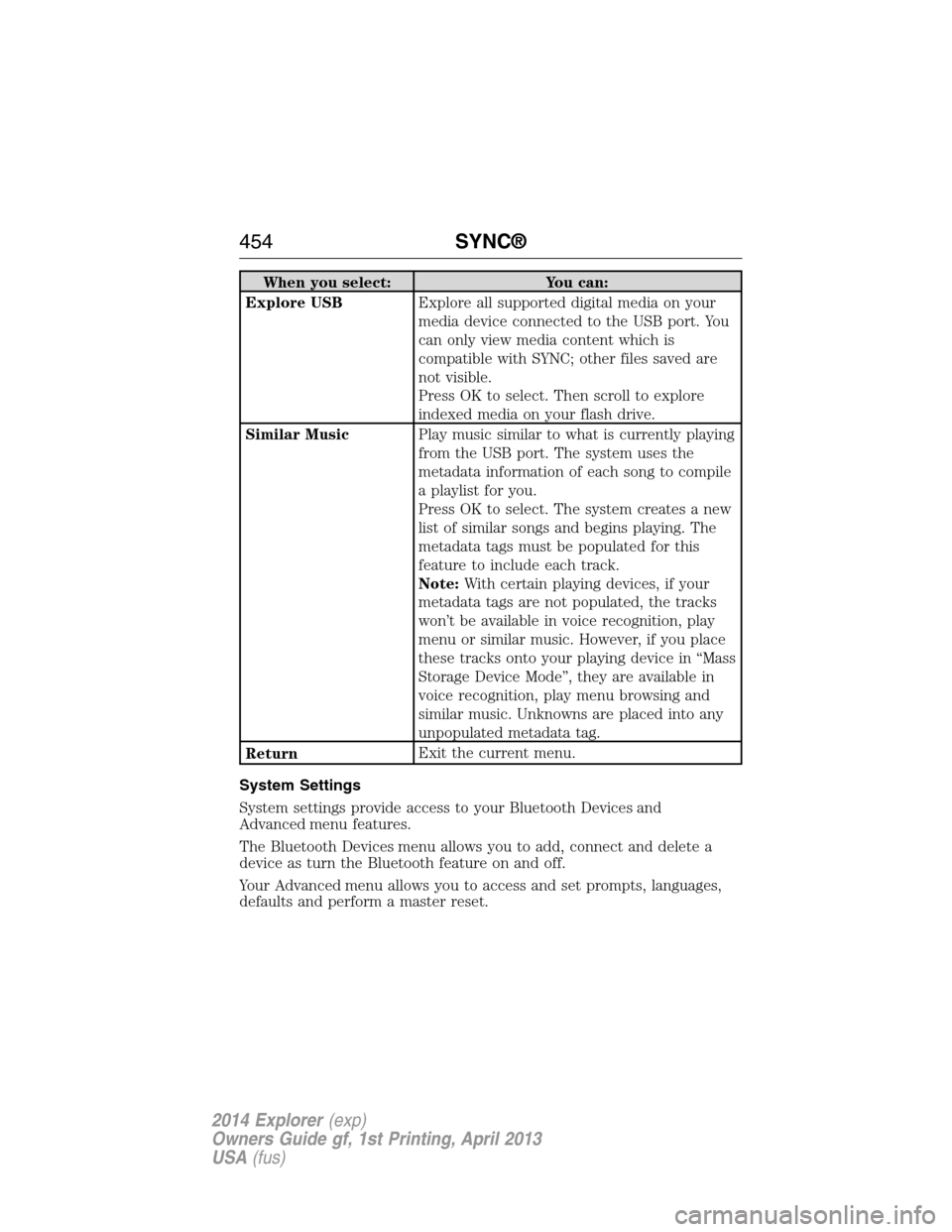
When you select: You can:
Explore USBExplore all supported digital media on your
media device connected to the USB port. You
can only view media content which is
compatible with SYNC; other files saved are
not visible.
Press OK to select. Then scroll to explore
indexed media on your flash drive.
Similar MusicPlay music similar to what is currently playing
from the USB port. The system uses the
metadata information of each song to compile
a playlist for you.
Press OK to select. The system creates a new
list of similar songs and begins playing. The
metadata tags must be populated for this
feature to include each track.
Note:With certain playing devices, if your
metadata tags are not populated, the tracks
won’t be available in voice recognition, play
menu or similar music. However, if you place
these tracks onto your playing device in “Mass
Storage Device Mode”, they are available in
voice recognition, play menu browsing and
similar music. Unknowns are placed into any
unpopulated metadata tag.
ReturnExit the current menu.
System Settings
System settings provide access to your Bluetooth Devices and
Advanced menu features.
The Bluetooth Devices menu allows you to add, connect and delete a
device as turn the Bluetooth feature on and off.
Your Advanced menu allows you to access and set prompts, languages,
defaults and perform a master reset.
454SYNC®
2014 Explorer(exp)
Owners Guide gf, 1st Printing, April 2013
USA(fus)
Page 456 of 586
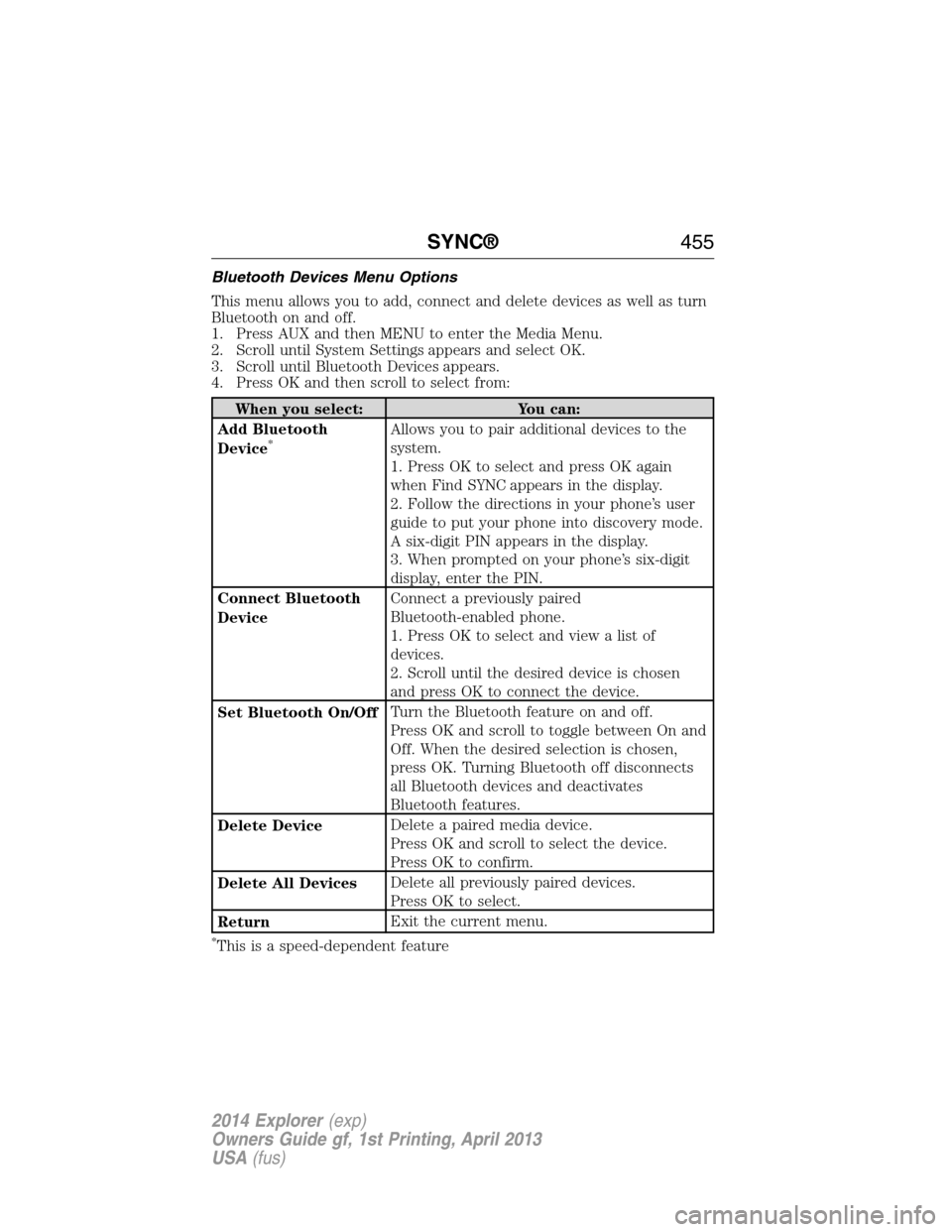
Bluetooth Devices Menu Options
This menu allows you to add, connect and delete devices as well as turn
Bluetooth on and off.
1. Press AUX and then MENU to enter the Media Menu.
2. Scroll until System Settings appears and select OK.
3. Scroll until Bluetooth Devices appears.
4. Press OK and then scroll to select from:
When you select: You can:
Add Bluetooth
Device
*Allows you to pair additional devices to the
system.
1. Press OK to select and press OK again
when Find SYNC appears in the display.
2. Follow the directions in your phone’s user
guide to put your phone into discovery mode.
A six-digit PIN appears in the display.
3. When prompted on your phone’s six-digit
display, enter the PIN.
Connect Bluetooth
DeviceConnect a previously paired
Bluetooth-enabled phone.
1. Press OK to select and view a list of
devices.
2. Scroll until the desired device is chosen
and press OK to connect the device.
Set Bluetooth On/OffTurn the Bluetooth feature on and off.
Press OK and scroll to toggle between On and
Off. When the desired selection is chosen,
press OK. Turning Bluetooth off disconnects
all Bluetooth devices and deactivates
Bluetooth features.
Delete DeviceDelete a paired media device.
Press OK and scroll to select the device.
Press OK to confirm.
Delete All DevicesDelete all previously paired devices.
Press OK to select.
ReturnExit the current menu.
*This is a speed-dependent feature
SYNC®455
2014 Explorer(exp)
Owners Guide gf, 1st Printing, April 2013
USA(fus)
Page 471 of 586
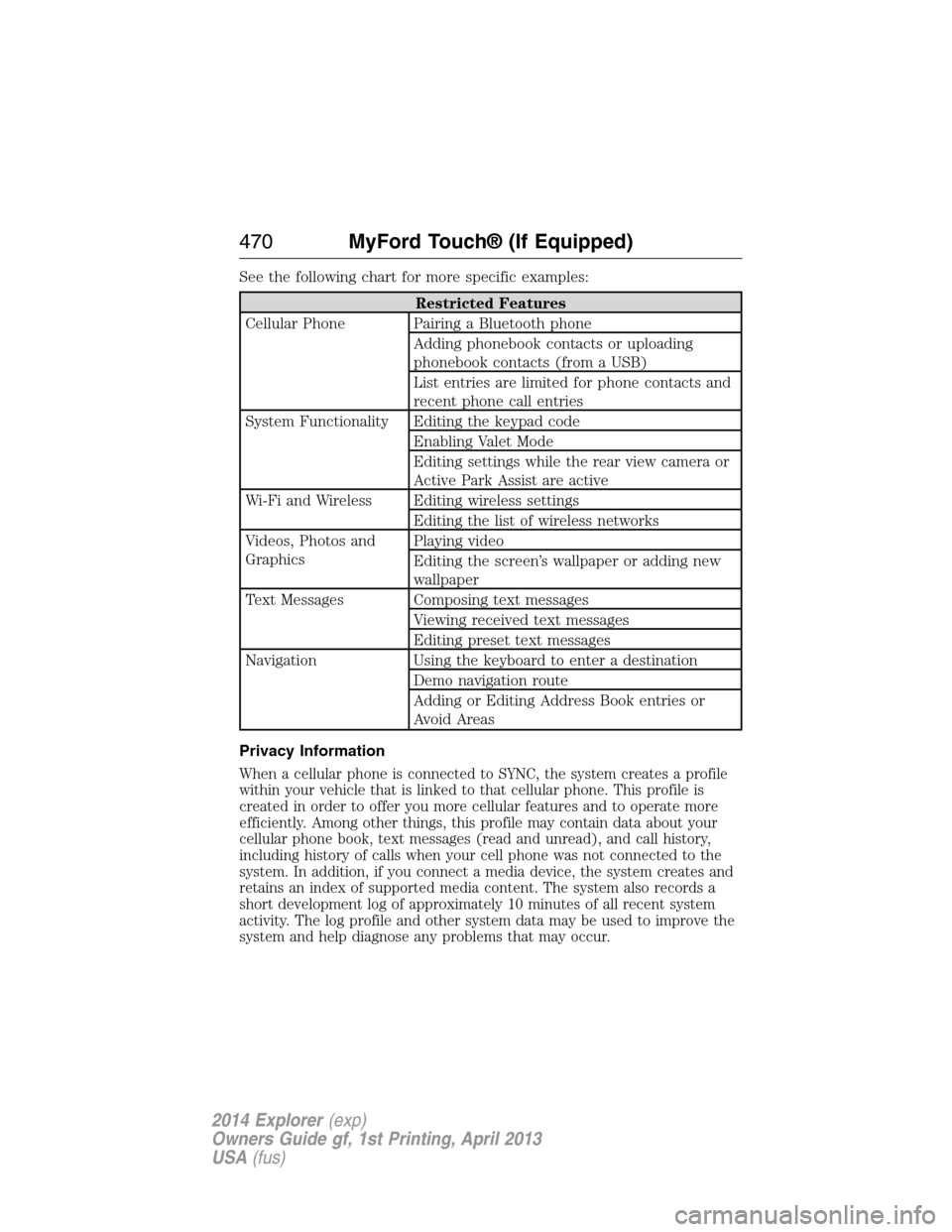
See the following chart for more specific examples:
Restricted Features
Cellular Phone Pairing a Bluetooth phone
Adding phonebook contacts or uploading
phonebook contacts (from a USB)
List entries are limited for phone contacts and
recent phone call entries
System Functionality Editing the keypad code
Enabling Valet Mode
Editing settings while the rear view camera or
Active Park Assist are active
Wi-Fi and Wireless Editing wireless settings
Editing the list of wireless networks
Videos, Photos and
GraphicsPlaying video
Editing the screen’s wallpaper or adding new
wallpaper
Text Messages Composing text messages
Viewing received text messages
Editing preset text messages
Navigation Using the keyboard to enter a destination
Demo navigation route
Adding or Editing Address Book entries or
Avoid Areas
Privacy Information
When a cellular phone is connected to SYNC, the system creates a profile
within your vehicle that is linked to that cellular phone. This profile is
created in order to offer you more cellular features and to operate more
efficiently. Among other things, this profile may contain data about your
cellular phone book, text messages (read and unread), and call history,
including history of calls when your cell phone was not connected to the
system. In addition, if you connect a media device, the system creates and
retains an index of supported media content. The system also records a
short development log of approximately 10 minutes of all recent system
activity. The log profile and other system data may be used to improve the
system and help diagnose any problems that may occur.
470MyFord Touch® (If Equipped)
2014 Explorer(exp)
Owners Guide gf, 1st Printing, April 2013
USA(fus)
Page 472 of 586
The cellular profile, media device index, and development log remain in
the vehicle unless you delete them and are generally accessible only in
the vehicle when the cellular phone or media player is connected. If you
no longer plan to use the system or the vehicle, we recommend you
perform a Master Reset to erase all stored information.
System data cannot be accessed without special equipment and access to
the vehicle’s SYNC module. Ford Motor Company and Ford of Canada do
not access the system data for any purpose other than as described absent
consent, a court order, or where required by law enforcement, other
government authorities, or other third parties acting with lawful authority.
Other parties may seek to access the information independently of Ford
Motor Company and Ford of Canada. For further privacy information, see
the sections on 911 Assist, Vehicle Health Report, and Traffic, Directions
and Information.
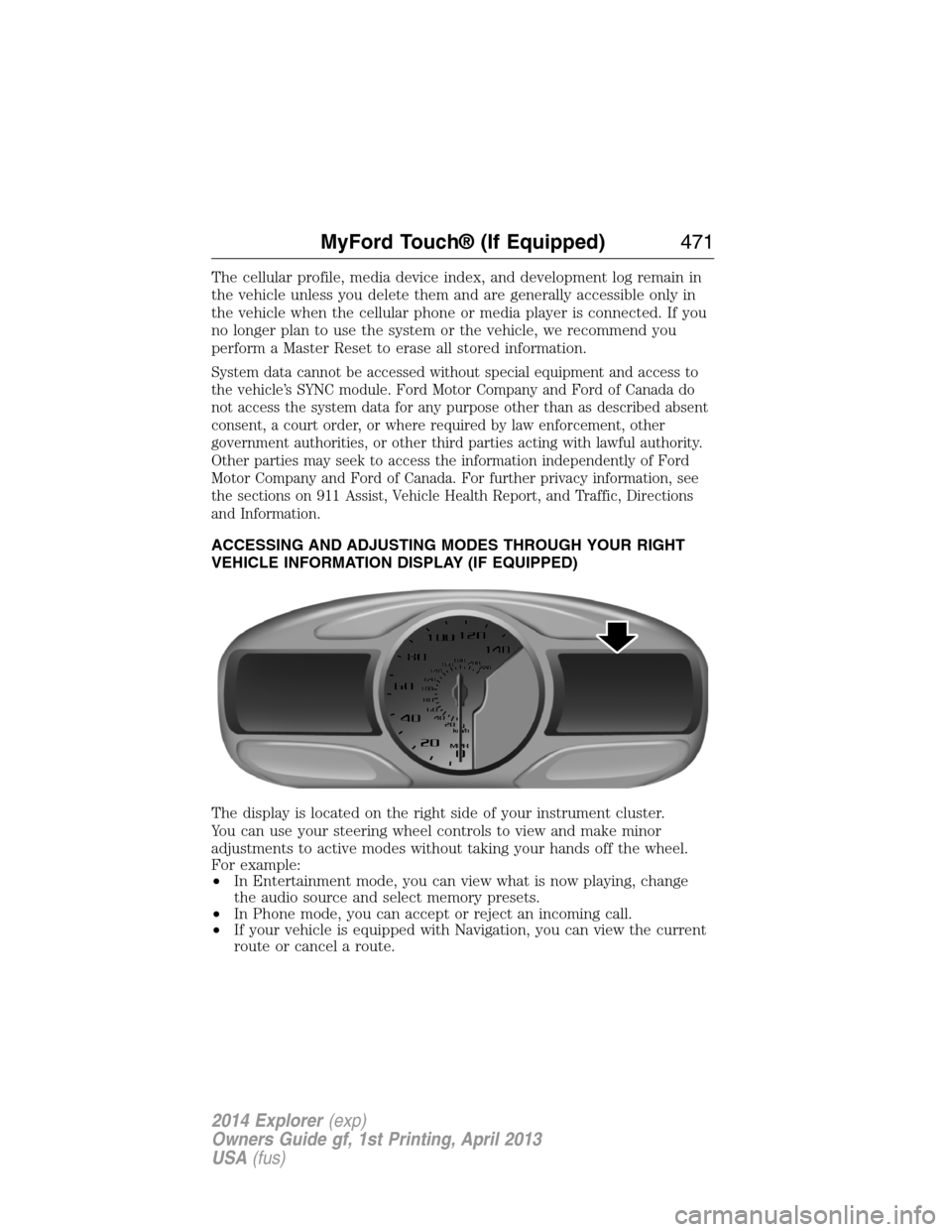
ACCESSING AND ADJUSTING MODES THROUGH YOUR RIGHT
VEHICLE INFORMATION DISPLAY (IF EQUIPPED)
The display is located on the right side of your instrument cluster.
You can use your steering wheel controls to view and make minor
adjustments to active modes without taking your hands off the wheel.
For example:
•In Entertainment mode, you can view what is now playing, change
the audio source and select memory presets.
•In Phone mode, you can accept or reject an incoming call.
•If your vehicle is equipped with Navigation, you can view the current
route or cancel a route.
MyFord Touch® (If Equipped)471
2014 Explorer(exp)
Owners Guide gf, 1st Printing, April 2013
USA(fus)
Page 473 of 586
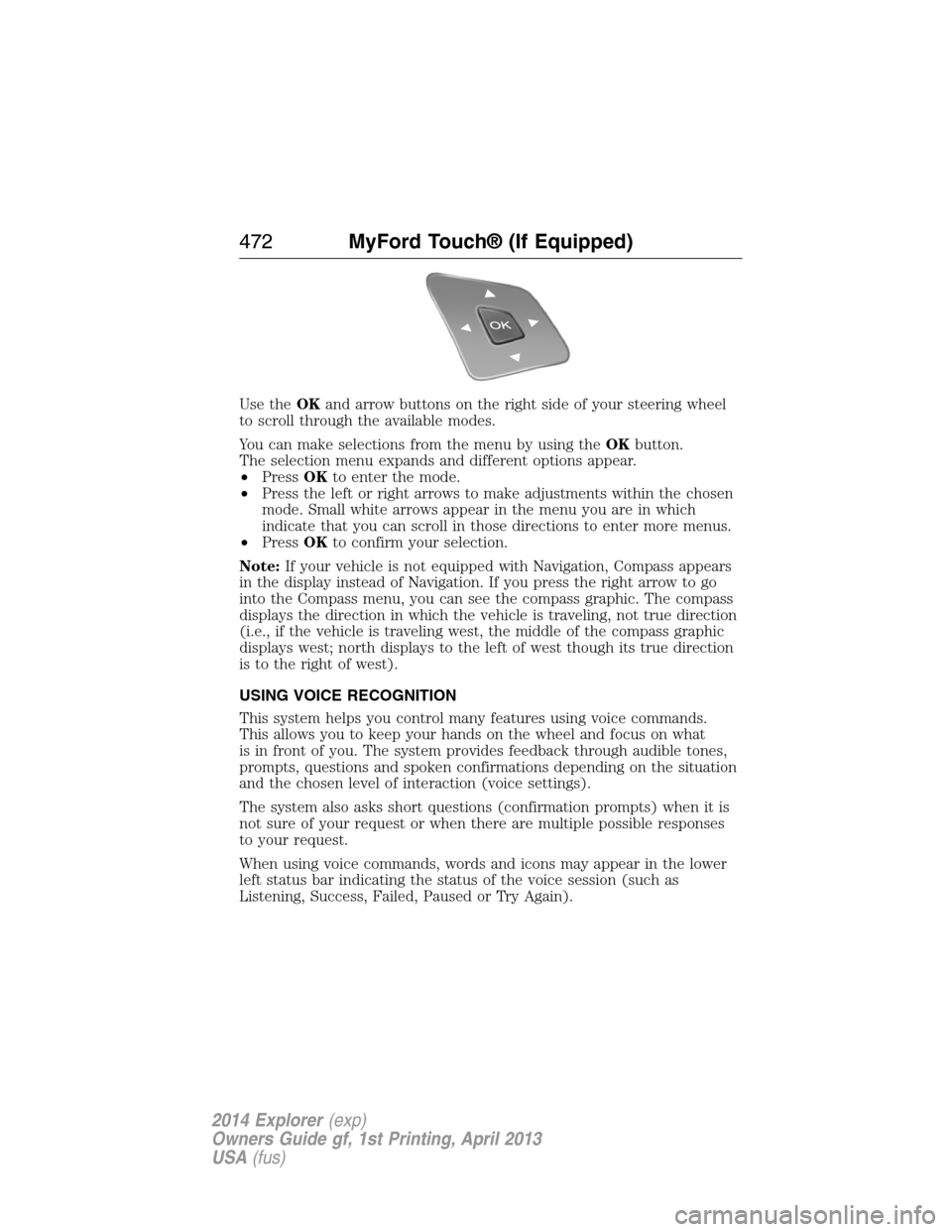
Use theOKand arrow buttons on the right side of your steering wheel
to scroll through the available modes.
You can make selections from the menu by using theOKbutton.
The selection menu expands and different options appear.
•PressOKto enter the mode.
•Press the left or right arrows to make adjustments within the chosen
mode. Small white arrows appear in the menu you are in which
indicate that you can scroll in those directions to enter more menus.
•PressOKto confirm your selection.
Note:If your vehicle is not equipped with Navigation, Compass appears
in the display instead of Navigation. If you press the right arrow to go
into the Compass menu, you can see the compass graphic. The compass
displays the direction in which the vehicle is traveling, not true direction
(i.e., if the vehicle is traveling west, the middle of the compass graphic
displays west; north displays to the left of west though its true direction
is to the right of west).
USING VOICE RECOGNITION
This system helps you control many features using voice commands.
This allows you to keep your hands on the wheel and focus on what
is in front of you. The system provides feedback through audible tones,
prompts, questions and spoken confirmations depending on the situation
and the chosen level of interaction (voice settings).
The system also asks short questions (confirmation prompts) when it is
not sure of your request or when there are multiple possible responses
to your request.
When using voice commands, words and icons may appear in the lower
left status bar indicating the status of the voice session (such as
Listening, Success, Failed, Paused or Try Again).
472MyFord Touch® (If Equipped)
2014 Explorer(exp)
Owners Guide gf, 1st Printing, April 2013
USA(fus)