USB FORD EXPLORER 2015 5.G Owner's Manual
[x] Cancel search | Manufacturer: FORD, Model Year: 2015, Model line: EXPLORER, Model: FORD EXPLORER 2015 5.GPages: 596, PDF Size: 6.32 MB
Page 469 of 596
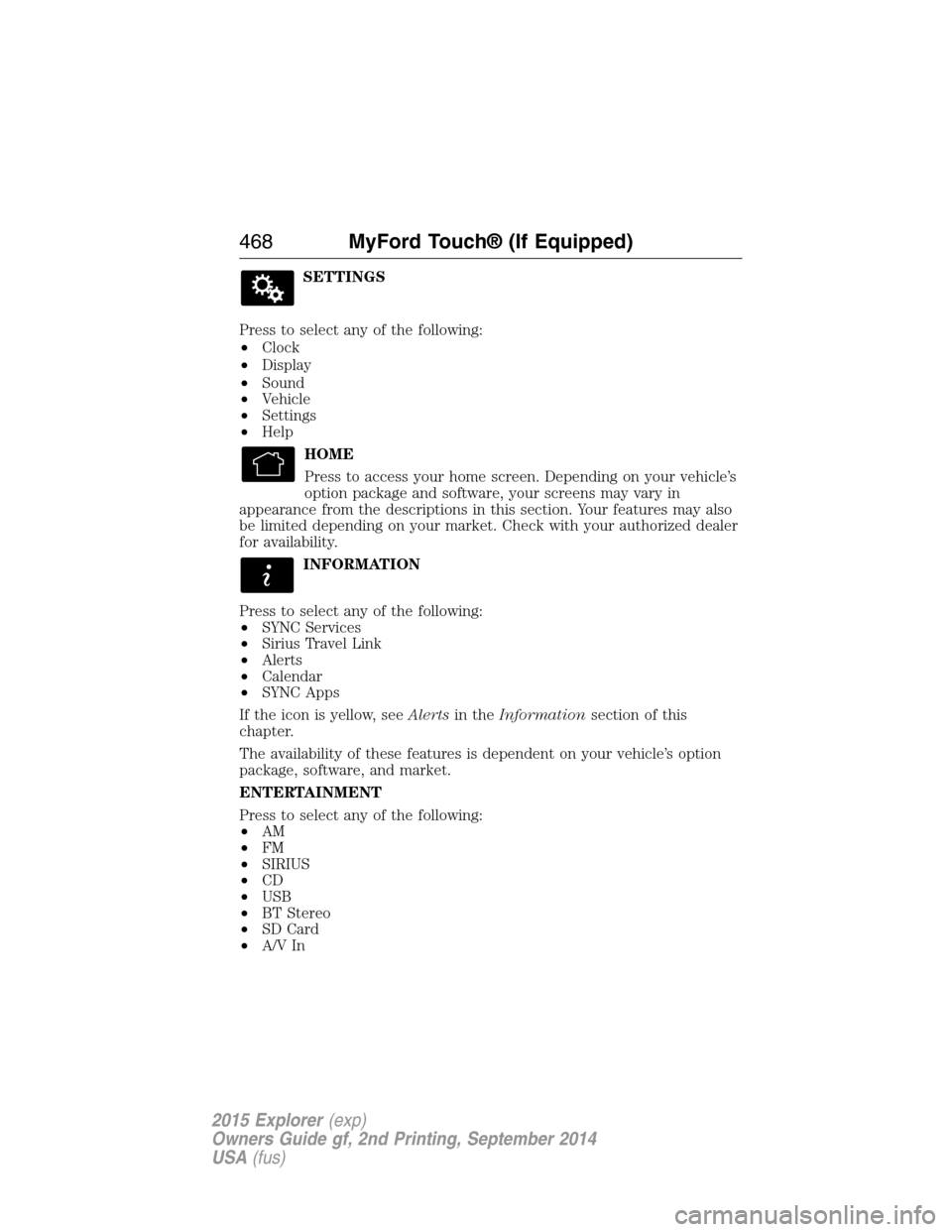
SETTINGS
Press to select any of the following:
•Clock
•Display
•Sound
•Vehicle
•Settings
•Help
HOME
Press to access your home screen. Depending on your vehicle’s
option package and software, your screens may vary in
appearance from the descriptions in this section. Your features may also
be limited depending on your market. Check with your authorized dealer
for availability.
INFORMATION
Press to select any of the following:
•SYNC Services
•Sirius Travel Link
•Alerts
•Calendar
•SYNC Apps
If the icon is yellow, seeAlertsin theInformationsection of this
chapter.
The availability of these features is dependent on your vehicle’s option
package, software, and market.
ENTERTAINMENT
Press to select any of the following:
•AM
•FM
•SIRIUS
•CD
•USB
•BT Stereo
•SD Card
•A/V In
468MyFord Touch® (If Equipped)
2015 Explorer(exp)
Owners Guide gf, 2nd Printing, September 2014
USA(fus)
Page 470 of 596
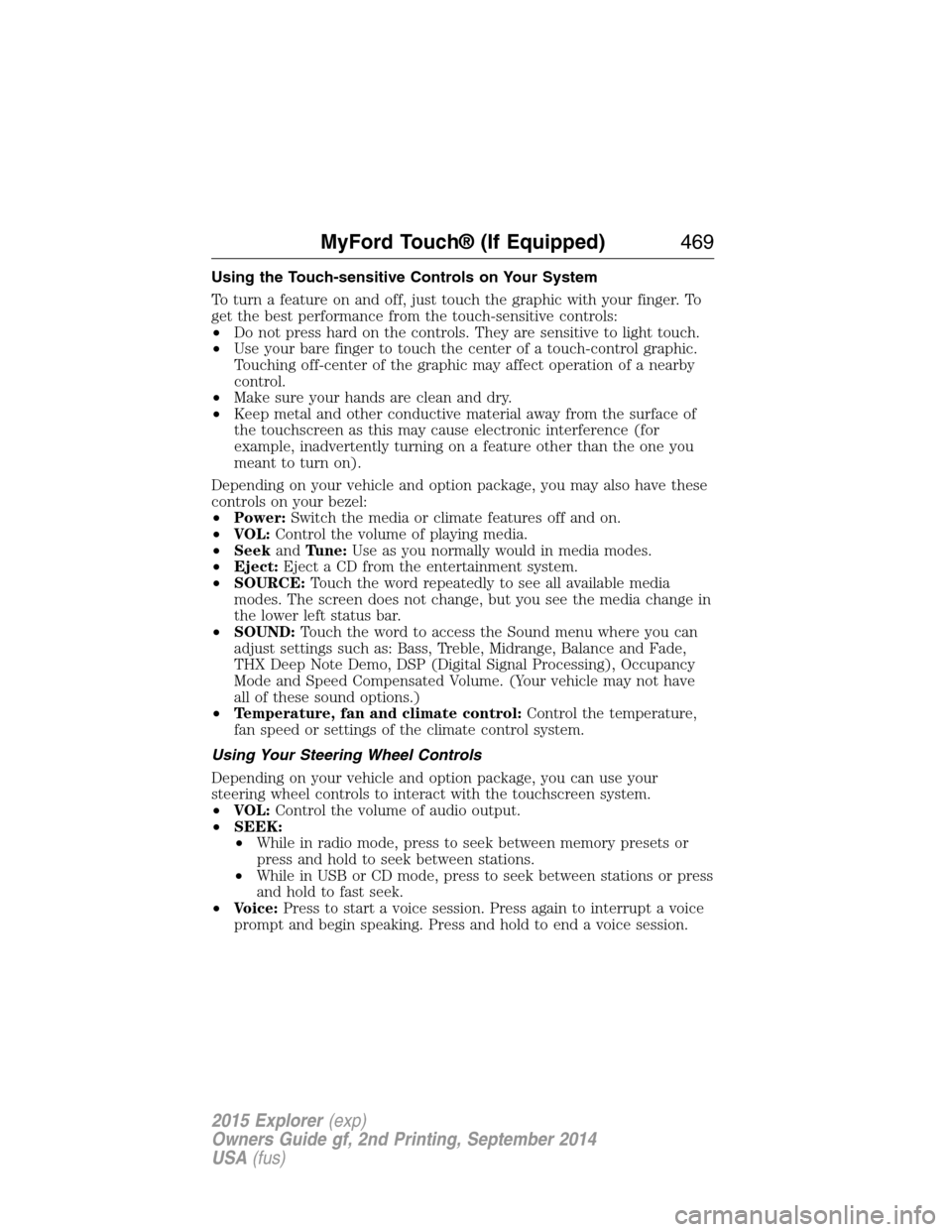
Using the Touch-sensitive Controls on Your System
To turn a feature on and off, just touch the graphic with your finger. To
get the best performance from the touch-sensitive controls:
•Do not press hard on the controls. They are sensitive to light touch.
•Use your bare finger to touch the center of a touch-control graphic.
Touching off-center of the graphic may affect operation of a nearby
control.
•Make sure your hands are clean and dry.
•Keep metal and other conductive material away from the surface of
the touchscreen as this may cause electronic interference (for
example, inadvertently turning on a feature other than the one you
meant to turn on).
Depending on your vehicle and option package, you may also have these
controls on your bezel:
•Power:Switch the media or climate features off and on.
•VOL:Control the volume of playing media.
•SeekandTune:Use as you normally would in media modes.
•Eject:Eject a CD from the entertainment system.
•SOURCE:Touch the word repeatedly to see all available media
modes. The screen does not change, but you see the media change in
the lower left status bar.
•SOUND:Touch the word to access the Sound menu where you can
adjust settings such as: Bass, Treble, Midrange, Balance and Fade,
THX Deep Note Demo, DSP (Digital Signal Processing), Occupancy
Mode and Speed Compensated Volume. (Your vehicle may not have
all of these sound options.)
•Temperature, fan and climate control:Control the temperature,
fan speed or settings of the climate control system.
Using Your Steering Wheel Controls
Depending on your vehicle and option package, you can use your
steering wheel controls to interact with the touchscreen system.
•VOL:Control the volume of audio output.
•SEEK:
•While in radio mode, press to seek between memory presets or
press and hold to seek between stations.
•While in USB or CD mode, press to seek between stations or press
and hold to fast seek.
•Voice:Press to start a voice session. Press again to interrupt a voice
prompt and begin speaking. Press and hold to end a voice session.
MyFord Touch® (If Equipped)469
2015 Explorer(exp)
Owners Guide gf, 2nd Printing, September 2014
USA(fus)
Page 472 of 596
For your safety, some SYNC functions are speed-dependent. Their use is
limited to when your vehicle is traveling at speeds under 3 mph
(5 km/h).
Make sure that you review your device’s manual before using it with SYNC.
Speed-restricted Features
Some features of this system may be too difficult to use while your
vehicle is moving so they are restricted from use unless your vehicle is
stationary.
•Screens that are too crowded with information, such as Point of
Interest reviews and ratings, Sirius Travel Link sports scores, movie
times and ski conditions.
•Any action that requires you to use a keyboard is restricted, such as
entering a navigation destination or editing information.
•All lists are limited so the user can view fewer entries (such as phone
contacts or recent phone call entries).
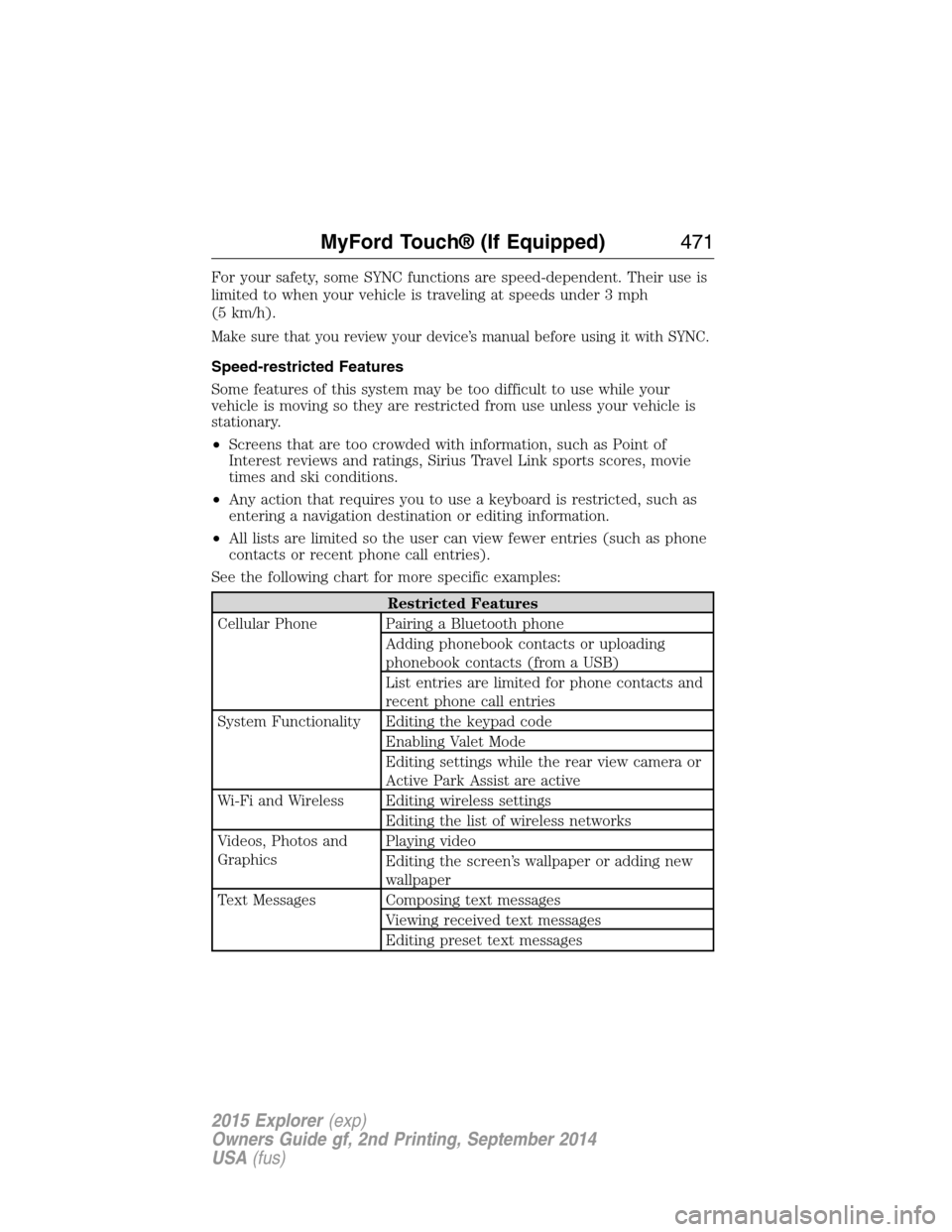
See the following chart for more specific examples:
Restricted Features
Cellular Phone Pairing a Bluetooth phone
Adding phonebook contacts or uploading
phonebook contacts (from a USB)
List entries are limited for phone contacts and
recent phone call entries
System Functionality Editing the keypad code
Enabling Valet Mode
Editing settings while the rear view camera or
Active Park Assist are active
Wi-Fi and Wireless Editing wireless settings
Editing the list of wireless networks
Videos, Photos and
GraphicsPlaying video
Editing the screen’s wallpaper or adding new
wallpaper
Text Messages Composing text messages
Viewing received text messages
Editing preset text messages
MyFord Touch® (If Equipped)471
2015 Explorer(exp)
Owners Guide gf, 2nd Printing, September 2014
USA(fus)
Page 477 of 596
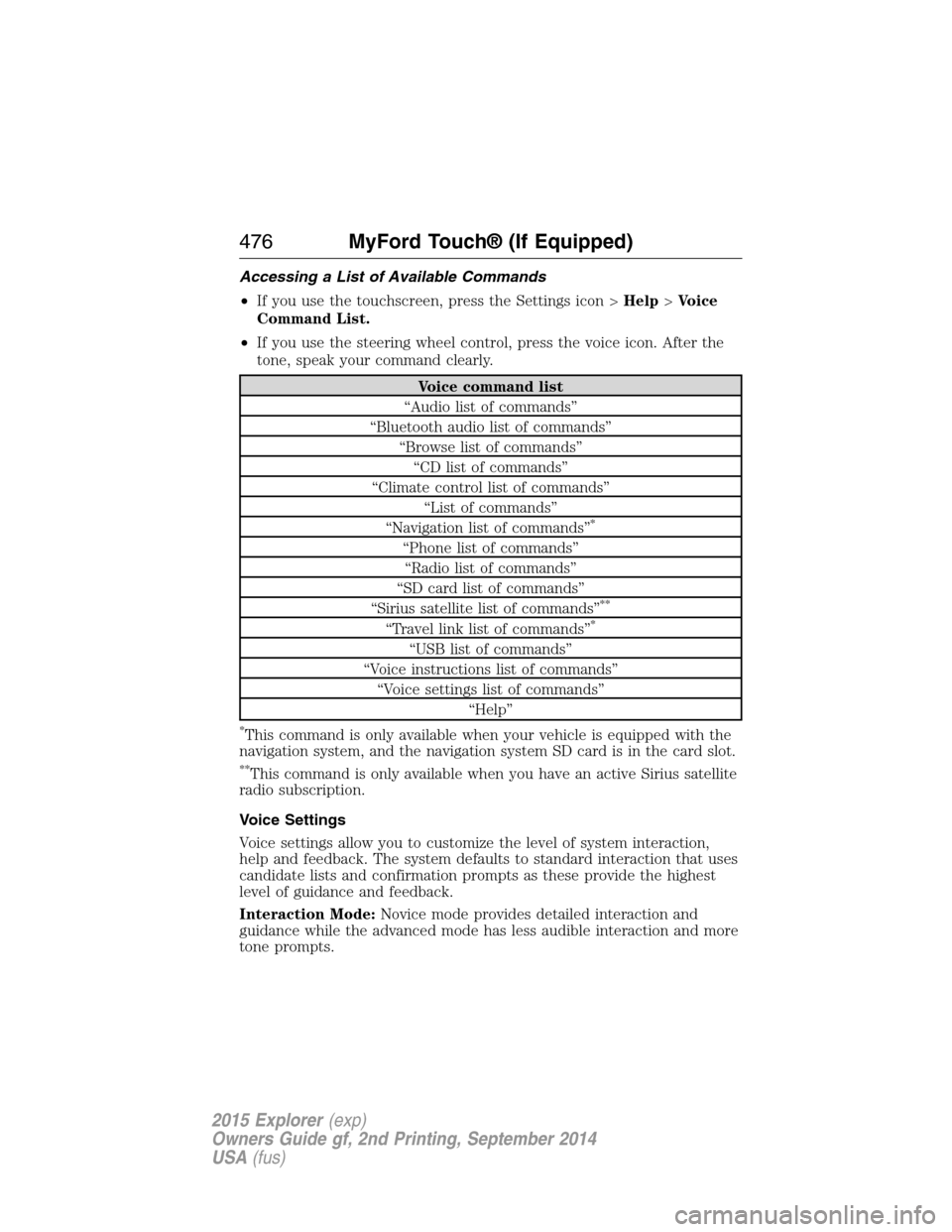
Accessing a List of Available Commands
•If you use the touchscreen, press the Settings icon >Help>Voice
Command List.
•If you use the steering wheel control, press the voice icon. After the
tone, speak your command clearly.
Voice command list
“Audio list of commands”
“Bluetooth audio list of commands”
“Browse list of commands”
“CD list of commands”
“Climate control list of commands”
“List of commands”
“Navigation list of commands”
*
“Phone list of commands”
“Radio list of commands”
“SD card list of commands”
“Sirius satellite list of commands”
**
“Travel link list of commands”*
“USB list of commands”
“Voice instructions list of commands”
“Voice settings list of commands”
“Help”
*This command is only available when your vehicle is equipped with the
navigation system, and the navigation system SD card is in the card slot.
**This command is only available when you have an active Sirius satellite
radio subscription.
Voice Settings
Voice settings allow you to customize the level of system interaction,
help and feedback. The system defaults to standard interaction that uses
candidate lists and confirmation prompts as these provide the highest
level of guidance and feedback.
Interaction Mode:Novice mode provides detailed interaction and
guidance while the advanced mode has less audible interaction and more
tone prompts.
476MyFord Touch® (If Equipped)
2015 Explorer(exp)
Owners Guide gf, 2nd Printing, September 2014
USA(fus)
Page 479 of 596
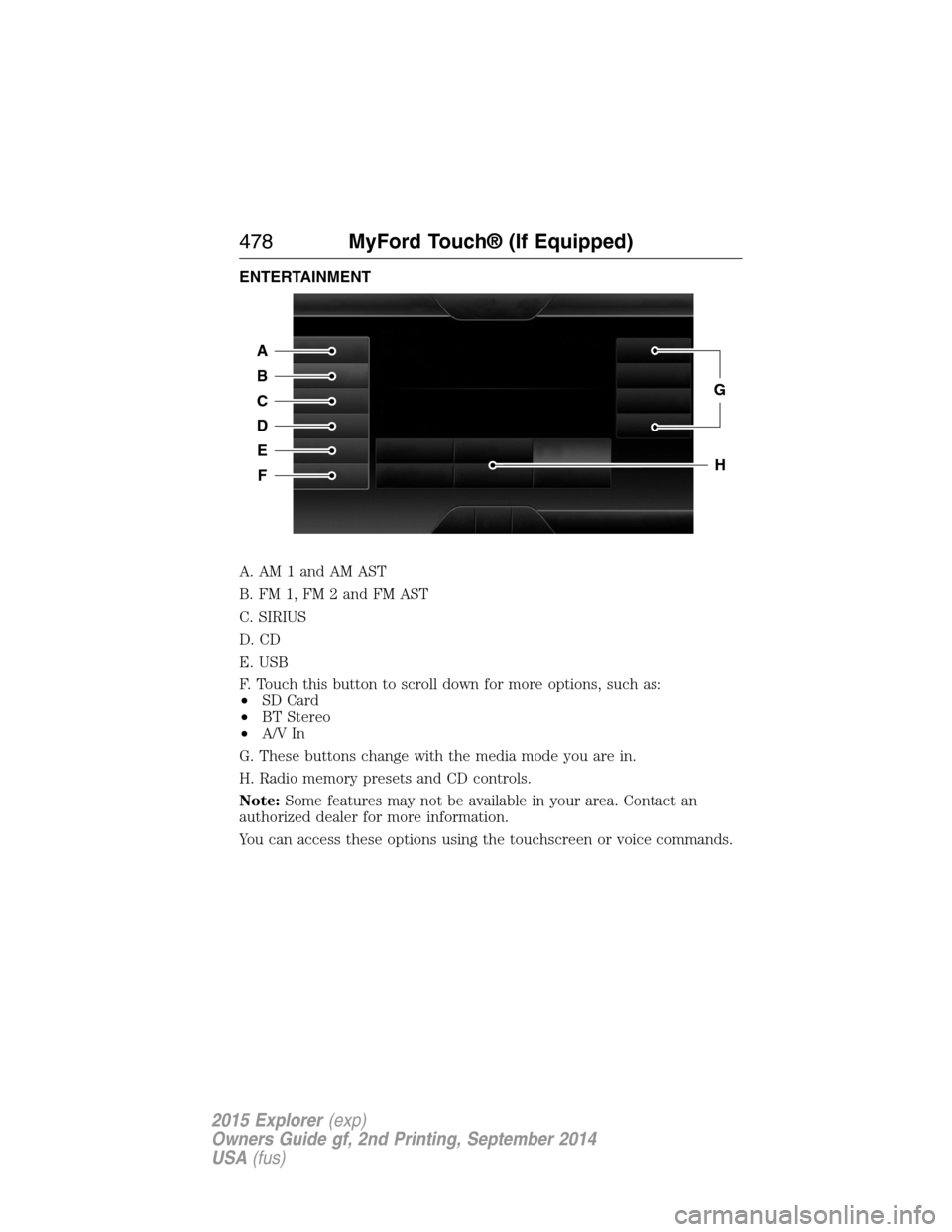
ENTERTAINMENT
A. AM 1 and AM AST
B. FM 1, FM 2 and FM AST
C. SIRIUS
D. CD
E. USB
F. Touch this button to scroll down for more options, such as:
•SD Card
•BT Stereo
•A/V In
G. These buttons change with the media mode you are in.
H. Radio memory presets and CD controls.
Note:Some features may not be available in your area. Contact an
authorized dealer for more information.
You can access these options using the touchscreen or voice commands.
A
B
C
D
E
F
G
H
478MyFord Touch® (If Equipped)
2015 Explorer(exp)
Owners Guide gf, 2nd Printing, September 2014
USA(fus)
Page 480 of 596
Browsing Device Content
When listening to audio on a device, you can browse through other
devices without having to change sources. For example, if you are
currently listening to audio on an SD card, you can browse all the artists
that are stored on your USB device.
Press the voice icon on the steering wheel. When prompted,
you can say:
“BROWSE” within devices
“Browse”*
“Browse
“Browse
“Browse Sirius channel guide”**
“Browse SD card”
“Browse USB”
“Help”
*If you have said “Browse”, you can then say any commands in the
following chart.
**This command is only usable if you have an active subscription to
Sirius satellite radio.
“BROWSE”
“
”
“SD card”**
“Sirius channel guide”*
“USB”**
“Help”
*This command is only usable if you have an active subscription to Sirius
satellite radio.
**For more commands in SD card or USB mode, see the “SD card and
USB Port” section of this chapter.
For a complete list of “Browse” voice commands, seeUSB and SD card
voice commandsandBluetooth audio voice commandsin the
following sections.
MyFord Touch® (If Equipped)479
2015 Explorer(exp)
Owners Guide gf, 2nd Printing, September 2014
USA(fus)
Page 481 of 596
Your voice system allows you to change audio sources with a simple
voice command. For example, if you are listening to music on a USB
device, then want to switch to a satellite radio channel, simply press the
voice button on the steering wheel controls and say the name of the
Sirius station (such as, “the Highway”). The following voice commands
are available at the top level of the voice session no matter which
current audio source you are listening to (such as a USB device or Sirius
satellite radio).Note:This is only available when your MyFord Touch
system language is set to North American English.
“AM <530 - 1710>” “FM <87.9 – 107.9>”
“<530 - 1710>” “<87.9 – 107.9>”
“Sirius <0-223>”
*“
“Play [genre]
“Play [artist]
“Play [album]
“Play
*
*
This command is only usable if you have an active subscription to Sirius
satellite radio.
**The commands that have [ ] around the word means that the word is
optional. For example, if you say, “Play Metallica”, this is the same as the
voice command, “Play [artist]
AM and FM
Touch theAMorFMtab to listen to the radio.
To change between AM and FM presets, just touch theAMor
FMtab.
Memory Presets
Save a station by pressing and holding one of the memory preset areas.
There is a brief mute while the radio saves the station. Sound returns
when finished.
HD Radio
Touch this button to turn HD Radio on. The light on the button
illuminates when the feature is on. HD Radio allows you to receive radio
broadcasts digitally, where available, providing free, crystal-clear sound.
SeeHD Radio informationlater in this chapter.
480MyFord Touch® (If Equipped)
2015 Explorer(exp)
Owners Guide gf, 2nd Printing, September 2014
USA(fus)
Page 494 of 596
SD Card Slot and USB Port
SD Card Slot
Note:Your SD card slot is spring-loaded. To remove the SD card, press
the card in and the system ejects it. Do not attempt to pull the card to
remove it as this could cause damage.
Note:The navigation system also uses this card slot. SeeNavigation
systemlater in this chapter for more information.
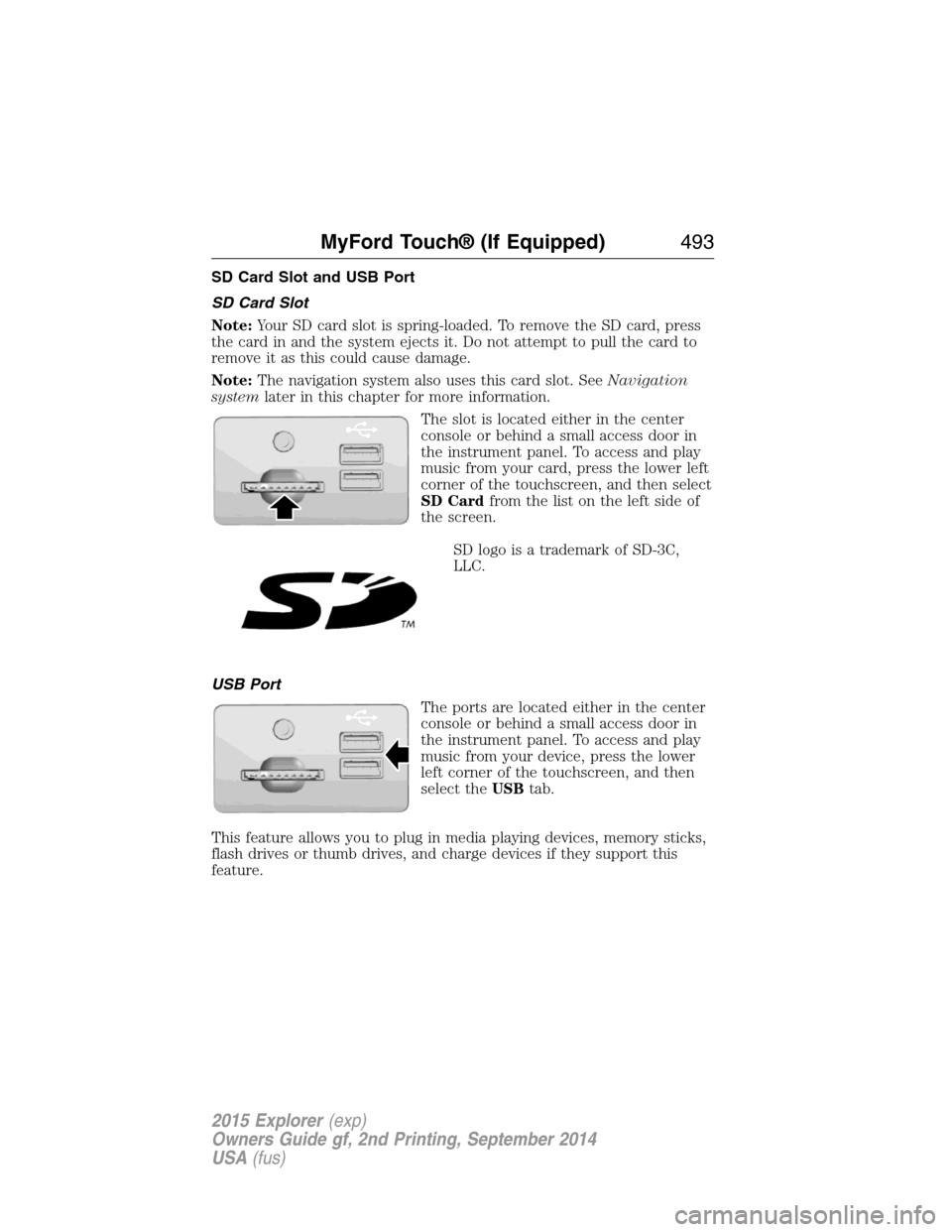
The slot is located either in the center
console or behind a small access door in
the instrument panel. To access and play
music from your card, press the lower left
corner of the touchscreen, and then select
SD Cardfrom the list on the left side of
the screen.
SD logo is a trademark of SD-3C,
LLC.
USB Port
The ports are located either in the center
console or behind a small access door in
the instrument panel. To access and play
music from your device, press the lower
left corner of the touchscreen, and then
select theUSBtab.
This feature allows you to plug in media playing devices, memory sticks,
flash drives or thumb drives, and charge devices if they support this
feature.
MyFord Touch® (If Equipped)493
2015 Explorer(exp)
Owners Guide gf, 2nd Printing, September 2014
USA(fus)
Page 495 of 596
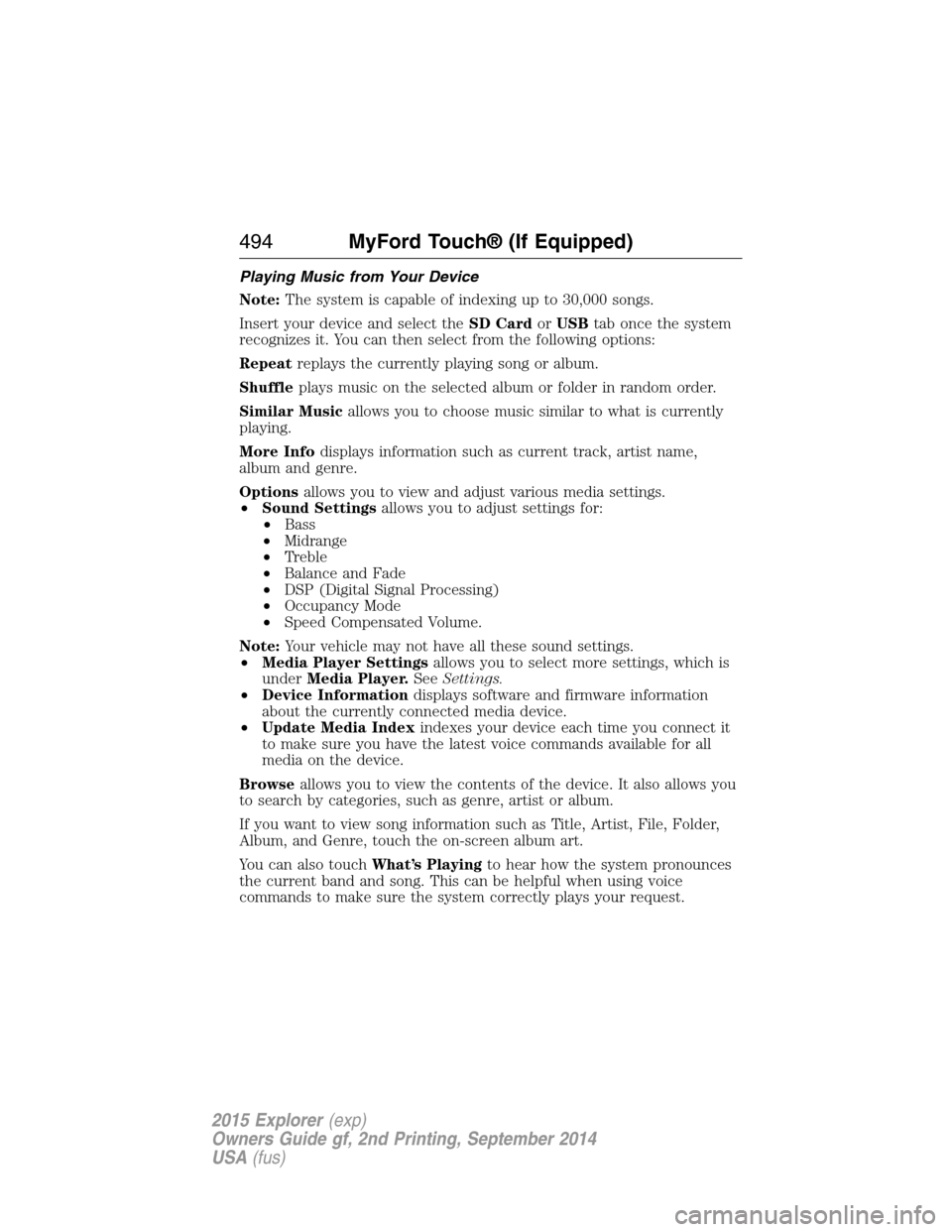
Playing Music from Your Device
Note:The system is capable of indexing up to 30,000 songs.
Insert your device and select theSD CardorUSBtab once the system
recognizes it. You can then select from the following options:
Repeatreplays the currently playing song or album.
Shuffleplays music on the selected album or folder in random order.
Similar Musicallows you to choose music similar to what is currently
playing.
More Infodisplays information such as current track, artist name,
album and genre.
Optionsallows you to view and adjust various media settings.
•Sound Settingsallows you to adjust settings for:
•Bass
•Midrange
•Treble
•Balance and Fade
•DSP (Digital Signal Processing)
•Occupancy Mode
•Speed Compensated Volume.
Note:Your vehicle may not have all these sound settings.
•Media Player Settingsallows you to select more settings, which is
underMedia Player.SeeSettings.
•Device Informationdisplays software and firmware information
about the currently connected media device.
•Update Media Indexindexes your device each time you connect it
to make sure you have the latest voice commands available for all
media on the device.
Browseallows you to view the contents of the device. It also allows you
to search by categories, such as genre, artist or album.
If you want to view song information such as Title, Artist, File, Folder,
Album, and Genre, touch the on-screen album art.
You can also touchWhat’s Playingto hear how the system pronounces
the current band and song. This can be helpful when using voice
commands to make sure the system correctly plays your request.
494MyFord Touch® (If Equipped)
2015 Explorer(exp)
Owners Guide gf, 2nd Printing, September 2014
USA(fus)
Page 496 of 596
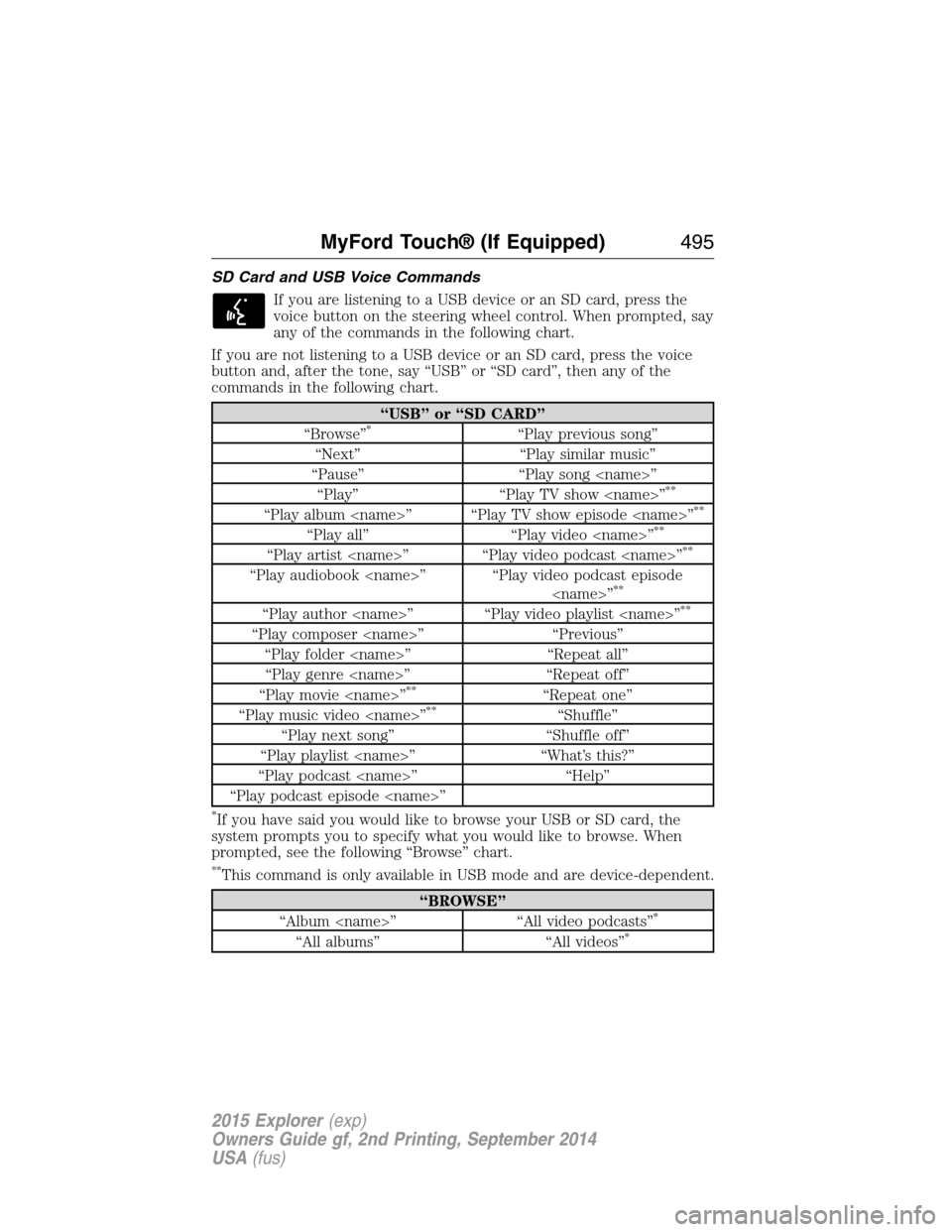
SD Card and USB Voice Commands
If you are listening to a USB device or an SD card, press the
voice button on the steering wheel control. When prompted, say
any of the commands in the following chart.
If you are not listening to a USB device or an SD card, press the voice
button and, after the tone, say “USB” or “SD card”, then any of the
commands in the following chart.
“USB” or “SD CARD”
“Browse”*“Play previous song”
“Next” “Play similar music”
“Pause” “Play song
“Play” “Play TV show
**
“Play album
“Play all” “Play video
“Play artist
“Play audiobook
“Play author
“Play composer
“Play folder
“Play genre
“Play movie
**“Repeat one”
“Play music video
“Play next song” “Shuffle off”
“Play playlist
“Play podcast
“Play podcast episode
*If you have said you would like to browse your USB or SD card, the
system prompts you to specify what you would like to browse. When
prompted, see the following “Browse” chart.
**This command is only available in USB mode and are device-dependent.
“BROWSE”
“Album
“All albums” “All videos”*
MyFord Touch® (If Equipped)495
2015 Explorer(exp)
Owners Guide gf, 2nd Printing, September 2014
USA(fus)