reset FORD EXPLORER 2020 User Guide
[x] Cancel search | Manufacturer: FORD, Model Year: 2020, Model line: EXPLORER, Model: FORD EXPLORER 2020Pages: 555, PDF Size: 8.16 MB
Page 103 of 555
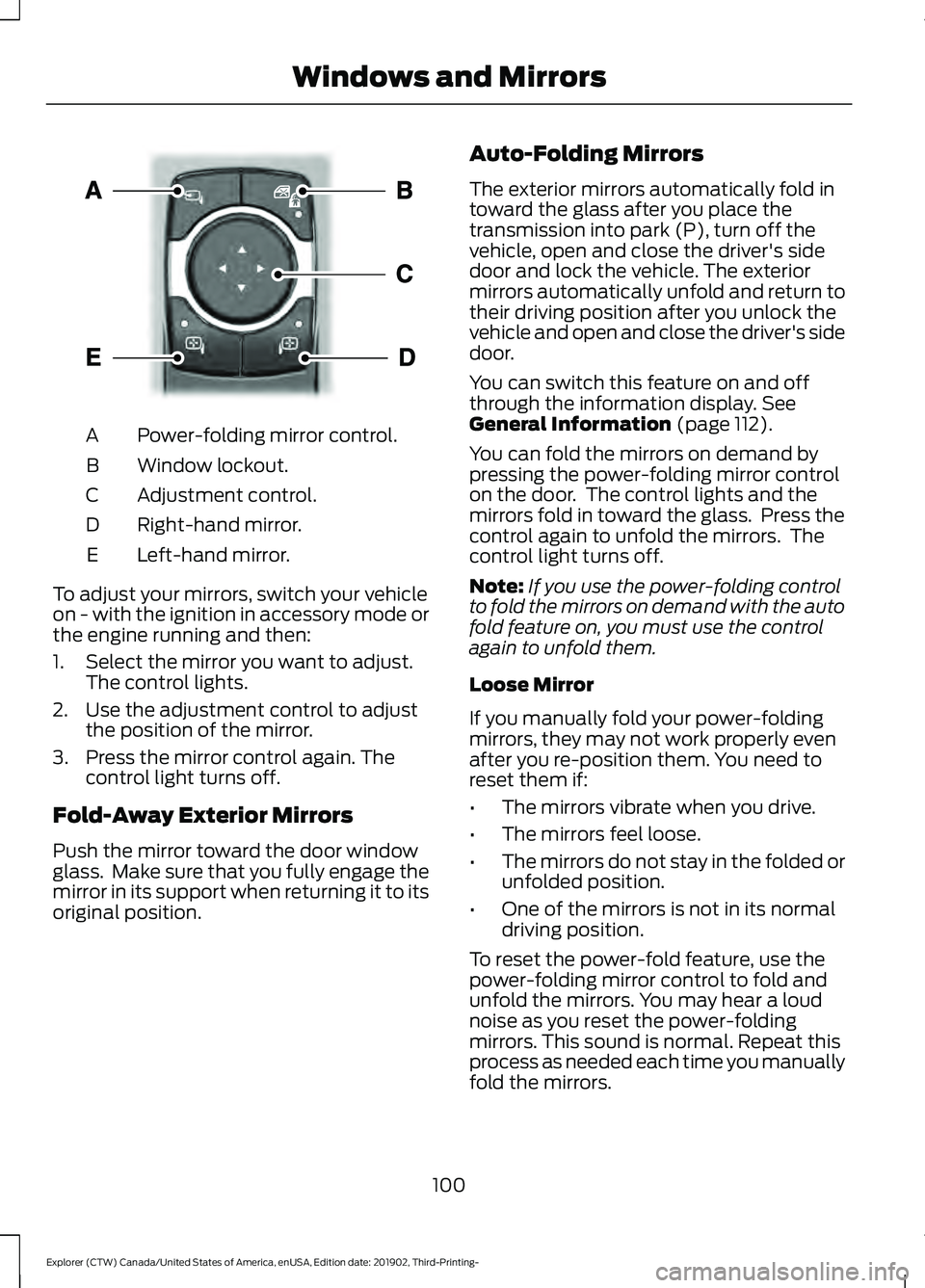
Power-folding mirror control.
A
Window lockout.
B
Adjustment control.
C
Right-hand mirror.
D
Left-hand mirror.
E
To adjust your mirrors, switch your vehicle
on - with the ignition in accessory mode or
the engine running and then:
1. Select the mirror you want to adjust. The control lights.
2. Use the adjustment control to adjust the position of the mirror.
3. Press the mirror control again. The control light turns off.
Fold-Away Exterior Mirrors
Push the mirror toward the door window
glass. Make sure that you fully engage the
mirror in its support when returning it to its
original position. Auto-Folding Mirrors
The exterior mirrors automatically fold in
toward the glass after you place the
transmission into park (P), turn off the
vehicle, open and close the driver's side
door and lock the vehicle. The exterior
mirrors automatically unfold and return to
their driving position after you unlock the
vehicle and open and close the driver's side
door.
You can switch this feature on and off
through the information display. See
General Information (page 112).
You can fold the mirrors on demand by
pressing the power-folding mirror control
on the door. The control lights and the
mirrors fold in toward the glass. Press the
control again to unfold the mirrors. The
control light turns off.
Note: If you use the power-folding control
to fold the mirrors on demand with the auto
fold feature on, you must use the control
again to unfold them.
Loose Mirror
If you manually fold your power-folding
mirrors, they may not work properly even
after you re-position them. You need to
reset them if:
• The mirrors vibrate when you drive.
• The mirrors feel loose.
• The mirrors do not stay in the folded or
unfolded position.
• One of the mirrors is not in its normal
driving position.
To reset the power-fold feature, use the
power-folding mirror control to fold and
unfold the mirrors. You may hear a loud
noise as you reset the power-folding
mirrors. This sound is normal. Repeat this
process as needed each time you manually
fold the mirrors.
100
Explorer (CTW) Canada/United States of America, enUSA, Edition date: 201902, Third-Printing- Windows and MirrorsE295322
Page 116 of 555
Trip Menu
Trip Menu
Trip 1
Trip 2 Select Your Setting
Reset Individual Values
Select Your Setting
Configure View
• Trip Odometer - Registers the distance traveled of individual journeys or the total
distance since the function was last reset.
• Trip Timer - Registers the elapsed time of individual journeys or the total time since
the function was last reset.
• Average Fuel - Indicates the average fuel consumption of individual journeys or the
average fuel consumption since the function was last reset.
• Average Speed - Indicates the average vehicle speed of individual journeys or the
average vehicle speed since the function was last reset.
• Distance to Empty - Indicates the approximate distance your vehicle can travel on
the fuel remaining in the tank. Changes in driving pattern can cause the value to not
only decrease but also increase or stay constant for periods of time.
Note: Hold OK to reset fuel history and average fuel economy.
MyView MyView
Digital Speedometer
Fuel Economy
Trip/Audio
Eco Coach
Calm Screen
Driver Assistance Driver Assist.
Select Your Setting
Eco Coach
113
Explorer (CTW) Canada/United States of America, enUSA, Edition date: 201902, Third-Printing- Information Displays
Page 118 of 555
6 Inch Display Menu
This icon shows the features on
or off status. A check in the box
indicates the feature is on, and
unchecked indicates the feature is off. Note:
Some options may appear different
or not at all if the items are optional.
Note: Some MyKey menu options only
appear if MyKey is enabled and at least one
MyKey is programmed.
Select Screens Select Screens
Menu options covered in personalized settings. See Personalized Settings (page 118).
Navigation Navigation
Menu options covered in the SYNC chapter. See
Navigation (page 460).
Audio Audio
Menu options covered in the SYNC chapter. See
Settings (page 469).
Phone Phone
Menu options covered in the SYNC chapter. See
Phone (page 458).
Settings Settings
Brake Coach Percent Oil Life Indication XXX%
Hold Ok to Reset
Oil Life
Hold Ok to Reset
Tire Monitor
Hold Ok to Initialize
Neutral Tow
115
Explorer (CTW) Canada/United States of America, enUSA, Edition date: 201902, Third-Printing- Information DisplaysE204495
Page 119 of 555
Note:
Additional vehicle settings are
available through your touchscreen. See
Settings (page 469).
Display Setup Display Setup
Speedometer Units Hold
OK to Reset
Driving History 1
1 Hybrid only
Note: Additional display settings are
available through your touchscreen. See
Settings
(page 469).
12 Inch Display Menu This icon shows the features on
or off status. A check in the box
indicates the feature is on, and
unchecked indicates the feature is off. Note:
Some options may appear different
or not at all if the items are optional.
Note: Some MyKey menu options only
appear if MyKey is enabled and at least one
MyKey is programmed.
Select Screens Select Screens
Menu options covered in personalized settings. See
Personalized Settings (page 118).
Navigation Navigation
Menu options covered in the SYNC chapter. See
Navigation (page 460).
Audio Audio
Menu options covered in the SYNC chapter. See
Settings (page 469).
116
Explorer (CTW) Canada/United States of America, enUSA, Edition date: 201902, Third-Printing- Information DisplaysE204495
Page 120 of 555
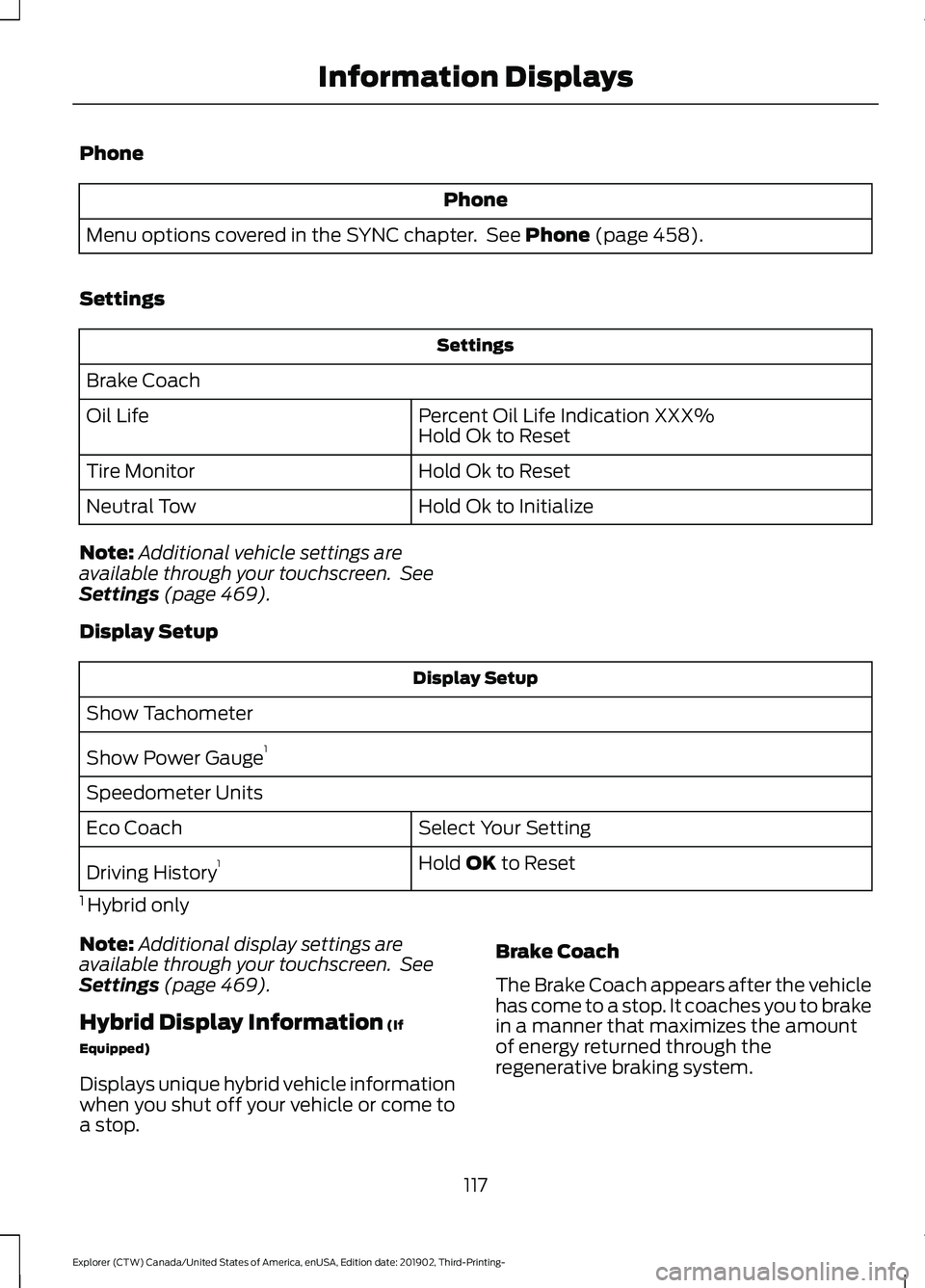
Phone
Phone
Menu options covered in the SYNC chapter. See Phone (page 458).
Settings Settings
Brake Coach Percent Oil Life Indication XXX%
Hold Ok to Reset
Oil Life
Hold Ok to Reset
Tire Monitor
Hold Ok to Initialize
Neutral Tow
Note: Additional vehicle settings are
available through your touchscreen. See
Settings
(page 469).
Display Setup Display Setup
Show Tachometer
Show Power Gauge 1
Speedometer Units Select Your Setting
Eco Coach
Hold
OK to Reset
Driving History 1
1 Hybrid only
Note: Additional display settings are
available through your touchscreen. See
Settings
(page 469).
Hybrid Display Information
(If
Equipped)
Displays unique hybrid vehicle information
when you shut off your vehicle or come to
a stop. Brake Coach
The Brake Coach appears after the vehicle
has come to a stop. It coaches you to brake
in a manner that maximizes the amount
of energy returned through the
regenerative braking system.
117
Explorer (CTW) Canada/United States of America, enUSA, Edition date: 201902, Third-Printing- Information Displays
Page 122 of 555
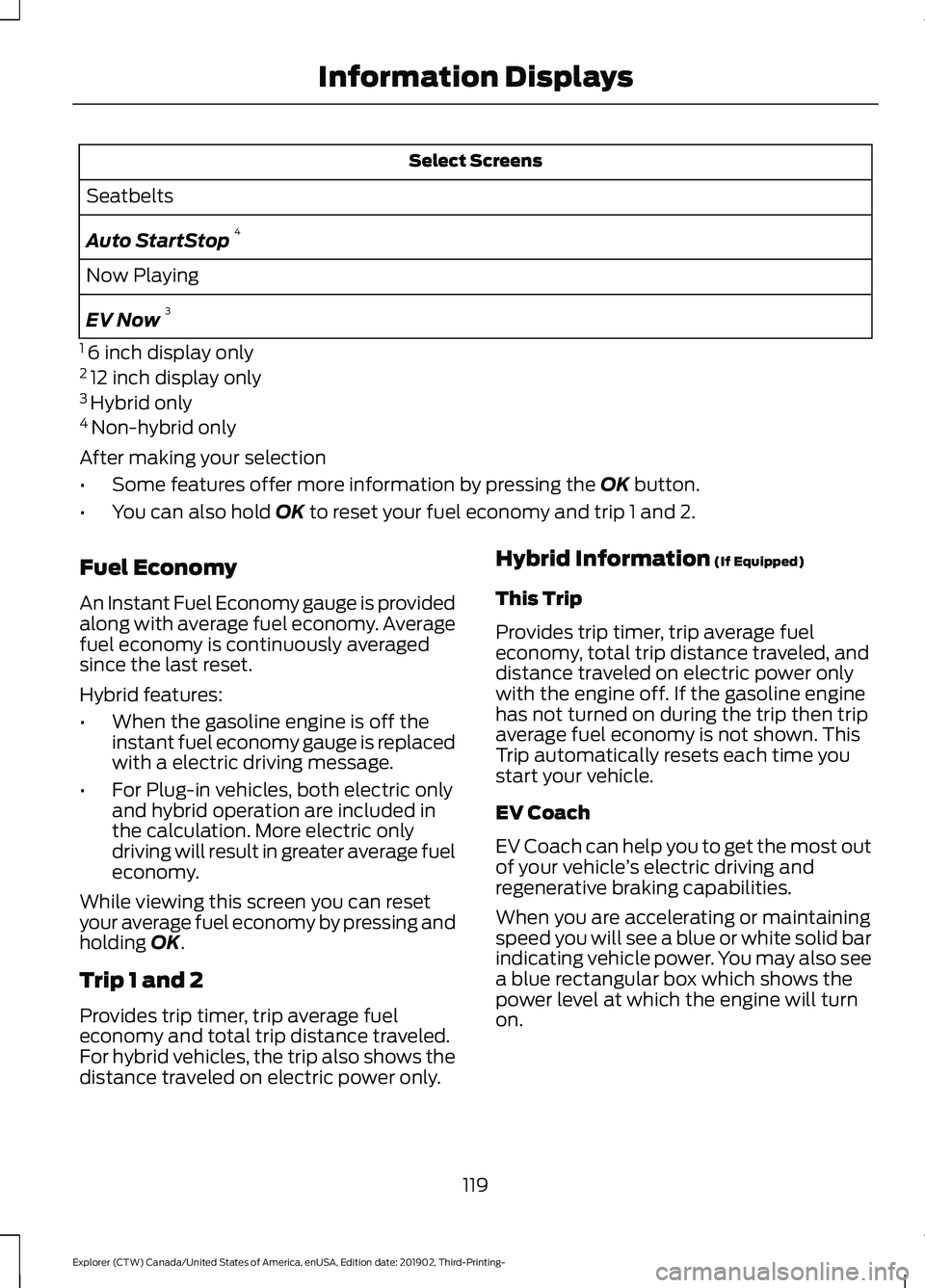
Select Screens
Seatbelts
Auto StartStop 4
Now Playing
EV Now 3
1 6 inch display only
2 12 inch display only
3 Hybrid only
4 Non-hybrid only
After making your selection
• Some features offer more information by pressing the OK button.
• You can also hold
OK to reset your fuel economy and trip 1 and 2.
Fuel Economy
An Instant Fuel Economy gauge is provided
along with average fuel economy. Average
fuel economy is continuously averaged
since the last reset.
Hybrid features:
• When the gasoline engine is off the
instant fuel economy gauge is replaced
with a electric driving message.
• For Plug-in vehicles, both electric only
and hybrid operation are included in
the calculation. More electric only
driving will result in greater average fuel
economy.
While viewing this screen you can reset
your average fuel economy by pressing and
holding
OK.
Trip 1 and 2
Provides trip timer, trip average fuel
economy and total trip distance traveled.
For hybrid vehicles, the trip also shows the
distance traveled on electric power only. Hybrid Information
(If Equipped)
This Trip
Provides trip timer, trip average fuel
economy, total trip distance traveled, and
distance traveled on electric power only
with the engine off. If the gasoline engine
has not turned on during the trip then trip
average fuel economy is not shown. This
Trip automatically resets each time you
start your vehicle.
EV Coach
EV Coach can help you to get the most out
of your vehicle ’s electric driving and
regenerative braking capabilities.
When you are accelerating or maintaining
speed you will see a blue or white solid bar
indicating vehicle power. You may also see
a blue rectangular box which shows the
power level at which the engine will turn
on.
119
Explorer (CTW) Canada/United States of America, enUSA, Edition date: 201902, Third-Printing- Information Displays
Page 129 of 555
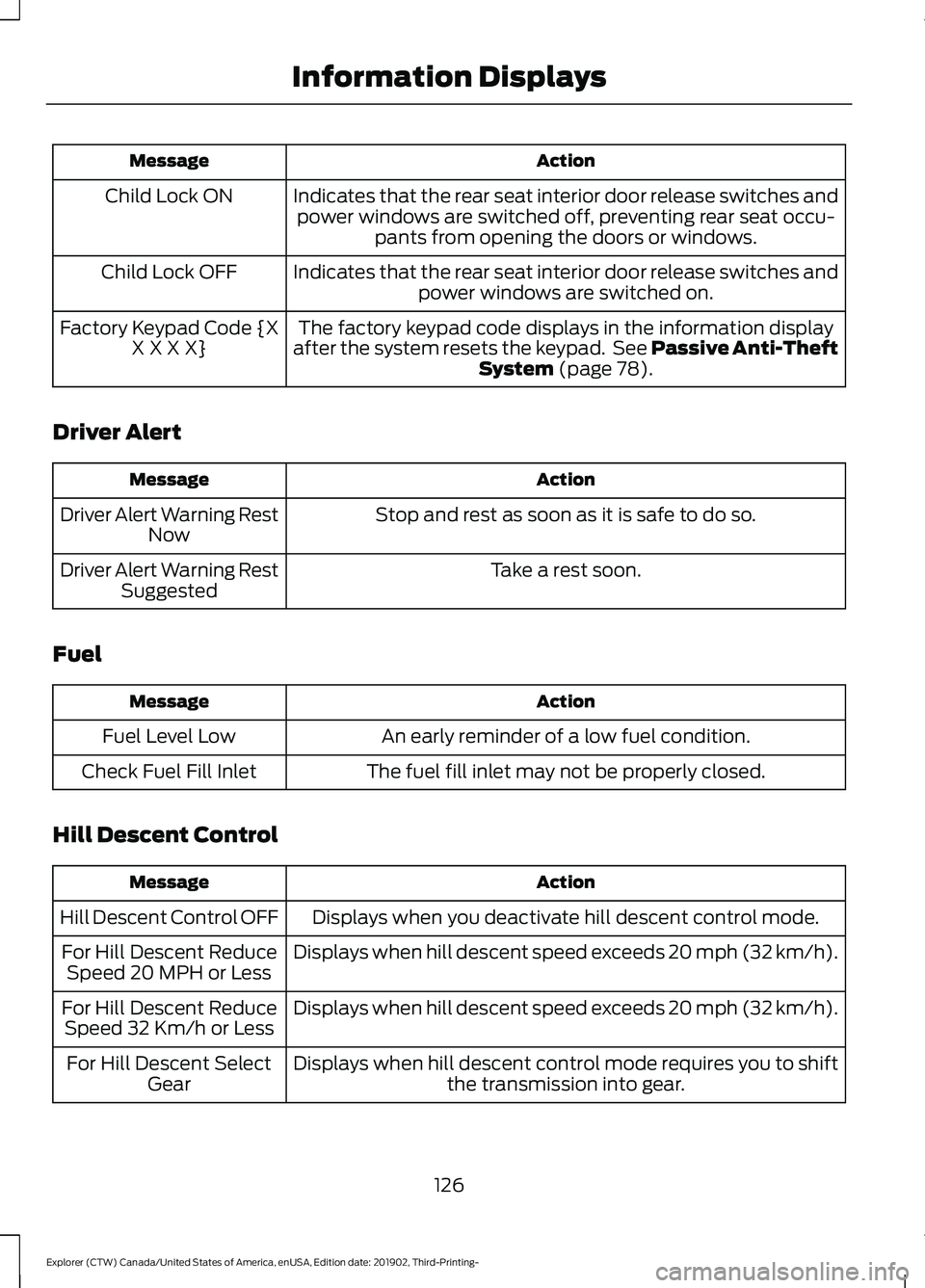
Action
Message
Indicates that the rear seat interior door release switches andpower windows are switched off, preventing rear seat occu- pants from opening the doors or windows.
Child Lock ON
Indicates that the rear seat interior door release switches andpower windows are switched on.
Child Lock OFF
The factory keypad code displays in the information display
after the system resets the keypad. See Passive Anti-Theft System (page 78).
Factory Keypad Code {X
X X X X}
Driver Alert Action
Message
Stop and rest as soon as it is safe to do so.
Driver Alert Warning Rest
Now
Take a rest soon.
Driver Alert Warning Rest
Suggested
Fuel Action
Message
An early reminder of a low fuel condition.
Fuel Level Low
The fuel fill inlet may not be properly closed.
Check Fuel Fill Inlet
Hill Descent Control Action
Message
Displays when you deactivate hill descent control mode.
Hill Descent Control OFF
Displays when hill descent speed exceeds 20 mph (32 km/h).
For Hill Descent Reduce
Speed 20 MPH or Less
Displays when hill descent speed exceeds 20 mph (32 km/h).
For Hill Descent Reduce
Speed 32 Km/h or Less
Displays when hill descent control mode requires you to shiftthe transmission into gear.
For Hill Descent Select
Gear
126
Explorer (CTW) Canada/United States of America, enUSA, Edition date: 201902, Third-Printing- Information Displays
Page 139 of 555
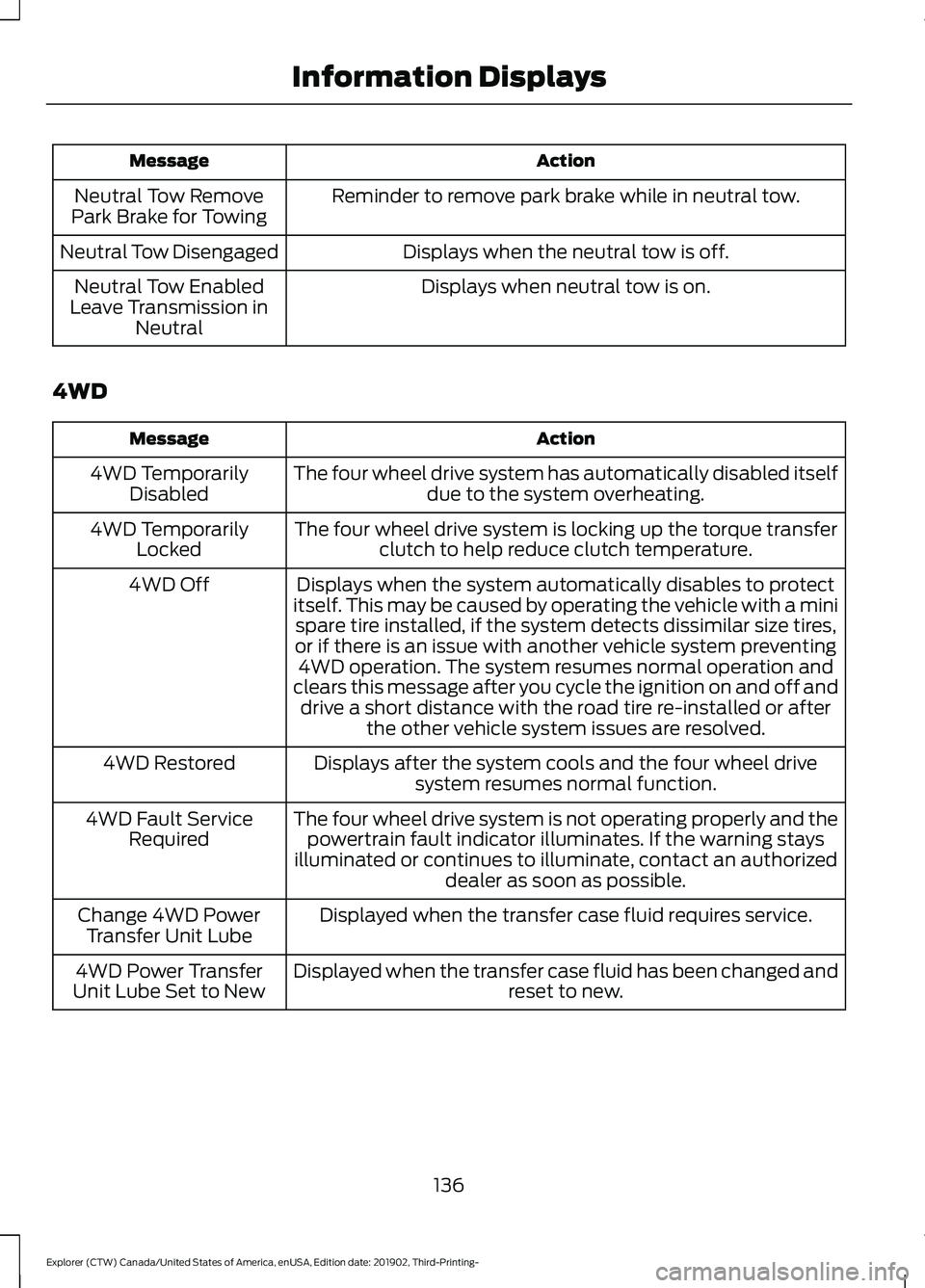
Action
Message
Reminder to remove park brake while in neutral tow.
Neutral Tow Remove
Park Brake for Towing
Displays when the neutral tow is off.
Neutral Tow Disengaged
Displays when neutral tow is on.
Neutral Tow Enabled
Leave Transmission in Neutral
4WD Action
Message
The four wheel drive system has automatically disabled itselfdue to the system overheating.
4WD Temporarily
Disabled
The four wheel drive system is locking up the torque transferclutch to help reduce clutch temperature.
4WD Temporarily
Locked
Displays when the system automatically disables to protect
itself. This may be caused by operating the vehicle with a mini spare tire installed, if the system detects dissimilar size tires,
or if there is an issue with another vehicle system preventing 4WD operation. The system resumes normal operation and
clears this message after you cycle the ignition on and off and drive a short distance with the road tire re-installed or after the other vehicle system issues are resolved.
4WD Off
Displays after the system cools and the four wheel drivesystem resumes normal function.
4WD Restored
The four wheel drive system is not operating properly and thepowertrain fault indicator illuminates. If the warning stays
illuminated or continues to illuminate, contact an authorized dealer as soon as possible.
4WD Fault Service
Required
Displayed when the transfer case fluid requires service.
Change 4WD Power
Transfer Unit Lube
Displayed when the transfer case fluid has been changed and reset to new.
4WD Power Transfer
Unit Lube Set to New
136
Explorer (CTW) Canada/United States of America, enUSA, Edition date: 201902, Third-Printing- Information Displays
Page 149 of 555
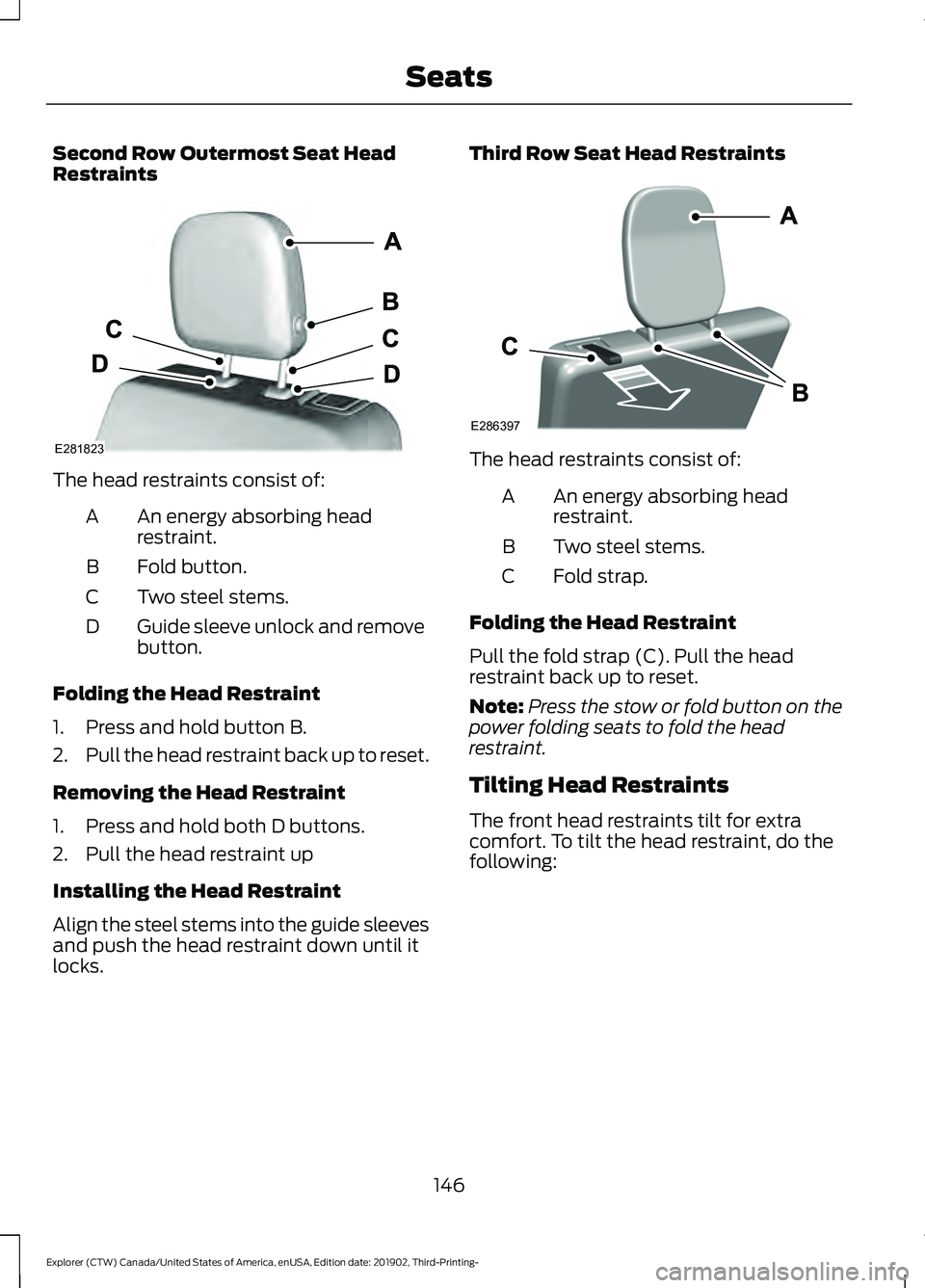
Second Row Outermost Seat Head
Restraints
The head restraints consist of:
An energy absorbing head
restraint.
A
Fold button.
B
Two steel stems.
C
Guide sleeve unlock and remove
button.
D
Folding the Head Restraint
1. Press and hold button B.
2. Pull the head restraint back up to reset.
Removing the Head Restraint
1. Press and hold both D buttons.
2. Pull the head restraint up
Installing the Head Restraint
Align the steel stems into the guide sleeves
and push the head restraint down until it
locks. Third Row Seat Head Restraints
The head restraints consist of:
An energy absorbing head
restraint.
A
Two steel stems.
B
Fold strap.
C
Folding the Head Restraint
Pull the fold strap (C). Pull the head
restraint back up to reset.
Note: Press the stow or fold button on the
power folding seats to fold the head
restraint.
Tilting Head Restraints
The front head restraints tilt for extra
comfort. To tilt the head restraint, do the
following:
146
Explorer (CTW) Canada/United States of America, enUSA, Edition date: 201902, Third-Printing- SeatsE281823 E286397
Page 154 of 555
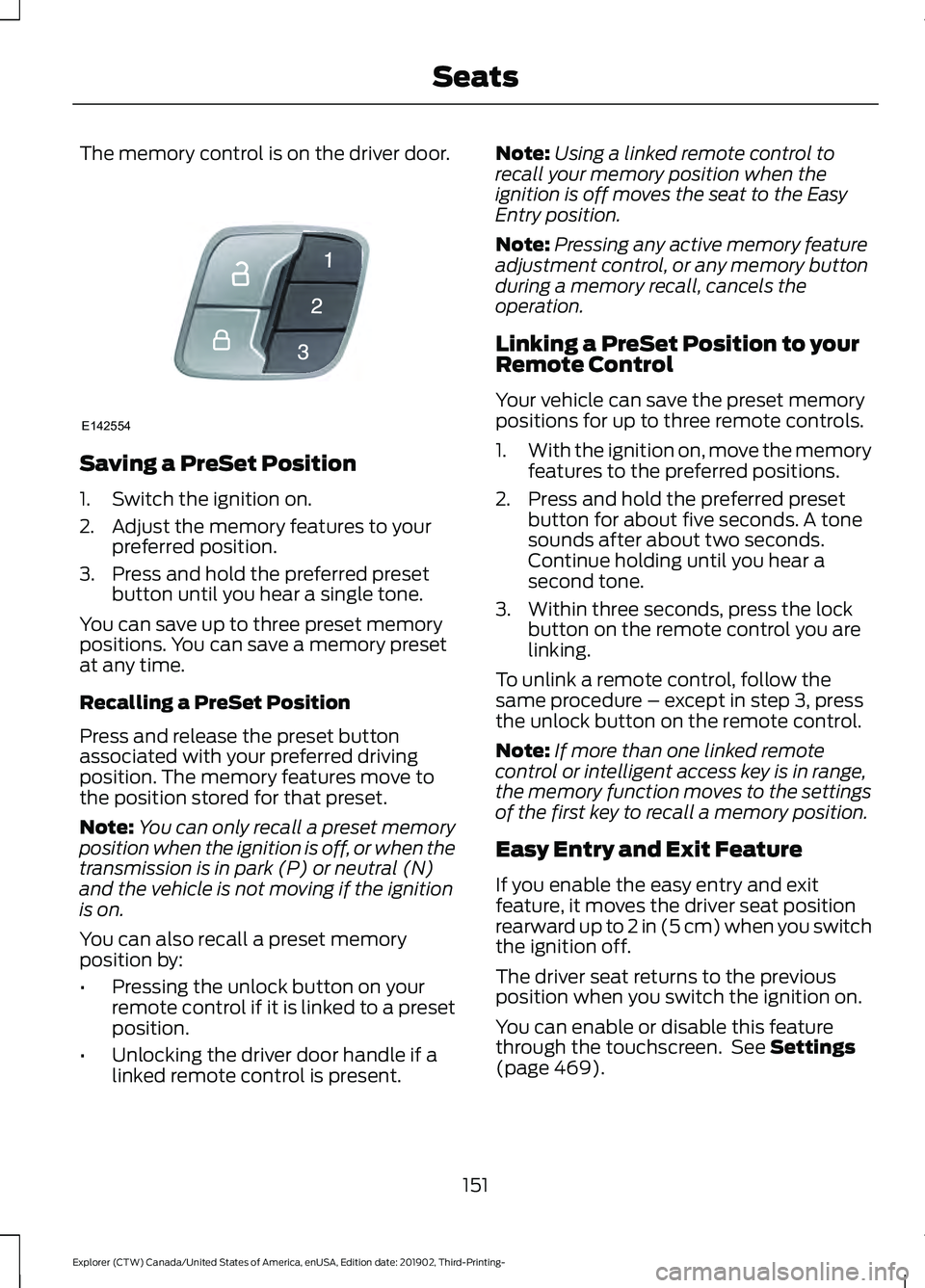
The memory control is on the driver door.
Saving a PreSet Position
1. Switch the ignition on.
2. Adjust the memory features to your
preferred position.
3. Press and hold the preferred preset button until you hear a single tone.
You can save up to three preset memory
positions. You can save a memory preset
at any time.
Recalling a PreSet Position
Press and release the preset button
associated with your preferred driving
position. The memory features move to
the position stored for that preset.
Note: You can only recall a preset memory
position when the ignition is off, or when the
transmission is in park (P) or neutral (N)
and the vehicle is not moving if the ignition
is on.
You can also recall a preset memory
position by:
• Pressing the unlock button on your
remote control if it is linked to a preset
position.
• Unlocking the driver door handle if a
linked remote control is present. Note:
Using a linked remote control to
recall your memory position when the
ignition is off moves the seat to the Easy
Entry position.
Note: Pressing any active memory feature
adjustment control, or any memory button
during a memory recall, cancels the
operation.
Linking a PreSet Position to your
Remote Control
Your vehicle can save the preset memory
positions for up to three remote controls.
1. With the ignition on, move the memory
features to the preferred positions.
2. Press and hold the preferred preset button for about five seconds. A tone
sounds after about two seconds.
Continue holding until you hear a
second tone.
3. Within three seconds, press the lock button on the remote control you are
linking.
To unlink a remote control, follow the
same procedure – except in step 3, press
the unlock button on the remote control.
Note: If more than one linked remote
control or intelligent access key is in range,
the memory function moves to the settings
of the first key to recall a memory position.
Easy Entry and Exit Feature
If you enable the easy entry and exit
feature, it moves the driver seat position
rearward up to 2 in (5 cm) when you switch
the ignition off.
The driver seat returns to the previous
position when you switch the ignition on.
You can enable or disable this feature
through the touchscreen. See Settings
(page 469).
151
Explorer (CTW) Canada/United States of America, enUSA, Edition date: 201902, Third-Printing- SeatsE142554