length FORD F-150 2021 User Guide
[x] Cancel search | Manufacturer: FORD, Model Year: 2021, Model line: F-150, Model: FORD F-150 2021Pages: 796, PDF Size: 13.89 MB
Page 398 of 796
Cross Traffic Alert Limitations
with a Trailer Attached
The system remains on when you attach
a trailer in vehicles with blind spot
information system with trailer tow under
the following conditions:
•
You connect a trailer.
• The trailer is a bike rack or cargo rack
with a maximum length of 3 ft (1 m).
• You set the trailer length to
3 ft (1 m)
in the instrument cluster display.
Note: The system may not correctly operate
when towing a trailer. For vehicles with an
approved trailer tow module and tow bar,
the system turns off when you attach a
trailer. For vehicles with an aftermarket
trailer tow module or tow bar, we
recommend that you switch the system off
when you attach a trailer.
SWITCHING CROSS TRAFFIC
ALERT ON AND OFF
To switch cross traffic alert on or off use
the touchscreen.
1. Press
Features on the touchscreen.
2. Press
Driver Assistance.
3. Switch
Cross Traffic Alert on or off.
Note: The system switches on every time
you switch the ignition on. To permanently
switch the system off, contact an authorized
dealer. LOCATING THE CROSS
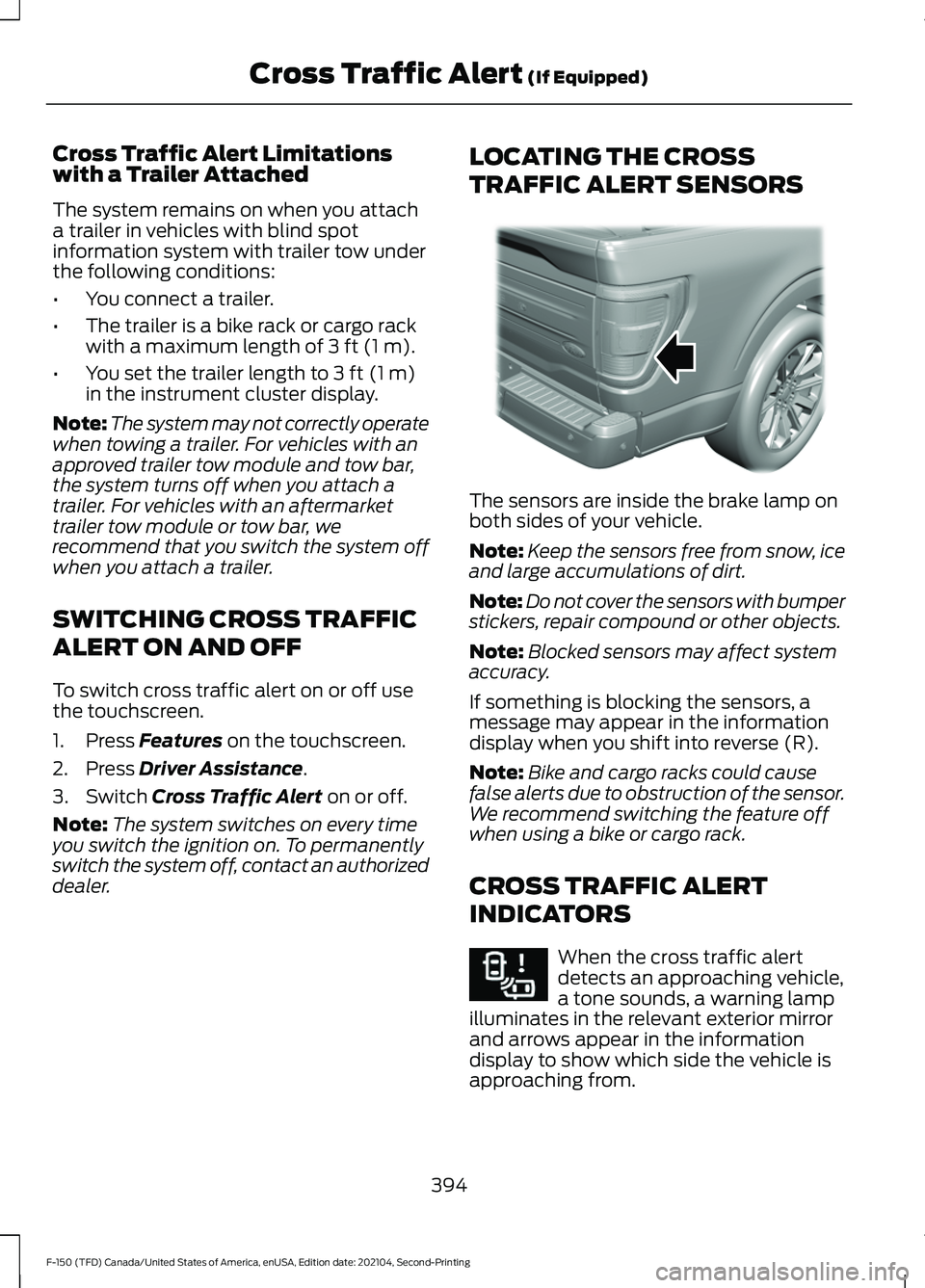
TRAFFIC ALERT SENSORS The sensors are inside the brake lamp on
both sides of your vehicle.
Note:
Keep the sensors free from snow, ice
and large accumulations of dirt.
Note: Do not cover the sensors with bumper
stickers, repair compound or other objects.
Note: Blocked sensors may affect system
accuracy.
If something is blocking the sensors, a
message may appear in the information
display when you shift into reverse (R).
Note: Bike and cargo racks could cause
false alerts due to obstruction of the sensor.
We recommend switching the feature off
when using a bike or cargo rack.
CROSS TRAFFIC ALERT
INDICATORS When the cross traffic alert
detects an approaching vehicle,
a tone sounds, a warning lamp
illuminates in the relevant exterior mirror
and arrows appear in the information
display to show which side the vehicle is
approaching from.
394
F-150 (TFD) Canada/United States of America, enUSA, Edition date: 202104, Second-Printing Cross Traffic Alert
(If Equipped)E310325 E268294
Page 453 of 796
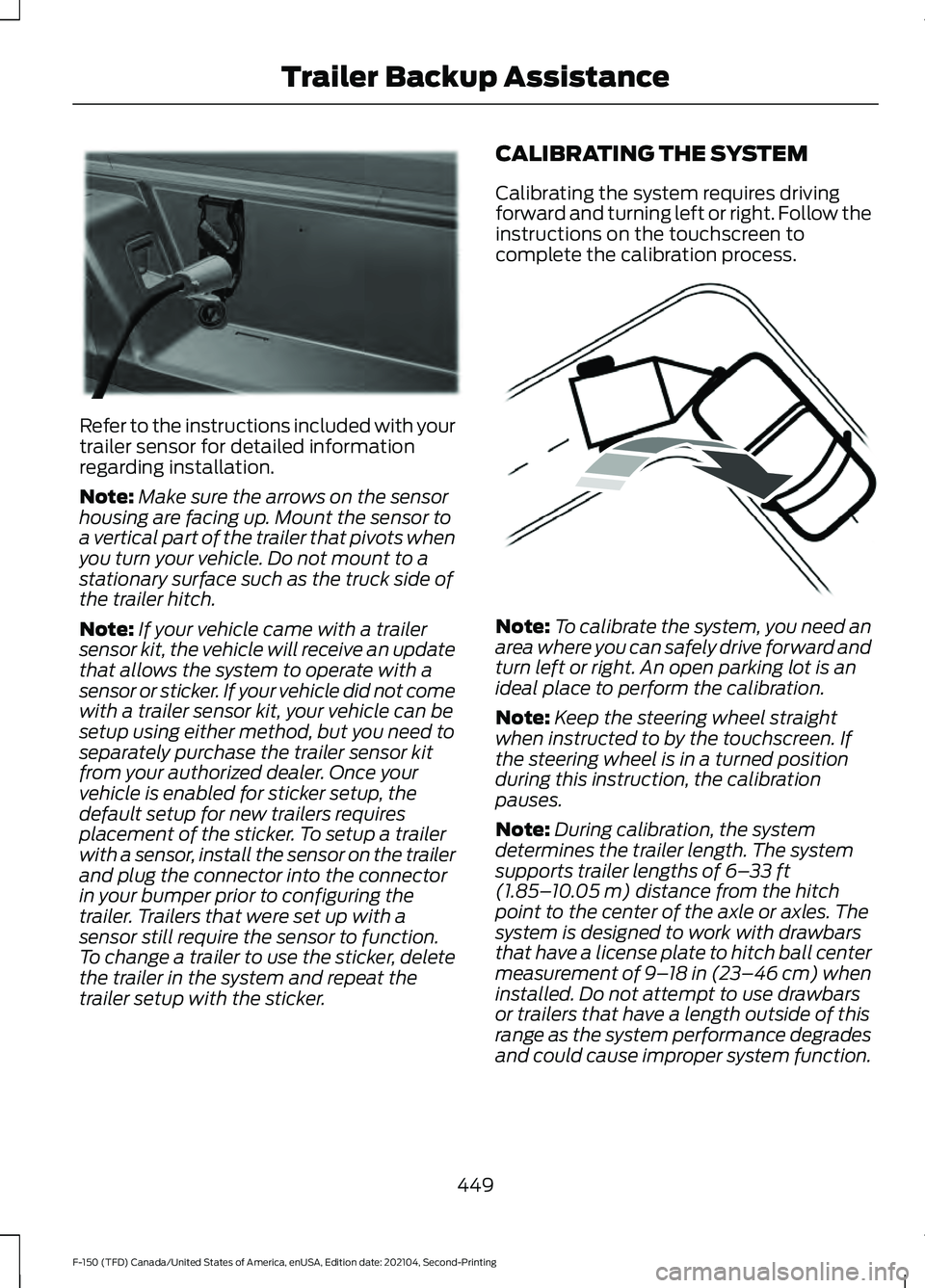
Refer to the instructions included with your
trailer sensor for detailed information
regarding installation.
Note:
Make sure the arrows on the sensor
housing are facing up. Mount the sensor to
a vertical part of the trailer that pivots when
you turn your vehicle. Do not mount to a
stationary surface such as the truck side of
the trailer hitch.
Note: If your vehicle came with a trailer
sensor kit, the vehicle will receive an update
that allows the system to operate with a
sensor or sticker. If your vehicle did not come
with a trailer sensor kit, your vehicle can be
setup using either method, but you need to
separately purchase the trailer sensor kit
from your authorized dealer. Once your
vehicle is enabled for sticker setup, the
default setup for new trailers requires
placement of the sticker. To setup a trailer
with a sensor, install the sensor on the trailer
and plug the connector into the connector
in your bumper prior to configuring the
trailer. Trailers that were set up with a
sensor still require the sensor to function.
To change a trailer to use the sticker, delete
the trailer in the system and repeat the
trailer setup with the sticker. CALIBRATING THE SYSTEM
Calibrating the system requires driving
forward and turning left or right. Follow the
instructions on the touchscreen to
complete the calibration process.
Note:
To calibrate the system, you need an
area where you can safely drive forward and
turn left or right. An open parking lot is an
ideal place to perform the calibration.
Note: Keep the steering wheel straight
when instructed to by the touchscreen. If
the steering wheel is in a turned position
during this instruction, the calibration
pauses.
Note: During calibration, the system
determines the trailer length. The system
supports trailer lengths of 6– 33 ft
(1.85– 10.05 m) distance from the hitch
point to the center of the axle or axles. The
system is designed to work with drawbars
that have a license plate to hitch ball center
measurement of 9– 18 in (23–46 cm) when
installed. Do not attempt to use drawbars
or trailers that have a length outside of this
range as the system performance degrades
and could cause improper system function.
449
F-150 (TFD) Canada/United States of America, enUSA, Edition date: 202104, Second-Printing Trailer Backup AssistanceE335221 E352329
Page 454 of 796
Note:
The touchscreen shows if you are
going too slow or fast. Calibration pauses if
the speed is outside the required range of
2 –9 mph (4– 15 km/h).
Note: You need to complete at least a 90°
turn, and longer trailers could require a 180°
turn. Camera trailer tracking requires the
system to locate the hitch ball as well as
determine the trailer length. Some trailers
could require you to drive straight then turn
multiple times before calibration completes.
The touchscreen provides instructions and
notifies you when calibration completes.
Note: For best results, do not calibrate the
system at night when calibrating the system
with the sticker.
SWITCHING TRAILER BACKUP
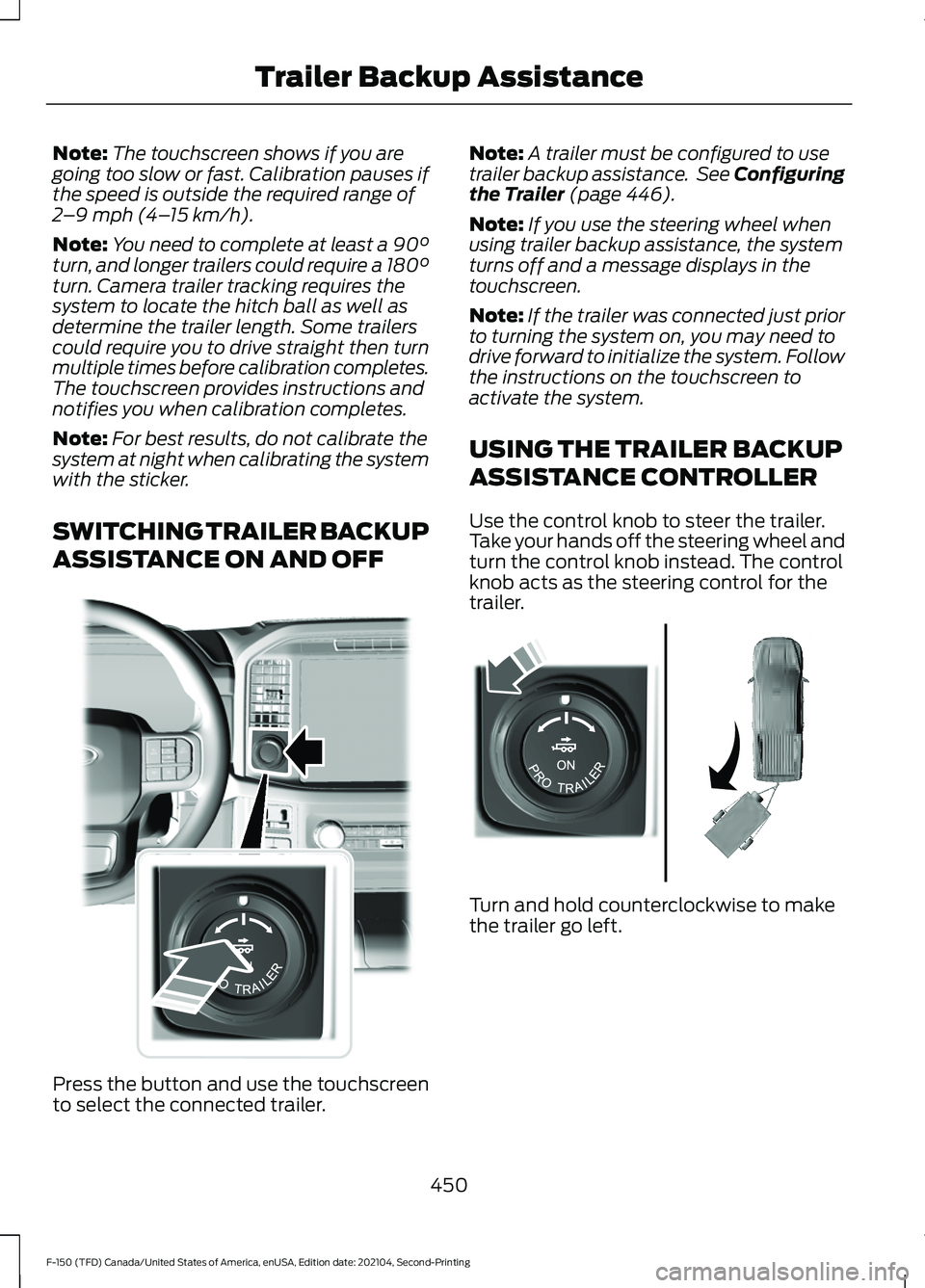
ASSISTANCE ON AND OFF Press the button and use the touchscreen
to select the connected trailer. Note:
A trailer must be configured to use
trailer backup assistance. See Configuring
the Trailer (page 446).
Note: If you use the steering wheel when
using trailer backup assistance, the system
turns off and a message displays in the
touchscreen.
Note: If the trailer was connected just prior
to turning the system on, you may need to
drive forward to initialize the system. Follow
the instructions on the touchscreen to
activate the system.
USING THE TRAILER BACKUP
ASSISTANCE CONTROLLER
Use the control knob to steer the trailer.
Take your hands off the steering wheel and
turn the control knob instead. The control
knob acts as the steering control for the
trailer. Turn and hold counterclockwise to make
the trailer go left.
450
F-150 (TFD) Canada/United States of America, enUSA, Edition date: 202104, Second-Printing Trailer Backup AssistanceE310335 E313025
Page 456 of 796
Note:
If you have a 8 in (20 cm)
touchscreen, picture-in-picture is off by
default. Press the picture-in-picture icon on
the touchscreen to switch picture-in-picture
view on and off.
Note: If you have a
12 in (30 cm)
touchscreen, picture-in-picture is on by
default and cannot be switched off. Swap. Press to swap between
picture-in-picture views.
Auto. Press to return to auto
view.
Note: Auto mode is the default setting.
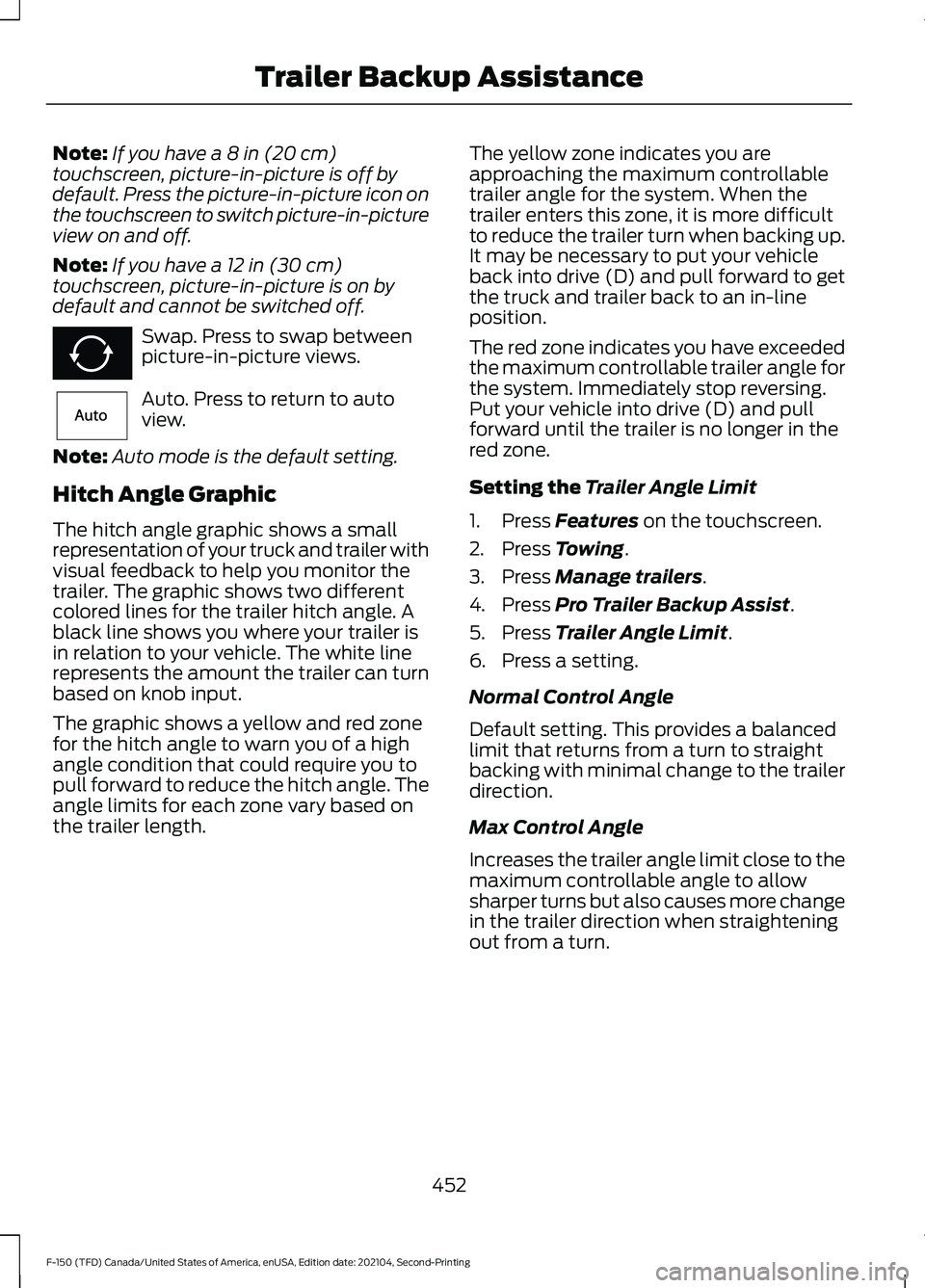
Hitch Angle Graphic
The hitch angle graphic shows a small
representation of your truck and trailer with
visual feedback to help you monitor the
trailer. The graphic shows two different
colored lines for the trailer hitch angle. A
black line shows you where your trailer is
in relation to your vehicle. The white line
represents the amount the trailer can turn
based on knob input.
The graphic shows a yellow and red zone
for the hitch angle to warn you of a high
angle condition that could require you to
pull forward to reduce the hitch angle. The
angle limits for each zone vary based on
the trailer length. The yellow zone indicates you are
approaching the maximum controllable
trailer angle for the system. When the
trailer enters this zone, it is more difficult
to reduce the trailer turn when backing up.
It may be necessary to put your vehicle
back into drive (D) and pull forward to get
the truck and trailer back to an in-line
position.
The red zone indicates you have exceeded
the maximum controllable trailer angle for
the system. Immediately stop reversing.
Put your vehicle into drive (D) and pull
forward until the trailer is no longer in the
red zone.
Setting the
Trailer Angle Limit
1. Press
Features on the touchscreen.
2. Press
Towing.
3. Press
Manage trailers.
4. Press
Pro Trailer Backup Assist.
5. Press
Trailer Angle Limit.
6. Press a setting.
Normal Control Angle
Default setting. This provides a balanced
limit that returns from a turn to straight
backing with minimal change to the trailer
direction.
Max Control Angle
Increases the trailer angle limit close to the
maximum controllable angle to allow
sharper turns but also causes more change
in the trailer direction when straightening
out from a turn.
452
F-150 (TFD) Canada/United States of America, enUSA, Edition date: 202104, Second-Printing Trailer Backup AssistanceE351662 E315644
Page 458 of 796
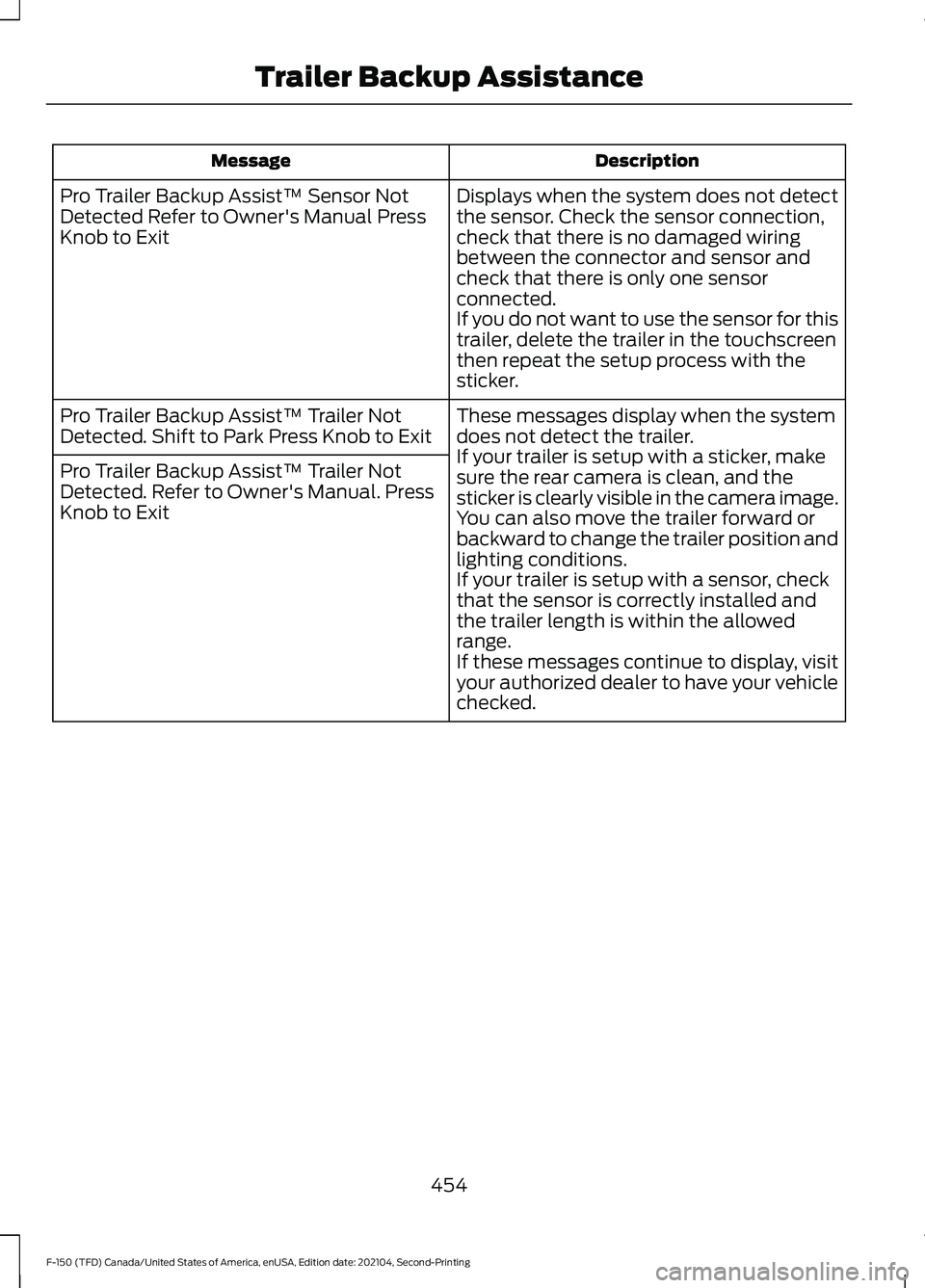
Description
Message
Displays when the system does not detect
the sensor. Check the sensor connection,
check that there is no damaged wiring
between the connector and sensor and
check that there is only one sensor
connected.
If you do not want to use the sensor for this
trailer, delete the trailer in the touchscreen
then repeat the setup process with the
sticker.
Pro Trailer Backup Assist™ Sensor Not
Detected Refer to Owner's Manual Press
Knob to Exit
These messages display when the system
does not detect the trailer.
If your trailer is setup with a sticker, make
sure the rear camera is clean, and the
sticker is clearly visible in the camera image.
You can also move the trailer forward or
backward to change the trailer position and
lighting conditions.
If your trailer is setup with a sensor, check
that the sensor is correctly installed and
the trailer length is within the allowed
range.
If these messages continue to display, visit
your authorized dealer to have your vehicle
checked.
Pro Trailer Backup Assist™ Trailer Not
Detected. Shift to Park Press Knob to Exit
Pro Trailer Backup Assist™ Trailer Not
Detected. Refer to Owner's Manual. Press
Knob to Exit
454
F-150 (TFD) Canada/United States of America, enUSA, Edition date: 202104, Second-Printing Trailer Backup Assistance
Page 460 of 796
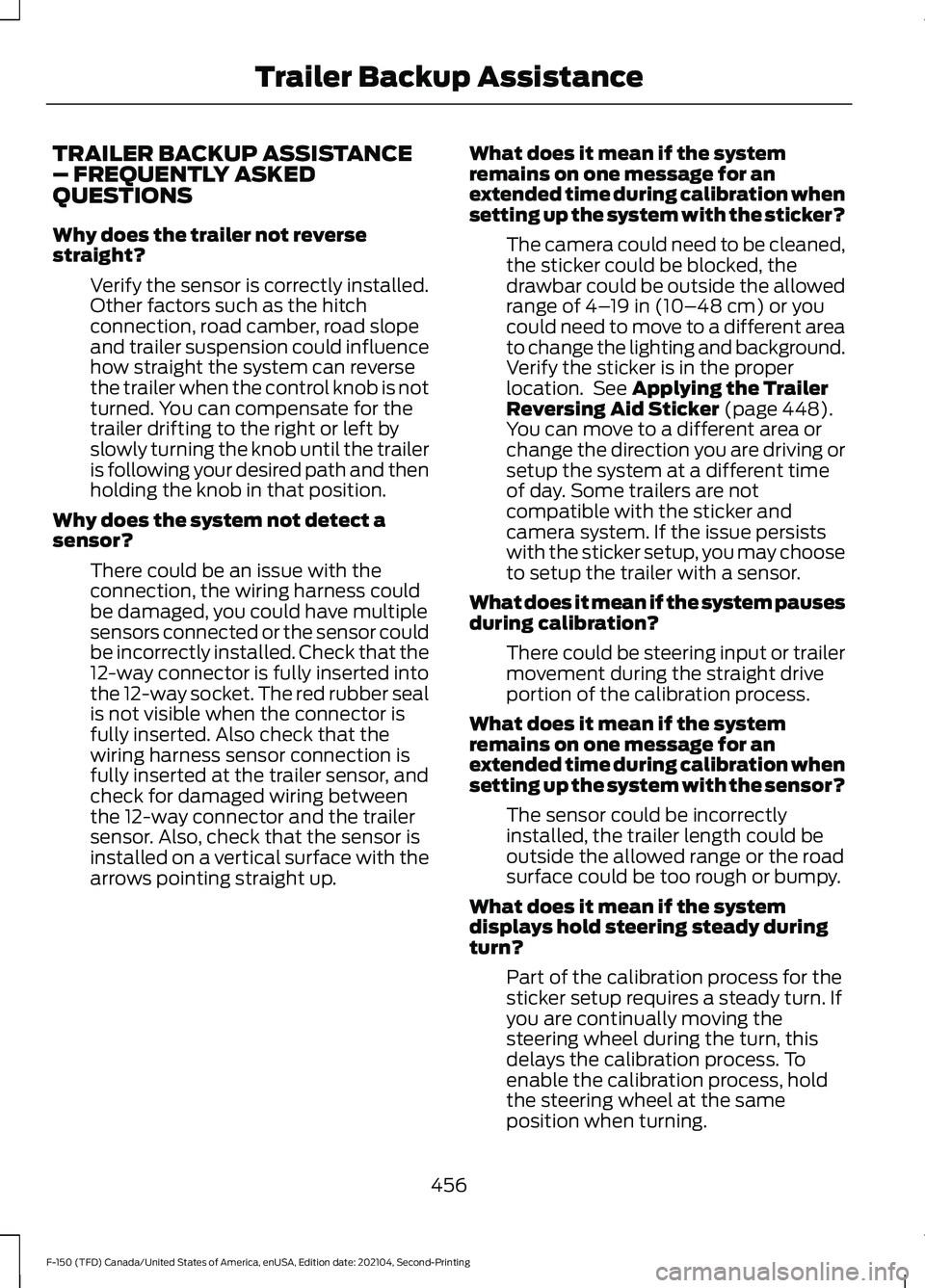
TRAILER BACKUP ASSISTANCE
– FREQUENTLY ASKED
QUESTIONS
Why does the trailer not reverse
straight?
Verify the sensor is correctly installed.
Other factors such as the hitch
connection, road camber, road slope
and trailer suspension could influence
how straight the system can reverse
the trailer when the control knob is not
turned. You can compensate for the
trailer drifting to the right or left by
slowly turning the knob until the trailer
is following your desired path and then
holding the knob in that position.
Why does the system not detect a
sensor? There could be an issue with the
connection, the wiring harness could
be damaged, you could have multiple
sensors connected or the sensor could
be incorrectly installed. Check that the
12-way connector is fully inserted into
the 12-way socket. The red rubber seal
is not visible when the connector is
fully inserted. Also check that the
wiring harness sensor connection is
fully inserted at the trailer sensor, and
check for damaged wiring between
the 12-way connector and the trailer
sensor. Also, check that the sensor is
installed on a vertical surface with the
arrows pointing straight up. What does it mean if the system
remains on one message for an
extended time during calibration when
setting up the system with the sticker?
The camera could need to be cleaned,
the sticker could be blocked, the
drawbar could be outside the allowed
range of 4–19 in (10–48 cm) or you
could need to move to a different area
to change the lighting and background.
Verify the sticker is in the proper
location. See
Applying the Trailer
Reversing Aid Sticker (page 448).
You can move to a different area or
change the direction you are driving or
setup the system at a different time
of day. Some trailers are not
compatible with the sticker and
camera system. If the issue persists
with the sticker setup, you may choose
to setup the trailer with a sensor.
What does it mean if the system pauses
during calibration? There could be steering input or trailer
movement during the straight drive
portion of the calibration process.
What does it mean if the system
remains on one message for an
extended time during calibration when
setting up the system with the sensor? The sensor could be incorrectly
installed, the trailer length could be
outside the allowed range or the road
surface could be too rough or bumpy.
What does it mean if the system
displays hold steering steady during
turn? Part of the calibration process for the
sticker setup requires a steady turn. If
you are continually moving the
steering wheel during the turn, this
delays the calibration process. To
enable the calibration process, hold
the steering wheel at the same
position when turning.
456
F-150 (TFD) Canada/United States of America, enUSA, Edition date: 202104, Second-Printing Trailer Backup Assistance
Page 461 of 796
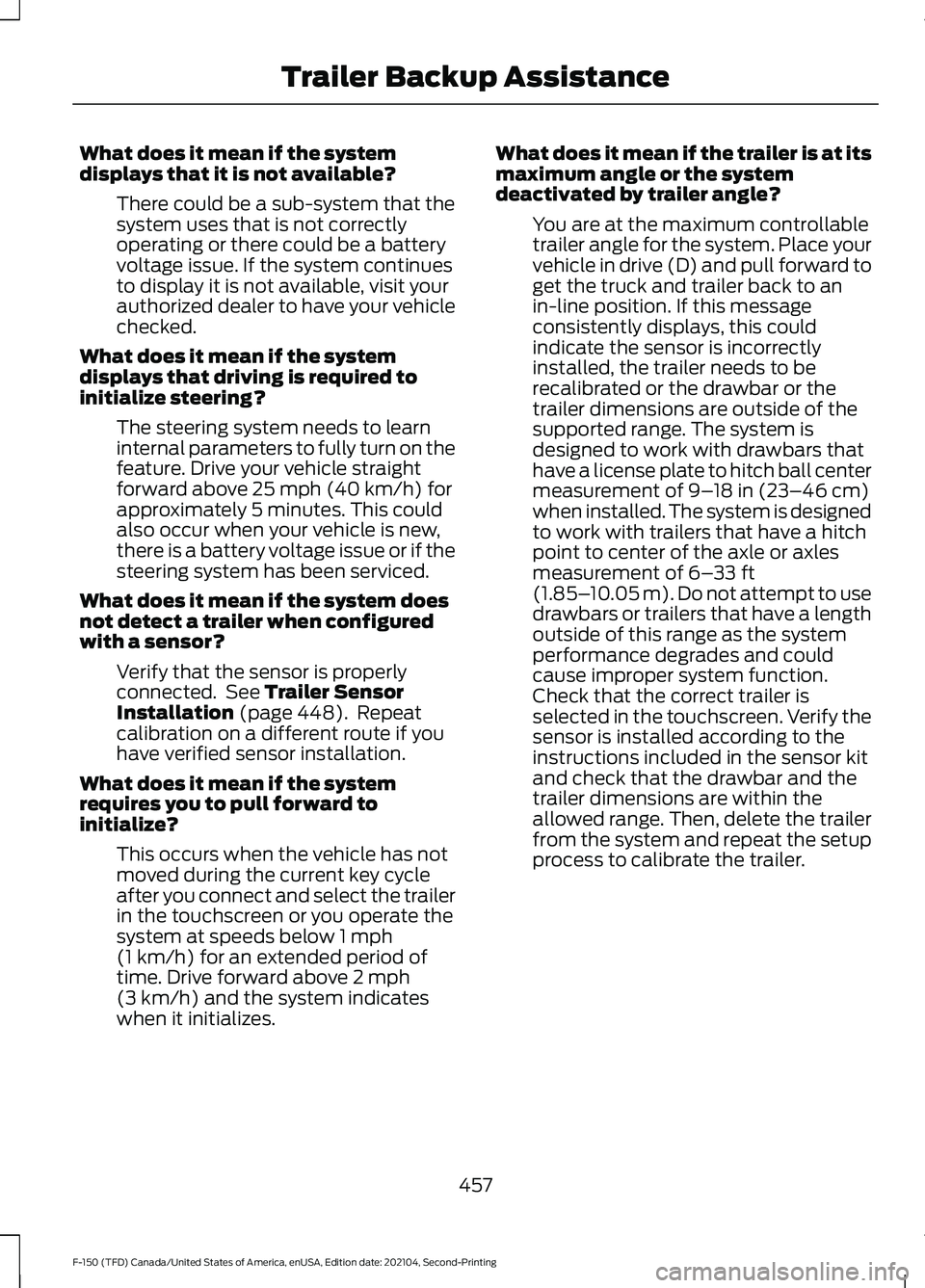
What does it mean if the system
displays that it is not available?
There could be a sub-system that the
system uses that is not correctly
operating or there could be a battery
voltage issue. If the system continues
to display it is not available, visit your
authorized dealer to have your vehicle
checked.
What does it mean if the system
displays that driving is required to
initialize steering? The steering system needs to learn
internal parameters to fully turn on the
feature. Drive your vehicle straight
forward above 25 mph (40 km/h) for
approximately 5 minutes. This could
also occur when your vehicle is new,
there is a battery voltage issue or if the
steering system has been serviced.
What does it mean if the system does
not detect a trailer when configured
with a sensor? Verify that the sensor is properly
connected. See
Trailer Sensor
Installation (page 448). Repeat
calibration on a different route if you
have verified sensor installation.
What does it mean if the system
requires you to pull forward to
initialize? This occurs when the vehicle has not
moved during the current key cycle
after you connect and select the trailer
in the touchscreen or you operate the
system at speeds below
1 mph
(1 km/h) for an extended period of
time. Drive forward above 2 mph
(3 km/h) and the system indicates
when it initializes. What does it mean if the trailer is at its
maximum angle or the system
deactivated by trailer angle?
You are at the maximum controllable
trailer angle for the system. Place your
vehicle in drive (D) and pull forward to
get the truck and trailer back to an
in-line position. If this message
consistently displays, this could
indicate the sensor is incorrectly
installed, the trailer needs to be
recalibrated or the drawbar or the
trailer dimensions are outside of the
supported range. The system is
designed to work with drawbars that
have a license plate to hitch ball center
measurement of
9–18 in (23–46 cm)
when installed. The system is designed
to work with trailers that have a hitch
point to center of the axle or axles
measurement of
6– 33 ft
(1.85– 10.05 m). Do not attempt to use
drawbars or trailers that have a length
outside of this range as the system
performance degrades and could
cause improper system function.
Check that the correct trailer is
selected in the touchscreen. Verify the
sensor is installed according to the
instructions included in the sensor kit
and check that the drawbar and the
trailer dimensions are within the
allowed range. Then, delete the trailer
from the system and repeat the setup
process to calibrate the trailer.
457
F-150 (TFD) Canada/United States of America, enUSA, Edition date: 202104, Second-Printing Trailer Backup Assistance
Page 466 of 796
Note:
If your vehicle came with a trailer
sensor kit, the vehicle will receive an update
that allows the system to operate with a
sensor or sticker. If your vehicle did not come
with a trailer sensor kit, your vehicle can be
setup using either method, but you need to
separately purchase the trailer sensor kit
from your authorized dealer. Once your
vehicle is enabled for sticker setup, the
default setup for new trailers requires
placement of the sticker. To setup a trailer
with a sensor, install the sensor on the trailer
and plug the connector into the connector
in your bumper prior to configuring the
trailer. Trailers that were set up with a
sensor still require the sensor to function.
To change a trailer to use the sticker, delete
the trailer in the system and repeat the
trailer setup with the sticker.
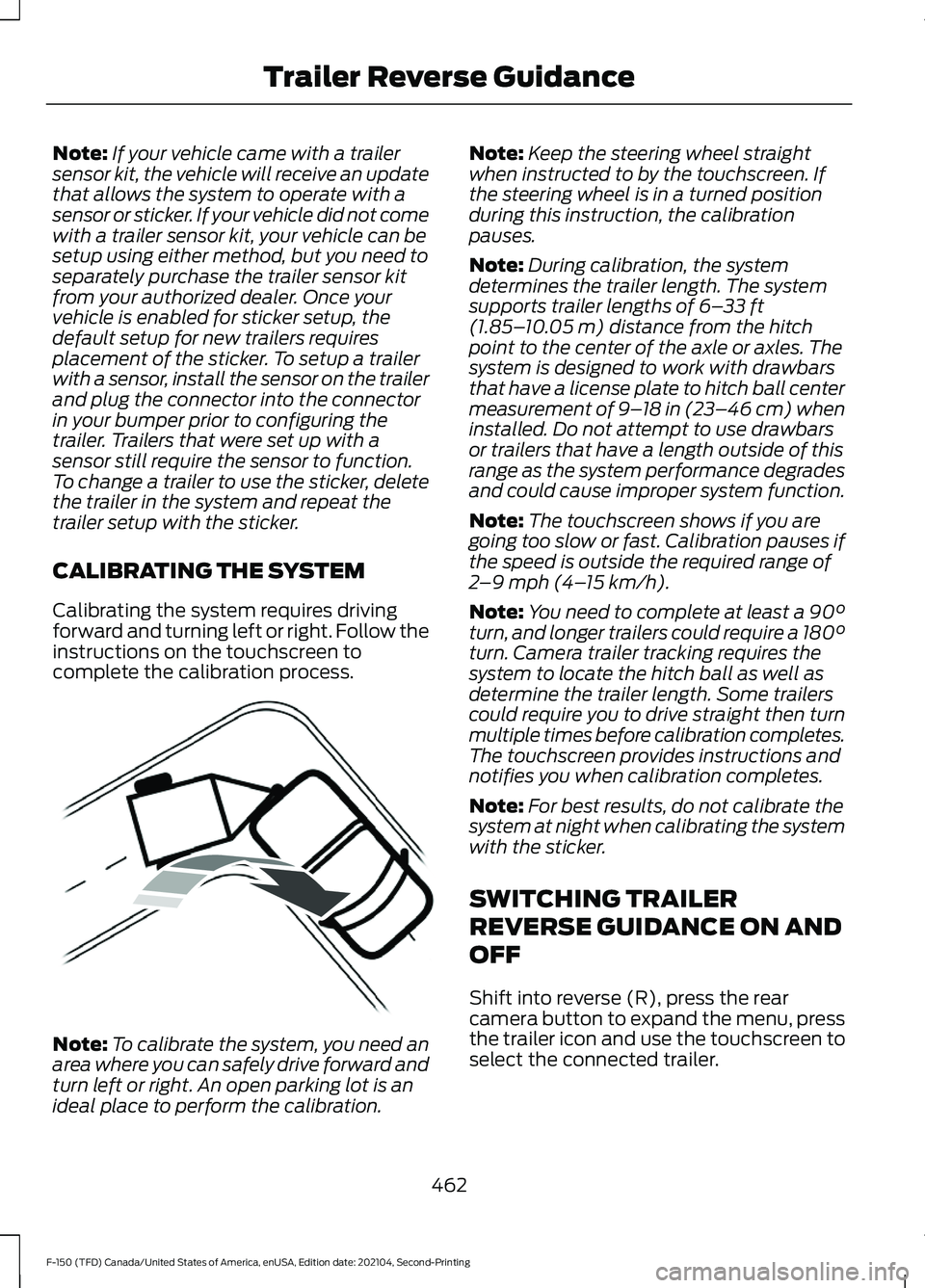
CALIBRATING THE SYSTEM
Calibrating the system requires driving
forward and turning left or right. Follow the
instructions on the touchscreen to
complete the calibration process. Note:
To calibrate the system, you need an
area where you can safely drive forward and
turn left or right. An open parking lot is an
ideal place to perform the calibration. Note:
Keep the steering wheel straight
when instructed to by the touchscreen. If
the steering wheel is in a turned position
during this instruction, the calibration
pauses.
Note: During calibration, the system
determines the trailer length. The system
supports trailer lengths of 6– 33 ft
(1.85– 10.05 m) distance from the hitch
point to the center of the axle or axles. The
system is designed to work with drawbars
that have a license plate to hitch ball center
measurement of 9– 18 in (23–46 cm) when
installed. Do not attempt to use drawbars
or trailers that have a length outside of this
range as the system performance degrades
and could cause improper system function.
Note: The touchscreen shows if you are
going too slow or fast. Calibration pauses if
the speed is outside the required range of
2 –9 mph (4– 15 km/h)
.
Note: You need to complete at least a 90°
turn, and longer trailers could require a 180°
turn. Camera trailer tracking requires the
system to locate the hitch ball as well as
determine the trailer length. Some trailers
could require you to drive straight then turn
multiple times before calibration completes.
The touchscreen provides instructions and
notifies you when calibration completes.
Note: For best results, do not calibrate the
system at night when calibrating the system
with the sticker.
SWITCHING TRAILER
REVERSE GUIDANCE ON AND
OFF
Shift into reverse (R), press the rear
camera button to expand the menu, press
the trailer icon and use the touchscreen to
select the connected trailer.
462
F-150 (TFD) Canada/United States of America, enUSA, Edition date: 202104, Second-Printing Trailer Reverse GuidanceE352329
Page 468 of 796
Note:
Auto mode is the default setting.
Hitch Angle Graphic
The hitch angle graphic shows a small
representation of your truck and trailer with
visual feedback to help you monitor the
trailer. The graphic shows two different
colored lines for the trailer hitch angle. A
black line shows you where your trailer is
in relation to your vehicle. The white line
represents the amount the trailer can turn
based on steering wheel position.
The graphic shows a yellow and red zone
for the hitch angle to warn you of a high
angle condition that could require you to
pull forward to reduce the hitch angle. The
angle limits for each zone vary based on
the trailer length. The yellow zone indicates you are
approaching the maximum controllable
trailer angle for the system. When the
trailer enters this zone, it is more difficult
to reduce the trailer turn when backing up.
It may be necessary to put your vehicle
back into drive (D) and pull forward to get
the truck and trailer back to an in-line
position.
The red zone indicates you have exceeded
the maximum controllable trailer angle for
the system. Immediately stop reversing.
Put your vehicle into drive (D) and pull
forward until the trailer is no longer in the
red zone.
464
F-150 (TFD) Canada/United States of America, enUSA, Edition date: 202104, Second-Printing Trailer Reverse Guidance
Page 470 of 796
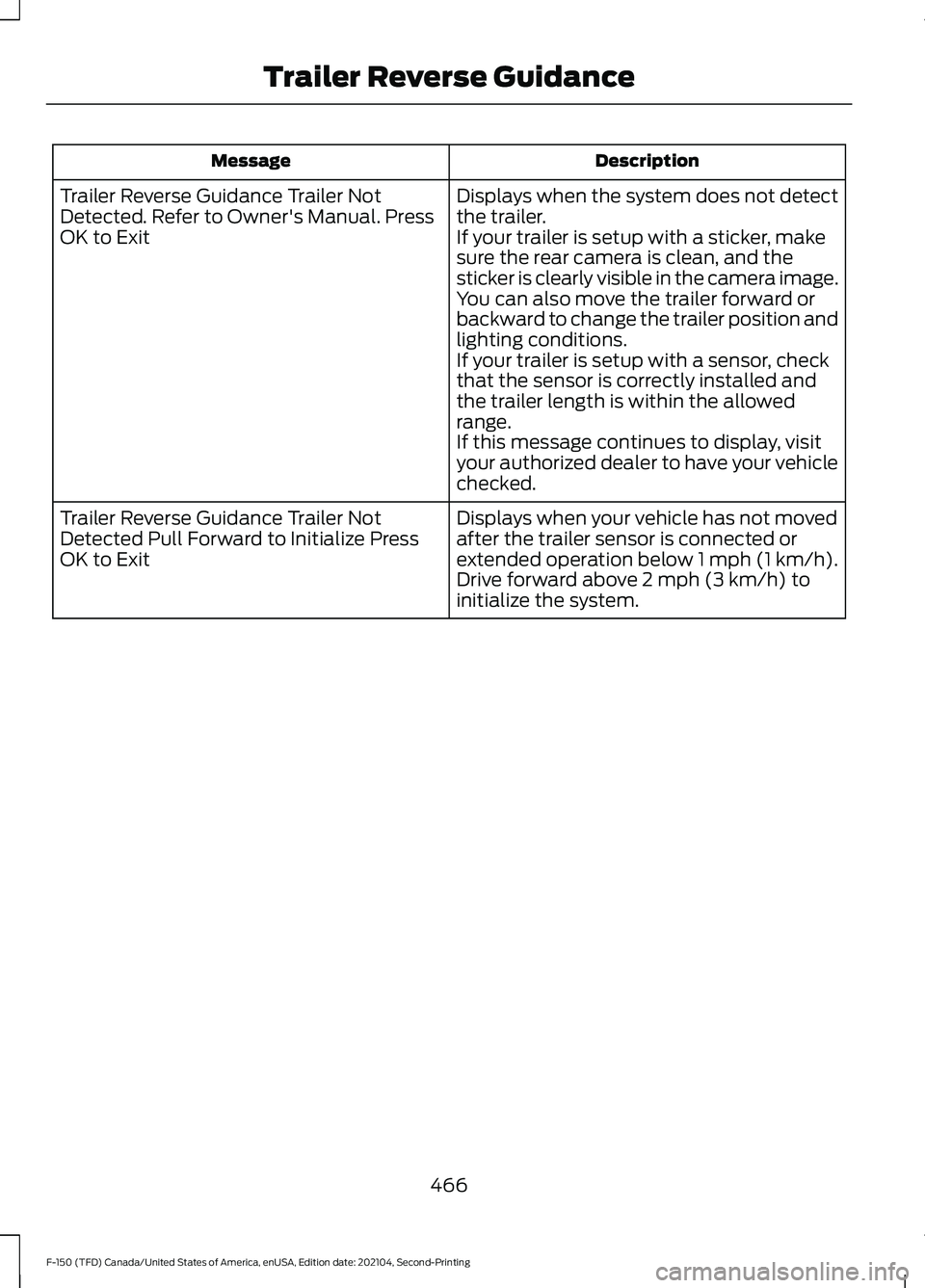
Description
Message
Displays when the system does not detect
the trailer.
If your trailer is setup with a sticker, make
sure the rear camera is clean, and the
sticker is clearly visible in the camera image.
You can also move the trailer forward or
backward to change the trailer position and
lighting conditions.
If your trailer is setup with a sensor, check
that the sensor is correctly installed and
the trailer length is within the allowed
range.
If this message continues to display, visit
your authorized dealer to have your vehicle
checked.
Trailer Reverse Guidance Trailer Not
Detected. Refer to Owner's Manual. Press
OK to Exit
Displays when your vehicle has not moved
after the trailer sensor is connected or
extended operation below 1 mph (1 km/h).
Drive forward above 2 mph (3 km/h) to
initialize the system.
Trailer Reverse Guidance Trailer Not
Detected Pull Forward to Initialize Press
OK to Exit
466
F-150 (TFD) Canada/United States of America, enUSA, Edition date: 202104, Second-Printing Trailer Reverse Guidance