display FORD F-150 2022 Repair Manual
[x] Cancel search | Manufacturer: FORD, Model Year: 2022, Model line: F-150, Model: FORD F-150 2022Pages: 750, PDF Size: 12.96 MB
Page 316 of 750
Note:
During parking maneuvers, the
adaptive steering system balances the driver
workload for various steering wheel inputs
and vehicle loading conditions. Under
extreme operating conditions the system
locking device could engage. This strategy
prevents overheating and permanent
damage to the adaptive steering system.
Typical steering and driving maneuvers
allow the system to cool and return to
normal operation.
Adaptive Learning
Adaptive learning helps correct road
irregularities and improves overall handling
and steering. It communicates with the
brake system to help operate advanced
stability control and crash avoidance
systems. Additionally, whenever you
disconnect the battery or install a new
battery, you must drive your vehicle a short
distance before the system relearns the
strategy and reactivates all systems. STEERING –
TROUBLESHOOTING
STEERING – WARNING
INDICATORS The adaptive steering system
indicator illuminates if the
system detects a fault during the
continuous diagnostic checks.
Note: If a red warning message displays,
stop your vehicle as soon as it is safe to do
so.
STEERING – INFORMATION MESSAGES Action
Message
The power steering system has detected acondition that requires service. Have your vehicle checked as soon as possible.
Steering Fault Service Now
The power steering system is not working.
Stop your vehicle in a safe place. Have your vehicle checked as soon as possible.
Steering Loss Stop Safely
The power steering system has detected acondition that requires service. Have your vehicle checked as soon as possible.
Steering Assist Fault Service Required
The steering system has detected a condi-
tion that requires service. Have your vehiclechecked as soon as possible.
Steering Lock Malfunction Service Now
312
2022 F-150 (TFD) Canada/United States of America, enUSA, Edition date: 202109, First-Printing SteeringE223375
Page 321 of 750
PARKING AID INDICATORS
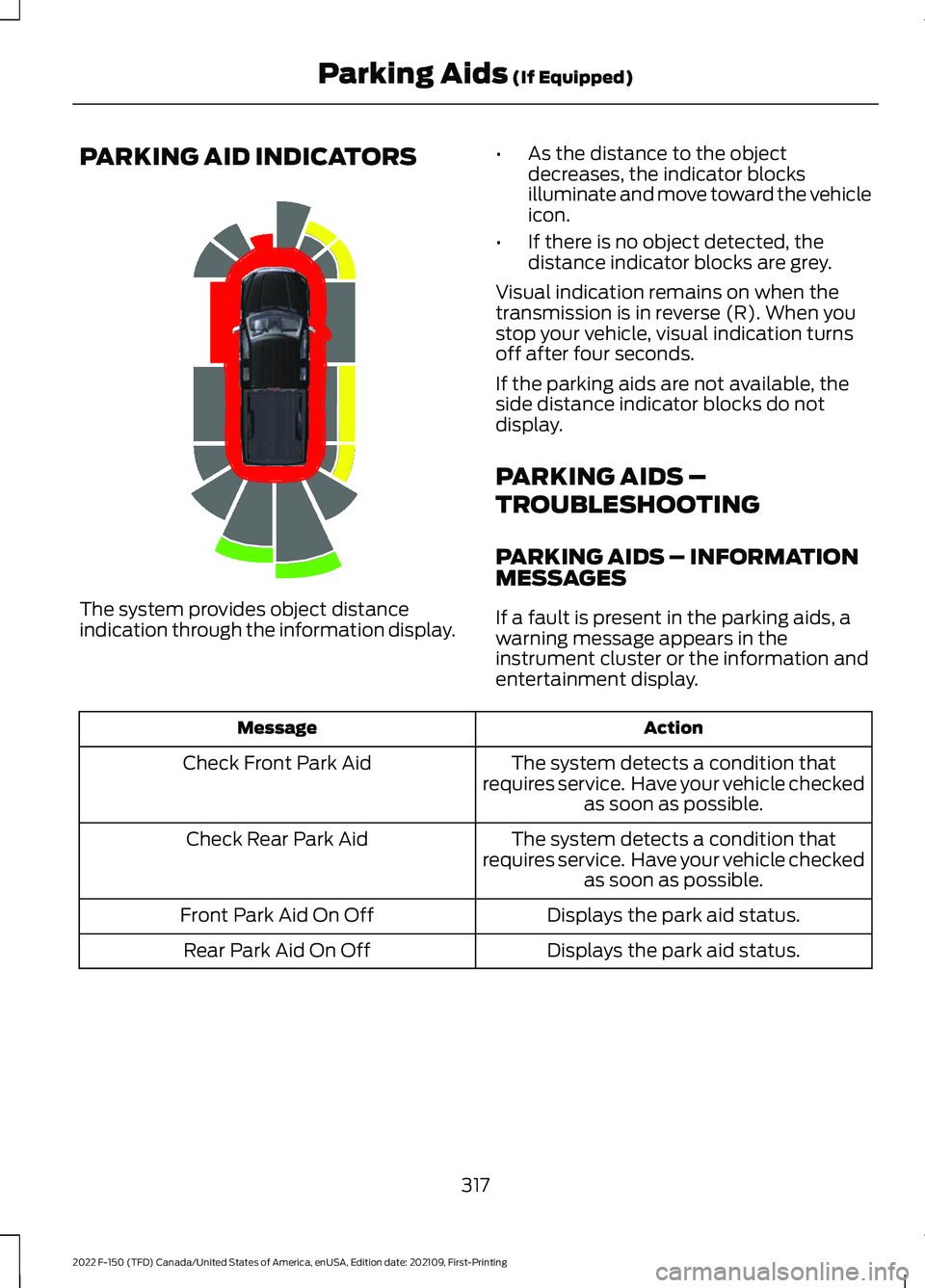
The system provides object distance
indication through the information display.
•
As the distance to the object
decreases, the indicator blocks
illuminate and move toward the vehicle
icon.
• If there is no object detected, the
distance indicator blocks are grey.
Visual indication remains on when the
transmission is in reverse (R). When you
stop your vehicle, visual indication turns
off after four seconds.
If the parking aids are not available, the
side distance indicator blocks do not
display.
PARKING AIDS –
TROUBLESHOOTING
PARKING AIDS – INFORMATION
MESSAGES
If a fault is present in the parking aids, a
warning message appears in the
instrument cluster or the information and
entertainment display. Action
Message
The system detects a condition that
requires service. Have your vehicle checked as soon as possible.
Check Front Park Aid
The system detects a condition that
requires service. Have your vehicle checked as soon as possible.
Check Rear Park Aid
Displays the park aid status.
Front Park Aid On Off
Displays the park aid status.
Rear Park Aid On Off
317
2022 F-150 (TFD) Canada/United States of America, enUSA, Edition date: 202109, First-Printing Parking Aids (If Equipped)E310320
Page 323 of 750
REAR VIEW CAMERA GUIDE
LINES
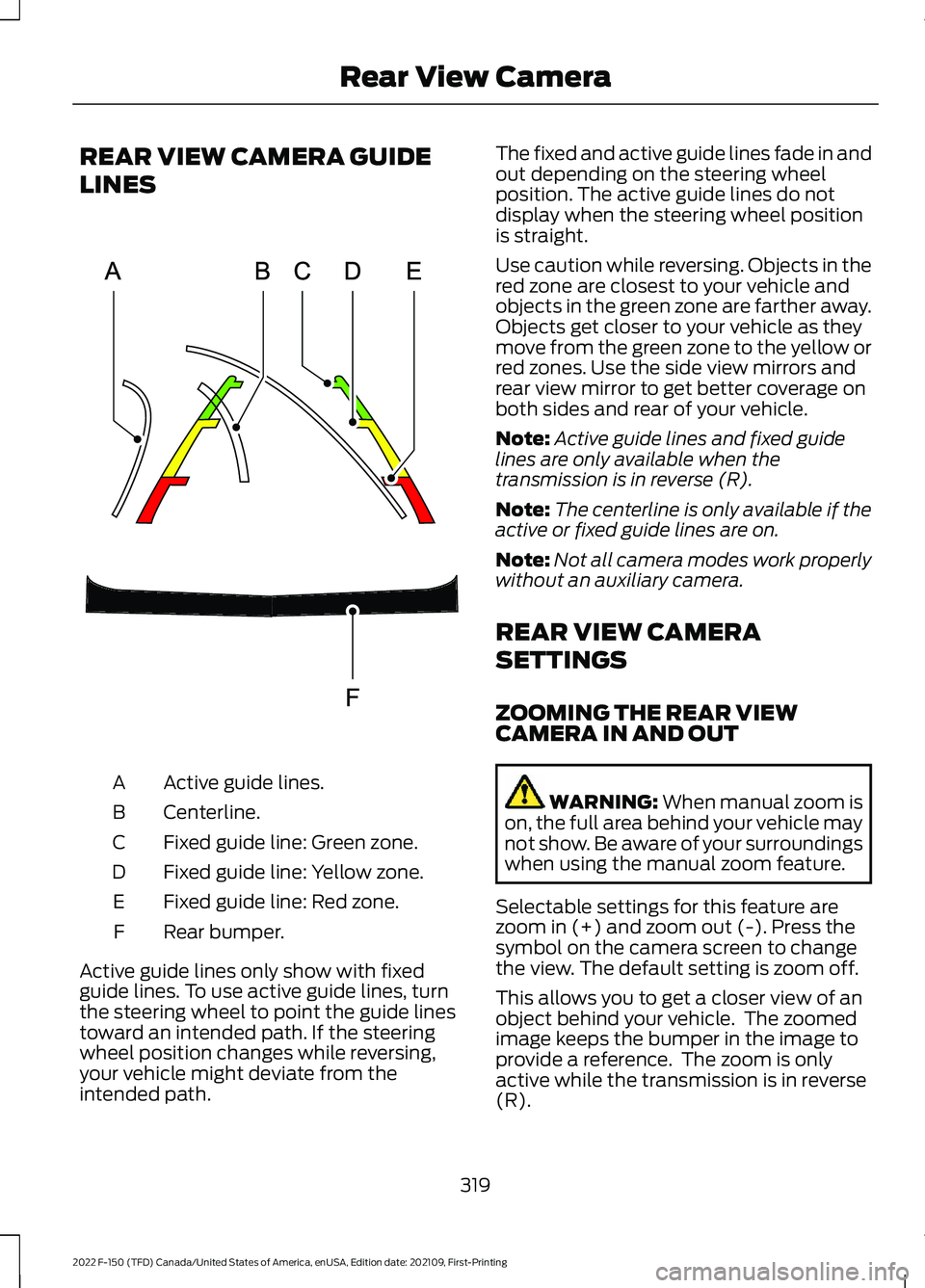
Active guide lines.
A
Centerline.
B
Fixed guide line: Green zone.
C
Fixed guide line: Yellow zone.
D
Fixed guide line: Red zone.
E
Rear bumper.
F
Active guide lines only show with fixed
guide lines. To use active guide lines, turn
the steering wheel to point the guide lines
toward an intended path. If the steering
wheel position changes while reversing,
your vehicle might deviate from the
intended path. The fixed and active guide lines fade in and
out depending on the steering wheel
position. The active guide lines do not
display when the steering wheel position
is straight.
Use caution while reversing. Objects in the
red zone are closest to your vehicle and
objects in the green zone are farther away.
Objects get closer to your vehicle as they
move from the green zone to the yellow or
red zones. Use the side view mirrors and
rear view mirror to get better coverage on
both sides and rear of your vehicle.
Note:
Active guide lines and fixed guide
lines are only available when the
transmission is in reverse (R).
Note: The centerline is only available if the
active or fixed guide lines are on.
Note: Not all camera modes work properly
without an auxiliary camera.
REAR VIEW CAMERA
SETTINGS
ZOOMING THE REAR VIEW
CAMERA IN AND OUT WARNING: When manual zoom is
on, the full area behind your vehicle may
not show. Be aware of your surroundings
when using the manual zoom feature.
Selectable settings for this feature are
zoom in (+) and zoom out (-). Press the
symbol on the camera screen to change
the view. The default setting is zoom off.
This allows you to get a closer view of an
object behind your vehicle. The zoomed
image keeps the bumper in the image to
provide a reference. The zoom is only
active while the transmission is in reverse
(R).
319
2022 F-150 (TFD) Canada/United States of America, enUSA, Edition date: 202109, First-Printing Rear View CameraE306774
Page 324 of 750
Note:
Zooming in also engages park hold
which applies the electric park brake when
you shift to park (P). When you press the
zoom button, the electronic park hold
button illuminates on the touchscreen. See
Connecting a Trailer (page 399).
Note: Manual zoom is only available when
the transmission is in reverse (R).
Note: Only the centerline shows when you
enable manual zoom.
SWITCHING REAR VIEW CAMERA
DELAY ON AND OFF
1. Press
Features on the touchscreen.
2. Press
Driver Assistance.
3. Press
Rear View Camera.
4. Switch
Rear View Camera Delay on or
off.
When shifting the transmission out of
reverse (R) and into any gear other than
park (P), the camera image remains in the
display until:
• Your vehicle speed reaches
approximately
5 mph (8 km/h).
• You shift your vehicle into park (P).
SWITCHING THE REAR VIEW
CAMERA VIEW Press to access the different
camera views.
Rear normal view provides an
image of what is directly behind
your vehicle.
Rear split view provides an
extended view of what is behind
your vehicle.
The hitch view provides an
image of the area around the
tow hitch. Note:
The rear normal view and hitch view
are also available when your vehicle is in
drive (D).
320
2022 F-150 (TFD) Canada/United States of America, enUSA, Edition date: 202109, First-Printing Rear View CameraE337002 E310967 E310974 E350276
Page 326 of 750
Side View Camera
The side view camera is on the outside
mirror. It provides a video image of the area
on the sides of your vehicle to aid you when
parking or when backing up a trailer.
Bed Camera
The bed camera is mounted within the
high-mount stop lamp. It displays the
contents of your truck bed. The camera
contains a dynamic guideline to help locate
the center of your vehicle. This view can
be accessed while in drive (D) or reverse
(R).
Auxiliary Camera
The auxiliary camera is a variant of the rear
view camera and is accessed by pressing
the AUX button on the display screen when
moving in reverse (R) or in drive (D). It
displays a rear view image from the back
of a trailer while in reverse.
LOCATING THE 360 DEGREE
CAMERAS - RAPTOR/TREMOR
Rear View Camera
The rear view camera is on the tailgate. It
provides a video image of the area behind
your vehicle.
Front View Camera
The front view camera is in the grille. It
provides a video image of the area in front
of your vehicle.
Note:
The front camera switches on when
you are in mud/ruts, deep snow/sand, rock
crawl, baja mode or in four-wheel drive low. Side View Camera
The side view camera is on the outside
mirror. It provides a video image of the area
on the sides of your vehicle to aid you when
parking or when backing up a trailer.
Bed Camera
The bed camera is in the high-mount stop
lamp. It displays the contents of your truck
bed. The camera contains a dynamic
guideline to help locate the center of your
vehicle. You can access this view while in
drive (D) or reverse (R).
Auxiliary Camera
The auxiliary camera is a variant of the rear
view camera and you can access the
auxiliary view by pressing the AUX button
on the display screen when moving in
reverse (R) or in drive (D). It displays a rear
view image from the back of a trailer while
in reverse.
360 DEGREE CAMERA GUIDE
LINES
Note:
Active guide lines are only available
when the transmission is in reverse (R).
322
2022 F-150 (TFD) Canada/United States of America, enUSA, Edition date: 202109, First-Printing 360 Degree Camera (If Equipped)
Page 327 of 750
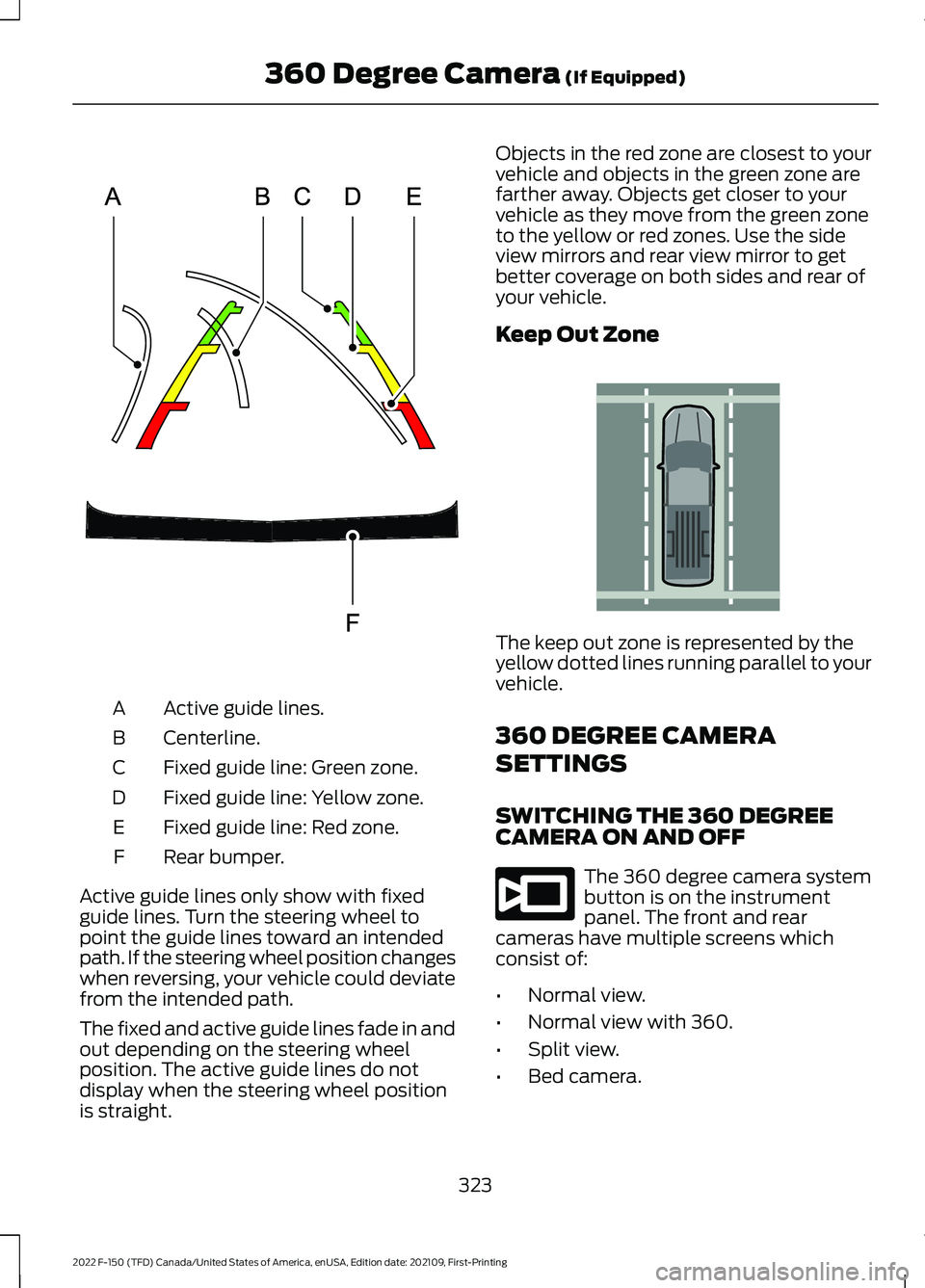
Active guide lines.
A
Centerline.
B
Fixed guide line: Green zone.
C
Fixed guide line: Yellow zone.
D
Fixed guide line: Red zone.
E
Rear bumper.
F
Active guide lines only show with fixed
guide lines. Turn the steering wheel to
point the guide lines toward an intended
path. If the steering wheel position changes
when reversing, your vehicle could deviate
from the intended path.
The fixed and active guide lines fade in and
out depending on the steering wheel
position. The active guide lines do not
display when the steering wheel position
is straight. Objects in the red zone are closest to your
vehicle and objects in the green zone are
farther away. Objects get closer to your
vehicle as they move from the green zone
to the yellow or red zones. Use the side
view mirrors and rear view mirror to get
better coverage on both sides and rear of
your vehicle.
Keep Out Zone
The keep out zone is represented by the
yellow dotted lines running parallel to your
vehicle.
360 DEGREE CAMERA
SETTINGS
SWITCHING THE 360 DEGREE
CAMERA ON AND OFF
The 360 degree camera system
button is on the instrument
panel. The front and rear
cameras have multiple screens which
consist of:
• Normal view.
• Normal view with 360.
• Split view.
• Bed camera.
323
2022 F-150 (TFD) Canada/United States of America, enUSA, Edition date: 202109, First-Printing 360 Degree Camera (If Equipped)E306774 E310341 E332186
Page 328 of 750
•
Auxiliary camera.
• Hitch view.
Note: The rear view camera activates when
you switch into reverse (R). Additional views
are then accessible on the touchscreen.
When in park (P), neutral (N) or drive (D),
the front images display when the button
is pressed. When in reverse (R), only the
rear images display when the button is
pressed.
Note: Not all cameras are available.
Note: The 360 degree camera system turns
off when your vehicle is in motion at low
speed, except when in reverse (R).
SWITCHING THE 360 DEGREE
CAMERA VIEW Press to access the different
camera views.
Front normal view provides an
image of what is directly in front
of your vehicle.
Front split view provides an
extended view of what is in front
of your vehicle.
Normal + 360 degree view
contains the normal camera
view next to a 360 degree
camera view. Rear normal view provides an
image of what is directly behind
your vehicle.
Rear split view provides an
extended view of what is behind
your vehicle.
Bed camera shows the truck
bed. Trailer AUX camera shows a rear
view camera image of what is
behind your trailer. This camera
needs to be purchased and installed
separately. The hitch view provides an
image of the area around the
tow hitch.
Trailer reverse guidance shows
the sides of your truck and trailer.
See Trailer Reverse Guidance
(page 437). Zooms in on the image and park
hold is activated. See
Connecting a Trailer (page 399).
Zooms in on the 360 degree
image.
Note: The rear normal view, bed camera
view, hitch view and trailer auxiliary view are
available when your vehicle speed is greater
than
6 mph (10 km/h).
324
2022 F-150 (TFD) Canada/United States of America, enUSA, Edition date: 202109, First-Printing 360 Degree Camera
(If Equipped)E337002 E336516 E336517 E310996 E310967 E310974 E310995 E311776 E350276 E310965 E224485 E337359
Page 330 of 750
4. Use the turn signal lever to search for
a parking space on the driver or
passenger side of your vehicle.
Note: If you do not use the turn signal lever,
the system searches for a parking space on
the passenger side of your vehicle.
5. Drive your vehicle approximately 3 ft
(1 m) away from and parallel to the
other parked vehicles when searching
for a parking space.
Note: A tone sounds and a message
appears in the information and
entertainment display when active park
assist finds a suitable parking space.
6. Press and hold the brake pedal.
7. Release the steering wheel and shift into neutral (N).
8. Press and hold the active park assist button.
9. Release the brake pedal to allow your vehicle to park.
Note: You can slow down your vehicle at
any time by pressing the brake pedal.
Note: When parallel parking between
objects, the system parks closer to the
object in front of your vehicle to allow easier
access to the luggage compartment.
Note: When parking is complete, your
vehicle shifts into park (P).
ENTERING A PERPENDICULAR
PARKING SPACE
1. Press the parking aid button.
Note: Active park assist does not recognize
parking space lines and centers your vehicle
between objects.
2. Press the active park assist icon on the
touchscreen.
3. Select perpendicular parking. 4. Use the turn signal lever to search for
a parking space on the driver or
passenger side of your vehicle.
Note: If you do not use the turn signal lever,
the system searches for a parking space on
the passenger side of your vehicle.
5. Drive your vehicle approximately 3 ft
(1 m) away from and perpendicular to
the other parked vehicles when
searching for a parking space.
Note: A tone sounds and a message
appears in the information and
entertainment display when active park
assist finds a parking space.
6. Press and hold the brake pedal.
7. Release the steering wheel and shift into neutral (N).
8. Press and hold the parking aid button.
9. Release the brake pedal to allow the vehicle to park.
Note: Active park assist backs your vehicle
into parking spaces.
Note: Active park assist aligns the front end
of your vehicle with the lane side of the
object next to it.
Note: When the system detects only one
object, it allows enough distance to open
the door on either side.
Note: You can slow down your vehicle at
any time by pressing the brake pedal.
Note: When parking is complete, your
vehicle shifts into park (P).
EXITING A PARKING SPACE
Active park assist only assists leaving
parallel parking spaces.
1. Press the parking aid button.
2. Press the active park assist icon on the
touchscreen.
3. Select parallel park exit.
326
2022 F-150 (TFD) Canada/United States of America, enUSA, Edition date: 202109, First-Printing Active Park Assist
(If Equipped)
Page 333 of 750
WHAT IS CRUISE CONTROL
Cruise control lets you maintain a set
speed without keeping your foot on the
accelerator pedal.
Requirements
Use cruise control when the vehicle speed
is greater than 15 mph in imperial units and
20 km/h in metric units.
SWITCHING CRUISE CONTROL
ON AND OFF
WARNING: Do not use cruise
control on winding roads, in heavy traffic
or when the road surface is slippery. This
could result in loss of vehicle control,
serious injury or death.
The cruise controls are on the steering
wheel.
Switching Cruise Control On Press the button to activate the
system. When the system
activates, the set speed is equal
to whichever is greater, the current vehicle
speed, or 15 mph when in imperial units or
20 km/h when in metric units. If the speed
is too low, or other conditions are not
correct for cruise control activation, the
system will instead enter standby mode.
Switching Cruise Control Off Press the button when the
system is active or switch the
ignition off.
Note: When you switch cruise control off,
the set speed clears. SETTING THE CRUISE
CONTROL SPEED WARNING:
When you are going
downhill, your vehicle speed could
increase above the set speed. The
system does not apply the brakes.
Drive to the speed you prefer. Press either the SET+ or SET-
buttons to set the current speed.
Take your foot off the accelerator pedal.
Note: The indicator changes color in the
information display.
Changing the Set Speed Press the SET+ button to
increase the set speed in small
increments. Press and hold the
SET+ button to accelerate. Release the
button when you have reached your
preferred speed. Press the SET- button to
decrease the set speed in small
increments. Press and hold the
SET- button to decelerate. Release the
button when you have reached your
preferred speed.
Note: If you accelerate by pressing the
accelerator pedal, the set speed does not
change. When you release the accelerator
pedal, your vehicle returns to the speed that
you previously set.
329
2022 F-150 (TFD) Canada/United States of America, enUSA, Edition date: 202109, First-Printing Cruise Control
(If Equipped)E332905 E332905
Page 336 of 750
ADAPTIVE CRUISE CONTROL
LIMITATIONS
Sensor Limitations
WARNING: On rare occasions,
detection issues can occur due to the
road infrastructures, for example bridges,
tunnels and safety barriers. In these
cases, the system may brake late or
unexpectedly. At all times, you are
responsible for controlling your vehicle,
supervising the system and intervening,
if required. WARNING:
If the system
malfunctions, have your vehicle checked
as soon as possible. WARNING:
Large contrasts in
outside lighting can limit sensor
performance. WARNING:
The system only warns
of vehicles detected by the radar sensor.
In some cases there may be no warning
or a delayed warning. Apply the brakes
when necessary. Failure to follow this
instruction could result in personal injury
or death. WARNING:
The system may not
detect stationary or slow moving
vehicles below
6 mph (10 km/h). WARNING:
The system does not
detect pedestrians or objects in the road. WARNING:
The system does not
detect oncoming vehicles in the same
lane. WARNING:
The system may not
operate properly if the sensor is blocked.
Keep the windshield free from
obstruction. WARNING:
The sensor may
incorrectly track lane markings as other
structures or objects. This can result in
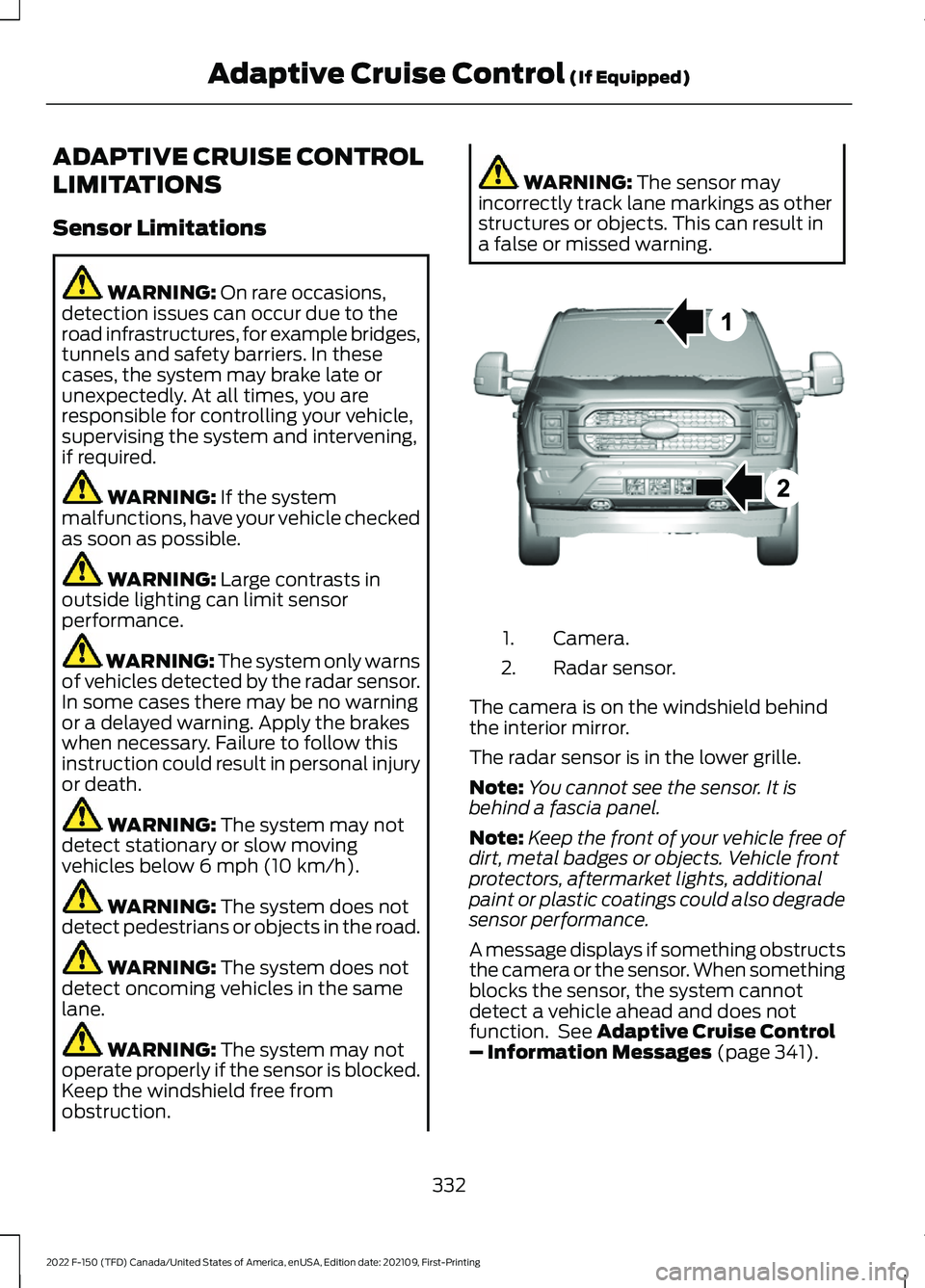
a false or missed warning. Camera.
1.
Radar sensor.
2.
The camera is on the windshield behind
the interior mirror.
The radar sensor is in the lower grille.
Note: You cannot see the sensor. It is
behind a fascia panel.
Note: Keep the front of your vehicle free of
dirt, metal badges or objects. Vehicle front
protectors, aftermarket lights, additional
paint or plastic coatings could also degrade
sensor performance.
A message displays if something obstructs
the camera or the sensor. When something
blocks the sensor, the system cannot
detect a vehicle ahead and does not
function. See
Adaptive Cruise Control
– Information Messages (page 341).
332
2022 F-150 (TFD) Canada/United States of America, enUSA, Edition date: 202109, First-Printing Adaptive Cruise Control
(If Equipped)E328125