phone FORD F-450 2022 Workshop Manual
[x] Cancel search | Manufacturer: FORD, Model Year: 2022, Model line: F-450, Model: FORD F-450 2022Pages: 740, PDF Size: 12.6 MB
Page 587 of 740
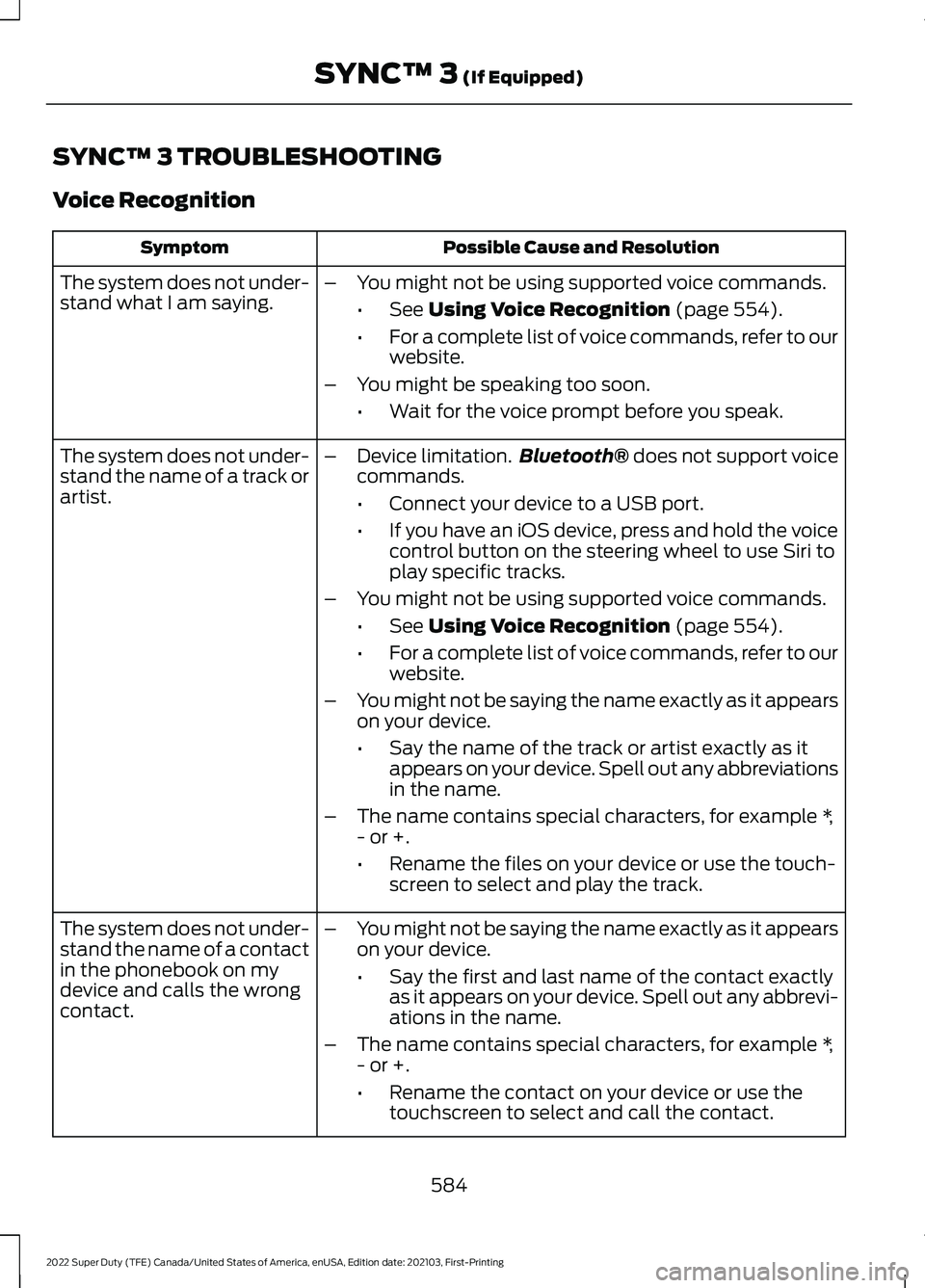
SYNC™ 3 TROUBLESHOOTING
Voice Recognition
Possible Cause and Resolution
Symptom
The system does not under-
stand what I am saying. –
You might not be using supported voice commands.
•See Using Voice Recognition (page 554).
• For a complete list of voice commands, refer to our
website.
– You might be speaking too soon.
•Wait for the voice prompt before you speak.
The system does not under-
stand the name of a track or
artist. –
Device limitation. Bluetooth®
does not support voice
commands.
• Connect your device to a USB port.
• If you have an iOS device, press and hold the voice
control button on the steering wheel to use Siri to
play specific tracks.
– You might not be using supported voice commands.
•See
Using Voice Recognition (page 554).
• For a complete list of voice commands, refer to our
website.
– You might not be saying the name exactly as it appears
on your device.
•Say the name of the track or artist exactly as it
appears on your device. Spell out any abbreviations
in the name.
– The name contains special characters, for example *,
- or +.
•Rename the files on your device or use the touch-
screen to select and play the track.
The system does not under-
stand the name of a contact
in the phonebook on my
device and calls the wrong
contact. –
You might not be saying the name exactly as it appears
on your device.
•Say the first and last name of the contact exactly
as it appears on your device. Spell out any abbrevi-
ations in the name.
– The name contains special characters, for example *,
- or +.
•Rename the contact on your device or use the
touchscreen to select and call the contact.
584
2022 Super Duty (TFE) Canada/United States of America, enUSA, Edition date: 202103, First-Printing SYNC™ 3
(If Equipped)
Page 588 of 740
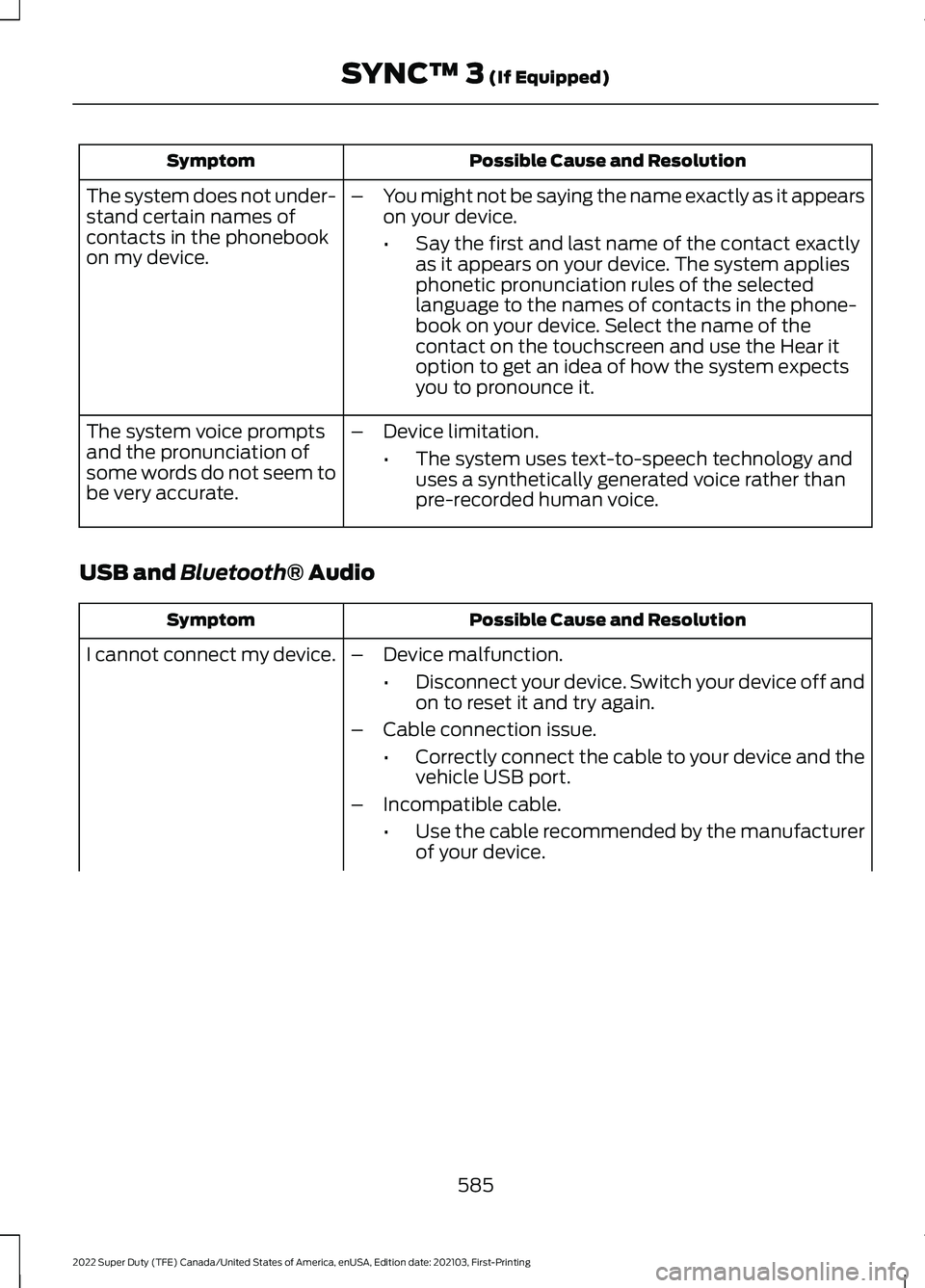
Possible Cause and Resolution
Symptom
–You might not be saying the name exactly as it appears
on your device.
•Say the first and last name of the contact exactly
as it appears on your device. The system applies
phonetic pronunciation rules of the selected
language to the names of contacts in the phone-
book on your device. Select the name of the
contact on the touchscreen and use the Hear it
option to get an idea of how the system expects
you to pronounce it.
The system does not under-
stand certain names of
contacts in the phonebook
on my device.
–Device limitation.
•The system uses text-to-speech technology and
uses a synthetically generated voice rather than
pre-recorded human voice.
The system voice prompts
and the pronunciation of
some words do not seem to
be very accurate.
USB and Bluetooth® Audio Possible Cause and Resolution
Symptom
I cannot connect my device. –Device malfunction.
•Disconnect your device. Switch your device off and
on to reset it and try again.
– Cable connection issue.
•Correctly connect the cable to your device and the
vehicle USB port.
– Incompatible cable.
•Use the cable recommended by the manufacturer
of your device.
585
2022 Super Duty (TFE) Canada/United States of America, enUSA, Edition date: 202103, First-Printing SYNC™ 3
(If Equipped)
Page 589 of 740
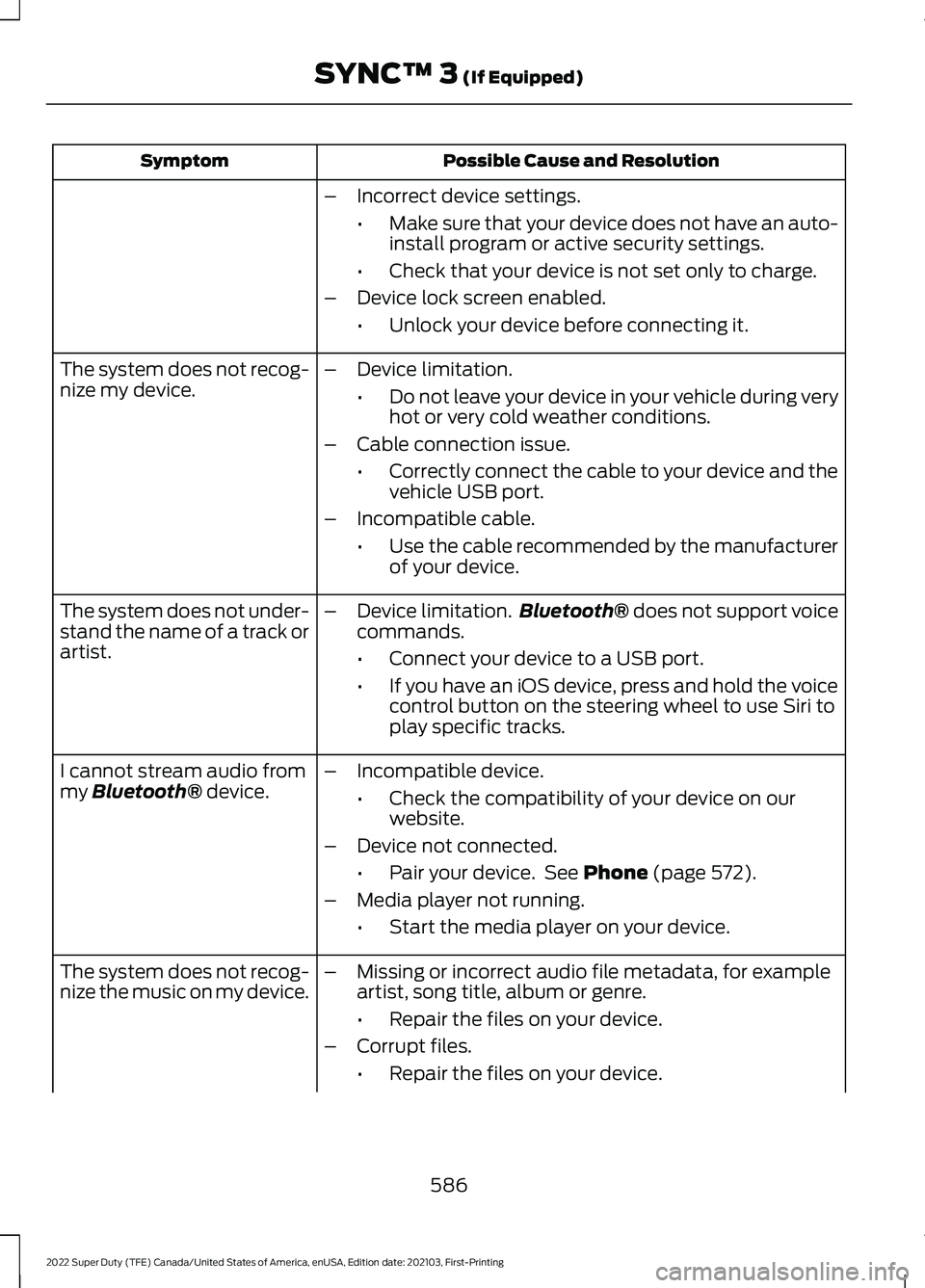
Possible Cause and Resolution
Symptom
–Incorrect device settings.
•Make sure that your device does not have an auto-
install program or active security settings.
• Check that your device is not set only to charge.
– Device lock screen enabled.
•Unlock your device before connecting it.
The system does not recog-
nize my device. –
Device limitation.
•Do not leave your device in your vehicle during very
hot or very cold weather conditions.
– Cable connection issue.
•Correctly connect the cable to your device and the
vehicle USB port.
– Incompatible cable.
•Use the cable recommended by the manufacturer
of your device.
The system does not under-
stand the name of a track or
artist. –
Device limitation. Bluetooth® does not support voice
commands.
• Connect your device to a USB port.
• If you have an iOS device, press and hold the voice
control button on the steering wheel to use Siri to
play specific tracks.
I cannot stream audio from
my
Bluetooth® device. –
Incompatible device.
•Check the compatibility of your device on our
website.
– Device not connected.
•Pair your device. See
Phone (page 572).
– Media player not running.
•Start the media player on your device.
The system does not recog-
nize the music on my device. –
Missing or incorrect audio file metadata, for example
artist, song title, album or genre.
•Repair the files on your device.
– Corrupt files.
•Repair the files on your device.
586
2022 Super Duty (TFE) Canada/United States of America, enUSA, Edition date: 202103, First-Printing SYNC™ 3
(If Equipped)
Page 591 of 740
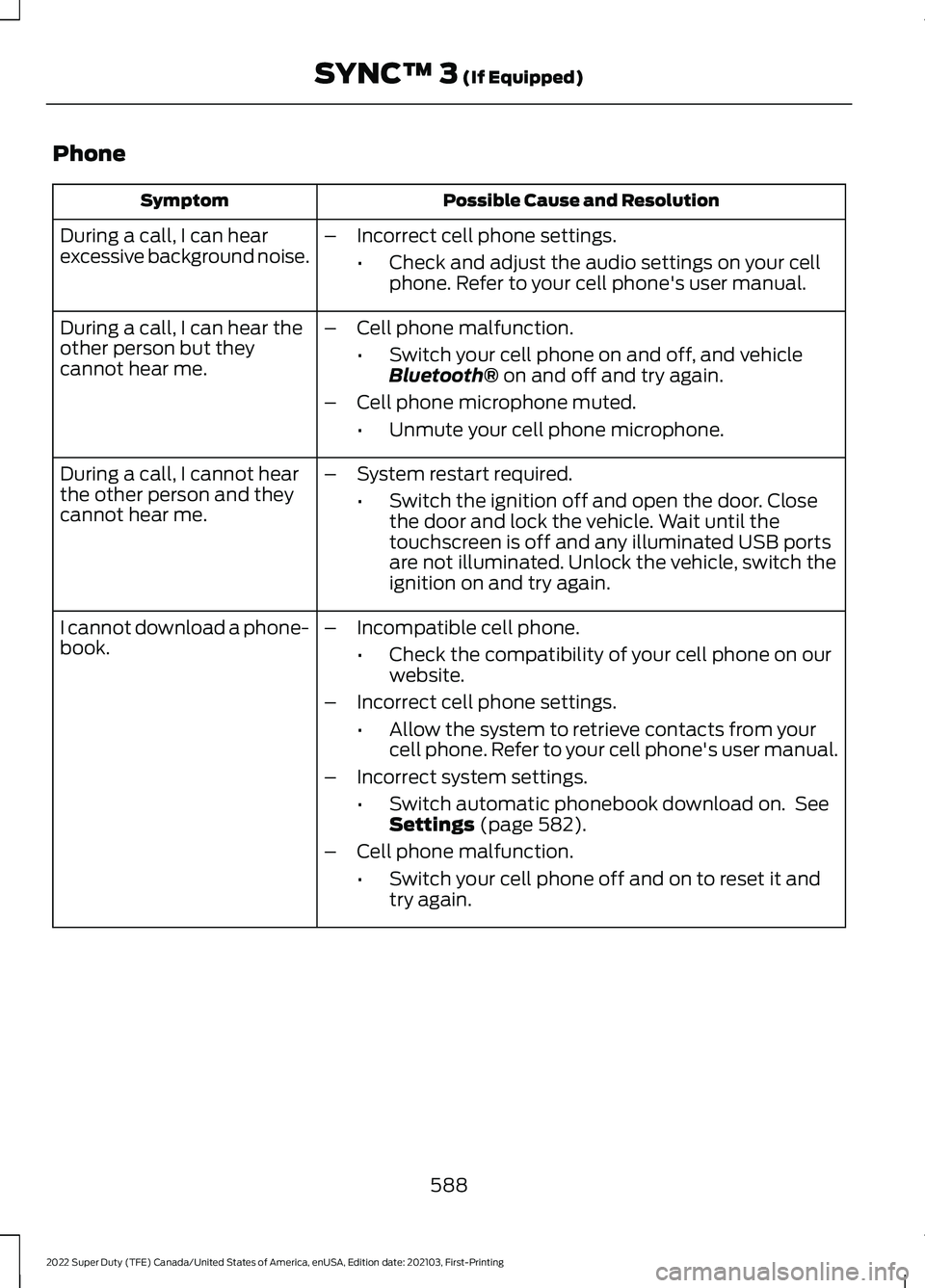
Phone
Possible Cause and Resolution
Symptom
During a call, I can hear
excessive background noise. –
Incorrect cell phone settings.
•Check and adjust the audio settings on your cell
phone. Refer to your cell phone's user manual.
– Cell phone malfunction.
•Switch your cell phone on and off, and vehicle
Bluetooth® on and off and try again.
– Cell phone microphone muted.
•Unmute your cell phone microphone.
During a call, I can hear the
other person but they
cannot hear me.
During a call, I cannot hear
the other person and they
cannot hear me.
–
System restart required.
•Switch the ignition off and open the door. Close
the door and lock the vehicle. Wait until the
touchscreen is off and any illuminated USB ports
are not illuminated. Unlock the vehicle, switch the
ignition on and try again.
I cannot download a phone-
book. –
Incompatible cell phone.
•Check the compatibility of your cell phone on our
website.
– Incorrect cell phone settings.
•Allow the system to retrieve contacts from your
cell phone. Refer to your cell phone's user manual.
– Incorrect system settings.
•Switch automatic phonebook download on. See
Settings
(page 582).
– Cell phone malfunction.
•Switch your cell phone off and on to reset it and
try again.
588
2022 Super Duty (TFE) Canada/United States of America, enUSA, Edition date: 202103, First-Printing SYNC™ 3
(If Equipped)
Page 592 of 740
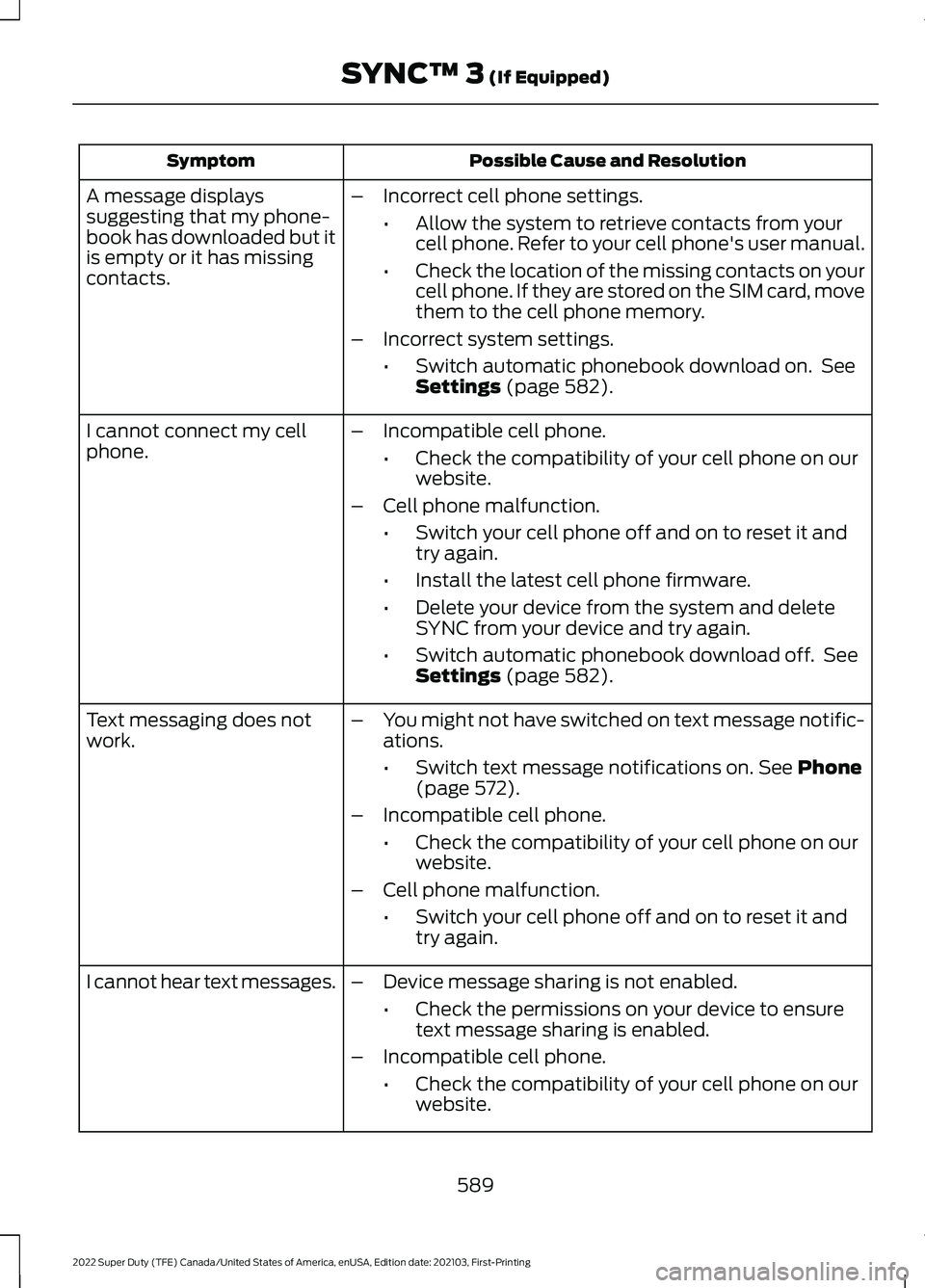
Possible Cause and Resolution
Symptom
–Incorrect cell phone settings.
•Allow the system to retrieve contacts from your
cell phone. Refer to your cell phone's user manual.
• Check the location of the missing contacts on your
cell phone. If they are stored on the SIM card, move
them to the cell phone memory.
– Incorrect system settings.
•Switch automatic phonebook download on. See
Settings (page 582).
A message displays
suggesting that my phone-
book has downloaded but it
is empty or it has missing
contacts.
–Incompatible cell phone.
•Check the compatibility of your cell phone on our
website.
– Cell phone malfunction.
•Switch your cell phone off and on to reset it and
try again.
• Install the latest cell phone firmware.
• Delete your device from the system and delete
SYNC from your device and try again.
• Switch automatic phonebook download off. See
Settings
(page 582).
I cannot connect my cell
phone.
Text messaging does not
work.
–
You might not have switched on text message notific-
ations.
•Switch text message notifications on.
See Phone
(page 572).
– Incompatible cell phone.
•Check the compatibility of your cell phone on our
website.
– Cell phone malfunction.
•Switch your cell phone off and on to reset it and
try again.
– Device message sharing is not enabled.
•Check the permissions on your device to ensure
text message sharing is enabled.
– Incompatible cell phone.
•Check the compatibility of your cell phone on our
website.
I cannot hear text messages.
589
2022 Super Duty (TFE) Canada/United States of America, enUSA, Edition date: 202103, First-Printing SYNC™ 3
(If Equipped)
Page 597 of 740
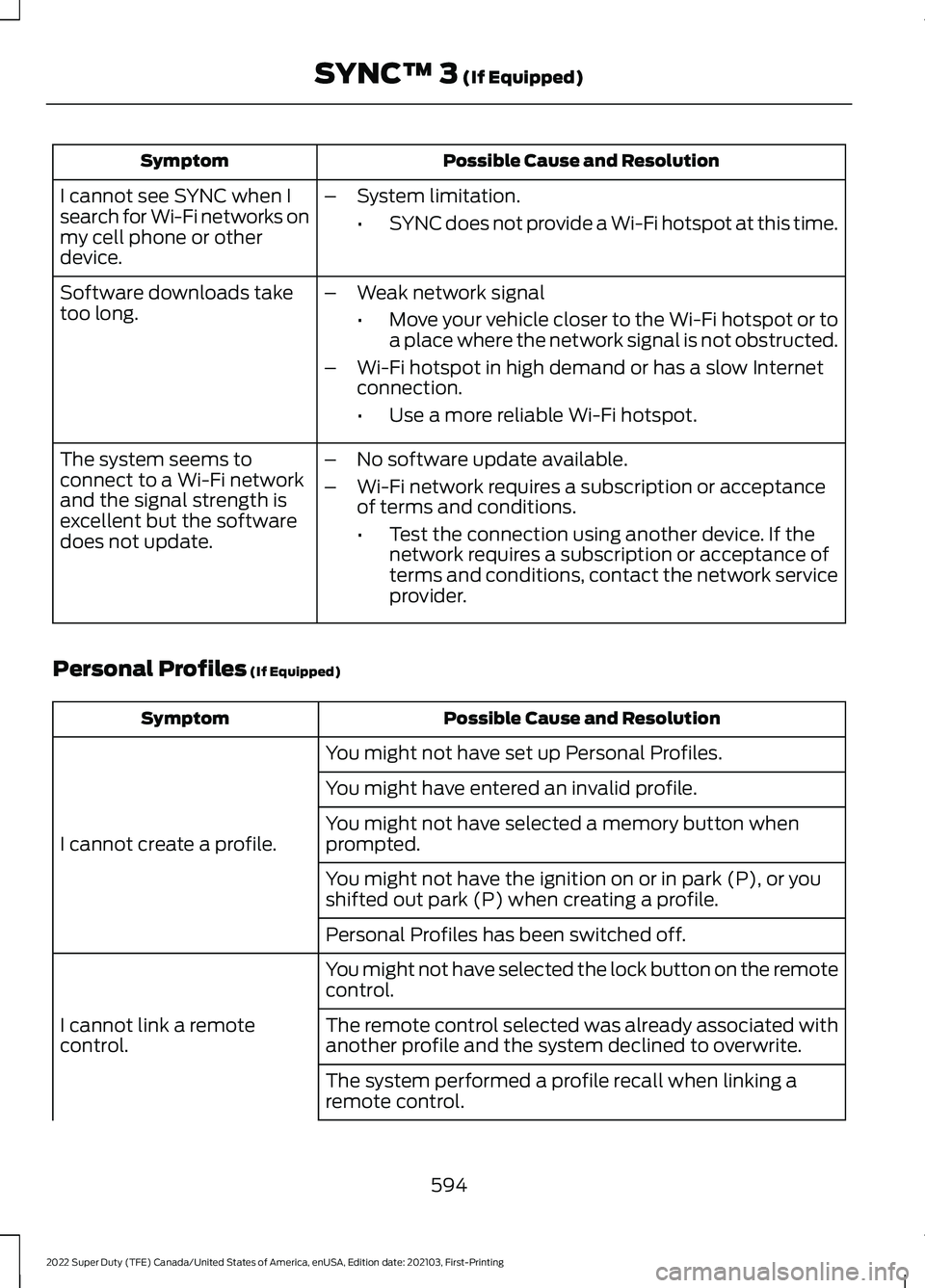
Possible Cause and Resolution
Symptom
I cannot see SYNC when I
search for Wi-Fi networks on
my cell phone or other
device. –
System limitation.
•SYNC does not provide a Wi-Fi hotspot at this time.
– Weak network signal
•Move your vehicle closer to the Wi-Fi hotspot or to
a place where the network signal is not obstructed.
– Wi-Fi hotspot in high demand or has a slow Internet
connection.
•Use a more reliable Wi-Fi hotspot.
Software downloads take
too long.
–No software update available.
– Wi-Fi network requires a subscription or acceptance
of terms and conditions.
•Test the connection using another device. If the
network requires a subscription or acceptance of
terms and conditions, contact the network service
provider.
The system seems to
connect to a Wi-Fi network
and the signal strength is
excellent but the software
does not update.
Personal Profiles (If Equipped) Possible Cause and Resolution
Symptom
You might not have set up Personal Profiles.
I cannot create a profile. You might have entered an invalid profile.
You might not have selected a memory button when
prompted.
You might not have the ignition on or in park (P), or you
shifted out park (P) when creating a profile.
Personal Profiles has been switched off.
You might not have selected the lock button on the remote
control.
I cannot link a remote
control. The remote control selected was already associated with
another profile and the system declined to overwrite.
The system performed a profile recall when linking a
remote control.
594
2022 Super Duty (TFE) Canada/United States of America, enUSA, Edition date: 202103, First-Printing SYNC™ 3
(If Equipped)
Page 600 of 740
CENTER DISPLAY
PRECAUTIONS
WARNING: Driving while distracted
can result in loss of vehicle control, crash
and injury. We strongly recommend that
you use extreme caution when using any
device that may take your focus off the
road. Your primary responsibility is the
safe operation of your vehicle. We
recommend against the use of any
hand-held device while driving and
encourage the use of voice-operated
systems when possible. Make sure you
are aware of all applicable local laws
that may affect the use of electronic
devices while driving.
CENTER DISPLAY
LIMITATIONS
Speed-restricted Features
For your safety, some features are not
available while the vehicle is in motion at
or above 6 mph (10 km/h). Settings that
are not critical while driving your vehicle
will be shown as restricted on your display.
See below for examples:
• System Updates.
• Personal Profiles Setup.
• Valet Mode Setup.
• Driver Assistance Settings.
• Auto-Start-Stop Speed Threshold.
Vehicle Settings
• 30 Minute Max Idle.
• MyKey Setup.
• Door Keypad Code Setup.
• Backup Start Passcode Setup. These restricted features will become
available when your vehicle is no longer in
motion.
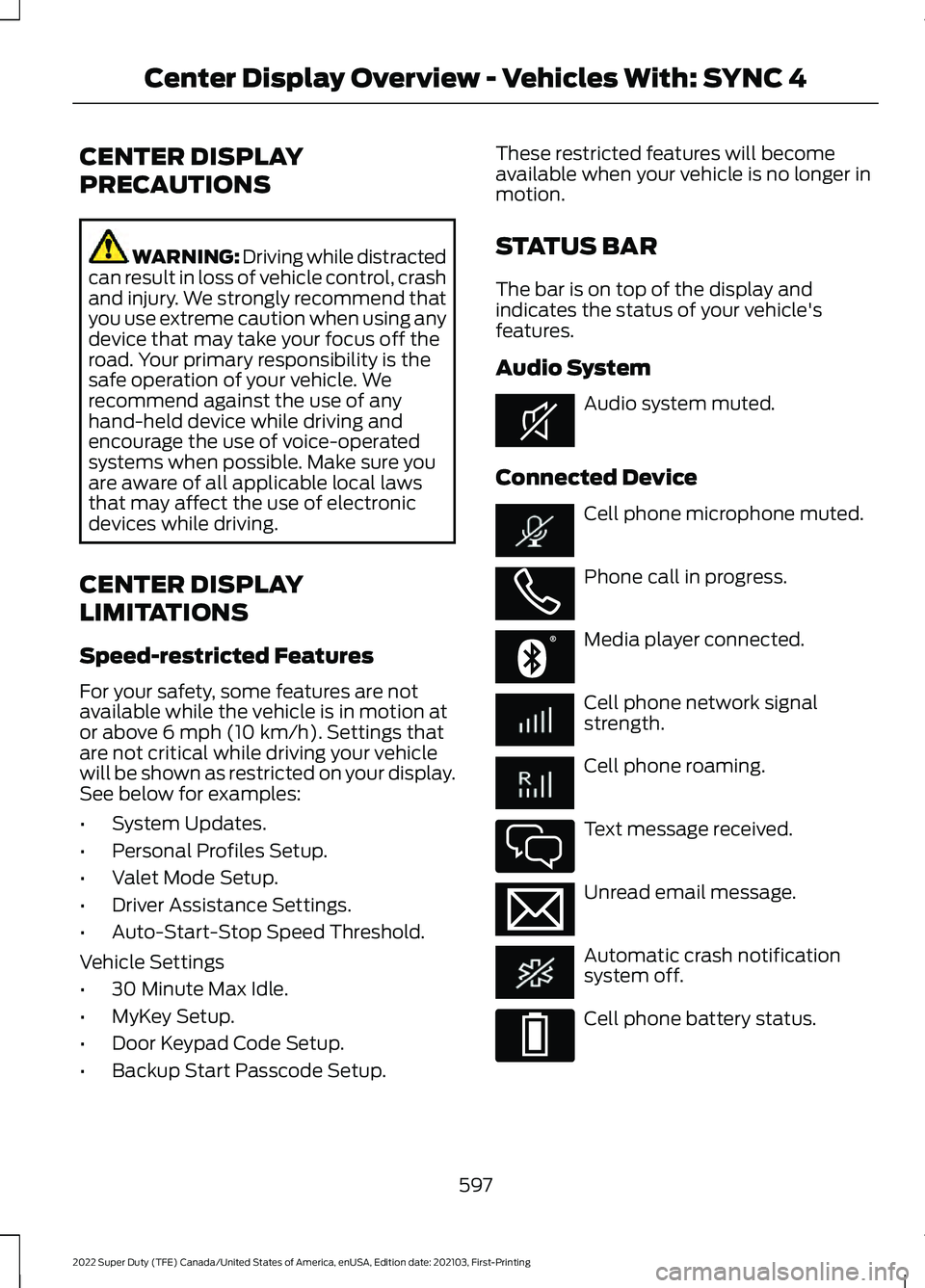
STATUS BAR
The bar is on top of the display and
indicates the status of your vehicle's
features.
Audio System
Audio system muted.
Connected Device Cell phone microphone muted.
Phone call in progress.
Media player connected.
Cell phone network signal
strength.
Cell phone roaming.
Text message received.
Unread email message.
Automatic crash notification
system off.
Cell phone battery status.
597
2022 Super Duty (TFE) Canada/United States of America, enUSA, Edition date: 202103, First-Printing Center Display Overview - Vehicles With: SYNC 4E353221 E353213 E353208 E335295 E353216 E335293
Page 601 of 740
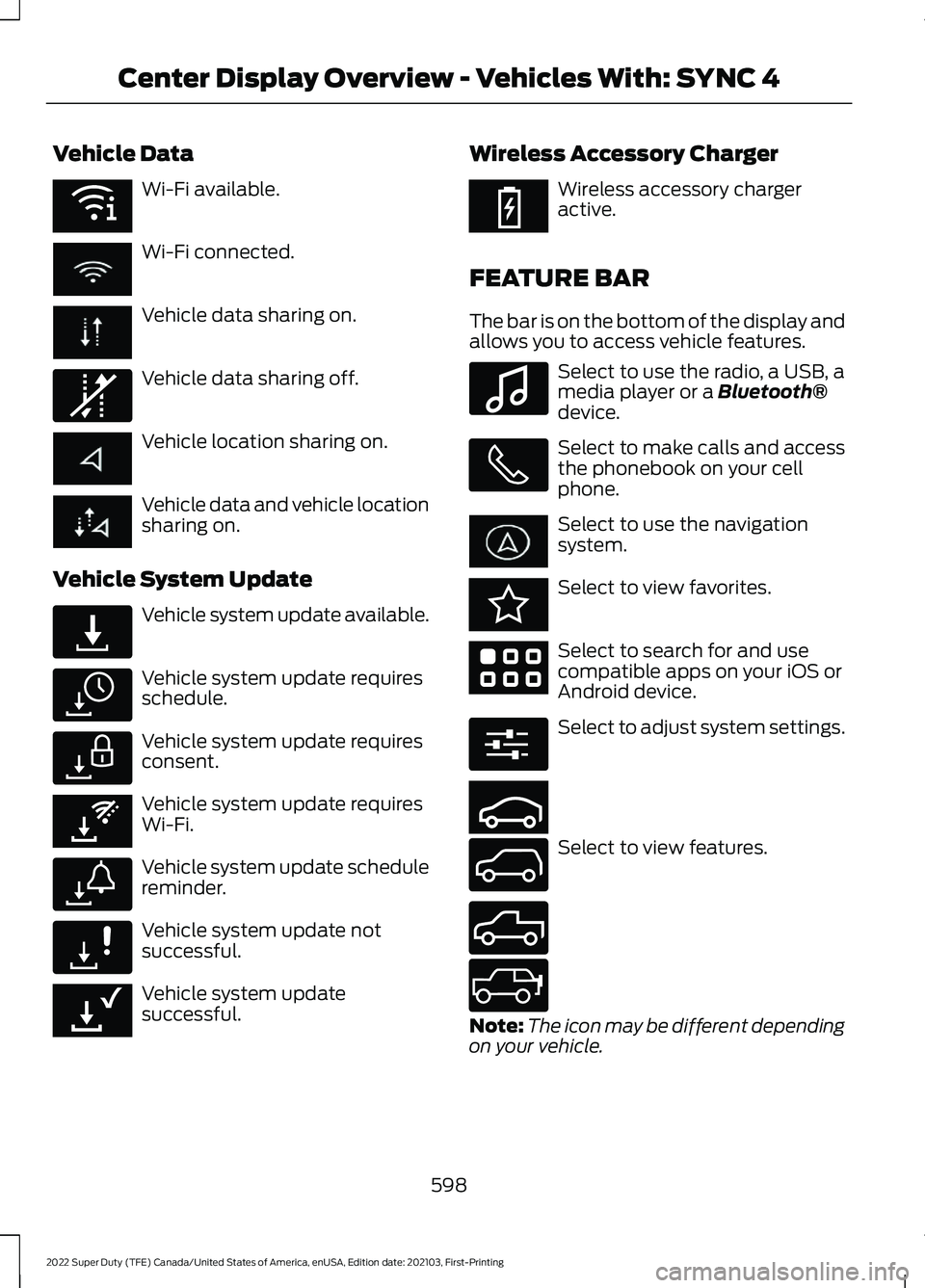
Vehicle Data
Wi-Fi available.
Wi-Fi connected.
Vehicle data sharing on.
Vehicle data sharing off.
Vehicle location sharing on.
Vehicle data and vehicle location
sharing on.
Vehicle System Update Vehicle system update available.
Vehicle system update requires
schedule.
Vehicle system update requires
consent.
Vehicle system update requires
Wi-Fi.
Vehicle system update schedule
reminder.
Vehicle system update not
successful.
Vehicle system update
successful. Wireless Accessory Charger Wireless accessory charger
active.
FEATURE BAR
The bar is on the bottom of the display and
allows you to access vehicle features. Select to use the radio, a USB, a
media player or a Bluetooth®
device. Select to make calls and access
the phonebook on your cell
phone.
Select to use the navigation
system.
Select to view favorites.
Select to search for and use
compatible apps on your iOS or
Android device.
Select to adjust system settings.
Select to view features.
Note:
The icon may be different depending
on your vehicle.
598
2022 Super Duty (TFE) Canada/United States of America, enUSA, Edition date: 202103, First-Printing Center Display Overview - Vehicles With: SYNC 4E353219 E335292 E327789 E327785 E327786 E353217 E327787 E327788 E353218 E353214 E100027 E353215 E353220 E280315 E353210 E335299 E335300 E347104
Page 604 of 740
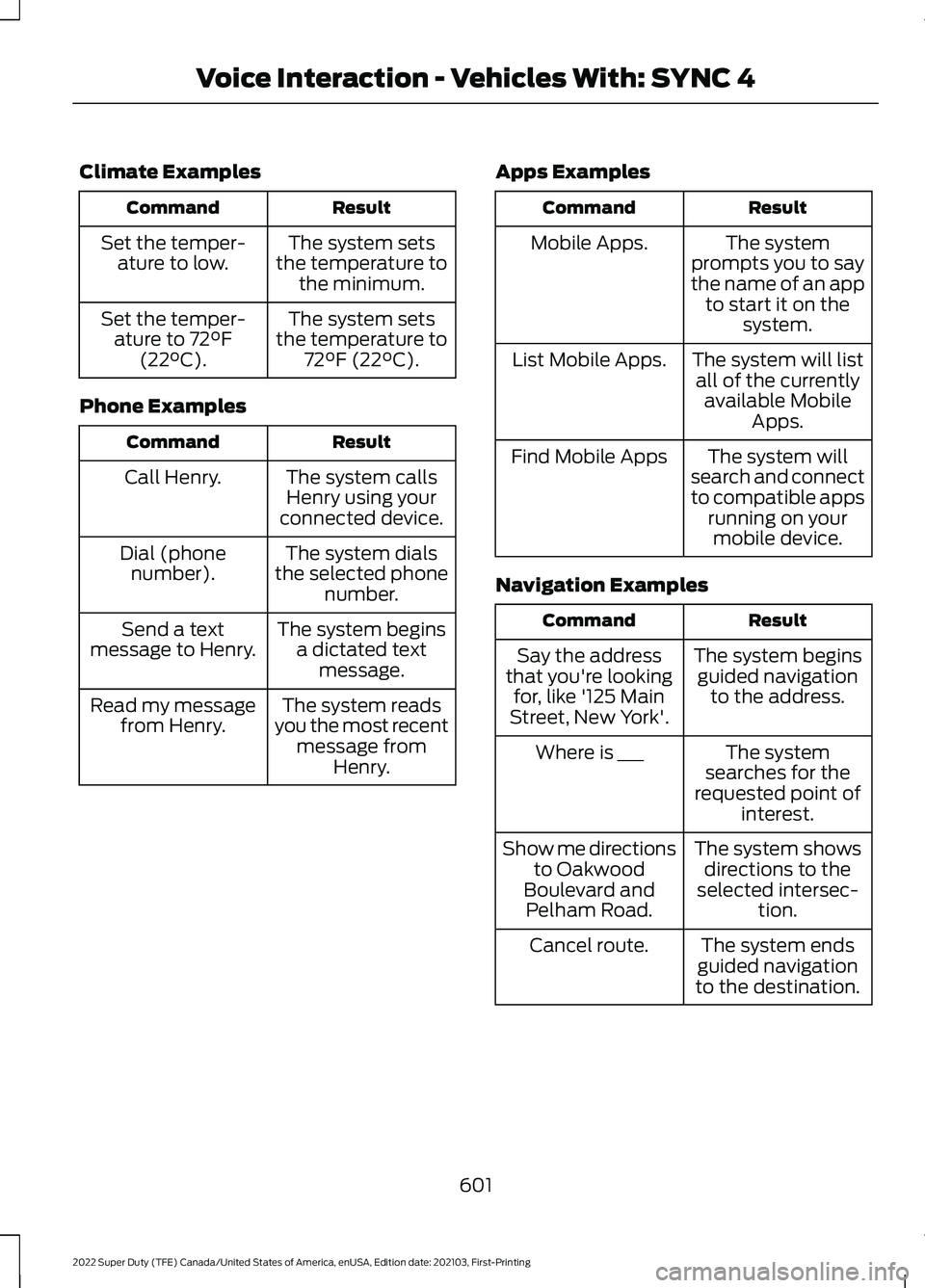
Climate Examples
Result
Command
The system sets
the temperature to the minimum.
Set the temper-
ature to low.
The system sets
the temperature to 72°F (22°C).
Set the temper-
ature to 72°F
(22°C).
Phone Examples Result
Command
The system callsHenry using your
connected device.
Call Henry.
The system dials
the selected phone number.
Dial (phone
number).
The system beginsa dictated text message.
Send a text
message to Henry.
The system reads
you the most recent message from Henry.
Read my message
from Henry. Apps Examples Result
Command
The system
prompts you to say
the name of an app to start it on the system.
Mobile Apps.
The system will listall of the currently available Mobile Apps.
List Mobile Apps.
The system will
search and connect
to compatible apps running on yourmobile device.
Find Mobile Apps
Navigation Examples Result
Command
The system beginsguided navigation to the address.
Say the address
that you're looking for, like '125 Main
Street, New York'.
The system
searches for the
requested point of interest.
Where is ___
The system showsdirections to the
selected intersec- tion.
Show me directions
to Oakwood
Boulevard and Pelham Road.
The system ends
guided navigation
to the destination.
Cancel route.
601
2022 Super Duty (TFE) Canada/United States of America, enUSA, Edition date: 202103, First-Printing Voice Interaction - Vehicles With: SYNC 4
Page 605 of 740
PHONE PRECAUTIONS
WARNING: Driving while distracted
can result in loss of vehicle control, crash
and injury. We strongly recommend that
you use extreme caution when using any
device that may take your focus off the
road. Your primary responsibility is the
safe operation of your vehicle. We
recommend against the use of any
hand-held device while driving and
encourage the use of voice-operated
systems when possible. Make sure you
are aware of all applicable local laws
that may affect the use of electronic
devices while driving.
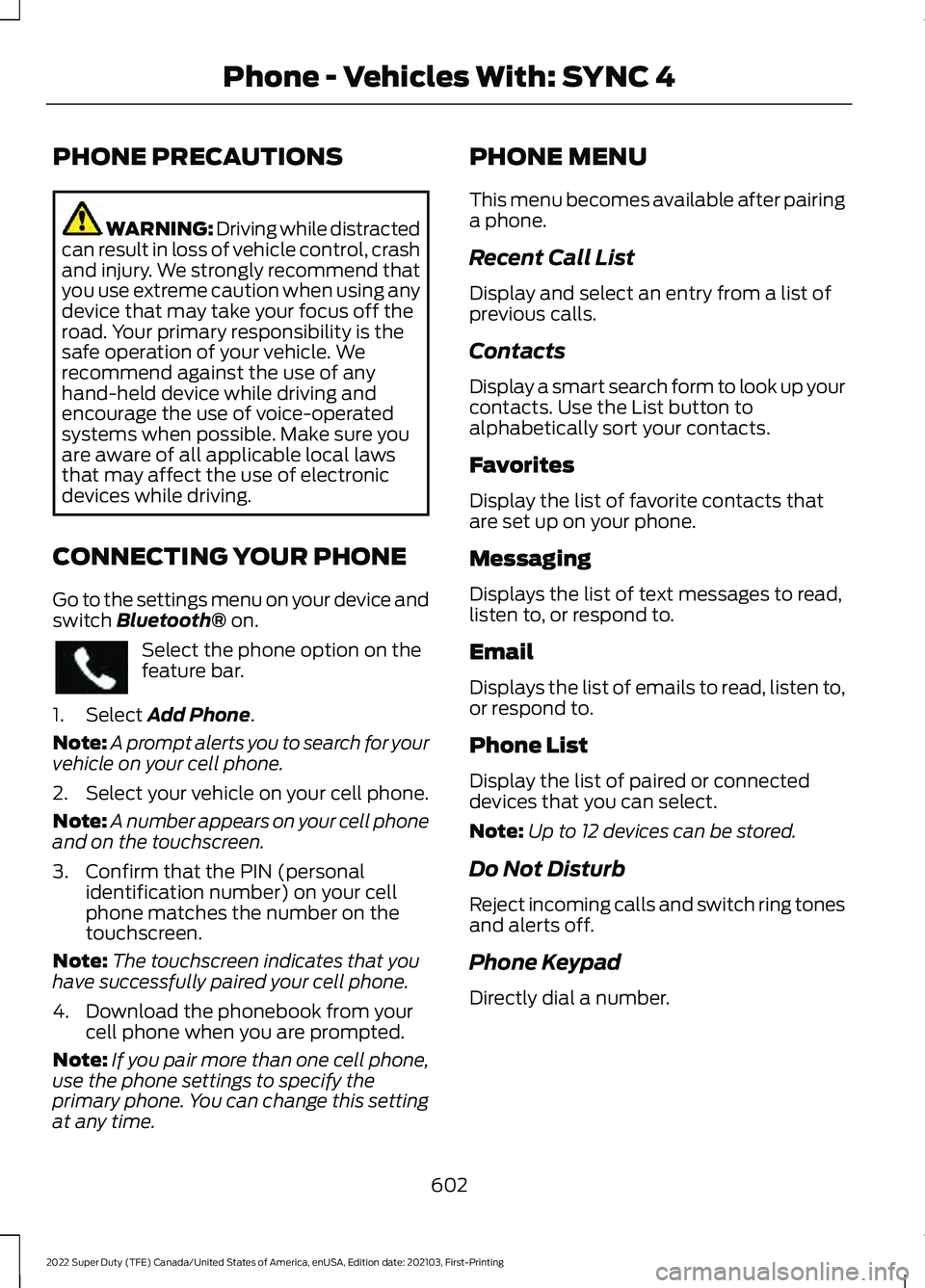
CONNECTING YOUR PHONE
Go to the settings menu on your device and
switch Bluetooth® on. Select the phone option on the
feature bar.
1. Select
Add Phone.
Note: A prompt alerts you to search for your
vehicle on your cell phone.
2. Select your vehicle on your cell phone.
Note: A number appears on your cell phone
and on the touchscreen.
3. Confirm that the PIN (personal identification number) on your cell
phone matches the number on the
touchscreen.
Note: The touchscreen indicates that you
have successfully paired your cell phone.
4. Download the phonebook from your cell phone when you are prompted.
Note: If you pair more than one cell phone,
use the phone settings to specify the
primary phone. You can change this setting
at any time. PHONE MENU
This menu becomes available after pairing
a phone.
Recent Call List
Display and select an entry from a list of
previous calls.
Contacts
Display a smart search form to look up your
contacts. Use the List button to
alphabetically sort your contacts.
Favorites
Display the list of favorite contacts that
are set up on your phone.
Messaging
Displays the list of text messages to read,
listen to, or respond to.
Email
Displays the list of emails to read, listen to,
or respond to.
Phone List
Display the list of paired or connected
devices that you can select.
Note:
Up to 12 devices can be stored.
Do Not Disturb
Reject incoming calls and switch ring tones
and alerts off.
Phone Keypad
Directly dial a number.
602
2022 Super Duty (TFE) Canada/United States of America, enUSA, Edition date: 202103, First-Printing Phone - Vehicles With: SYNC 4